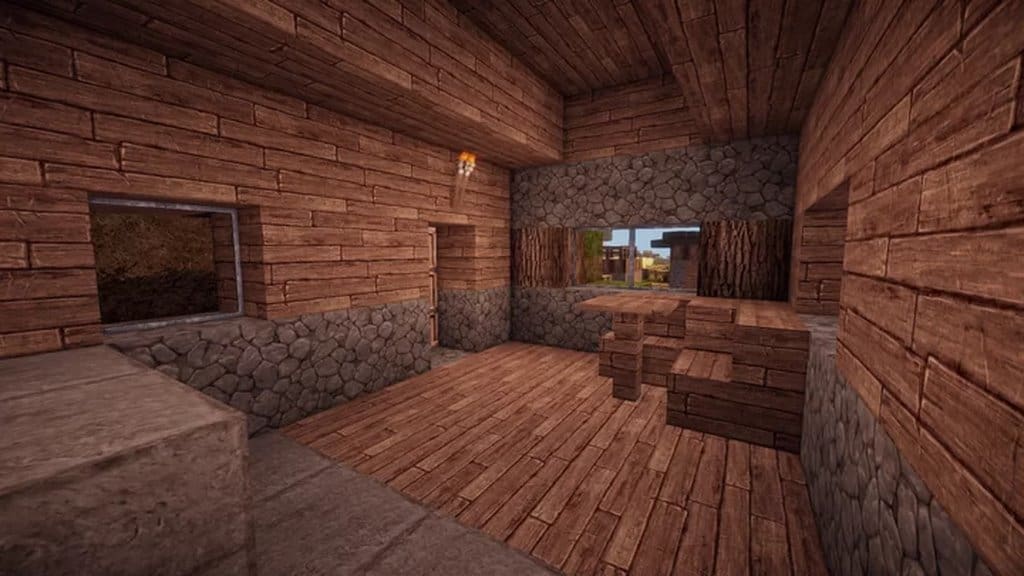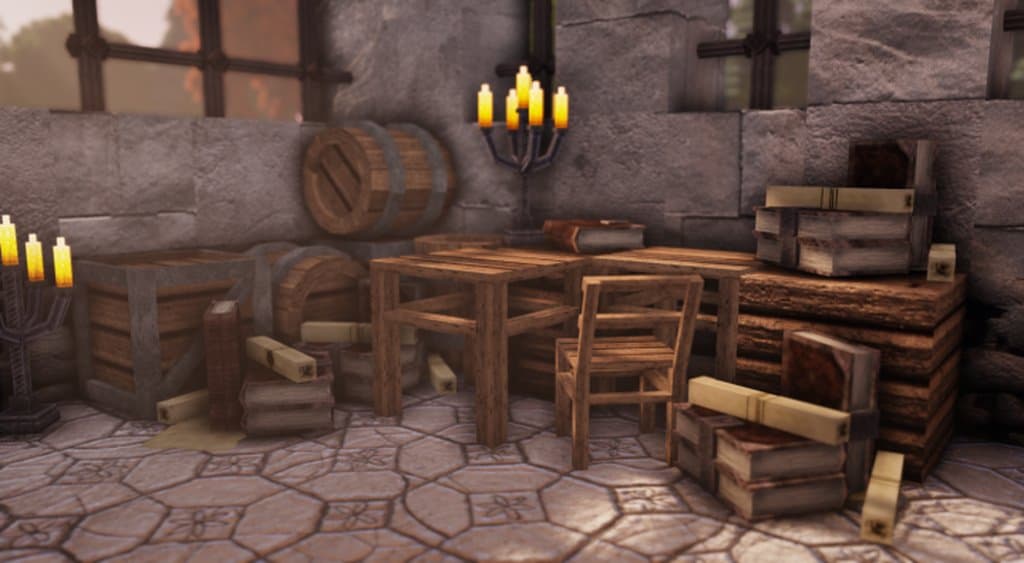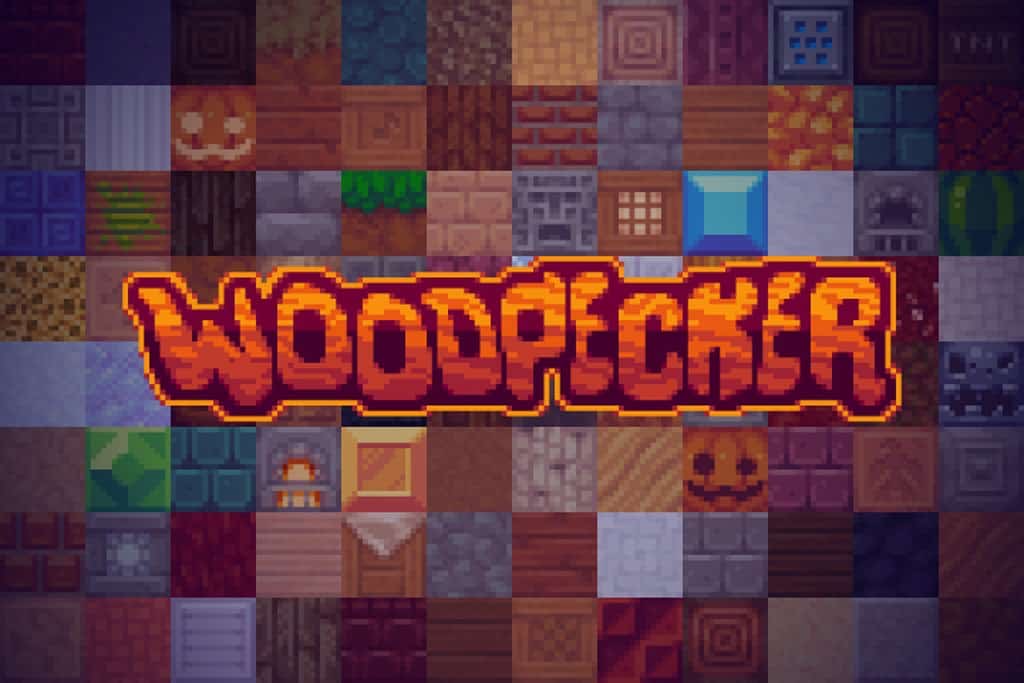
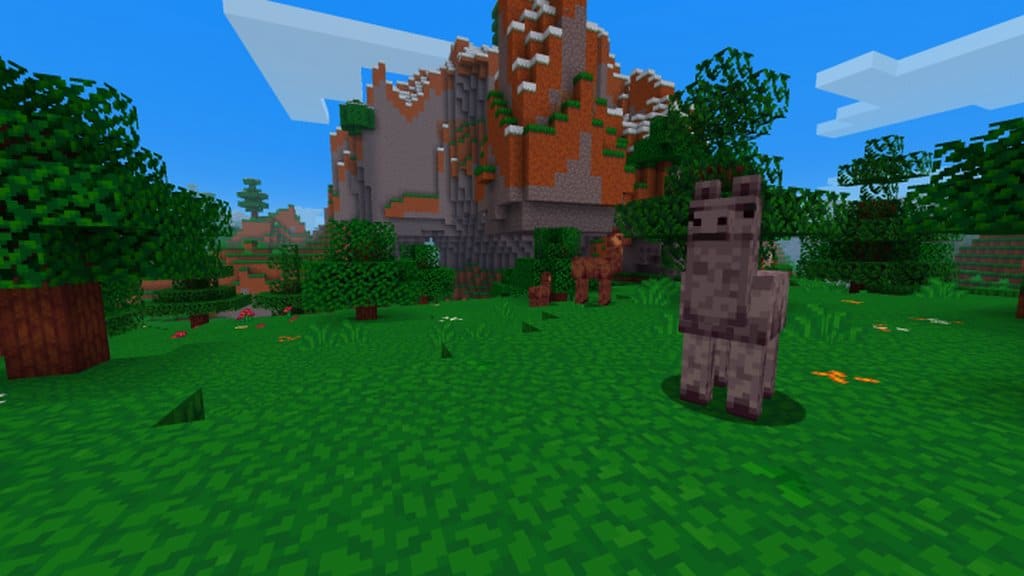
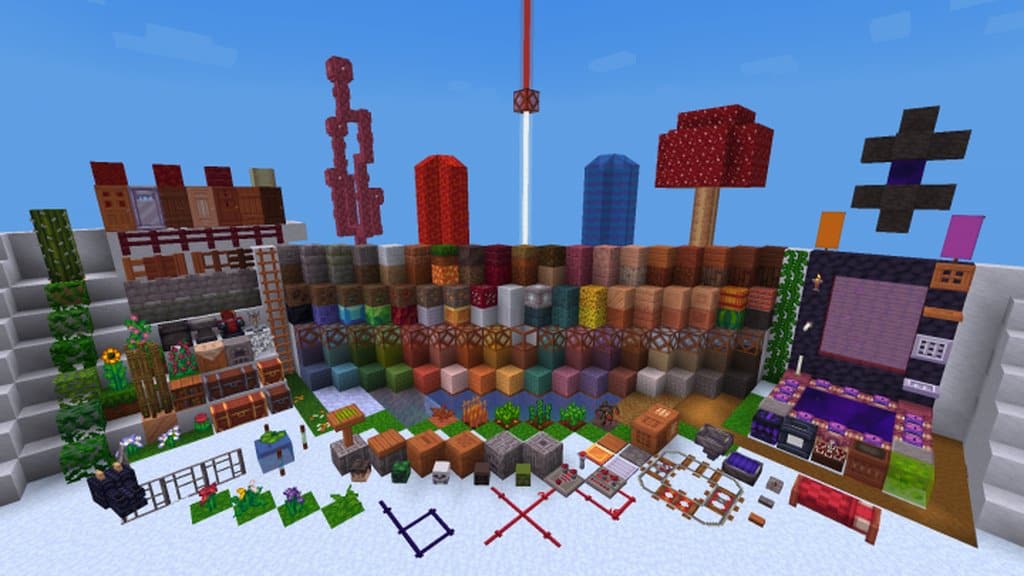
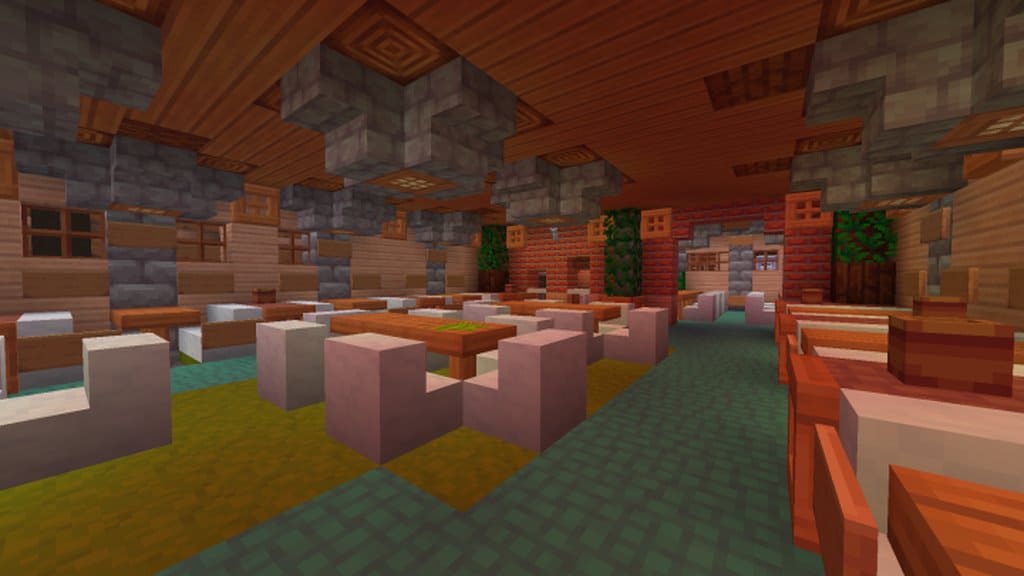
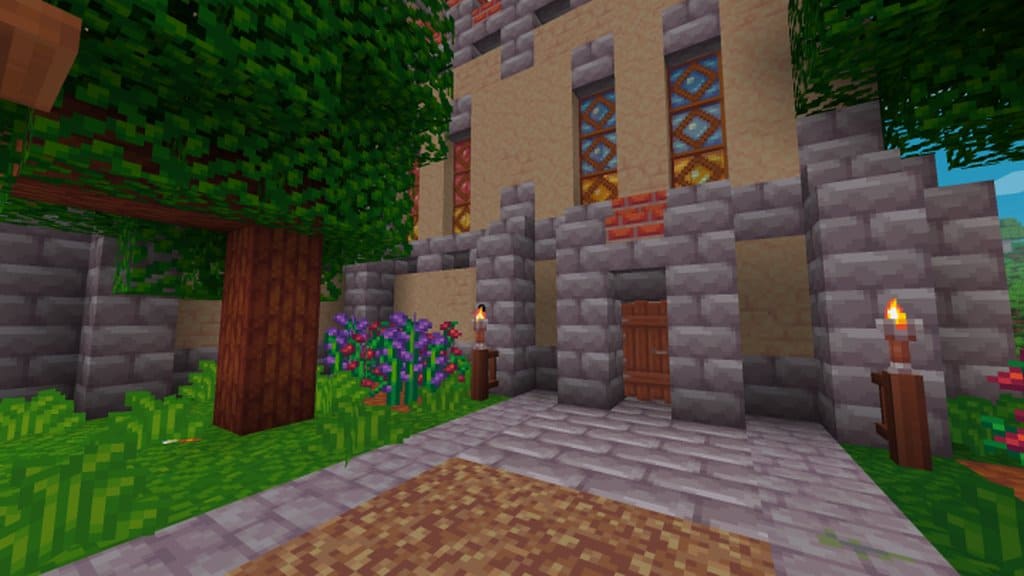
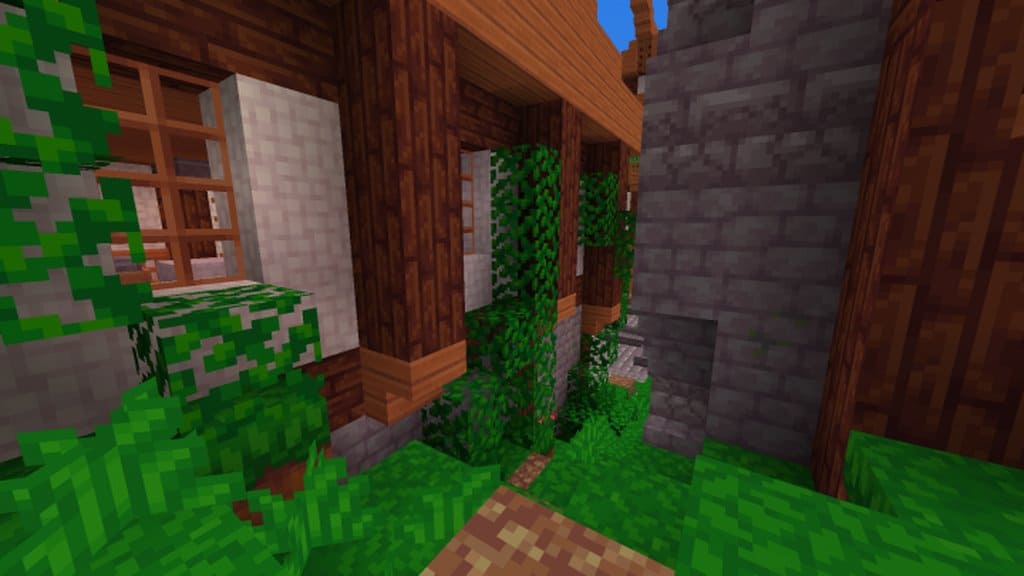
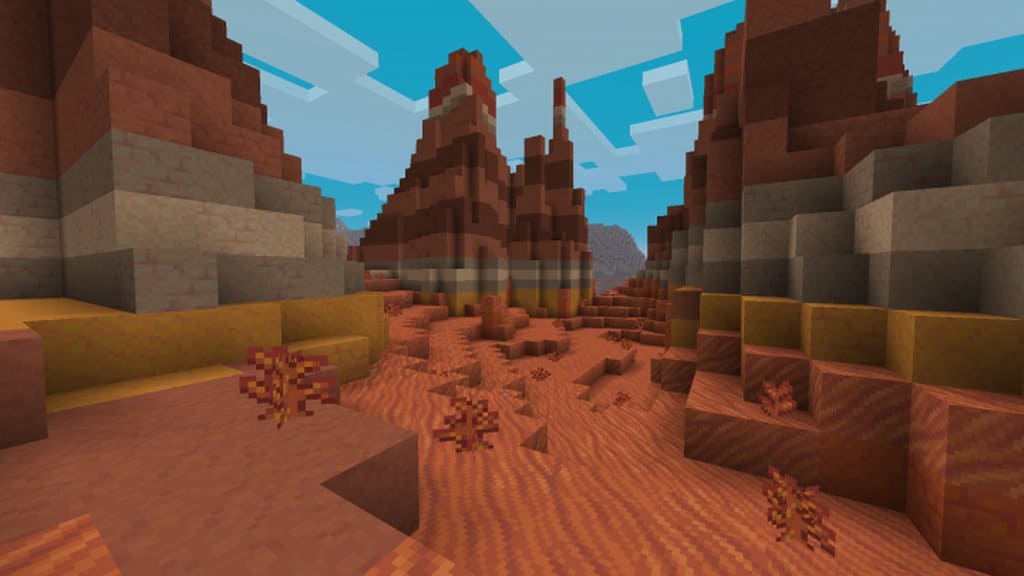
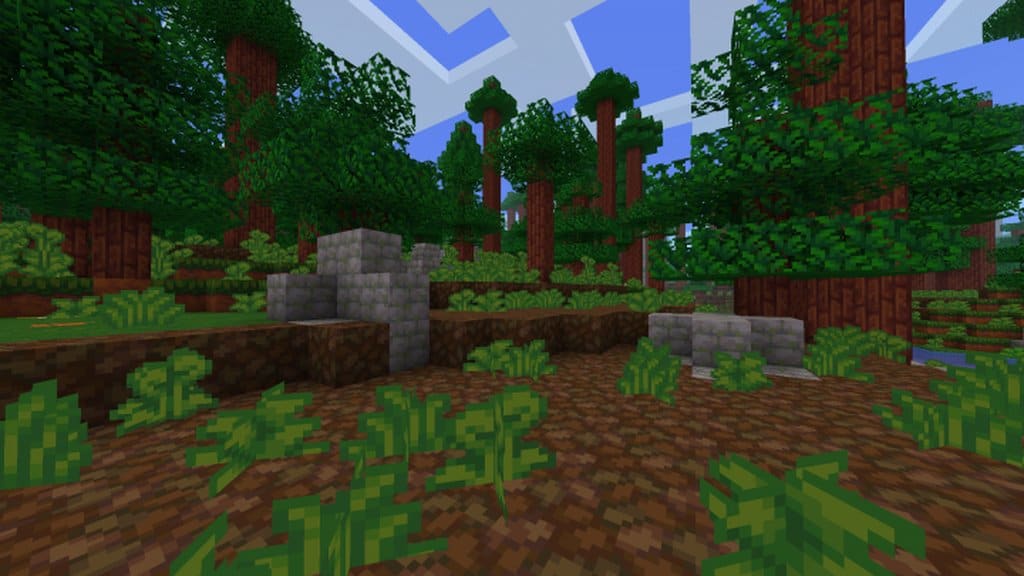
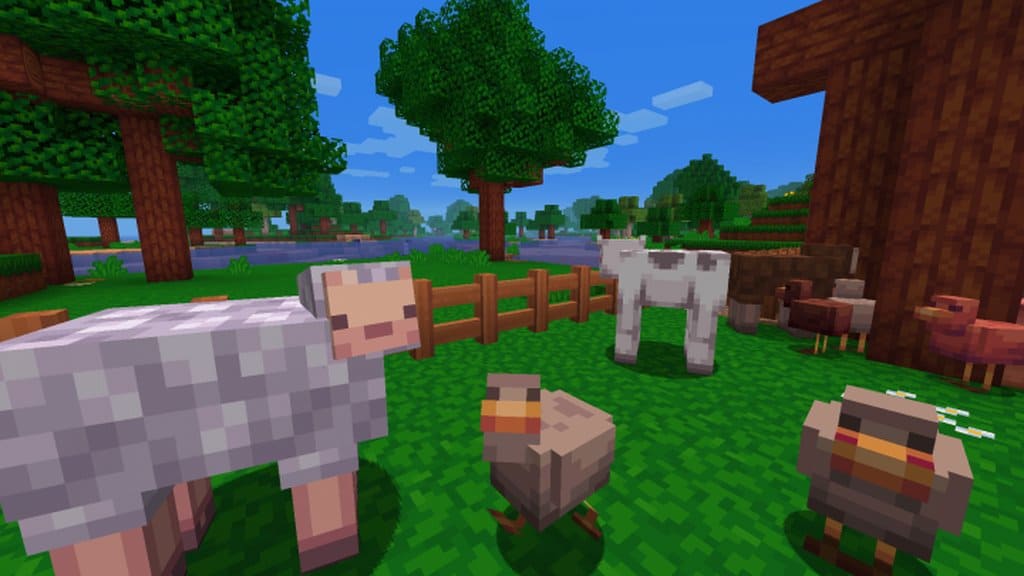
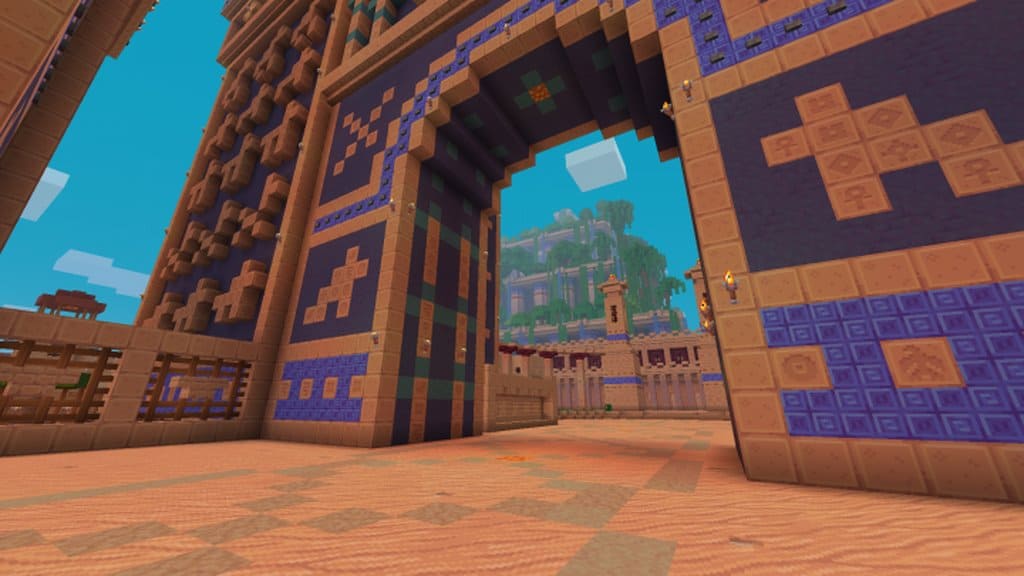
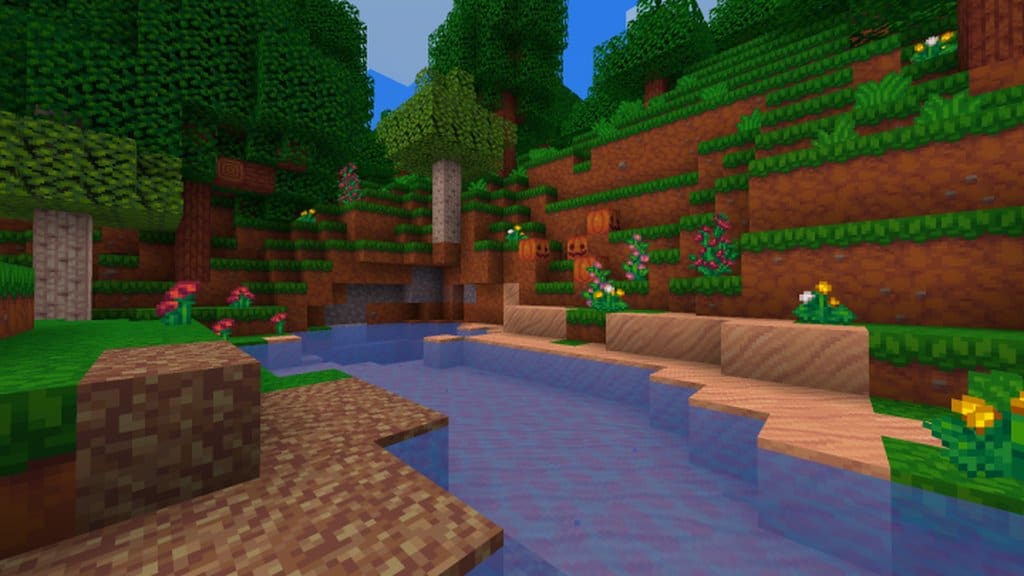
Do not let the name fool you into thinking the Woodpecker resource pack focuses exclusively on birds, because it actually completely overhauls the game to give it a stunning medieval, rustic feel. I totally love how unique and characteristic Woodpecker is due to the varying amount of colors per block. Instead of being constant, I noticed that each block can feature four or more different colors in its texture. This unusual feature significantly amplifies the game’s atmosphere, and it nicely imitates the effects of a shader pack without having any negative impact on performance, which is a huge win for me. Every area feels truly unique, even when built out of the same blocks. Another pleasant surprise is that Woodpecker’s resolution stays true to the vanilla feel at 16×16. Whereas other resource packs usually stick to a single set image for each texture along with uniform colors, Woodpecker brings different color layouts for each specific block. While some similarities can be spotted between certain blocks, many of them end up looking completely different and refreshing.
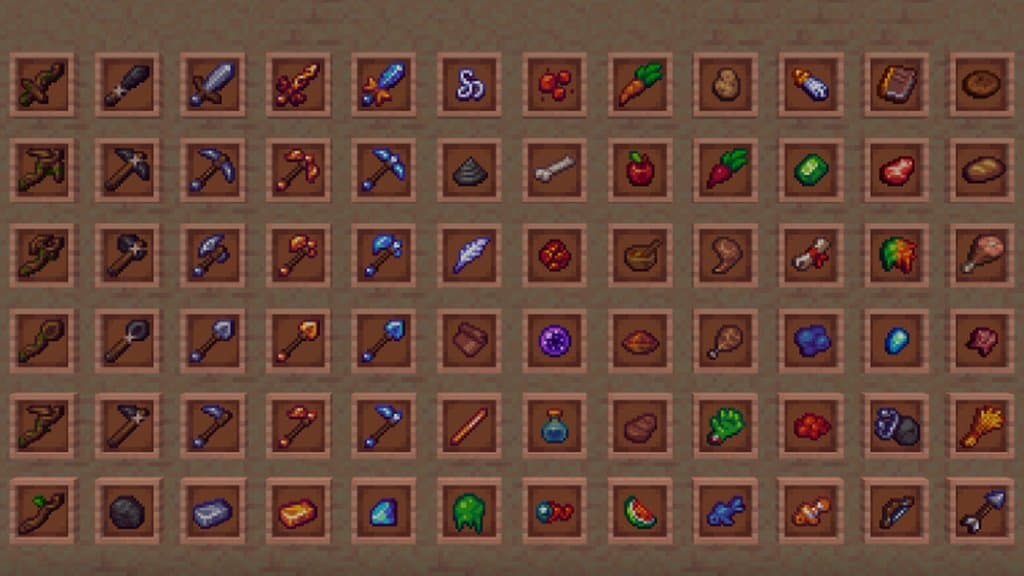
These significant variations between colors easily provide the illusion of a much larger resolution than what Woodpecker actually offers. Even though this resource pack is still a work in progress, I found that most of the unfinished stuff is simply related to mobs, items, and icons, while the blocks themselves are almost fully completed. Aside from the main in-game blocks, Woodpecker delivers a complete overhaul of the layouts for the inventory, crafting tables, enchanting tables, and storage containers. The only minor drawback is the lack of updates and changes to the game’s paintings, as it seems the pack focuses more on the actual elements of gameplay you encounter the most, which is pretty common for medieval-themed packs anyway. However, the unique color palette implementations, a completely new GUI, along with the lightweight 16×16 resolution that will not affect performance even on older PCs, more than make up for any missing paintings. Overall, I found Woodpecker to be a solidly built, incredibly lightweight resource pack that I thoroughly enjoyed testing.
Woodpecker should be compatible with all of these Minecraft versions: 1.19.4 – 1.19.3 – 1.19.2 – 1.19.1 – 1.19 – 1.18.2 – 1.18.1 – 1.18 – 1.17.1 – 1.17 – 1.16.5 – 1.16.4 – 1.16.3 – 1.16.2 – 1.16.1 – 1.16 – 1.15.2 – 1.15.1 – 1.15 – 1.12.2 – 1.12 – 1.11.2 – 1.11 – 1.10.2 – 1.10 – 1.9.4 – 1.9 – 1.8.9 – 1.8.8 – 1.8.1 – 1.8.6 – 1.8
Screenshots



How to Install Texture Pack (Simple 10 Steps)
- Download OptiFine: Most of the texture packs and shaders need OptiFine. That’s why, first download and install OptiFine for the version of Minecraft you want to play.
- Download the Texture Pack: Get the texture pack you want from the download section. Choose the version that works with your Minecraft and your PC’s performance.
- Open Minecraft Launcher: Start Minecraft using the official game launcher — or even TLauncher, if you use that.
- Go to Options: From the main menu, click on the “Options” button.
- Open Resource Packs: Inside Options, click on “Resource Packs…”.
- Open the Resource Pack Folder: Click on “Open Resource Pack Folder” — this will open a folder named “resourcepacks”.
- Move the Pack File: Copy or move the .zip file you downloaded into that “resourcepacks” folder. (Don’t unzip the file — Minecraft uses it as-is!)
- Go Back and Refresh: Close the folder and click “Done”, then go back into “Resource Packs…” again.
- Activate the Pack: You’ll see the pack on the left side. Hover over it and click the arrow to move it to the right (active side).
Tip: If you get a message that the pack is for a different version, just click “Yes” — it usually works fine. - Click Done and Enjoy: Click “Done” again. Now your pack is ready to use in-game. It’s that easy!
Credits
The Woodpecker Resource Pack was created by zob and Iloveflareon. We do not claim ownership of this content, nor have we modified the original files. All rights and credit belong entirely to the original creators. We strongly encourage you to support the authors by downloading the pack from their official links and exploring their other community contributions.
Download Links
Java Edition
Download Instructions
Curseforge: download starts automatically after a few seconds;
Mediafire: click the big blue button with the text “DOWNLOAD”;
Google Drive: in the top right corner you will see a small download icon (down arrow), click it and the download should start;