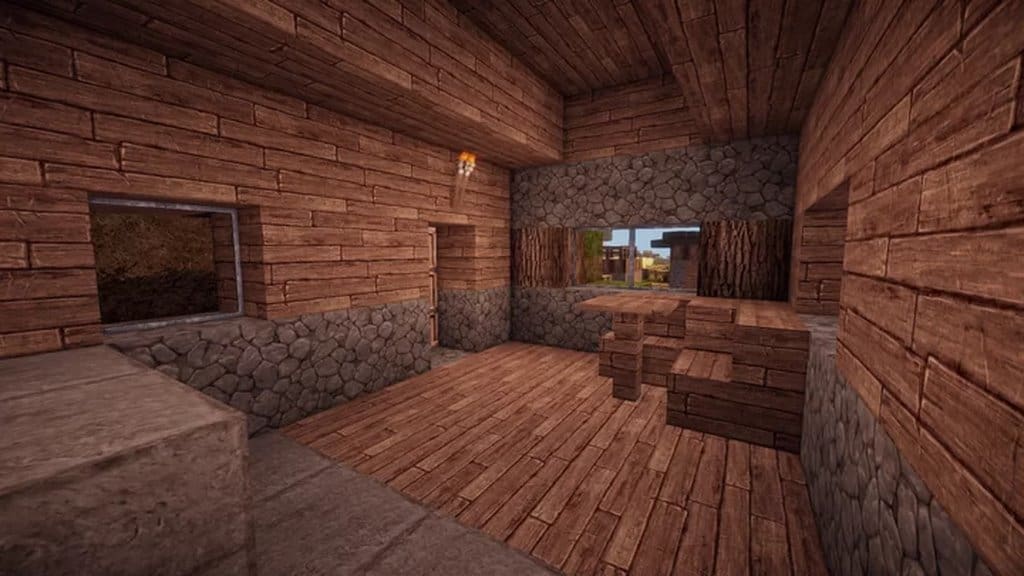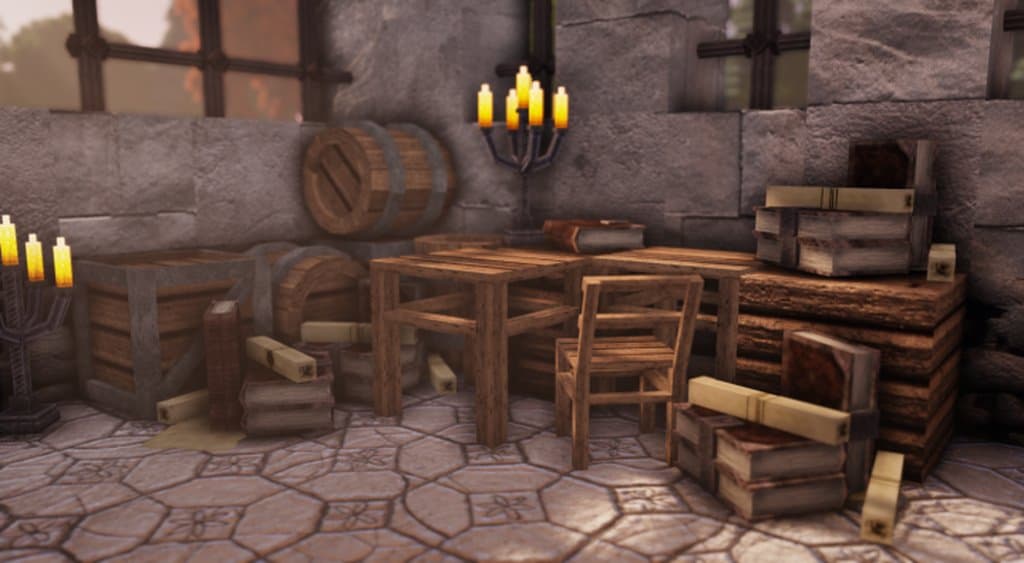
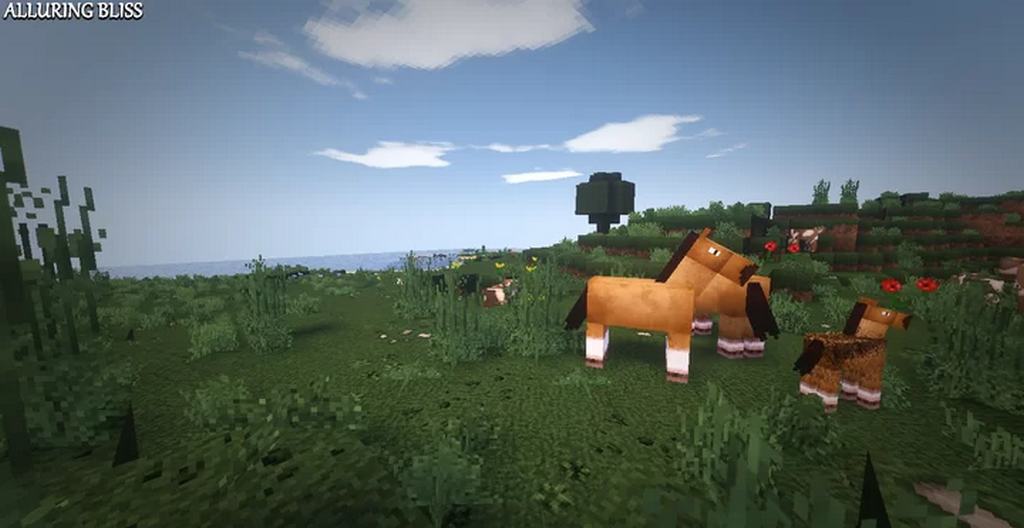
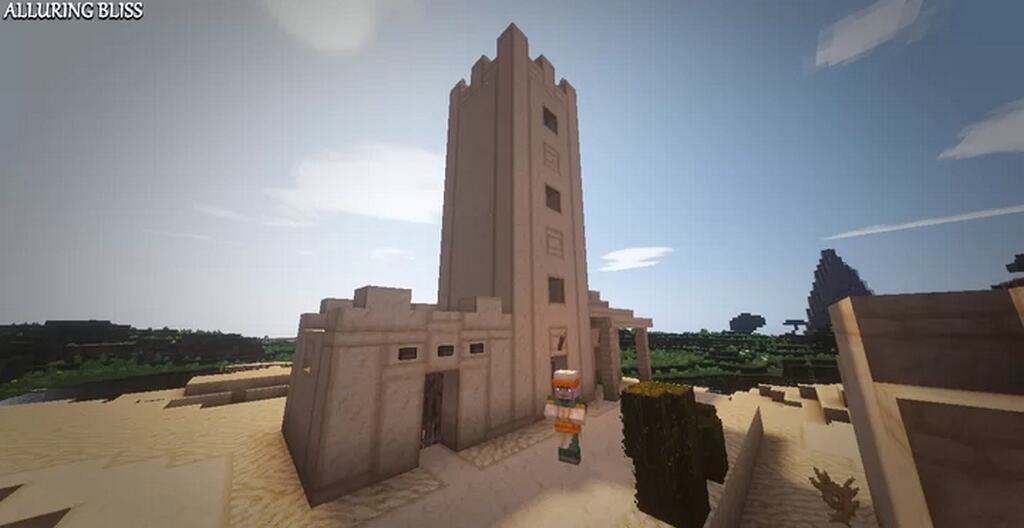
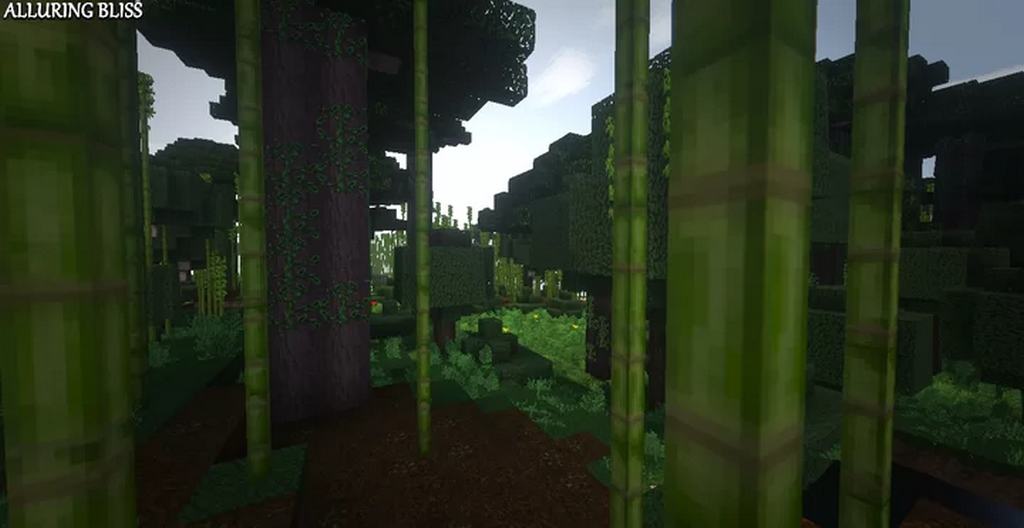
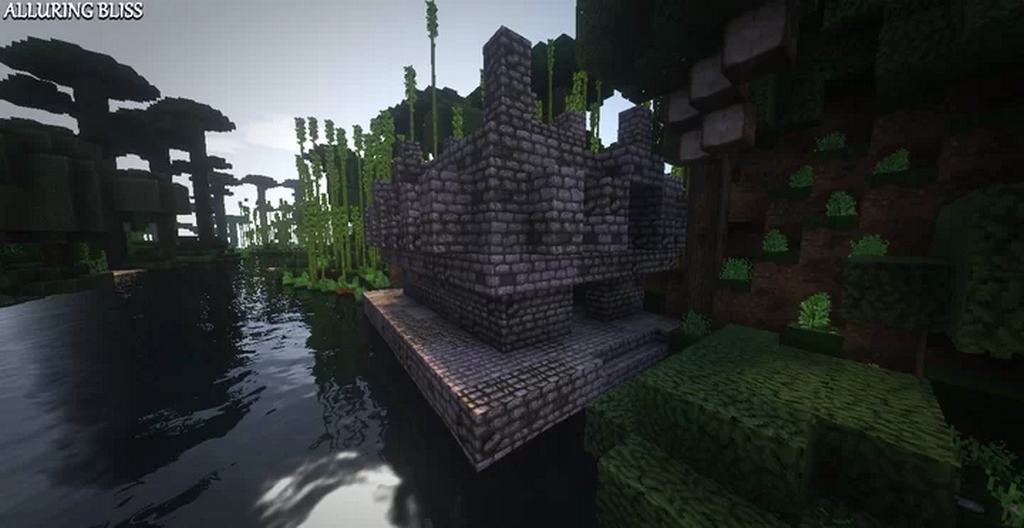
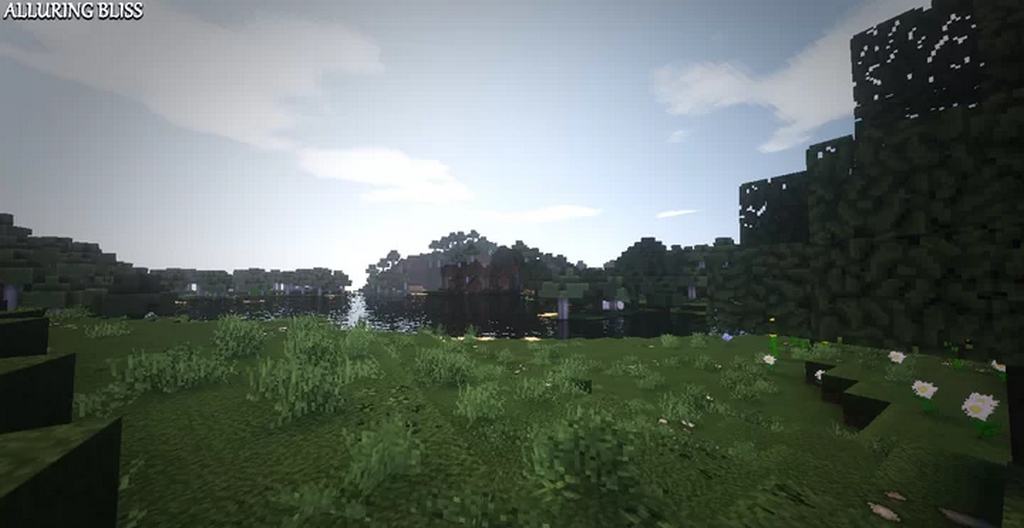
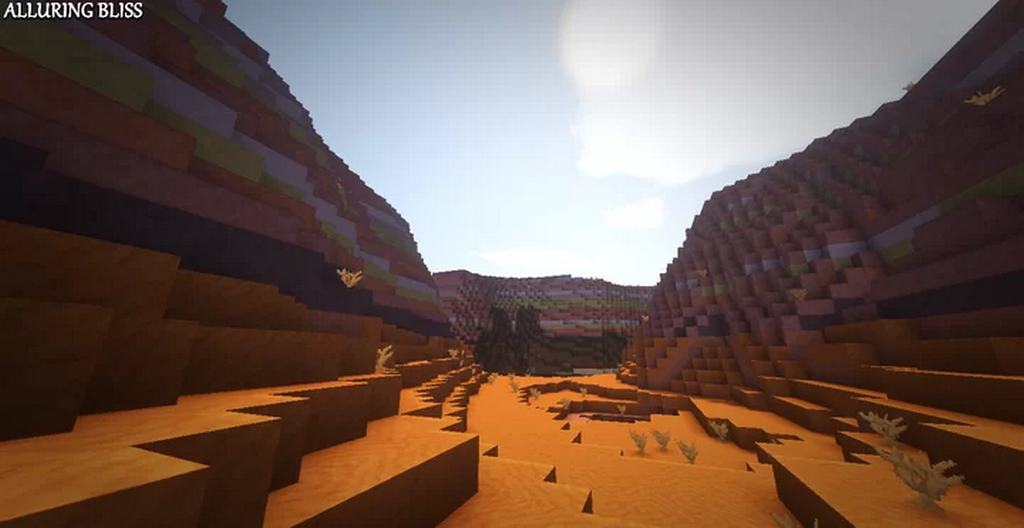
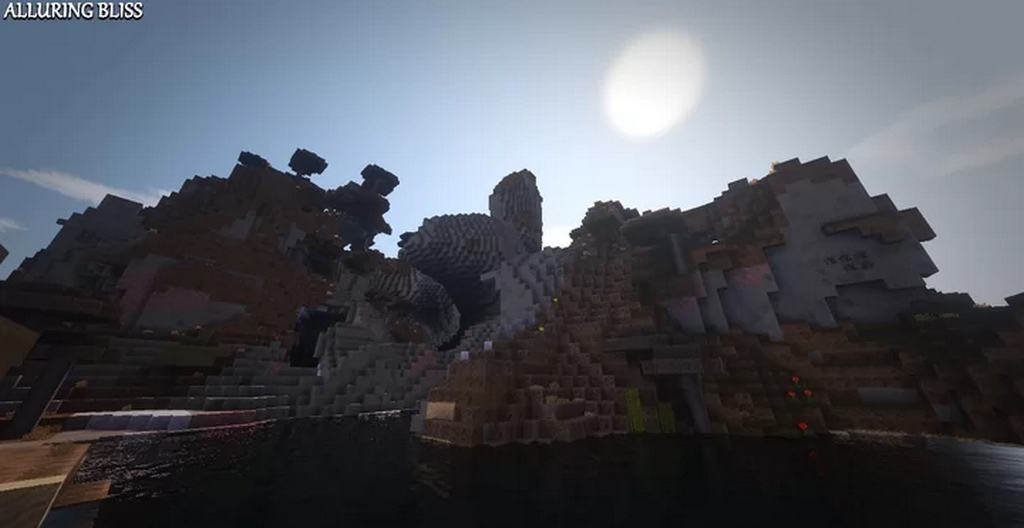
AlluringBliss is an incredible resource pack that dropped a few months ago, and honestly, it has been catching everyone’s eye and getting the exact attention it truly deserves. The main reason it is doing so remarkably well is that it was lovingly inspired and meticulously crafted specifically for medieval-style building. At first glance, the resource pack might feel simple, but it is actually remarkably vibrant and manages to stand out in its own unique way. It truly feels like this resource pack lets the intricate details do all the talking. Those meticulously crafted details are precisely what makes this resource pack feel superior to many others, adding up to the overall gorgeous look and feel of the texture pack and making everything look amazing. The AlluringBliss resource pack was specifically created by MasterMind_DC, and another huge reason why his texture pack is doing so exceptionally well is because it draws wonderful inspiration from other legendary texture packs like BDcraft and John Smith Legacy.
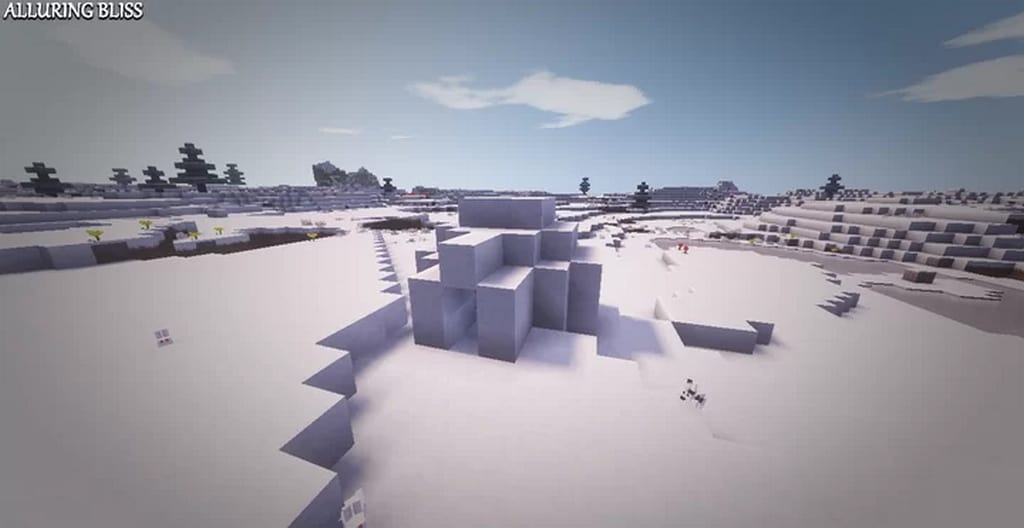
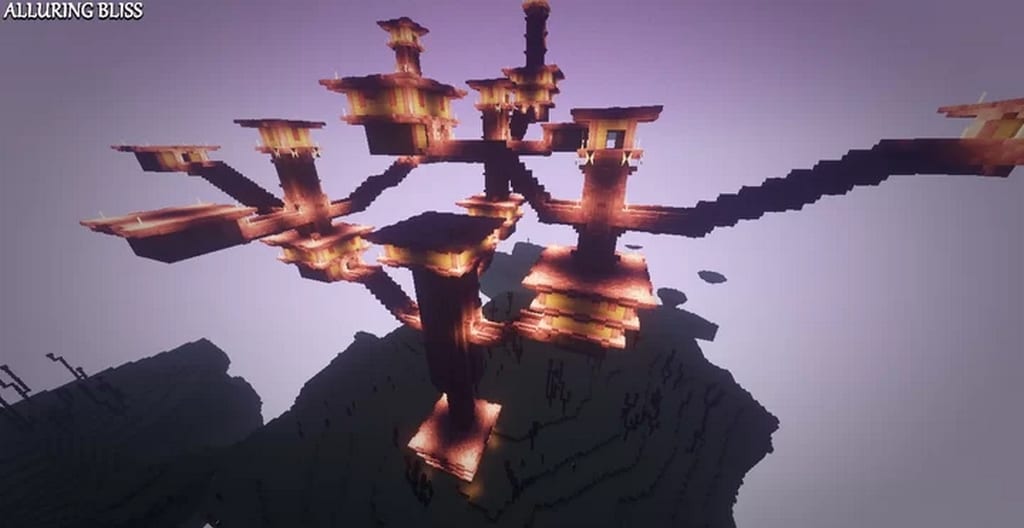
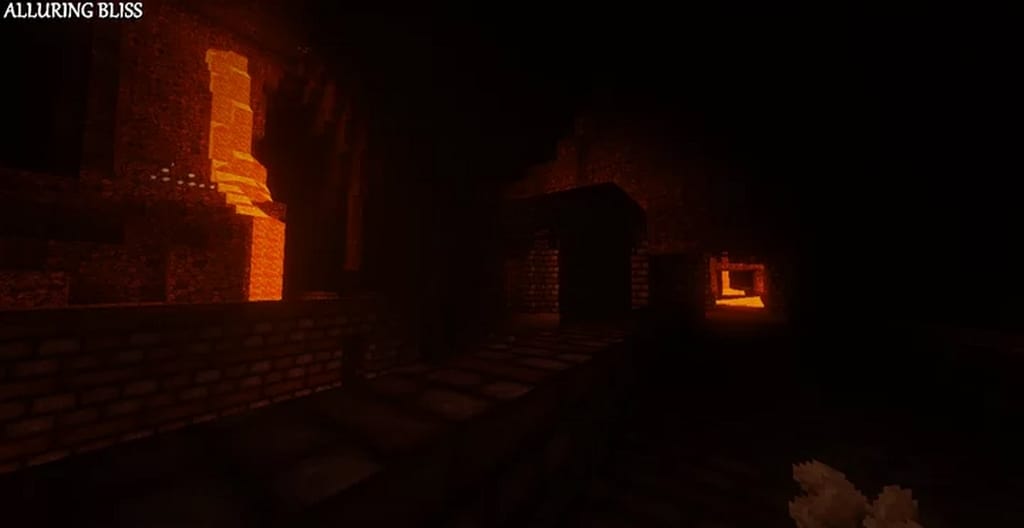
Alongside its charming medieval feel, AlluringBliss carries a delightfully realistic vibe, which is yet another fantastic feature that helps it stand out from the crowd. When we examine the color palette, we definitely notice something special; the colors are vibrant and punchy, yet they are given a subtle, shadowed depth. You do not need to worry about this at all because it is handled so gracefully, and the resulting atmosphere is simply unbelievable. Looking at the more technical side of things, the AlluringBliss resource pack features a crisp 32×32 resolution. You will notice right away that this is double the detail compared to the standard 16×16 resolution found in Vanilla Minecraft. Because of this extra detail, you will definitely want a decent PC to keep things running smoothly. This does not mean you need the absolute highest-end computer on the market, but keeping your hardware in mind is definitely a good idea before diving into this masterpiece of a texture pack to avoid any annoying FPS drops.
AlluringBliss should be compatible with all of these Minecraft versions: 1.17.1 – 1.17 – 1.16.5 – 1.16.4 – 1.16.3 – 1.16.2 – 1.16.1 – 1.16 – 1.15.2 – 1.15.1 – 1.15 – 1.14.4 – 1.14.3 – 1.14.2 – 1.14
Screenshots
How to Install Texture Pack (Simple 10 Steps)
- Download OptiFine: Most of the texture packs and shaders need OptiFine. That’s why, first download and install OptiFine for the version of Minecraft you want to play.
- Download the Texture Pack: Get the texture pack you want from the download section. Choose the version that works with your Minecraft and your PC’s performance.
- Open Minecraft Launcher: Start Minecraft using the official game launcher — or even TLauncher, if you use that.
- Go to Options: From the main menu, click on the “Options” button.
- Open Resource Packs: Inside Options, click on “Resource Packs…”.
- Open the Resource Pack Folder: Click on “Open Resource Pack Folder” — this will open a folder named “resourcepacks”.
- Move the Pack File: Copy or move the .zip file you downloaded into that “resourcepacks” folder. (Don’t unzip the file — Minecraft uses it as-is!)
- Go Back and Refresh: Close the folder and click “Done”, then go back into “Resource Packs…” again.
- Activate the Pack: You’ll see the pack on the left side. Hover over it and click the arrow to move it to the right (active side).
Tip: If you get a message that the pack is for a different version, just click “Yes” — it usually works fine. - Click Done and Enjoy: Click “Done” again. Now your pack is ready to use in-game. It’s that easy!
Credits
This project was created by MasterMind_DC. We do not own, host, or modify this resource pack. All rights belong to the original creator. We encourage you to support MasterMind_DC by visiting the official download links and creator channels.
Download Links
Java Edition
Download Instructions
Curseforge: download starts automatically after a few seconds;
Mediafire: click the big blue button with the text “DOWNLOAD”;
Google Drive: in the top right corner you will see a small download icon (down arrow), click it and the download should start;