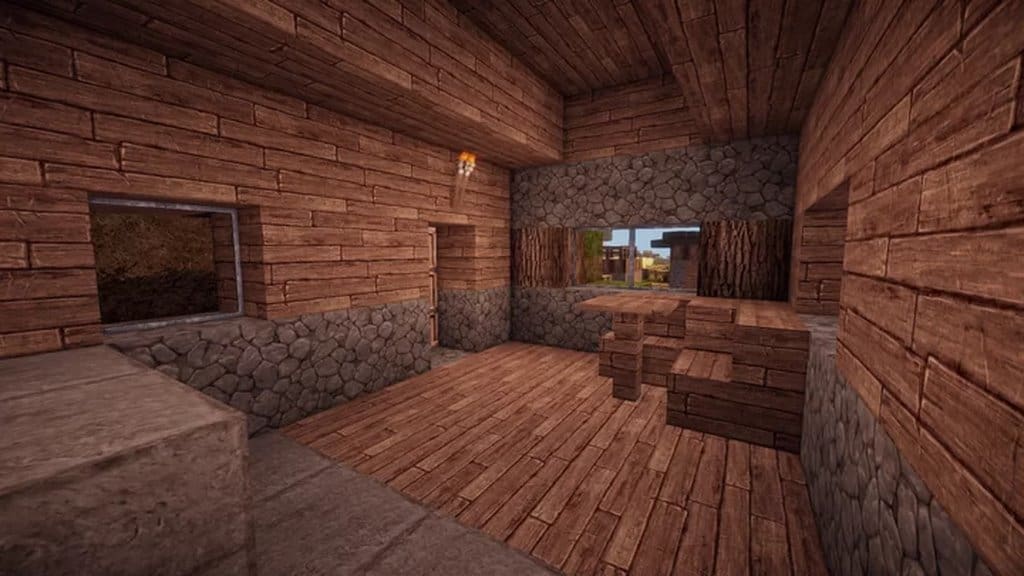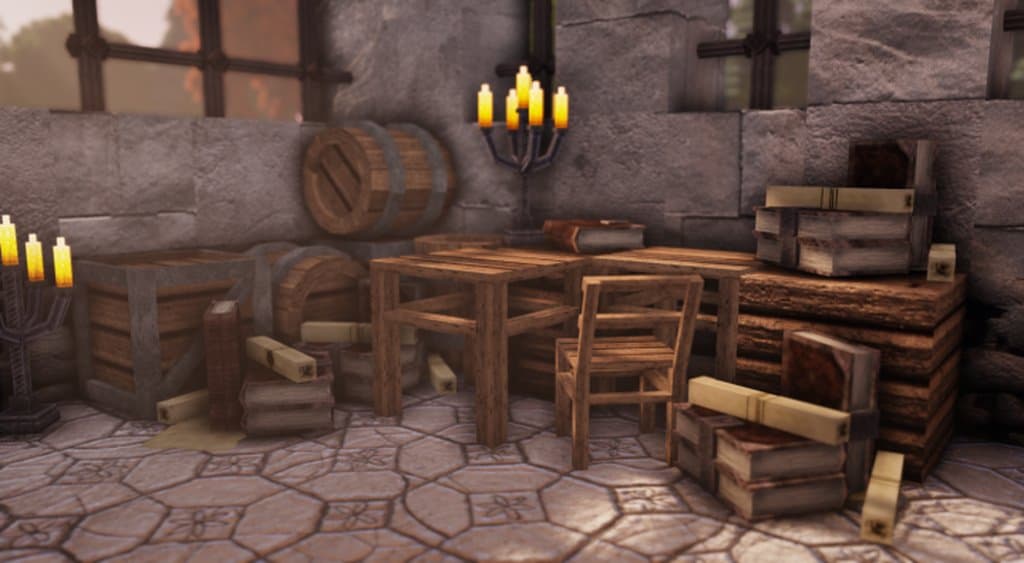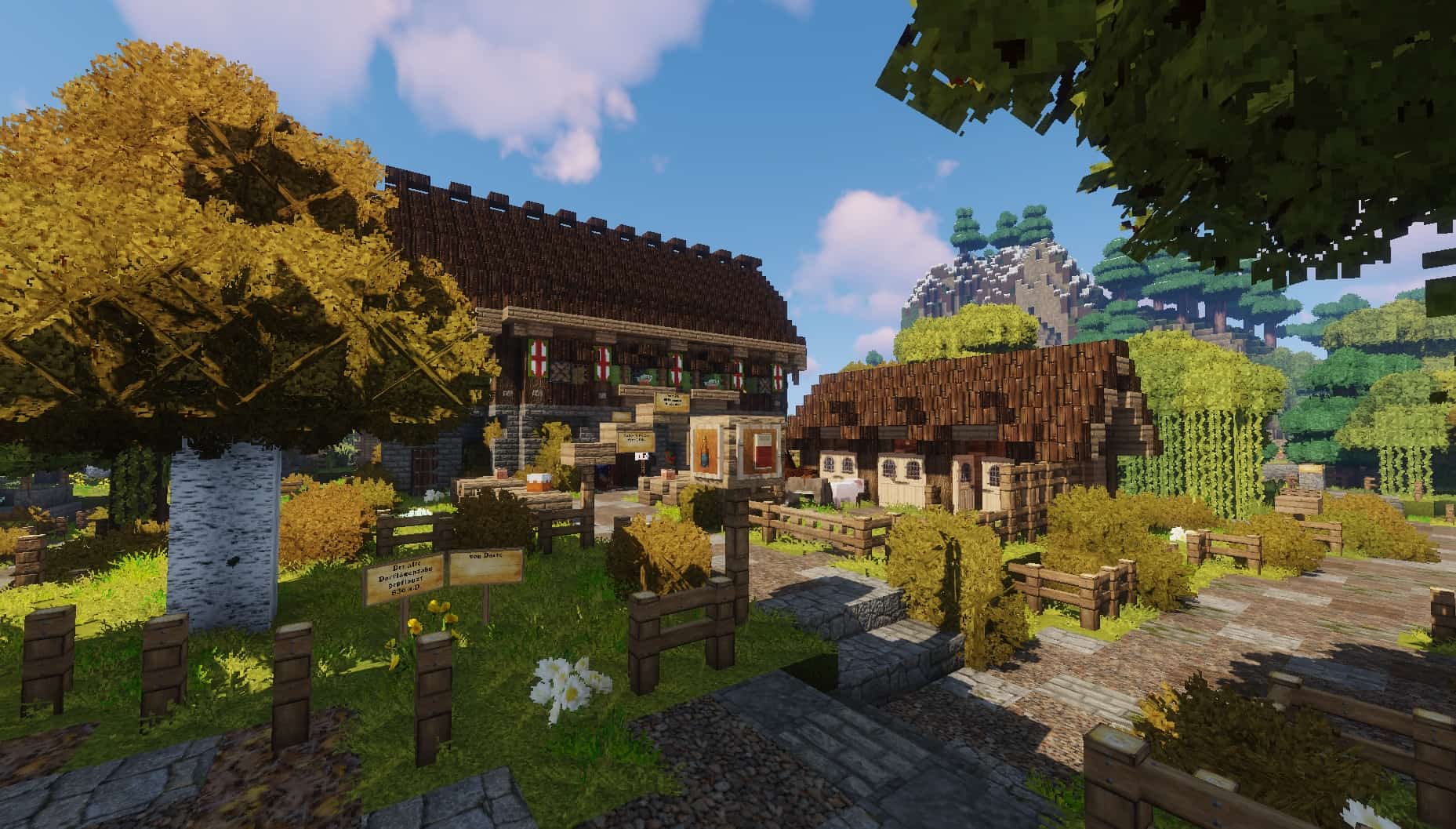
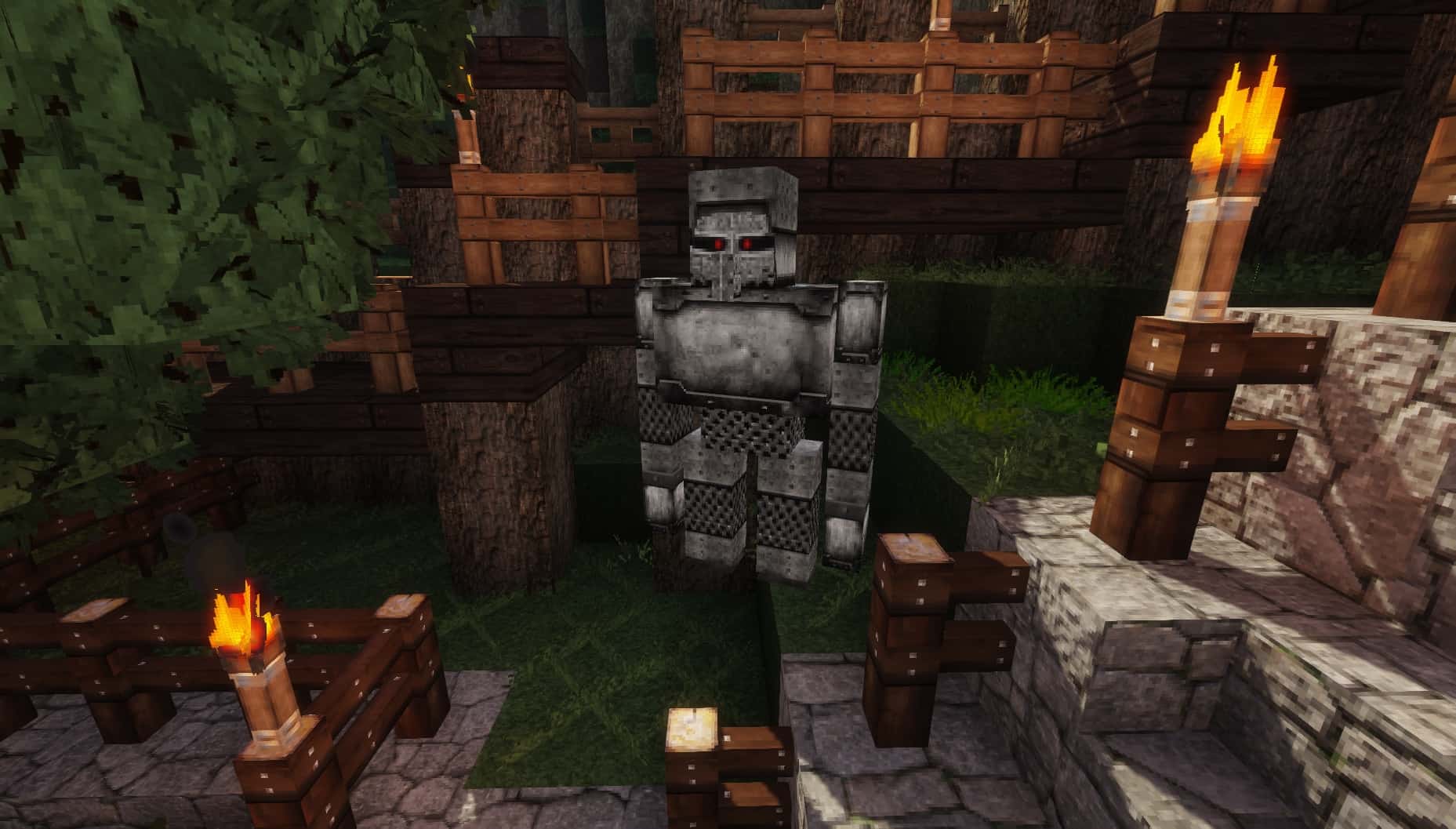
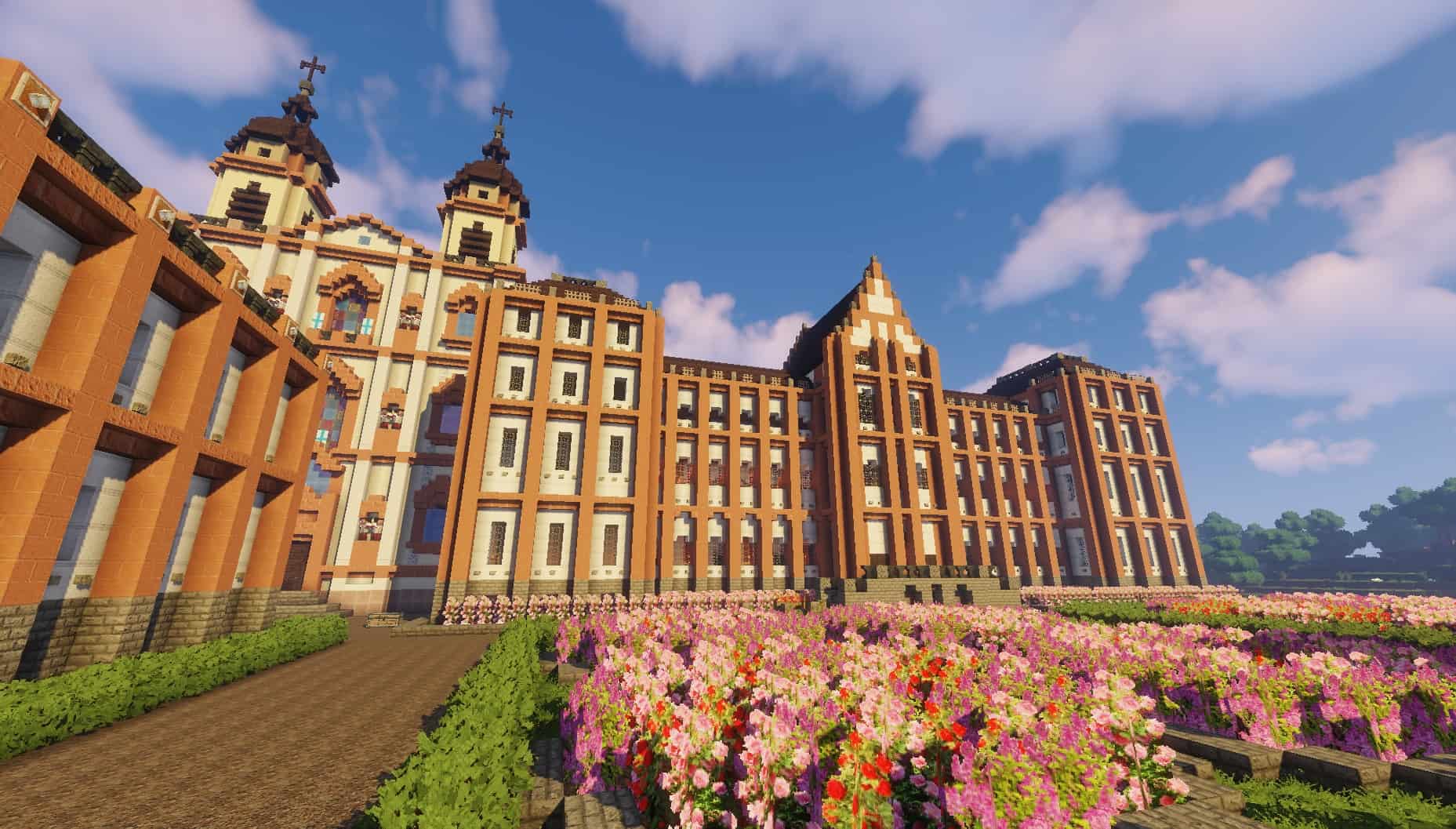
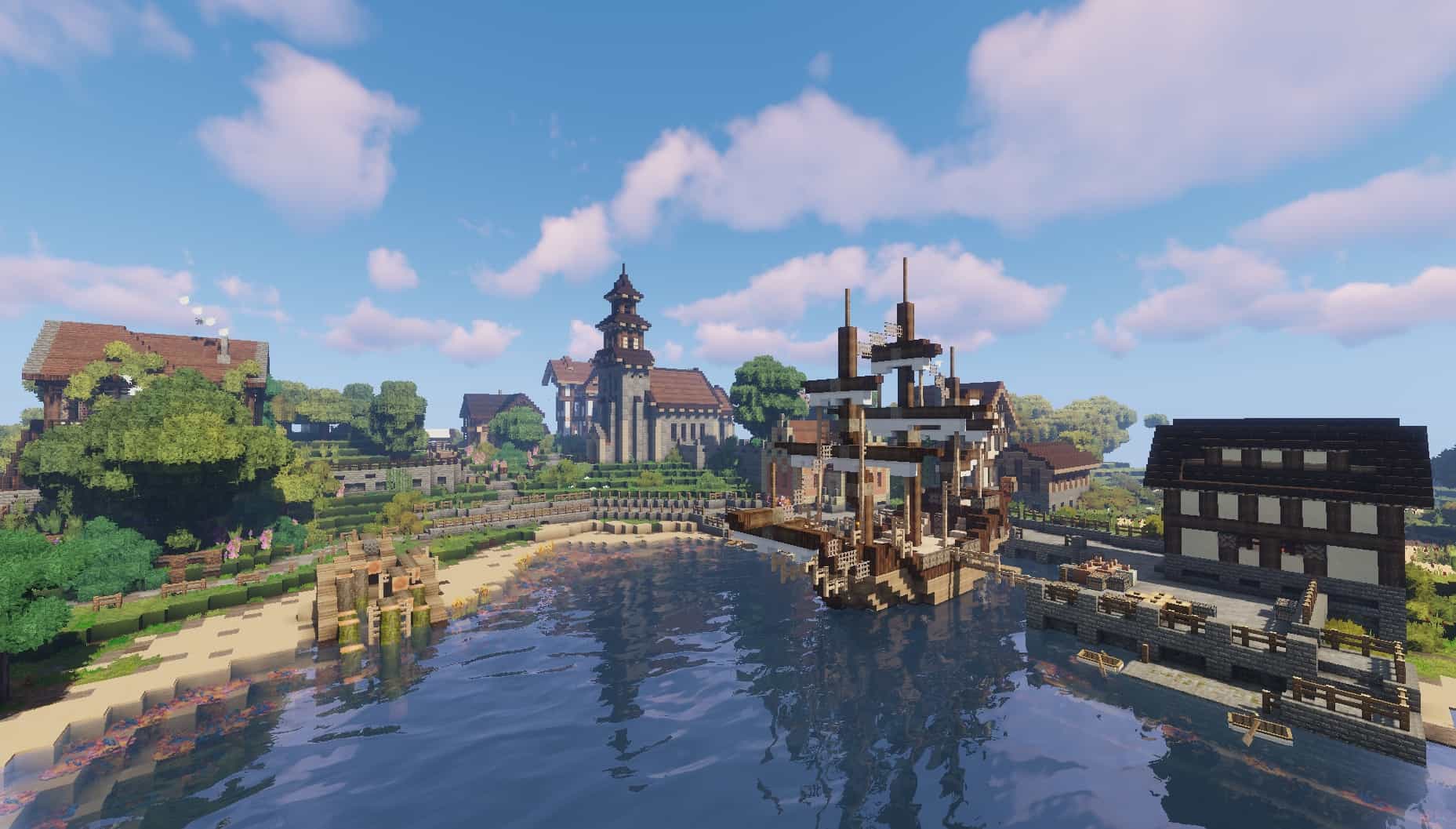
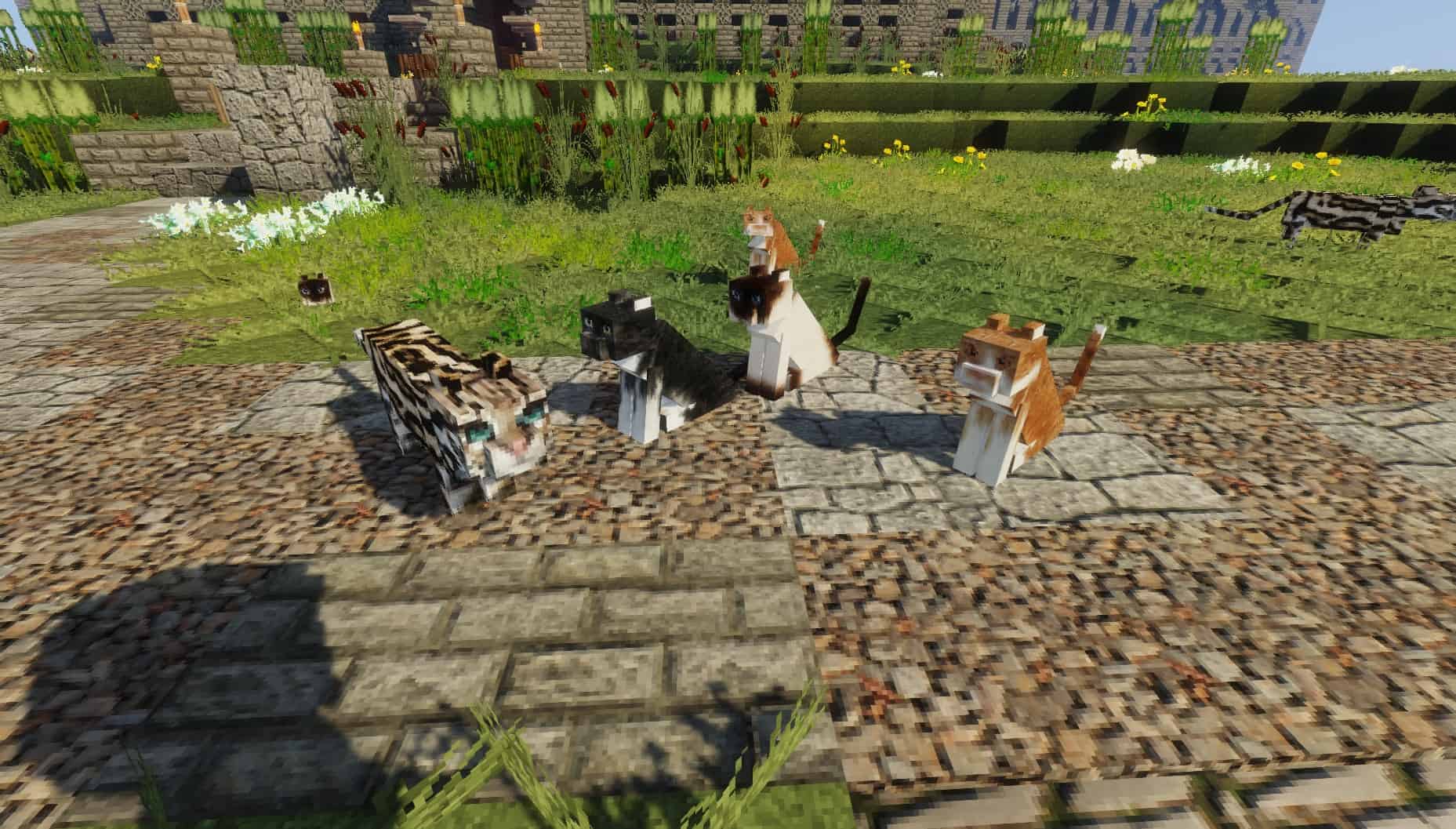
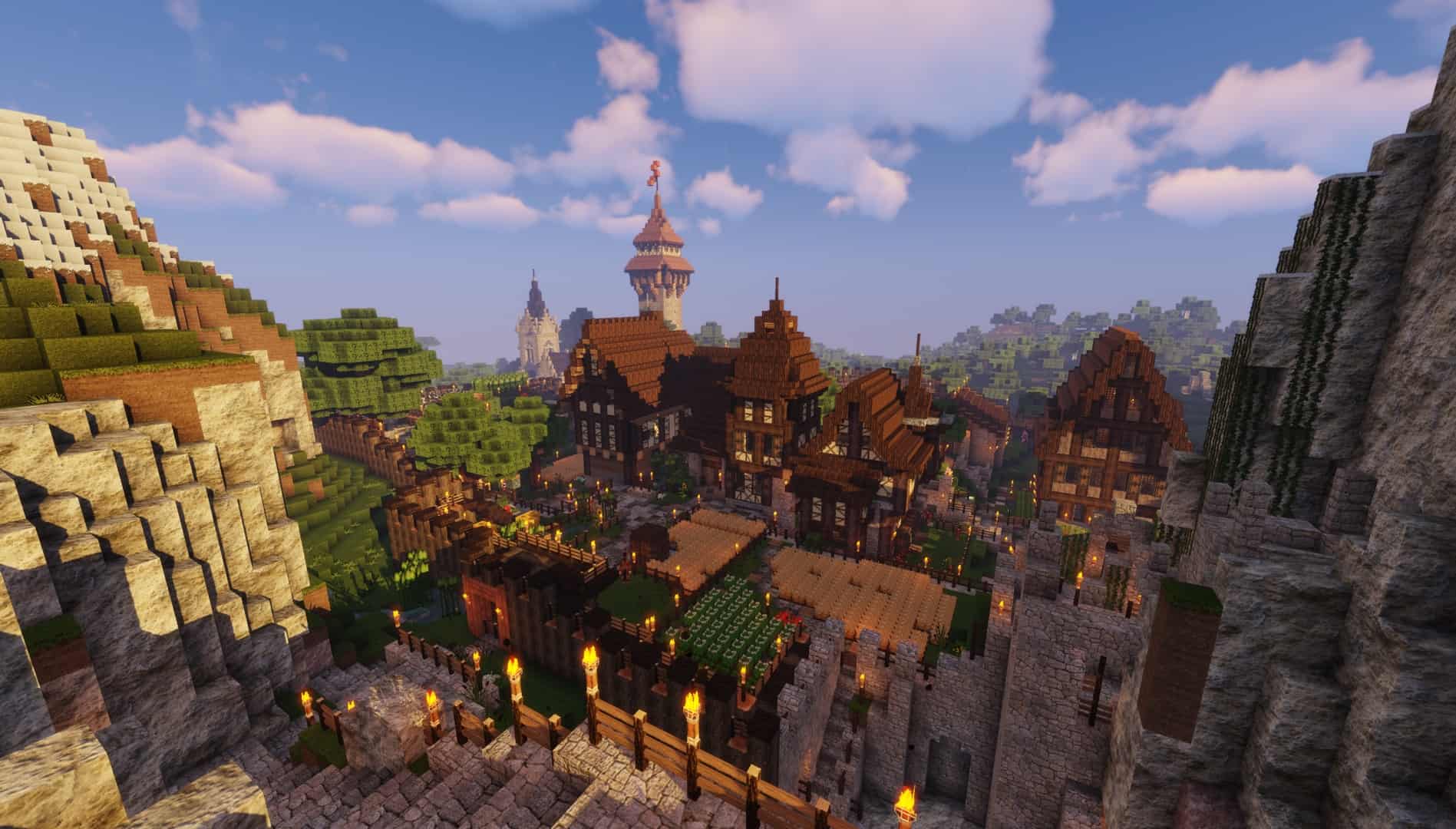
Winthor Medieval is an incredible recent resource pack that brings distinct features to all your Minecraft operations compared to other packs out there. While the difference might be subtle at first glance, a closer examination of its features reveals how it easily outshines similar packs. Winthor Medieval has mainly been introduced in order to improve performances in the Minecraft world, and I was genuinely impressed by how it enhances the old Minecraft experiences. The resolution of the pack has been increased from 16×16 to 64×64, a feature that significantly improves the overall look of the resource pack. Furthermore, Winthor Medieval has a distinct feature that modifies and brings poorly designed items into a much better shape. The set of textures are wonderfully mixed to deliver a desired resource pack which makes items in the world look much more interesting and truly makes life worth living in the game.
Winthor Medieval contains a bright and very attractive colour palette that you will fall in love with. It is truly unbelievable how the authors have managed to create different unique styles using Winthor Medieval to ensure that the pack completely blends with the surrounding environment, and the atmosphere is certainly no exception, offering an amazing experience overall. These features are completely amazing and play an essential role in ensuring that players get the full experience of this new resource pack. However, in order to achieve an even higher visual capacity, I highly recommend considering the installation of some shaders; some of the top recommendations include Sildur’s, Continuum, and KUDA shaders. With the appropriate use of these shaders, Minecraft will completely turn out different and very impressive for you and everyone else who plays.
Winthor Medieval should be compatible with all of these Minecraft versions: 1.20.4 – 1.20.3 – 1.20.2 – 1.20.1 – 1.20 – 1.19.4 – 1.19.3 – 1.19.2 – 1.19.1 – 1.19 – 1.18.2 – 1.18.1 – 1.18 – 1.17.1 – 1.17 – 1.16.5 – 1.16.4 – 1.16.3 – 1.16.2 – 1.16.1 – 1.16 – 1.15.2 – 1.15.1 – 1.15 – 1.14.4 – 1.14.3 – 1.14.2 – 1.14 – 1.13.2 – 1.13.1 – 1.13 – 1.12.2 – 1.12 – 1.11.2 – 1.11 – 1.10.2 – 1.10 – 1.9.4 – 1.9 – 1.8.9 – 1.8.8 – 1.8.1 – 1.8.6 – 1.8
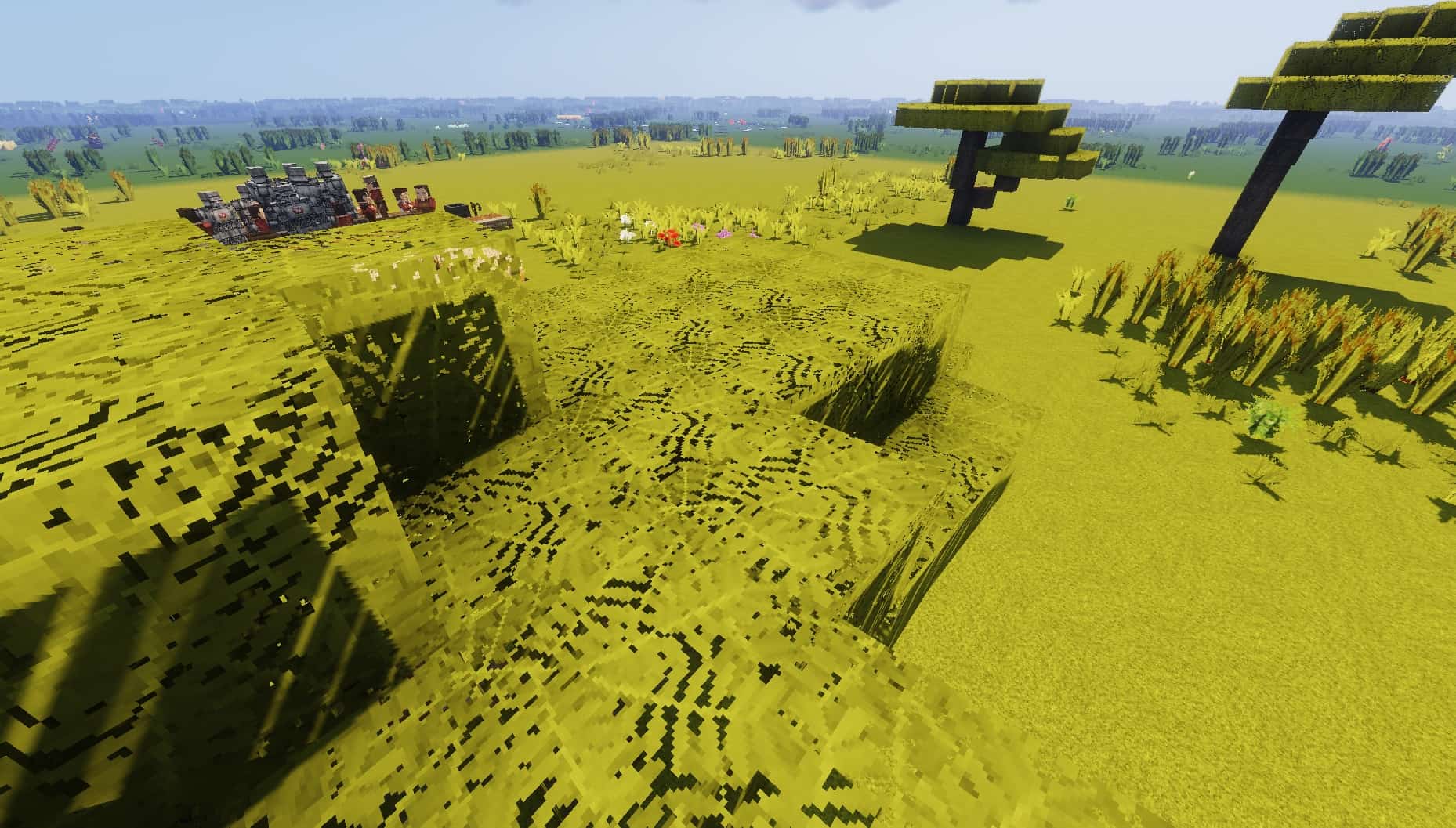
Screenshots

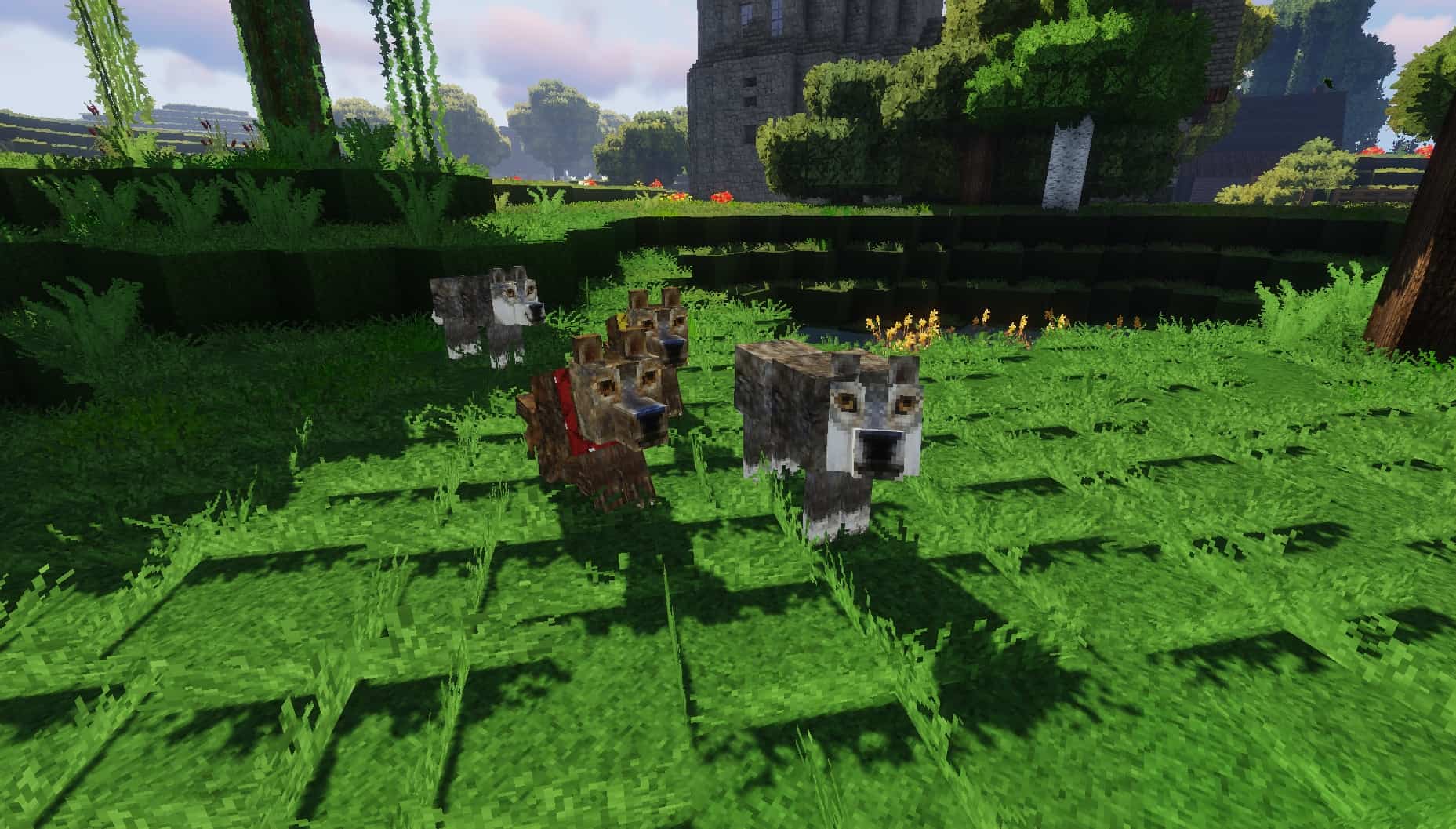
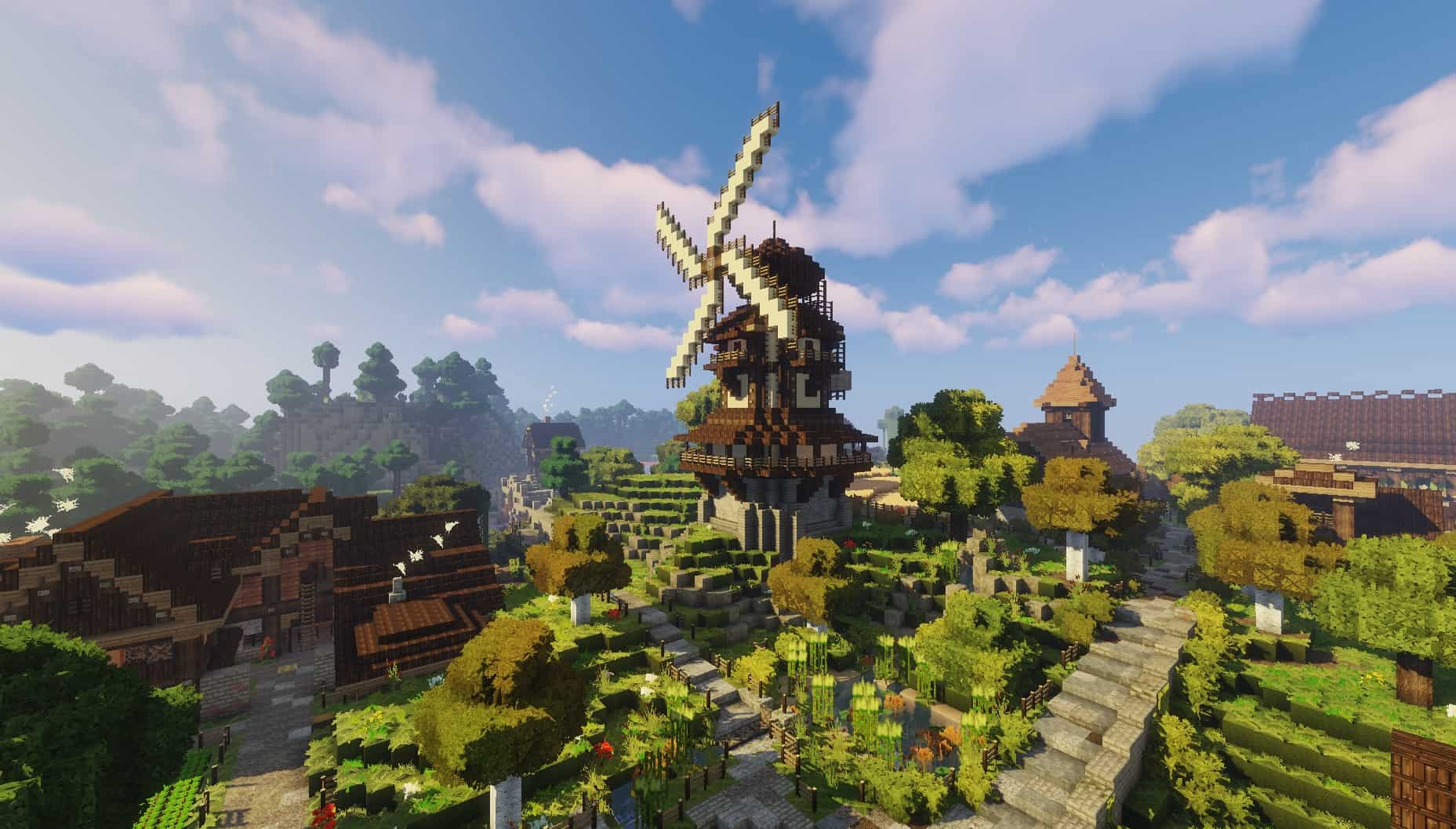
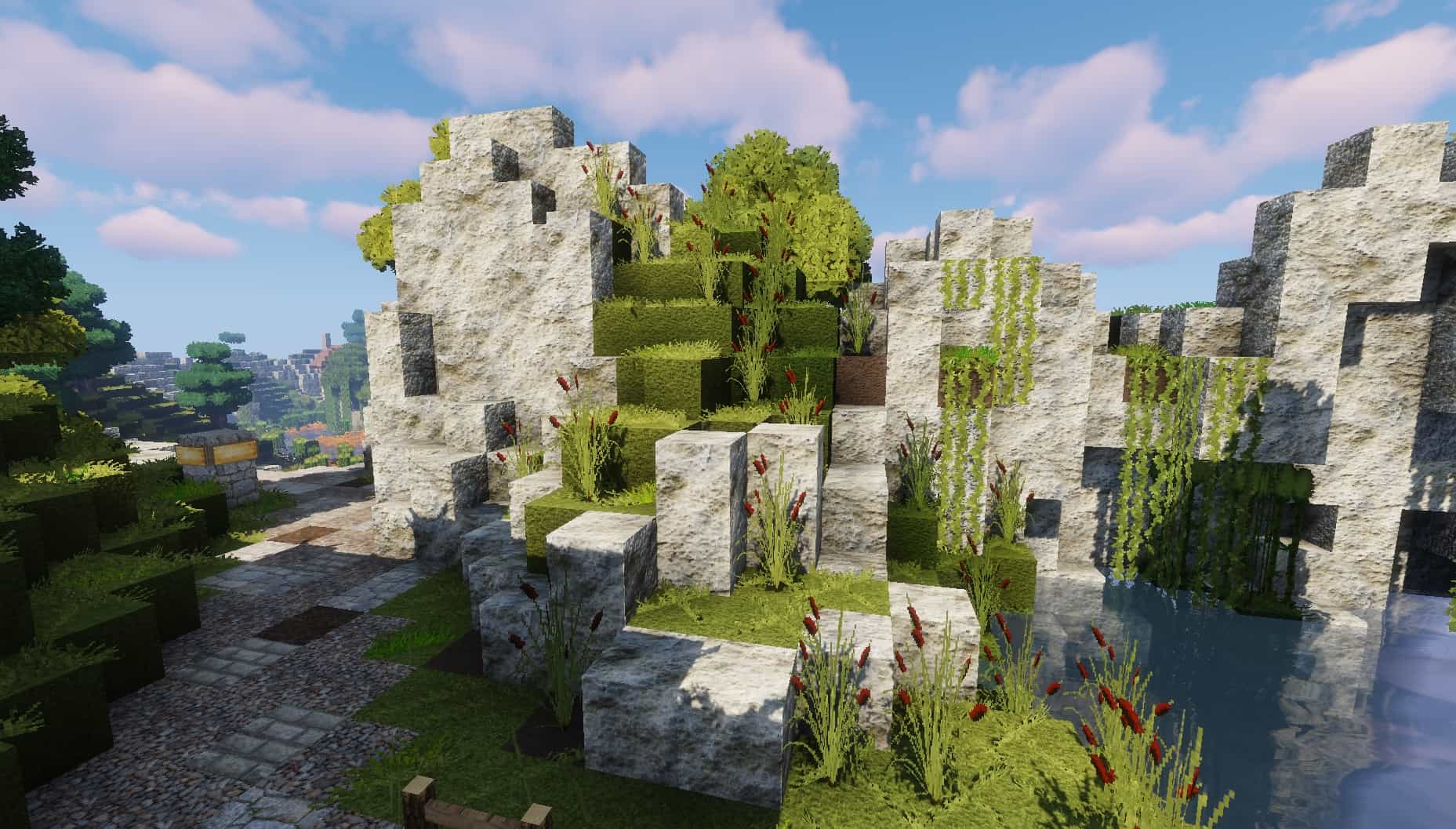
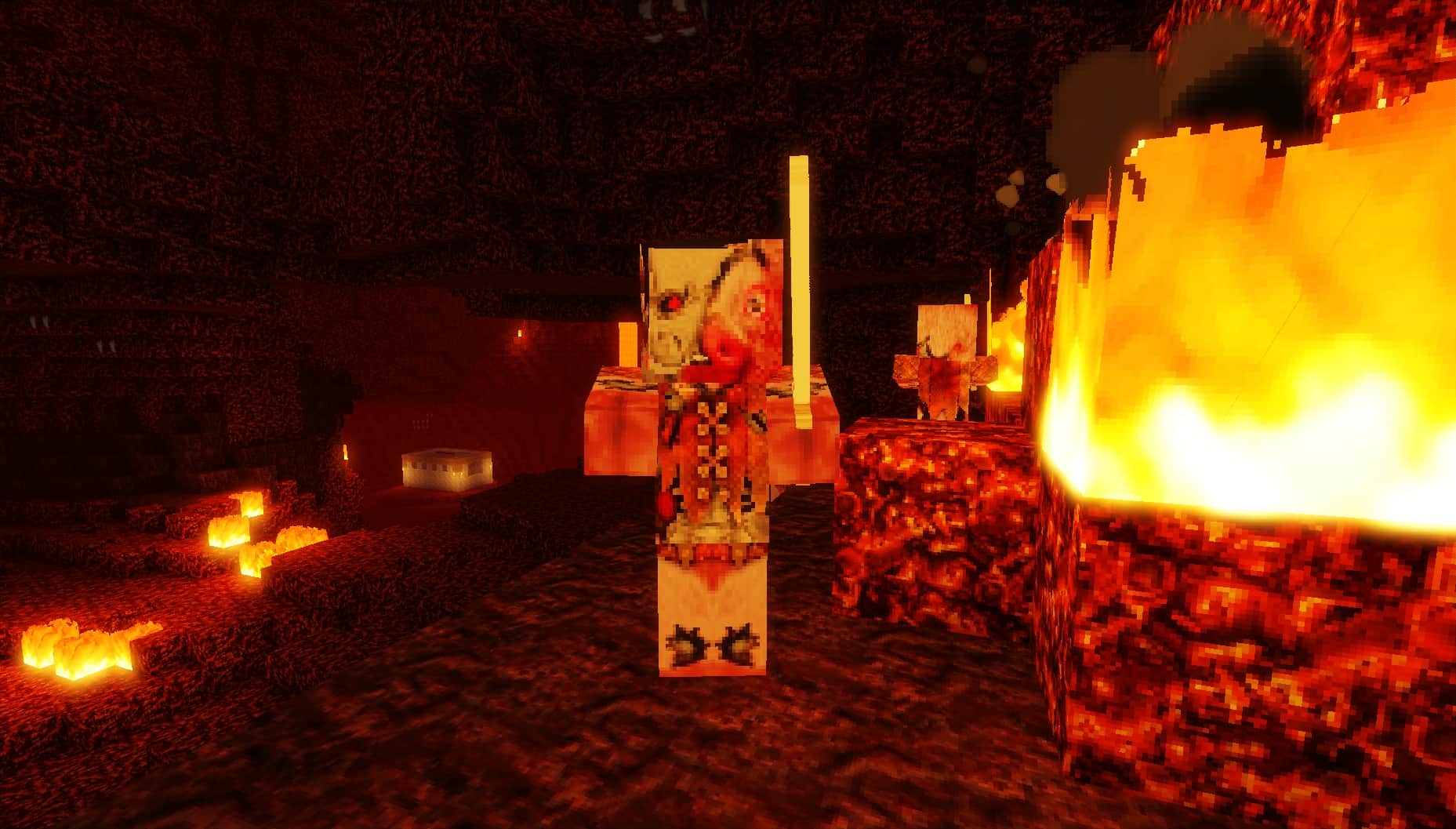
How to Install Texture Pack (Simple 10 Steps)
- Download OptiFine: Most of the texture packs and shaders need OptiFine. That’s why, first download and install OptiFine for the version of Minecraft you want to play.
- Download the Texture Pack: Get the texture pack you want from the download section. Choose the version that works with your Minecraft and your PC’s performance.
- Open Minecraft Launcher: Start Minecraft using the official game launcher — or even TLauncher, if you use that.
- Go to Options: From the main menu, click on the “Options” button.
- Open Resource Packs: Inside Options, click on “Resource Packs…”.
- Open the Resource Pack Folder: Click on “Open Resource Pack Folder” — this will open a folder named “resourcepacks”.
- Move the Pack File: Copy or move the .zip file you downloaded into that “resourcepacks” folder. (Don’t unzip the file — Minecraft uses it as-is!)
- Go Back and Refresh: Close the folder and click “Done”, then go back into “Resource Packs…” again.
- Activate the Pack: You’ll see the pack on the left side. Hover over it and click the arrow to move it to the right (active side).
Tip: If you get a message that the pack is for a different version, just click “Yes” — it usually works fine. - Click Done and Enjoy: Click “Done” again. Now your pack is ready to use in-game. It’s that easy!
Credits
Winthor Medieval is created by Studio-Winthor, who retains all original ownership and rights. We do not own, host, or modify this resource pack. All rights belong to the original creator, and we strongly encourage supporting Studio-Winthor by downloading the pack from their official channels.
Download Links
Java Edition
Download Instructions
Curseforge: download starts automatically after a few seconds;
Mediafire: click the big blue button with the text “DOWNLOAD”;
Google Drive: in the top right corner you will see a small download icon (down arrow), click it and the download should start;