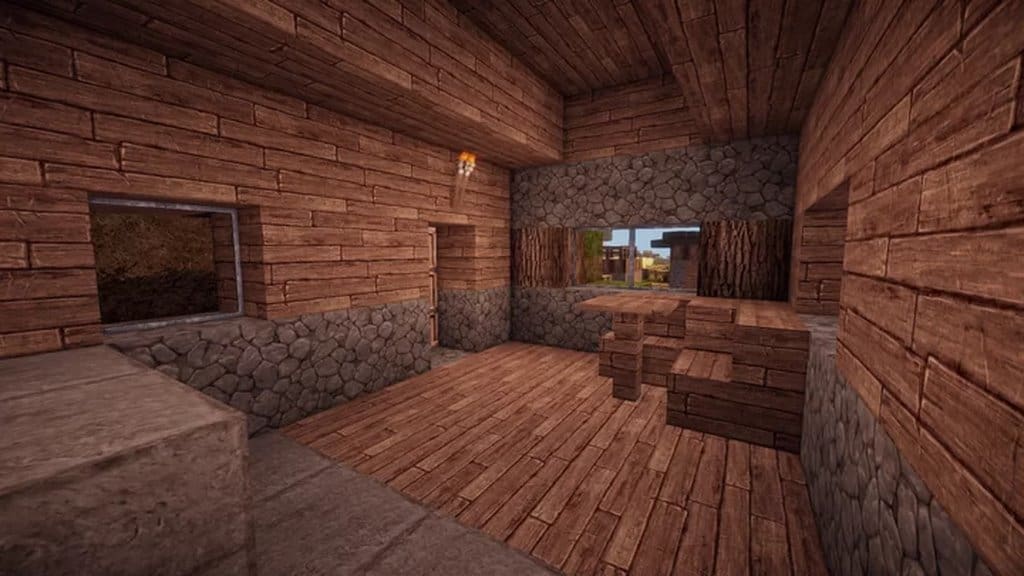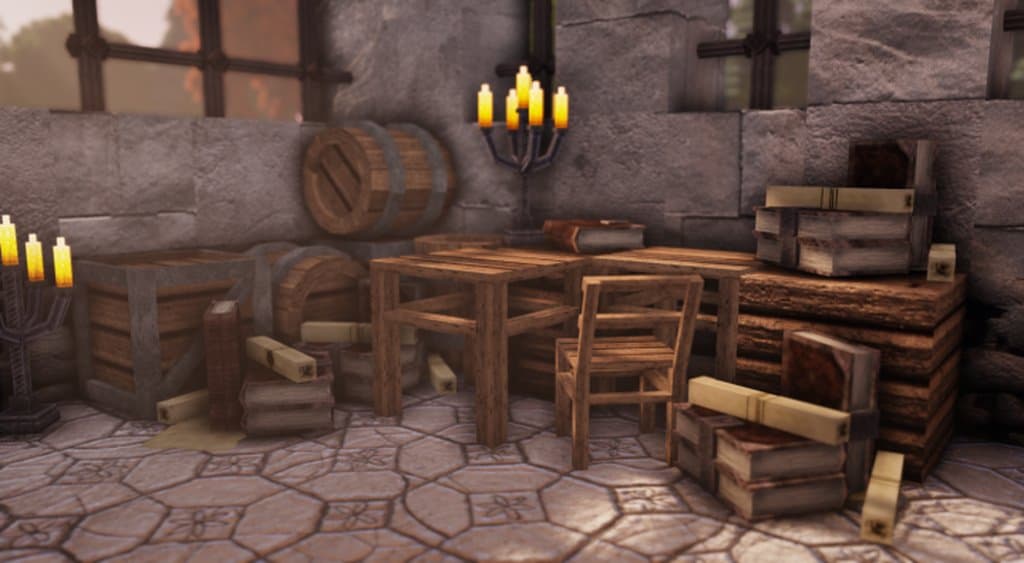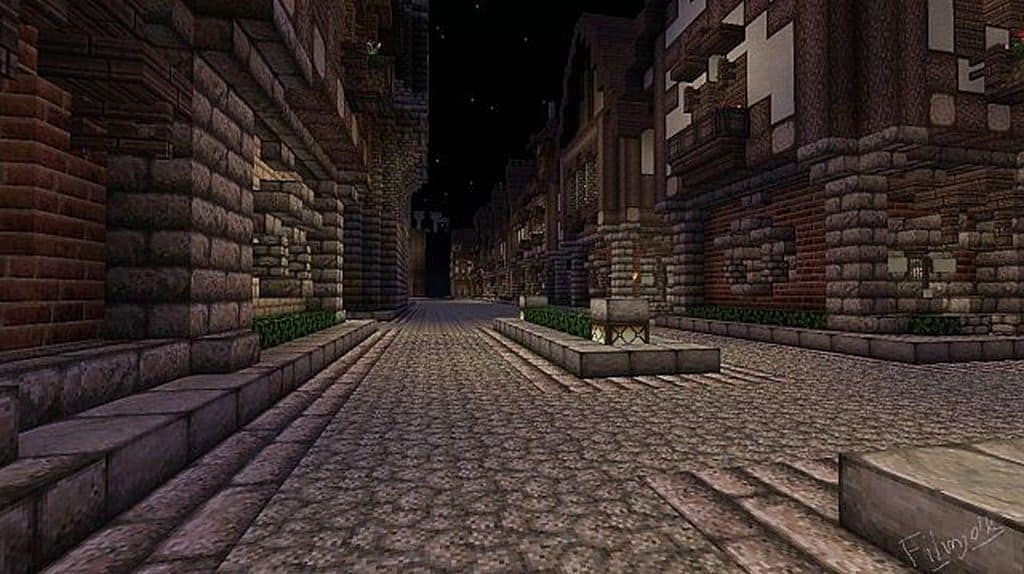
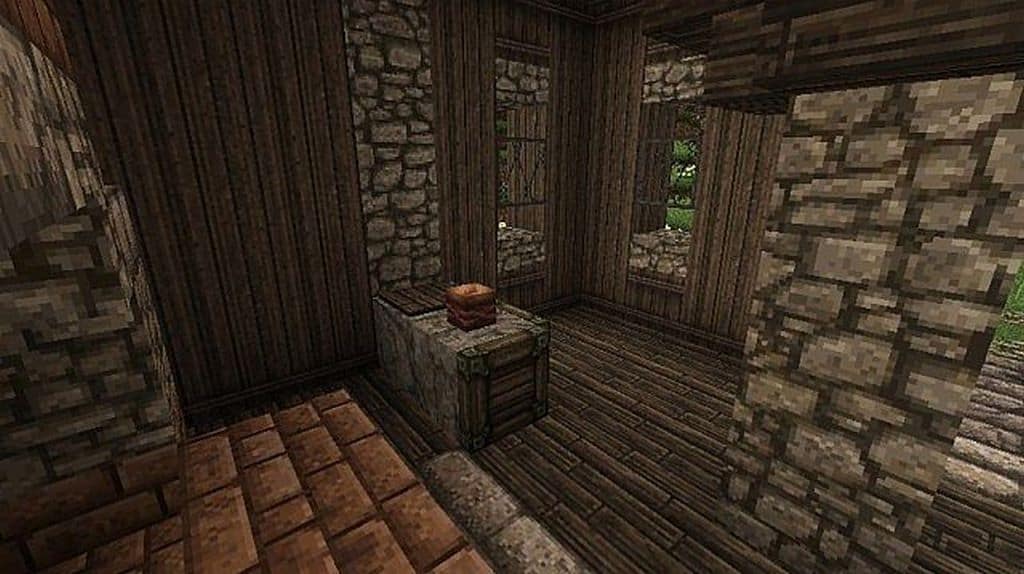
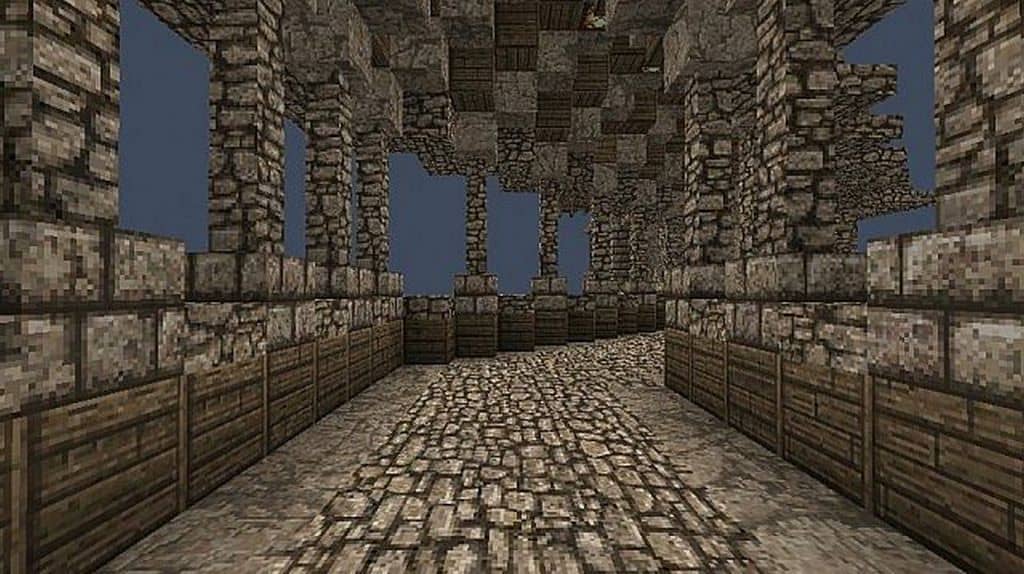
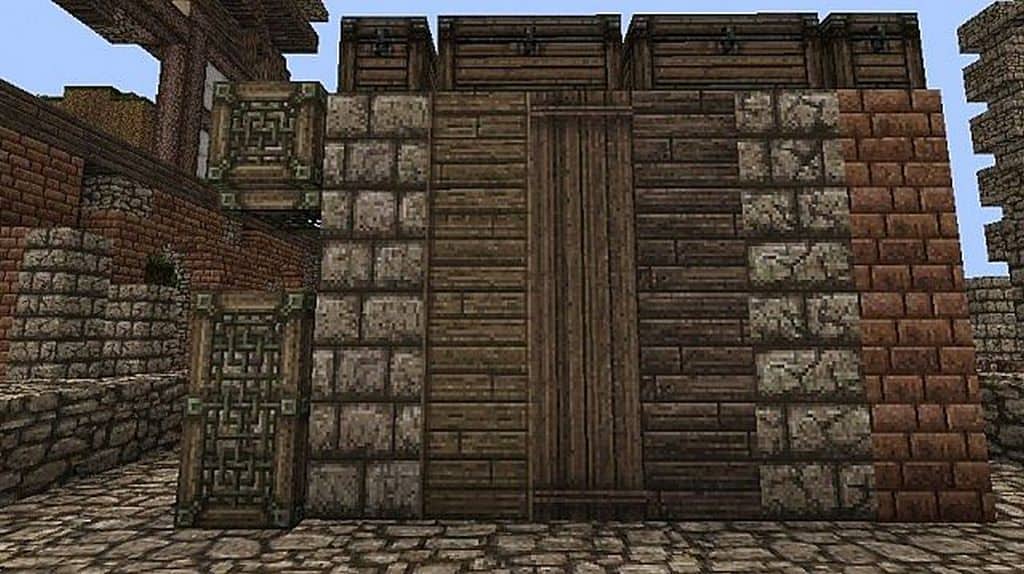
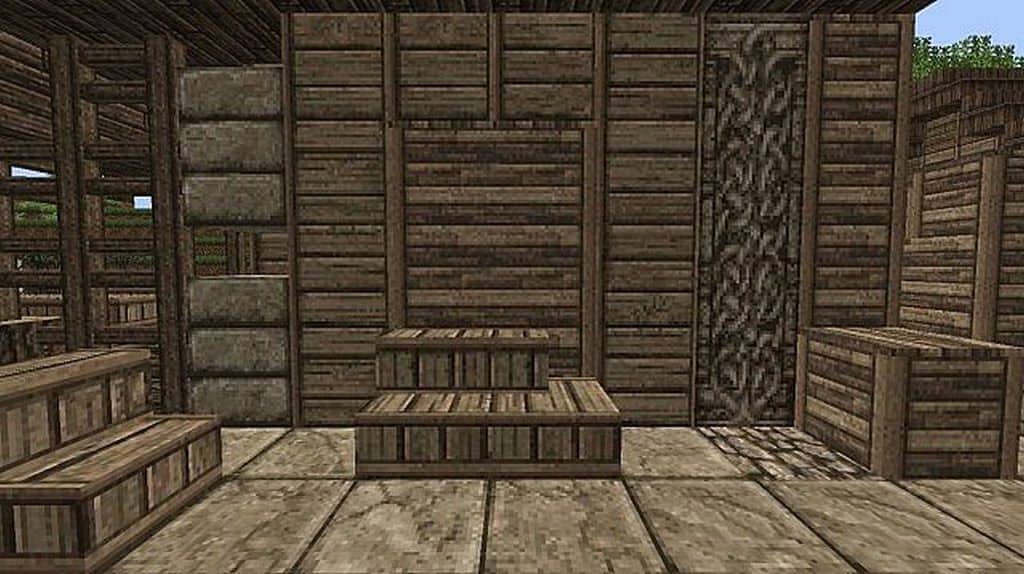
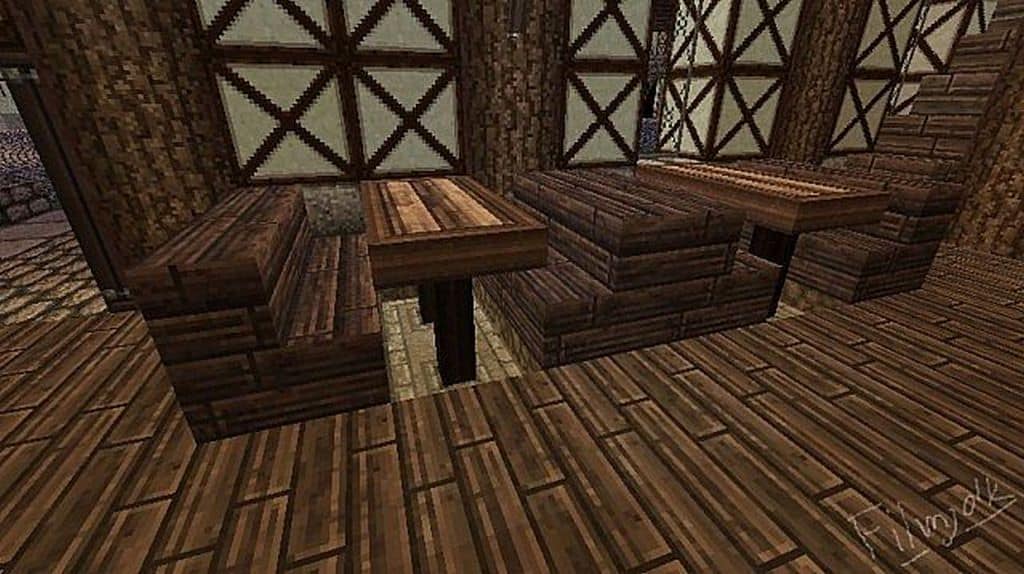
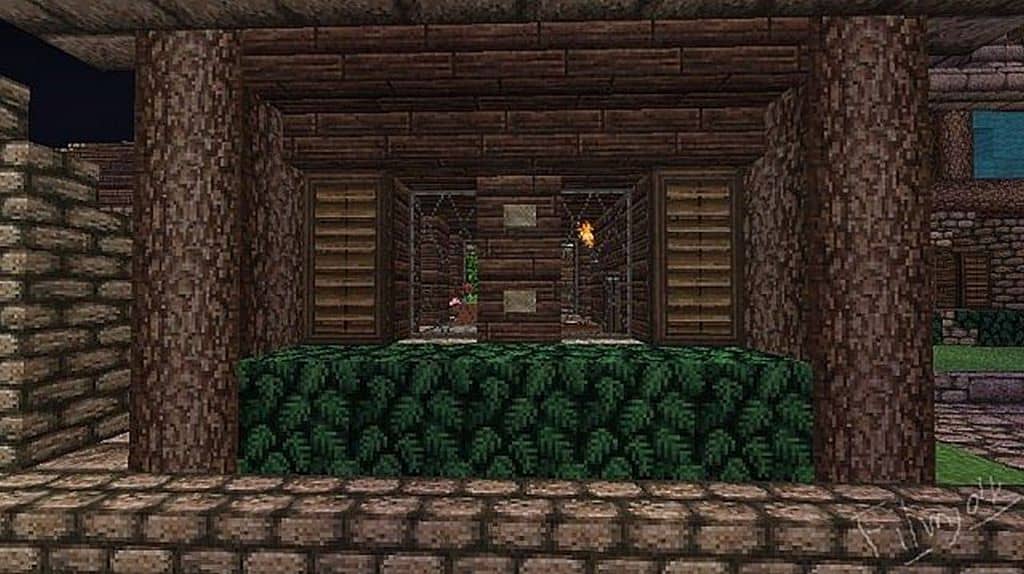
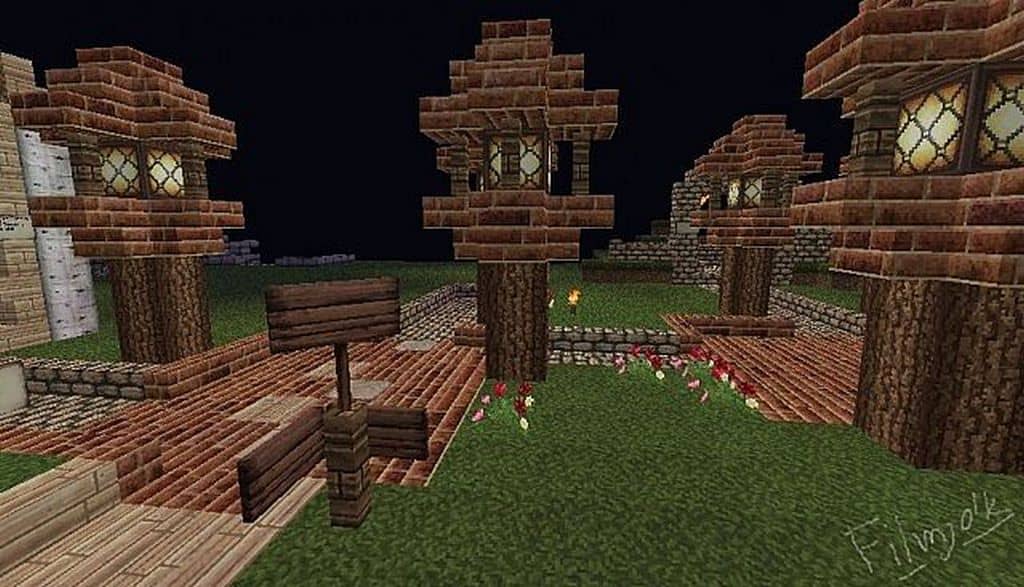
One of the absolute oldest yet highest quality packs currently available for Minecraft is the brilliant Werian resource pack. While beginners might be quite used to basic vanilla assets, a vast majority of seasoned Minecraft players often find it genuinely difficult to fully engage with a true medieval atmosphere, leaving many searching endlessly for top-tier medieval-themed options. Overall, Werian is easily one of the most successful projects that does an absolutely magnificent job representing its chosen theme. This incredible effort constantly makes up for the general lack of high-grade medieval packs in the community. If medieval art and environments truly interest you, then I can happily say the Werian pack will completely satisfy your craving. Best of all, the inspiration for the Werian resource packs originally stemmed from the legendary John Smith texture packs.
Besides those classic John Smith textures, the Werian pack actually shares many striking similarities with SMP’s Revival, almost feeling like a wonderful blend of both iconic styles. Diving into this visual experience is immensely effective because the overall color palette is wonderfully toned down. Admittedly, regular players who primarily play Minecraft for super bright colors might feel a bit thrown off at first by this distinct stylistic adjustment. Fortunately, it works out amazingly well in practice because the creators behind the Werian pack skillfully managed to make the muted colors beautifully complement the intricate textures. While exploring with the Werian resource pack installed, you will definitely notice how carefully the authors focused on refining the terrains and natural environments. On top of that, there is an extensive overhaul of the user interface, making all of the menus look considerably smoother and much more immersive. Running at a crisp 32x resolution, the textures throughout the game are wonderfully smooth and undeniably eye-catching.
Werian should be compatible with all of these Minecraft versions: 1.8.9 – 1.8.8 – 1.8.1 – 1.8.6 – 1.8 – 1.7.10 – 1.7.9 – 1.7.4 – 1.7
Screenshots
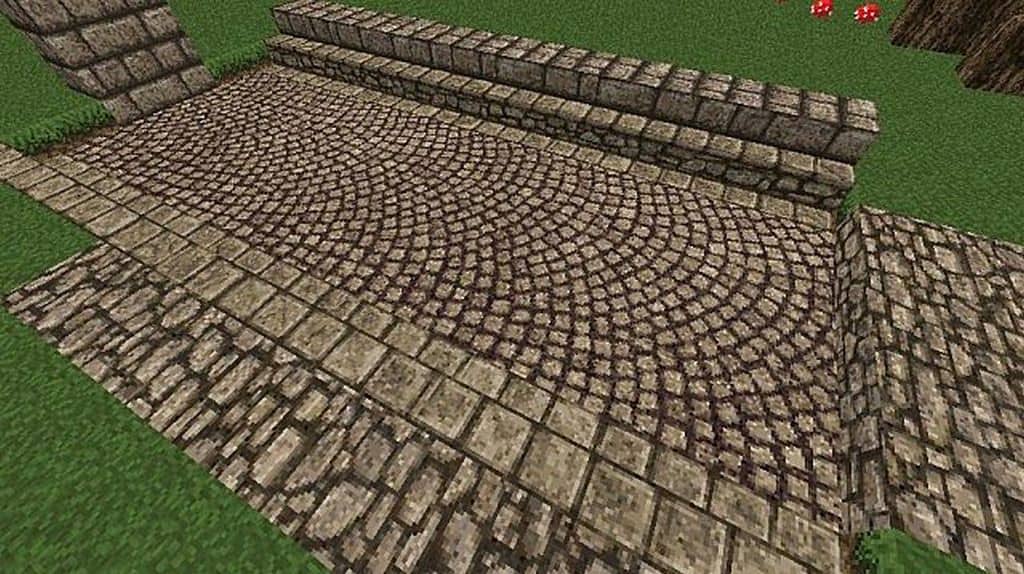
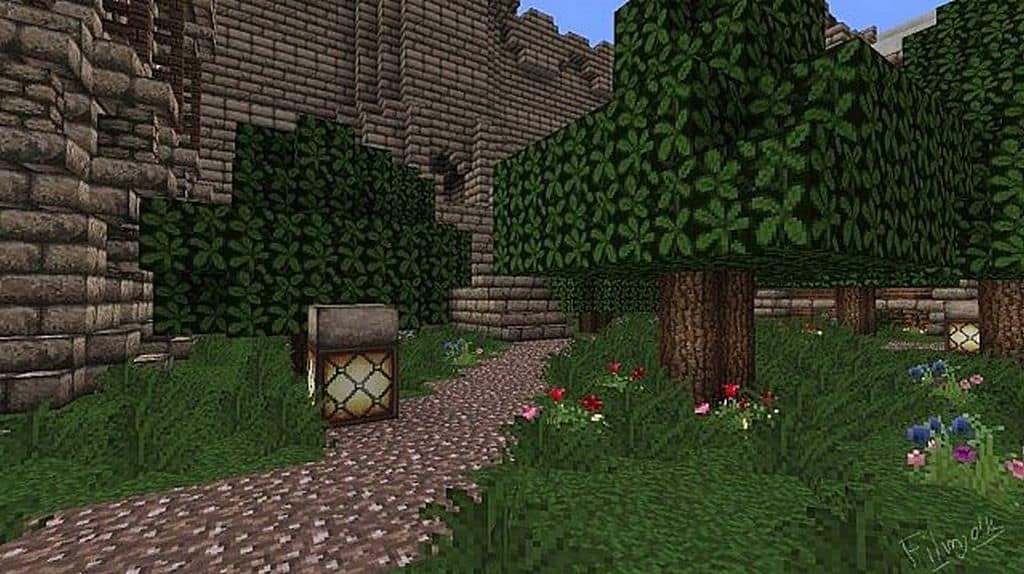
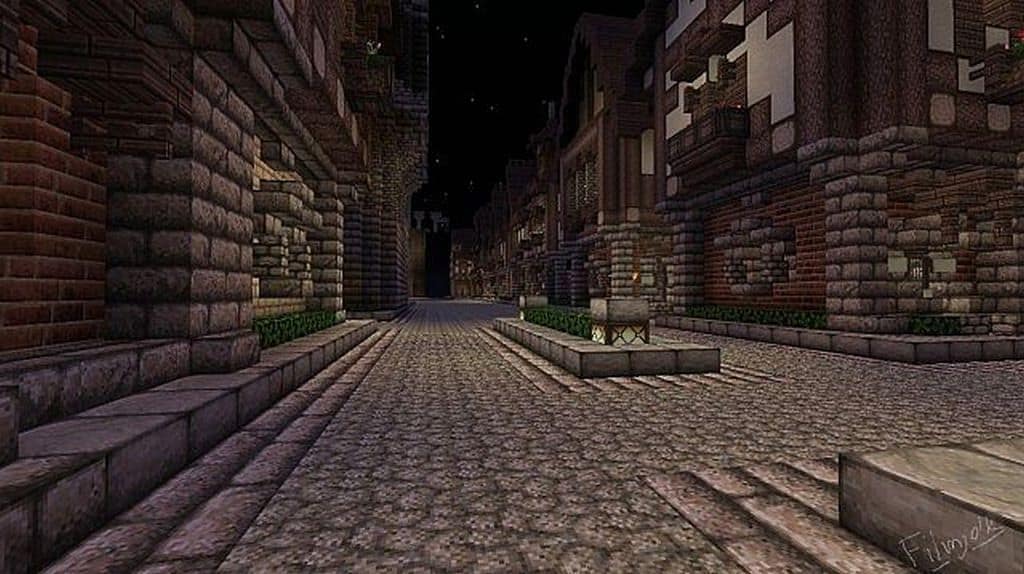
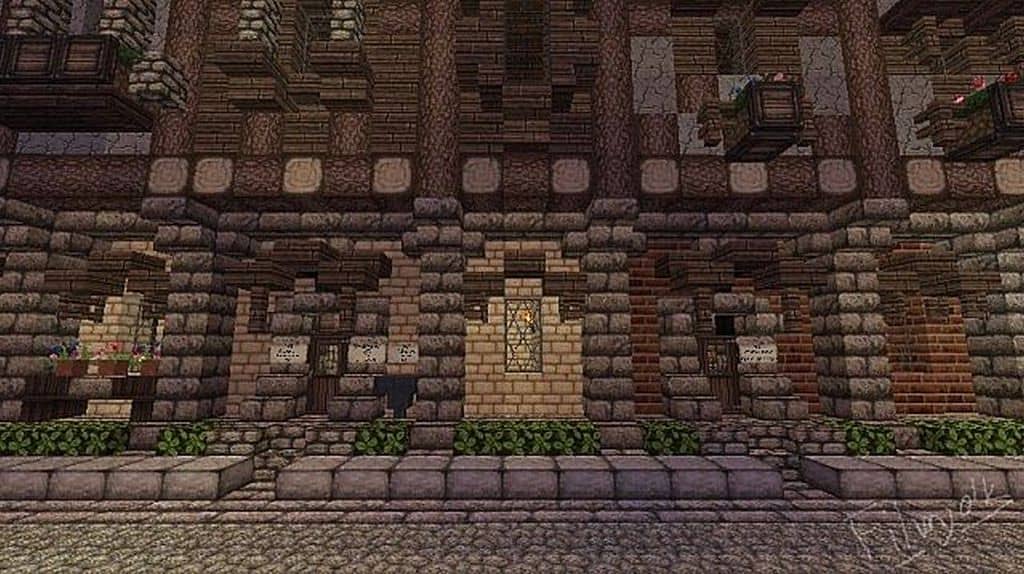

How to Install Texture Pack (Simple 10 Steps)
- Download OptiFine: Most of the texture packs and shaders need OptiFine. That’s why, first download and install OptiFine for the version of Minecraft you want to play.
- Download the Texture Pack: Get the texture pack you want from the download section. Choose the version that works with your Minecraft and your PC’s performance.
- Open Minecraft Launcher: Start Minecraft using the official game launcher — or even TLauncher, if you use that.
- Go to Options: From the main menu, click on the “Options” button.
- Open Resource Packs: Inside Options, click on “Resource Packs…”.
- Open the Resource Pack Folder: Click on “Open Resource Pack Folder” — this will open a folder named “resourcepacks”.
- Move the Pack File: Copy or move the .zip file you downloaded into that “resourcepacks” folder. (Don’t unzip the file — Minecraft uses it as-is!)
- Go Back and Refresh: Close the folder and click “Done”, then go back into “Resource Packs…” again.
- Activate the Pack: You’ll see the pack on the left side. Hover over it and click the arrow to move it to the right (active side).
Tip: If you get a message that the pack is for a different version, just click “Yes” — it usually works fine. - Click Done and Enjoy: Click “Done” again. Now your pack is ready to use in-game. It’s that easy!
Credits
The Werian resource pack was originally created by Filmjolk. We do not claim ownership of this content, and all rights remain with the original author. We strongly encourage you to support the creator by downloading from their official links and checking out their other work.
Download Instructions
Curseforge: download starts automatically after a few seconds;
Mediafire: click the big blue button with the text “DOWNLOAD”;
Google Drive: in the top right corner you will see a small download icon (down arrow), click it and the download should start;