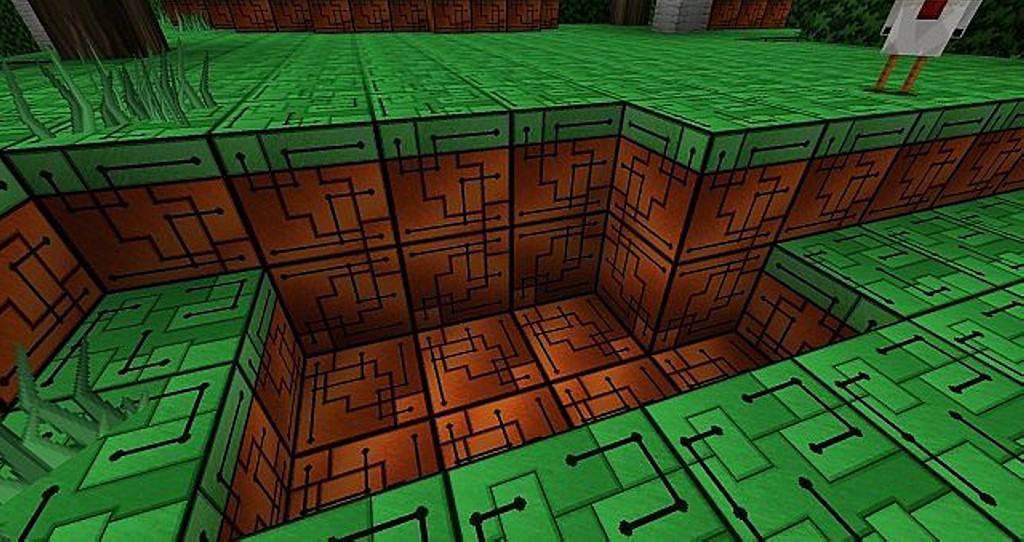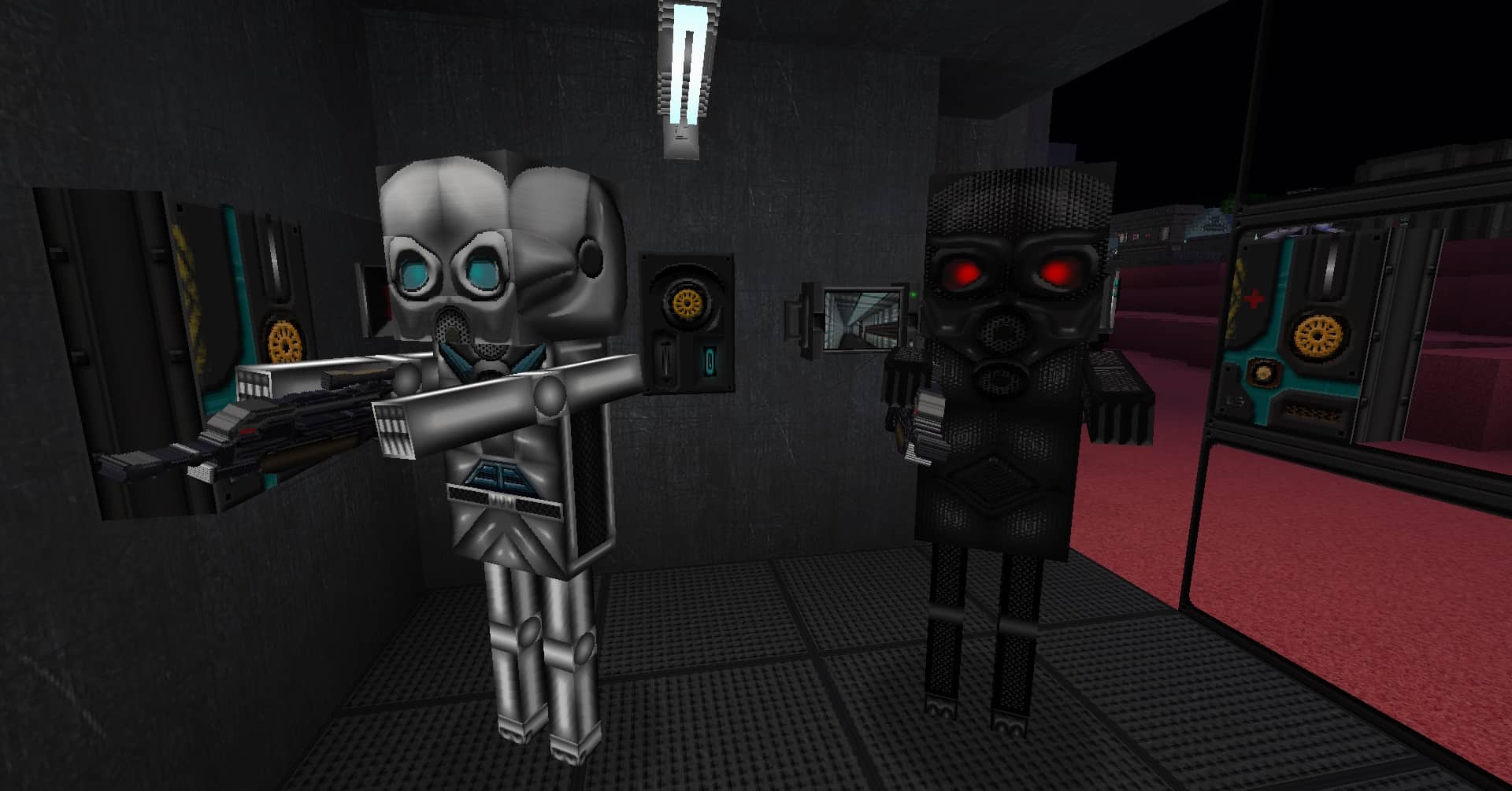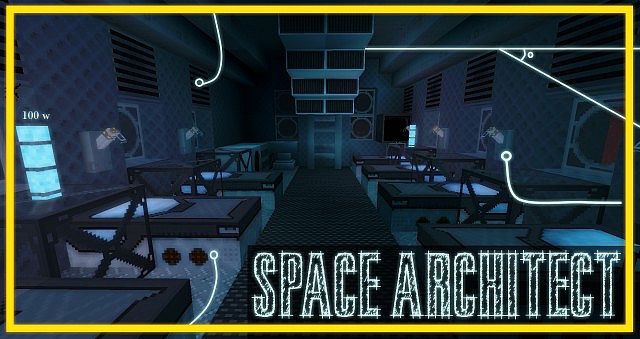
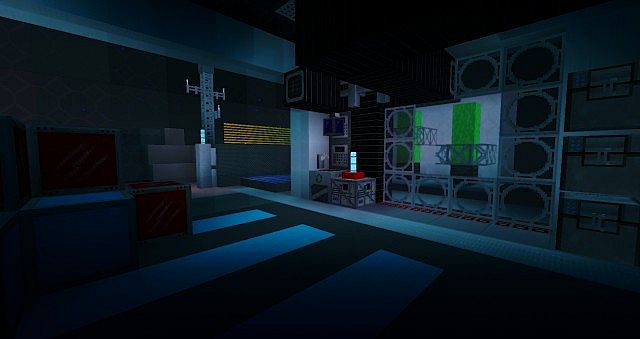
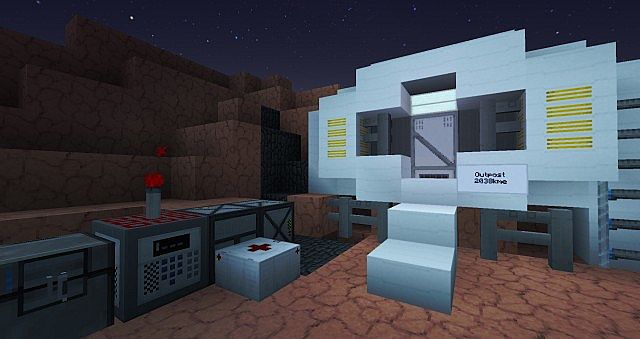
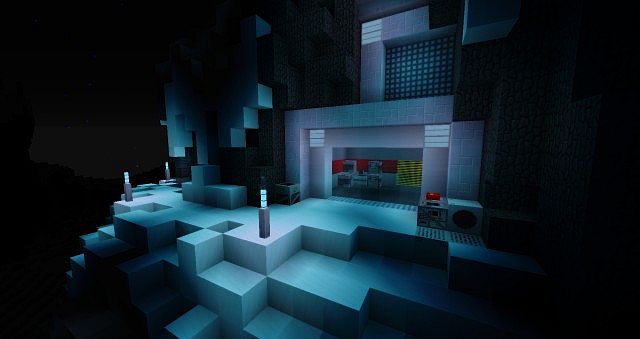
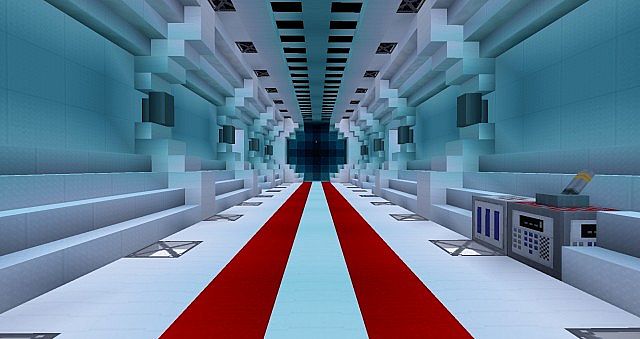
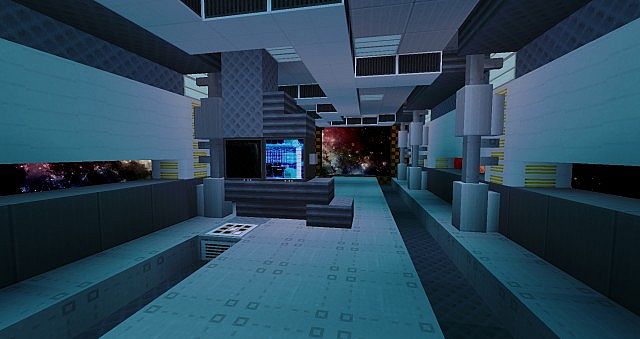
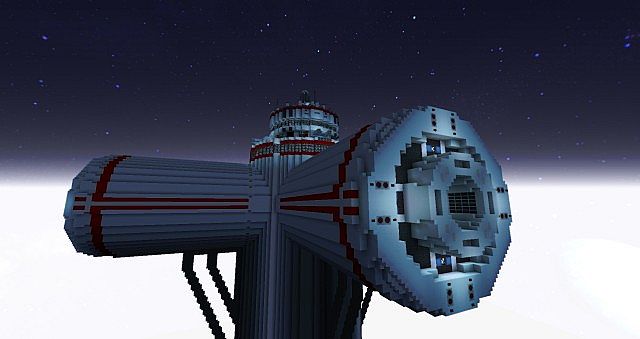
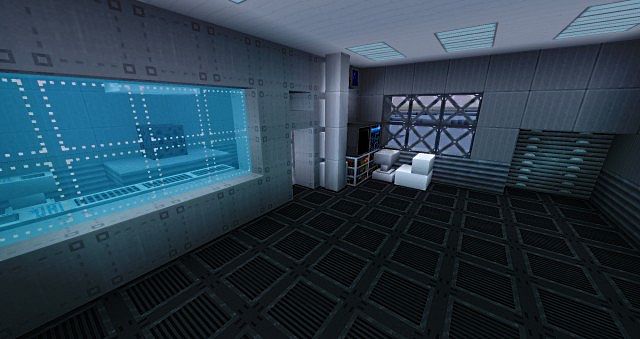
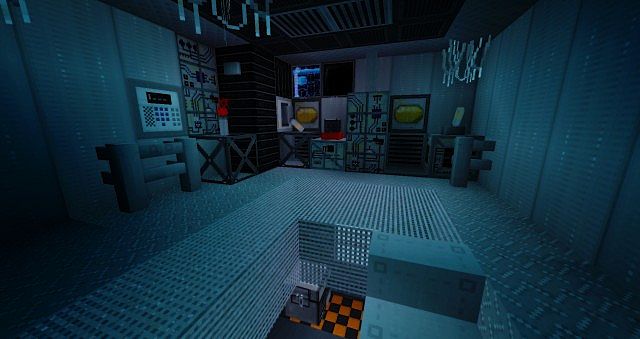
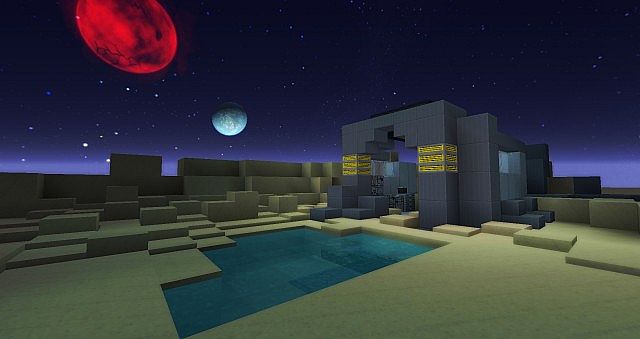
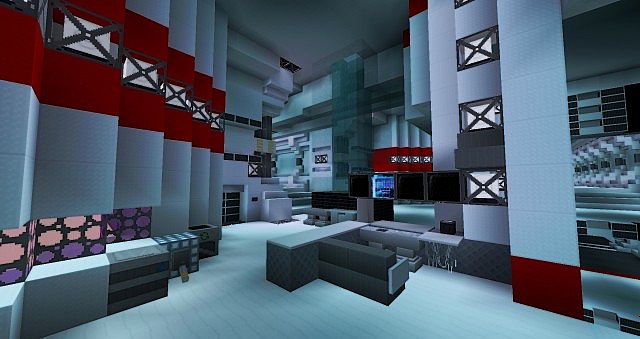
The Space Architect resource pack truly stands out as a remarkable and distinctive addition to the world of Minecraft texture packs. While the vast majority of packs lean heavily toward realistic visuals or stick closely to the default vanilla theme, Space Architect introduces a brilliantly bold sci-fi aesthetic, offering players an entirely fresh and unique perspective on the game. Its futuristic designs create a sleek, otherworldly atmosphere that genuinely inspires you to completely reimagine your builds and gameplay. Instead of focusing on traditional medieval structures or generic square creations, this resource pack encourages you to think much bigger and bolder. Just imagine crafting towering orbital space stations, intricate high-tech research facilities, or even cold, imposing industrial megastructures.
The pack’s carefully crafted textures bring an incredible sense of sophistication and innovation to your world, unlocking endless creative possibilities. Although Space Architect doesn’t alter core gameplay mechanics or introduce brand new items, it pairs exceptionally well with sci-fi themed mods to deliver a comprehensive and cohesive overhaul of Minecraft. Together, they can easily transform your experience into a fully realized futuristic adventure. Additionally, the pack is impressively optimized for performance, ensuring smooth and enjoyable gameplay across a wide variety of hardware setups. Whether you’re exploring familiar Minecraft landscapes, building massive orbital bases, or designing detailed, cutting-edge cities, Space Architect is simply the ideal resource pack for sci-fi enthusiasts. If you’re ready to take Minecraft in a bold, futuristic direction, this pack is an absolute must-have for your collection.
Space Architect should be compatible with all of these Minecraft versions: 1.7.10 – 1.7.9 – 1.7.4 – 1.7 – 1.6.4 – 1.6.2
Screenshots
How to Install Texture Pack (Simple 10 Steps)
- Download OptiFine: Most of the texture packs and shaders need OptiFine. That’s why, first download and install OptiFine for the version of Minecraft you want to play.
- Download the Texture Pack: Get the texture pack you want from the download section. Choose the version that works with your Minecraft and your PC’s performance.
- Open Minecraft Launcher: Start Minecraft using the official game launcher — or even TLauncher, if you use that.
- Go to Options: From the main menu, click on the “Options” button.
- Open Resource Packs: Inside Options, click on “Resource Packs…”.
- Open the Resource Pack Folder: Click on “Open Resource Pack Folder” — this will open a folder named “resourcepacks”.
- Move the Pack File: Copy or move the .zip file you downloaded into that “resourcepacks” folder. (Don’t unzip the file — Minecraft uses it as-is!)
- Go Back and Refresh: Close the folder and click “Done”, then go back into “Resource Packs…” again.
- Activate the Pack: You’ll see the pack on the left side. Hover over it and click the arrow to move it to the right (active side).
Tip: If you get a message that the pack is for a different version, just click “Yes” — it usually works fine. - Click Done and Enjoy: Click “Done” again. Now your pack is ready to use in-game. It’s that easy!
Credits
This project was originally created by Scamper3396. We do not claim ownership of this content nor have we modified the original files. Please support the original creator by visiting their official download pages.
Download Instructions
Curseforge: download starts automatically after a few seconds;
Mediafire: click the big blue button with the text “DOWNLOAD”;
Google Drive: in the top right corner you will see a small download icon (down arrow), click it and the download should start;