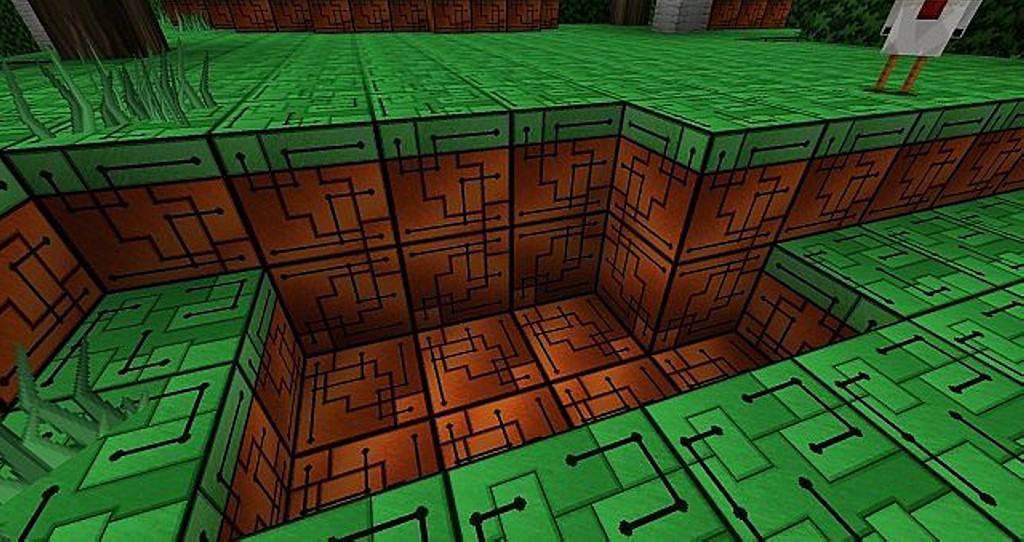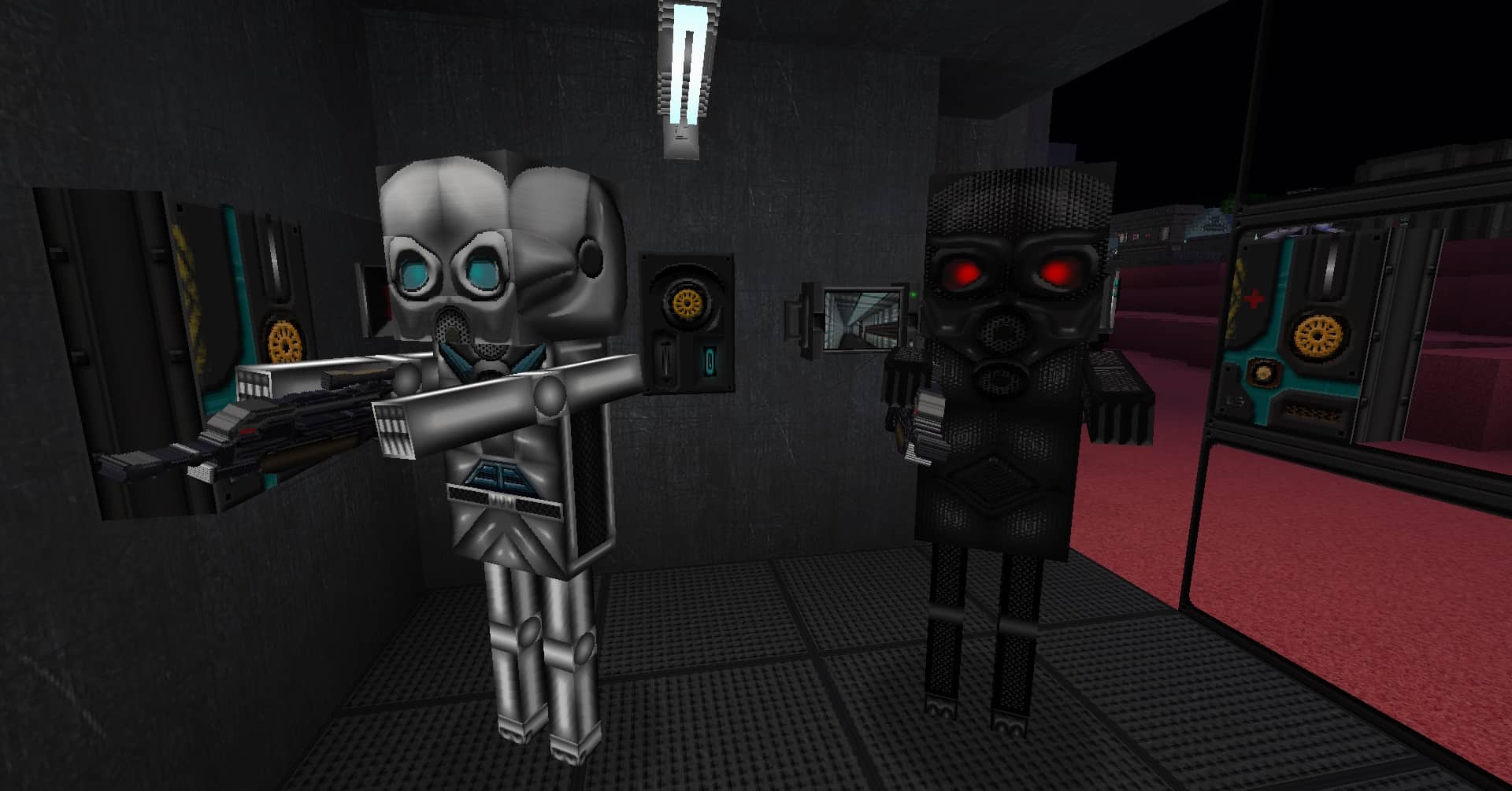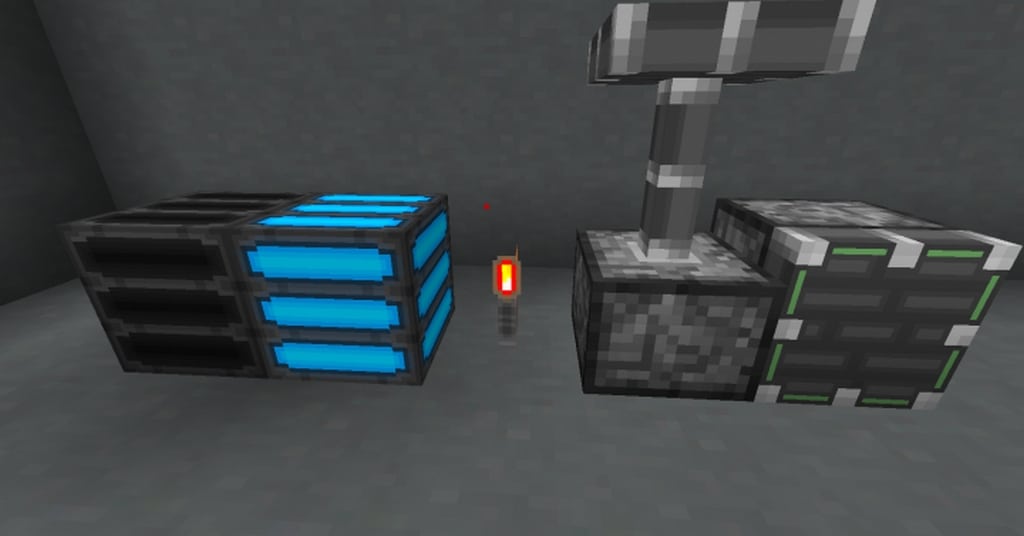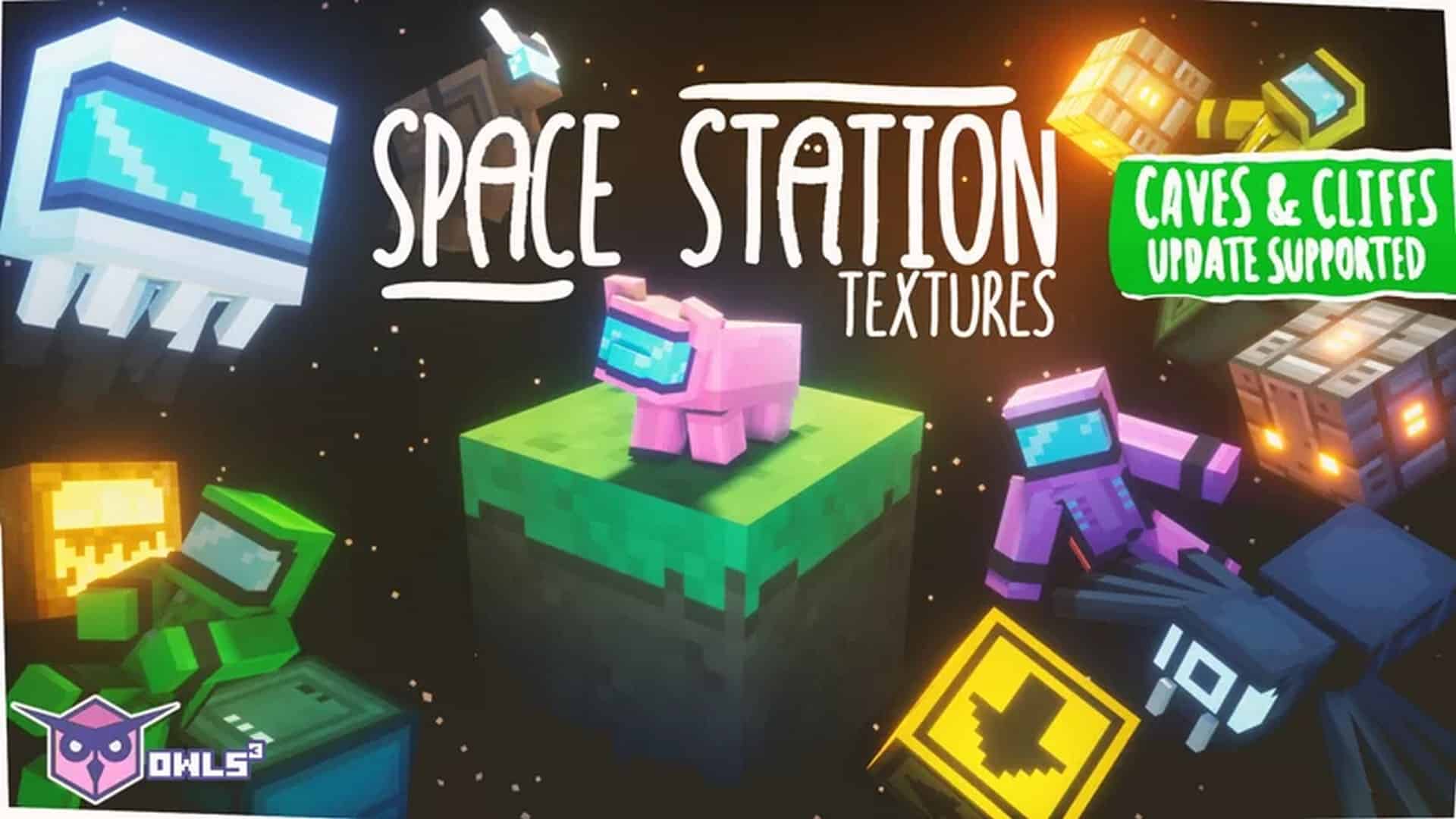
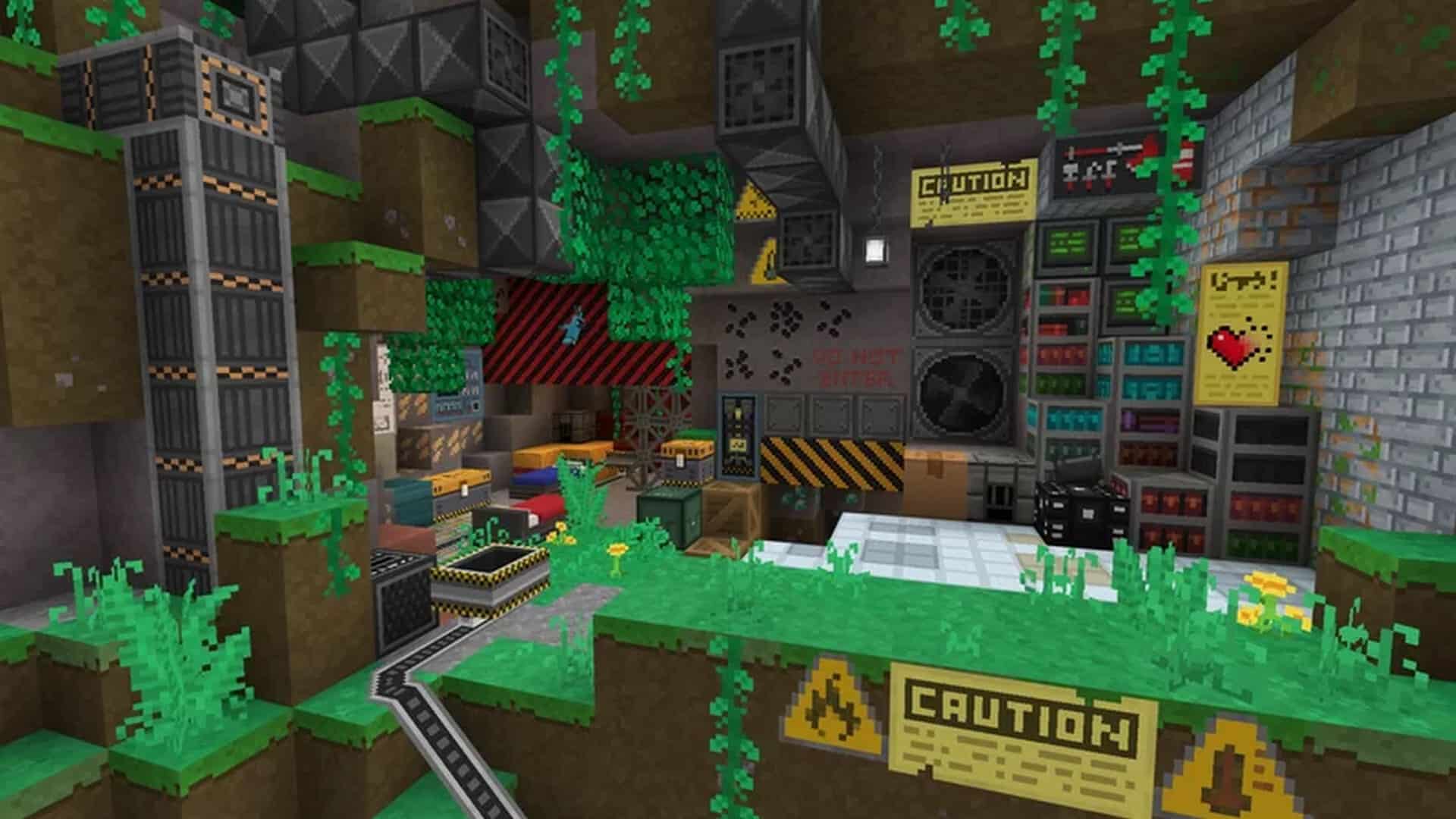
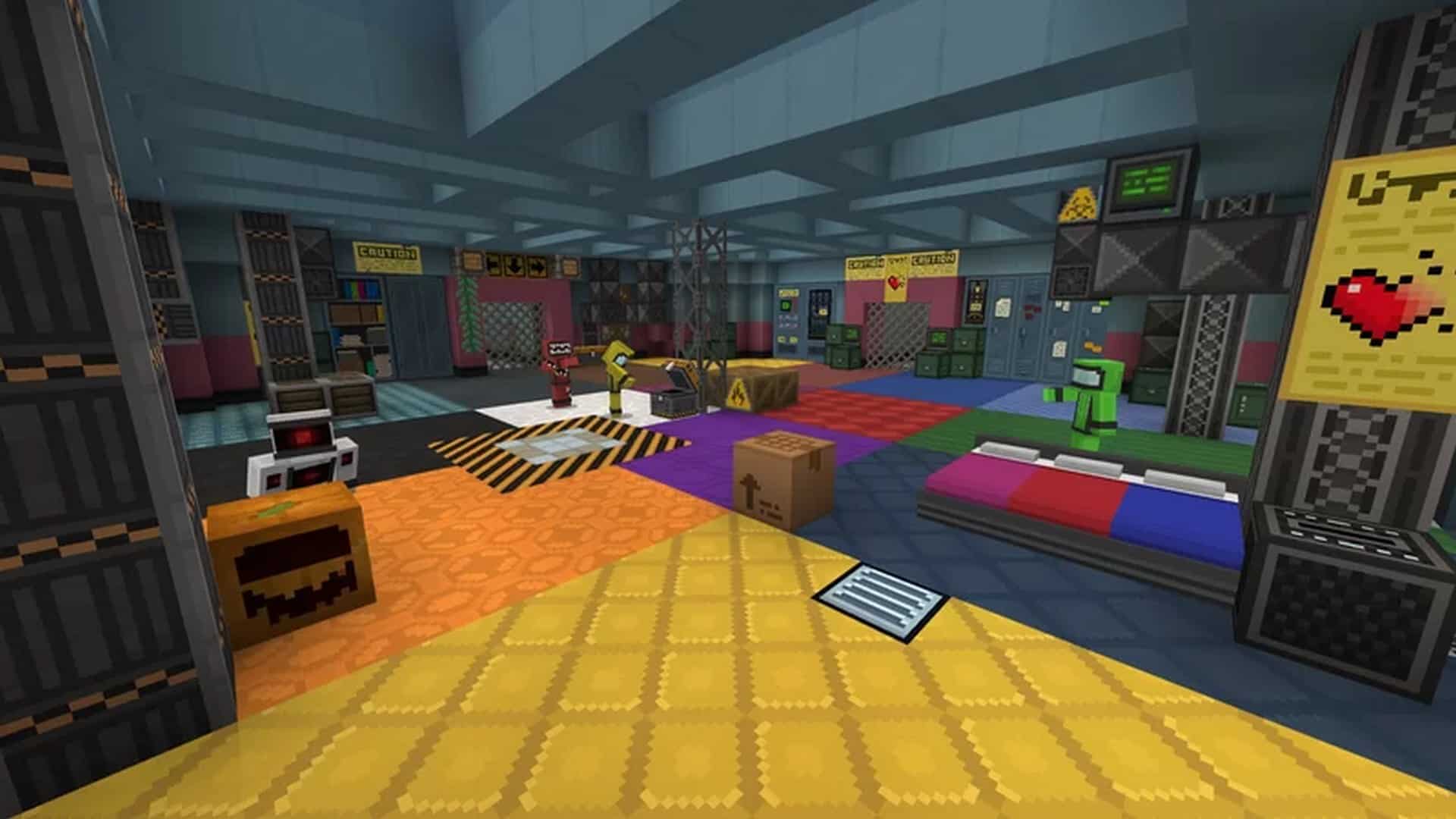
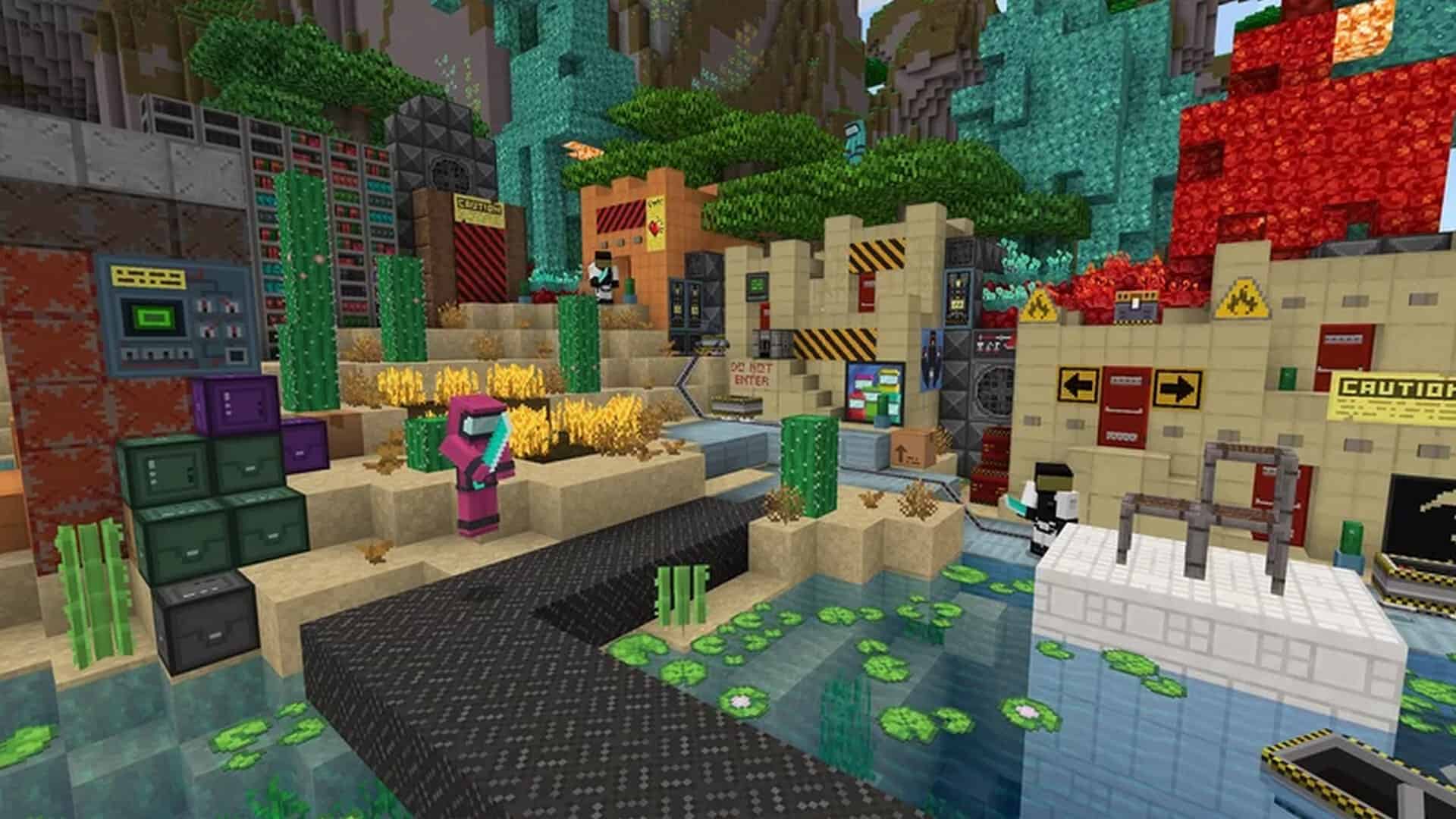
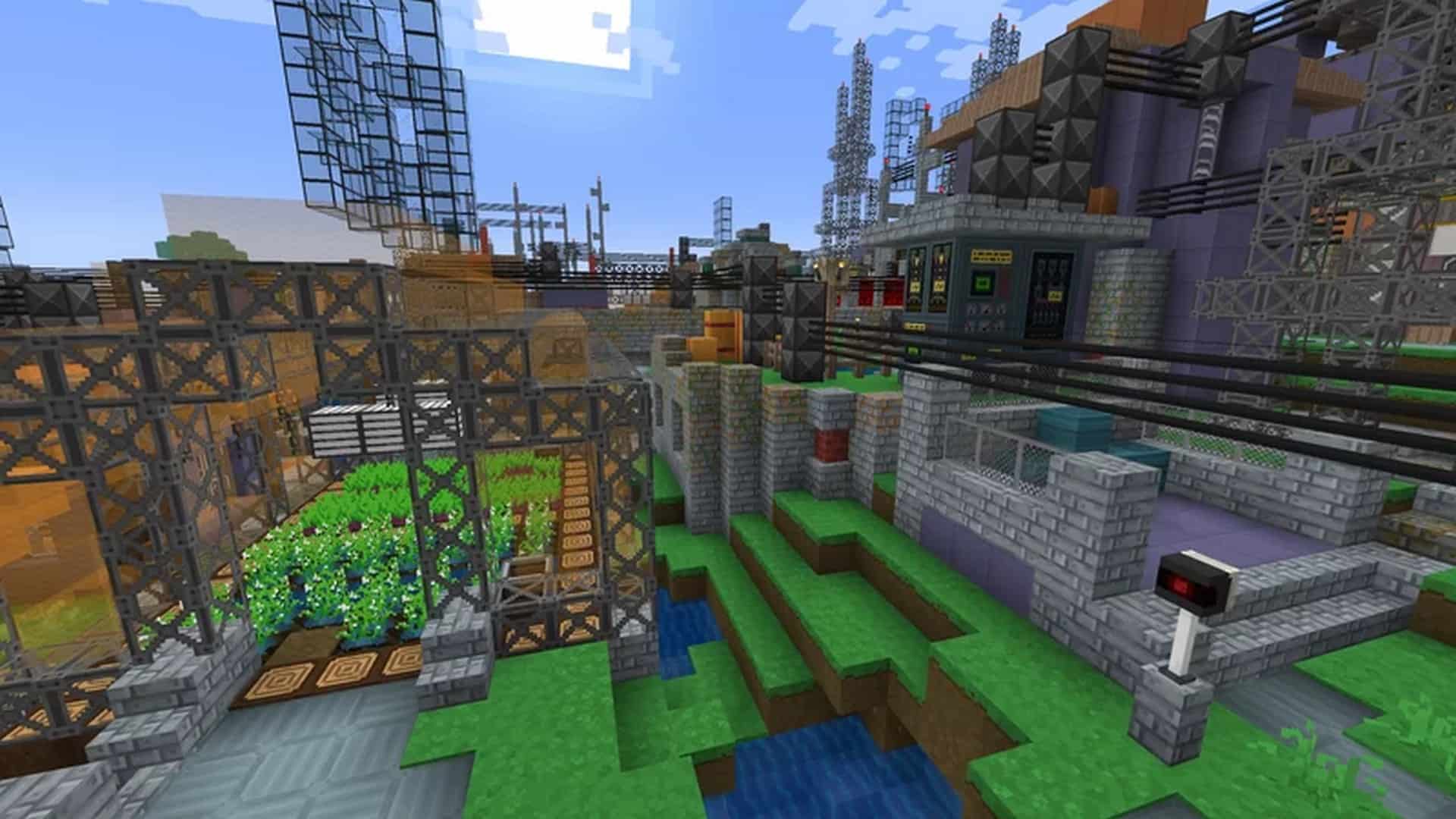
The Space Station resource pack was officially launched in late 2021 by the talented creator OwlsCubed, who already boasts several impressive packs under their belt. Drawing from a wealth of past experience with successful projects, the Space Station texture pack finally saw the light of day. Despite what the name might initially imply, you unfortunately do not actually get to float around and play Minecraft in outer space with this resource pack. Instead, what it brilliantly accomplishes is bringing a fantastic assortment of new textures and heavily stylized blocks that empower you to construct your very own authentic space station right inside Minecraft. This thoroughly includes awesome new textures for specific blocks that are magically transformed into sleek metallic structures, intricate ventilation systems, modern floor tiles, futuristic lighting elements, functional railways, busy conveyor belts, and unique crate textures, among other things. There are plenty of delightful small elements that have been carefully introduced to heavily enforce this immersive sci-fi theme. You can actually build convincing lockers or place various blocks that proudly feature warning signs or directional arrows, exactly like you would expect to see walking through a real space station corridor. All of these futuristic elements seamlessly allow you to construct totally new worlds and monumental buildings heavily inspired by iconic sci-fi scenes from your favorite movies, TV shows, and cartoons. Even with all of these comprehensive visual changes meant to introduce a striking sci-fi vibe to your game, it brilliantly manages to retain the exact same classic core identity. At its heart, it proudly remains the beloved blocky and charmingly cartoonish game we all know and love.
This is largely achieved thanks to the developer sticking with the classic 16x resolution textures. While they might not pack an overwhelming amount of microscopic details, the stunning shift in overall visual style is undeniably striking and noticeable. Furthermore, keeping to this lower 16x resolution ensures that it definitely does not cripple older or low-end computers, meaning you certainly do not need an absolute monster of a PC to run Minecraft smoothly with the Space Station resource pack fully installed and active. Ongoing future development is always a crucially important aspect of any great resource pack, and thankfully, the developer remains reasonably active. Since this resource pack was released relatively recently, there are still exciting plans in motion to implement even more improvements. Although no changes have been applied to the user interface just yet, OwlsCubed has already shared promising plans to revamp it so that it perfectly matches the overarching sci-fi theme. Additionally, while the resource pack is already considered fully complete for use, the creator has ongoing plans to continuously refine and improve certain textures for select blocks. There are also great intentions to introduce much more block and object variety into the game. Thus far, the resource pack already introduces plenty of cool new elements like stylized mobs and custom player textures, but even more are eagerly expected down the line. In terms of sheer raw visual fidelity, the resource pack might not completely blow your mind right out of the box, but you can easily elevate the look. To noticeably enhance the visuals without needlessly increasing the base texture resolution, pairing it with a compatible shader pack works wonders. Just keep in mind that running an intensive shader pack might occasionally impact your framerate.
Space Station should be compatible with all of these Minecraft versions: 1.17.1 – 1.17 – 1.16.5 – 1.16.4 – 1.16.3 – 1.16.2 – 1.16.1 – 1.16
Screenshots



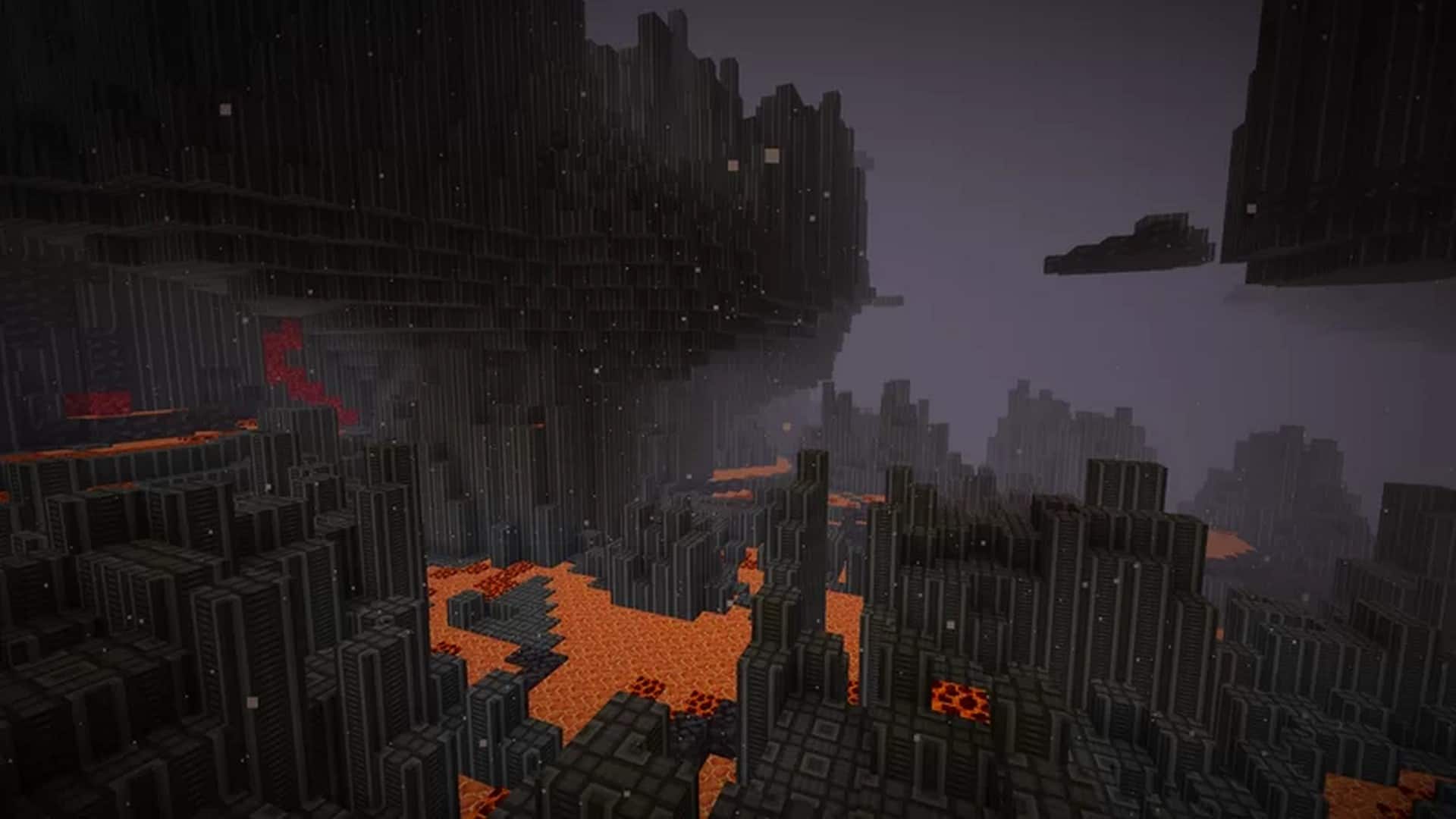
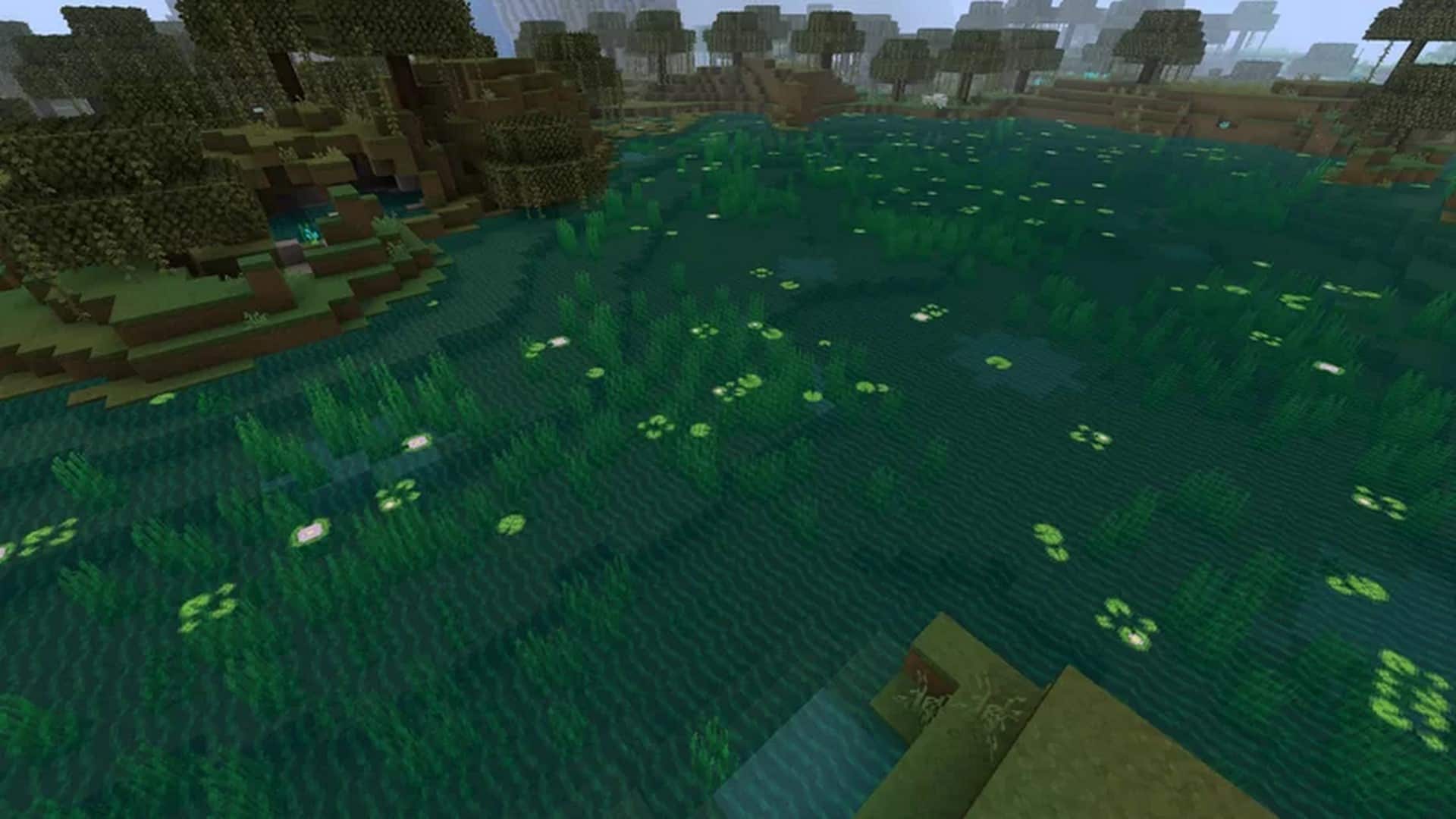
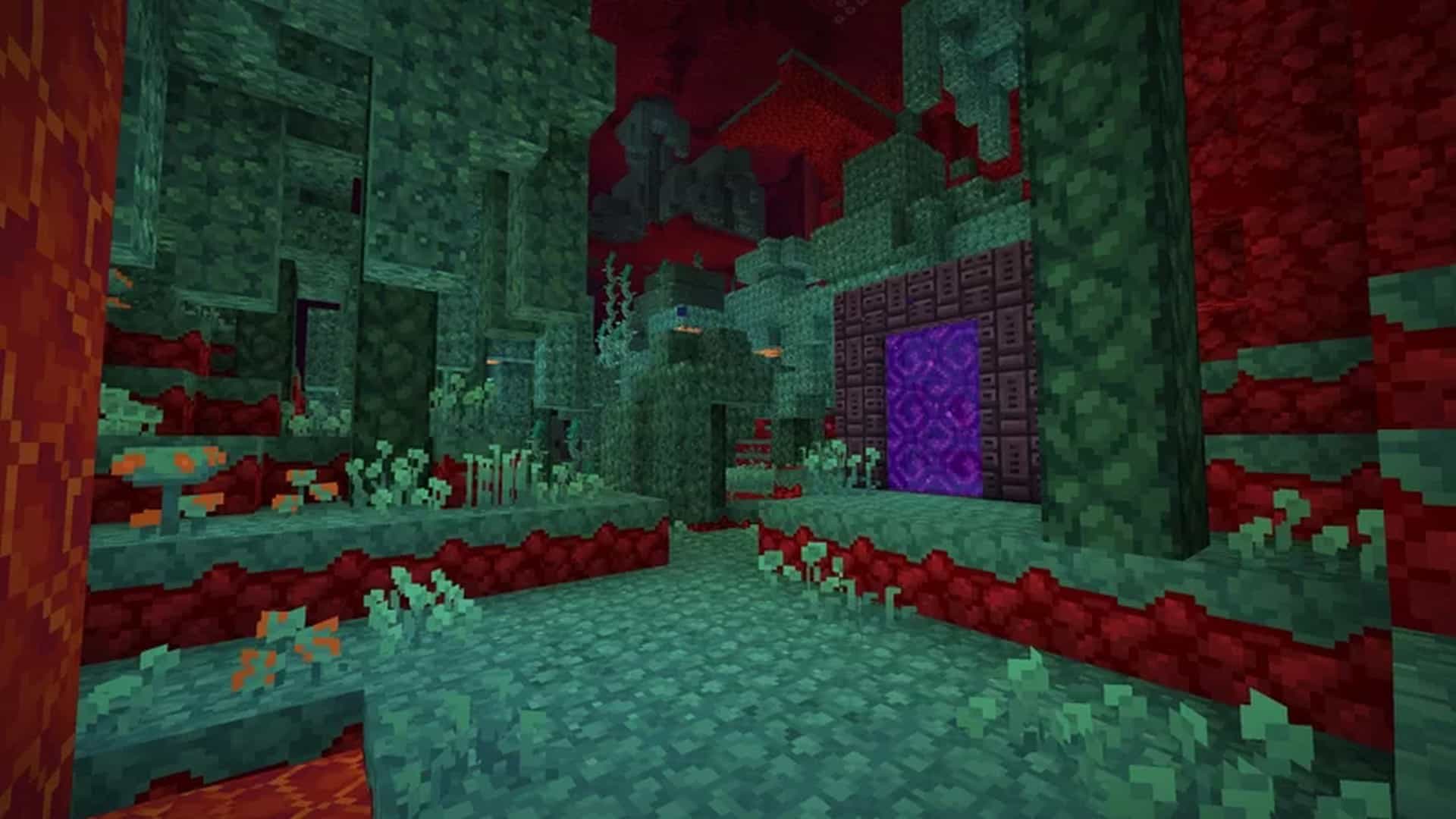
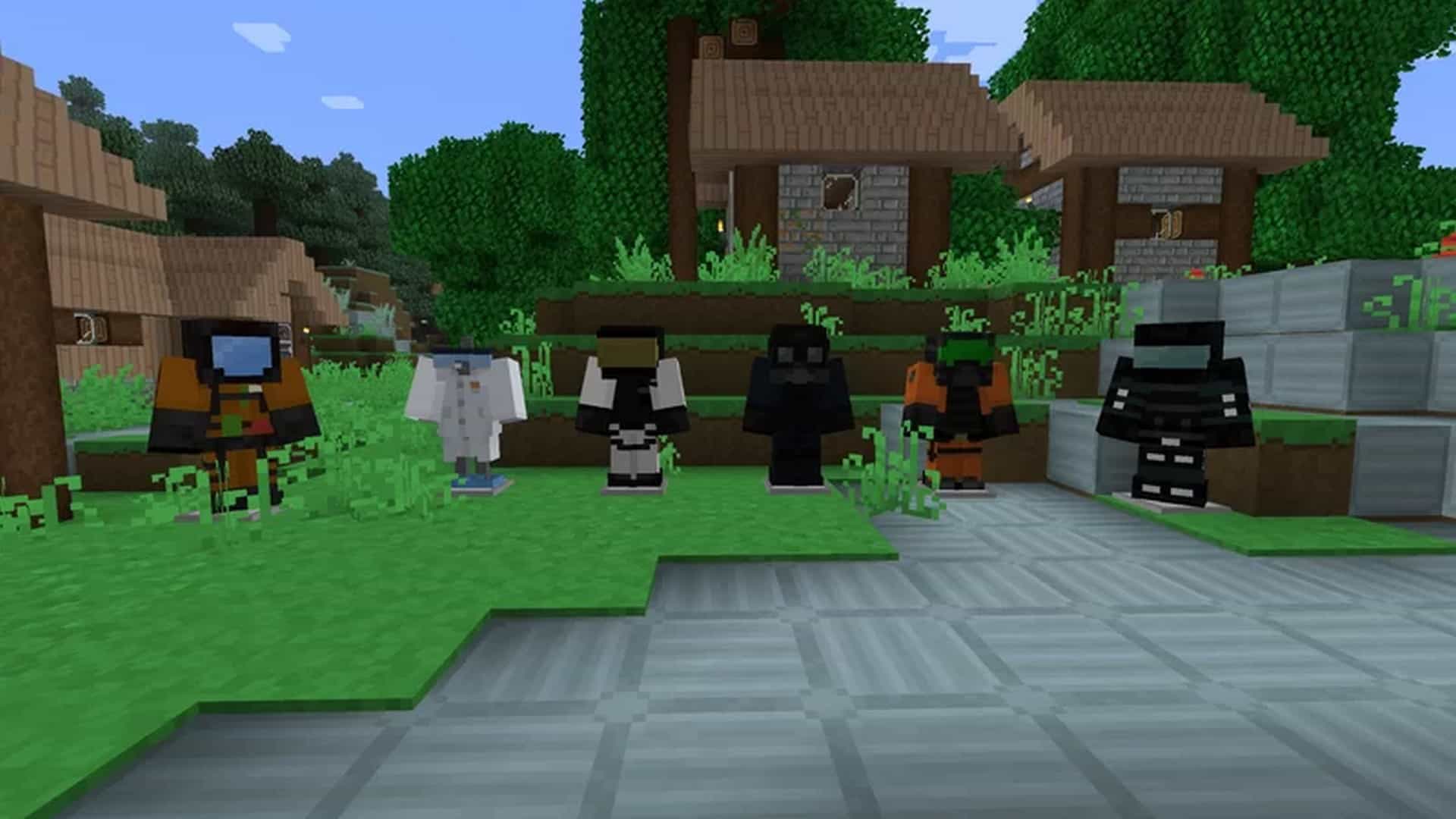
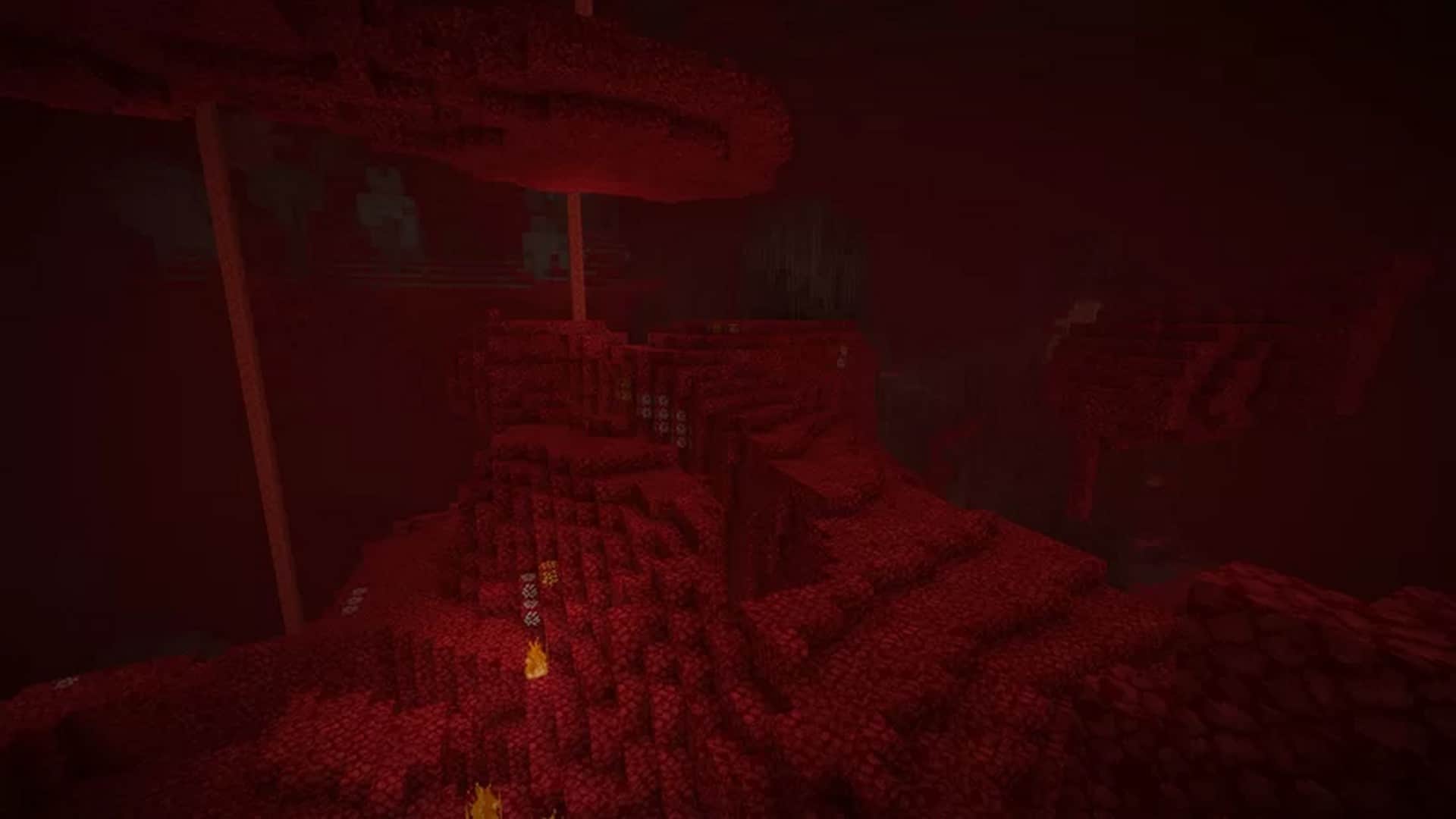
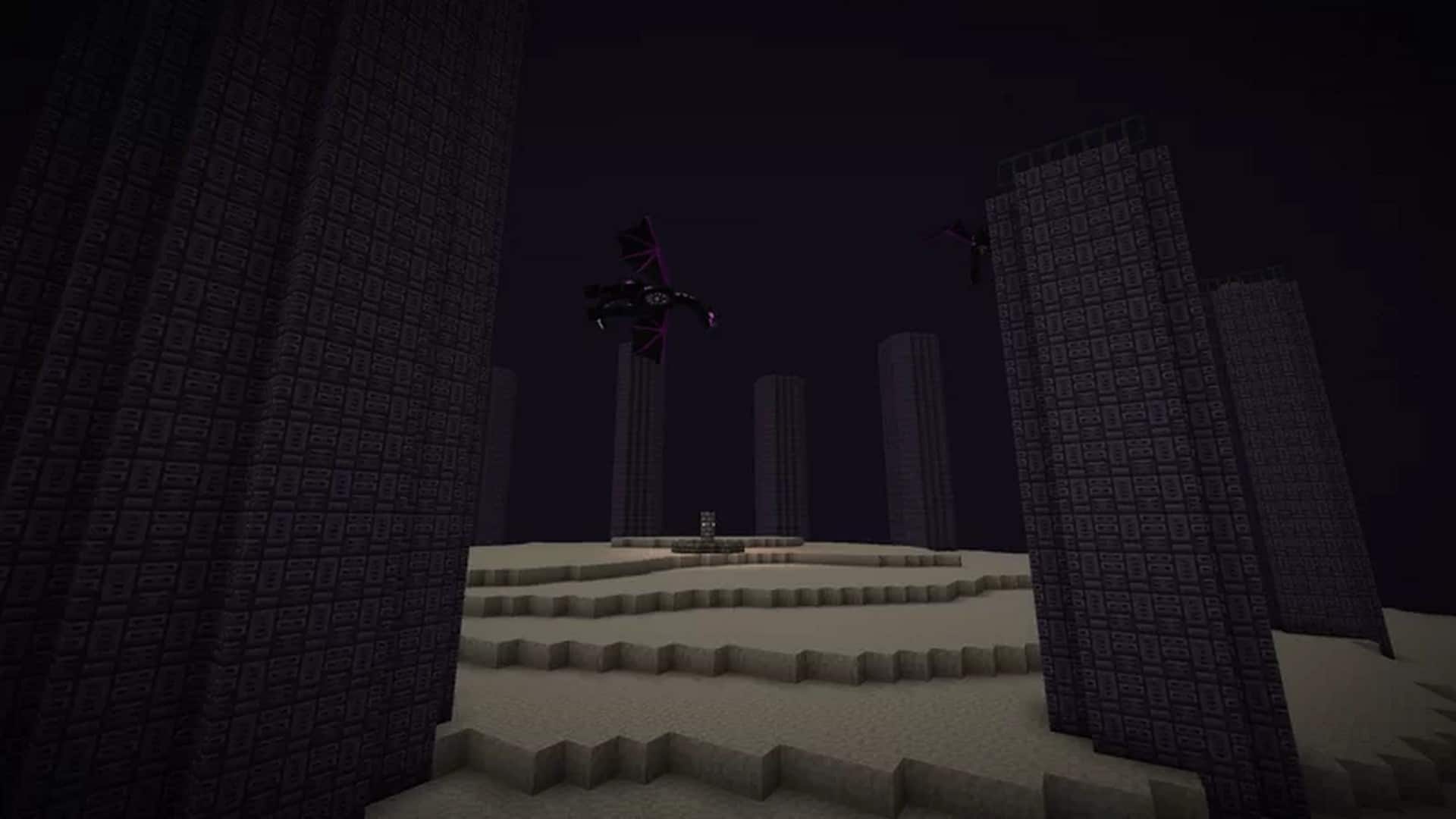
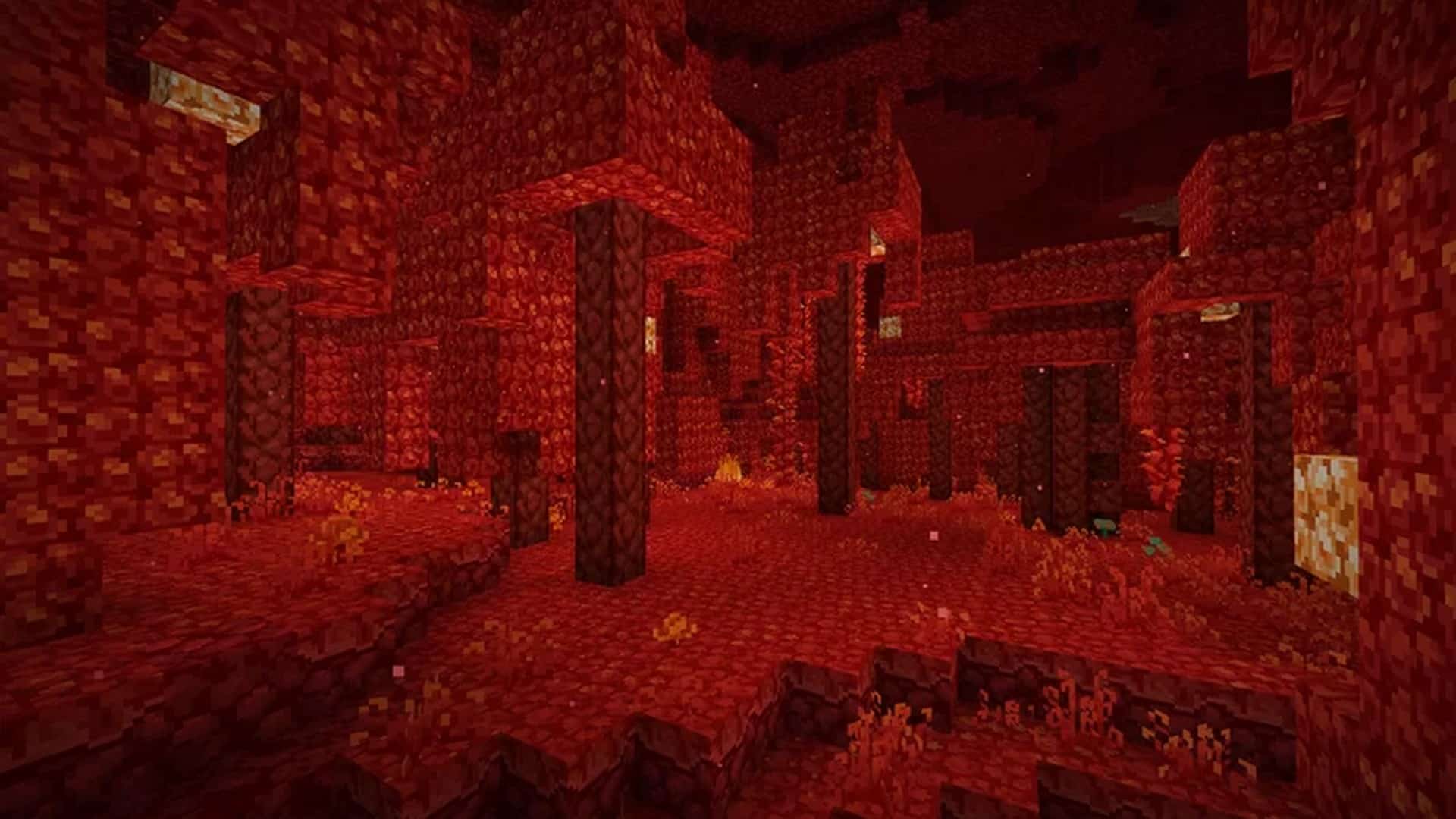
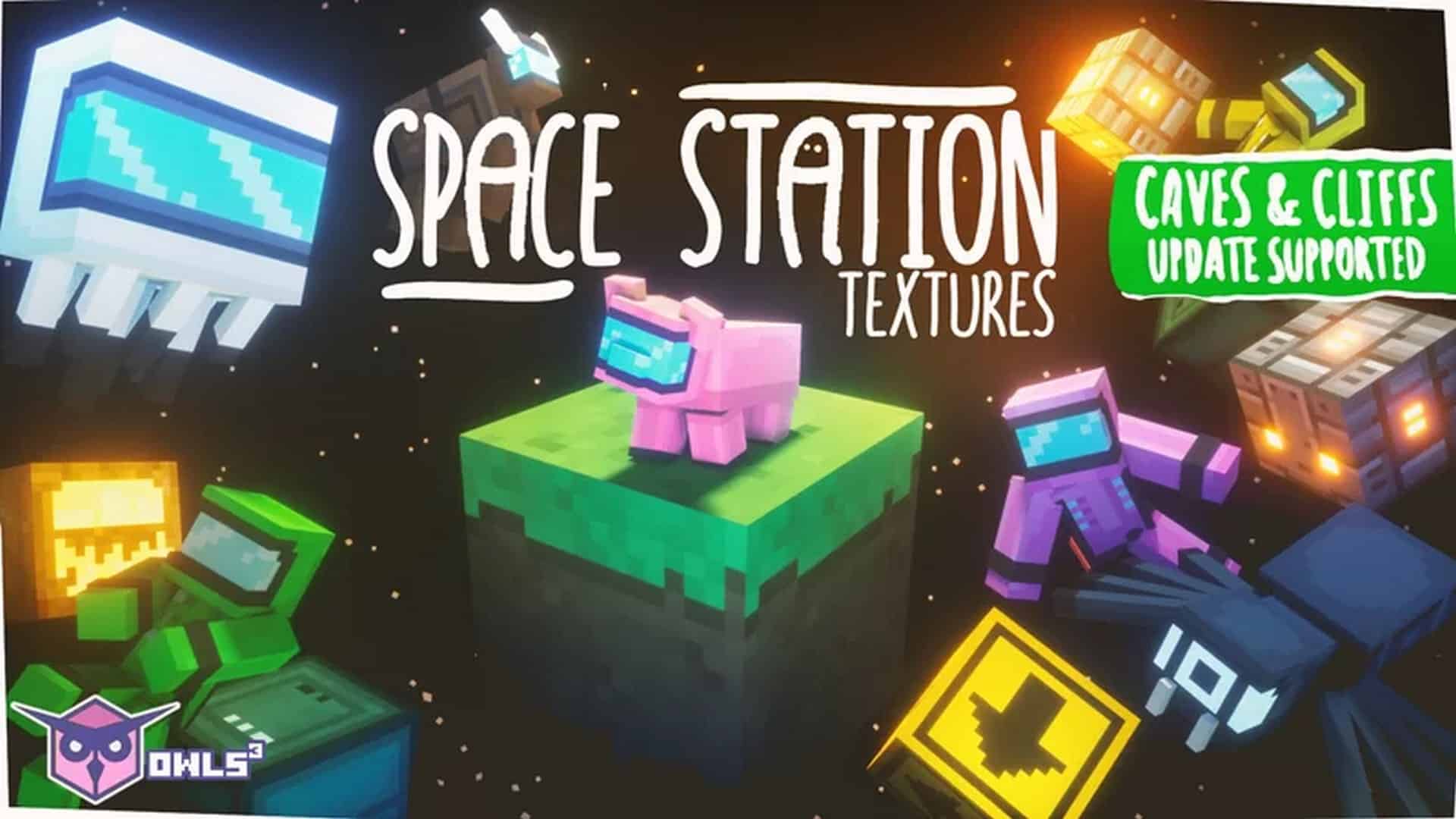
How to Install Texture Pack (Simple 10 Steps)
- Download OptiFine: Most of the texture packs and shaders need OptiFine. That’s why, first download and install OptiFine for the version of Minecraft you want to play.
- Download the Texture Pack: Get the texture pack you want from the download section. Choose the version that works with your Minecraft and your PC’s performance.
- Open Minecraft Launcher: Start Minecraft using the official game launcher — or even TLauncher, if you use that.
- Go to Options: From the main menu, click on the “Options” button.
- Open Resource Packs: Inside Options, click on “Resource Packs…”.
- Open the Resource Pack Folder: Click on “Open Resource Pack Folder” — this will open a folder named “resourcepacks”.
- Move the Pack File: Copy or move the .zip file you downloaded into that “resourcepacks” folder. (Don’t unzip the file — Minecraft uses it as-is!)
- Go Back and Refresh: Close the folder and click “Done”, then go back into “Resource Packs…” again.
- Activate the Pack: You’ll see the pack on the left side. Hover over it and click the arrow to move it to the right (active side).
Tip: If you get a message that the pack is for a different version, just click “Yes” — it usually works fine. - Click Done and Enjoy: Click “Done” again. Now your pack is ready to use in-game. It’s that easy!
Credits
This resource pack was created by OwlsCubed. We do not own or modify the files provided. All rights belong to the original creator. We strongly recommend supporting OwlsCubed by downloading the pack from their official sources.
Download Instructions
Curseforge: download starts automatically after a few seconds;
Mediafire: click the big blue button with the text “DOWNLOAD”;
Google Drive: in the top right corner you will see a small download icon (down arrow), click it and the download should start;