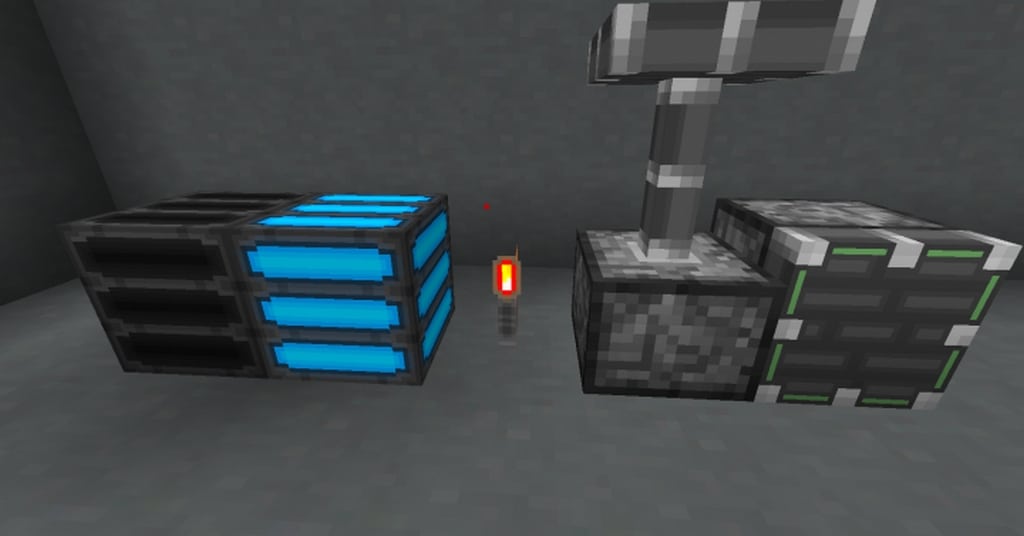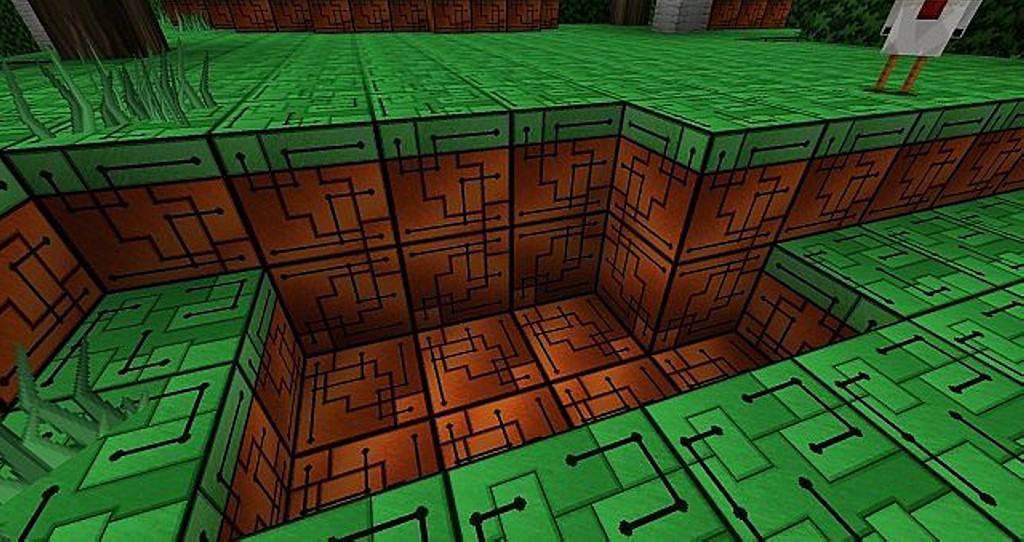
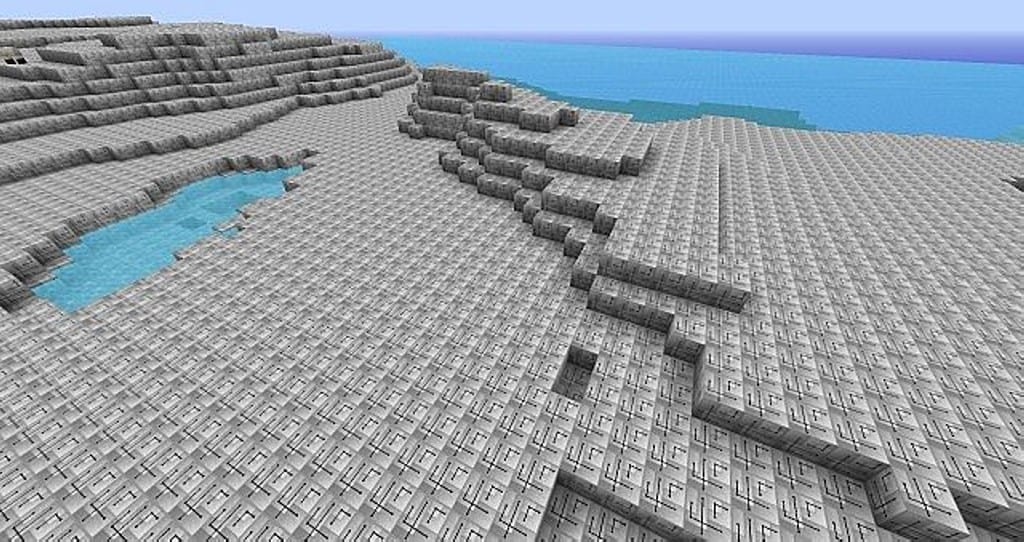
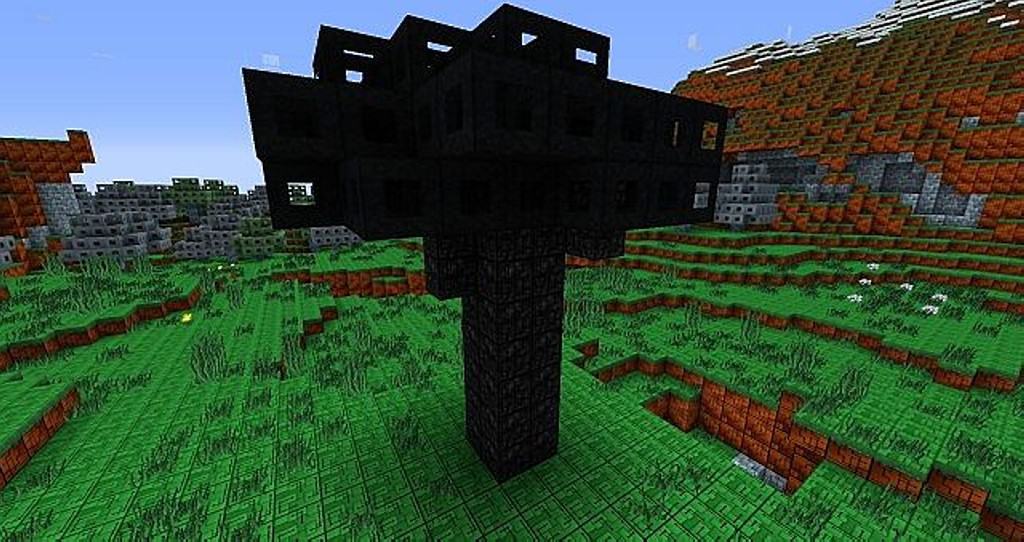
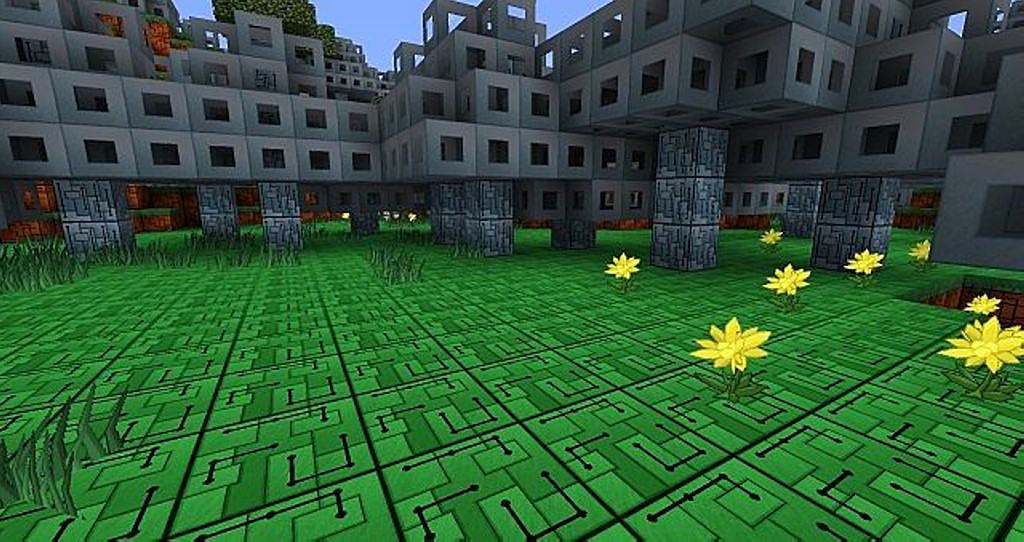
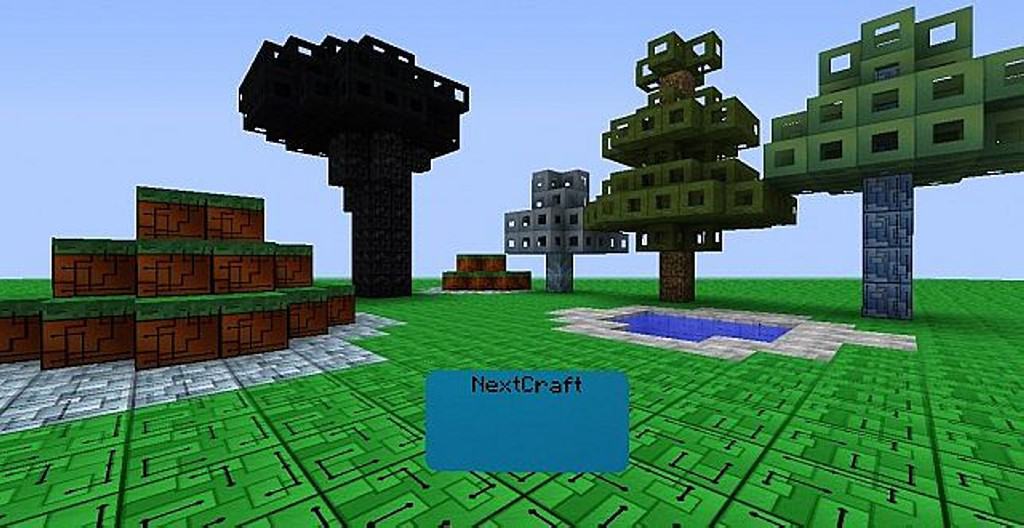
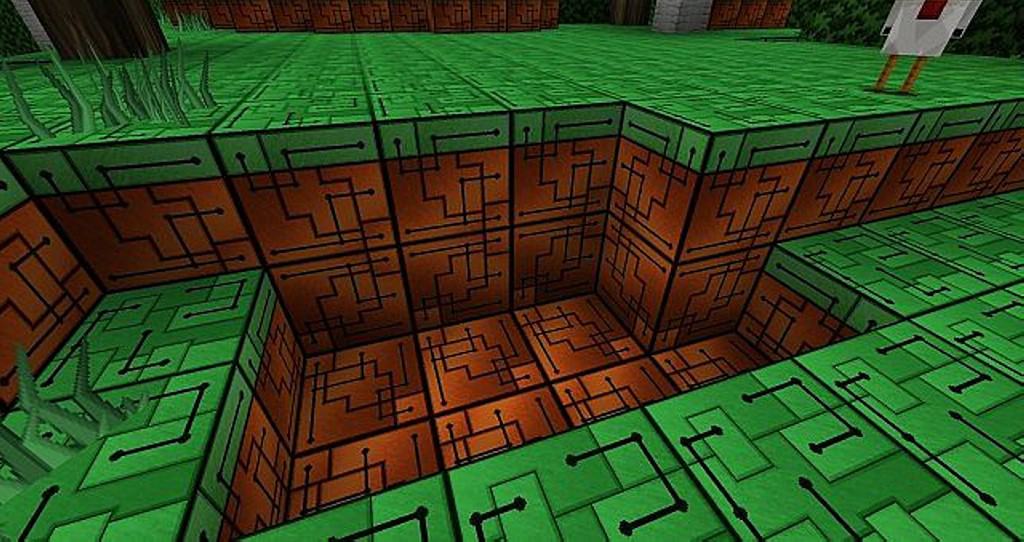
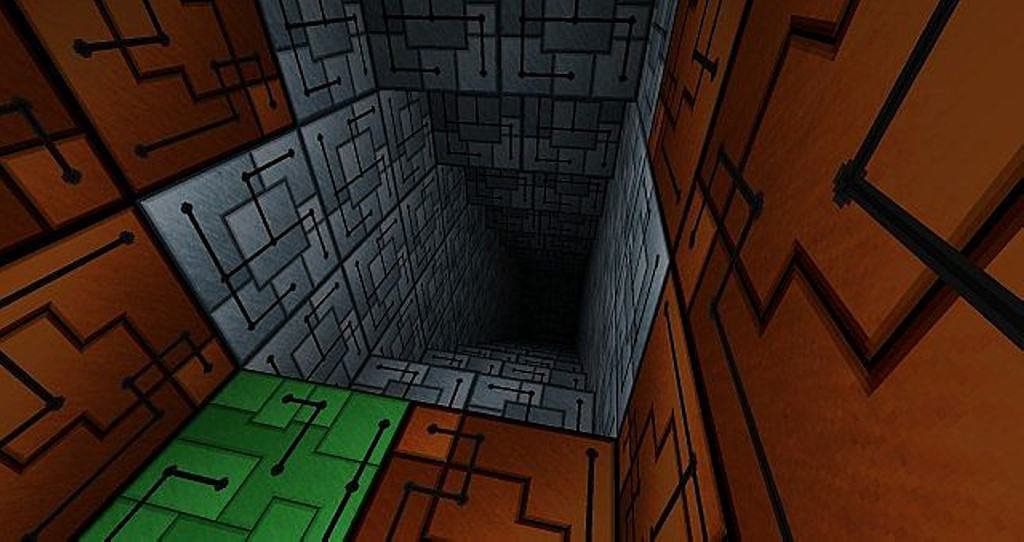
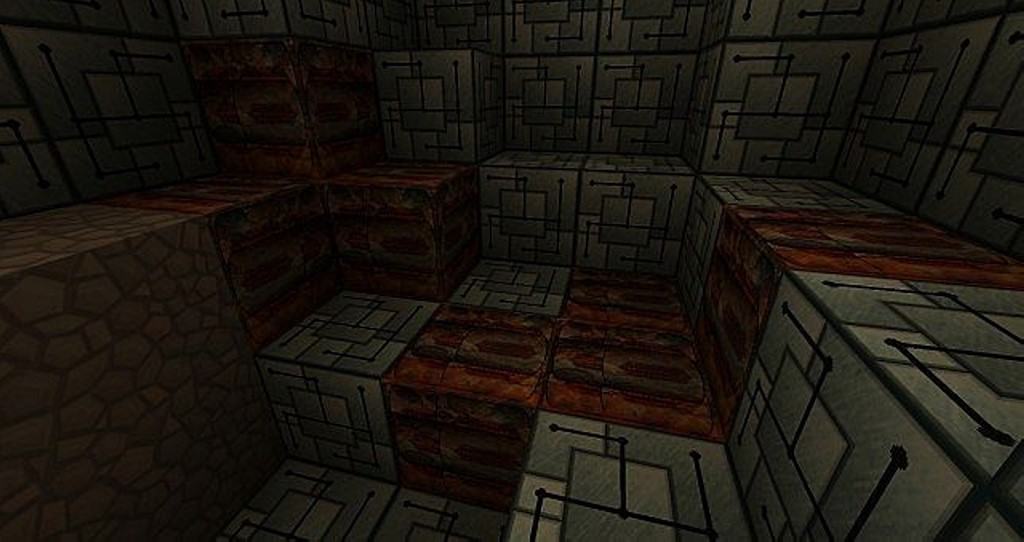
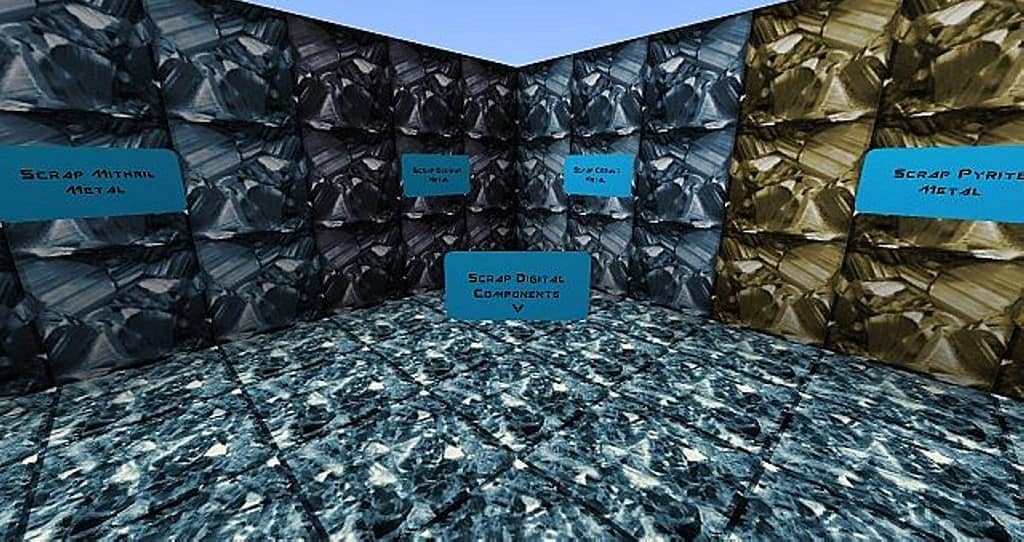
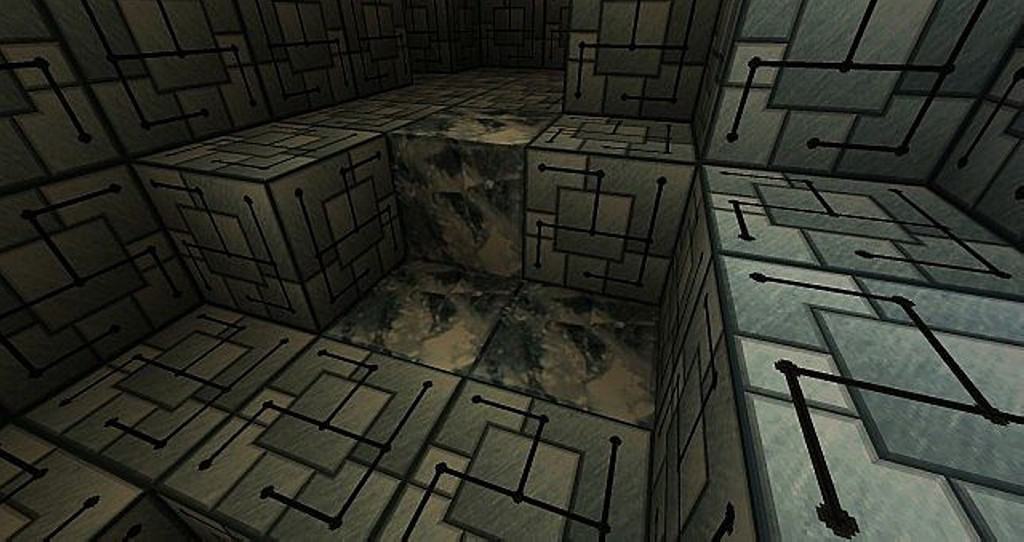
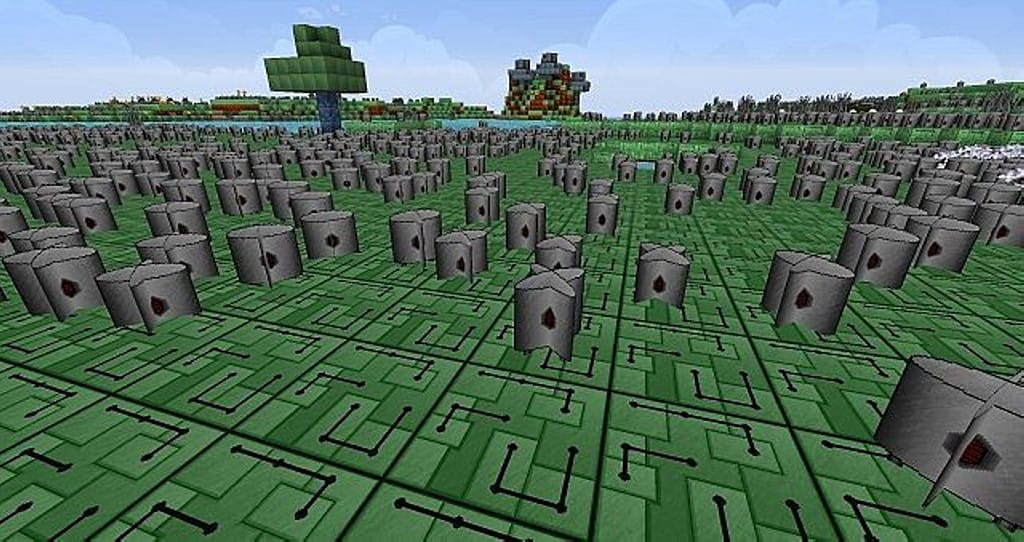
The NextCraft resource pack is definitely a classic, and I found it to remain a beautiful and gorgeous Minecraft texture pack while testing it out. Unfortunately, it stopped receiving updates after Minecraft versions 1.7.x, but for anyone who still plays older versions, I am happy to report that the NextCraft resource pack still works wonderfully. If you like futuristic themes, you will honestly love the NextCraft resource pack. It takes an influence from classic Minecraft textures, but adds a futuristic twist that makes the game a lot more immersive. The visuals are fresh, and will make Minecraft feel like a whole new game! It almost feels like NextCraft turns Minecraft into the Matrix! The texture part is a simple visual upgrade, and adds a new art style turning block textures into circuity. Besides that, the NextCraft texture pack lacks distinct features. It is extremely simple, and takes away a lot of the beauty in vanilla Minecraft. Nonetheless, it is a unique visual upgrade, and may make the game a little more interesting.
If you are looking to play through Minecraft again, this texture pack should definitely make it a little more fun. Compared to modern texture packs, NextCraft lacks a lot of visual and design features. Taking influence from a computer simulated world and other community resource packs, NextCraft gives Minecraft a whole new vibe. It comes in a high resolution of 128x, so you may need more than the average system requirements to run it smoothly. If you lack the necessary hardware, you might run into frame-rate problems throughout your gaming session. Nonetheless, if you meet the software requirements, I can tell you it will definitely be worth it. NextCraft textures are very detailed, and help vary up your game textures. The simplistic beauty is bound to keep you captivated. If you are looking to add some replay value to Minecraft, I think the NextCraft resource pack will surely make it fun again. It adds a lot to the game, and makes it feel like your building in the Matrix.
NextCraft should be compatible with all of these Minecraft versions: 1.7.10 – 1.7.9 – 1.7.4 – 1.7 – 1.6.4 – 1.6.2
Screenshots
How to Install Texture Pack (Simple 10 Steps)
- Download OptiFine: Most of the texture packs and shaders need OptiFine. That’s why, first download and install OptiFine for the version of Minecraft you want to play.
- Download the Texture Pack: Get the texture pack you want from the download section. Choose the version that works with your Minecraft and your PC’s performance.
- Open Minecraft Launcher: Start Minecraft using the official game launcher — or even TLauncher, if you use that.
- Go to Options: From the main menu, click on the “Options” button.
- Open Resource Packs: Inside Options, click on “Resource Packs…”.
- Open the Resource Pack Folder: Click on “Open Resource Pack Folder” — this will open a folder named “resourcepacks”.
- Move the Pack File: Copy or move the .zip file you downloaded into that “resourcepacks” folder. (Don’t unzip the file — Minecraft uses it as-is!)
- Go Back and Refresh: Close the folder and click “Done”, then go back into “Resource Packs…” again.
- Activate the Pack: You’ll see the pack on the left side. Hover over it and click the arrow to move it to the right (active side).
Tip: If you get a message that the pack is for a different version, just click “Yes” — it usually works fine. - Click Done and Enjoy: Click “Done” again. Now your pack is ready to use in-game. It’s that easy!
Credits
This resource pack was originally created by Norsewind. We do not claim ownership of this content, nor have we modified the original files. All rights remain with the original creator. We encourage you to support Norsewind by checking out their official download links and community pages.
Download Instructions
Curseforge: download starts automatically after a few seconds;
Mediafire: click the big blue button with the text “DOWNLOAD”;
Google Drive: in the top right corner you will see a small download icon (down arrow), click it and the download should start;