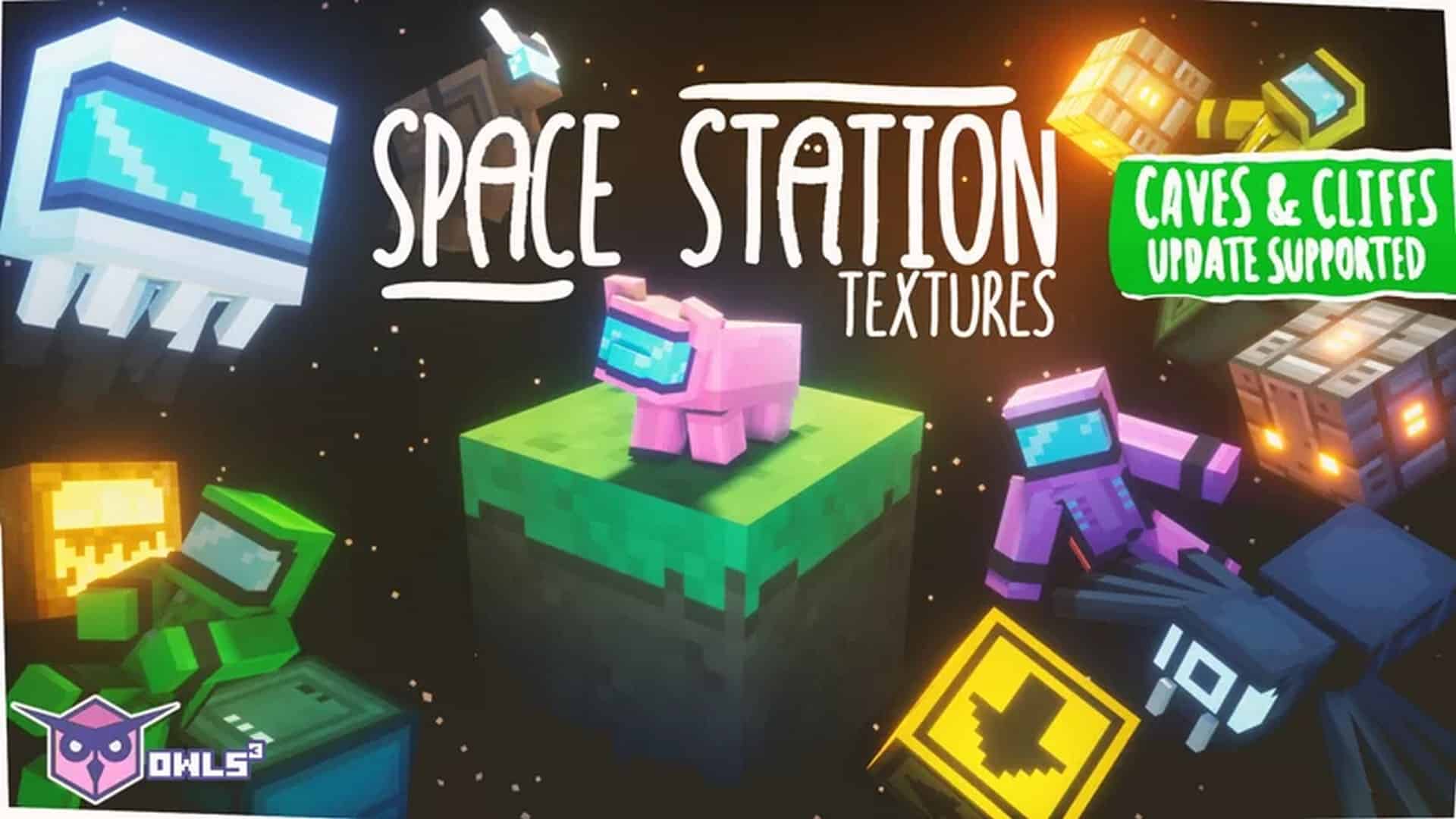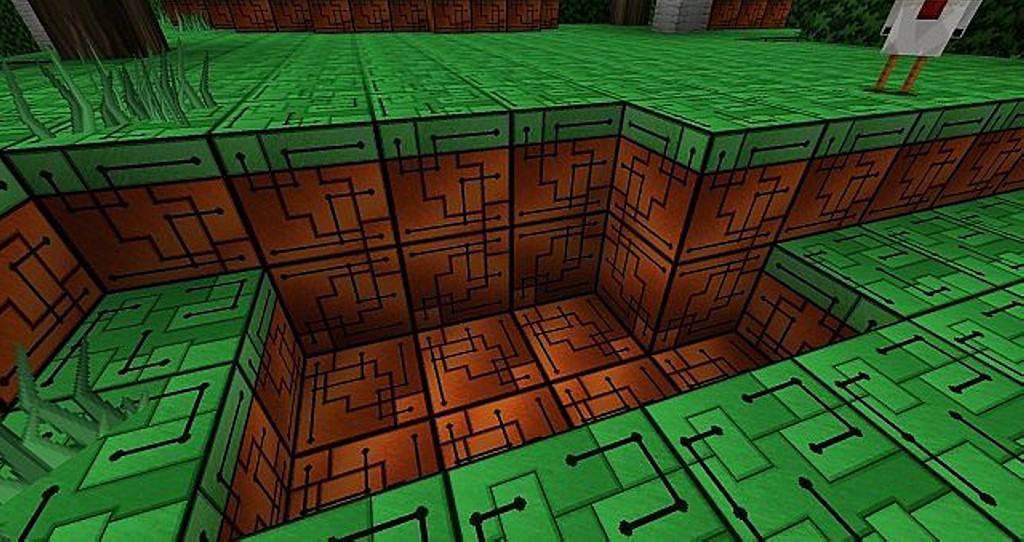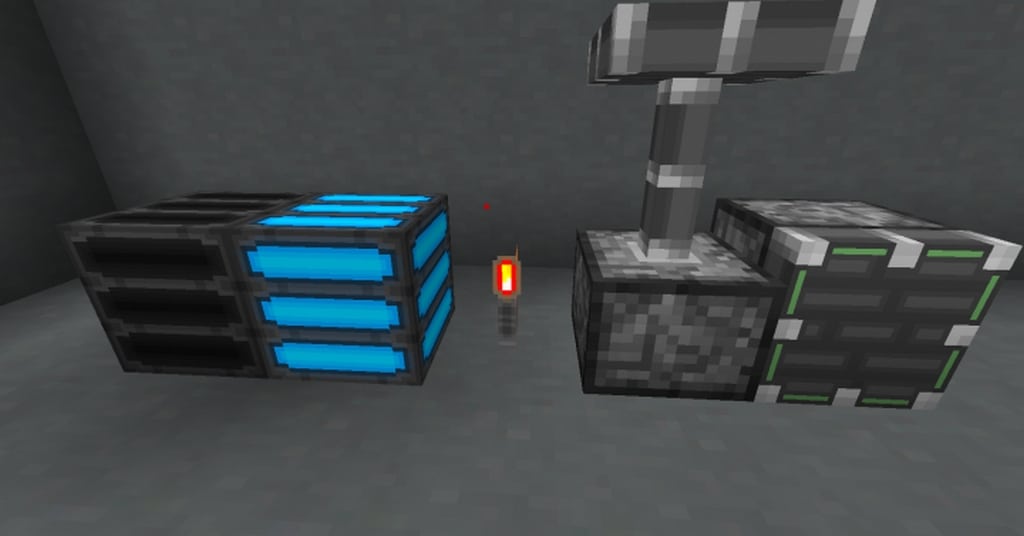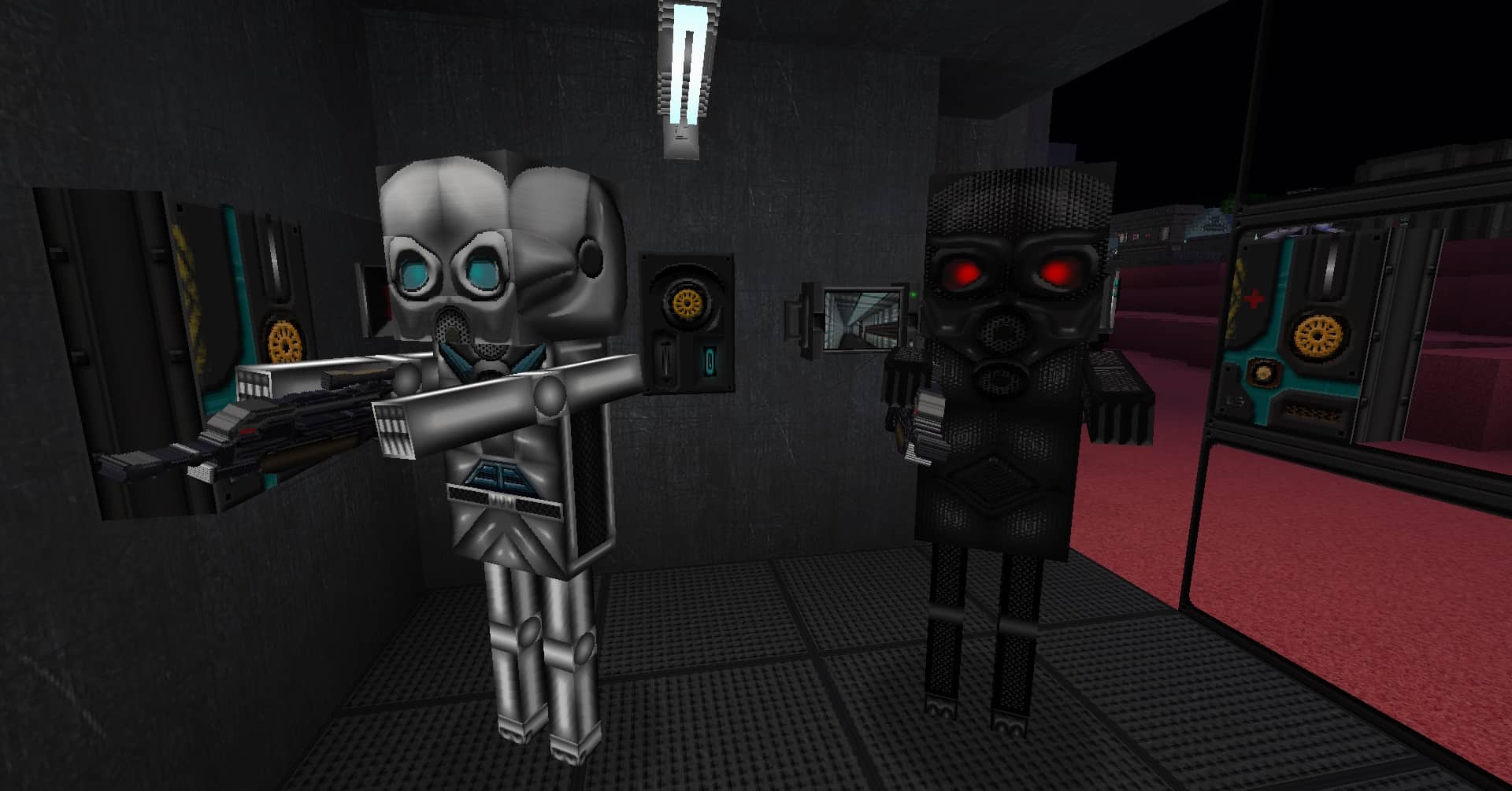
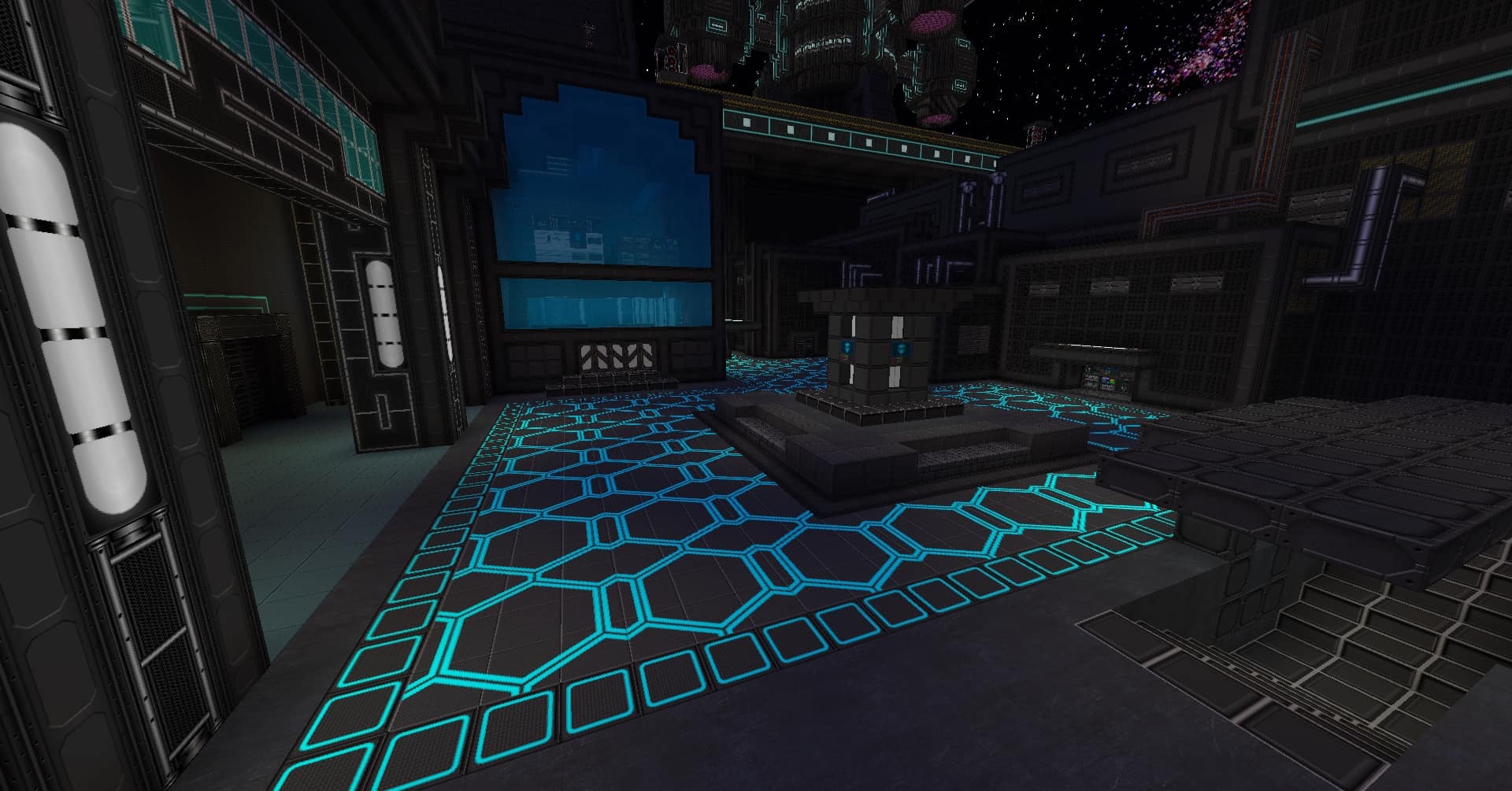
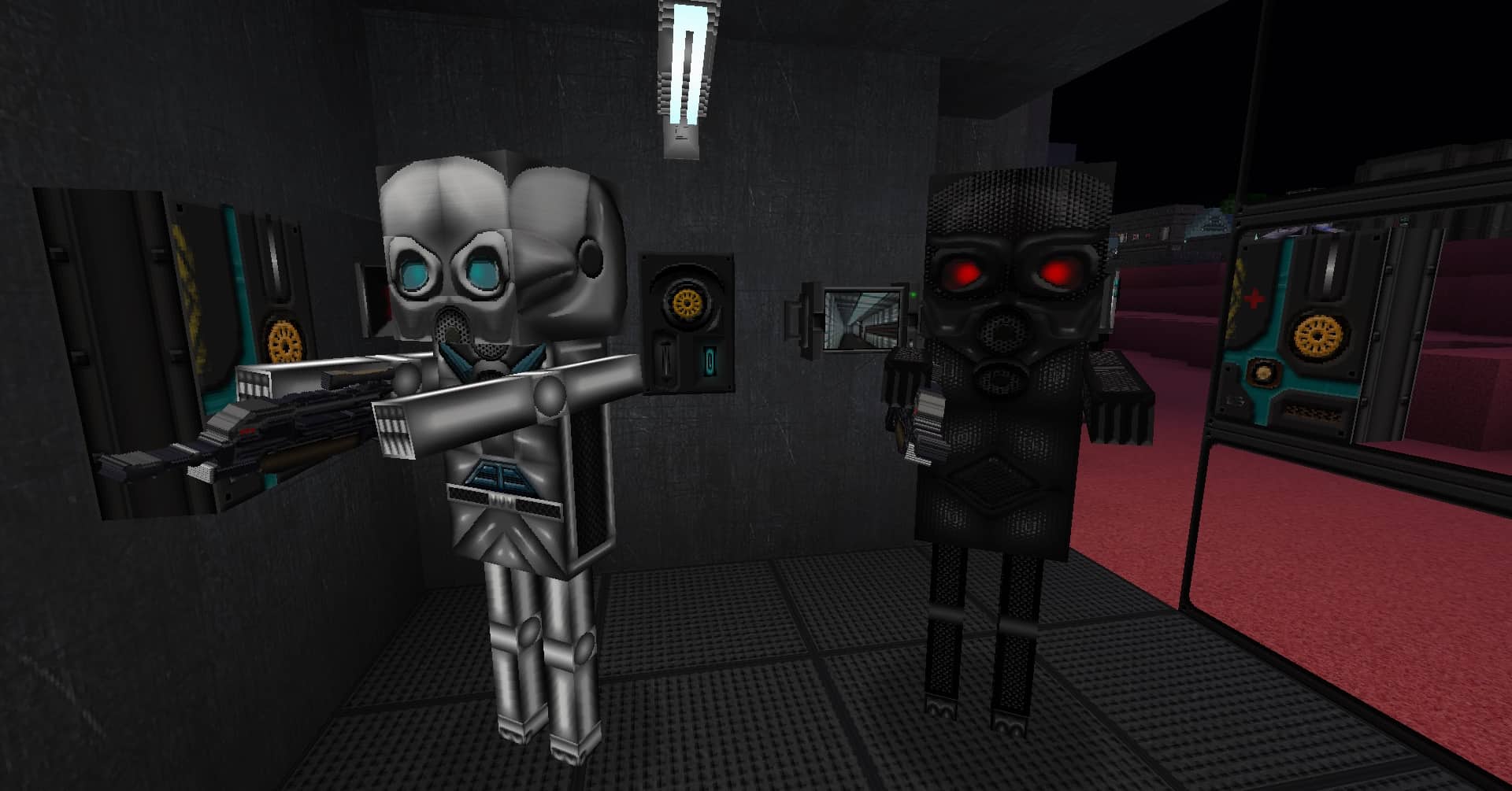
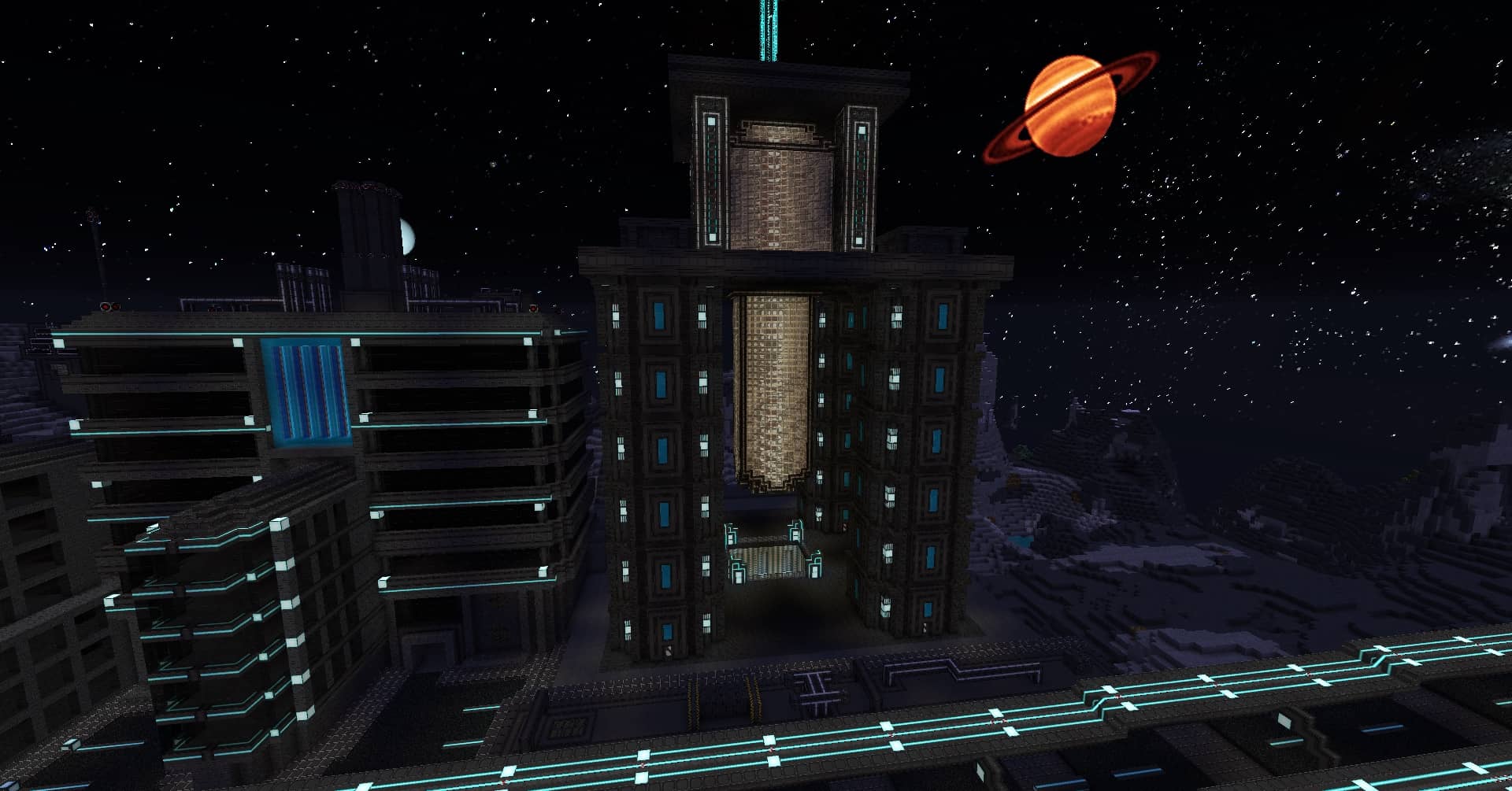
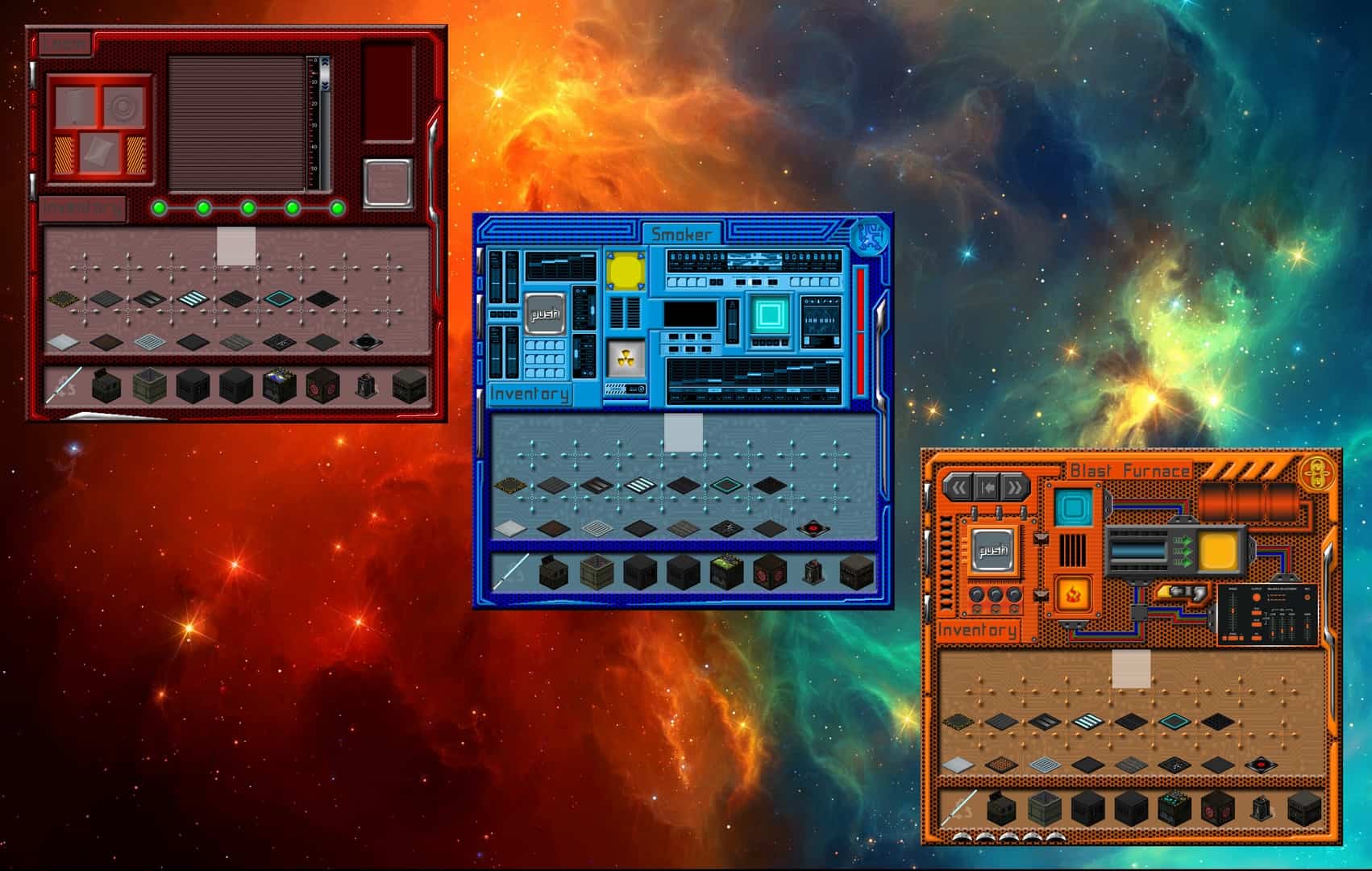
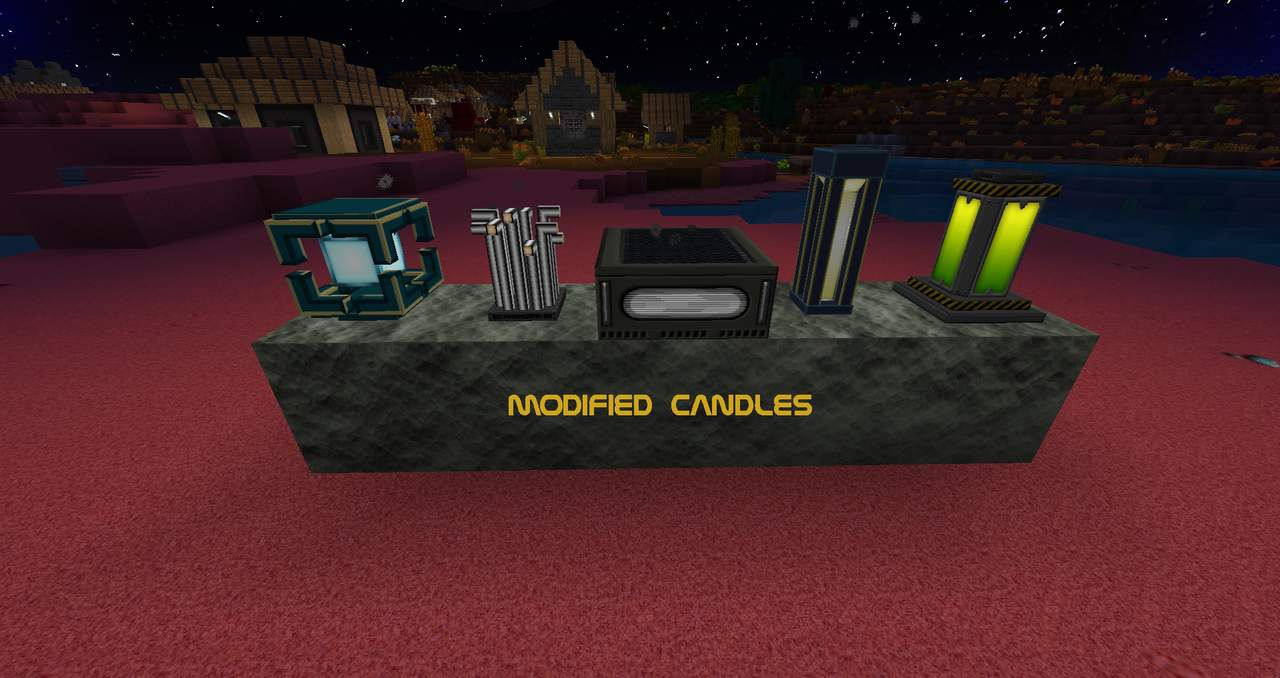
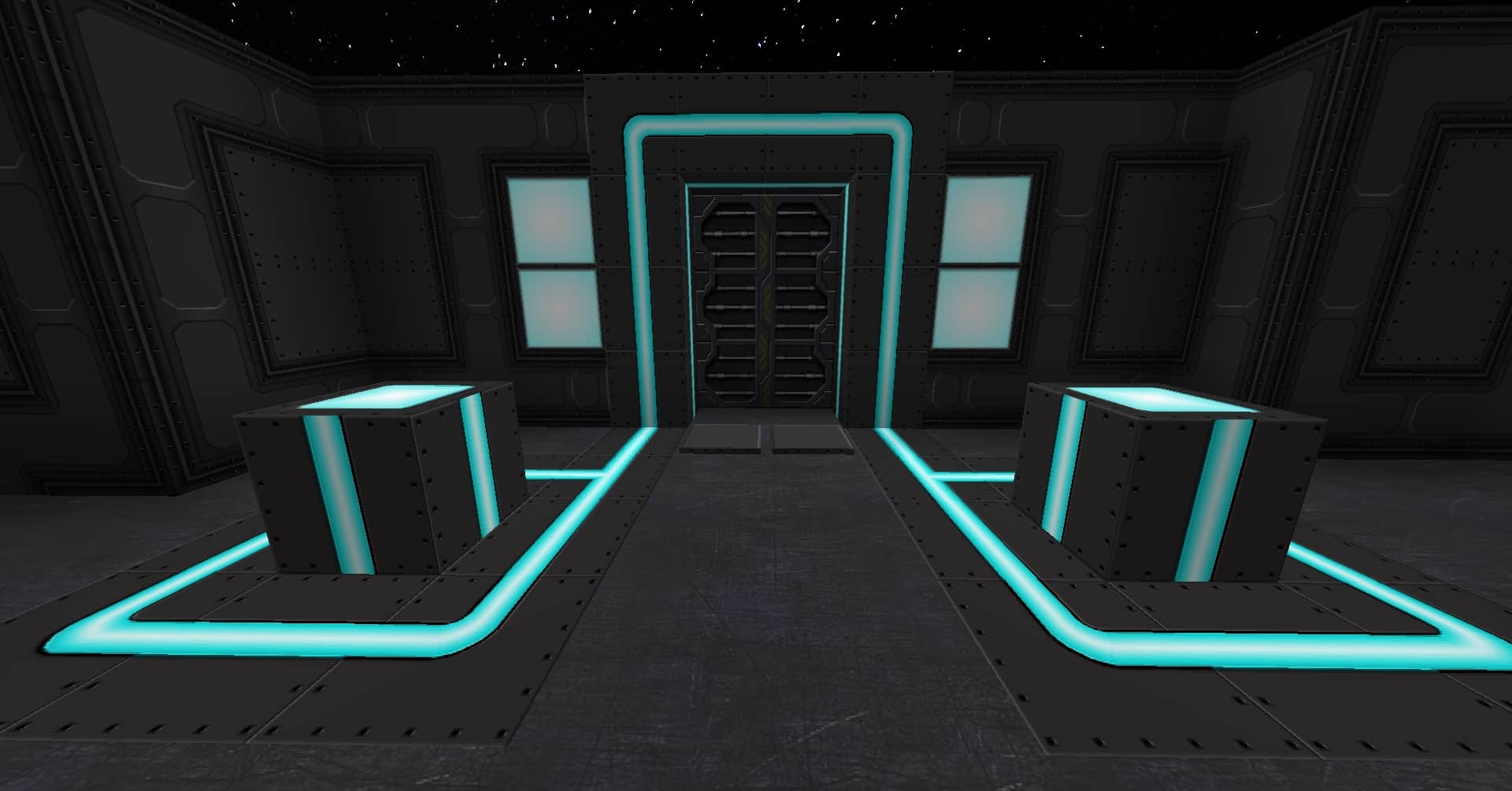
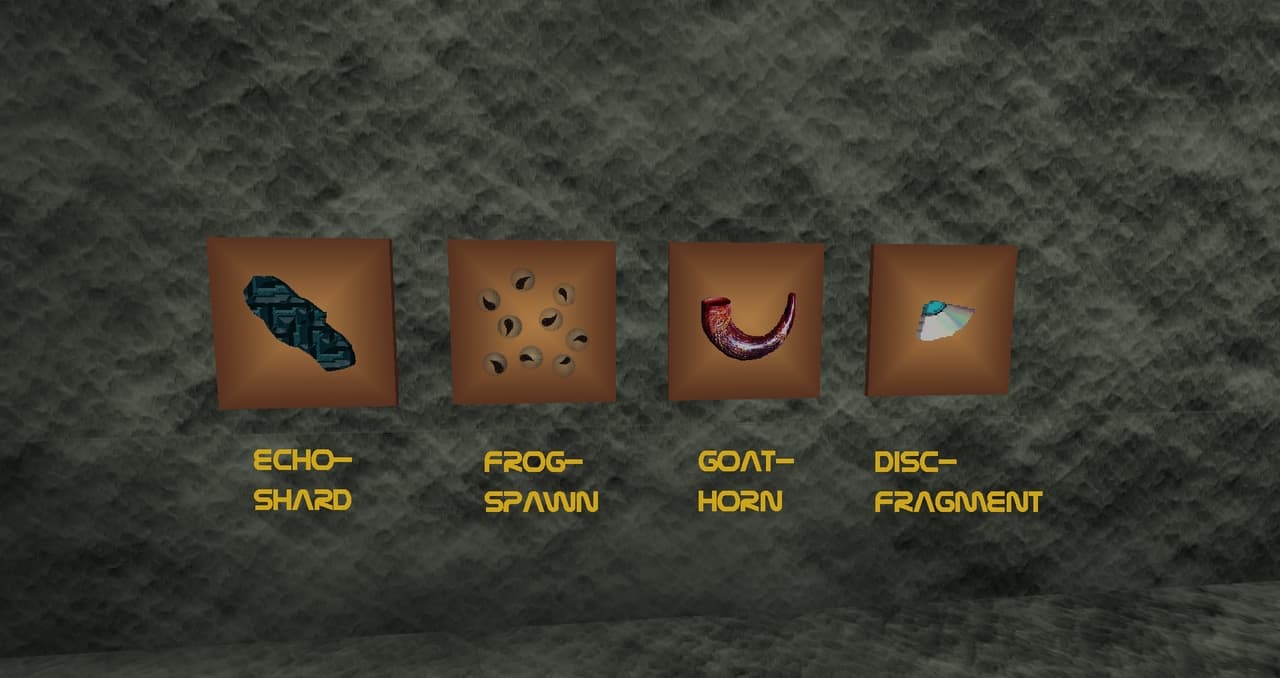
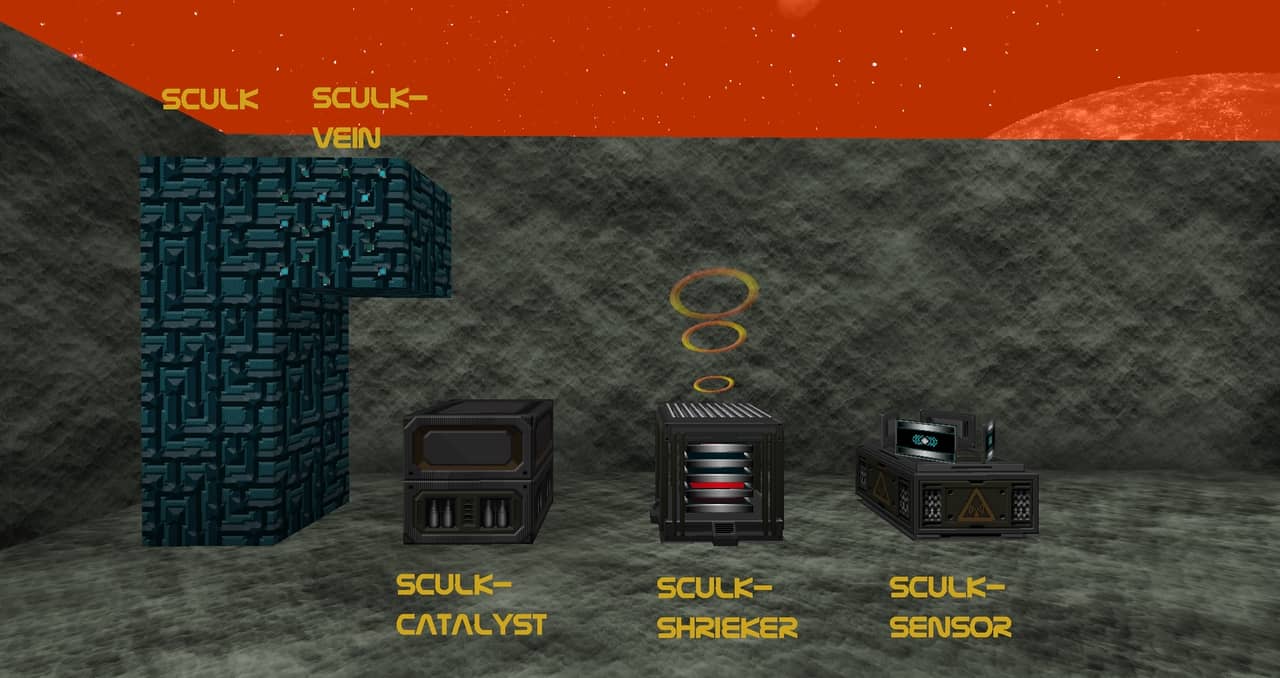
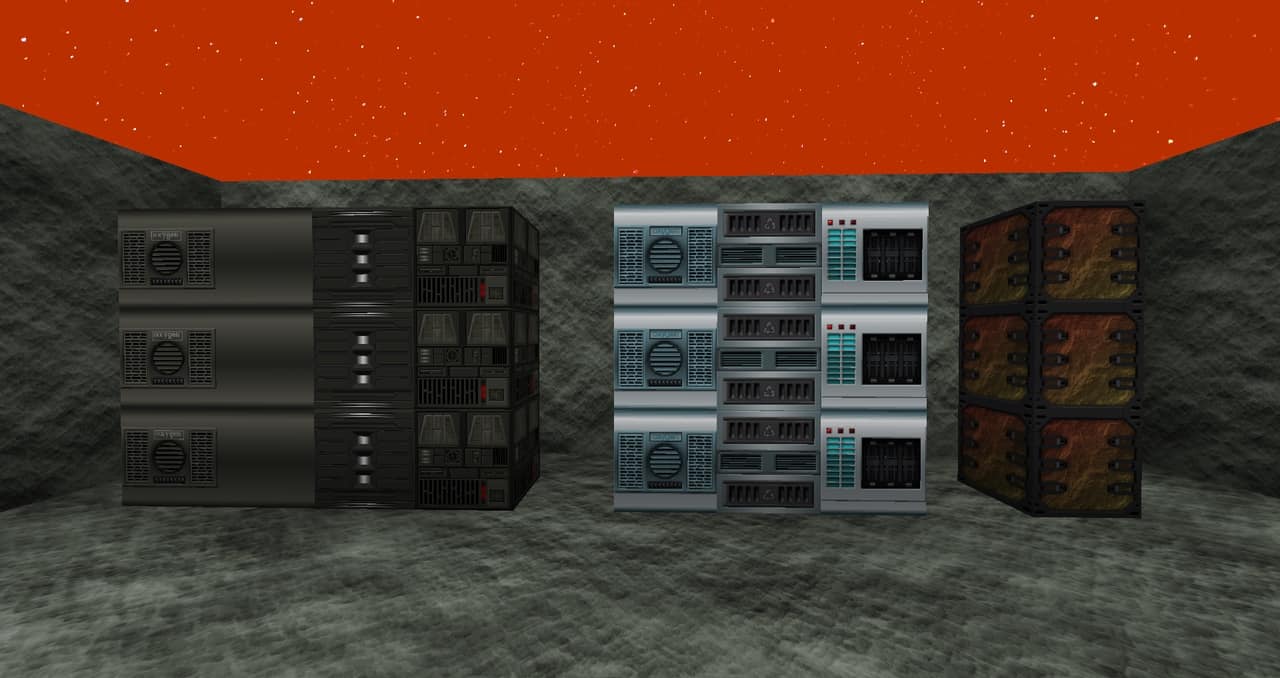
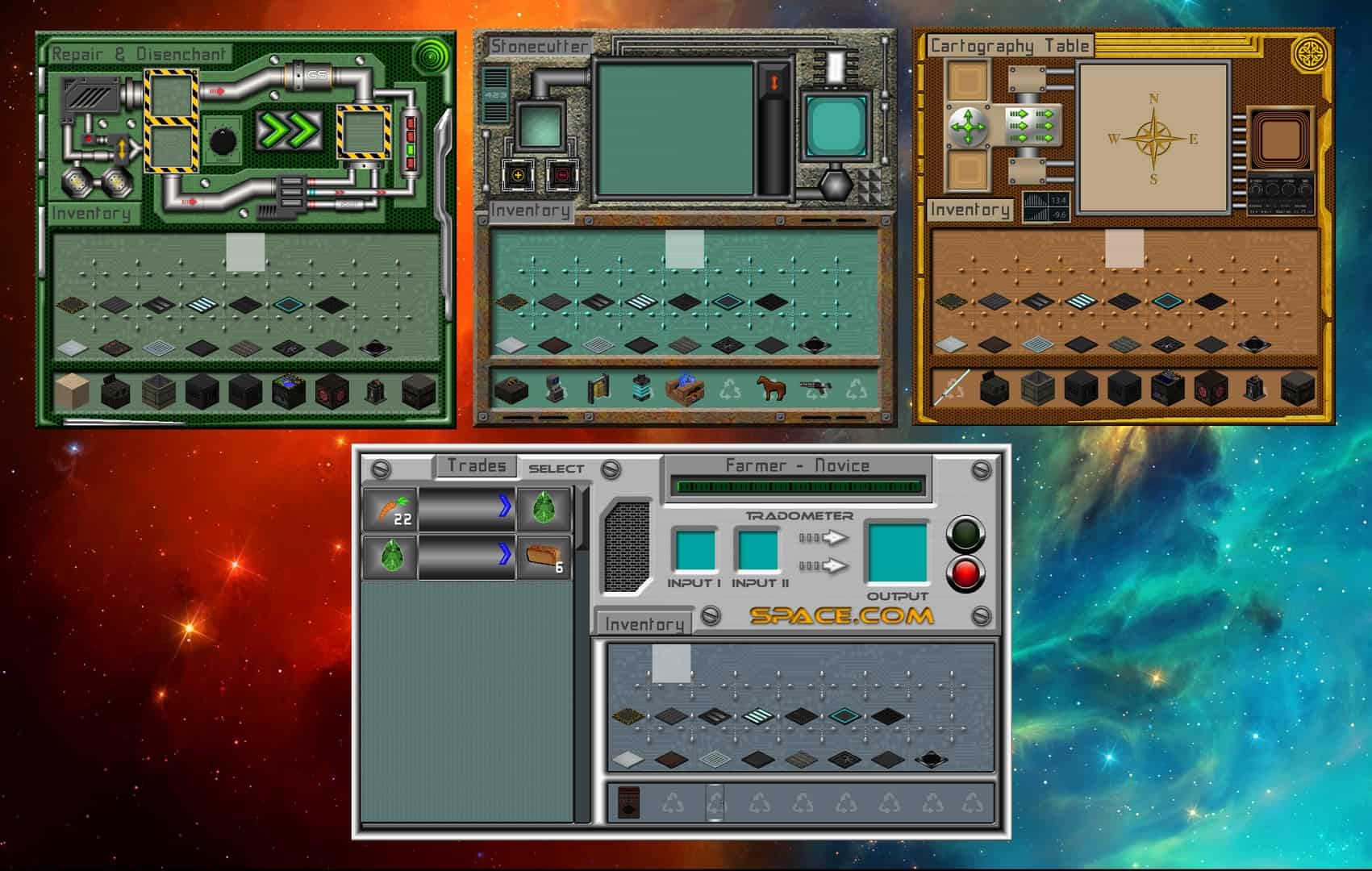
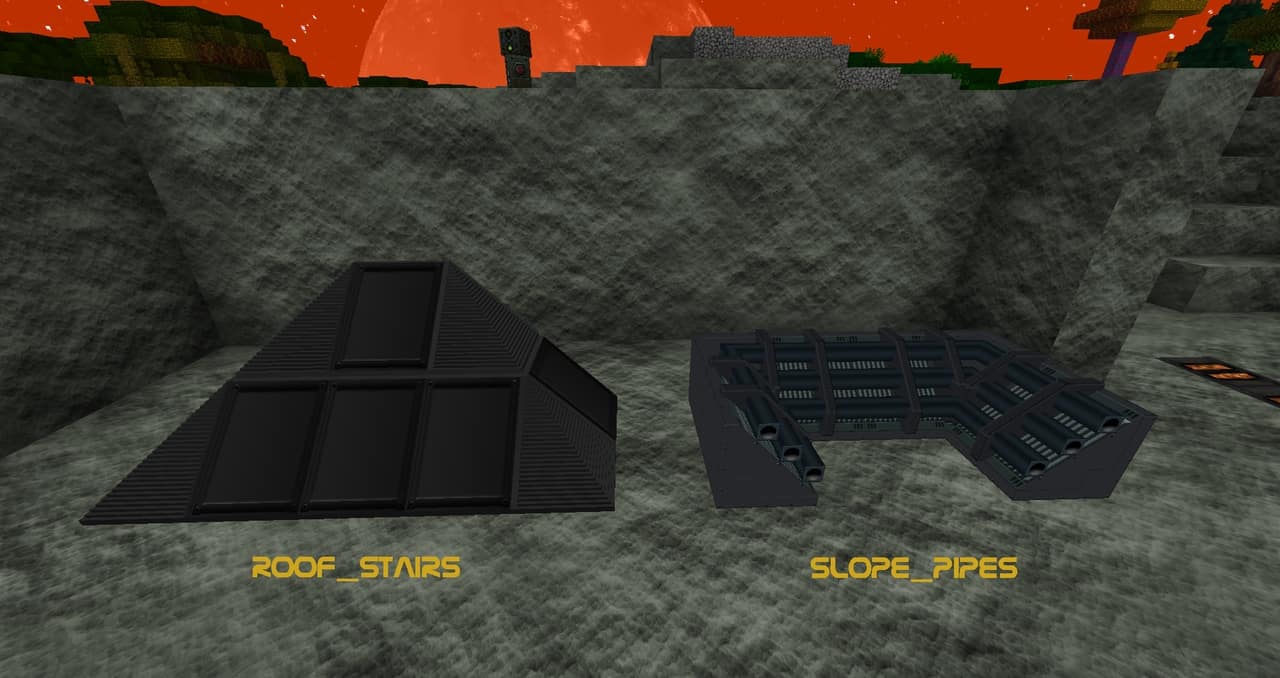
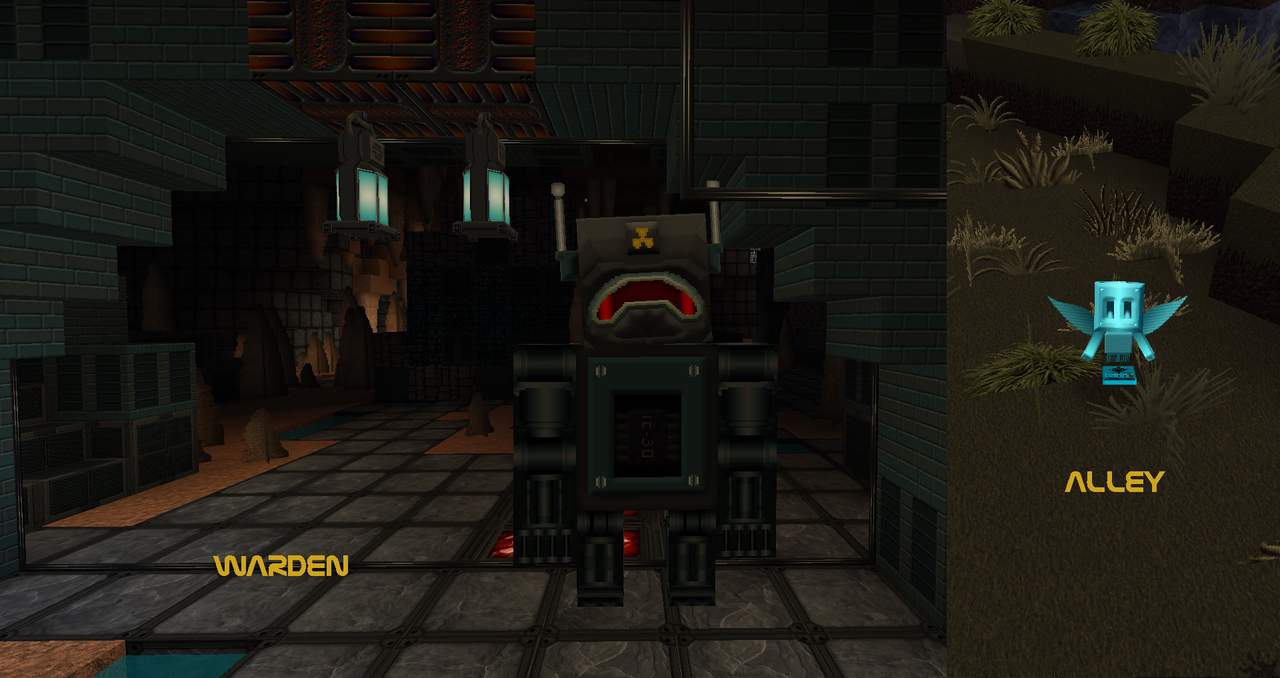
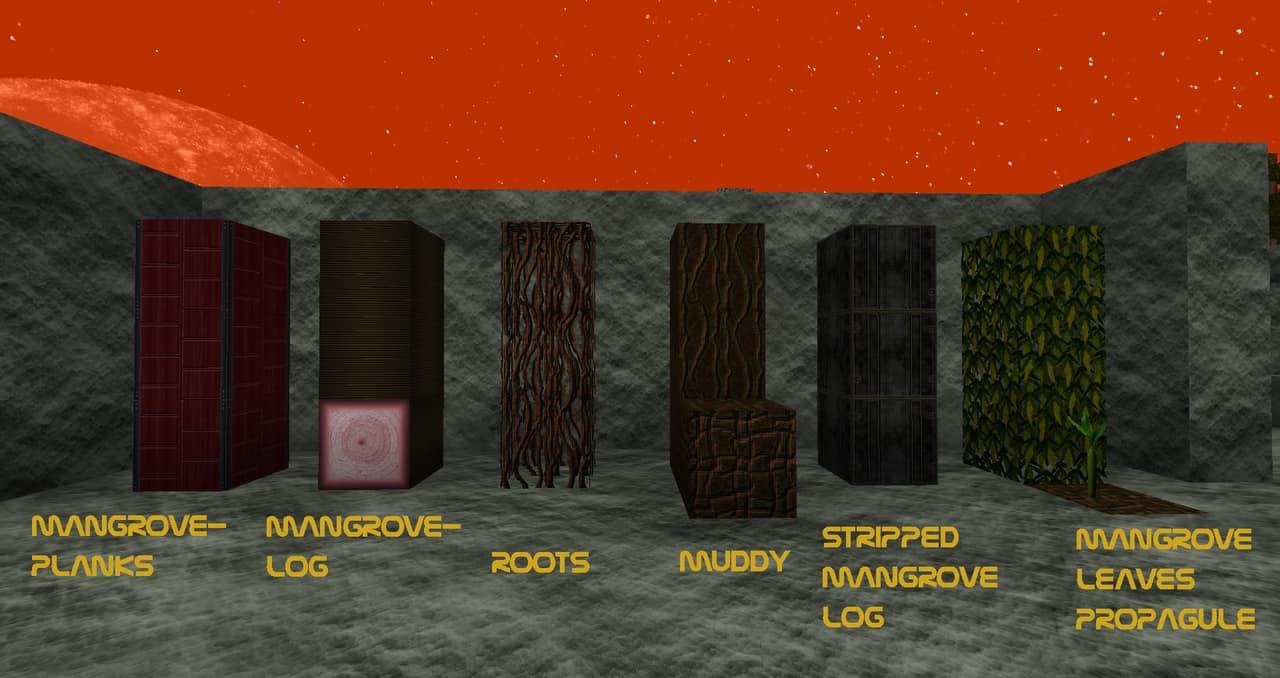
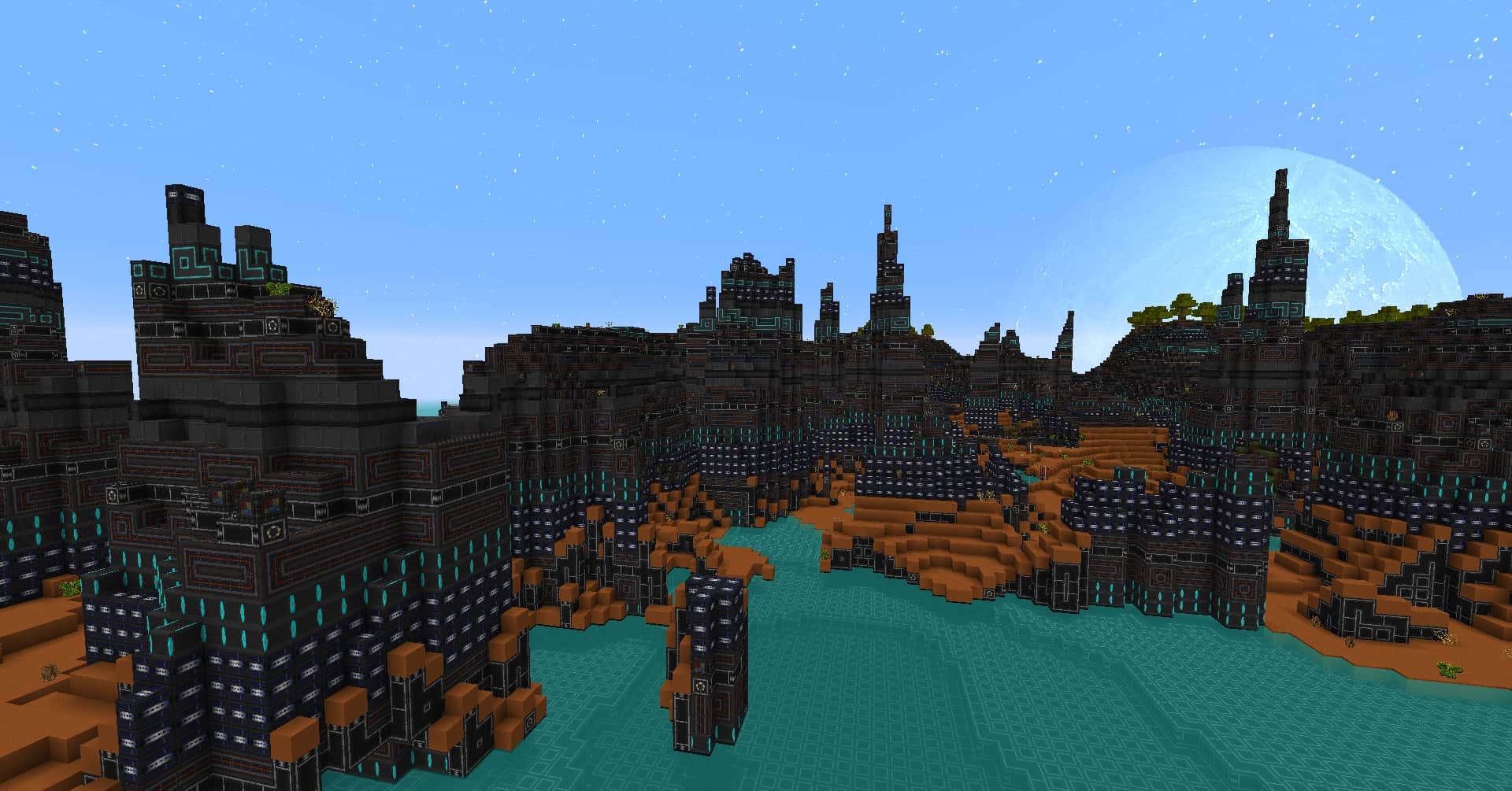
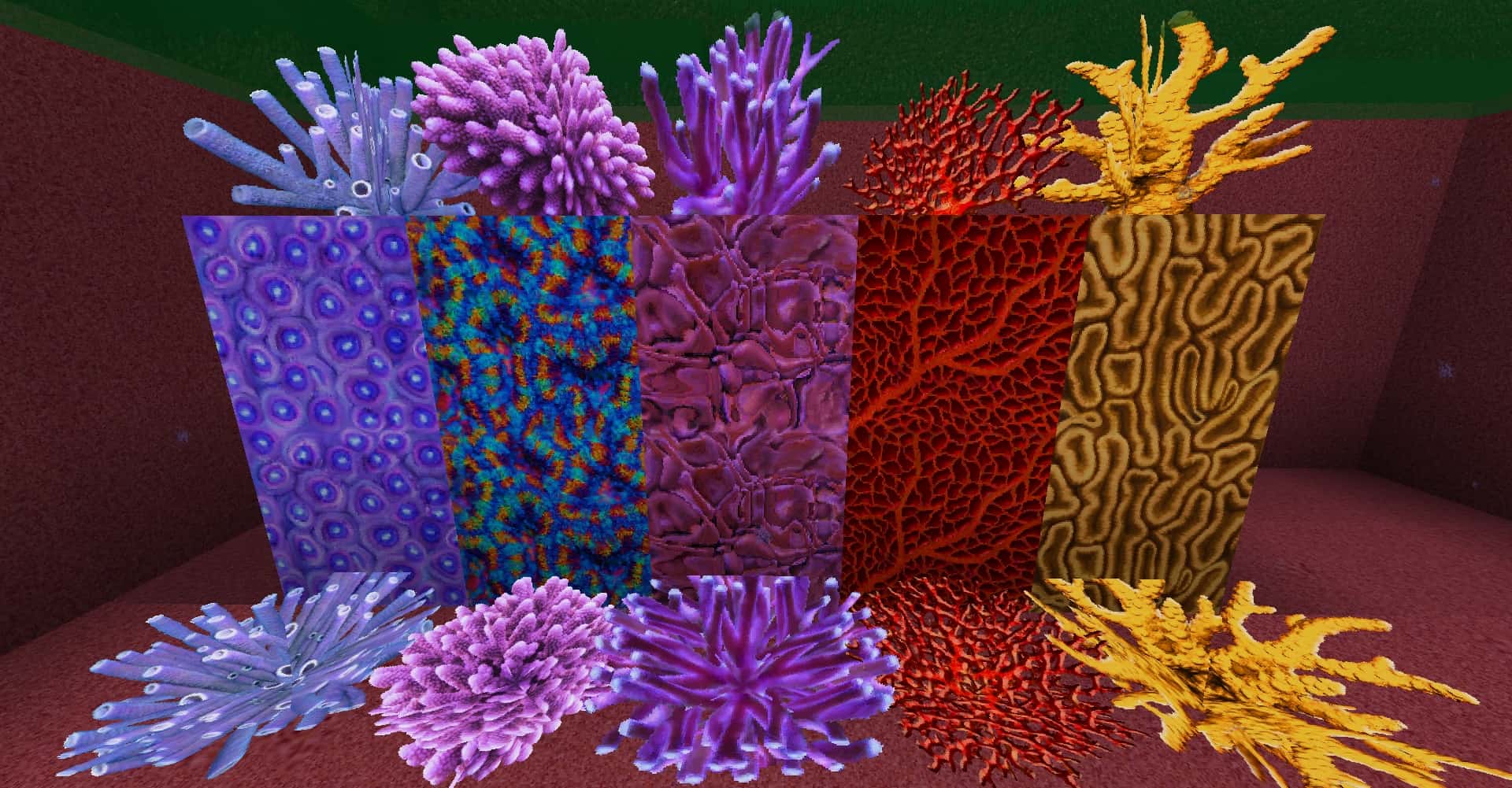
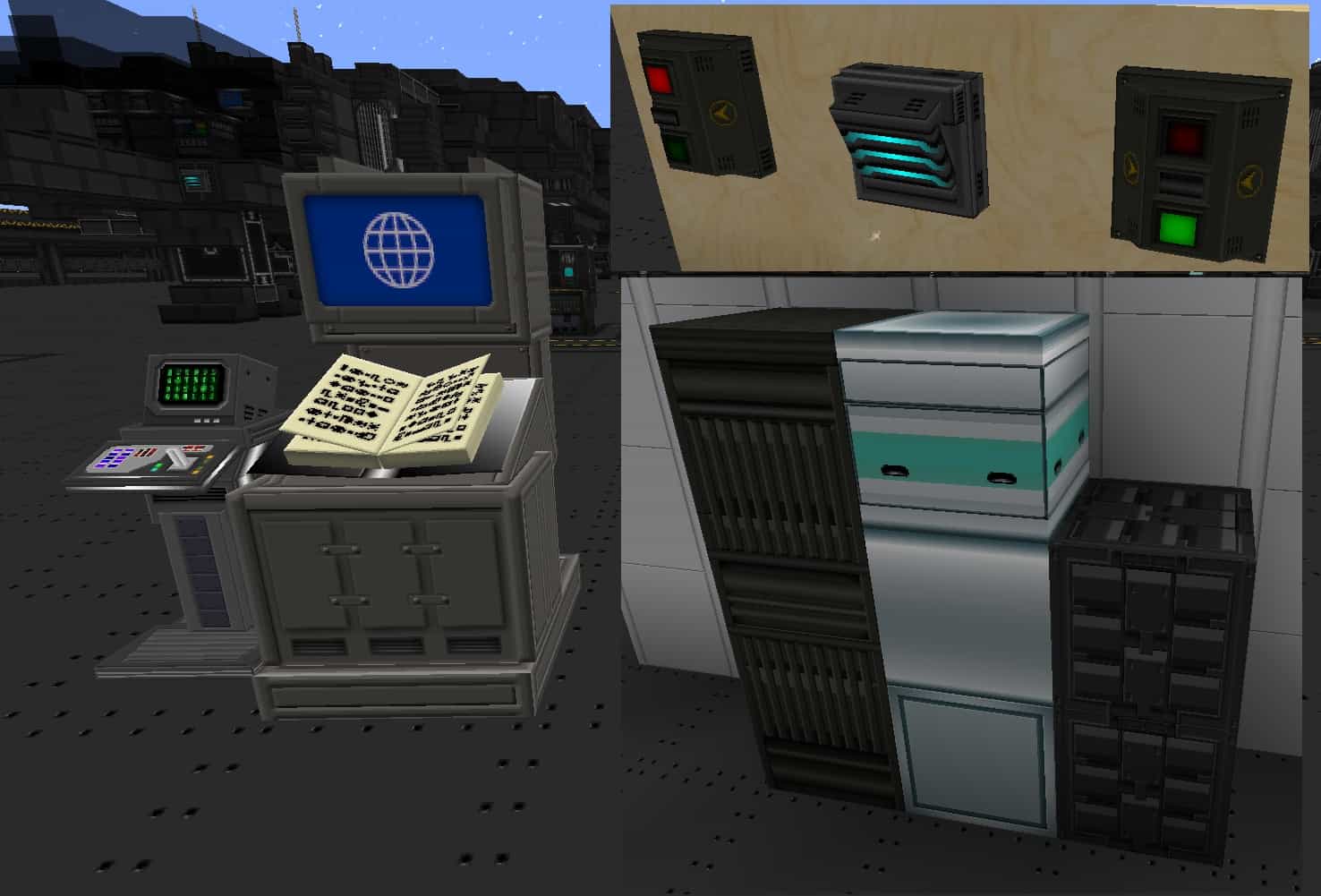
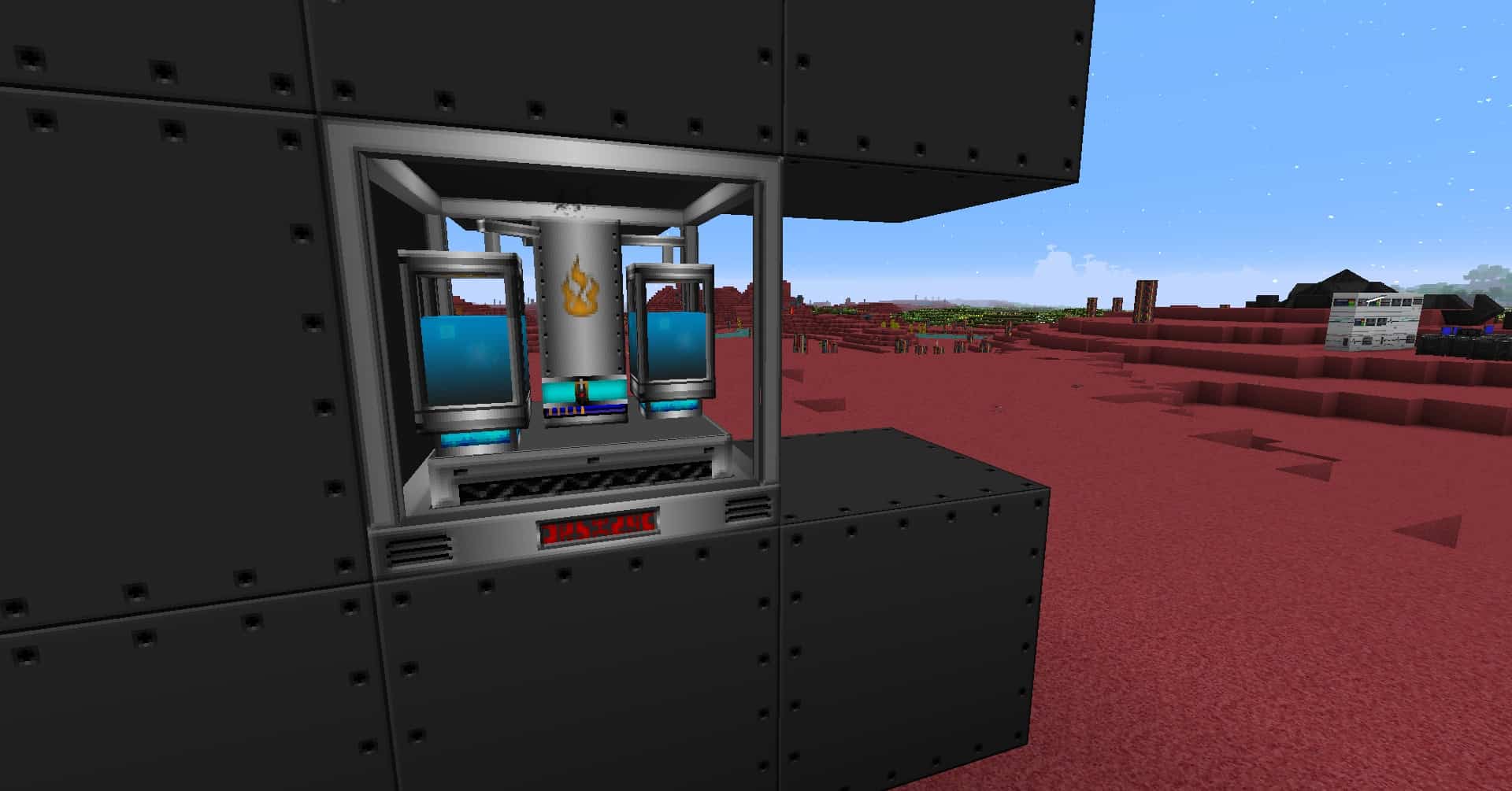
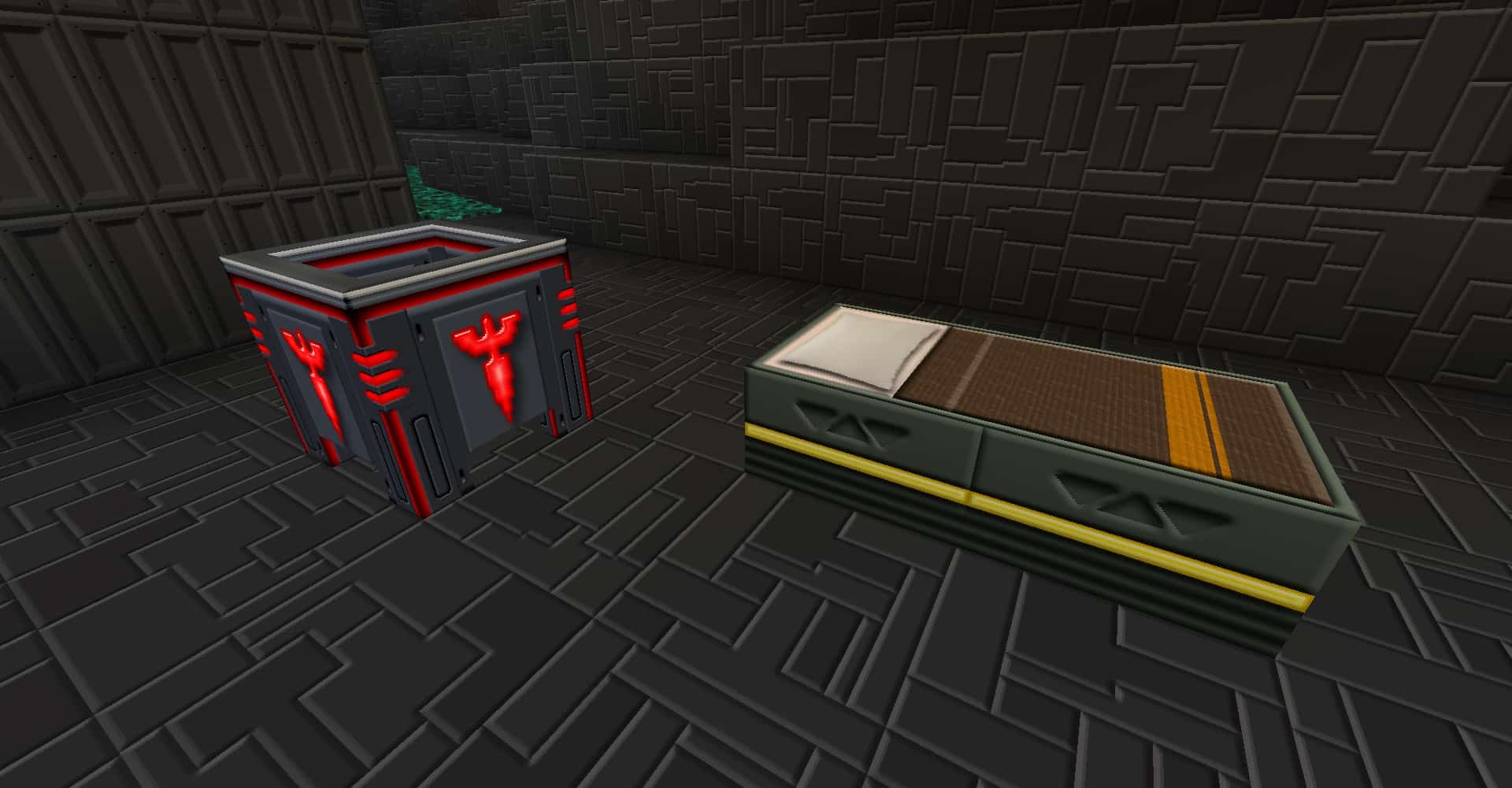
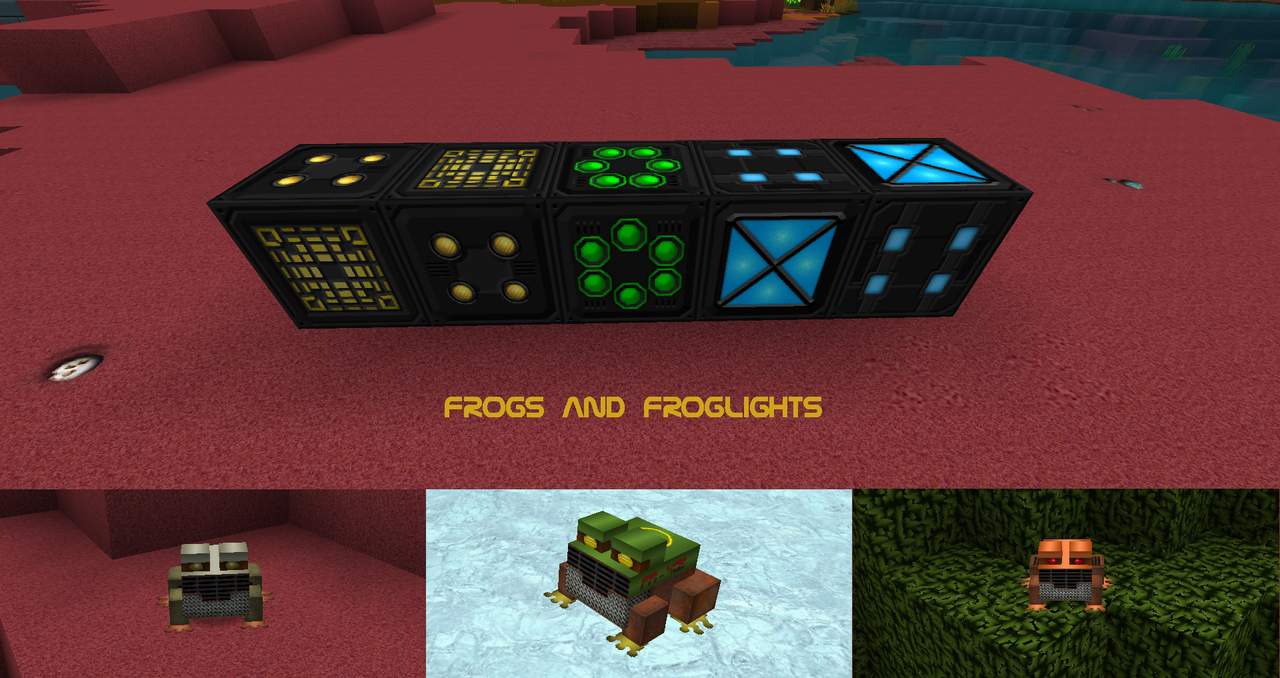
As one of the absolute first space-themed resource packs, Norzeteus’ Space remains remarkably relevant and impressive in the latest versions of Minecraft. It is wonderfully action-packed for the explorer-type player who might find themselves seeking a break from the usual routine. Instead of the daily grind of tending to fields and hanging out with villagers on earth, you can now do the exact same thing on distant, uncharted worlds! The textures have been modified with high ideals and brand-new attention to detail. With this futuristic space travel pack, I really enjoyed exploring a different and exciting realm of strange planets and frightening new monsters. You can download Norzeteus’ Space in 128x resolution, ensuring that capable computers can fully appreciate the stunning scenery. The textures are genuinely fascinating with their glowing details, and the Future Space resource pack features intricate polished minerals alongside an elegant lighting scheme. When exploring deep into the endless caverns, ladders brilliantly illuminate with a striking bluish light.
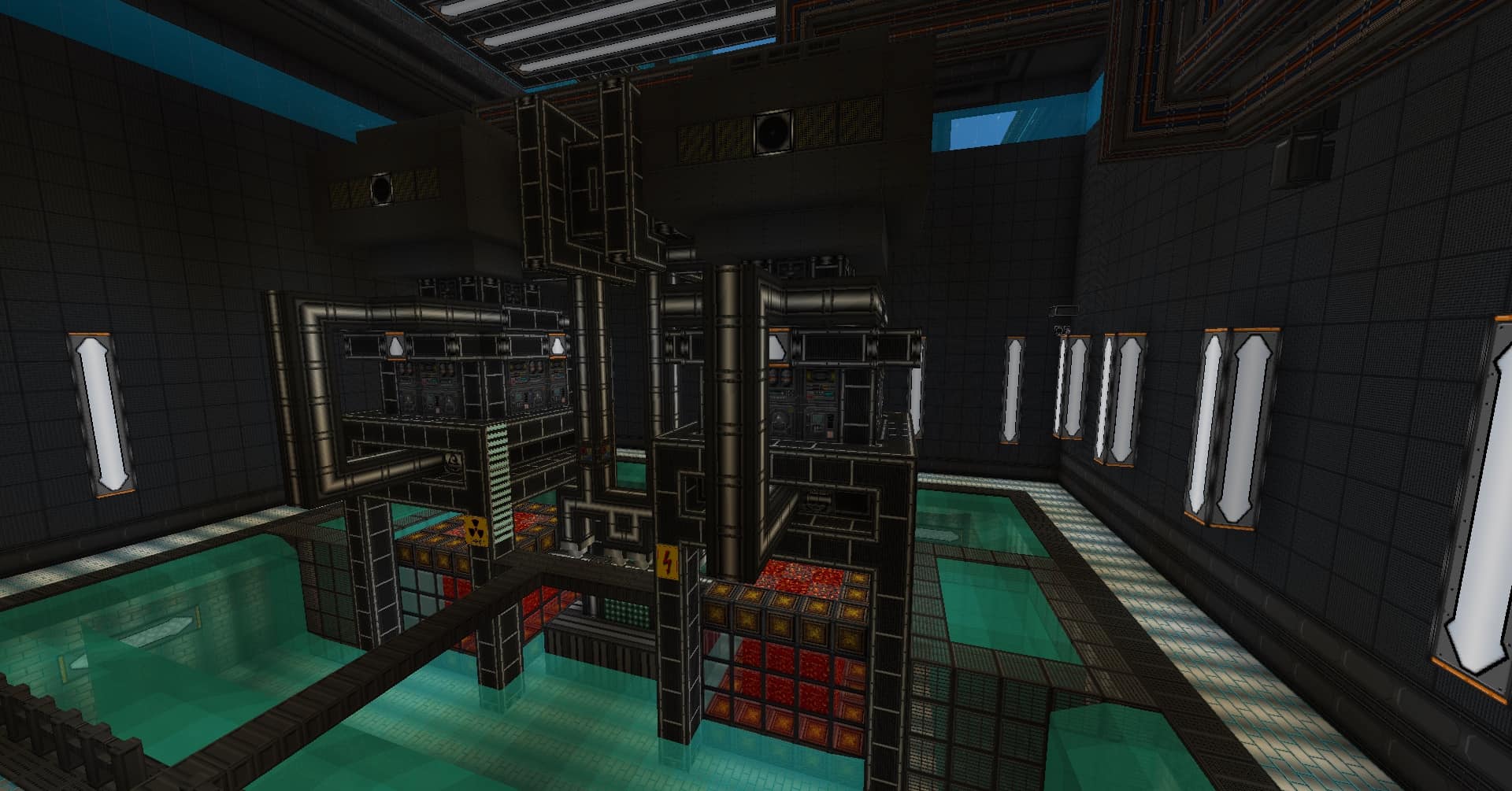
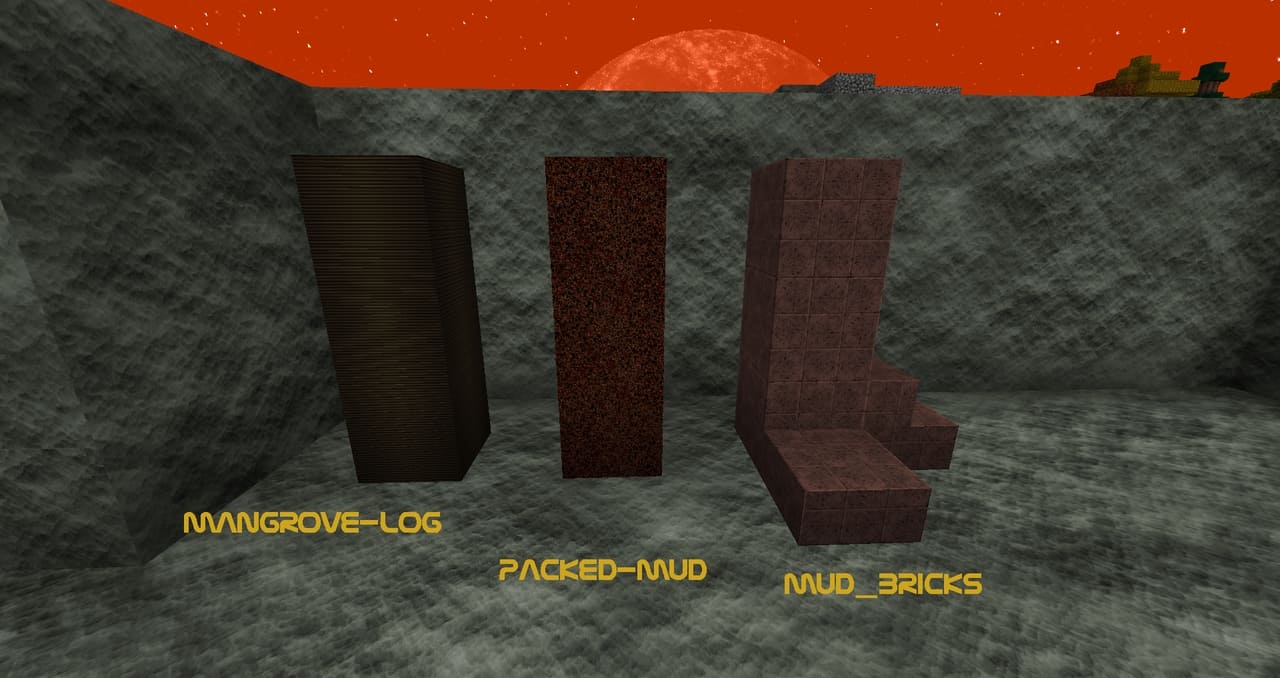
The resulting glow is both eerie and inviting as you take a thrilling journey to the bottom of the world. The alien monsters look as though they stepped straight out of your worst nightmares as they aggressively try to stop you in your tracks. Every normal texture possesses its own out-of-this-world vibe, making the blocks feel both magical and slightly sinister. While the water remains crisp and clear, it still manages to feel entirely like it belongs to another universe. Traditional wall decor feels like a relic of the past, replaced instead by futuristic decor filled with advanced machines, computers, and pieces of high-tech gadgetry. As you wander through each building, you can easily find the perfect layout for your ultimate command post. Building with these space-age blocks easily gives you the fresh, futuristic quarters you have always wanted. Even though the monsters are radically different and quite creepy, the vegetation keeps a familiar touch. Ultimately, the Norzeteus Space resource pack completely redesigns Minecraft into almost an entirely new game that I wholeheartedly recommend trying out.
FutureSpace (formerly Norzeteus Space) should be compatible with all of these Minecraft versions: 1.21.11 – 1.21.10 – 1.21.9 – 1.21.8 – 1.21.7 – 1.21.6 – 1.21.5 – 1.21.4 – 1.21.3 – 1.21.2 – 1.21.1 – 1.21 – 1.20.6 – 1.20.5 – 1.20.4 – 1.20.3 – 1.20.2 – 1.20.1 – 1.20 – 1.19.4 – 1.19.3 – 1.19.2 – 1.19.1 – 1.19 – 1.18.2 – 1.18.1 – 1.18 – 1.17.1 – 1.17 – 1.16.5 – 1.16.4 – 1.16.3 – 1.16.2 – 1.16.1 – 1.16 – 1.15.2 – 1.15.1 – 1.15 – 1.14.4 – 1.14.3 – 1.14.2 – 1.14 – 1.13.2 – 1.13.1 – 1.13 – 1.12.2 – 1.12 – 1.11.2 – 1.11 – 1.10.2 – 1.10 – 1.9.4 – 1.9 – 1.8.9 – 1.8.8 – 1.8.1 – 1.8.6 – 1.8
Screenshots



How to Install Texture Pack (Simple 10 Steps)
- Download OptiFine: Most of the texture packs and shaders need OptiFine. That’s why, first download and install OptiFine for the version of Minecraft you want to play.
- Download the Texture Pack: Get the texture pack you want from the download section. Choose the version that works with your Minecraft and your PC’s performance.
- Open Minecraft Launcher: Start Minecraft using the official game launcher — or even TLauncher, if you use that.
- Go to Options: From the main menu, click on the “Options” button.
- Open Resource Packs: Inside Options, click on “Resource Packs…”.
- Open the Resource Pack Folder: Click on “Open Resource Pack Folder” — this will open a folder named “resourcepacks”.
- Move the Pack File: Copy or move the .zip file you downloaded into that “resourcepacks” folder. (Don’t unzip the file — Minecraft uses it as-is!)
- Go Back and Refresh: Close the folder and click “Done”, then go back into “Resource Packs…” again.
- Activate the Pack: You’ll see the pack on the left side. Hover over it and click the arrow to move it to the right (active side).
Tip: If you get a message that the pack is for a different version, just click “Yes” — it usually works fine. - Click Done and Enjoy: Click “Done” again. Now your pack is ready to use in-game. It’s that easy!
Credits
This resource pack was originally created by Norzeteus. We do not claim ownership of this content, and no modifications have been made to the original files by our team. We strongly encourage all players to support Norzeteus and their ongoing work by downloading the pack directly from the official source.
Download Links
Java Edition
- [128x] Minecraft 1.21.x
- [128x] Minecraft 1.20.x
- [128x] Minecraft 1.19.x
- [128x] Minecraft 1.18.x
- [128x] Minecraft 1.17.x
- [128x] Minecraft 1.16.x
- [128x] Minecraft 1.15.x
- [128x] Minecraft 1.14.x
- [128x] Minecraft 1.13.x
- [128x] Minecraft 1.12.x
- [128x] Minecraft 1.11.x
- [128x] Minecraft 1.10.x
- [128x] Minecraft 1.9.x
- [128x] Minecraft 1.8.x
- [128x] Add-on 1.20.x
- [128x] Add-on 1.19.x
- [128x] Add-on 1.18.x
- [128x] Add-on 1.17.x
- [128x] Add-on 1.16.x
- [128x] Add-on 1.15.x
- [128x] Add-on 1.14.x
- [128x] Add-on 1.13.x
- [128x] Add-on 1.12.x
- [128x] Add-on 1.11.x
- [128x] Add-on 1.10.x
- [128x] Add-on 1.9.x
- [128x] Add-on 1.8.x
Download Instructions
Curseforge: download starts automatically after a few seconds;
Mediafire: click the big blue button with the text “DOWNLOAD”;
Google Drive: in the top right corner you will see a small download icon (down arrow), click it and the download should start;