SMP Revival resource pack is an absolute blast to use, coming packed with a number of cool features that truly enhance your gameplay. It feels a lot like everyone who has a unique Steve’s skin switched it over to another, yet wonderfully similar kind of Steve’s skin. You might find yourself asking, what does SMP stand for? It is an abbreviation of Survival Multiplayer. As you can already understand straight from the title “SMP Revival,” it represents something deeply related to the recovery and restoration of an outdated SMP texture pack. Running at a clean 16x resolution, it makes fascinating changes to the guards, transforming them into a totally different set of protective layers that clearly communicate a heightened sense of strength and readiness.
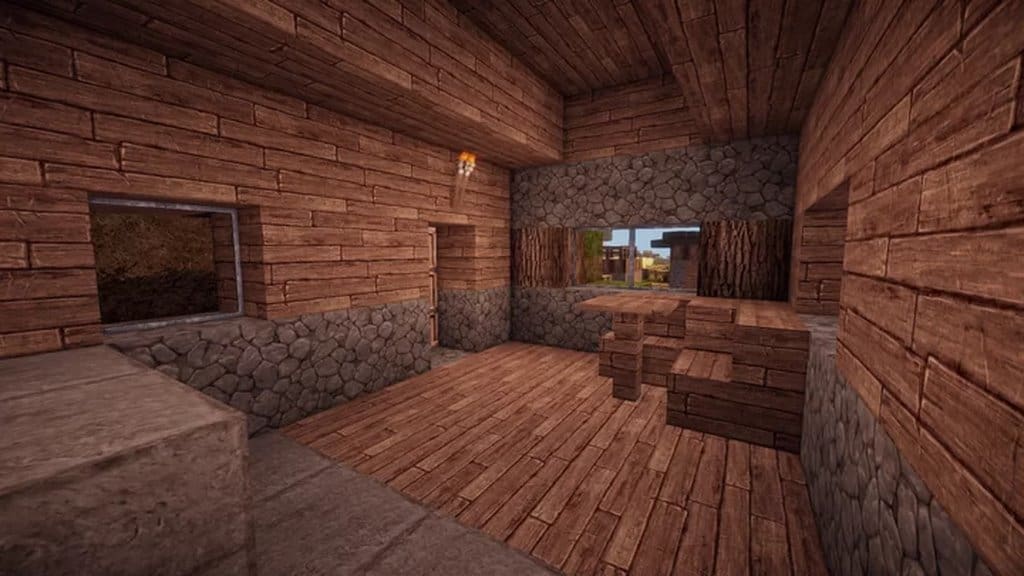
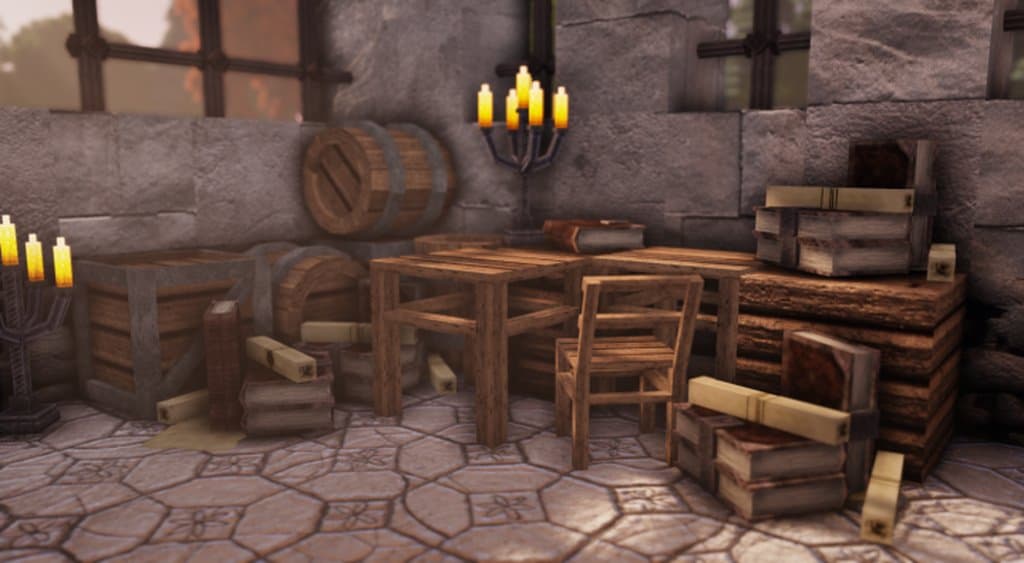
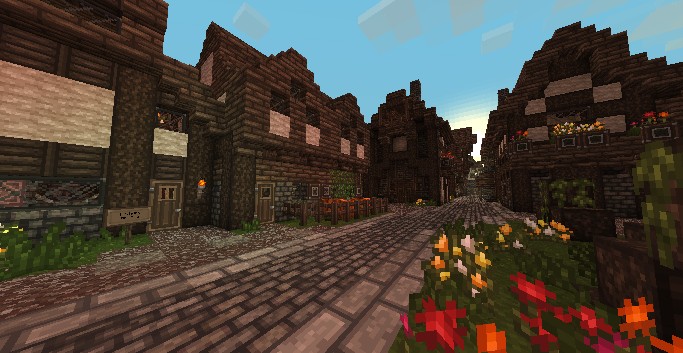
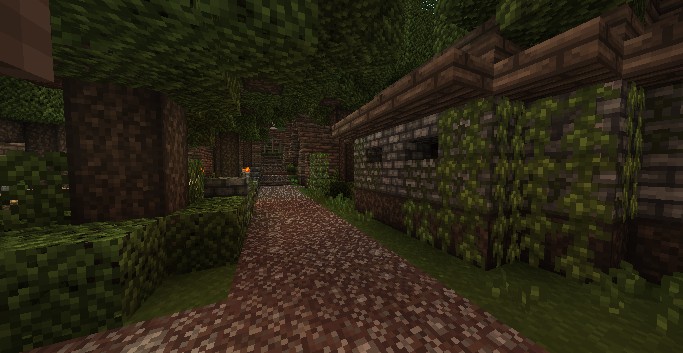
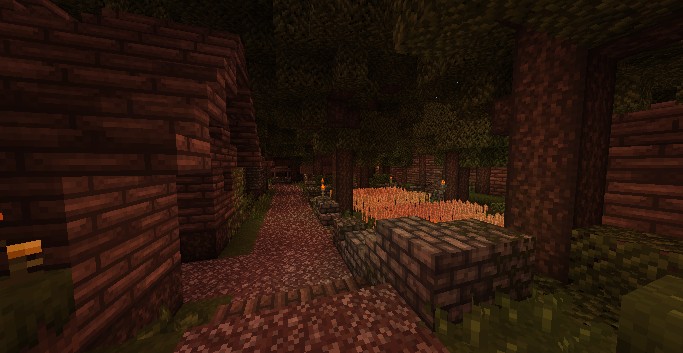
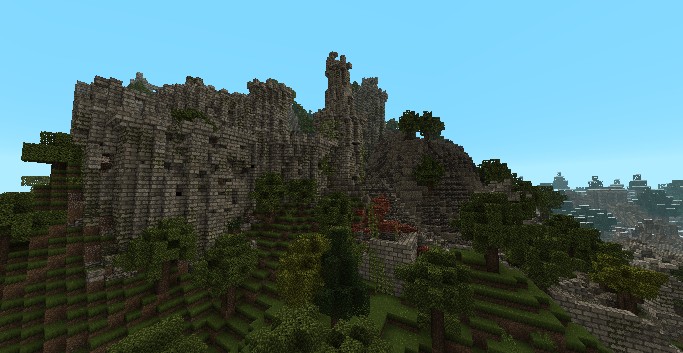
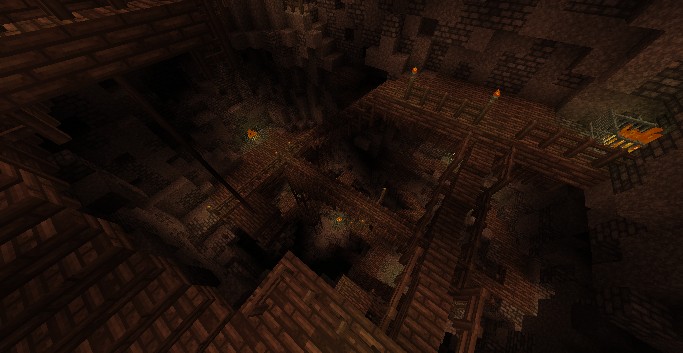
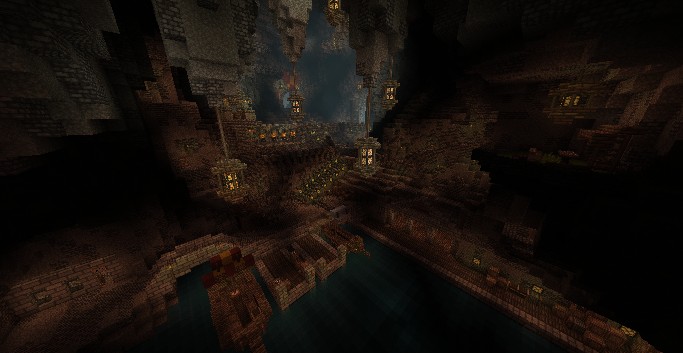
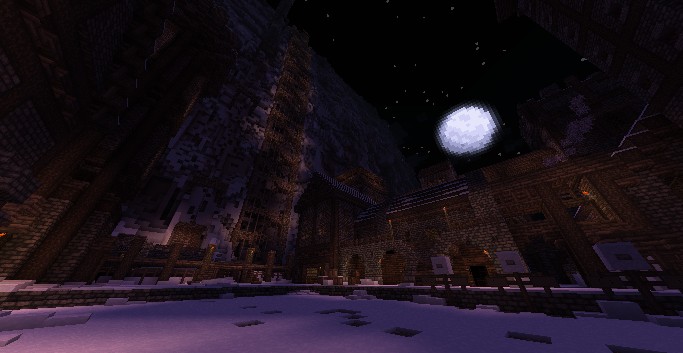
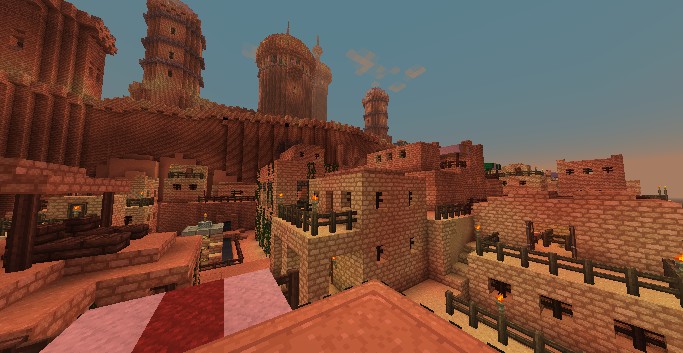
Generally speaking, SMP’s Revival is a fantastic pack built around a rich medieval theme. Players are given the amazing possibility to construct large, wonderfully natural-looking châteaux featuring gorgeous Gothic styles and structures, sturdy wooden palisades, appealing gray block compositions, and many other unique peculiarities. As you already know, SMP is an abbreviation of Survival Multiplayer, meaning that this brilliant new pack makes your multiplayer survival sessions incredibly intriguing by systematically improving every piece of the amusement. The SMP Revival Resource Pack is continually overhauled and upgraded to stay fresh. Install the pack today and thoroughly enjoy the vastly improved world of Minecraft.
SMP’s Revival should be compatible with all of these Minecraft versions: 1.14.4 – 1.14.3 – 1.14.2 – 1.14 – 1.13.2 – 1.13.1 – 1.13 – 1.12.2 – 1.12 – 1.11.2 – 1.11 – 1.10.2 – 1.10 – 1.9.4 – 1.9
Screenshots
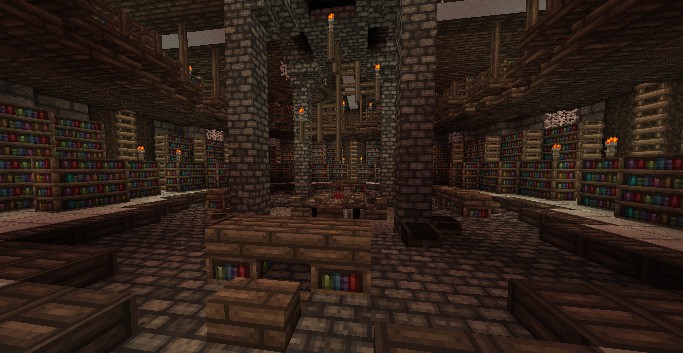
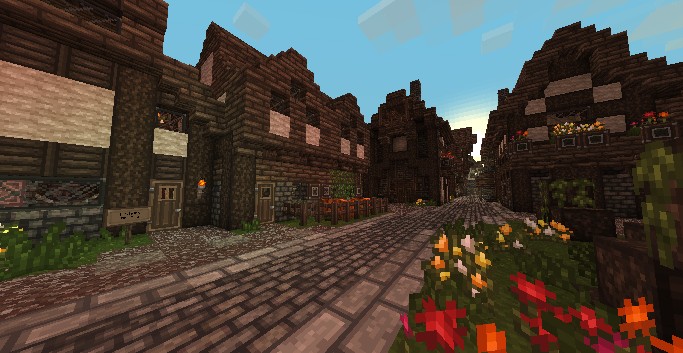
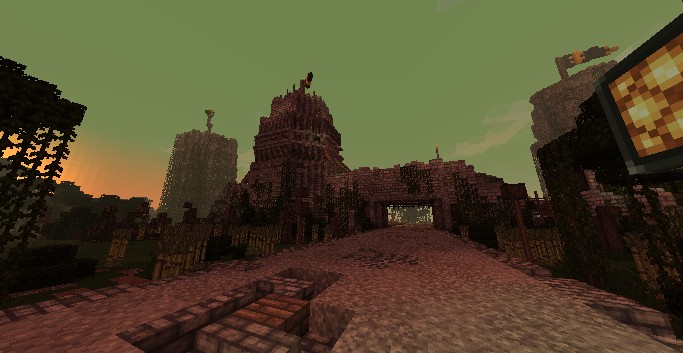
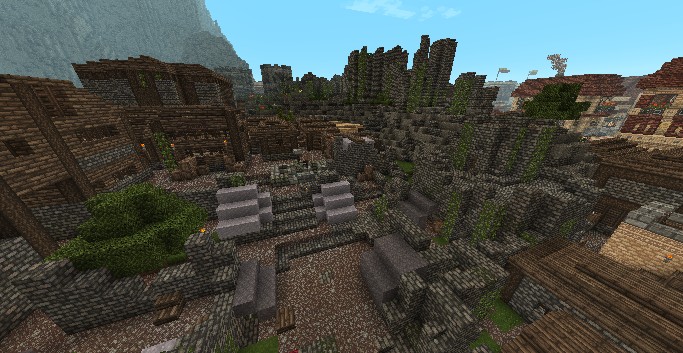
How to Install Texture Pack (Simple 10 Steps)
- Download OptiFine: Most of the texture packs and shaders need OptiFine. That’s why, first download and install OptiFine for the version of Minecraft you want to play.
- Download the Texture Pack: Get the texture pack you want from the download section. Choose the version that works with your Minecraft and your PC’s performance.
- Open Minecraft Launcher: Start Minecraft using the official game launcher — or even TLauncher, if you use that.
- Go to Options: From the main menu, click on the “Options” button.
- Open Resource Packs: Inside Options, click on “Resource Packs…”.
- Open the Resource Pack Folder: Click on “Open Resource Pack Folder” — this will open a folder named “resourcepacks”.
- Move the Pack File: Copy or move the .zip file you downloaded into that “resourcepacks” folder. (Don’t unzip the file — Minecraft uses it as-is!)
- Go Back and Refresh: Close the folder and click “Done”, then go back into “Resource Packs…” again.
- Activate the Pack: You’ll see the pack on the left side. Hover over it and click the arrow to move it to the right (active side).
Tip: If you get a message that the pack is for a different version, just click “Yes” — it usually works fine. - Click Done and Enjoy: Click “Done” again. Now your pack is ready to use in-game. It’s that easy!
Credits
This resource pack was originally created by SMP and GalvinNerth. We do not claim ownership of this content, nor do we host or modify the original files. All rights and intellectual property remain with the original authors. We strongly encourage players to support the creators by visiting their official pages and downloading from their authorized links.
Download Links
Java Edition
Download Instructions
Curseforge: download starts automatically after a few seconds;
Mediafire: click the big blue button with the text “DOWNLOAD”;
Google Drive: in the top right corner you will see a small download icon (down arrow), click it and the download should start;