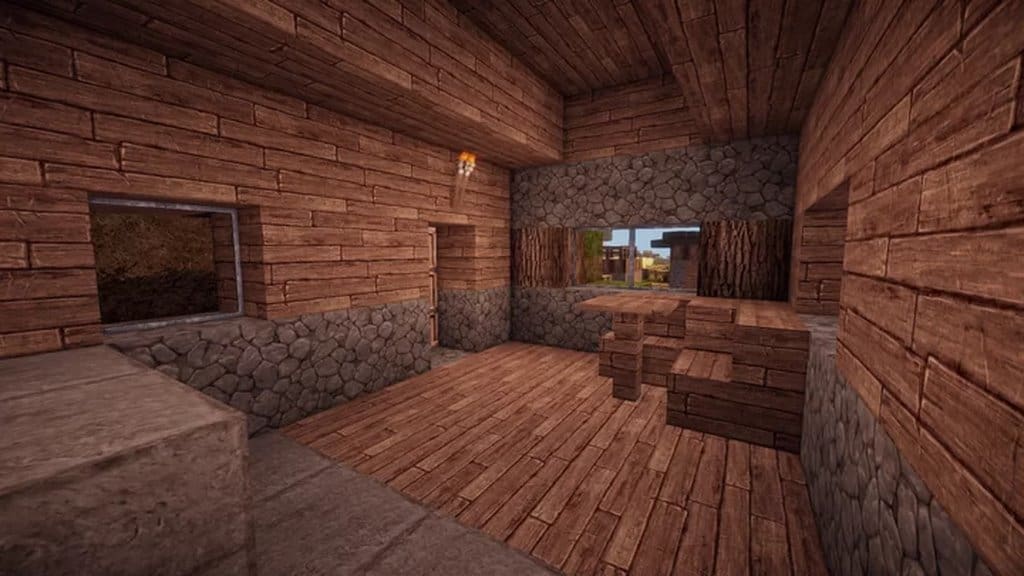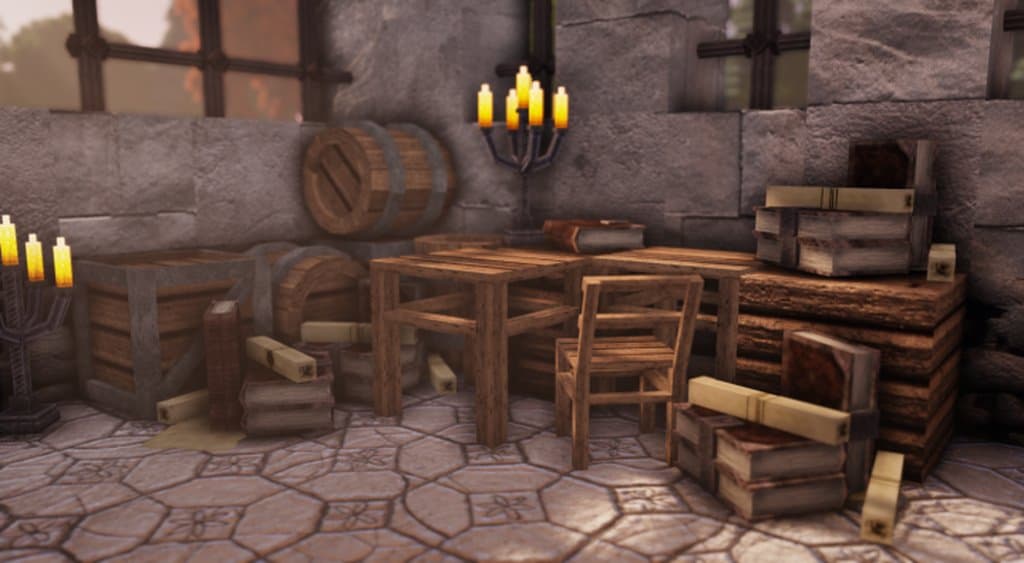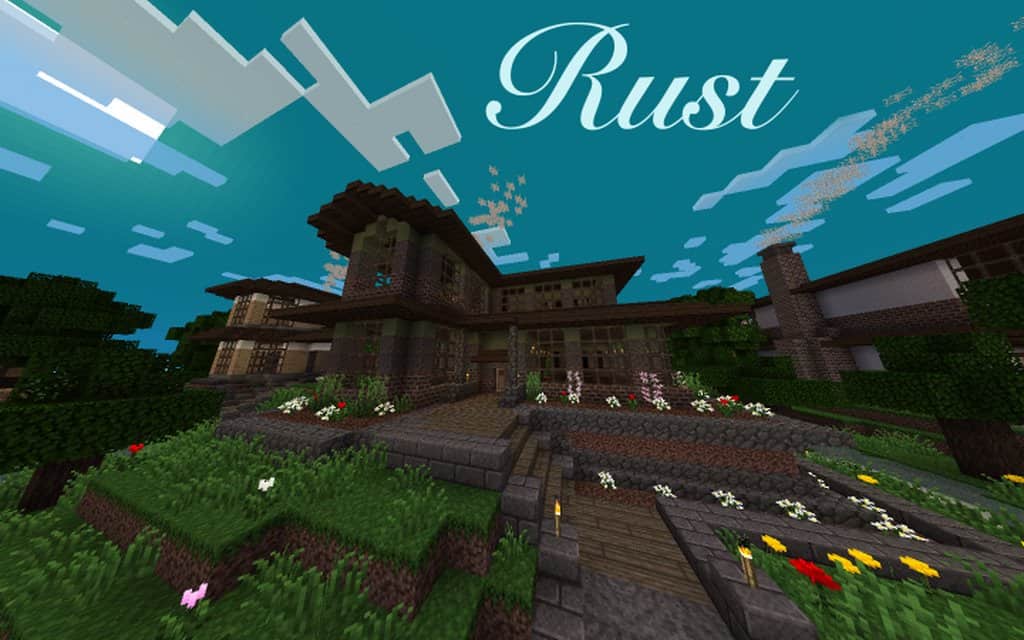
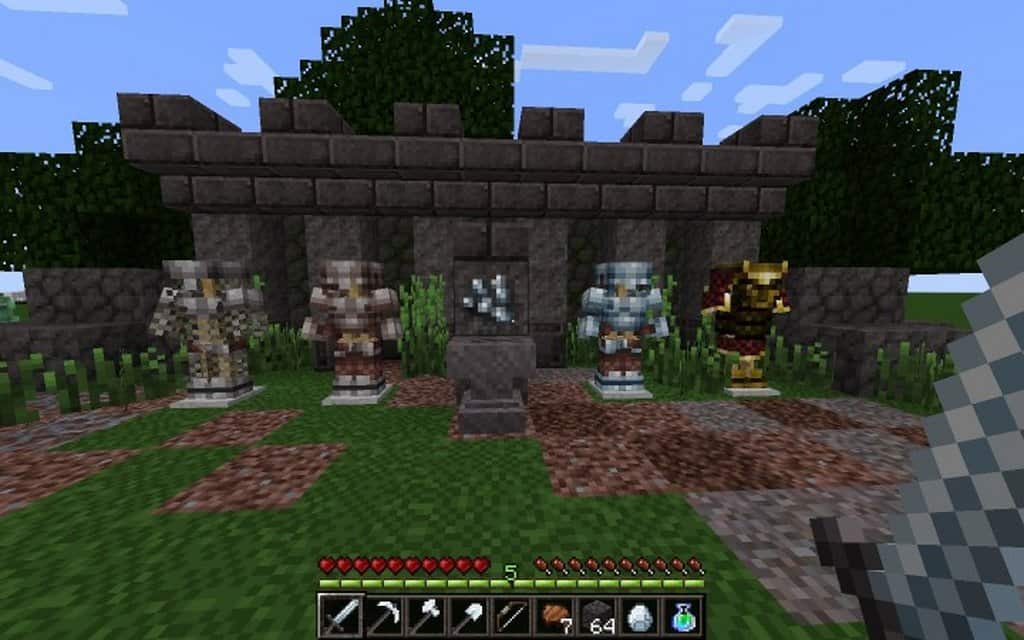
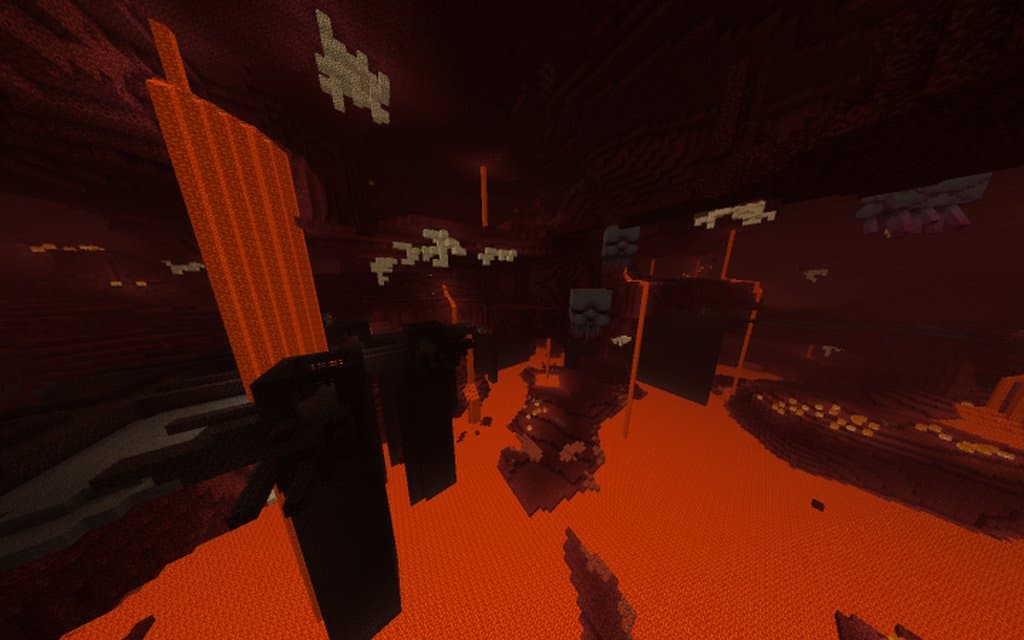
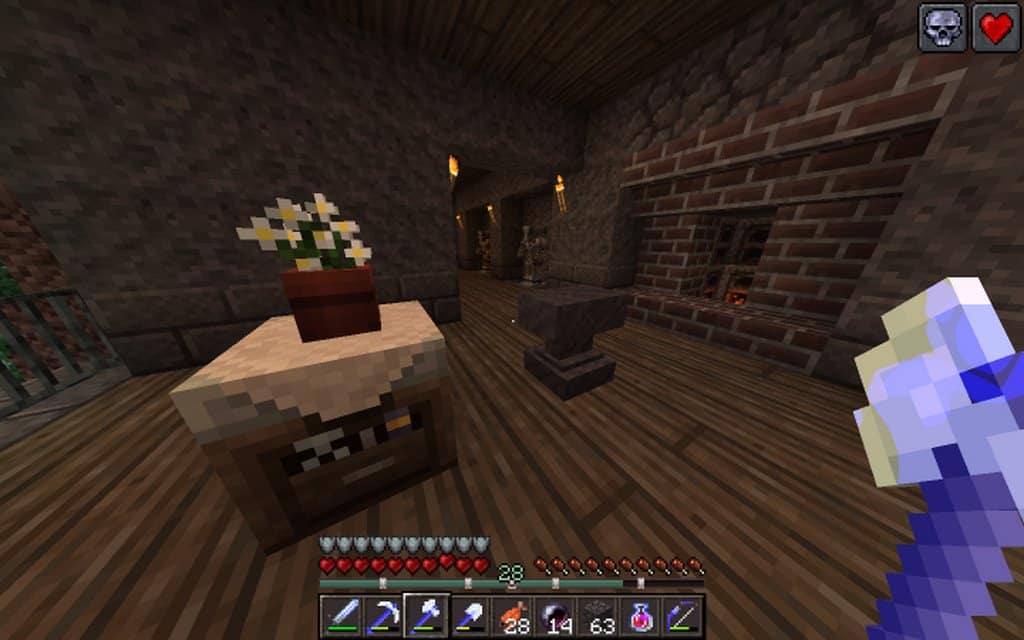
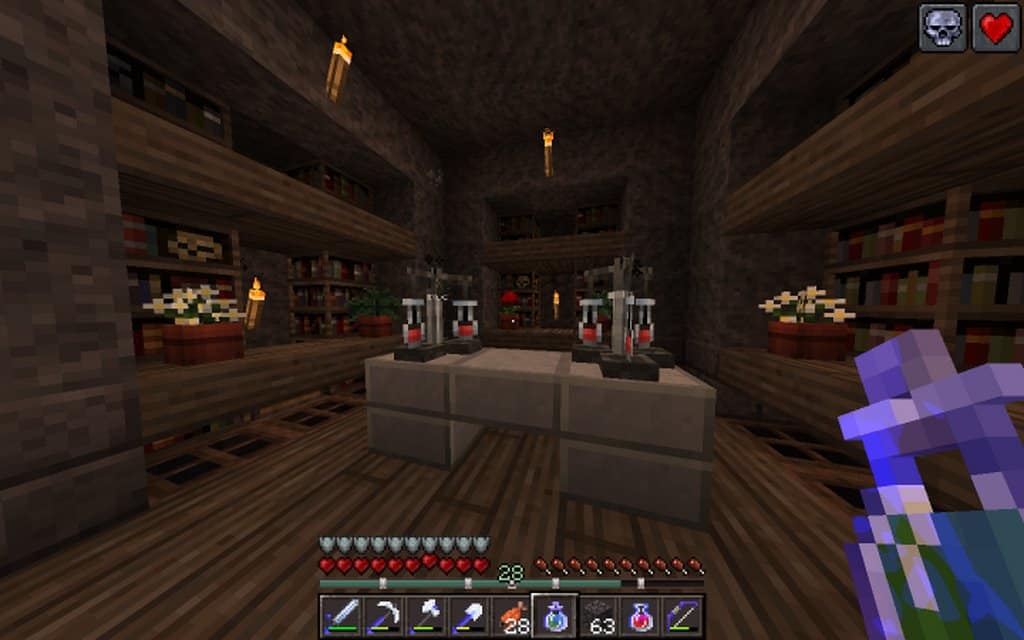
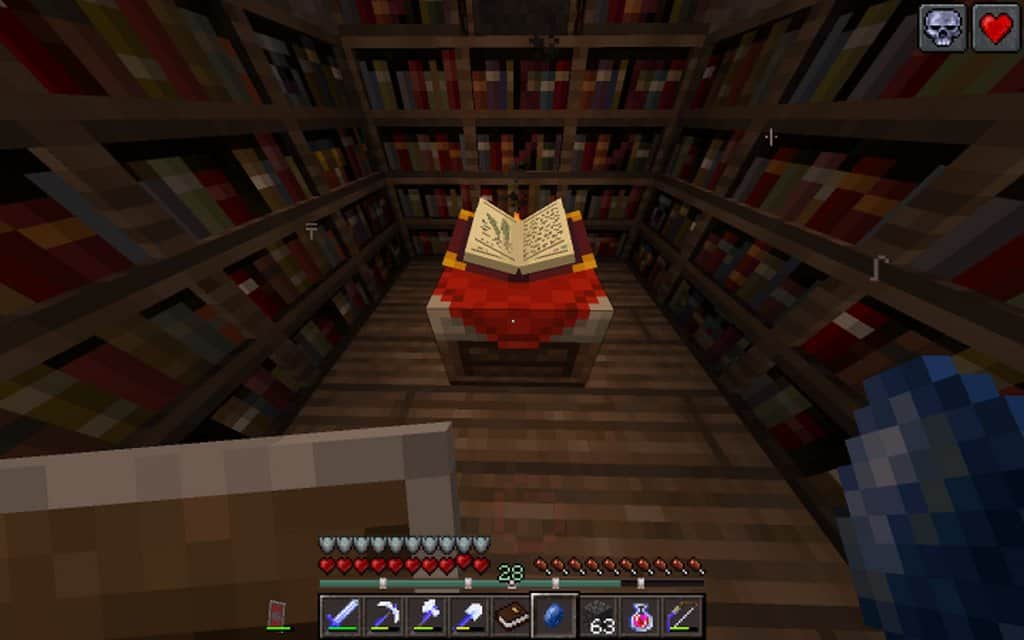
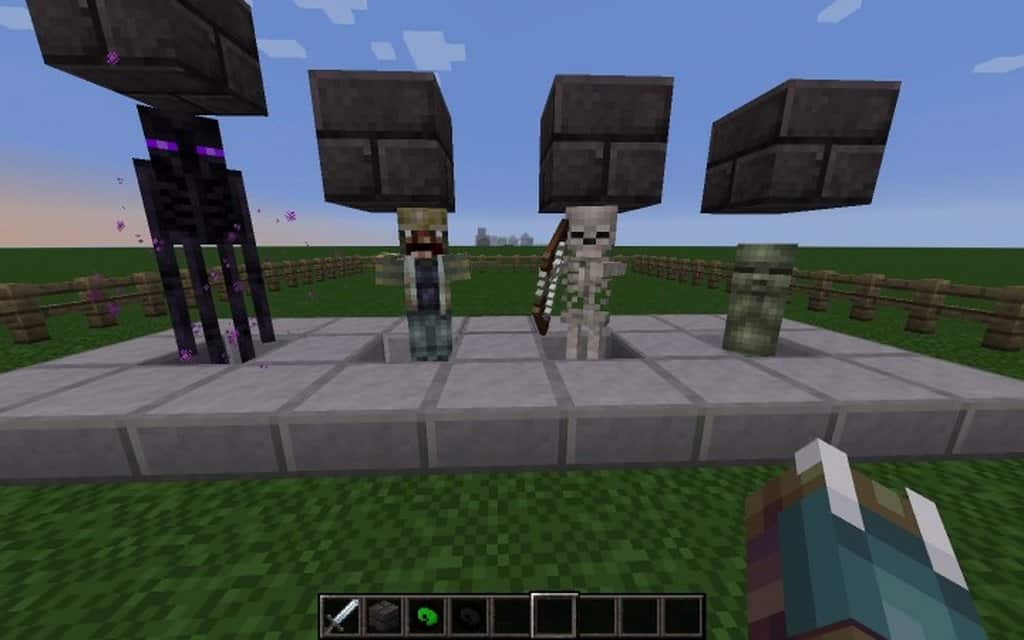
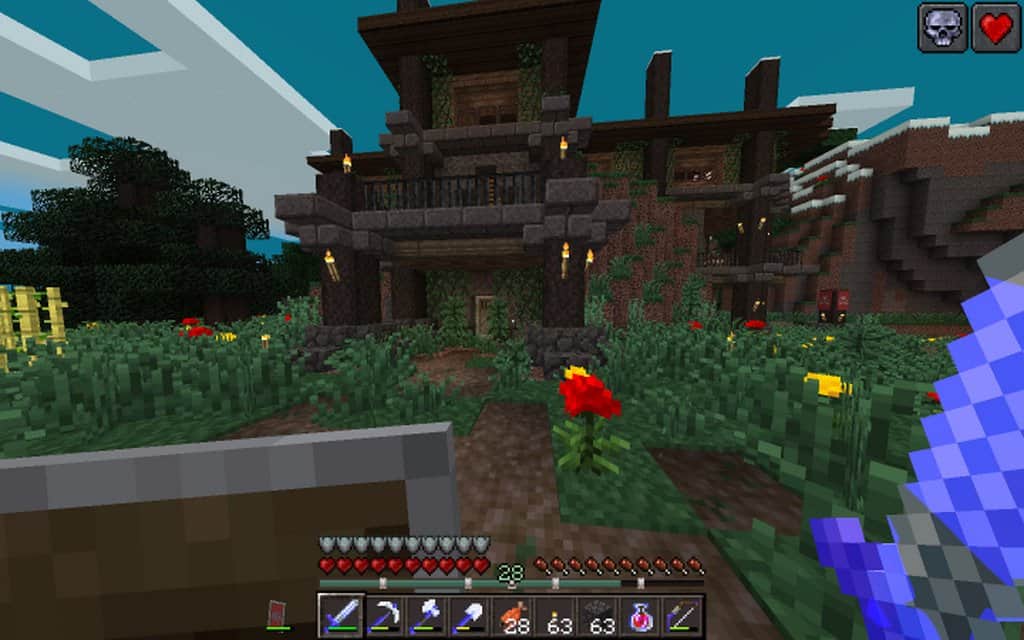
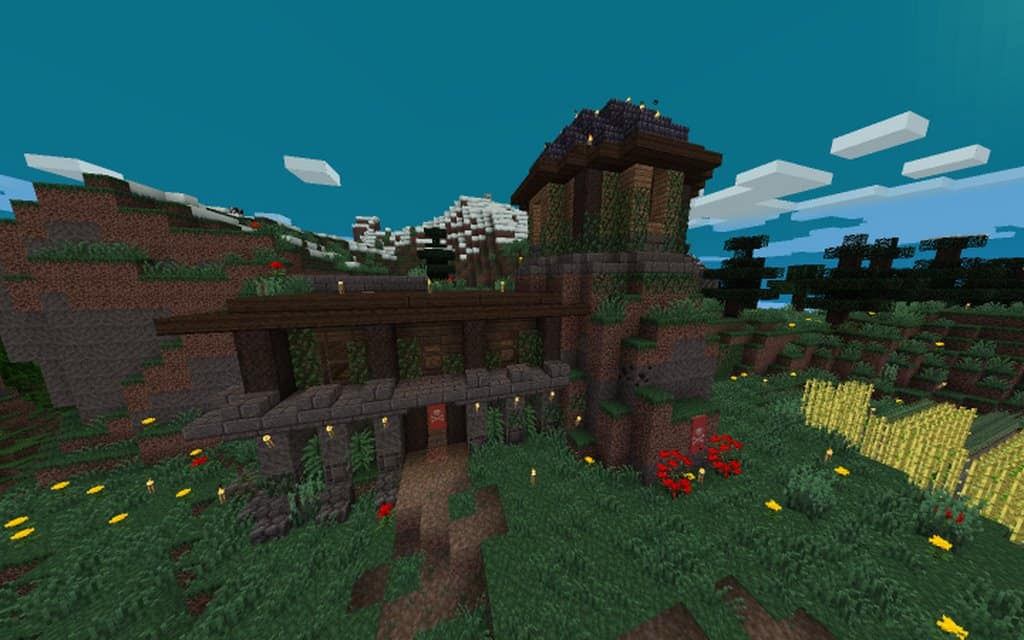
Specifically aimed at enhancing your gameplay experience in Minecraft, the Rust Resource Pack delivers a genuinely realistic and unique aged look to all the game elements that I personally found completely refreshing. Even though the pack belongs to a low 16×16 resolution, I was amazed to find that this resource pack stands out as a true standard available in the game, developed with an incredible amount of attention toward details and textures for remarkably realistic graphics. Because of this low resolution, you can easily run it on a wide variety of devices including older or lower-cost PCs without needing hectic software installations or suffering from frustrating lags. While most texture sets and graphic enhancement packs in Minecraft tend to push for overly modern looks, I really love how the Rust resource pack focuses instead on giving you gritty, realistic depictions through dirty stones, battered wood, and much more. This pack masterfully modifies the game through various methods to give it a wonderfully rustic and pleasant feel while you are exploring and building.
The main features I noticed also include brilliant modifications to the GUIs and weapons, along with some great minor changes to the armor that pair exceptionally well when you are setting up a huge castle build, dark dungeons, or other moody projects requiring aged characteristics for a more immersive gameplay and overall look. Overall, the pack thoroughly changes numerous elements of Minecraft and benefits from regular updates for its textures and other assets. A large number of textures in this pack have already been fully updated, while a few others are still actively being developed by the team. The Rust Resource pack truly comes with astounding details that you have to see for yourself, and I was thrilled to notice that even the vegetation has been carefully changed to make it appear much more aligned with the rugged terrain, with developers consistently rolling out updates on a regular basis.
Rust should be compatible with all of these Minecraft versions: 1.13.2 – 1.13.1 – 1.13 – 1.12.2 – 1.12
Screenshots
How to Install Texture Pack (Simple 10 Steps)
- Download OptiFine: Most of the texture packs and shaders need OptiFine. That’s why, first download and install OptiFine for the version of Minecraft you want to play.
- Download the Texture Pack: Get the texture pack you want from the download section. Choose the version that works with your Minecraft and your PC’s performance.
- Open Minecraft Launcher: Start Minecraft using the official game launcher — or even TLauncher, if you use that.
- Go to Options: From the main menu, click on the “Options” button.
- Open Resource Packs: Inside Options, click on “Resource Packs…”.
- Open the Resource Pack Folder: Click on “Open Resource Pack Folder” — this will open a folder named “resourcepacks”.
- Move the Pack File: Copy or move the .zip file you downloaded into that “resourcepacks” folder. (Don’t unzip the file — Minecraft uses it as-is!)
- Go Back and Refresh: Close the folder and click “Done”, then go back into “Resource Packs…” again.
- Activate the Pack: You’ll see the pack on the left side. Hover over it and click the arrow to move it to the right (active side).
Tip: If you get a message that the pack is for a different version, just click “Yes” — it usually works fine. - Click Done and Enjoy: Click “Done” again. Now your pack is ready to use in-game. It’s that easy!
Credits
This resource pack was created by Hybrid Warrior. We do not own or modify this content. All rights belong to the original creator. We encourage you to support Hybrid Warrior by downloading from their official links and checking out their future projects.
Download Instructions
Curseforge: download starts automatically after a few seconds;
Mediafire: click the big blue button with the text “DOWNLOAD”;
Google Drive: in the top right corner you will see a small download icon (down arrow), click it and the download should start;