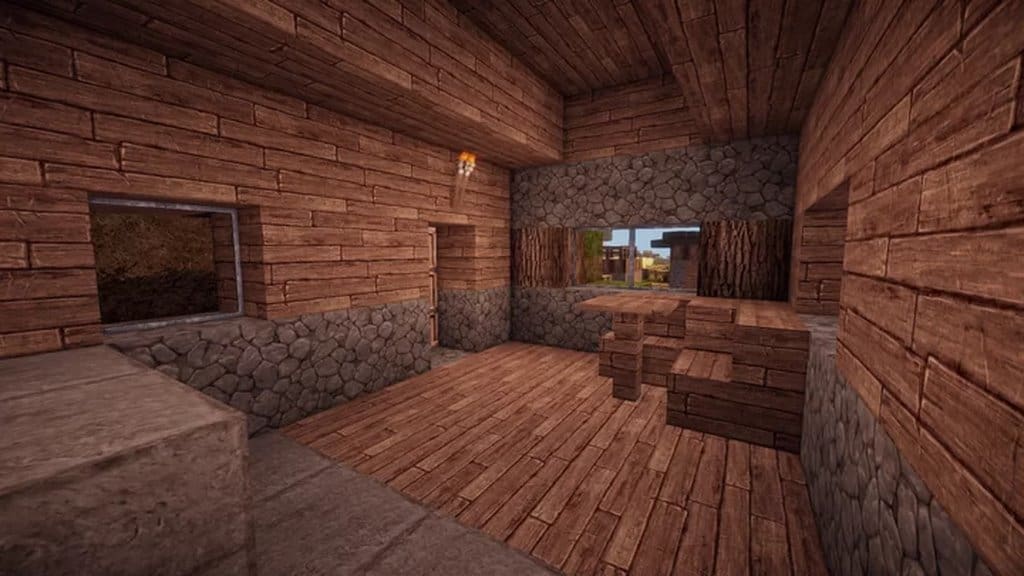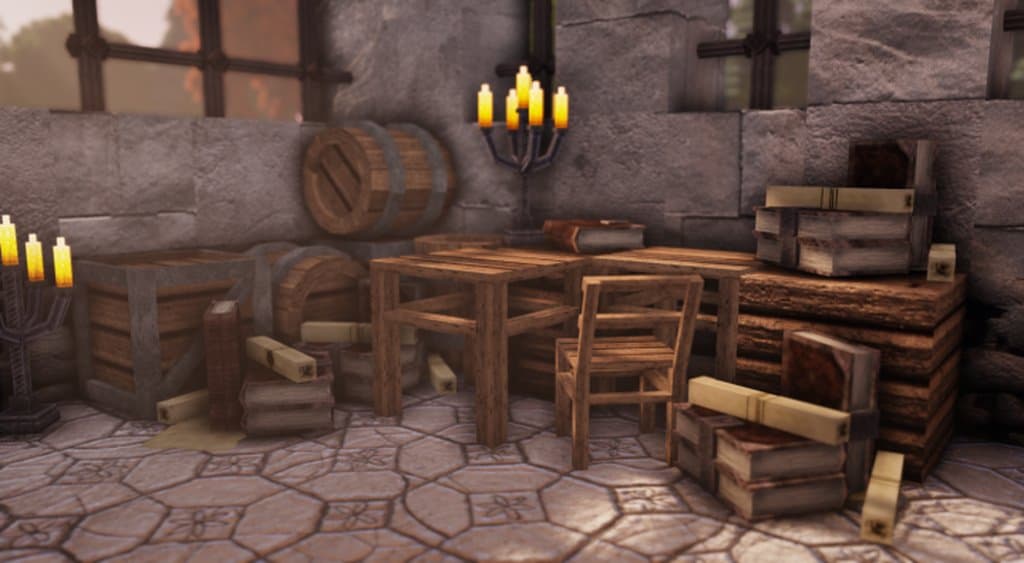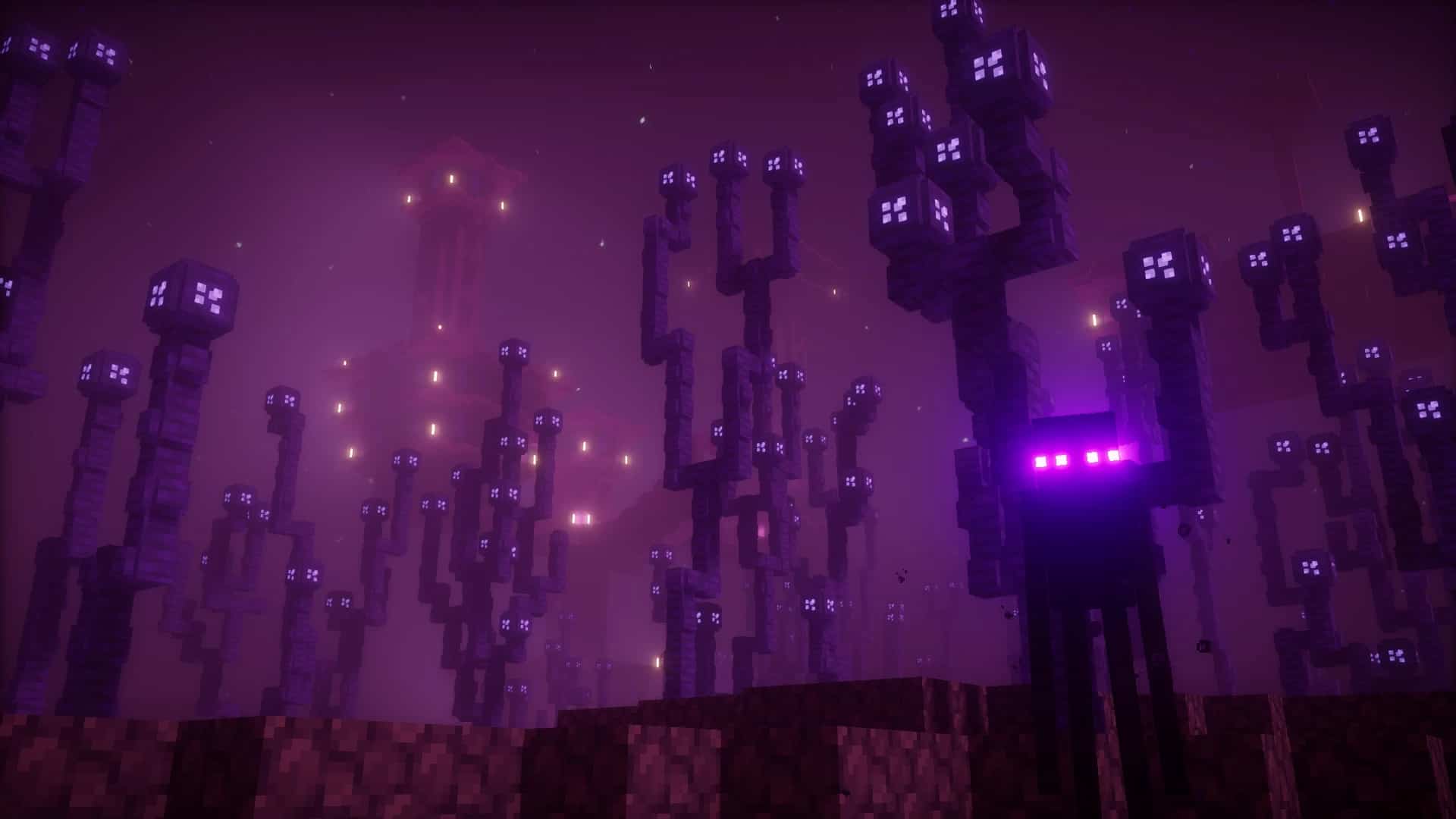
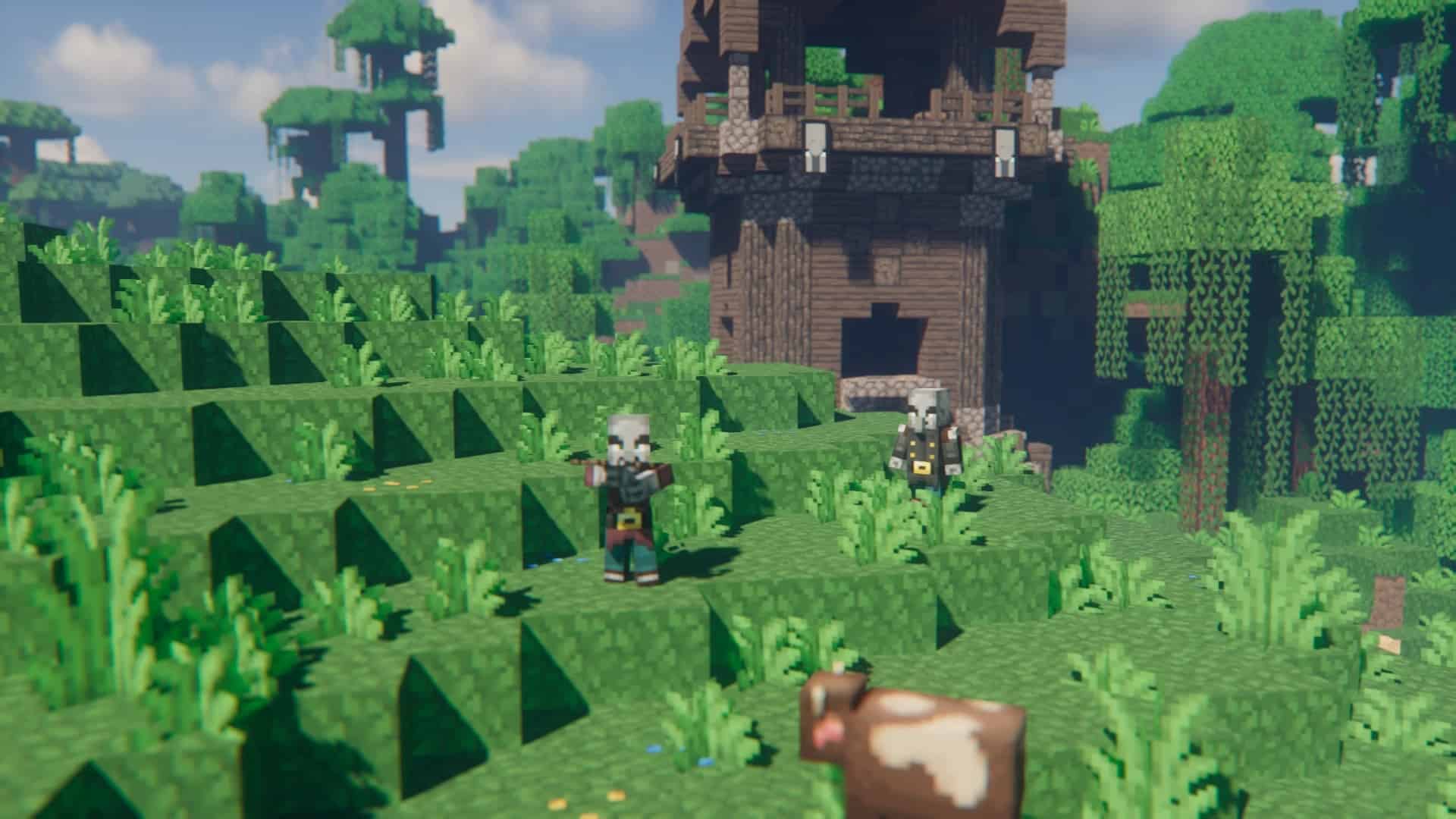
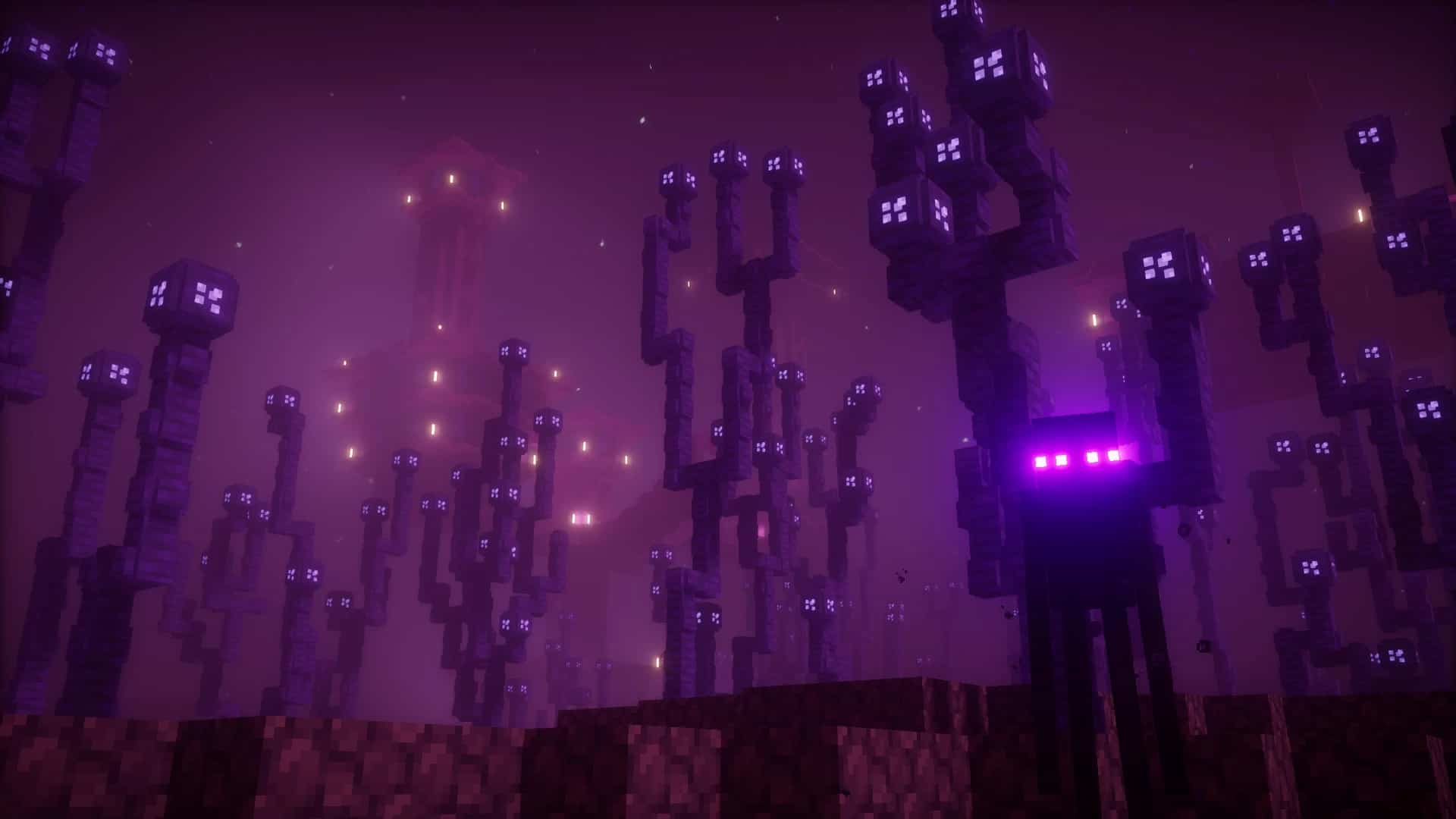
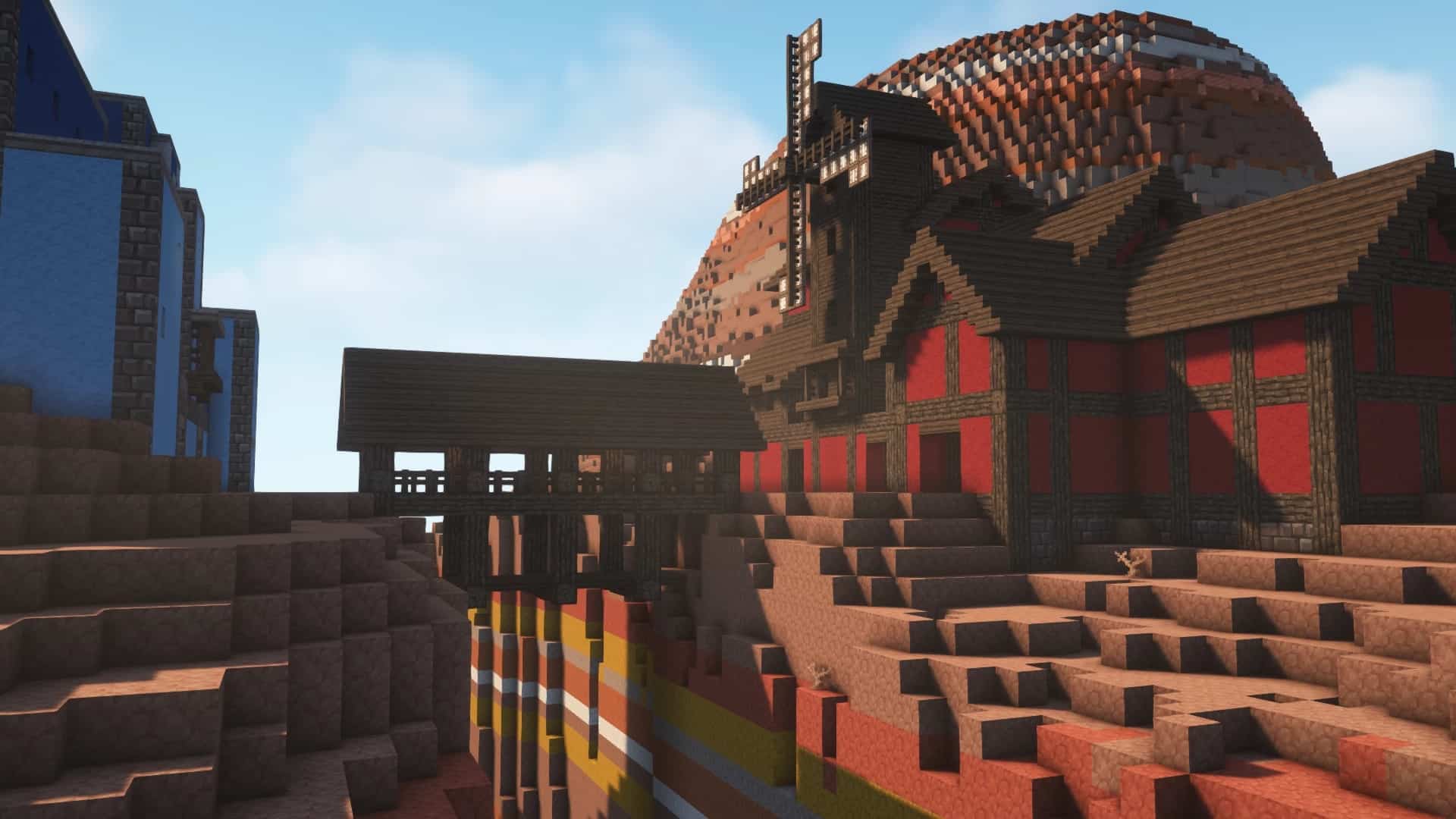
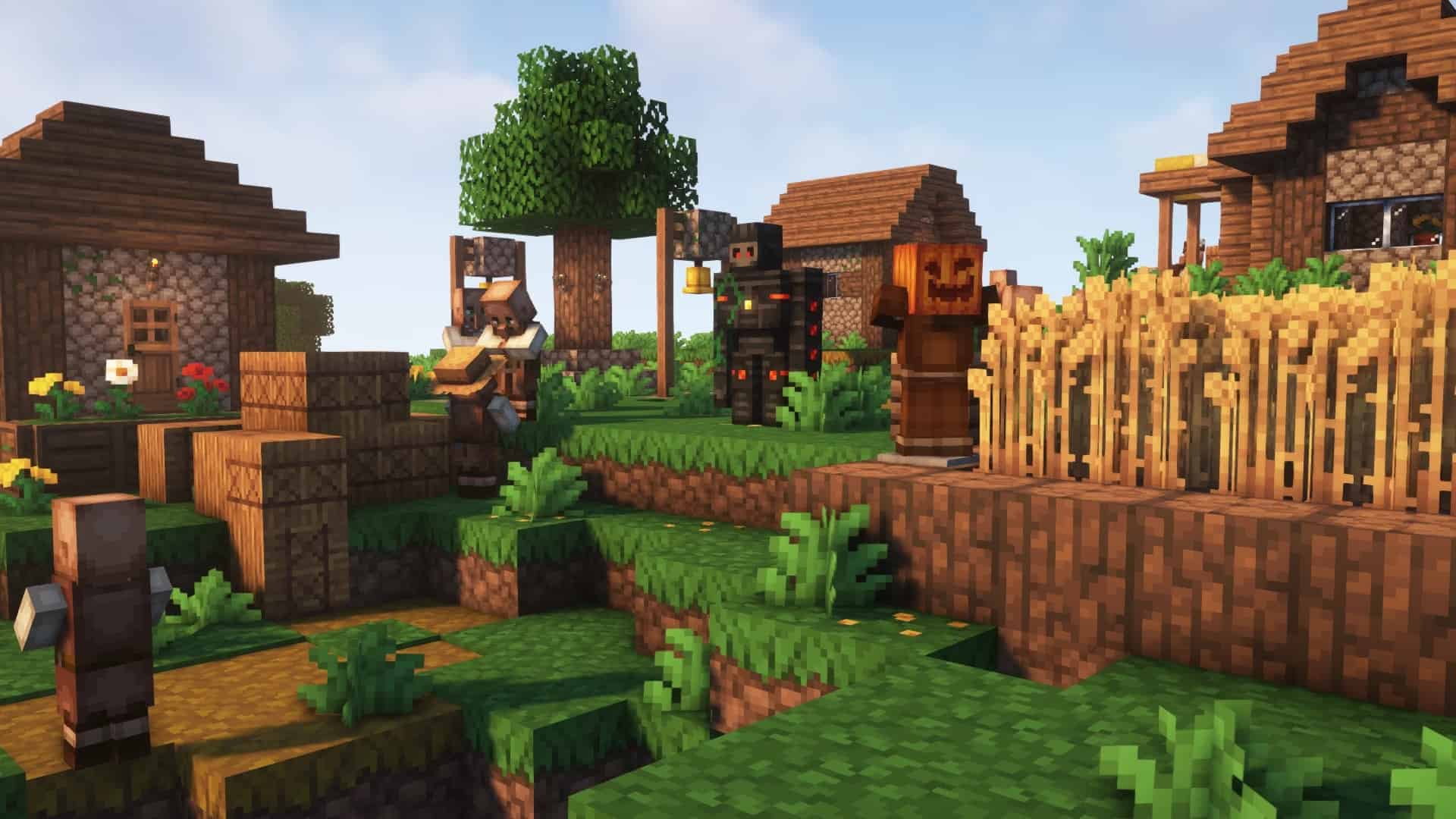
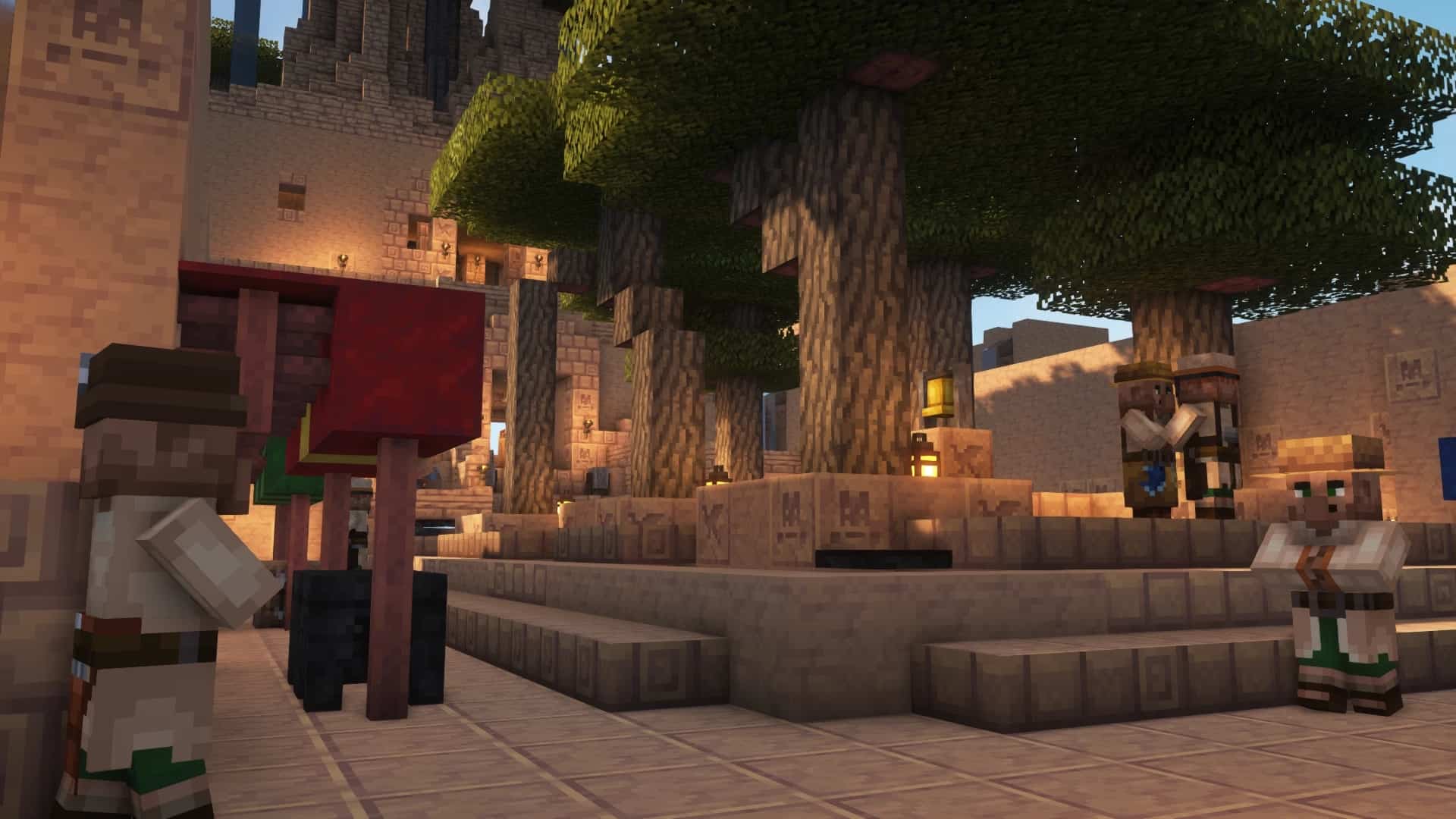
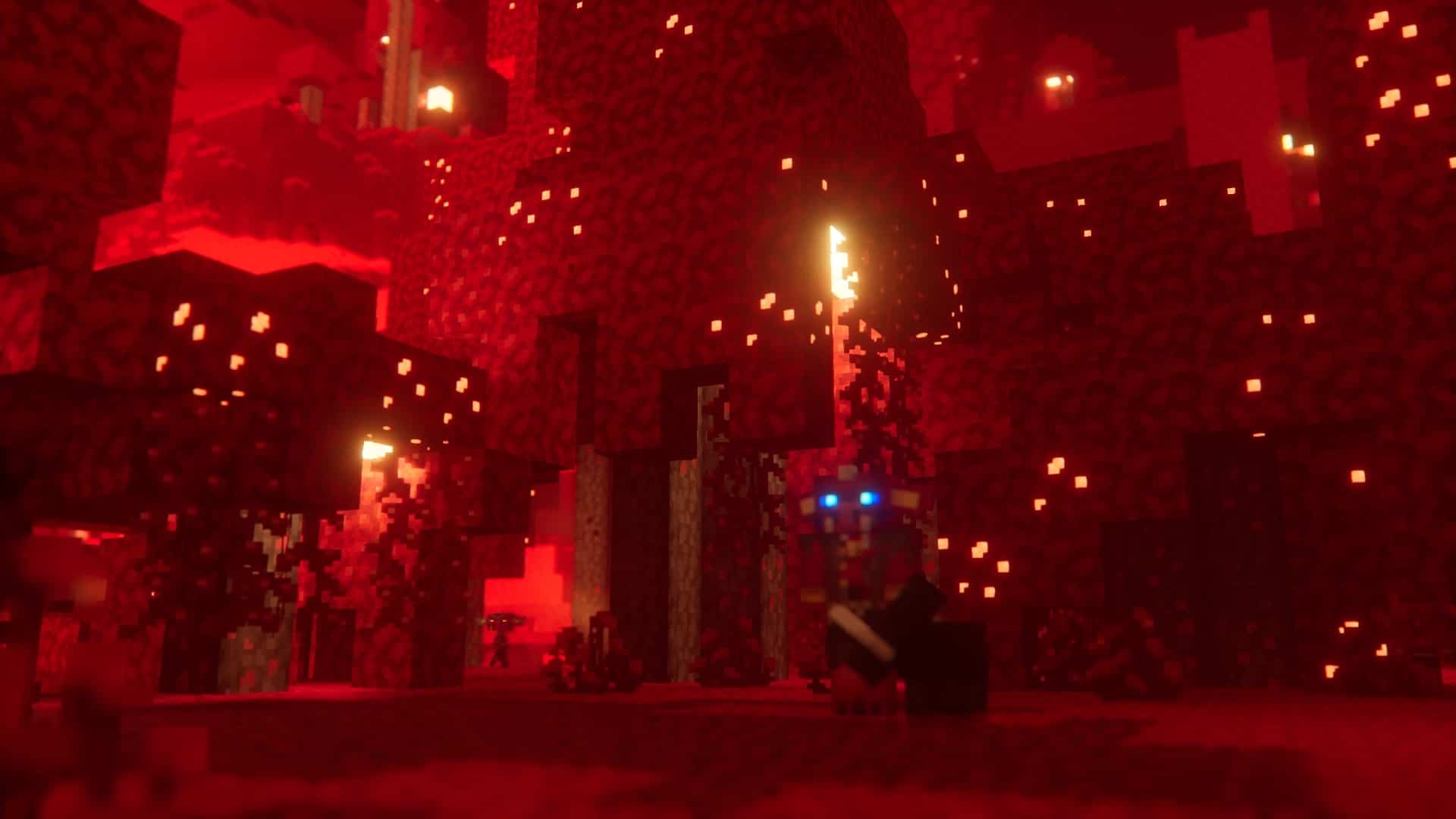
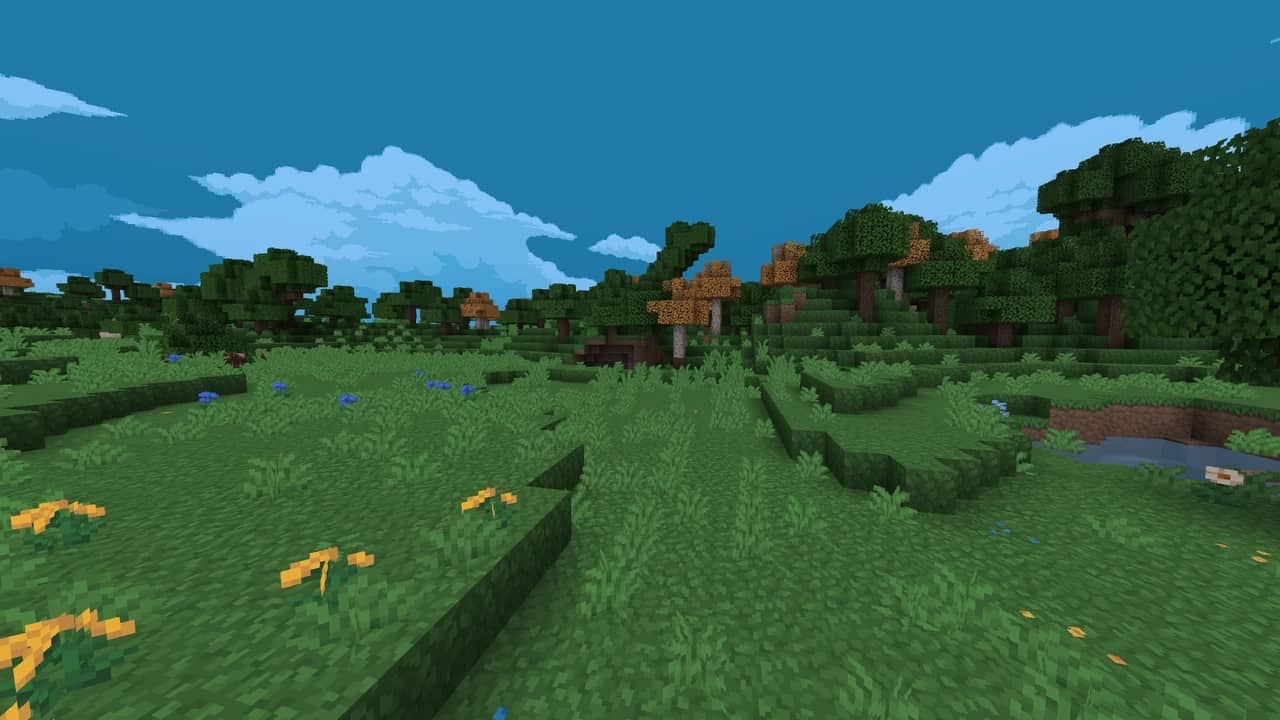
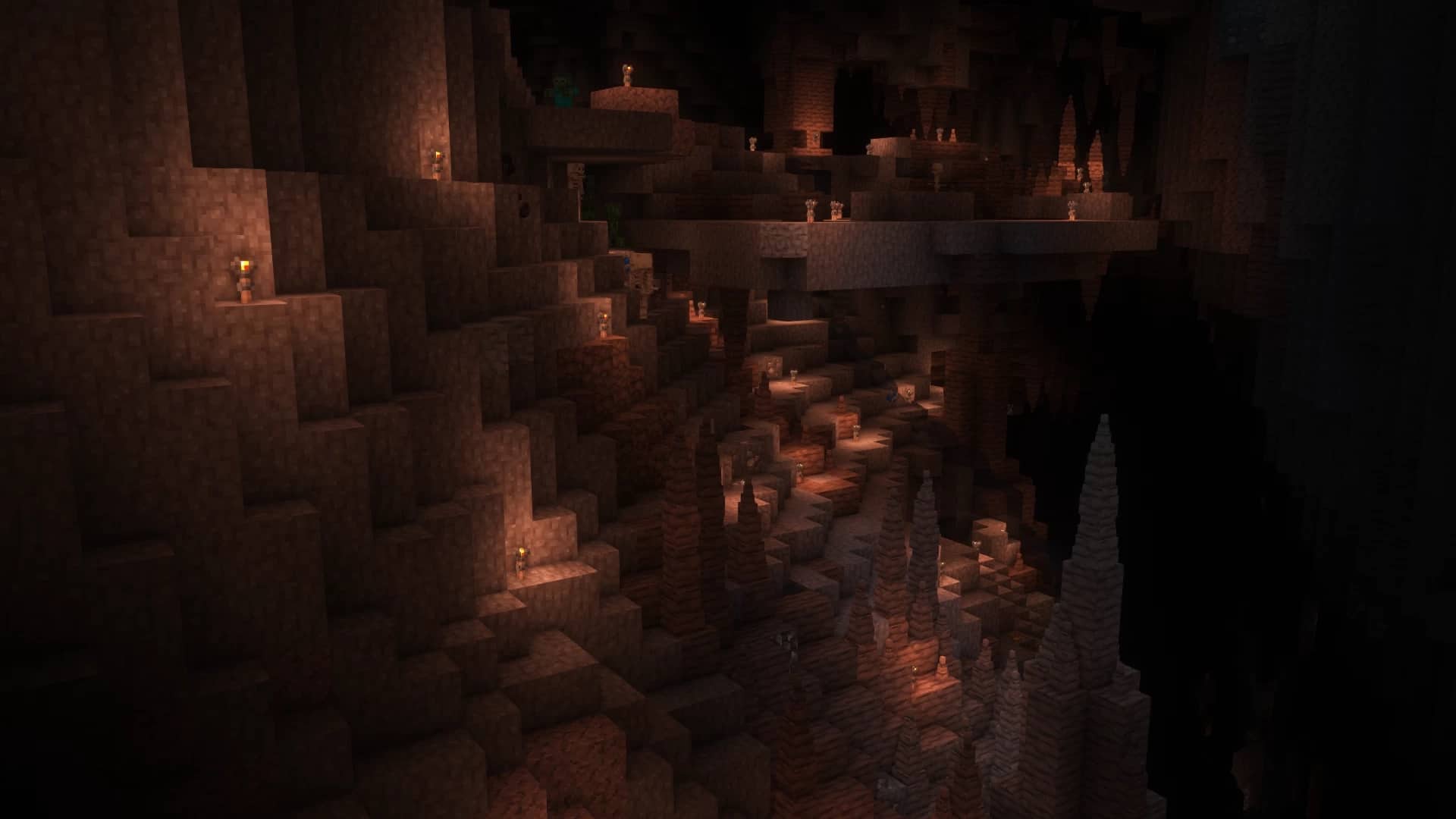
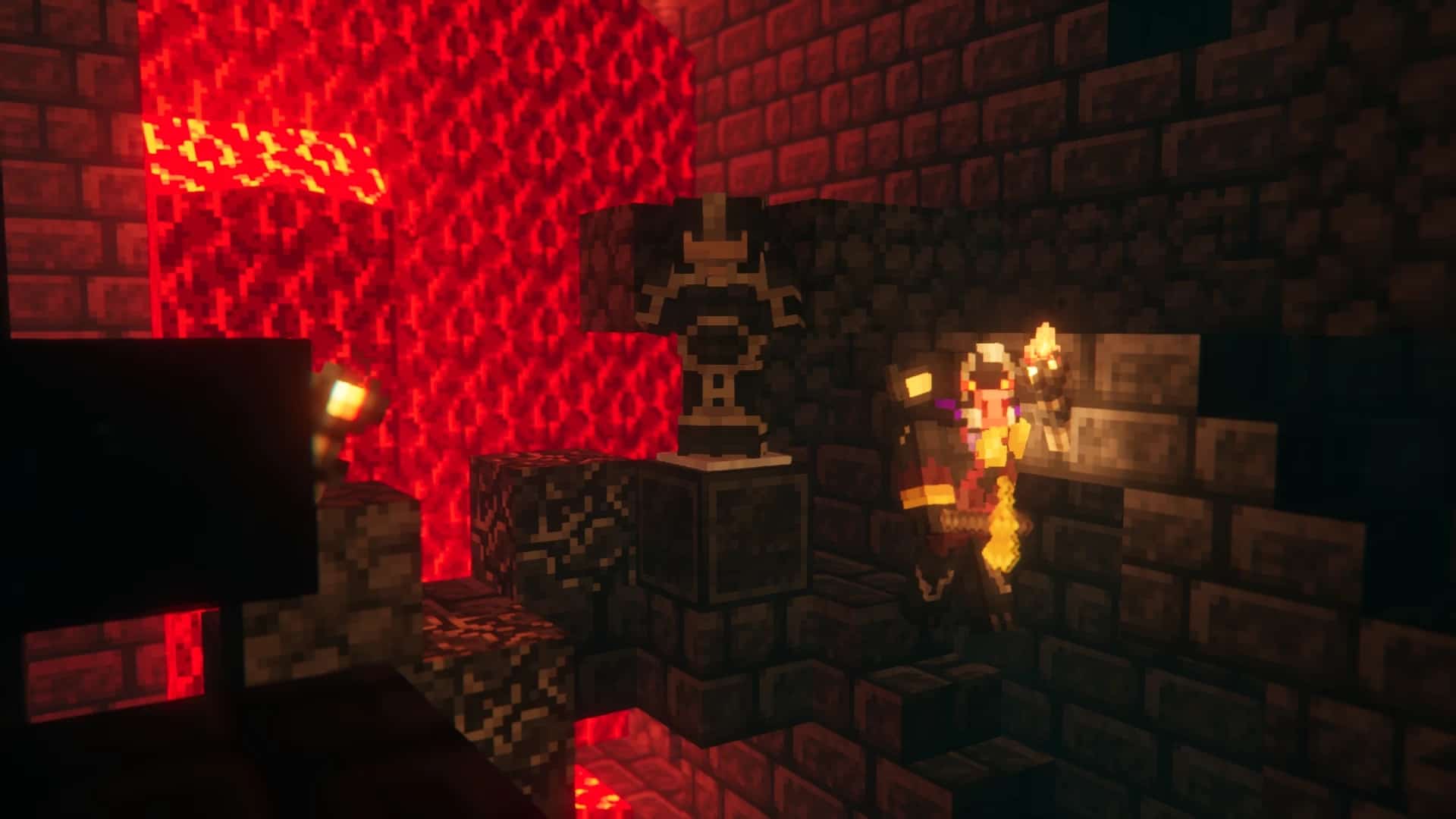
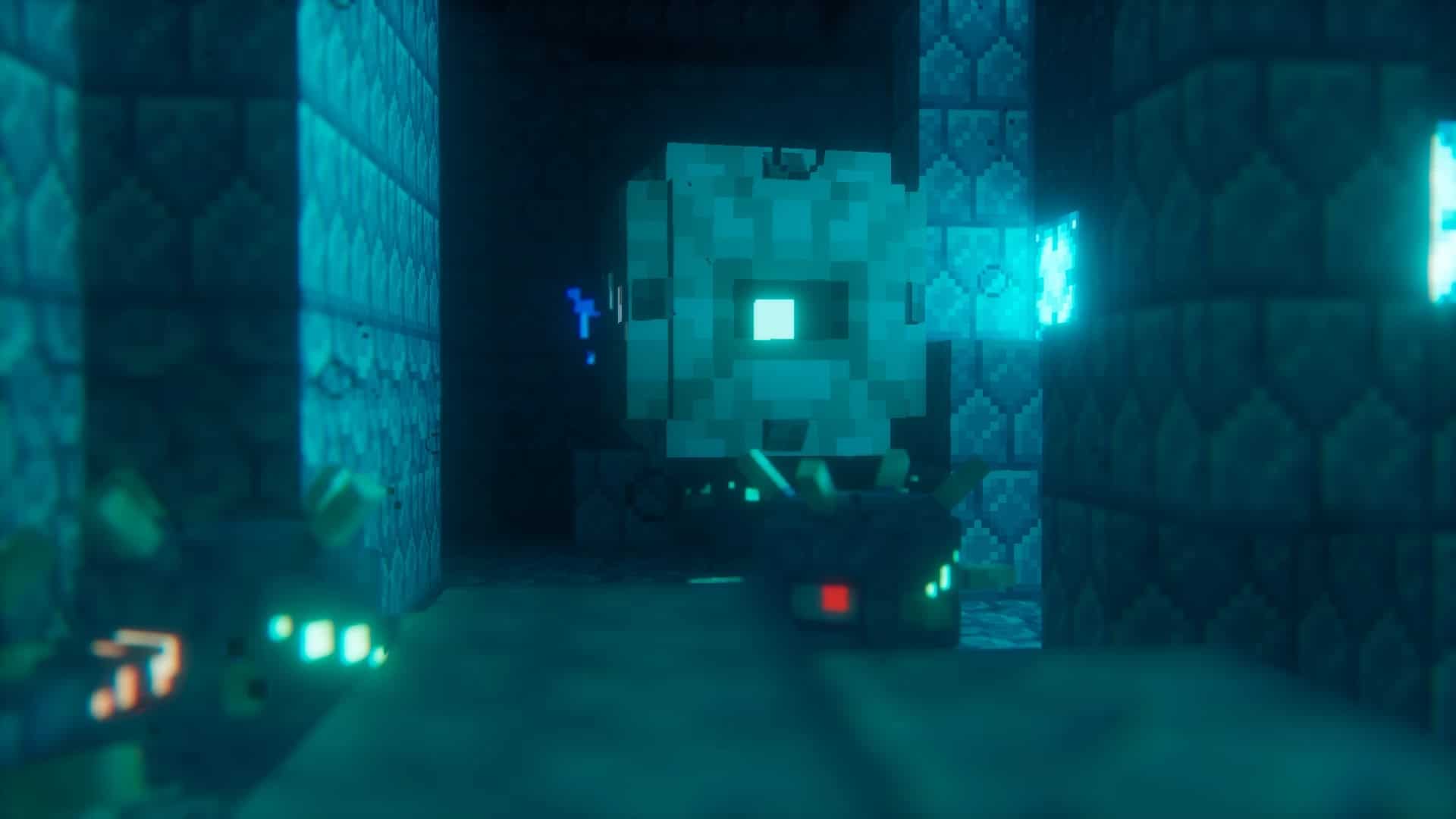
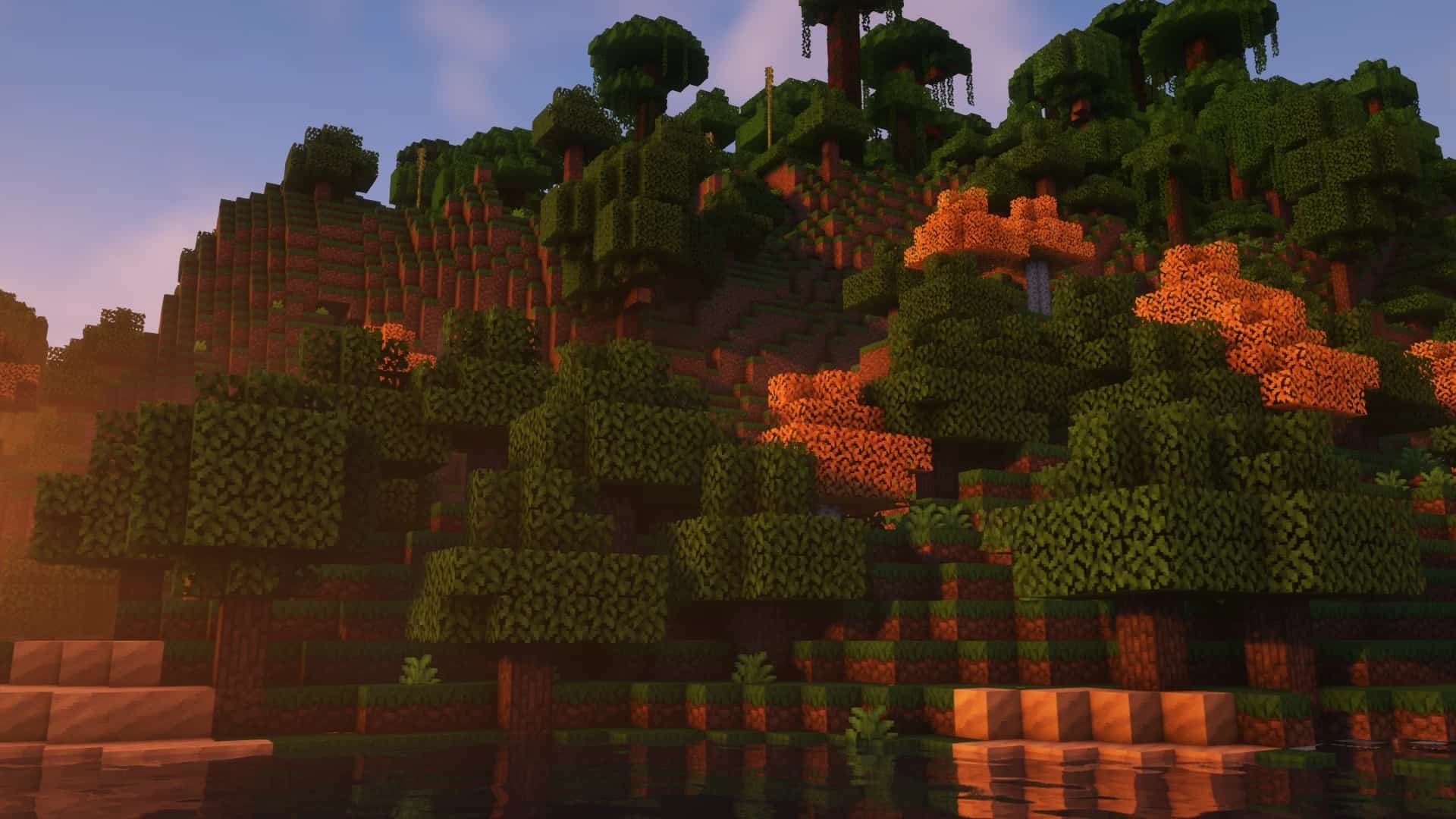
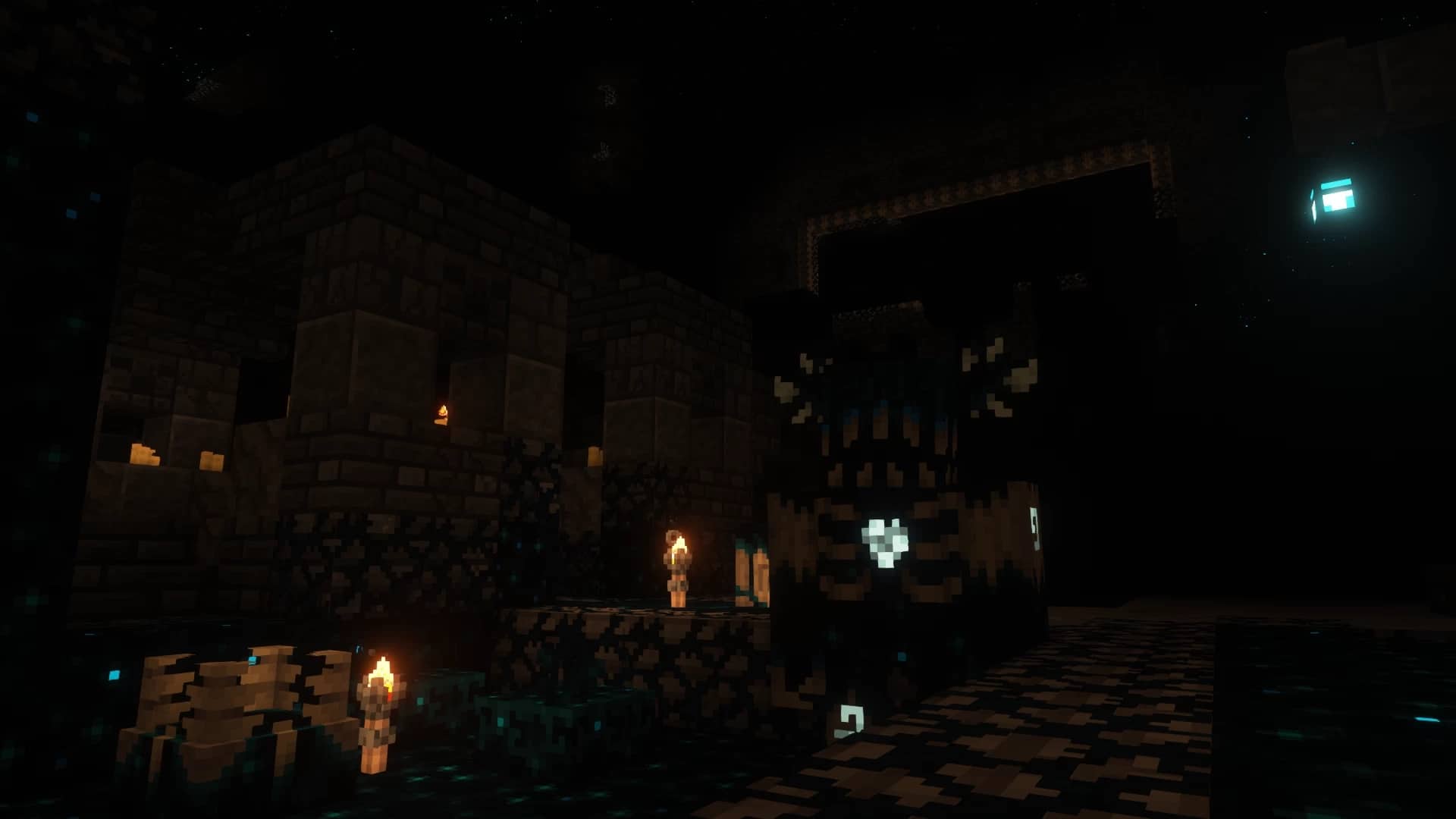
Have you heard about the Pixel Perfection resource pack? If you are wondering whether it is a truly unique and one-of-a-kind Minecraft resource pack, I can definitely tell you it is! This pack does not necessarily feature any underlying and specific theme. Typically, all resource packs are classified into some common groupings, such as RPG, rustic, medieval, and so on. But, for the Pixel Perfection resource pack, this grouping just cannot be applied as such. The creator and designer of this Minecraft resource pack crafted it specifically to offer a set of impressive and interesting visuals. Some of these visuals are absolutely worth watching in action. For instance, these textures bring real, noticeable improvements to your default Minecraft game. Nevertheless, I noticed that not every single texture of this Pixel Perfection resource pack is equally compelling.
Instead, some of the textures are quite flat and simple. Hence, from an overall standpoint, I found that the Pixel Perfection resource pack has a fantastic combination of some absolutely compelling textures alongside some really simple and clean ones. If you are planning to use the Pixel Perfection resource pack, you must note that it depends on a few mods very heavily, such as Optifine, because it utilizes special biome colors, CTM, custom colors, connected textures, and even more. Therefore, before installing this resource pack, please make sure to use the most recent version of Optifine. Kindly note that the Pixel Perfection resource pack supports the standard 16x resolution, so you should not expect heavily detailed or ultra-sharp textures. Personally, I really love the unique touch where you will see a great amount of green in the sky during both the early and late hours of the day, making Pixel Perfection stand out from the crowd.
Pixel Perfection should be compatible with all of these Minecraft versions: 26.2 – 26.1.2 – 26.1.1 – 26.1 – 1.21.11 – 1.21.10 – 1.21.9 – 1.21.8 – 1.21.7 – 1.21.6 – 1.21.5 – 1.21.4 – 1.21.3 – 1.21.2 – 1.21.1 – 1.21 – 1.20.6 – 1.20.5 – 1.20.4 – 1.20.3 – 1.20.2 – 1.20.1 – 1.20 – 1.19.4 – 1.19.3 – 1.19.2 – 1.19.1 – 1.19 – 1.18.2 – 1.18.1 – 1.18 – 1.17.1 – 1.17 – 1.16.5 – 1.16.4 – 1.16.3 – 1.16.2 – 1.16.1 – 1.16 – 1.15.2 – 1.15.1 – 1.15 – 1.11.2 – 1.11 – 1.10.2 – 1.10 – 1.9.4 – 1.9 – 1.8.9 – 1.8.8 – 1.8.1 – 1.8.6 – 1.8 – 1.7.10 – 1.7.9 – 1.7.4 – 1.7 – 1.6.4 – 1.6.2 – Bedrock Edition – PE
Screenshots

How to Install Texture Pack (Simple 10 Steps)
- Download OptiFine: Most of the texture packs and shaders need OptiFine. That’s why, first download and install OptiFine for the version of Minecraft you want to play.
- Download the Texture Pack: Get the texture pack you want from the download section. Choose the version that works with your Minecraft and your PC’s performance.
- Open Minecraft Launcher: Start Minecraft using the official game launcher — or even TLauncher, if you use that.
- Go to Options: From the main menu, click on the “Options” button.
- Open Resource Packs: Inside Options, click on “Resource Packs…”.
- Open the Resource Pack Folder: Click on “Open Resource Pack Folder” — this will open a folder named “resourcepacks”.
- Move the Pack File: Copy or move the .zip file you downloaded into that “resourcepacks” folder. (Don’t unzip the file — Minecraft uses it as-is!)
- Go Back and Refresh: Close the folder and click “Done”, then go back into “Resource Packs…” again.
- Activate the Pack: You’ll see the pack on the left side. Hover over it and click the arrow to move it to the right (active side).
Tip: If you get a message that the pack is for a different version, just click “Yes” — it usually works fine. - Click Done and Enjoy: Click “Done” again. Now your pack is ready to use in-game. It’s that easy!
Credits
This resource pack was originally created by XSSheep and maintained by Nova_Wostra. We do not claim ownership of this content and do not host modified files. Please support the original creators by downloading from their official links.
Download Links
Java Edition
- [16x] Minecraft 26.2.x
- [16x] Minecraft 26.1.x
- [16x] Minecraft 1.21.x – 1.20.2
- [16x] Minecraft 1.20.1 – 1.20
- [16x] Minecraft 1.19.x
- [16x] Minecraft 1.18.x
- [16x] Minecraft 1.17.x – 1.15.x
- [16x] Minecraft 1.11.x
- [16x] Minecraft 1.10.x
- [16x] Minecraft 1.9.x
- [16x] Minecraft 1.8.x
- [16x] Minecraft 1.7.x
- [16x] Minecraft 1.6.x
Bedrock Edition
Download Instructions
Curseforge: download starts automatically after a few seconds;
Mediafire: click the big blue button with the text “DOWNLOAD”;
Google Drive: in the top right corner you will see a small download icon (down arrow), click it and the download should start;