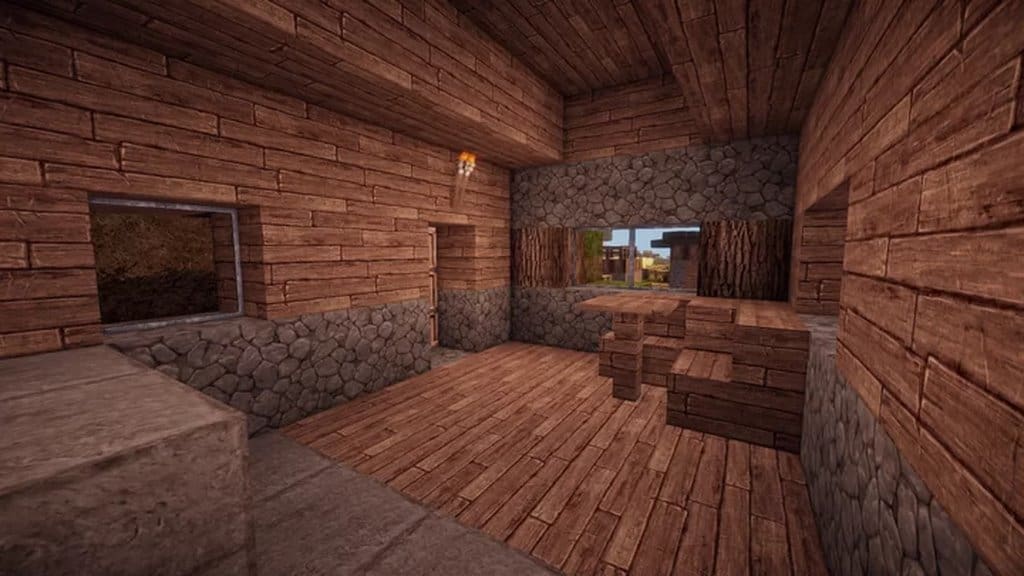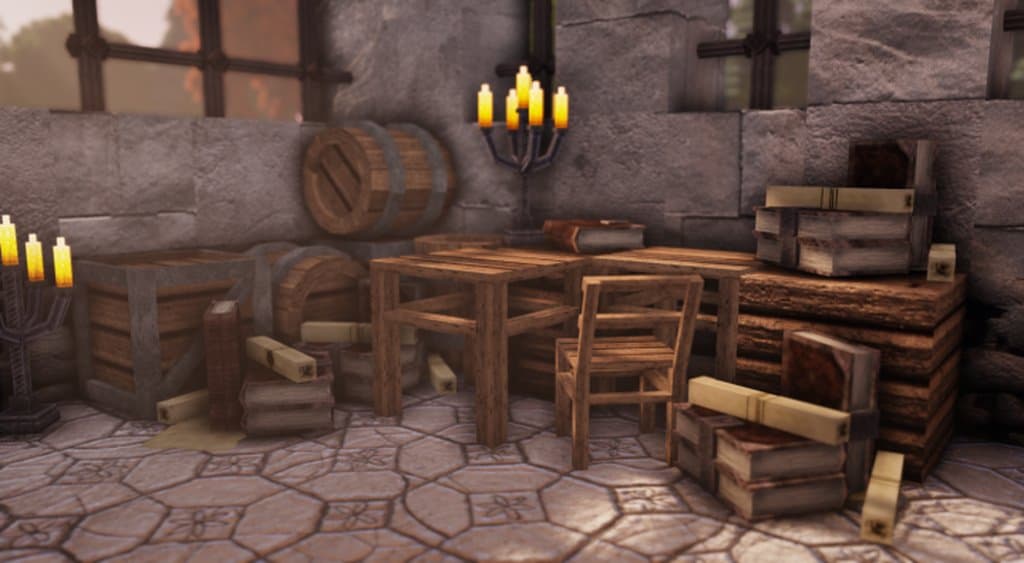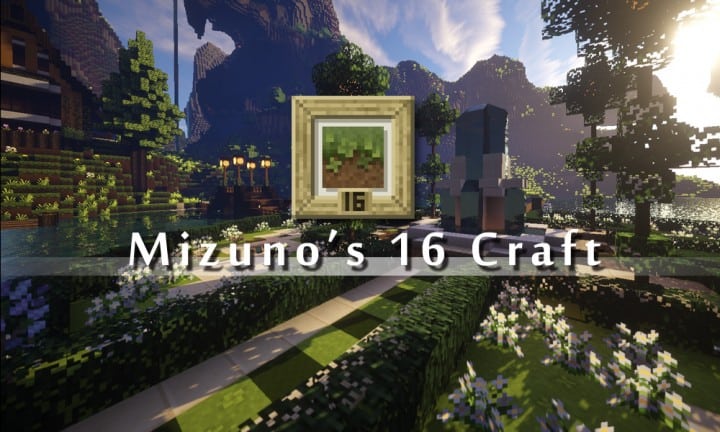
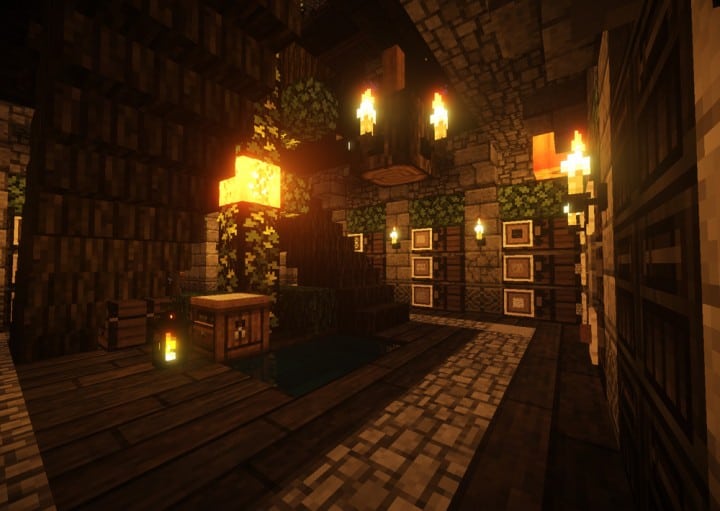
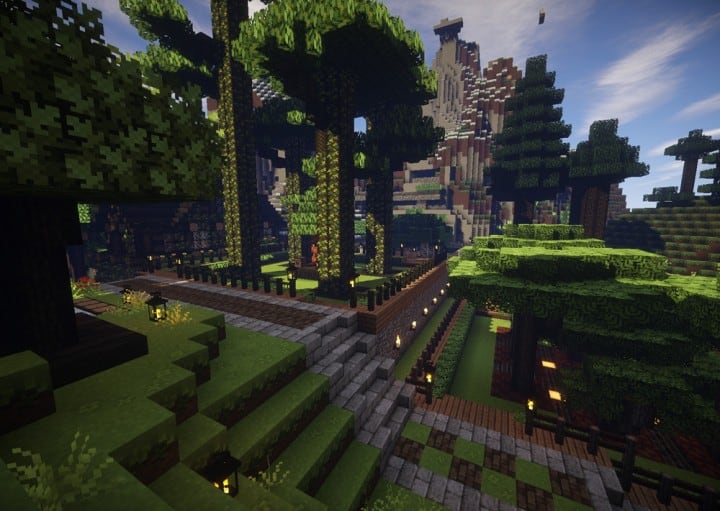
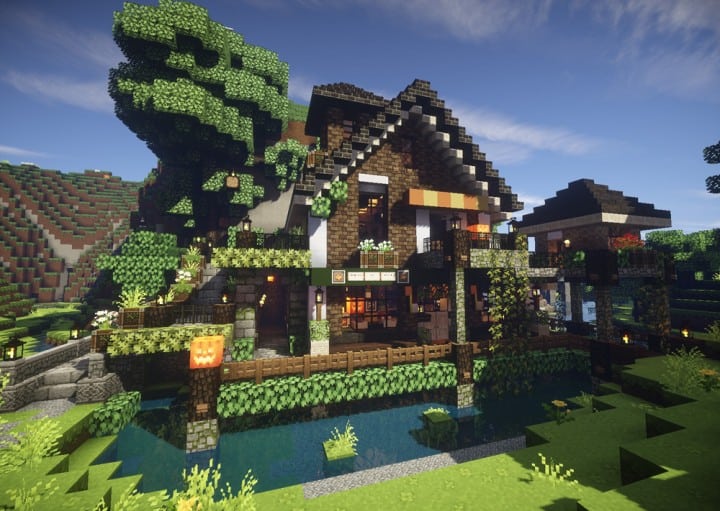
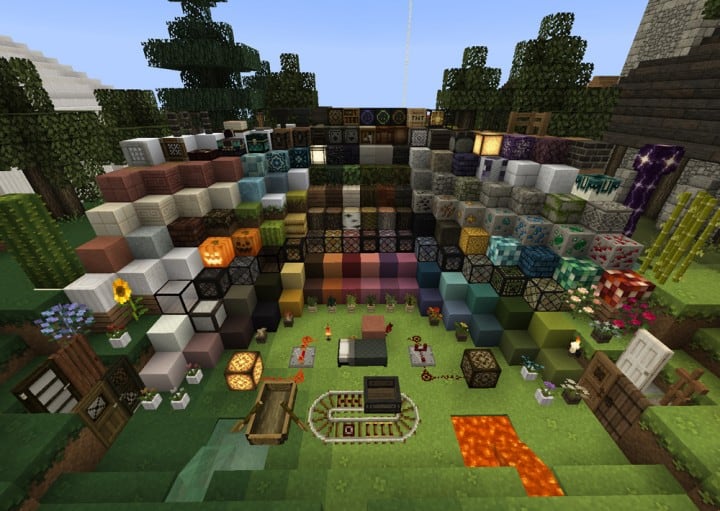
Mizuno’s 16 Craft resource pack completely enhances the world of Minecraft with impressive visuals, and I honestly think this texture pack will easily become a favorite of many players because of how incredibly well the textures look on screen! The fact that this resource pack is able to keep the graphics looking great without being over the top is a monumental accomplishment that few resource packs are able to achieve. Low-resolution resource packs often fail to make their textures visually pleasing, and because of these lackluster textures, most low-resolution resource packs are unable to take the Minecraft visual world to the next level. You can often find a lot of noise present in these texture designs, which takes away from the overall appeal and appearance of these low-resolution resource packs. Thankfully, Mizuno’s 16 Craft succeeds brilliantly where many other low-resolution packs fail.
This particular pack provides beautiful graphics that are genuinely engaging by getting rid of many noise-related problems that are prevalent in packs of this type. When you load Minecraft after installing the Mizuno 16 Craft resource pack, you are greeted with truly amazing visuals. The simple design of the installed textures are streamlined and beautiful, and the resource pack reveals a magnificent color palette that features gorgeous art-influenced textures. With clean and noiseless textures, this pack is wonderfully able to reduce eye strain while providing an exceptionally enjoyable gaming experience, which I consider to be one of the best features of the resource pack! Beyond changing Minecraft’s typical textures, Mizuno’s 16 Craft even makes lovely changes to the standard user interface. The pack uses a 16×16 resolution like the name suggests, meaning many players are able to enjoy this game with no difficulties at all. This resource pack allows people with low-end computers to enjoy the game just as much as someone with a high-end computer can.
Mizuno’s 16 Craft should be compatible with all of these Minecraft versions: 26.2 – 26.1.2 – 26.1.1 – 26.1 – 1.21.11 – 1.21.10 – 1.21.9 – 1.21.8 – 1.21.7 – 1.21.6 – 1.21.5 – 1.21.4 – 1.21.3 – 1.21.2 – 1.21.1 – 1.21 – 1.20.6 – 1.20.5 – 1.20.4 – 1.20.3 – 1.20.2 – 1.20.1 – 1.20 – 1.19.4 – 1.19.3 – 1.19.2 – 1.19.1 – 1.19 – 1.18.2 – 1.18.1 – 1.18 – 1.17.1 – 1.17 – 1.16.5 – 1.16.4 – 1.16.3 – 1.16.2 – 1.16.1 – 1.16 – 1.15.2 – 1.15.1 – 1.15 – 1.14.4 – 1.14.3 – 1.14.2 – 1.14 – 1.13.2 – 1.13.1 – 1.13 – 1.12.2 – 1.12 – 1.11.2 – 1.11 – 1.10.2 – 1.10 – 1.9.4 – 1.9 – 1.8.9 – 1.8.8 – 1.8.1 – 1.8.6 – 1.8 – Bedrock Edition – PE
Screenshots
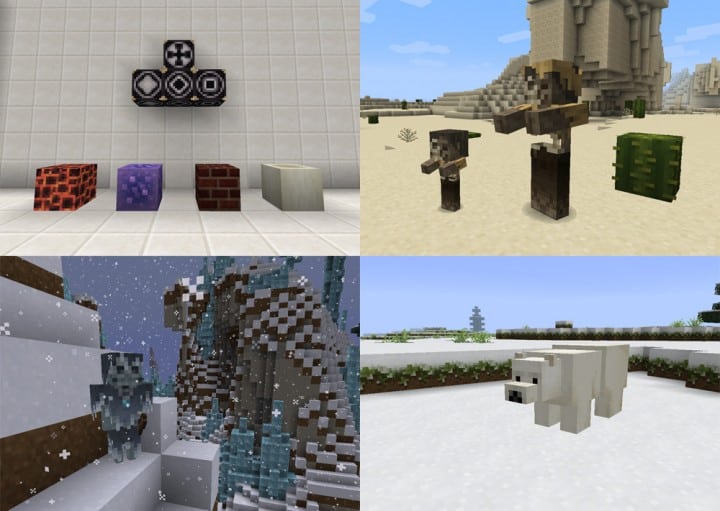
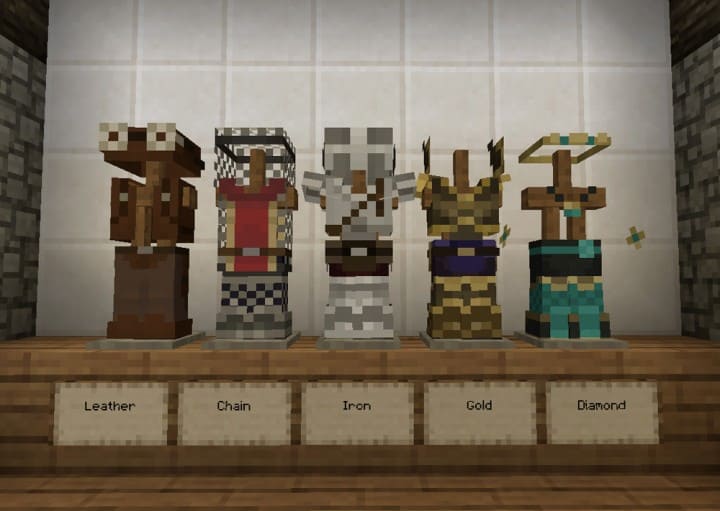
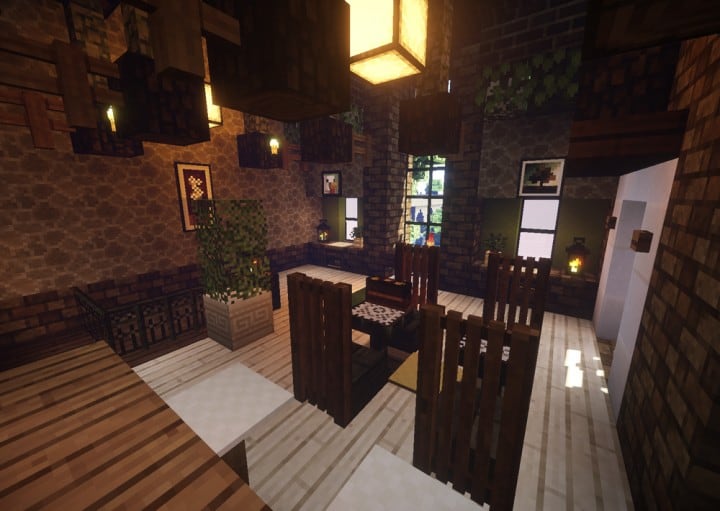
How to Install Texture Pack (Simple 10 Steps)
- Download OptiFine: Most of the texture packs and shaders need OptiFine. That’s why, first download and install OptiFine for the version of Minecraft you want to play.
- Download the Texture Pack: Get the texture pack you want from the download section. Choose the version that works with your Minecraft and your PC’s performance.
- Open Minecraft Launcher: Start Minecraft using the official game launcher — or even TLauncher, if you use that.
- Go to Options: From the main menu, click on the “Options” button.
- Open Resource Packs: Inside Options, click on “Resource Packs…”.
- Open the Resource Pack Folder: Click on “Open Resource Pack Folder” — this will open a folder named “resourcepacks”.
- Move the Pack File: Copy or move the .zip file you downloaded into that “resourcepacks” folder. (Don’t unzip the file — Minecraft uses it as-is!)
- Go Back and Refresh: Close the folder and click “Done”, then go back into “Resource Packs…” again.
- Activate the Pack: You’ll see the pack on the left side. Hover over it and click the arrow to move it to the right (active side).
Tip: If you get a message that the pack is for a different version, just click “Yes” — it usually works fine. - Click Done and Enjoy: Click “Done” again. Now your pack is ready to use in-game. It’s that easy!
Credits
Mizuno’s 16 Craft was created by Mizuno. We are not the owners or creators of this resource pack, and we do not alter or modify the download files in any way. All rights belong strictly to the original author. We strongly encourage you to support the creator by visiting their official pages and download links.
Download Links
Java Edition
- [16x] Minecraft 26.2.x – 1.21.x
- [16x] Minecraft 1.20.6 – 1.20.2
- [16x] Minecraft 1.20.1 – 1.20
- [16x] Minecraft 1.19.x
- [16x] Minecraft 1.18.x
- [16x] Minecraft 1.17.x
- [16x] Minecraft 1.16.x
- [16x] Minecraft 1.15.x
- [16x] Minecraft 1.14.x
- [16x] Minecraft 1.13.x
- [16x] Minecraft 1.12.x – 1.11.x
- [16x] Minecraft 1.10.x
- [16x] Minecraft 1.9.x
- [16x] Minecraft 1.8.x
- [16x] CIT Resource Pack for Minecraft 1.20.x
- Invisible Item Frame Pack for Minecraft 1.20.x
- [16x] CIT Resource Pack for Minecraft 1.19.x
- Invisible Item Frame Pack for Minecraft 1.19.x
- [16x] CIT Resource Pack for Minecraft 1.18.x
- Invisible Item Frame Pack for Minecraft 1.18.x
- [16x] CIT Resource Pack for Minecraft 1.17.x
- Invisible Item Frame Pack for Minecraft 1.17.x
- [16x] CIT Resource Pack for Minecraft 1.16.x
- Invisible Item Frame Pack for Minecraft 1.16.x
Bedrock Edition
Download Instructions
Curseforge: download starts automatically after a few seconds;
Mediafire: click the big blue button with the text “DOWNLOAD”;
Google Drive: in the top right corner you will see a small download icon (down arrow), click it and the download should start;