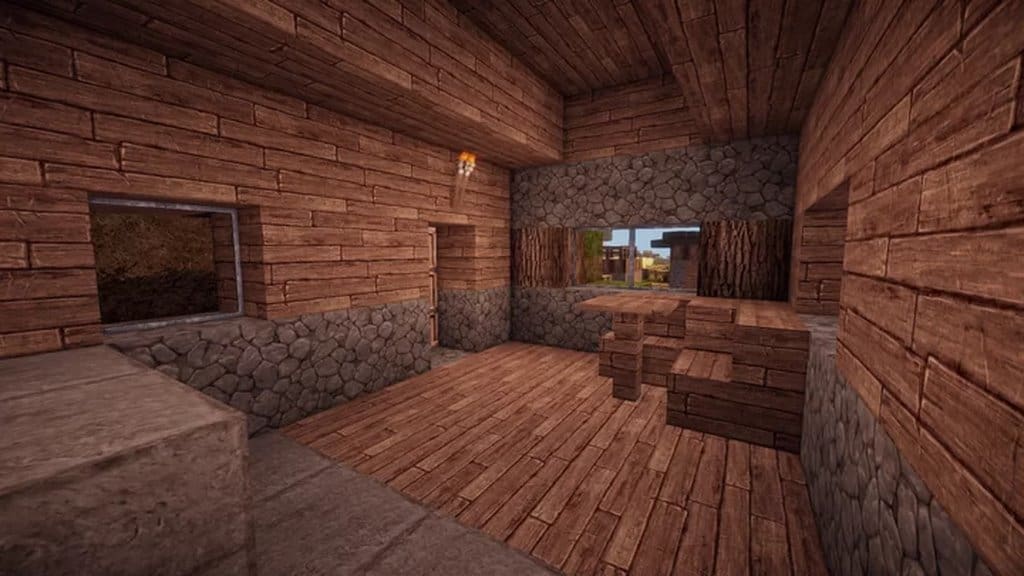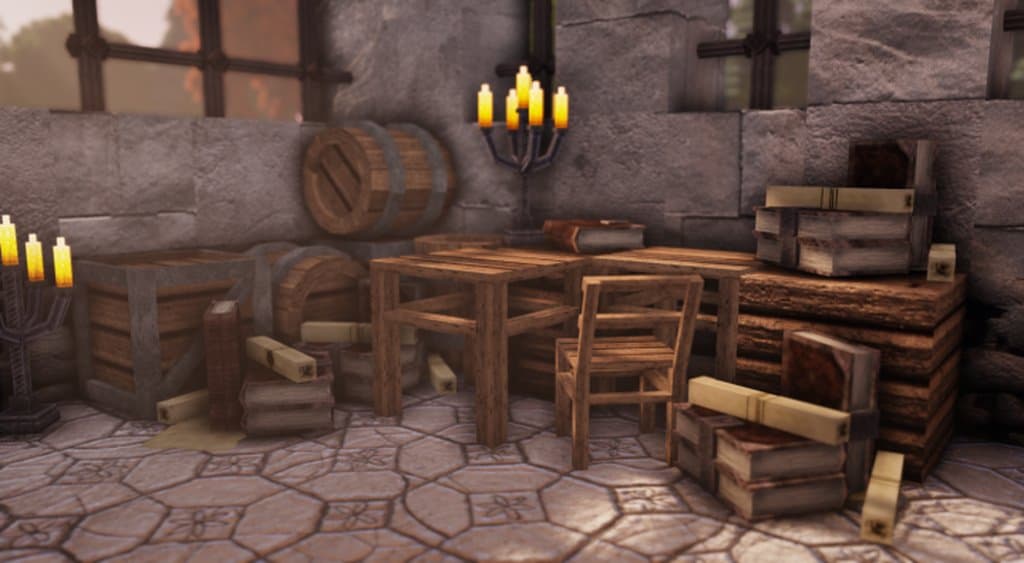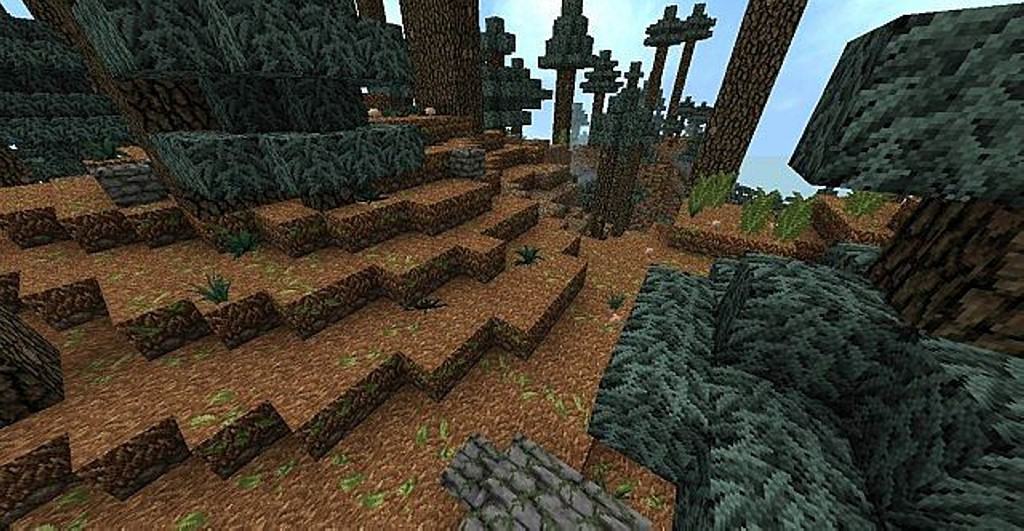
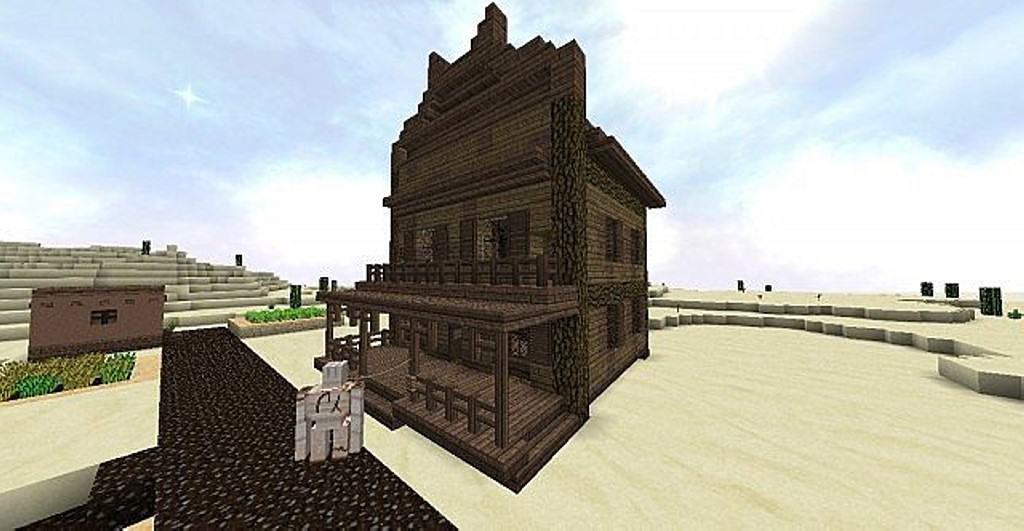
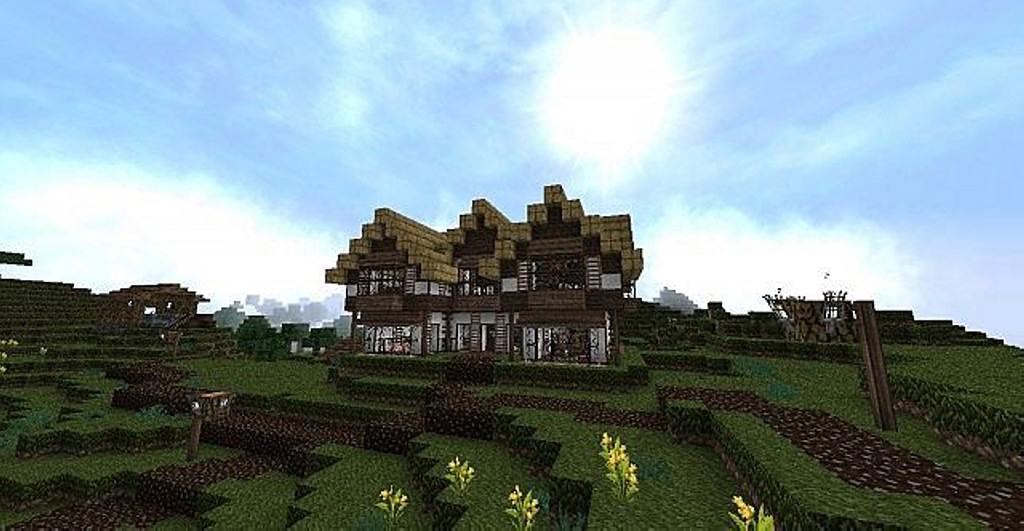
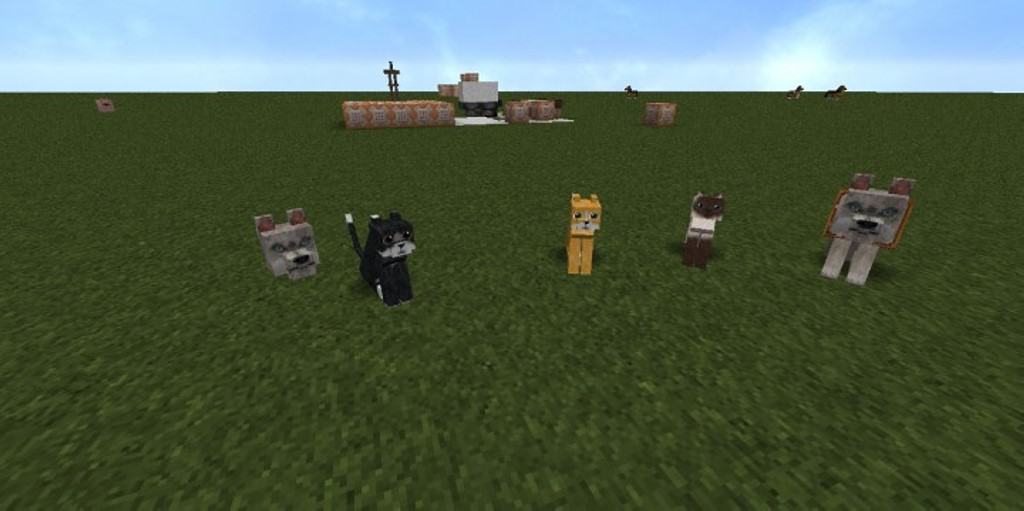
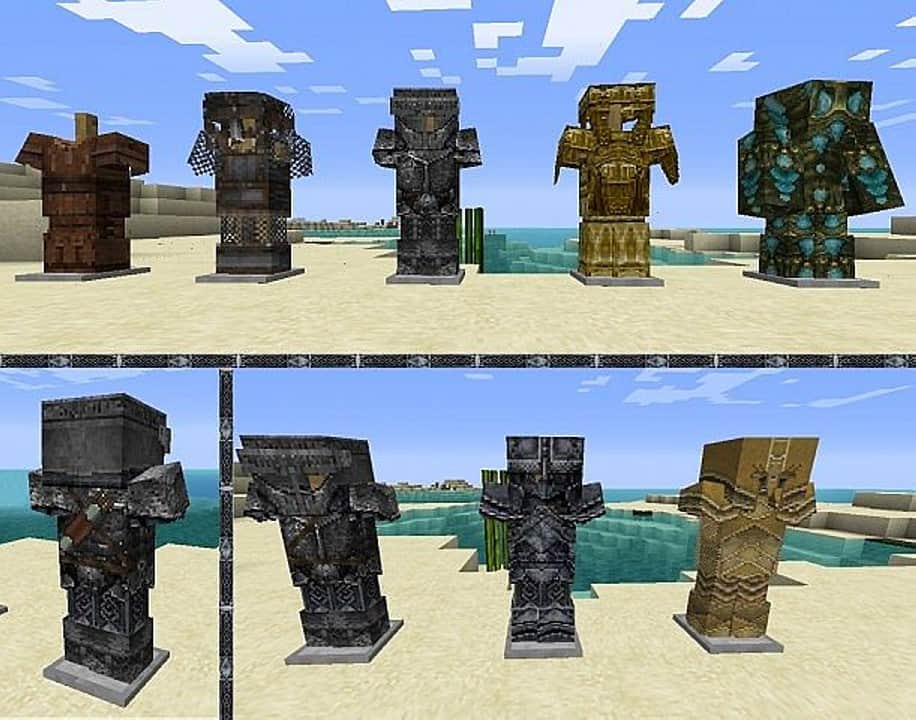
There are plenty of great medieval resource packs out there, but there is always that feeling that you are just getting more of the same thing. I tested Golbez22’s Medieval resource pack, and I am thrilled to say it is definitely not one of them! It brings a refreshing new twist that makes the environment much more expansive and a lot less boring. It truly transforms Minecraft into a darker world with heavy medieval influences that feel genuinely unique and immersive. One of the absolute best things that Golbez22’s Medieval texture pack does is make brilliant use of connected textures. What this means is that the textures for the exact same type of block are not identical. It makes the world look far less like it is made from repetitive identical blocks placed right next to each other, offering blocks of the same type yet with slight, wonderful differences that make them look much less artificial and much closer to what a realistic environment would look like.
It brilliantly eliminates uniformity to elevate the individuality and uniqueness of every single cave, house, castle, dungeon, forest, and field you explore. I noticed that several updates have been released by the developer to introduce multiple fantastic RPG elements alongside various overall improvements. When I played with Golbez22’s Medieval resource pack, I saw how it expertly fiddles with colors, lighting, and custom sky textures, bringing in a brand new mood, sun, and clouds. The colors throughout the game are noticeably darker to wonderfully reflect the theme of the resource pack, and the lighting was adjusted right along with it. On top of that, there are welcome improvements to the menu, inventory, and HUD elements. Coming in a crisp 32x resolution and combined with special additions like connected textures, it will naturally require a few more system resources to run smoothly. Because it relies heavily on special features such as connected textures and custom sky textures, Golbez22’s Medieval resource pack definitely needs to be installed alongside Optifine for the best experience.
Golbez22’s Medieval should be compatible with all of these Minecraft versions: 1.8.9 – 1.8.8 – 1.8.1 – 1.8.6 – 1.8 – 1.7.10 – 1.7.9 – 1.7.4 – 1.7 – 1.6.4 – 1.6.2
Screenshots

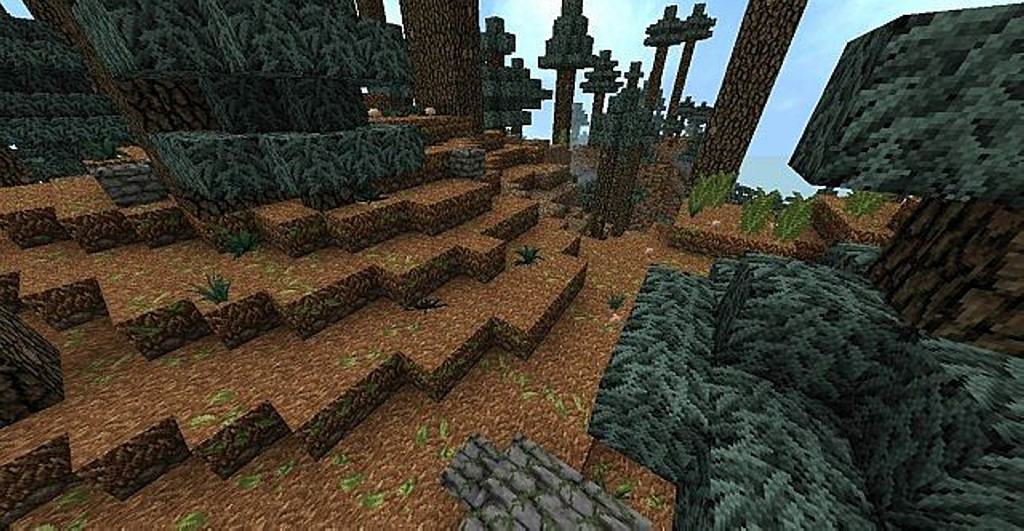
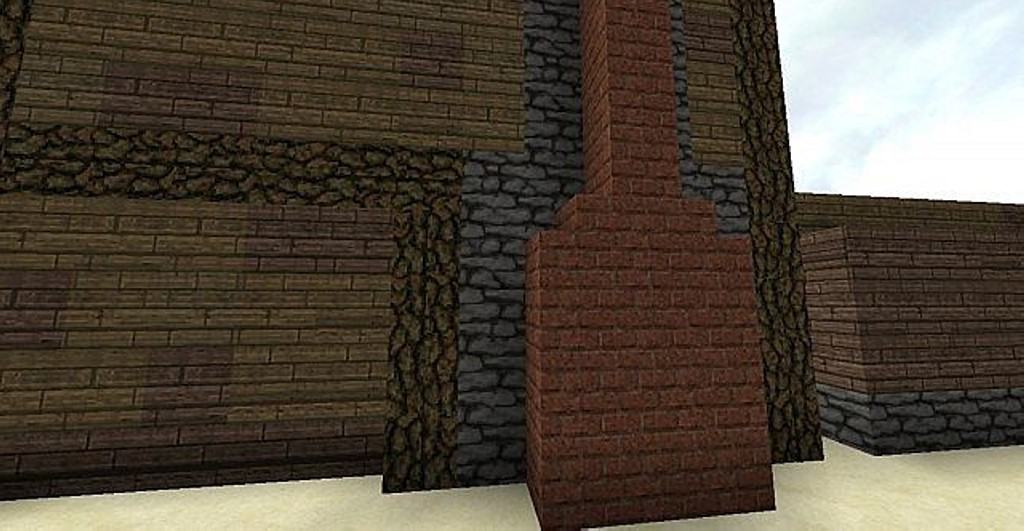


How to Install Texture Pack (Simple 10 Steps)
- Download OptiFine: Most of the texture packs and shaders need OptiFine. That’s why, first download and install OptiFine for the version of Minecraft you want to play.
- Download the Texture Pack: Get the texture pack you want from the download section. Choose the version that works with your Minecraft and your PC’s performance.
- Open Minecraft Launcher: Start Minecraft using the official game launcher — or even TLauncher, if you use that.
- Go to Options: From the main menu, click on the “Options” button.
- Open Resource Packs: Inside Options, click on “Resource Packs…”.
- Open the Resource Pack Folder: Click on “Open Resource Pack Folder” — this will open a folder named “resourcepacks”.
- Move the Pack File: Copy or move the .zip file you downloaded into that “resourcepacks” folder. (Don’t unzip the file — Minecraft uses it as-is!)
- Go Back and Refresh: Close the folder and click “Done”, then go back into “Resource Packs…” again.
- Activate the Pack: You’ll see the pack on the left side. Hover over it and click the arrow to move it to the right (active side).
Tip: If you get a message that the pack is for a different version, just click “Yes” — it usually works fine. - Click Done and Enjoy: Click “Done” again. Now your pack is ready to use in-game. It’s that easy!
Credits
Golbez22 is the original creator and owner of this Resource Pack. We do not claim ownership of this content, nor do we host or modify any download files. All rights and credits belong entirely to the original author. We strongly encourage you to support the creator by downloading from their official links and visiting their official pages.
Download Instructions
Curseforge: download starts automatically after a few seconds;
Mediafire: click the big blue button with the text “DOWNLOAD”;
Google Drive: in the top right corner you will see a small download icon (down arrow), click it and the download should start;