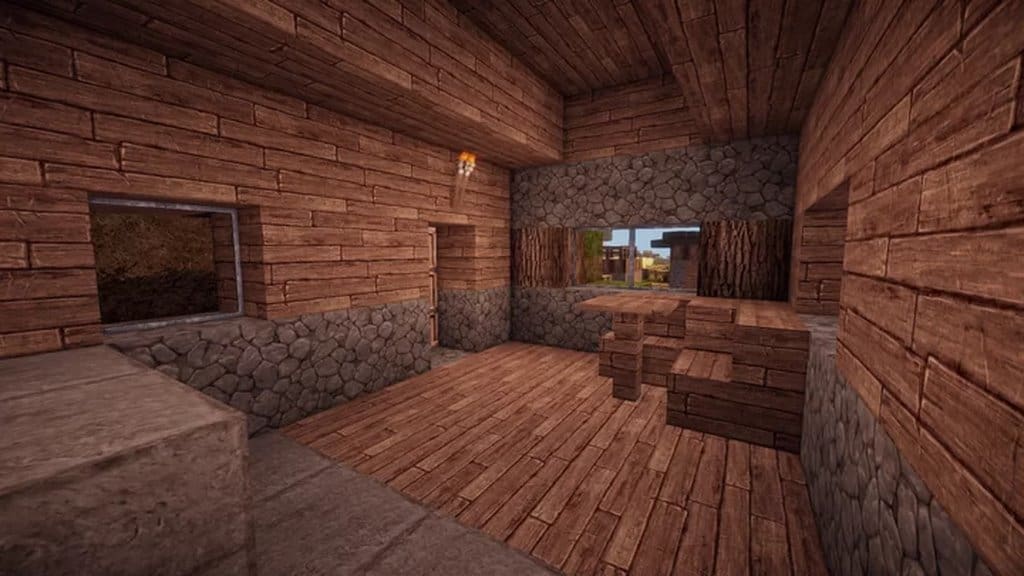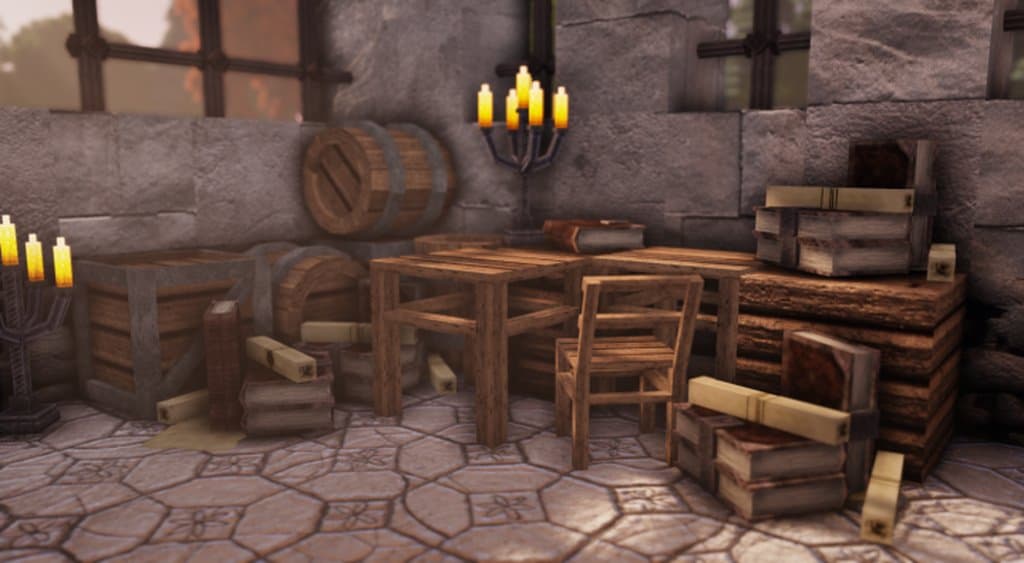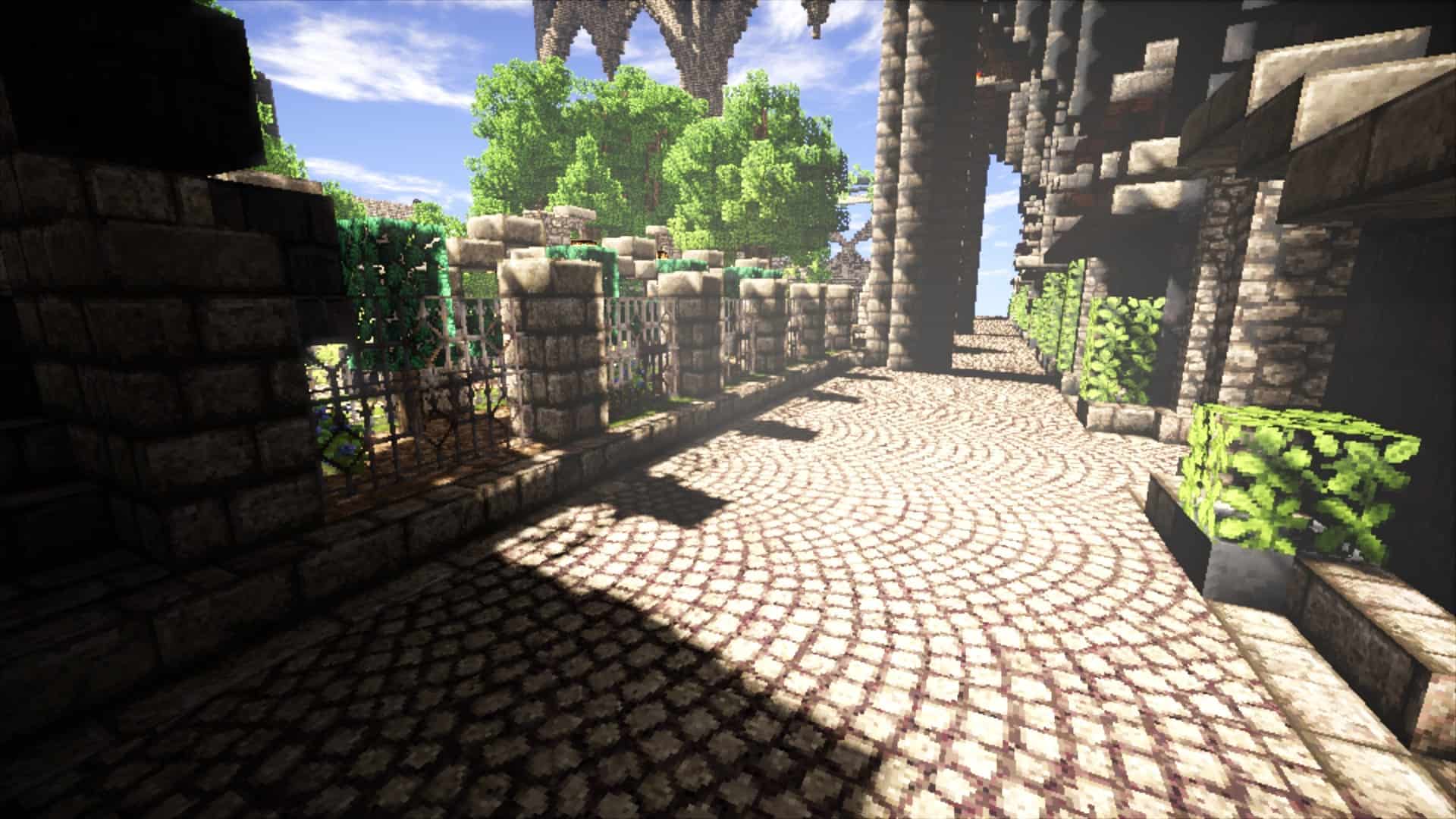
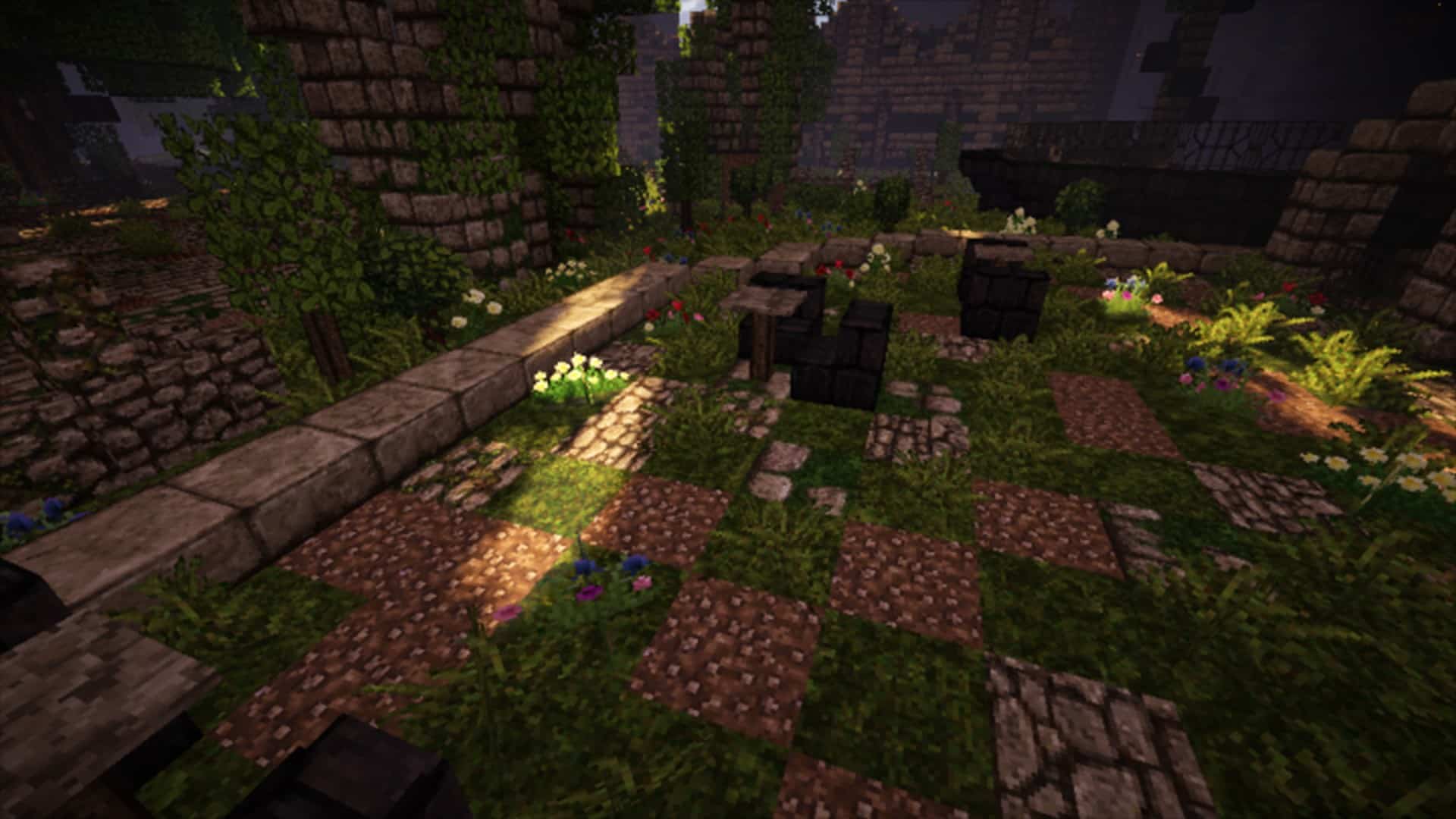
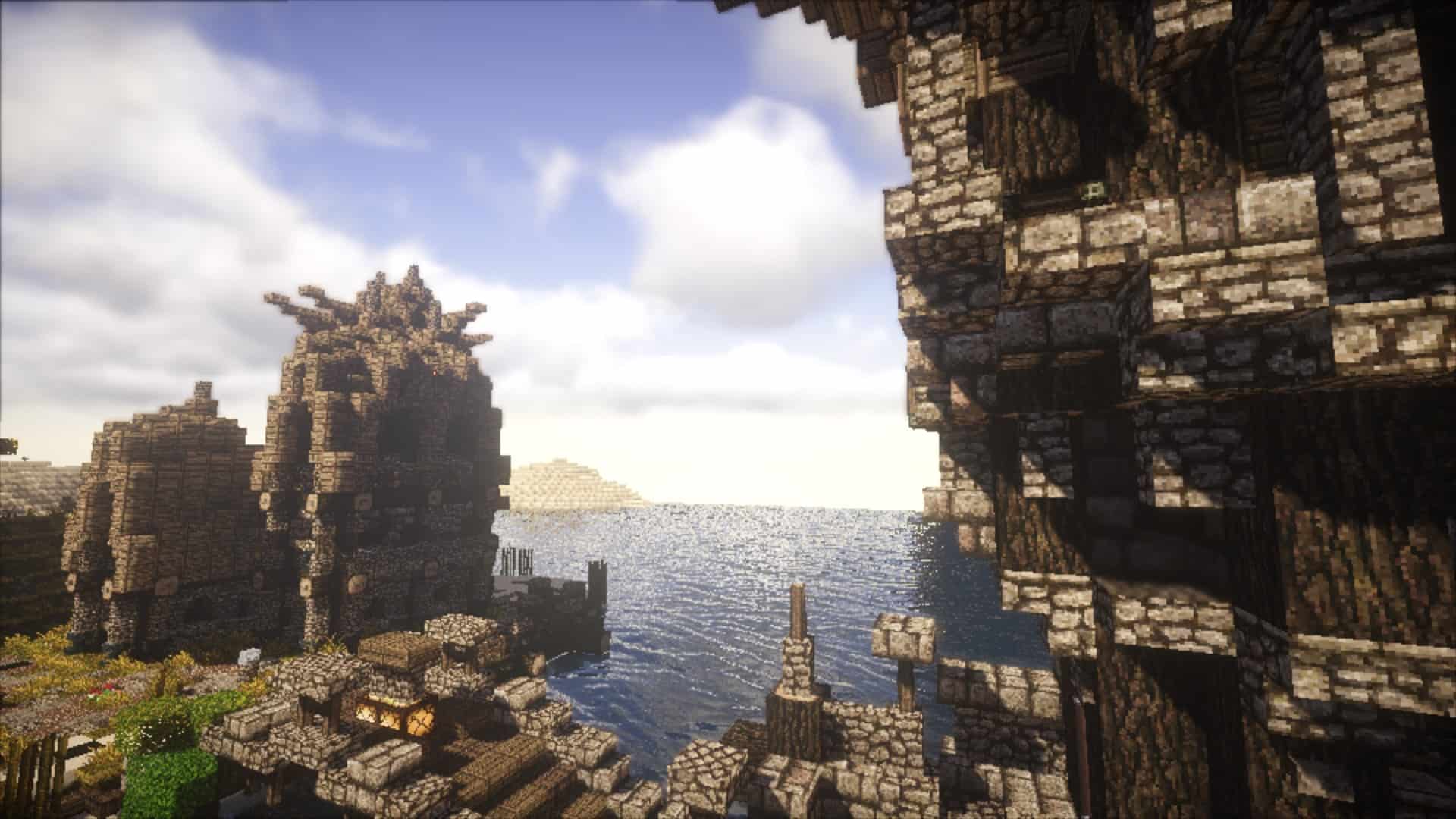
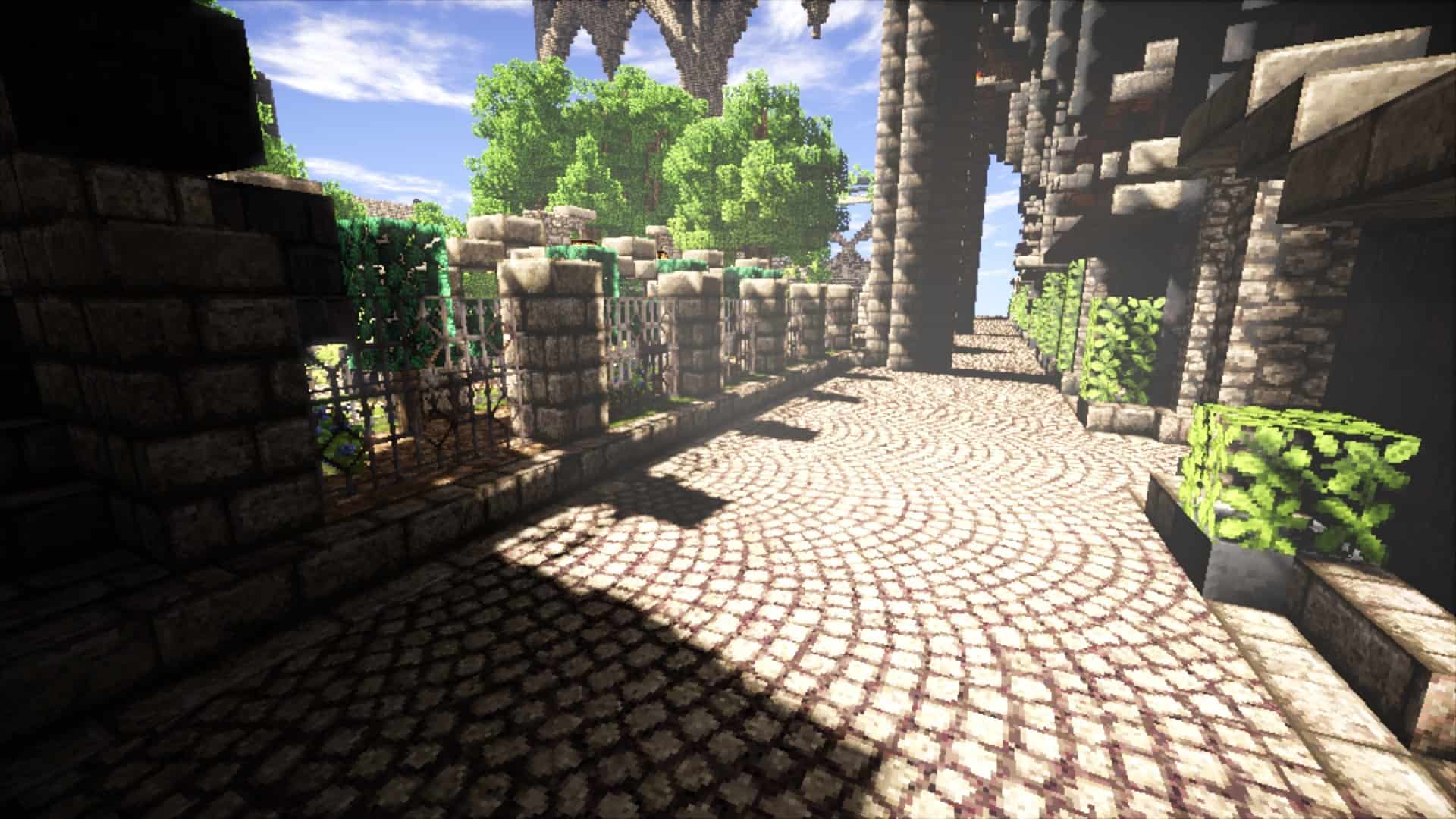
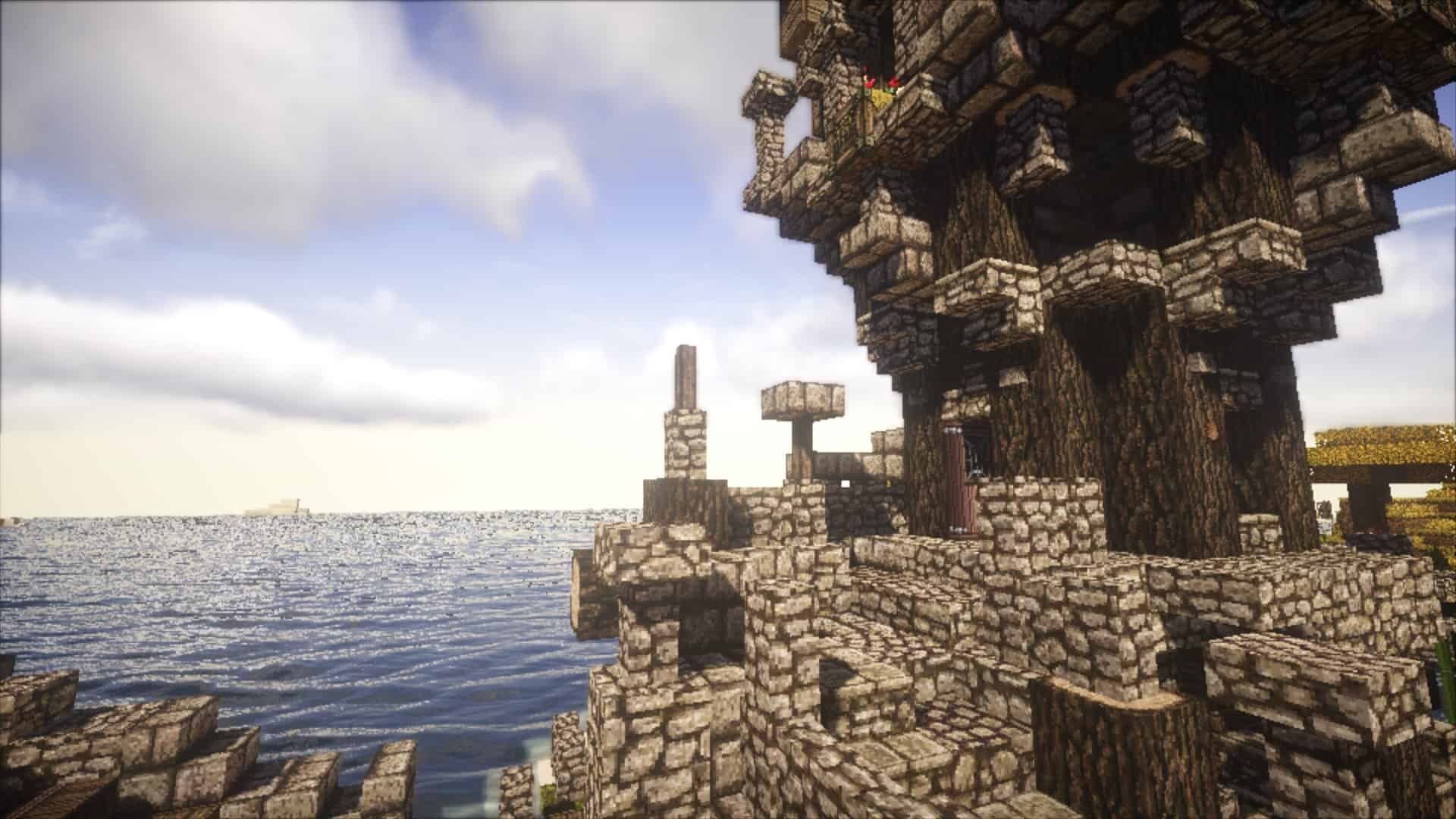
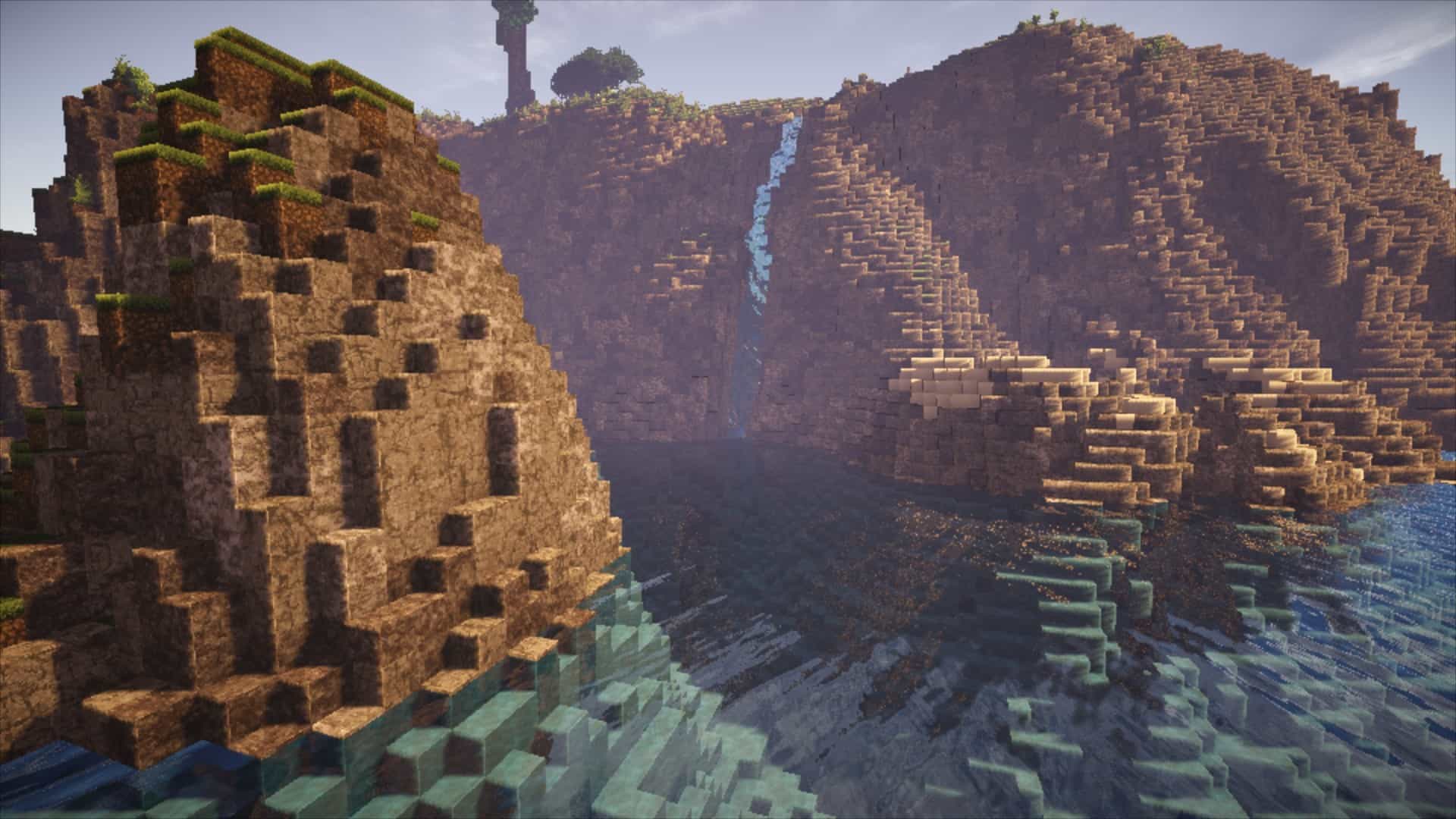
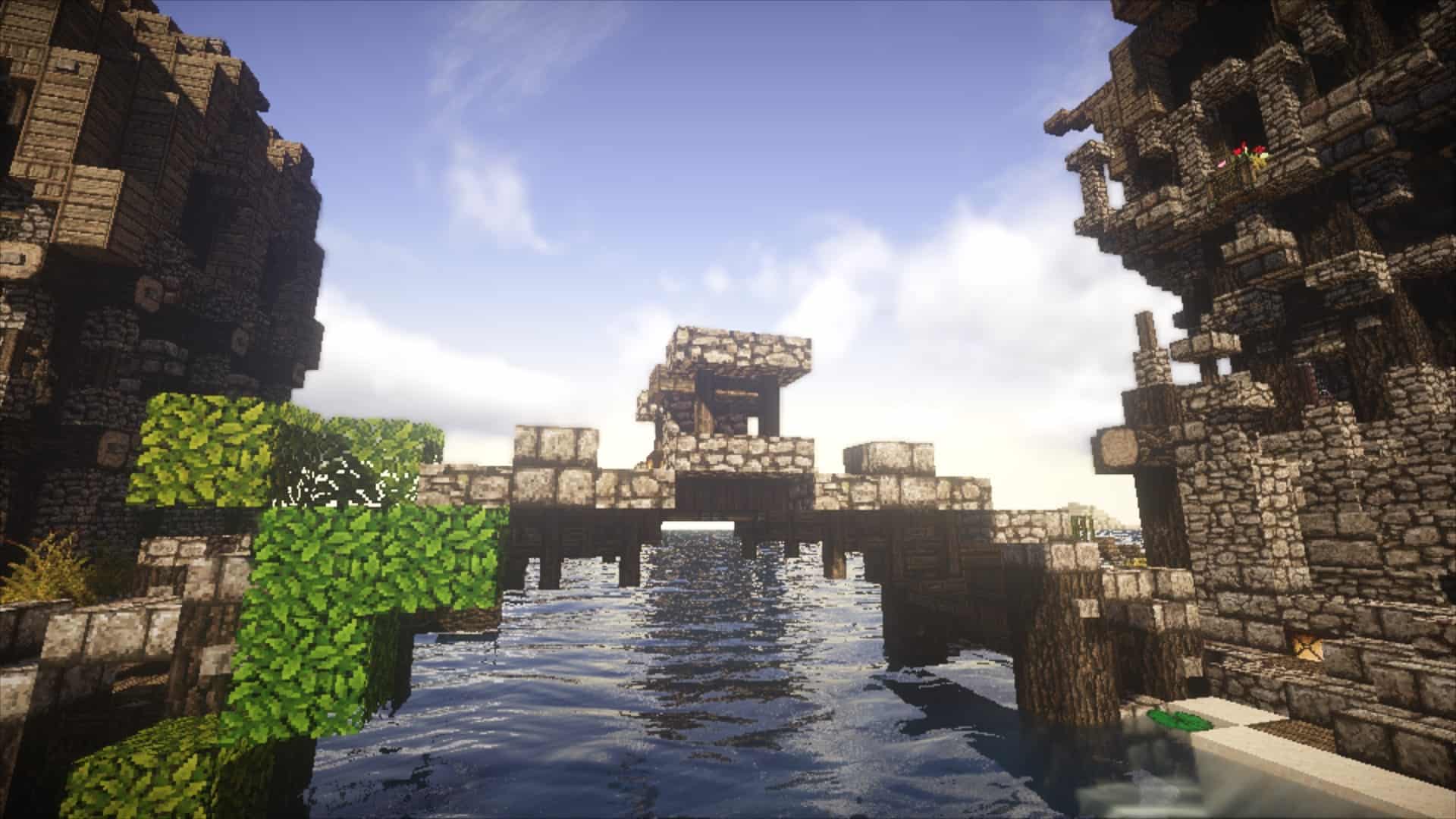
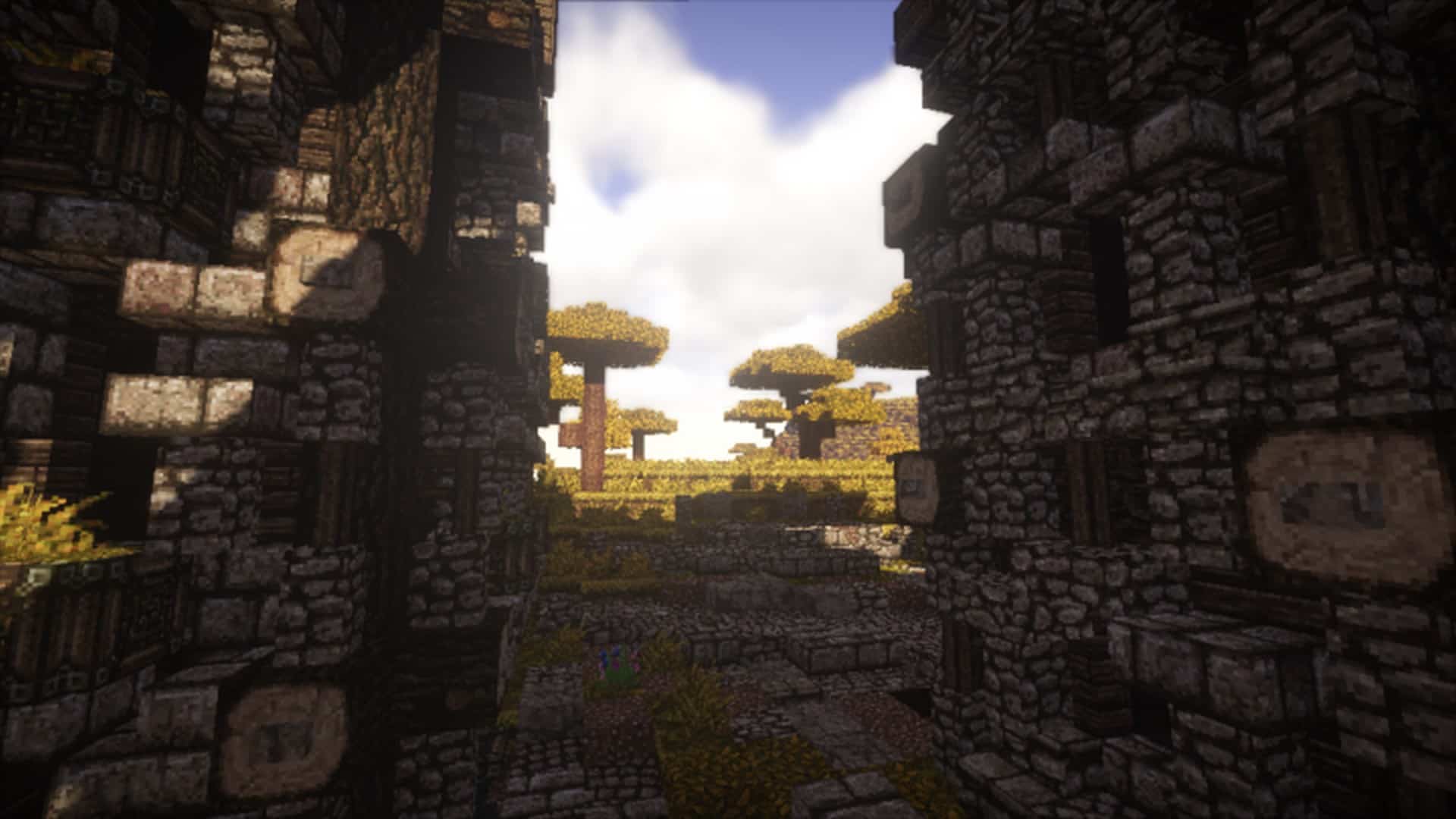
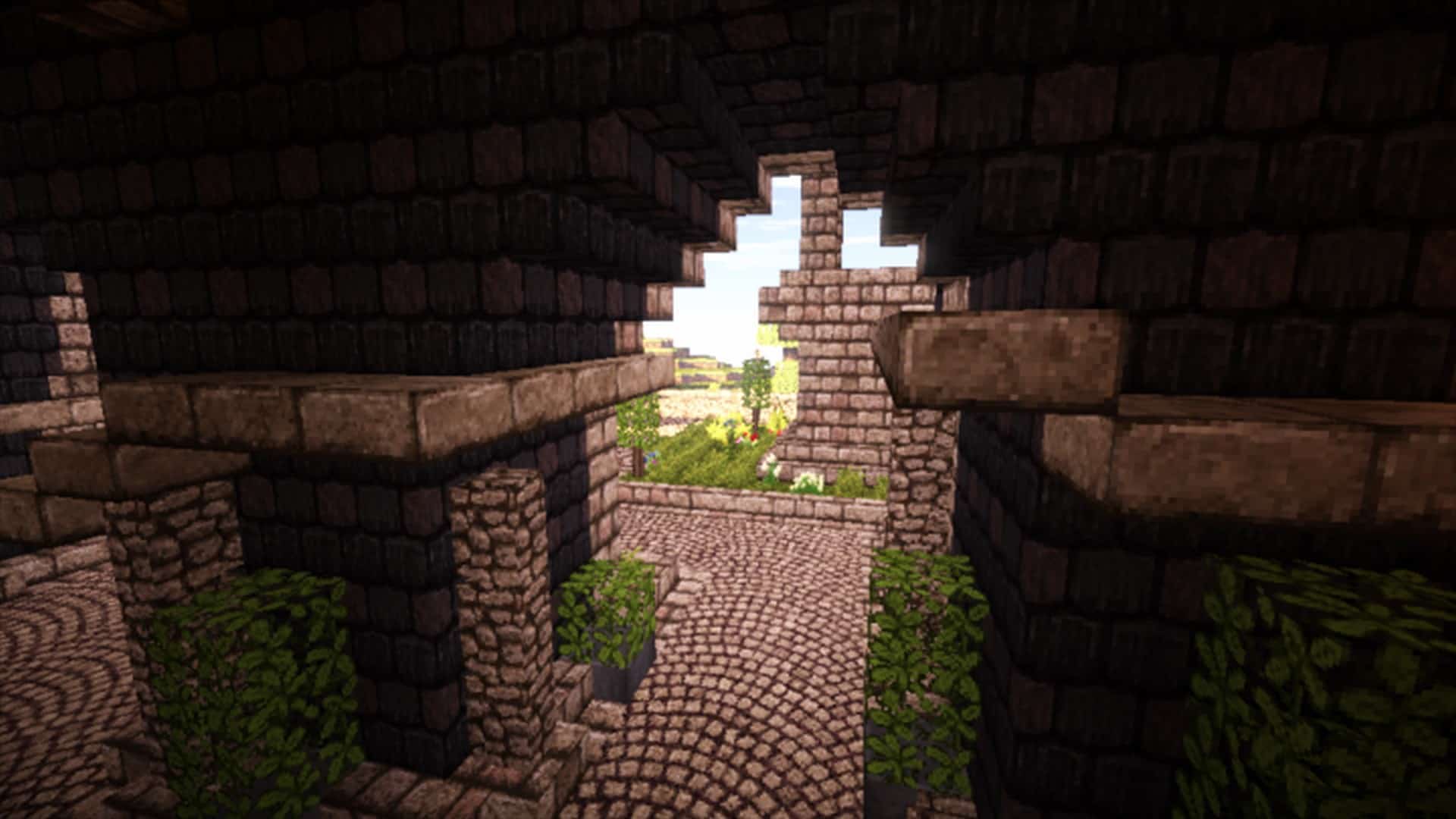
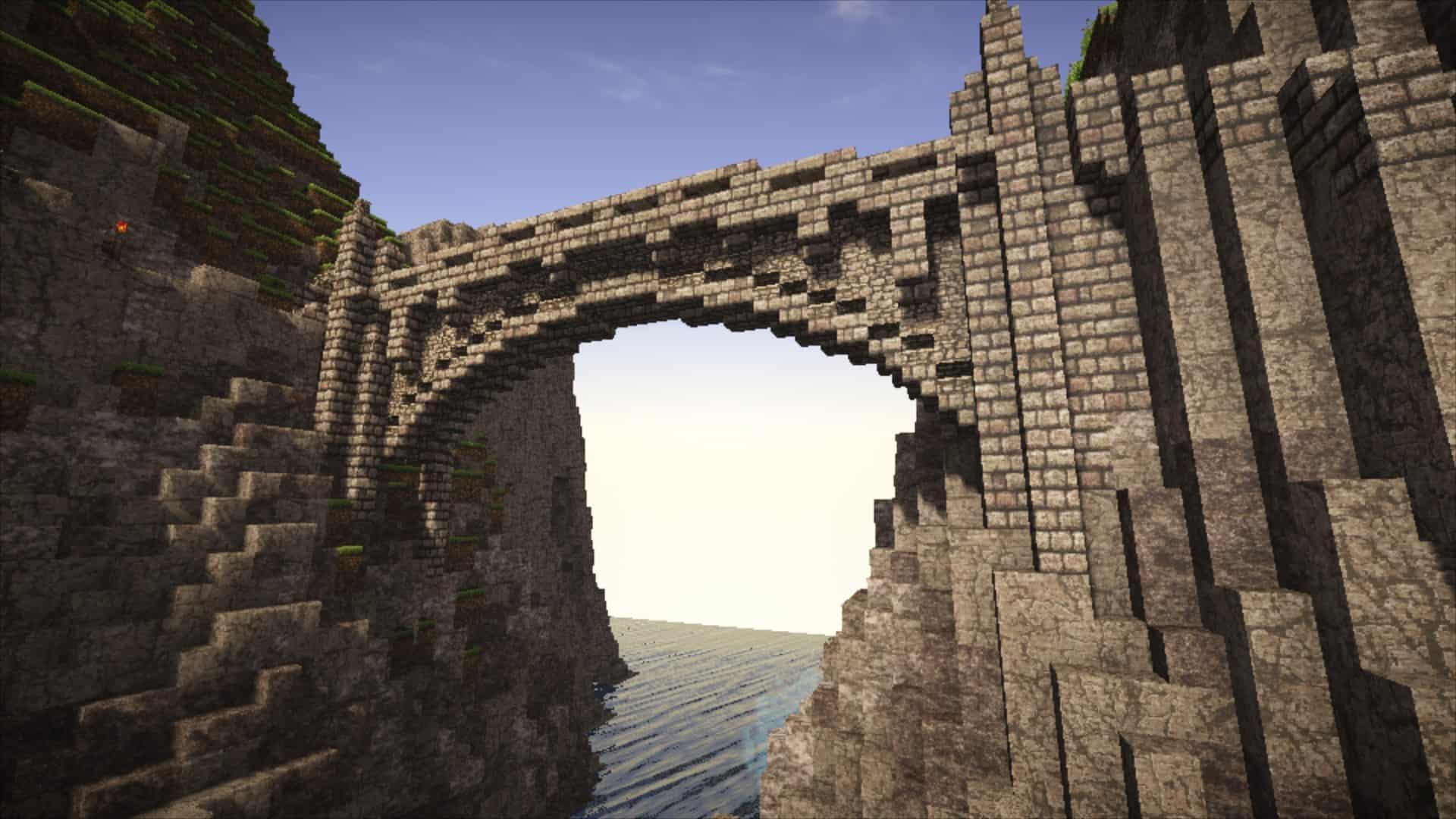
Erivale is honestly an incredible resource pack that completely took the community by storm when it first launched! Originally, the Erivale resource pack was developed to significantly improve upon the major features of the earlier Werian pack, but the creators quickly noticed that Erivale’s distinct theme and art style strayed way too far from the Werian resource pack. That is precisely why they decided to release Erivale as a completely independent pack. Erivale features stunning medieval-themed textures and is easily one of the most satisfying resource packs for anyone looking to add an authentic medieval vibe to their Minecraft world. There are thousands of medieval-themed resource packs out there, but I can safely say that none of them quite match up to Erivale. It is crafted with such an exceptional and incredible texture design that it contains far more detail than any other medieval pack I have seen. The most amazing part is that even with all those inclusive details packed in, the Erivale resource pack somehow avoids any noticeable visual noise, staying completely clean and creating the absolute perfect atmosphere, which is truly an immense achievement in this industry.
I have always wished to find a resource pack that offers a ton of detail while maintaining a clean, noise-free look, and while most packs on the market fall short here, Erivale nails this balance and makes playing the game so much more enjoyable. Alongside all the intricately clear details, Erivale boasts an imaginative combination and usage of a breathtaking color palette where every color application genuinely brings the resource pack to life. It features a well-optimized 32×32 resolution that lets every single detail shine through clearly. Another huge advantage of this resolution is that the rich textures make the pack feel like a much higher-resolution download, yet it stays at a modest 32×32 so we can all enjoy smooth gameplay without any annoying frame rate drops or performance worries, meaning it runs flawlessly even on PCs with moderate and budget hardware.
Erivale should be compatible with all of these Minecraft versions: 1.12.2 – 1.12 – 1.11.2 – 1.11
Screenshots
How to Install Texture Pack (Simple 10 Steps)
- Download OptiFine: Most of the texture packs and shaders need OptiFine. That’s why, first download and install OptiFine for the version of Minecraft you want to play.
- Download the Texture Pack: Get the texture pack you want from the download section. Choose the version that works with your Minecraft and your PC’s performance.
- Open Minecraft Launcher: Start Minecraft using the official game launcher — or even TLauncher, if you use that.
- Go to Options: From the main menu, click on the “Options” button.
- Open Resource Packs: Inside Options, click on “Resource Packs…”.
- Open the Resource Pack Folder: Click on “Open Resource Pack Folder” — this will open a folder named “resourcepacks”.
- Move the Pack File: Copy or move the .zip file you downloaded into that “resourcepacks” folder. (Don’t unzip the file — Minecraft uses it as-is!)
- Go Back and Refresh: Close the folder and click “Done”, then go back into “Resource Packs…” again.
- Activate the Pack: You’ll see the pack on the left side. Hover over it and click the arrow to move it to the right (active side).
Tip: If you get a message that the pack is for a different version, just click “Yes” — it usually works fine. - Click Done and Enjoy: Click “Done” again. Now your pack is ready to use in-game. It’s that easy!
Credits
The Erivale resource pack was originally created and developed by Filmjolk. We do not claim ownership of this content nor do we host modified files on our platform. We highly recommend visiting the original creator’s download pages to support their ongoing work.
Download Instructions
Curseforge: download starts automatically after a few seconds;
Mediafire: click the big blue button with the text “DOWNLOAD”;
Google Drive: in the top right corner you will see a small download icon (down arrow), click it and the download should start;