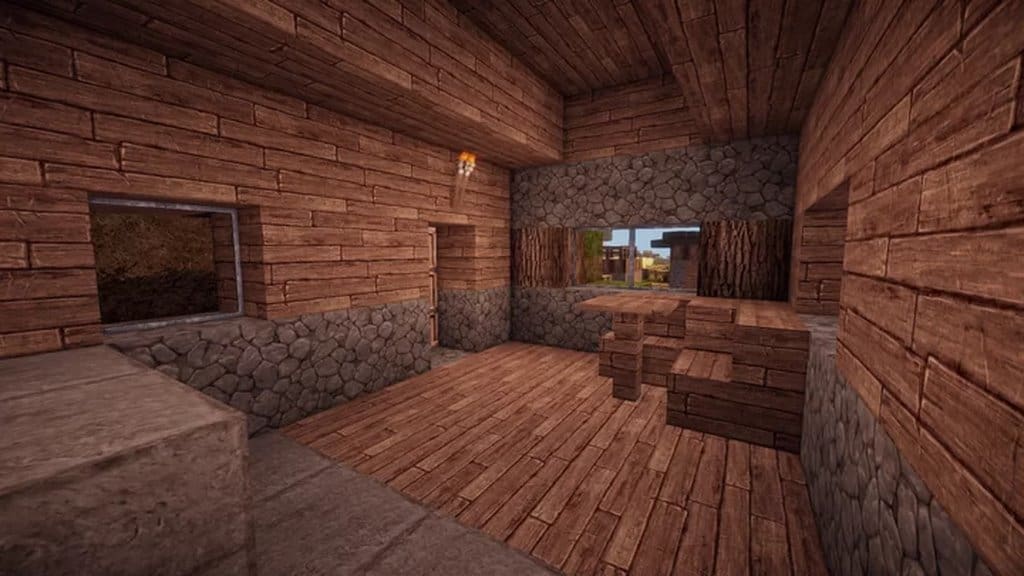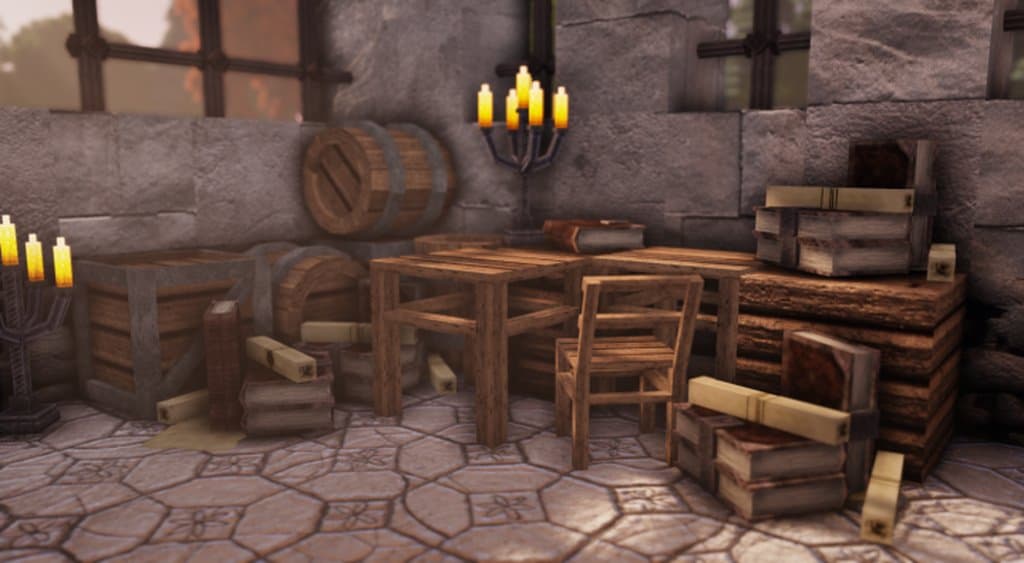
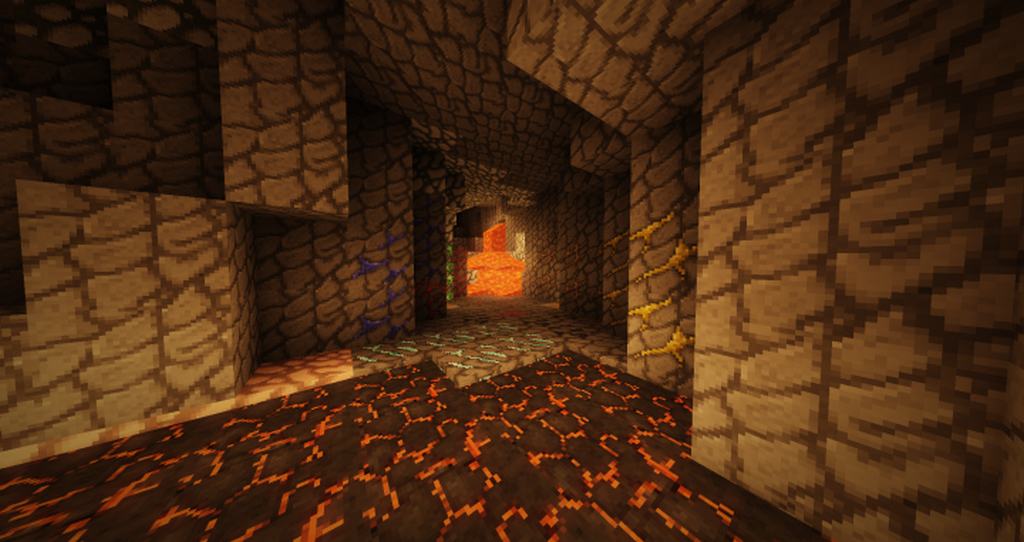
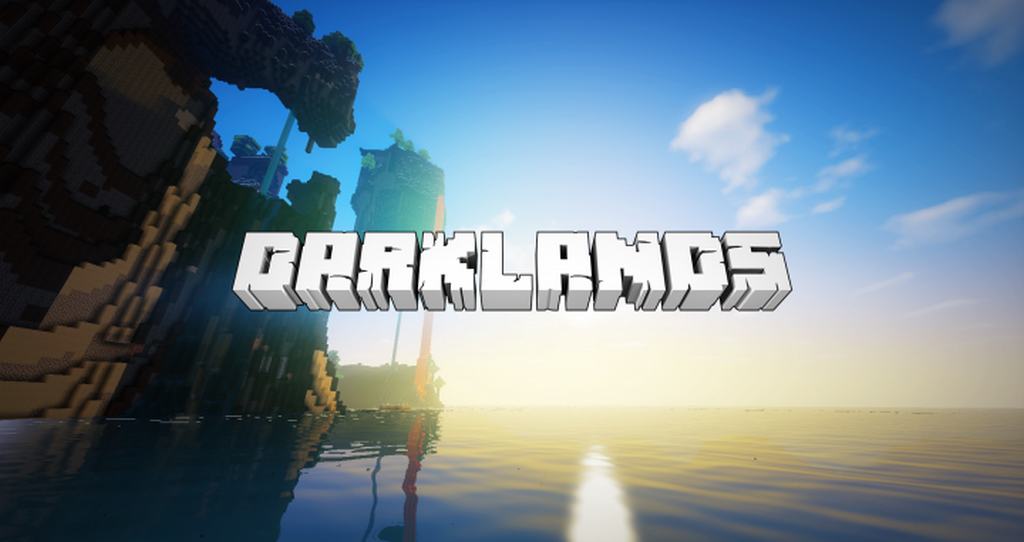
Minecraft is famous for its open world concept and endless possibilities, but after a while, the game can begin to feel stagnant. That is where resource packs come into play, and one of the oldest and most unique is the Darklands. Breathing a medieval air into the blocks of the world, the Darklands resource pack has existed for several years and has received numerous updates to keep the pack relevant and fresh. A balance that the Darklands has found that sets it apart from other packs is its ambitious use of color and detail, without overwhelming the player. Many other resource packs fail when they try to add too much detail and color. Minecraft is known for its simple design, and with too much added fluff, it can change the integrity of the game. The gameplay simply becomes too overbearing to the player.
The Darklands is able to add more detail to the world without losing what makes Minecraft, Minecraft; simplicity. Furthermore, its medieval design helps it stand out against the phase of modern resource packs saturating the market. A common complaint with resource packs is that it makes one is PC, or gaming device, run slowly. It does not matter how great the game looks if it is impossible to play with lag. The Darklands had a low resolution, 32×32, while maintaining crisp and clean visuals. This means that casual players without the latest PC or gaming setup can download the pack and still enjoy the game, without dealing with nuisances like low frame rate and lag. The Darklands is a classic resource pack that is professional, beautiful, and unique. Not only is it a reliable pack, but it is accessible to everyone without melting one is computer with lag. For those looking to spice up their Minecraft experience, the Darklands is a great pack.
Darklands should be compatible with all of these Minecraft versions: 1.13.2 – 1.13.1 – 1.13 – 1.12.2 – 1.12 – 1.11.2 – 1.11 – 1.10.2 – 1.10 – 1.9.4 – 1.9 – 1.8.9 – 1.8.8 – 1.8.1 – 1.8.6 – 1.8
Screenshots
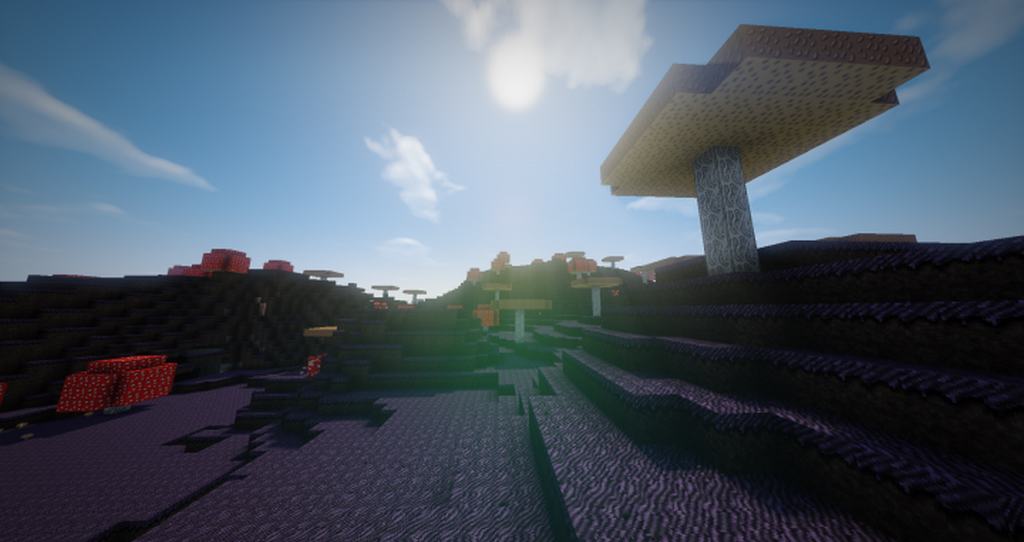
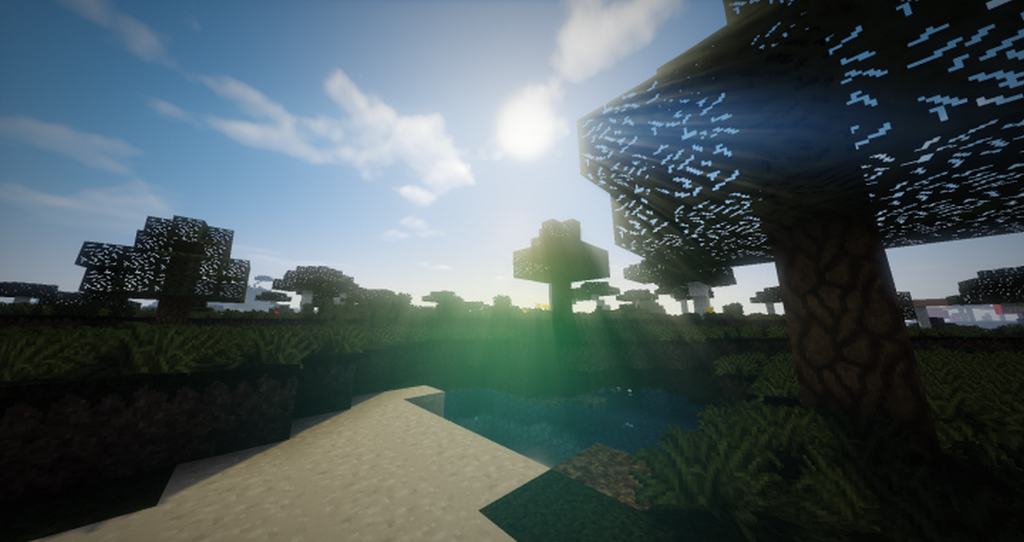
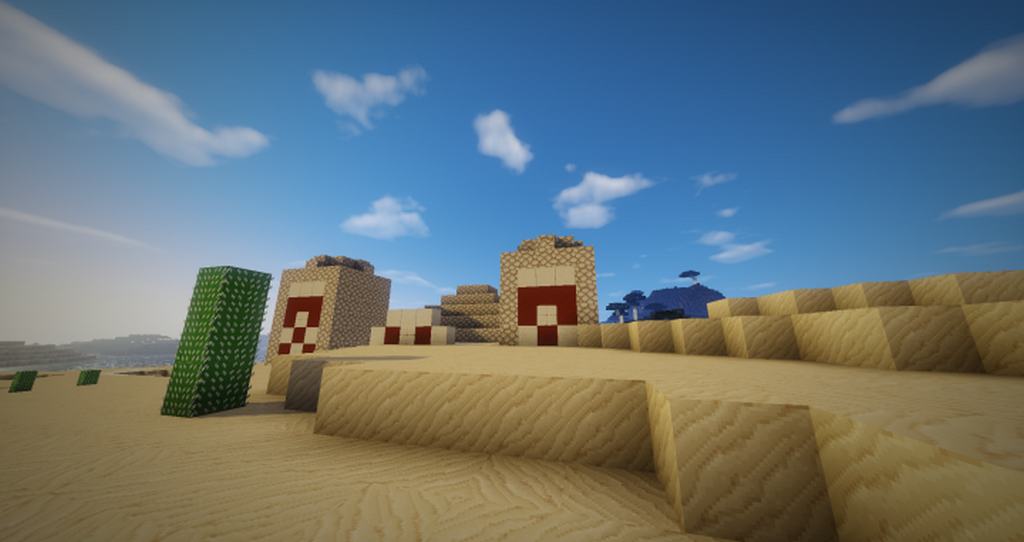

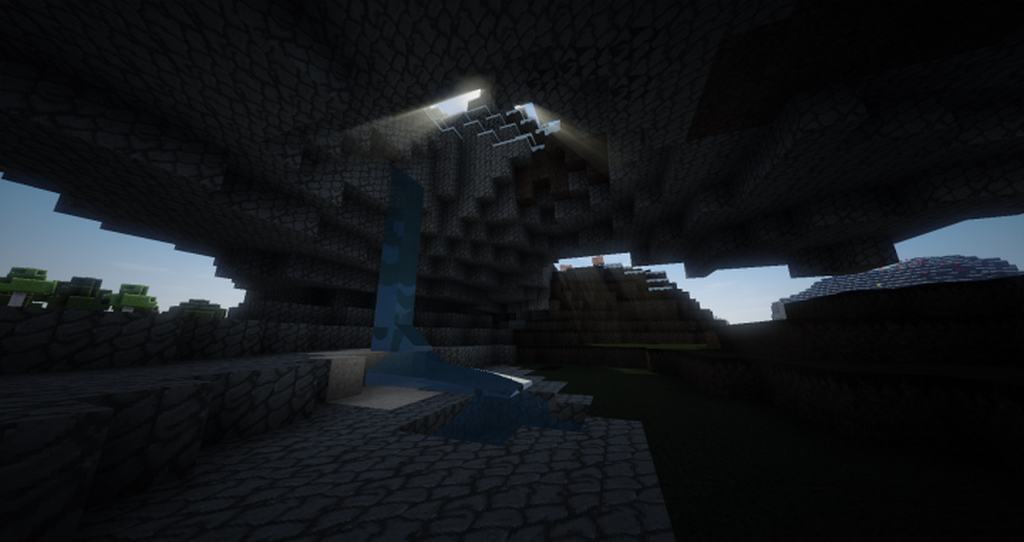
How to Install Texture Pack (Simple 10 Steps)
- Download OptiFine: Most of the texture packs and shaders need OptiFine. That’s why, first download and install OptiFine for the version of Minecraft you want to play.
- Download the Texture Pack: Get the texture pack you want from the download section. Choose the version that works with your Minecraft and your PC’s performance.
- Open Minecraft Launcher: Start Minecraft using the official game launcher — or even TLauncher, if you use that.
- Go to Options: From the main menu, click on the “Options” button.
- Open Resource Packs: Inside Options, click on “Resource Packs…”.
- Open the Resource Pack Folder: Click on “Open Resource Pack Folder” — this will open a folder named “resourcepacks”.
- Move the Pack File: Copy or move the .zip file you downloaded into that “resourcepacks” folder. (Don’t unzip the file — Minecraft uses it as-is!)
- Go Back and Refresh: Close the folder and click “Done”, then go back into “Resource Packs…” again.
- Activate the Pack: You’ll see the pack on the left side. Hover over it and click the arrow to move it to the right (active side).
Tip: If you get a message that the pack is for a different version, just click “Yes” — it usually works fine. - Click Done and Enjoy: Click “Done” again. Now your pack is ready to use in-game. It’s that easy!
Credits
This resource pack was created by anicked1. We do not claim ownership of this content, nor do we host or modify the original files. All rights and intellectual property belong strictly to the original author. We strongly encourage you to support the creator by visiting their official download links and social pages.
Download Links
Java Edition
Download Instructions
Curseforge: download starts automatically after a few seconds;
Mediafire: click the big blue button with the text “DOWNLOAD”;
Google Drive: in the top right corner you will see a small download icon (down arrow), click it and the download should start;