If you are a Minecraft player looking to nail down those competitive visual aspects, you really need to check out Zolt 16x, an incredible player vs player resource pack. Tweaking your visuals is essential for elevating your game to a proper, immersive experience. We have seen a massive surge of Minecraft players logging in specifically for the competitive PvP scene. For these dedicated players, hyper-realistic visuals usually take a back seat to raw, fluid gameplay action. Because of this, grabbing a dedicated player vs player pack that prioritizes boosting your overall game productivity over heavy graphical bells and whistles is an absolute game-changer. If you find yourself among those players who want to crank up their in-game performance, I honestly cannot recommend this pack enough.
This pack is remarkably advanced when it comes to rolling out creative changes aimed squarely at sharpening PvP technicality for gamers who want a truly great adventure. The particle sizes have been wonderfully optimized for clarity, giving you a distinct advantage and a much smoother gaming adventure. Plus, the pack features clean water textures that let you peer right through and effortlessly view your surroundings during intense matches. You will also love the customized sky, which requires significantly less rendering processing compared to the vanilla sky. The standout, head-turning feature of the Zolt 16x PvP resource pack is how expertly it manages the game’s appearance to deliver a massive performance boost. The smooth textures and lively colors work together brilliantly to make your surroundings look extraordinary while keeping everything lightweight. Built with a classic 16×16 resolution, the Zolt 16x pack ensures you can pull off the absolute best possible FPS while staying competitive.
Zolt 16x PvP should be compatible with all of these Minecraft versions: 1.8.9 – 1.8.8 – 1.8.1 – 1.8.6 – 1.8
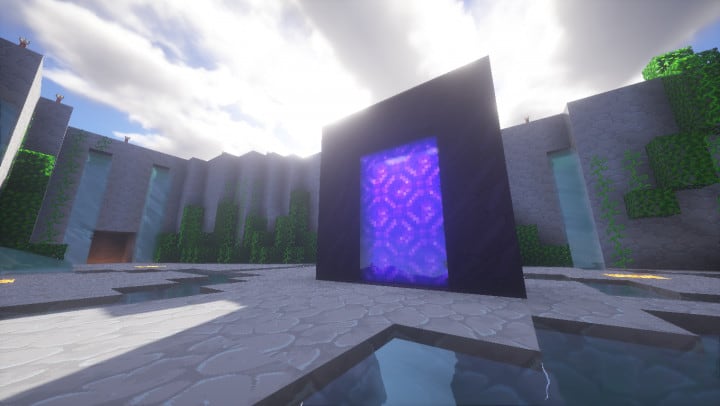
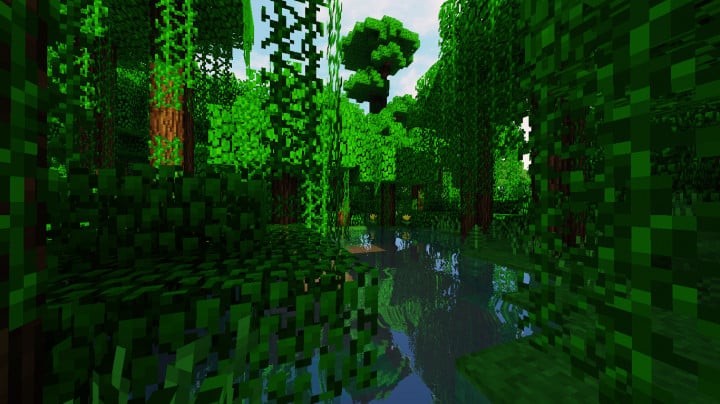
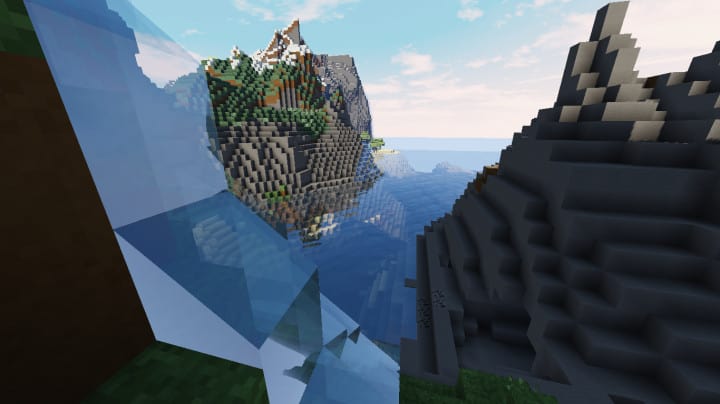
Screenshots


How to Install Texture Pack (Simple 10 Steps)
- Download OptiFine: Most of the texture packs and shaders need OptiFine. That’s why, first download and install OptiFine for the version of Minecraft you want to play.
- Download the Texture Pack: Get the texture pack you want from the download section. Choose the version that works with your Minecraft and your PC’s performance.
- Open Minecraft Launcher: Start Minecraft using the official game launcher — or even TLauncher, if you use that.
- Go to Options: From the main menu, click on the “Options” button.
- Open Resource Packs: Inside Options, click on “Resource Packs…”.
- Open the Resource Pack Folder: Click on “Open Resource Pack Folder” — this will open a folder named “resourcepacks”.
- Move the Pack File: Copy or move the .zip file you downloaded into that “resourcepacks” folder. (Don’t unzip the file — Minecraft uses it as-is!)
- Go Back and Refresh: Close the folder and click “Done”, then go back into “Resource Packs…” again.
- Activate the Pack: You’ll see the pack on the left side. Hover over it and click the arrow to move it to the right (active side).
Tip: If you get a message that the pack is for a different version, just click “Yes” — it usually works fine. - Click Done and Enjoy: Click “Done” again. Now your pack is ready to use in-game. It’s that easy!
Credits
This resource pack was originally created by SidGamez_YT. We do not claim ownership of this content, nor do we modify the original files. All rights belong to the original creator, and we strongly encourage you to support SidGamez_YT by downloading directly through official links.
Download Instructions
Curseforge: download starts automatically after a few seconds;
Mediafire: click the big blue button with the text “DOWNLOAD”;
Google Drive: in the top right corner you will see a small download icon (down arrow), click it and the download should start;


