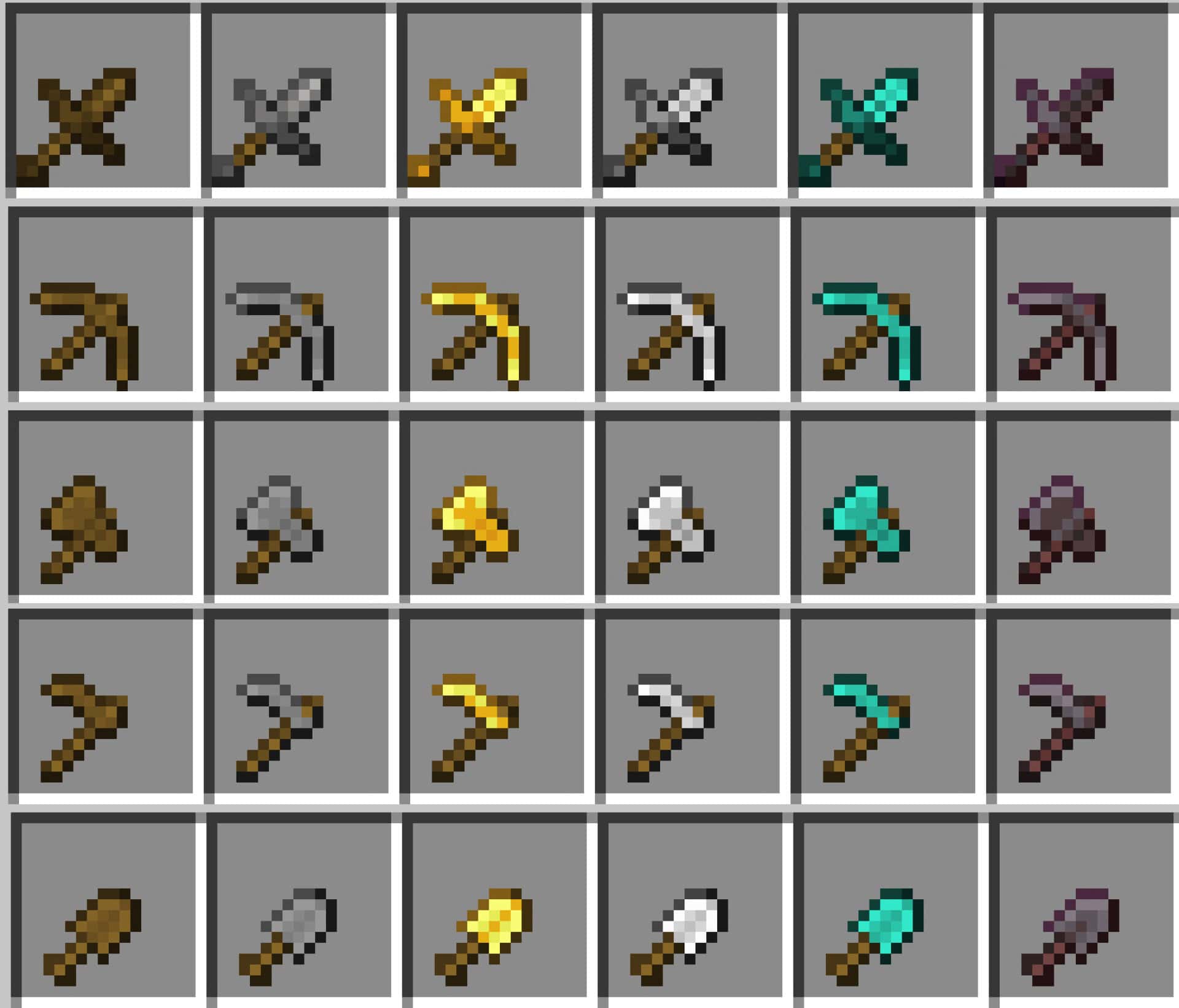
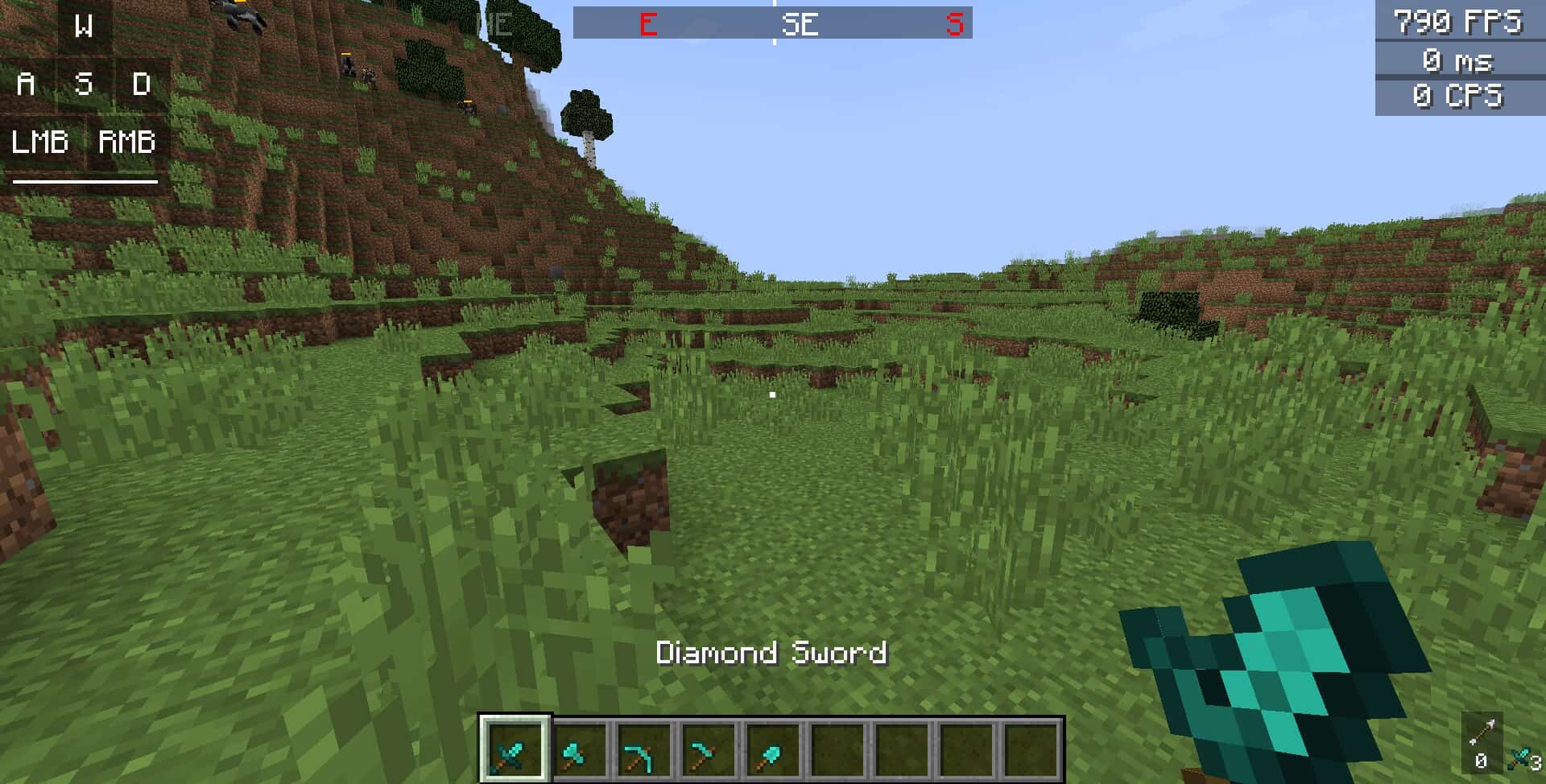
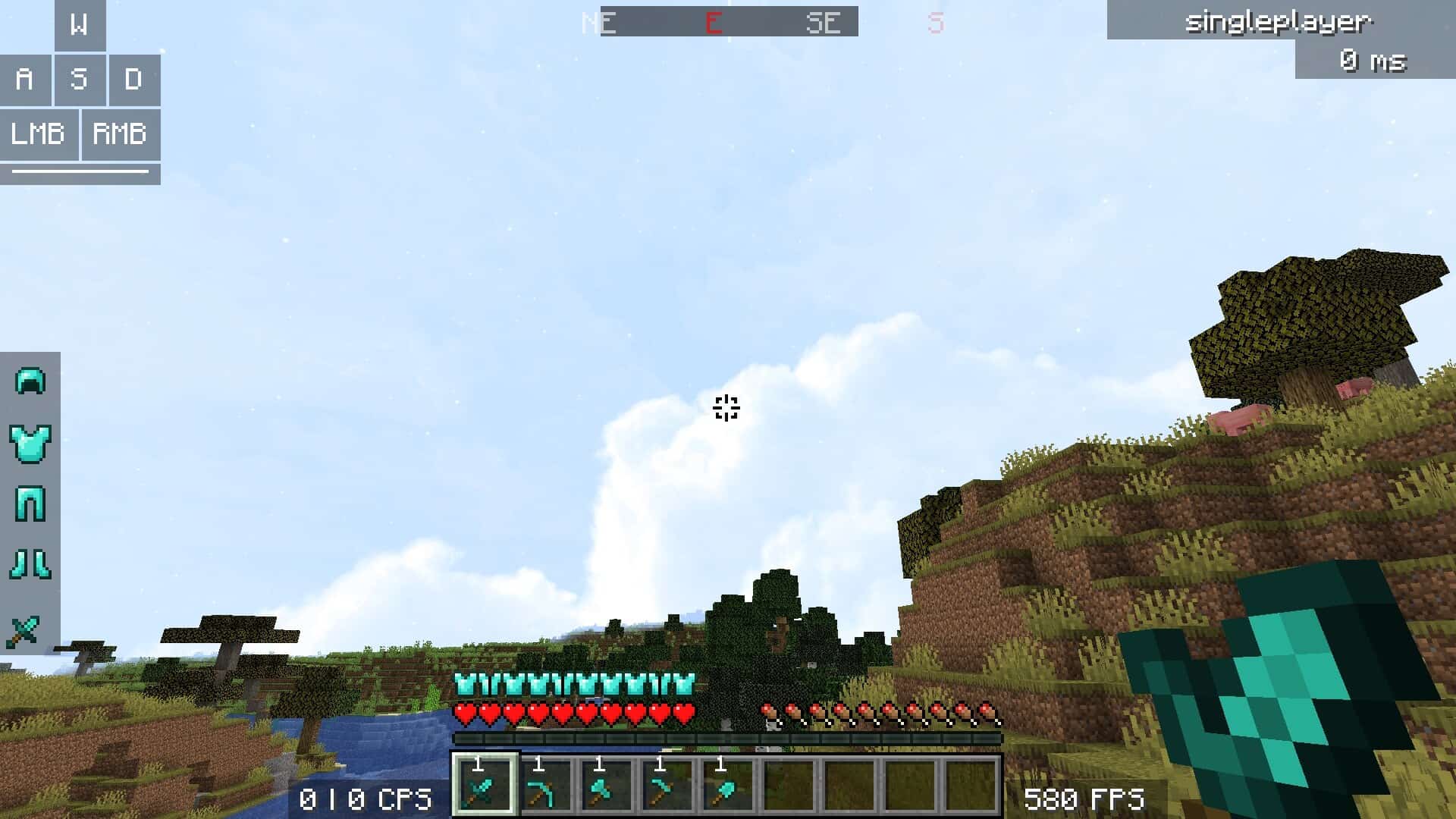
It is no secret that Minecraft PvP players are always hunting for small tweaks that make a massive difference during intense battles. A split second of enhanced visibility, a completely uncluttered screen, or just sharper focus can easily mean the difference between winning and losing. That is why resource packs tailored specifically for PvP have become so insanely popular. One of the most effective examples in this category is the Tiny PVP Swords and Tools resource pack, a brilliant, lightweight pack built to elevate your combat experience without messing with the game’s classic look and feel. The core idea behind this pack is wonderfully straightforward, and honestly, that is what makes it so appealing. Instead of trying to retexture every single block, mob, or particle effect, the creator, GamerPotion, kept things refreshingly minimal. Only the models for swords, axes, pickaxes, and other handheld items are altered, and even then, the change is purely in scale. Every weapon and tool appears significantly smaller on your screen, yet their textures remain 100 percent identical to vanilla Minecraft. This means the game world still looks like the familiar Minecraft you love, but your field of vision suddenly feels so much larger. Anyone who has fought a frantic duel in a cramped PvP arena knows how frustrating it is when a massive diamond sword blocks the corner of your view. With this pack installed, those oversized models shrink right down to a neat, compact size. You can effortlessly keep your eye on opponents, track arrows flying past, or spot enemy movement in the distance without your own weapon hogging the screen. For competitive players, that extra clarity genuinely improves your reaction times. Pairing this pack with others designed for performance can create an even stronger setup. For example, many players love combining it with the Low on Fire resource pack. When you are not distracted by blazing fire textures or busy interfaces, and your sword is not covering a quarter of your monitor, you are left with pure, unadulterated focus on the fight itself. That is truly where the Tiny PVP Swords and Tools resource pack shines; it does not claim to add flashy features, but it gives you so much more room to see and react, which is precisely what matters most in PvP. Now, I have to admit, not every player will love the exact way it feels.
One of the greatest charms of Minecraft is the wonderful sense of scale and the almost dramatic look of carrying a massive enchanted blade. Shrinking those weapons down might feel a bit odd if you are just playing casual survival or embarking on an immersive adventure map. Some might even find it a little cute, which does not always match the tone they want for their world. But context is everything. While it might not be the best choice for roleplay or cinematic builds, the moment you step into an arena or a server dedicated to PvP combat, those smaller weapon models become infinitely more practical than stylish, and practicality is exactly what competitive players are after. A frequent concern players have when downloading any PvP-focused pack is whether it is actually allowed on public servers. The fantastic news here is that you do not need to worry at all. Unlike unfair packs that alter gameplay mechanics, such as X-Ray packs that illegally reveal ores, this one does not give you information you should not have. It does not let you see through walls or manipulate damage in any way. It simply changes how big your own items appear on your monitor. That means the Tiny PVP Swords and Tools texture pack is widely accepted on multiplayer servers, with the only exceptions being servers featuring extremely strict rules. It is also completely worth pointing out that the pack is delightfully lightweight and will not impact your system performance in the slightest. Many resource packs overhaul every single texture, causing annoying frame rate drops or increasing load times. This one leaves blocks, entities, and particles completely untouched, meaning your FPS stays butter-smooth. That makes it a solid choice not only for players rocking high-end gaming PCs, but also for anyone on older machines who refuses to trade performance for visual changes. At the end of the day, this pack is not about flashy aesthetics or showing off. It is a tool in the truest sense of the word, designed with a very specific purpose, and it delivers exactly what it promises. If you take Minecraft PvP seriously, whether you are grinding intense duels, playing competitive mini-games, or just sparring with friends, it is definitely worth adding to your arsenal. It will not magically transform you into an unbeatable God, but it will help keep your absolute focus on the fight, and sometimes that tiny advantage is all you really need.
Tiny PVP Swords and Tools should be compatible with all of these Minecraft versions: 26.2 – 26.1.2 – 26.1.1 – 26.1 – 1.21.11 – 1.21.10 – 1.21.9 – 1.21.8 – 1.21.7 – 1.21.6 – 1.21.5 – 1.21.4 – 1.21.3 – 1.21.2 – 1.21.1 – 1.21 – 1.20.6 – 1.20.5 – 1.20.4 – 1.20.3 – 1.20.2 – 1.20.1 – 1.20 – 1.19.4 – 1.19.3 – 1.19.2 – 1.19.1 – 1.19 – 1.18.2 – 1.18.1 – 1.18 – 1.17.1 – 1.17 – 1.16.5 – 1.16.4 – 1.16.3 – 1.16.2 – 1.16.1 – 1.16
Screenshots
How to Install Texture Pack (Simple 10 Steps)
- Download OptiFine: Most of the texture packs and shaders need OptiFine. That’s why, first download and install OptiFine for the version of Minecraft you want to play.
- Download the Texture Pack: Get the texture pack you want from the download section. Choose the version that works with your Minecraft and your PC’s performance.
- Open Minecraft Launcher: Start Minecraft using the official game launcher — or even TLauncher, if you use that.
- Go to Options: From the main menu, click on the “Options” button.
- Open Resource Packs: Inside Options, click on “Resource Packs…”.
- Open the Resource Pack Folder: Click on “Open Resource Pack Folder” — this will open a folder named “resourcepacks”.
- Move the Pack File: Copy or move the .zip file you downloaded into that “resourcepacks” folder. (Don’t unzip the file — Minecraft uses it as-is!)
- Go Back and Refresh: Close the folder and click “Done”, then go back into “Resource Packs…” again.
- Activate the Pack: You’ll see the pack on the left side. Hover over it and click the arrow to move it to the right (active side).
Tip: If you get a message that the pack is for a different version, just click “Yes” — it usually works fine. - Click Done and Enjoy: Click “Done” again. Now your pack is ready to use in-game. It’s that easy!
Credits
Credits: Created by GamerPotion. We do not claim ownership of this content, nor have we modified the files. All rights belong to the original creator. We strongly recommend supporting GamerPotion by downloading the pack from their official links and checking out their other projects.
Download Links
Java Edition
Download Instructions
Curseforge: download starts automatically after a few seconds;
Mediafire: click the big blue button with the text “DOWNLOAD”;
Google Drive: in the top right corner you will see a small download icon (down arrow), click it and the download should start;