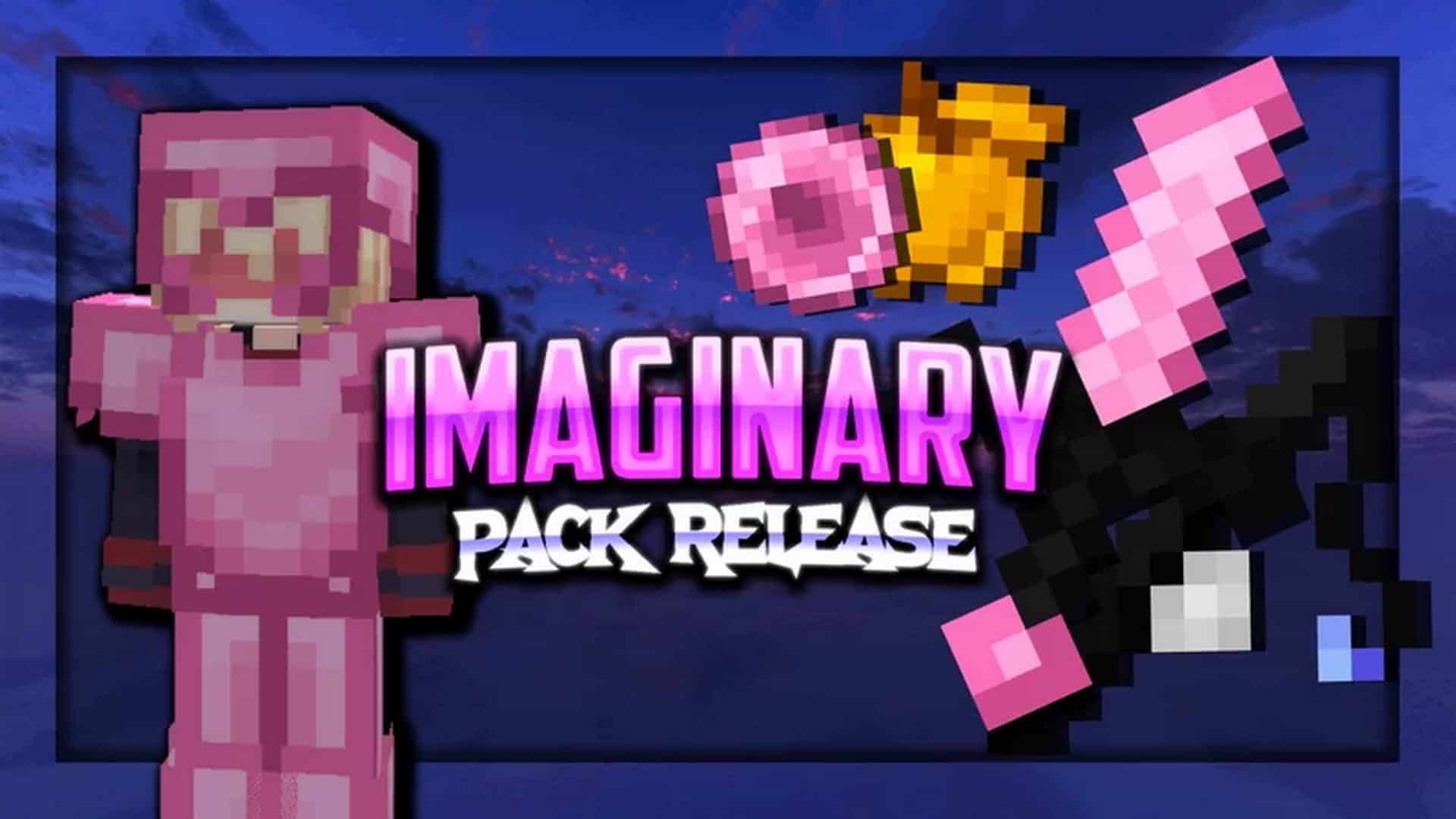
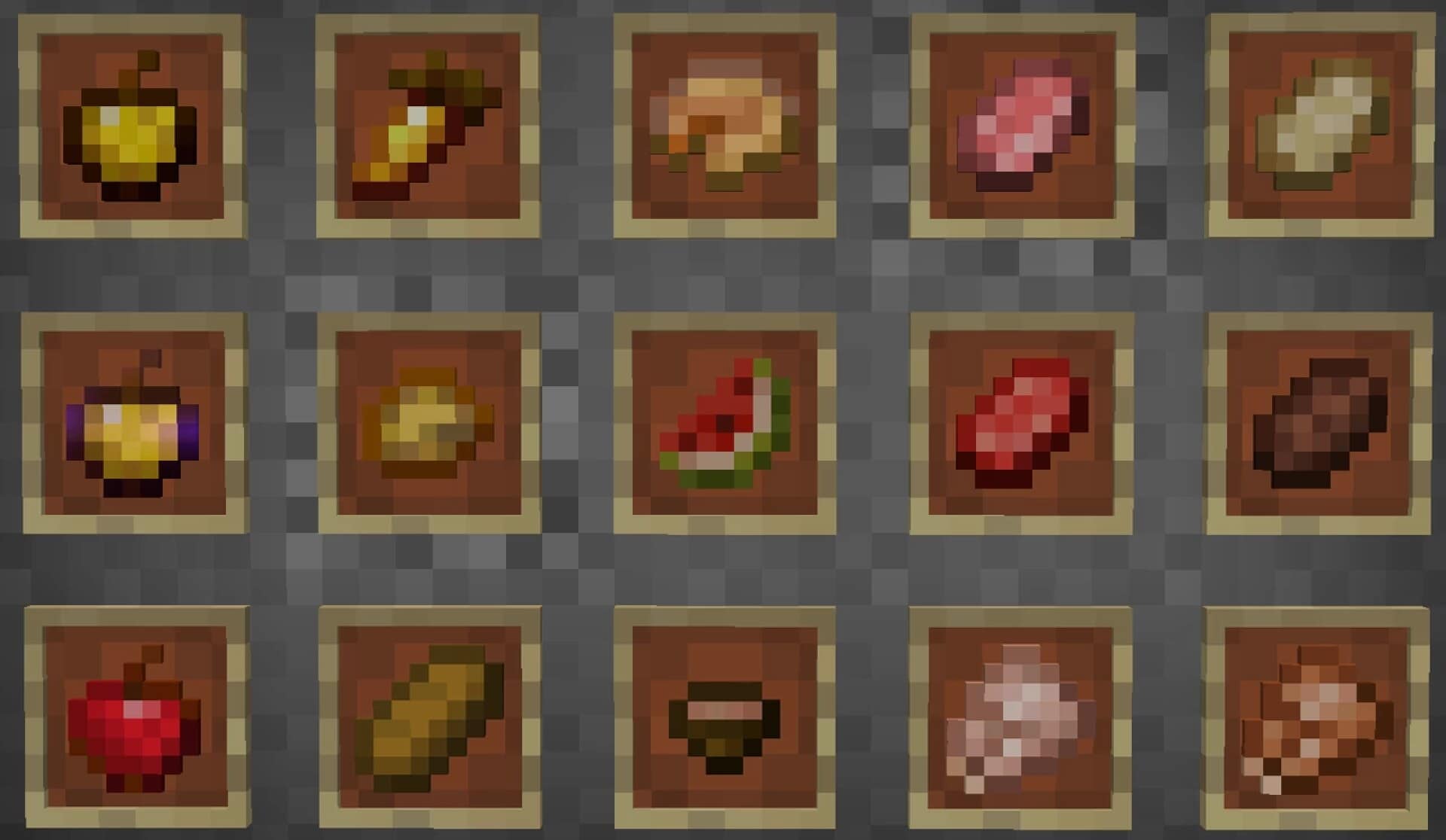
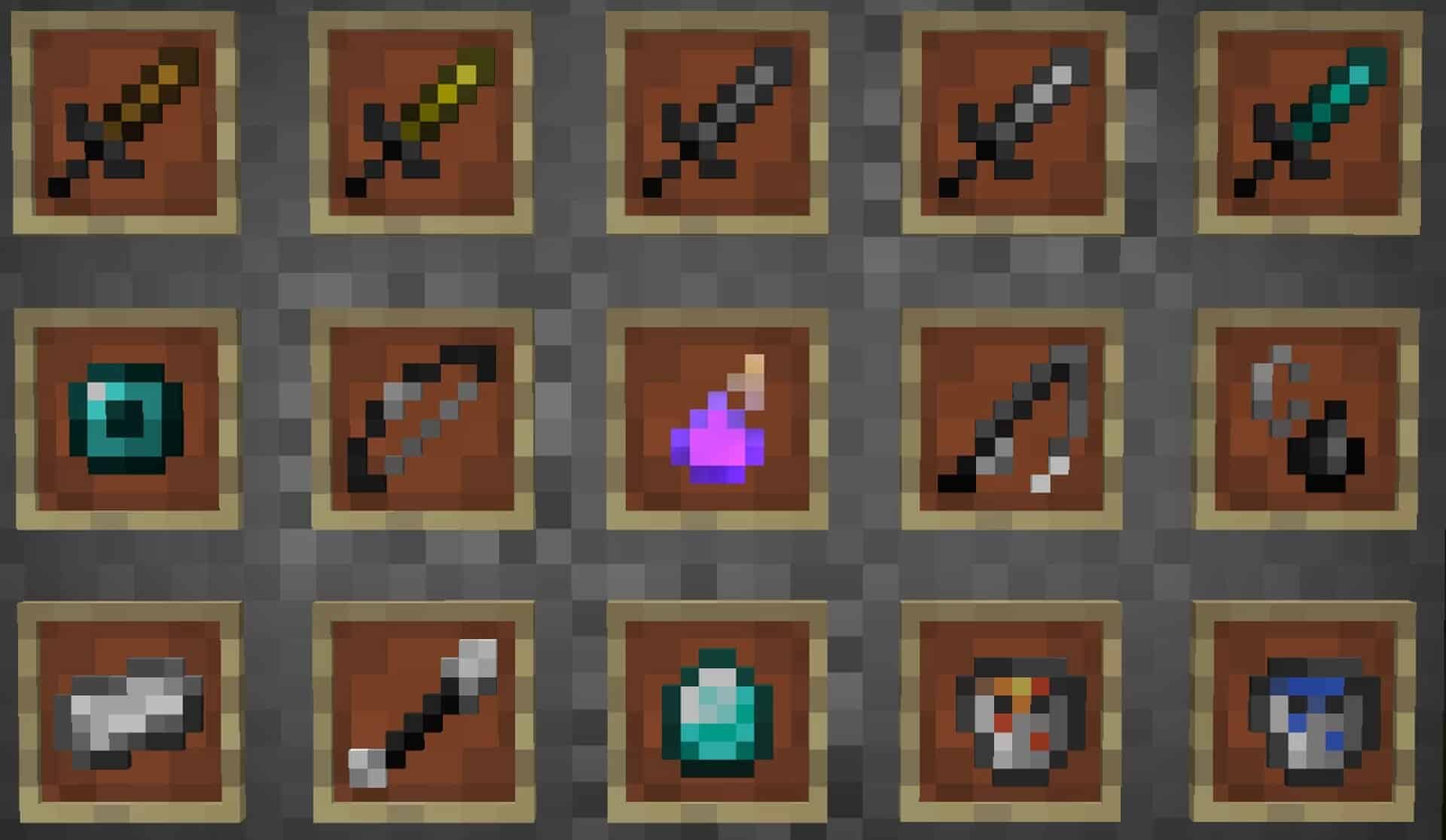
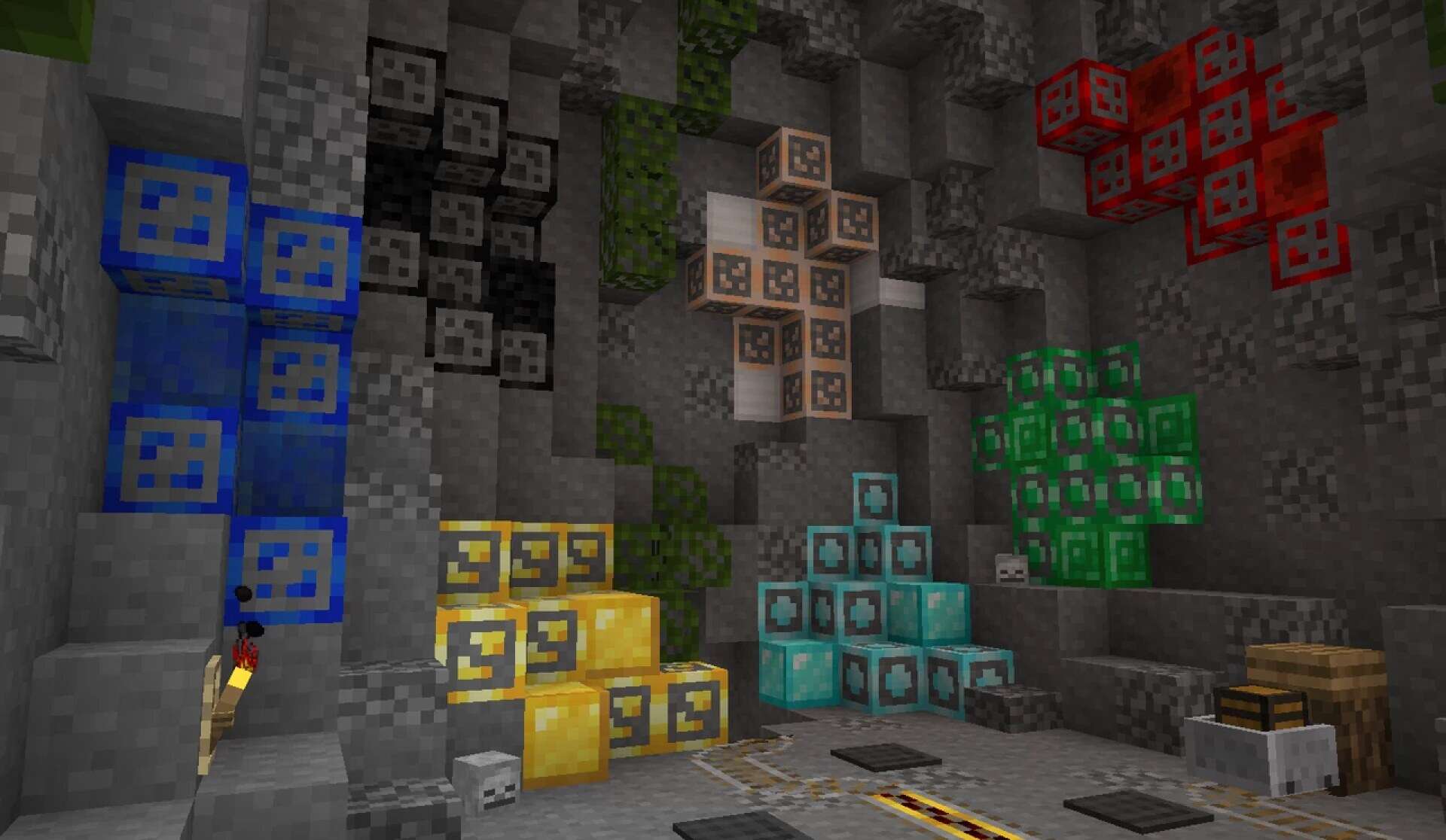
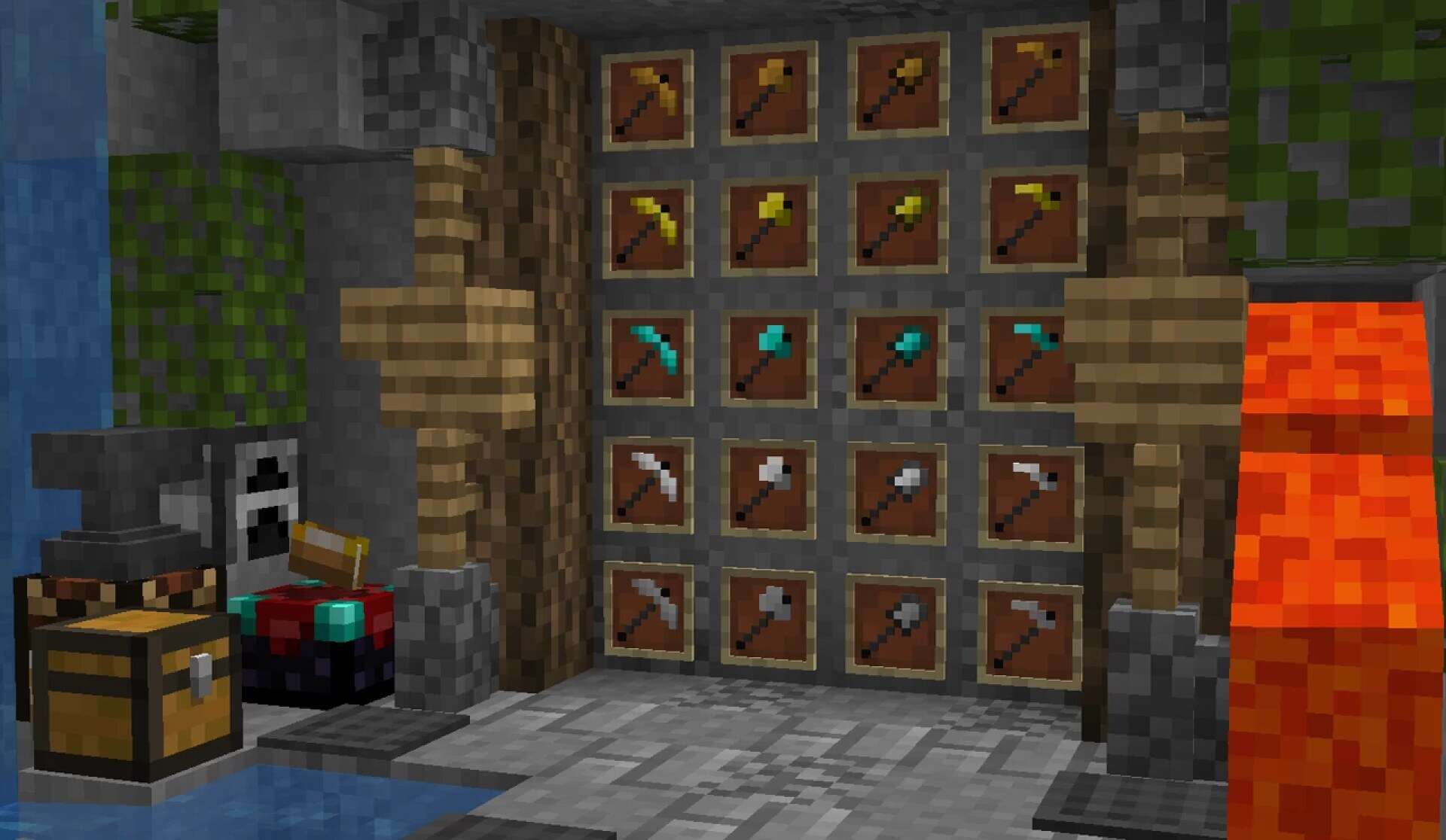
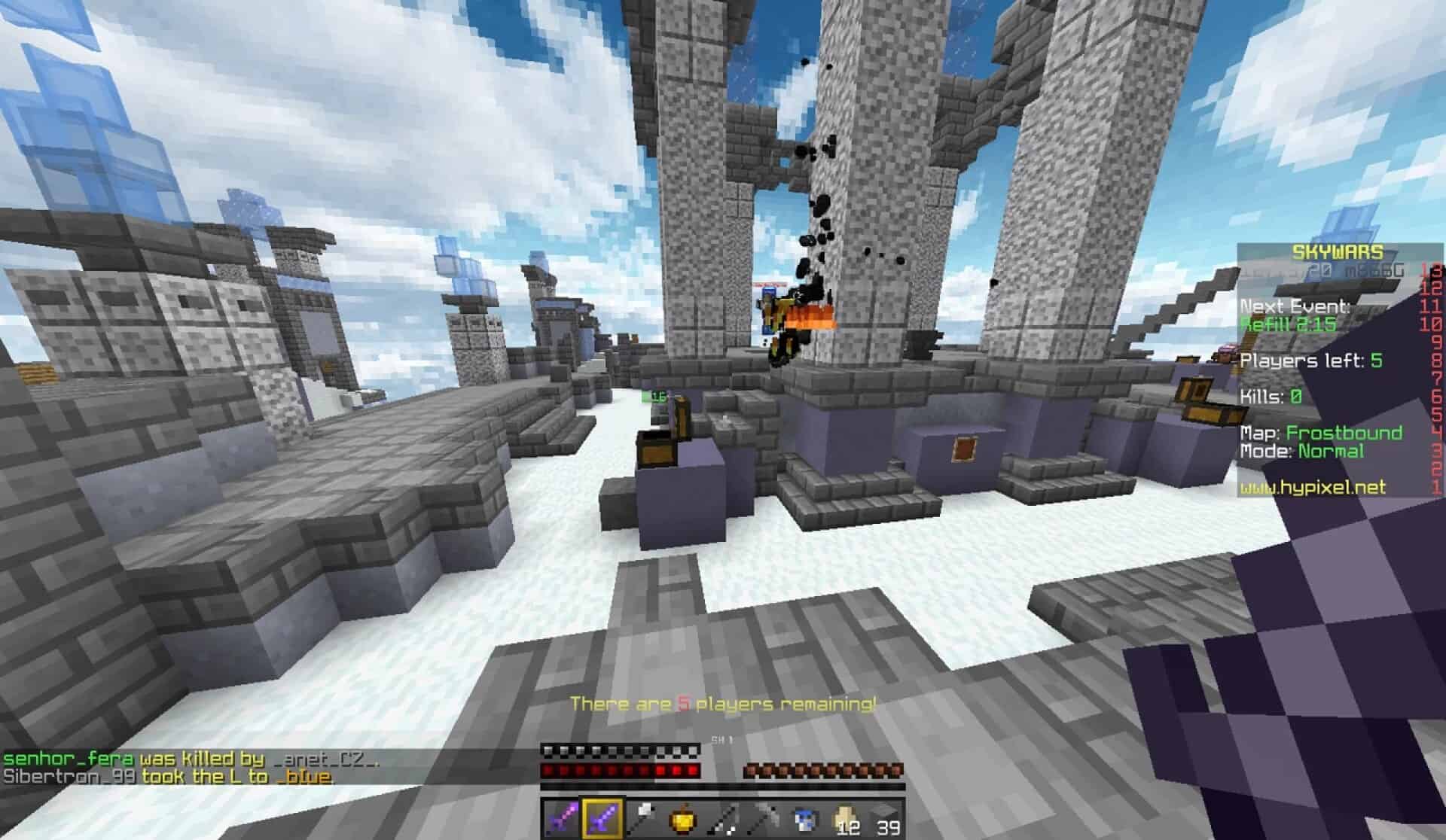
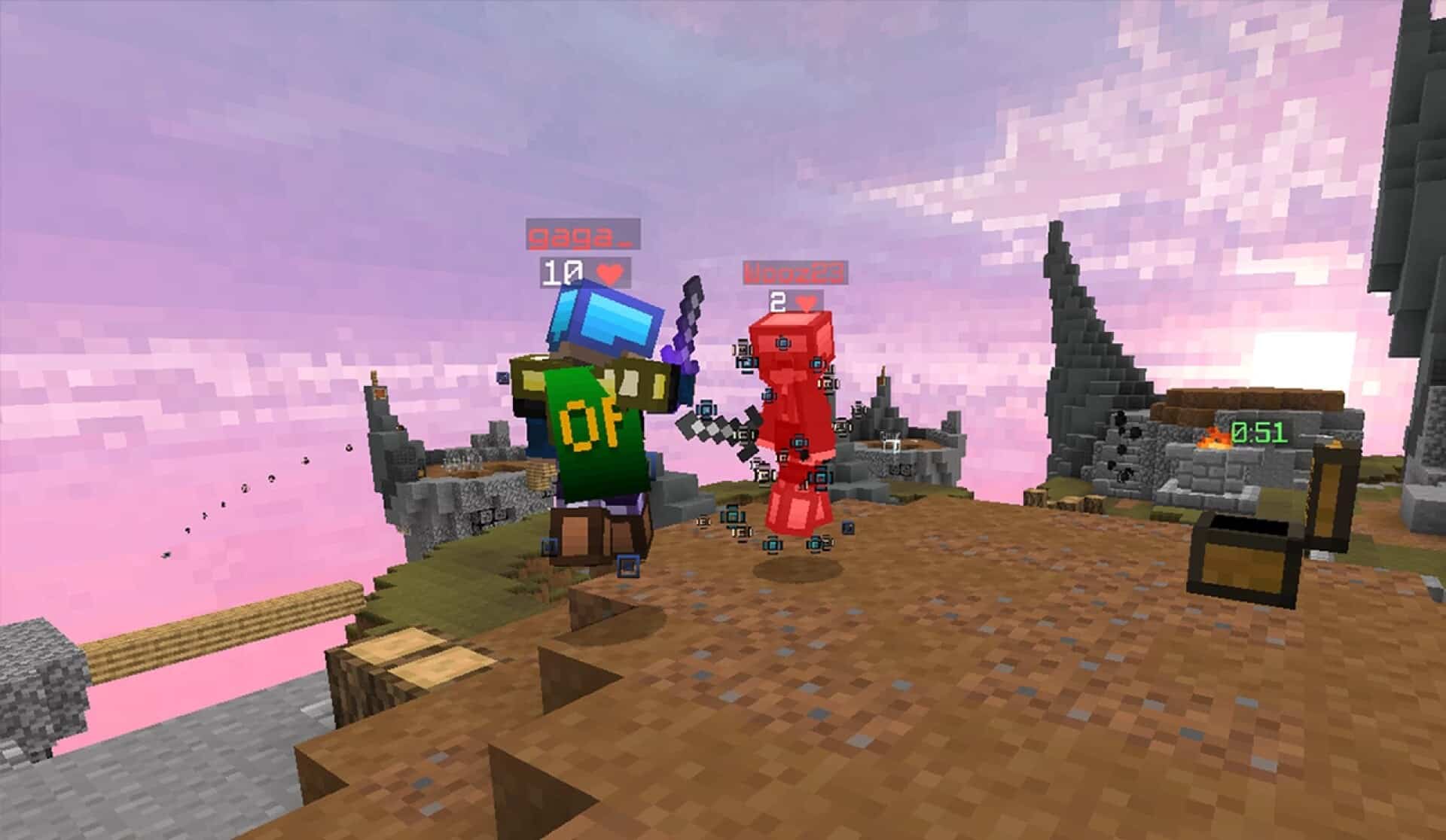
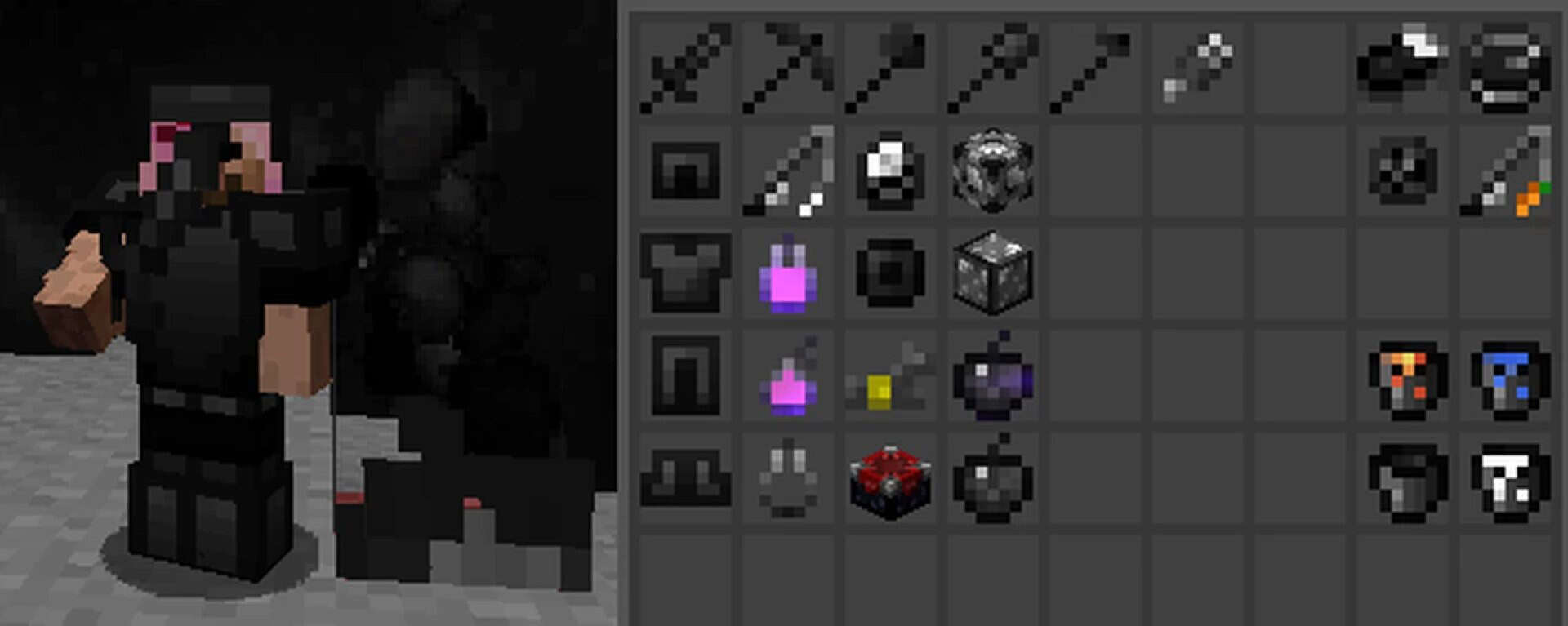
Minecraft has gone through countless updates over the years, but for many players, especially those who dedicate their time to PvP, version 1.8.9 still holds the crown as the ultimate choice. The mechanics of combat in that version remain unmatched in terms of speed, precision, and competitive balance, which is why an entire community still thrives around it. Naturally, with such a strong demand for smooth performance and clarity during battles, resource packs designed specifically for PvP have continued to flood the scene. Some of these packs are aimed at dramatically boosting FPS by lowering texture resolutions, while others introduce clever quality of life improvements that can make all the difference in high-stakes duels. The Dark Pixels resource pack, crafted by Fryne, manages to do a little bit of both while still respecting the game’s original style. At its core, the Dark Pixels texture pack operates at a strikingly low resolution of just 8x, which is far below the default 16x vanilla textures. This reduction in detail may sound drastic, but it is deliberately designed to give players a competitive edge. Fewer pixels mean less strain on your hardware, translating to smoother gameplay and higher frame rates even on machines that usually struggle to keep up. What makes this approach stand out is that the visual identity of Minecraft is not lost in the process. Unlike some ultra-minimalistic packs that strip the world of its charm and leave it feeling empty, Dark Pixels manages to preserve the essence of vanilla Minecraft while offering a cleaner, sharper battlefield for PvP encounters. Of course, boosting FPS is only one side of the story. A good PvP pack must also optimize visuals in a way that helps players stay focused. One of the most frustrating experiences during combat is having your screen obscured by heavy flames after taking damage. The Dark Pixels PvP pack directly addresses this issue by reducing the size and intensity of the fire overlay, granting players much better visibility without removing the visual cue entirely.
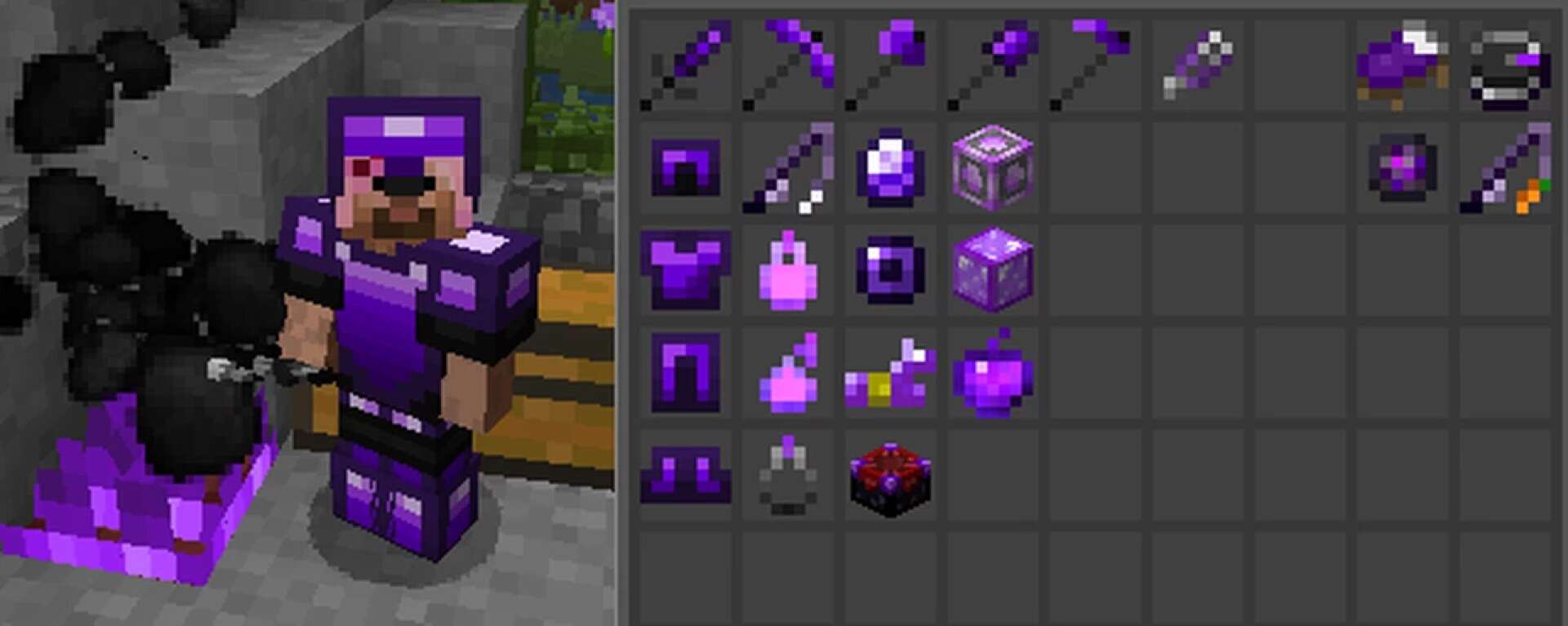
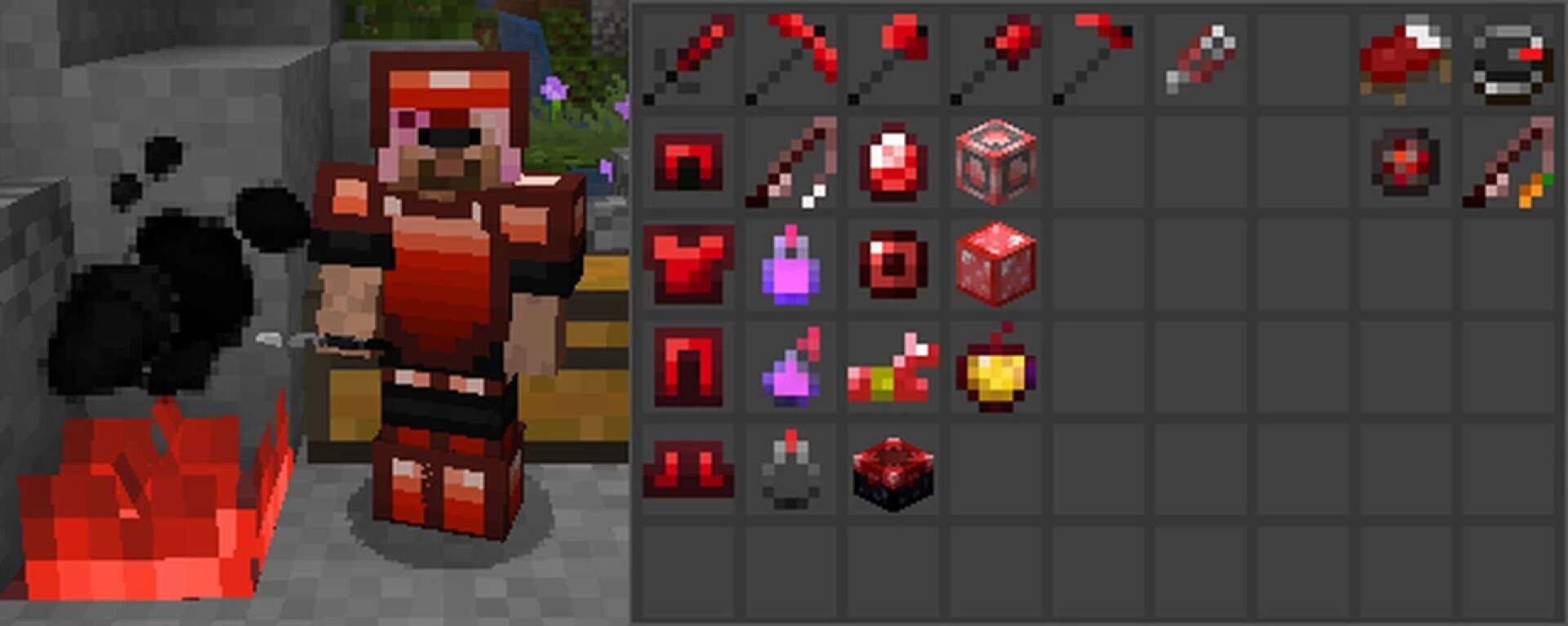
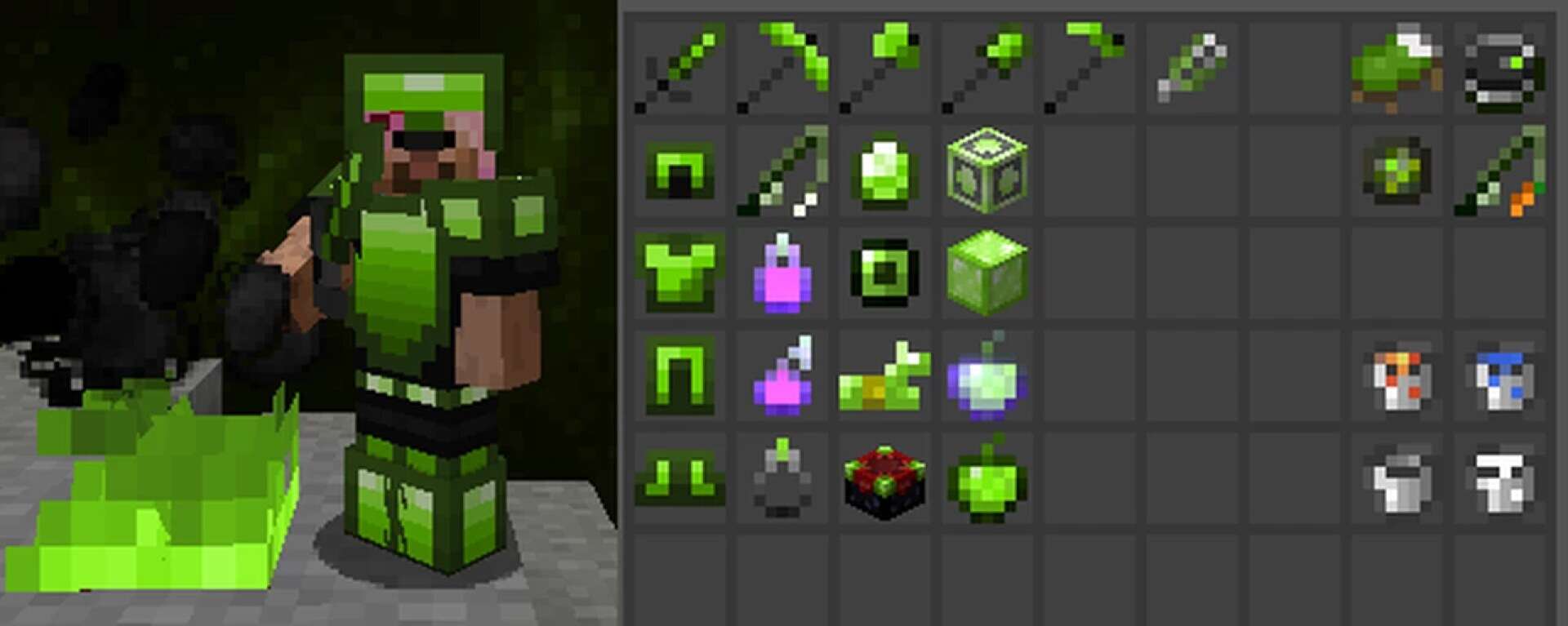
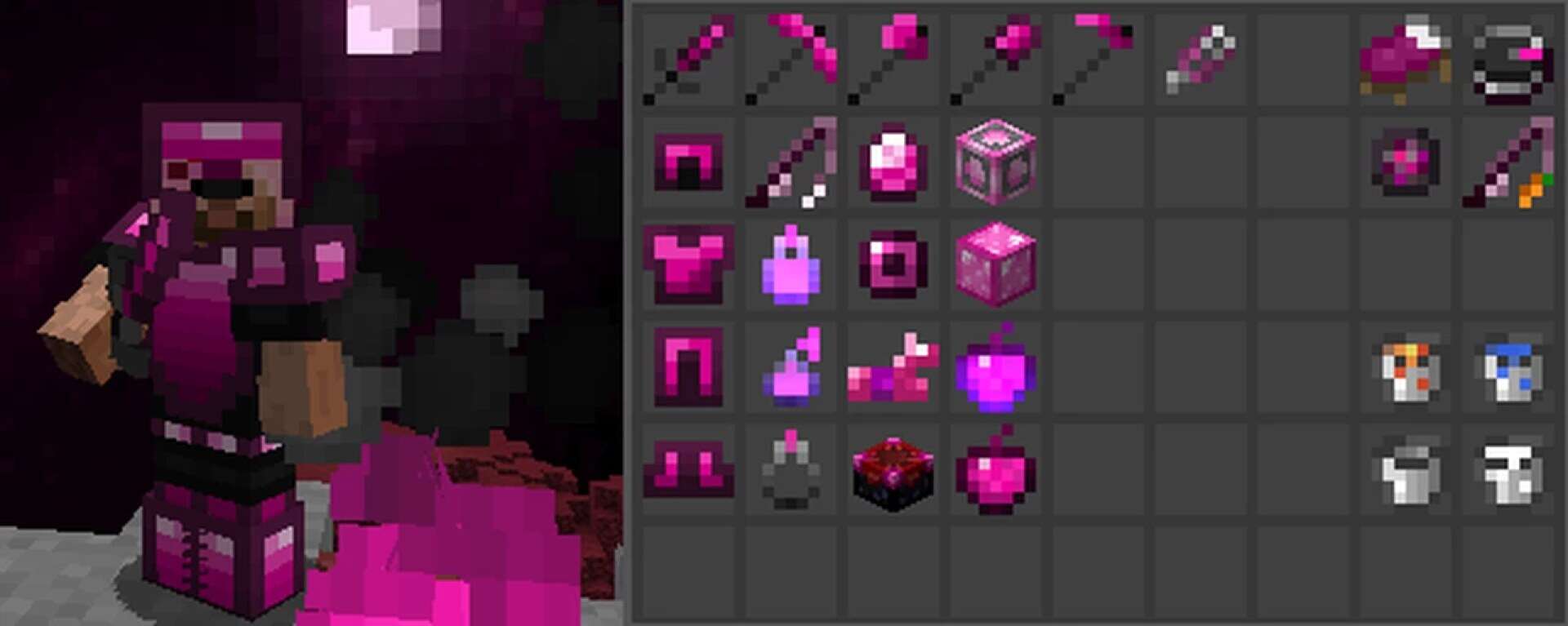
Water has also been overhauled, shifting from the strong opaque blue of the original game to a crystal clear appearance. This change not only looks refreshing but also ensures you never lose sight of your opponents or surroundings while underwater. Similar attention has been given to glass, which is far less distracting, and even weather effects like rain and snow, which are refined to improve clarity. What makes Dark Pixels so appealing is its incredible versatility. While it was primarily built with PvP servers in mind, it doesn’t lock you into that niche. The same performance boosts and streamlined visuals also carry over beautifully into survival gameplay. Whether you are engaged in fast-paced duels or simply exploring, building, and relaxing in your world, this pack offers a balance that feels natural. You won’t be staring at overly simplified textures that break immersion, but you’ll still enjoy the benefits of smoother rendering. For many players, this balance between performance and aesthetics is the real selling point. Customization is another area where Fryne’s work truly shines. Alongside the main Dark Pixels pack, there are a variety of add-ons available, offering color edits that let you adjust the look to your exact taste. Want a lovely pink tint to your environment or a warmer orange glow to your battles? Simply apply the add-on on top of the base pack and make the visuals your own. This flexibility ensures the pack remains fresh and adaptable to individual preferences without sacrificing its competitive focus. At the end of the day, the Dark Pixels resource pack is about giving players absolute control — control over performance, control over clarity, and control over how their game feels during combat. Even if you aren’t struggling with FPS issues, the buttery smoothness that comes with using a lightweight texture set can make your duels feel more responsive and your victories more satisfying. For players who have been searching for a PvP-focused pack that doesn’t compromise the soul of Minecraft while still delivering consistent advantages, I genuinely believe the Dark Pixels texture pack is the exact answer you have been looking for.
Dark Pixels PvP should be compatible with all of these Minecraft versions: 1.8.9 – 1.8.8 – 1.8.1 – 1.8.6 – 1.8 – 1.7.10 – 1.7.9 – 1.7.4 – 1.7 – 1.6.4 – 1.6.2
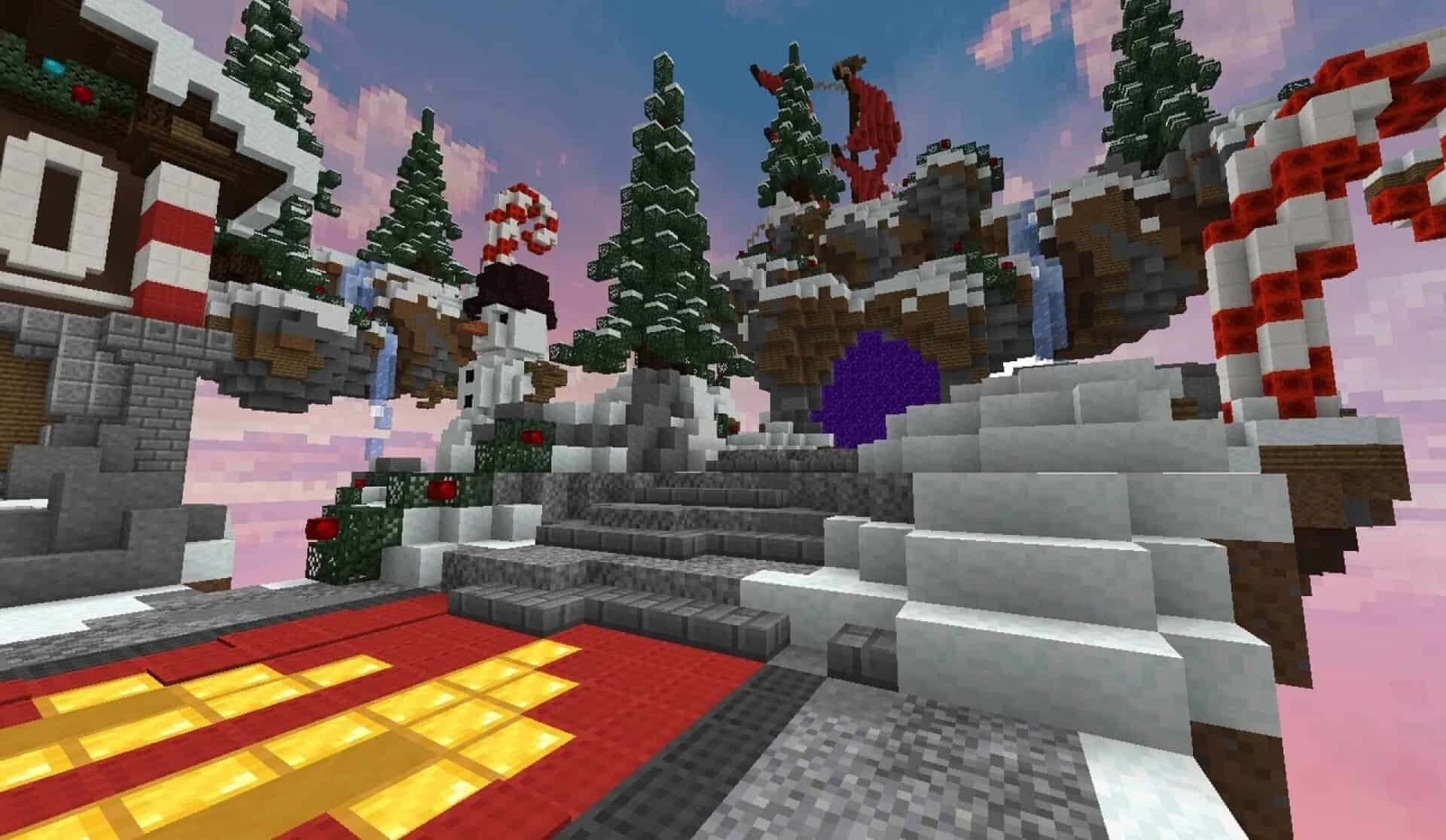
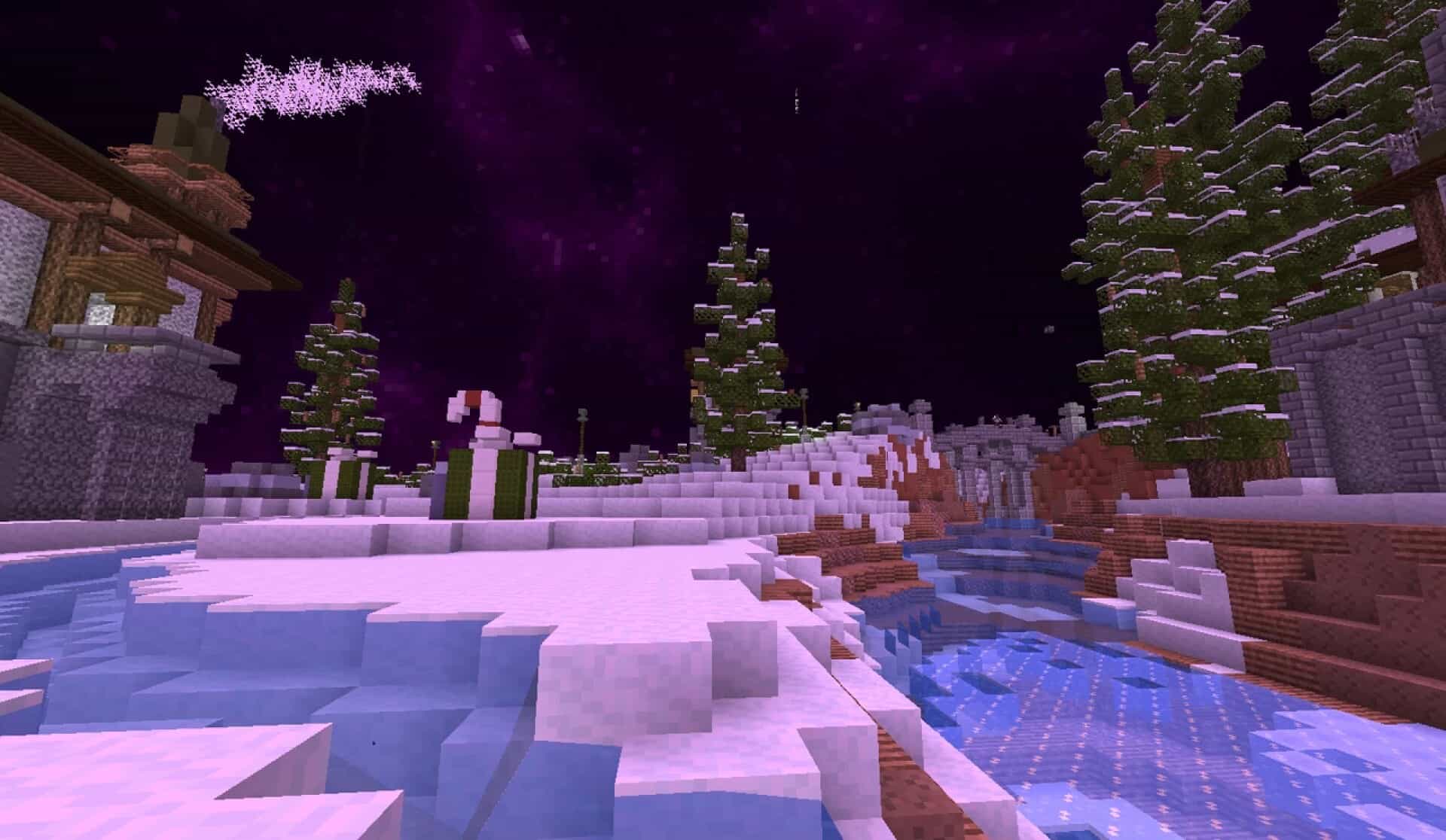
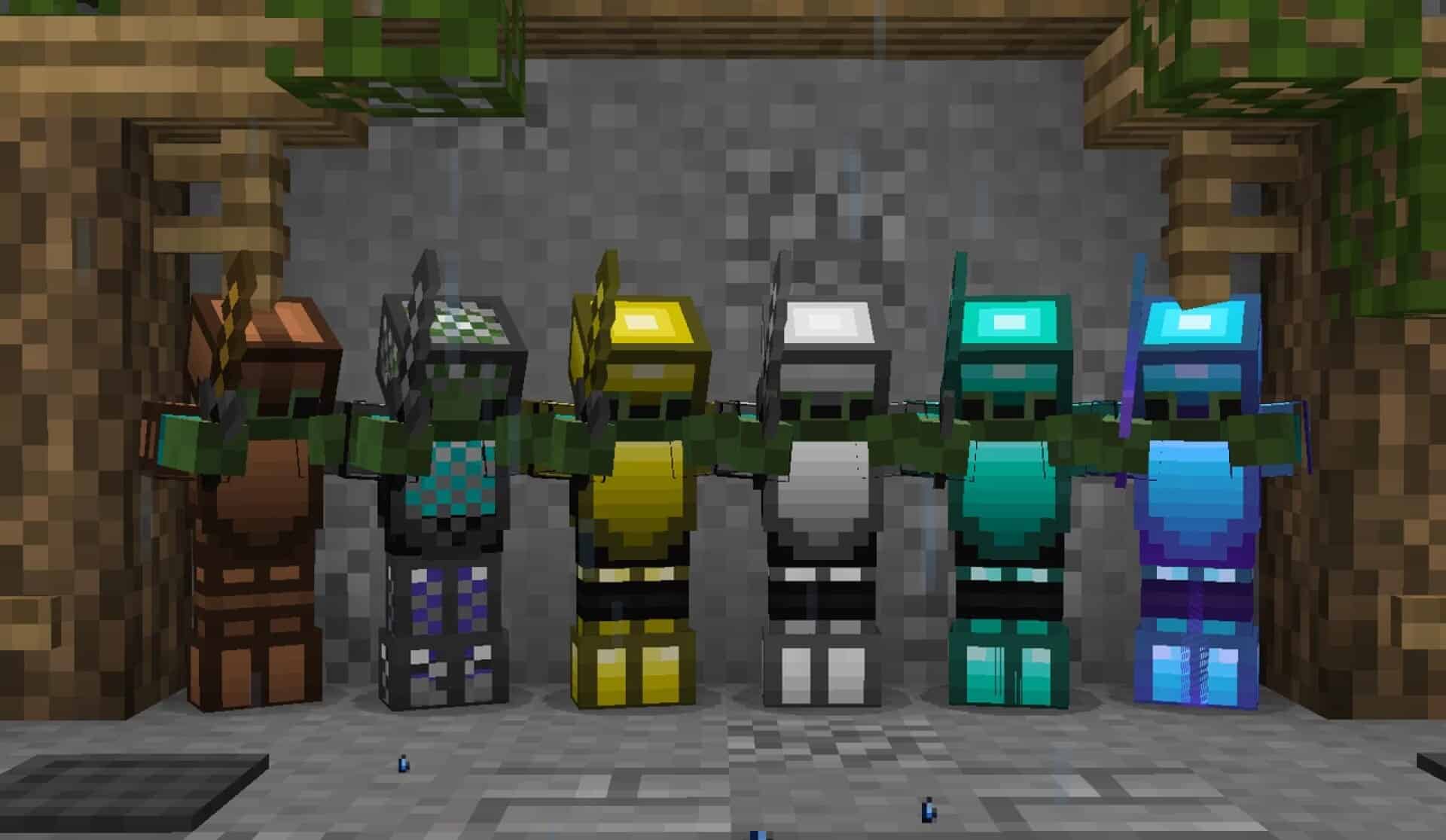
Screenshots
How to Install Texture Pack (Simple 10 Steps)
- Download OptiFine: Most of the texture packs and shaders need OptiFine. That’s why, first download and install OptiFine for the version of Minecraft you want to play.
- Download the Texture Pack: Get the texture pack you want from the download section. Choose the version that works with your Minecraft and your PC’s performance.
- Open Minecraft Launcher: Start Minecraft using the official game launcher — or even TLauncher, if you use that.
- Go to Options: From the main menu, click on the “Options” button.
- Open Resource Packs: Inside Options, click on “Resource Packs…”.
- Open the Resource Pack Folder: Click on “Open Resource Pack Folder” — this will open a folder named “resourcepacks”.
- Move the Pack File: Copy or move the .zip file you downloaded into that “resourcepacks” folder. (Don’t unzip the file — Minecraft uses it as-is!)
- Go Back and Refresh: Close the folder and click “Done”, then go back into “Resource Packs…” again.
- Activate the Pack: You’ll see the pack on the left side. Hover over it and click the arrow to move it to the right (active side).
Tip: If you get a message that the pack is for a different version, just click “Yes” — it usually works fine. - Click Done and Enjoy: Click “Done” again. Now your pack is ready to use in-game. It’s that easy!
Credits
This project was originally created by Fryne. We do not claim ownership of this content, nor do we host modified versions of the files. All rights remain with the original creator. We encourage you to support Fryne by downloading directly from the official sources provided below.
Download Links
Java Edition
Download Instructions
Curseforge: download starts automatically after a few seconds;
Mediafire: click the big blue button with the text “DOWNLOAD”;
Google Drive: in the top right corner you will see a small download icon (down arrow), click it and the download should start;