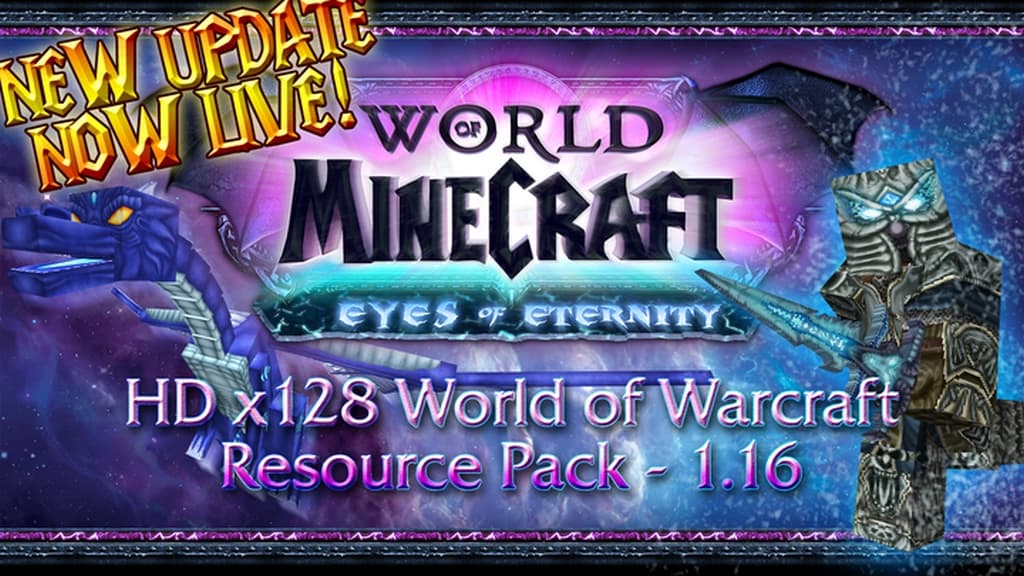
NinjaWorgen has launched an amazing pack that has truly received a lot of fantastic ratings and critical remarks from everyone who has experienced it. True to its name, the pack features a gorgeous World of Warcraft aesthetic that will keep you thoroughly entertained and engaged. The main goal of this iconic design is to seamlessly combine different elements of WoW and form a great, immersive experience right inside your Minecraft world. There are so many inspiring moments and genuinely fun activities to enjoy in this World of Warcraft pack. Do not miss this amazing chance to enjoy an experience like no other. When compared with other Warcraft-themed packs, the World of Minecraft resource pack feels noticeably more adventurous and fun.
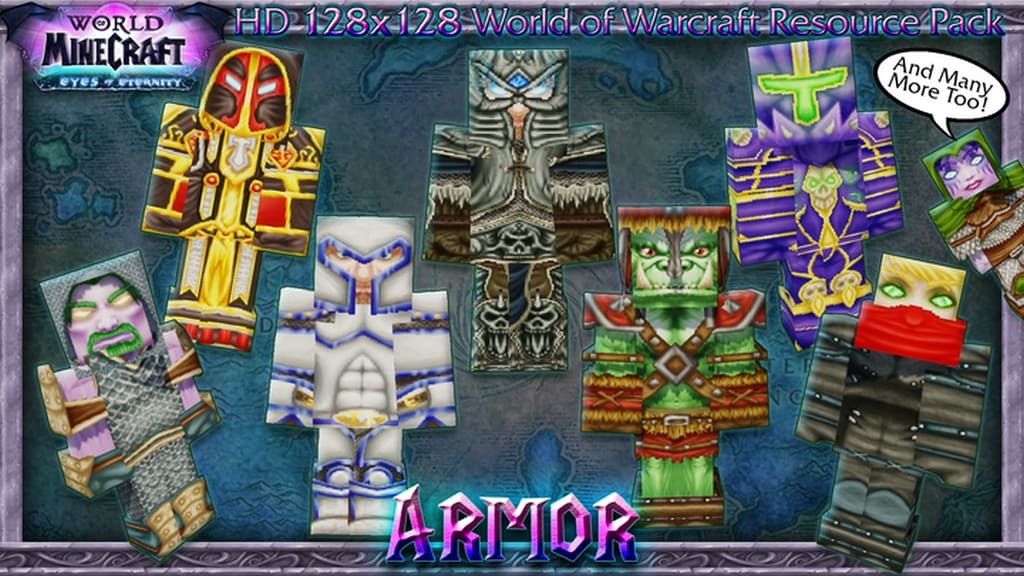
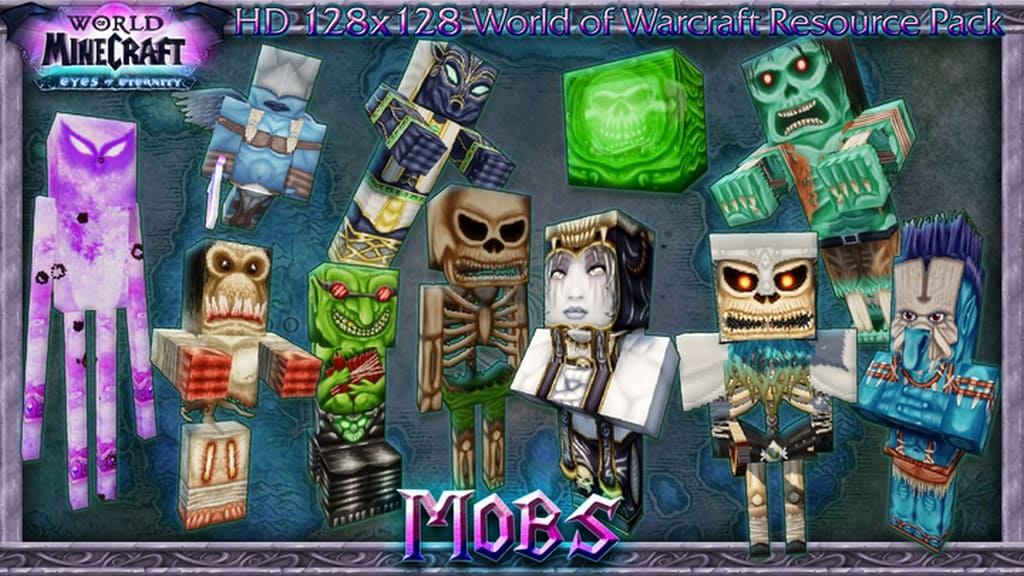
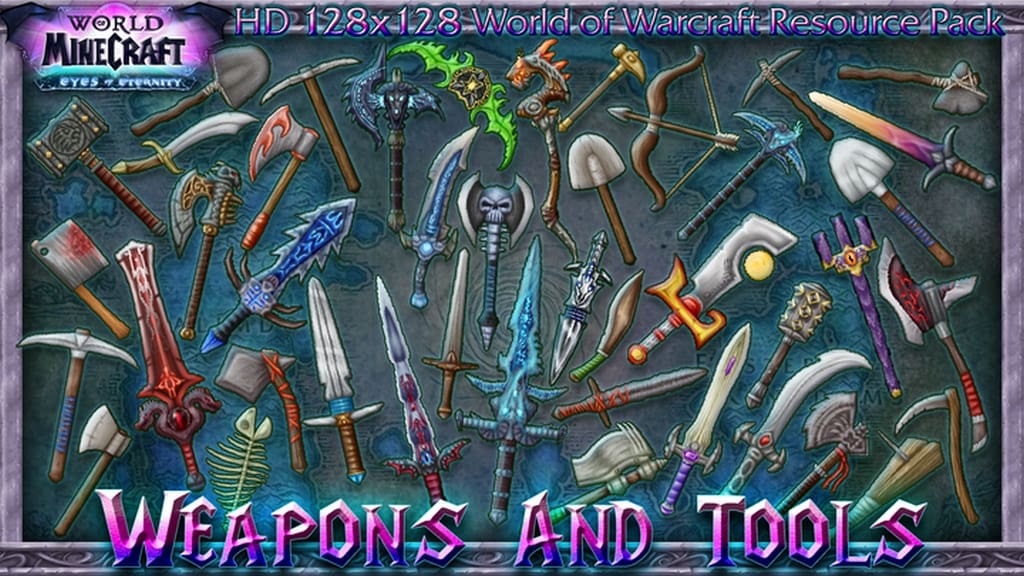
The pack features the entire Warcraft universe and incorporates all of its assets into one single brilliant event. Some of the special features of the pack include custom CTM textures, smooth animations, atmospheric music, and tons of delightful sounds that genuinely turn the whole experience into pure WoW fun. Unlike other Minecraft packs with a similar theme, the World of Minecraft set of textures boasts a pretty high resolution thanks to its 128x fidelity. You will definitely want a high-end PC with great specs to run this pack smoothly. Running the game on a capable machine will ensure that you do not run into any annoying trouble or problems with your frame rate. This pack is continuously updated, and the designers are still giving it a ton of attention. It won’t take long before even more textures and assets are added to the pack. We are certainly excited to see and experience more from the World of Minecraft resource pack!
World of Minecraft (WoW Resource Pack) should be compatible with all of these Minecraft versions: 1.16.5 – 1.16.4 – 1.16.3 – 1.16.2 – 1.16.1 – 1.16 – 1.15.2 – 1.15.1 – 1.15 – 1.14.4 – 1.14.3 – 1.14.2 – 1.14 – 1.13.2 – 1.13.1 – 1.13 – 1.12.2 – 1.12 – 1.11.2 – 1.11
Screenshots


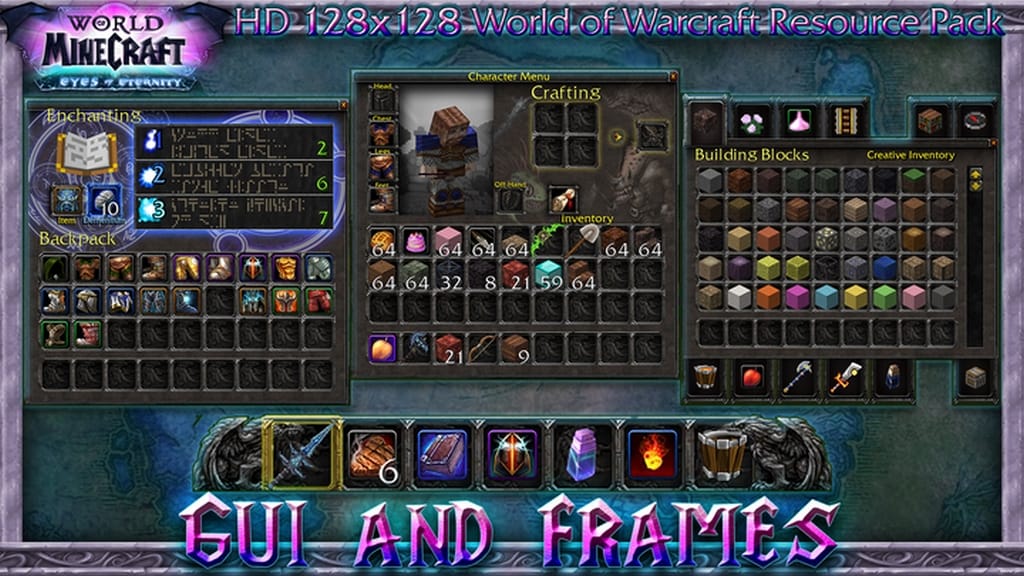
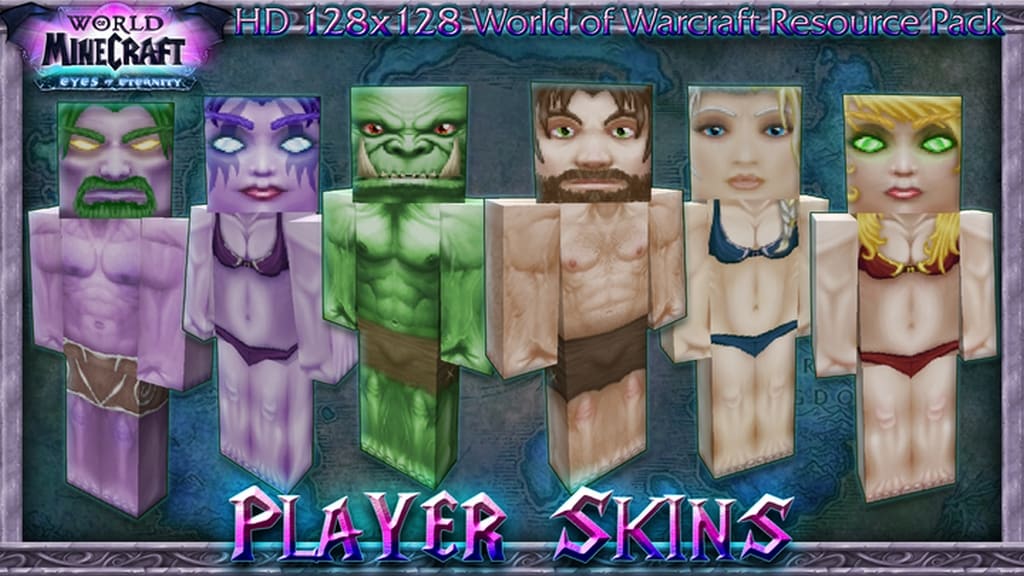
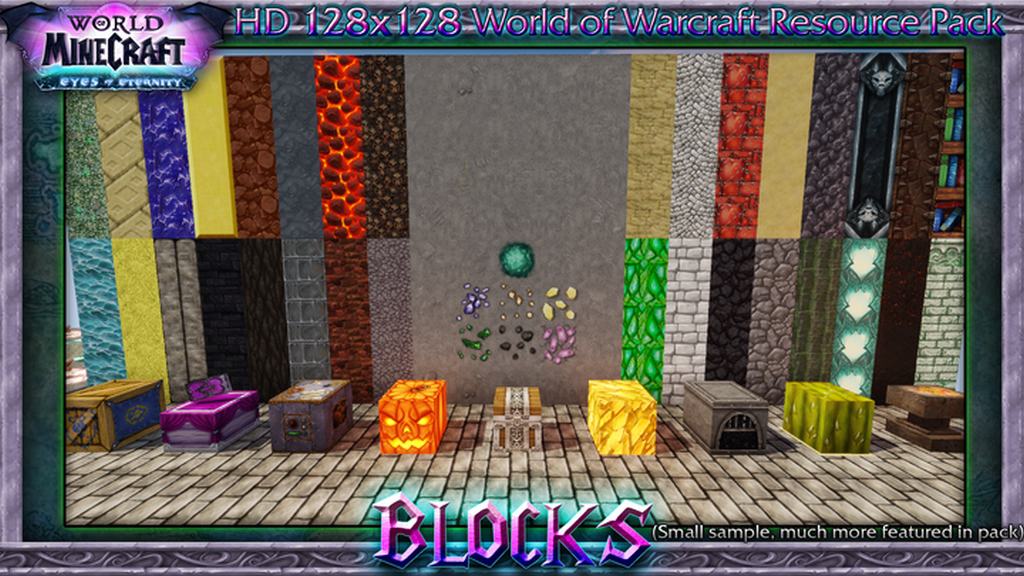
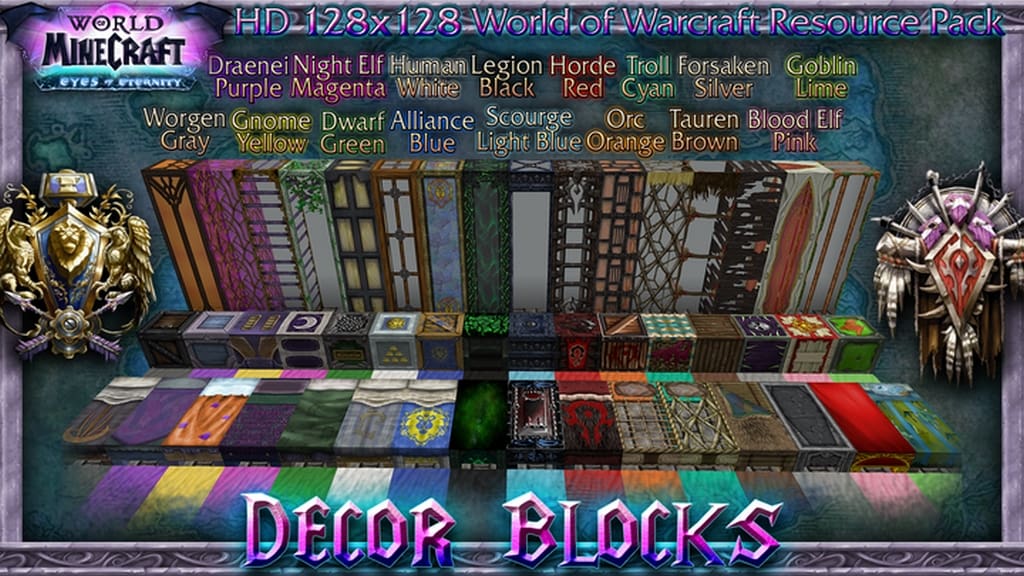


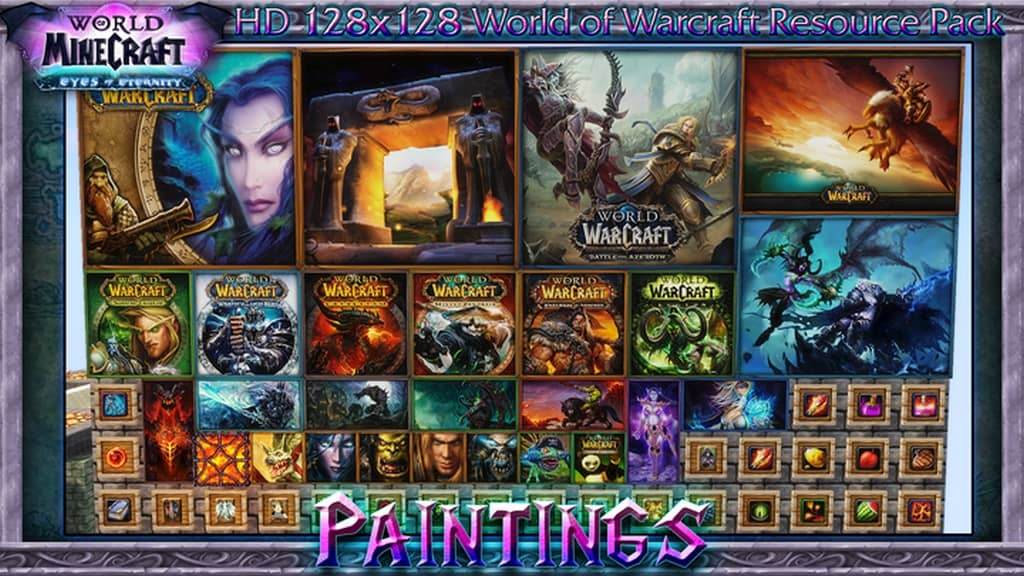
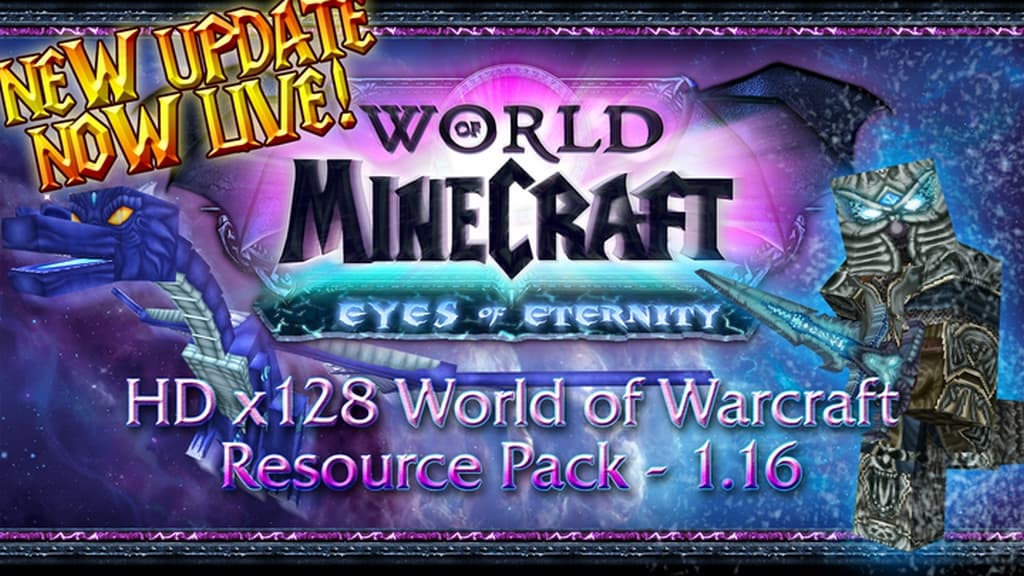

How to Install Texture Pack (Simple 10 Steps)
- Download OptiFine: Most of the texture packs and shaders need OptiFine. That’s why, first download and install OptiFine for the version of Minecraft you want to play.
- Download the Texture Pack: Get the texture pack you want from the download section. Choose the version that works with your Minecraft and your PC’s performance.
- Open Minecraft Launcher: Start Minecraft using the official game launcher — or even TLauncher, if you use that.
- Go to Options: From the main menu, click on the “Options” button.
- Open Resource Packs: Inside Options, click on “Resource Packs…”.
- Open the Resource Pack Folder: Click on “Open Resource Pack Folder” — this will open a folder named “resourcepacks”.
- Move the Pack File: Copy or move the .zip file you downloaded into that “resourcepacks” folder. (Don’t unzip the file — Minecraft uses it as-is!)
- Go Back and Refresh: Close the folder and click “Done”, then go back into “Resource Packs…” again.
- Activate the Pack: You’ll see the pack on the left side. Hover over it and click the arrow to move it to the right (active side).
Tip: If you get a message that the pack is for a different version, just click “Yes” — it usually works fine. - Click Done and Enjoy: Click “Done” again. Now your pack is ready to use in-game. It’s that easy!
Credits
This resource pack was created by NinjaWorgen. We do not claim ownership of this content, nor do we modify or host these files on our own servers. All rights remain with the original creator. We highly encourage you to support NinjaWorgen by visiting their official sources and showing appreciation for their incredible work.
Download Links
Java Edition
Download Instructions
Curseforge: download starts automatically after a few seconds;
Mediafire: click the big blue button with the text “DOWNLOAD”;
Google Drive: in the top right corner you will see a small download icon (down arrow), click it and the download should start;


