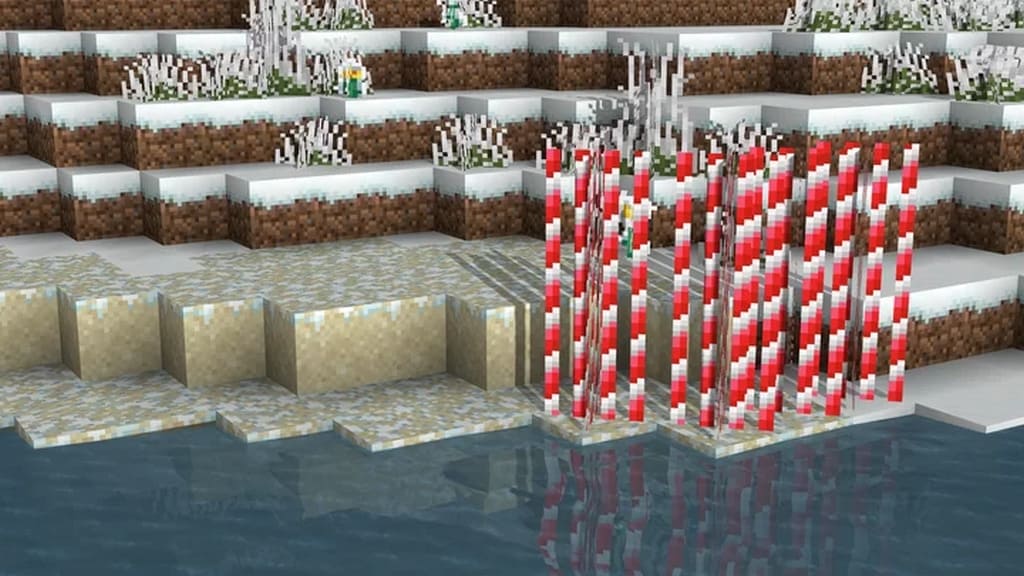
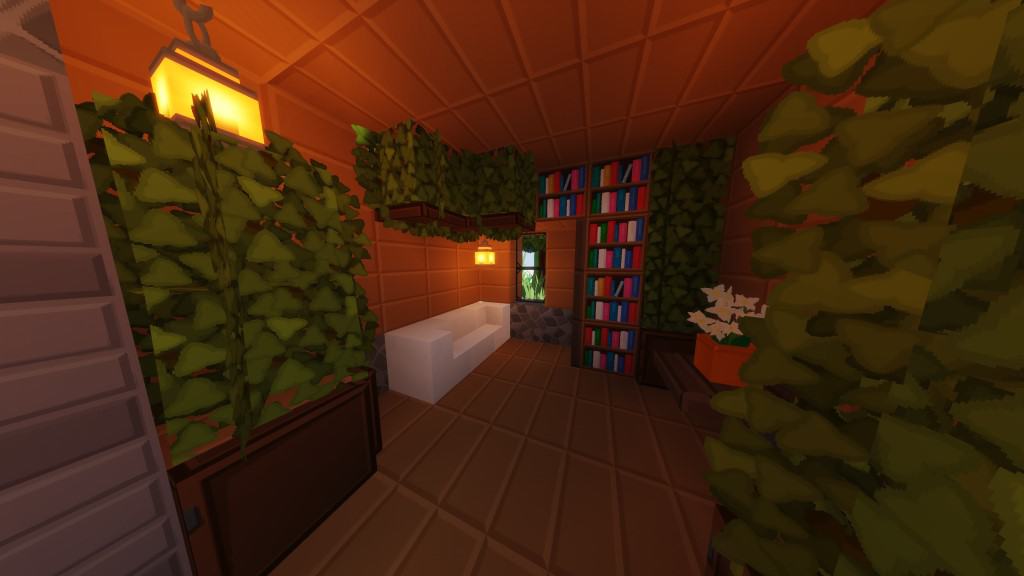
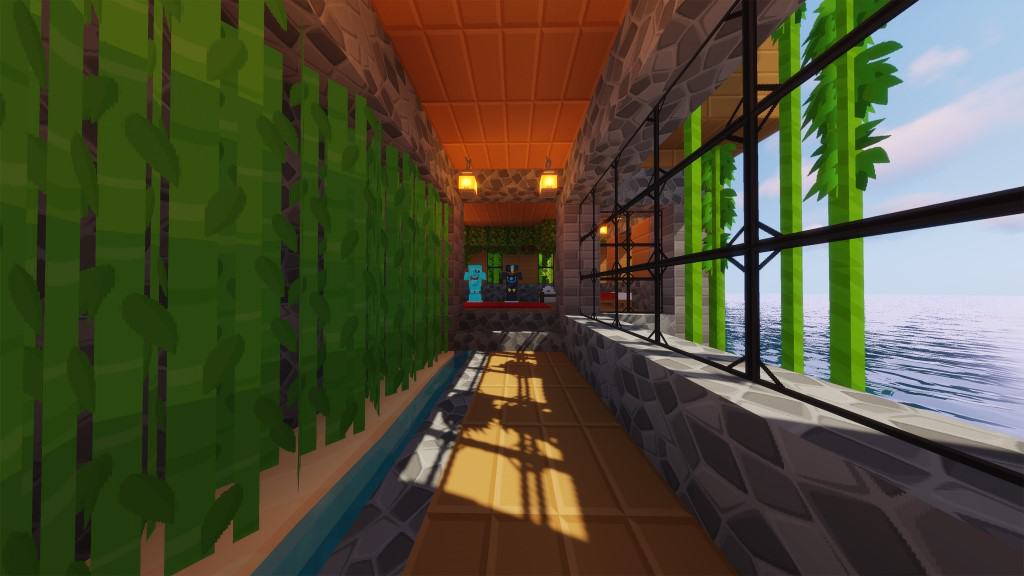
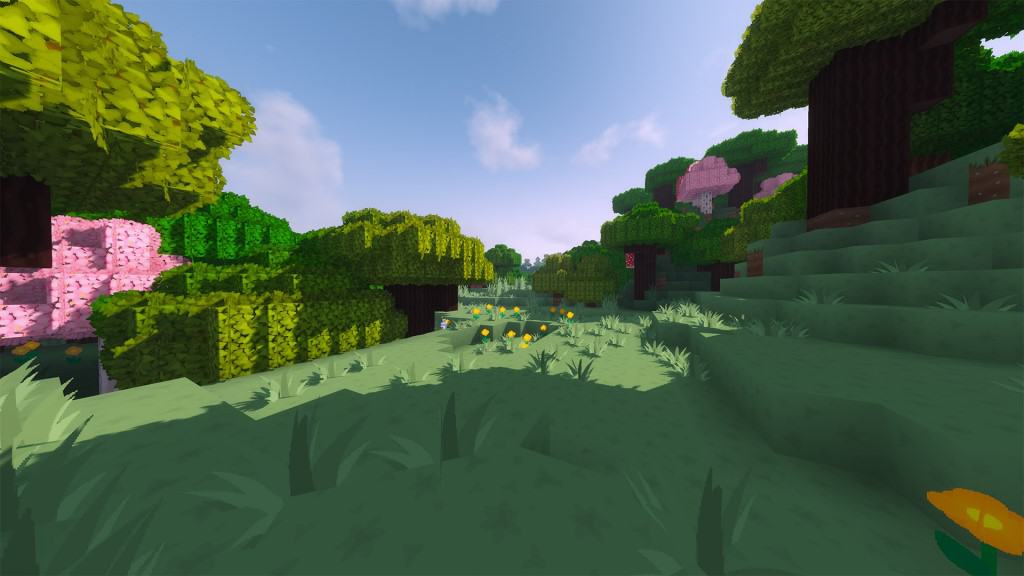
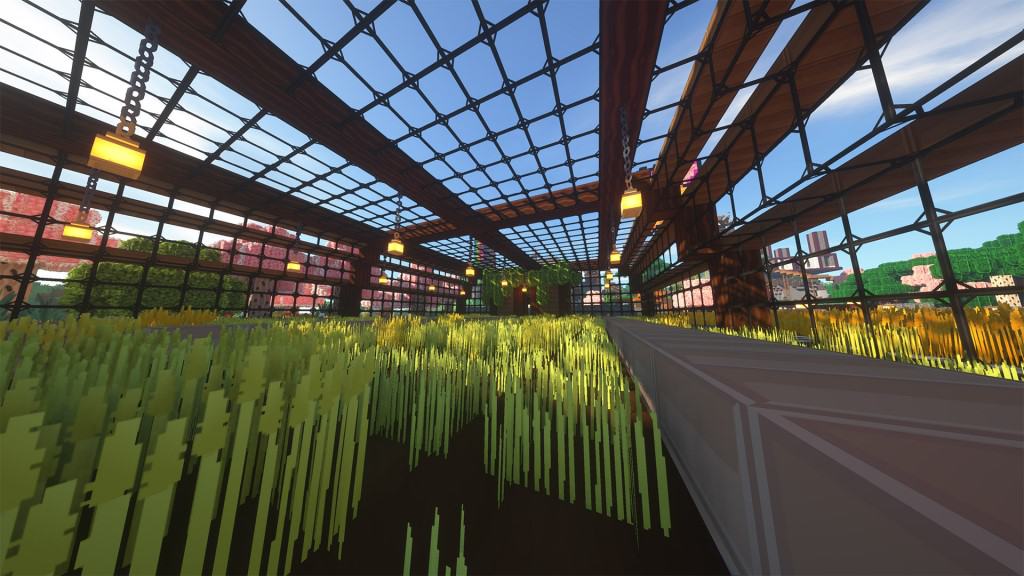
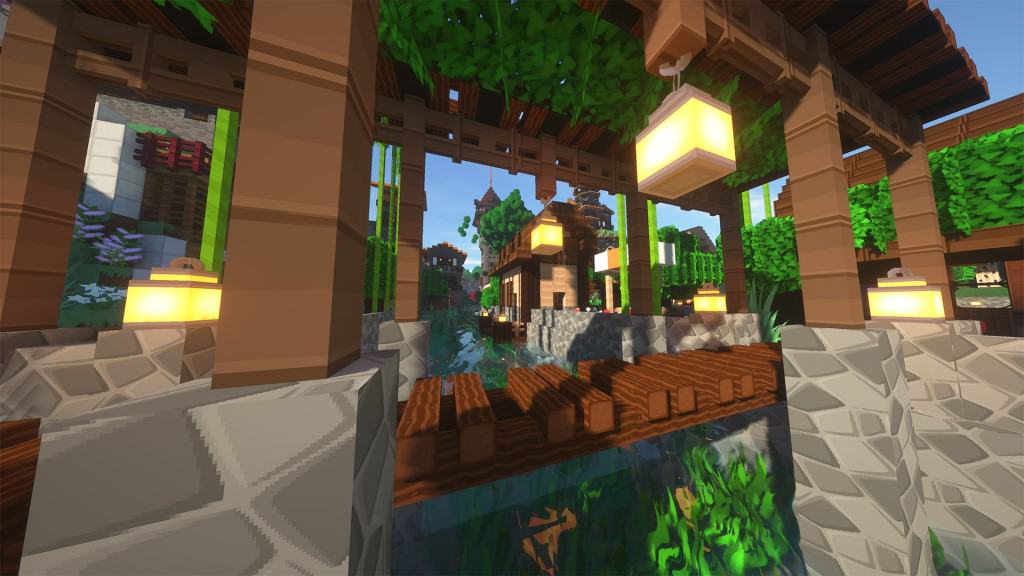
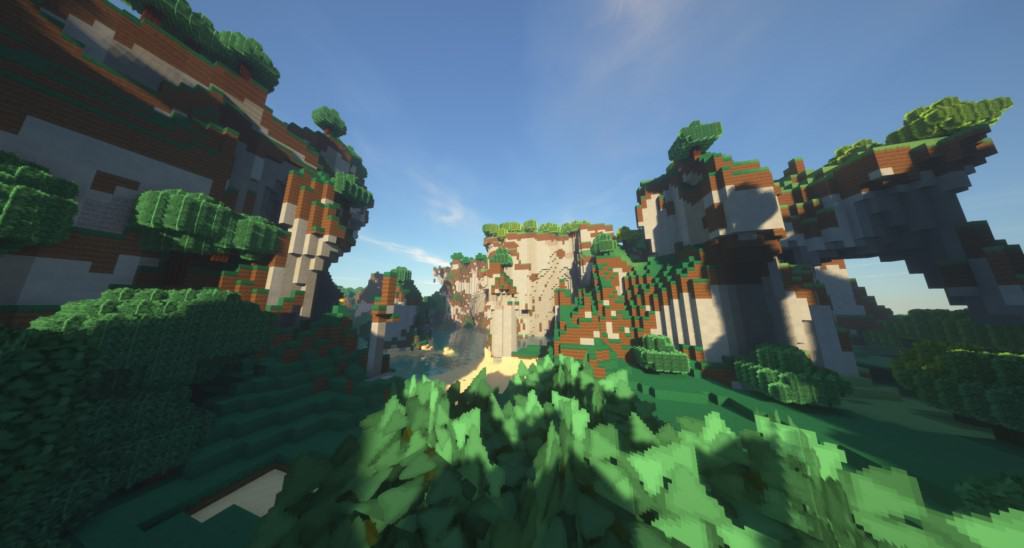
The SimonKraft resource pack truly manages to change vanilla Minecraft for the better with its astonishing visuals, making the whole game feel so much more alive. When we as players are looking for texture packs to try out, we are usually looking for a genuine visual upgrade, and some resource packs simply do it better than others. SimonKraft is an absolute masterpiece of a resource pack that removes sloppy textures and swaps them with vastly improved ones that are easier on the eyes while making the color palette much brighter. The absolute greatest achievement of the SimonKraft resource pack is its brilliant reduction of noise and scatter in textures. To achieve such a wonderfully cleaner look, the resource pack upscales the resolution of the textures to a stunning 128x. At this 128x resolution, the textures look much less pixelated and the whole world maintains its iconic blocky charm. However, simply upscaling the textures is not enough to make Minecraft appear this visually stunning on its own. Many textures were thoughtfully changed and improved within SimonKraft. According to the developer, an impressive 80% of the default textures have been changed or upgraded in one way or another. The textures that have been changed are immensely more detailed. There are gorgeous new textures for ores, wood, sand, gravel, bricks, stone, and many more. You will also find wonderful new textures for pavements, windows, trees, grass, plants, water, crops, bookshelves, crates, floor tiles, and much more.
Beyond the wonderfully improved textures, the SimonKraft resource pack also beautifully touches upon the player HUD and GUI. Item icons have been upscaled and the interface feels much crisper and significantly more colorful. Sky and water textures have also been carefully upgraded to appear more in line with the overall creative direction of SimonKraft. Many of the delightful visual changes in the SimonKraft resource pack strongly resemble old anime aesthetics. This is because the developer of the resource pack, SiMonk0, cleverly sought inspiration in the timeless artwork of Studio Ghibli. Studio Ghibli is a well-established Japanese studio that creates mesmerizing animations out of their headquarters in Tokyo. Released back in 2020, this resource pack has already received tens of thousands of well-deserved downloads thanks to its incredible level of creativity and staggering attention to detail. While there is no official recommendation for a particular shader, I think it would be thoroughly worthwhile to experiment with different ones. Running the higher 128x resolution alongside a fantastic shader pack will certainly affect your frame rates and will definitely require a powerful system to run properly. Ultimately, the SimonKraft resource pack is quite hardware demanding and may not be ideal for competitive PvP, since PvP resource packs should ideally offer high frame rates to reduce input lag.
SimonKraft should be compatible with all of these Minecraft versions: 1.21.11 – 1.21.10 – 1.21.9 – 1.21.8 – 1.21.7 – 1.21.6 – 1.21.5 – 1.21.4 – 1.21.3 – 1.21.2 – 1.21.1 – 1.21 – 1.20.6 – 1.20.5 – 1.20.4 – 1.20.3 – 1.20.2 – 1.20.1 – 1.20 – 1.19.4 – 1.19.3 – 1.19.2 – 1.19.1 – 1.19 – 1.18.2 – 1.18.1 – 1.18 – 1.17.1 – 1.17 – 1.16.5 – 1.16.4 – 1.16.3 – 1.16.2 – 1.16.1 – 1.16 – 1.15.2 – 1.15.1 – 1.15 – Bedrock Edition – PE
Screenshots



How to Install Texture Pack (Simple 10 Steps)
- Download OptiFine: Most of the texture packs and shaders need OptiFine. That’s why, first download and install OptiFine for the version of Minecraft you want to play.
- Download the Texture Pack: Get the texture pack you want from the download section. Choose the version that works with your Minecraft and your PC’s performance.
- Open Minecraft Launcher: Start Minecraft using the official game launcher — or even TLauncher, if you use that.
- Go to Options: From the main menu, click on the “Options” button.
- Open Resource Packs: Inside Options, click on “Resource Packs…”.
- Open the Resource Pack Folder: Click on “Open Resource Pack Folder” — this will open a folder named “resourcepacks”.
- Move the Pack File: Copy or move the .zip file you downloaded into that “resourcepacks” folder. (Don’t unzip the file — Minecraft uses it as-is!)
- Go Back and Refresh: Close the folder and click “Done”, then go back into “Resource Packs…” again.
- Activate the Pack: You’ll see the pack on the left side. Hover over it and click the arrow to move it to the right (active side).
Tip: If you get a message that the pack is for a different version, just click “Yes” — it usually works fine. - Click Done and Enjoy: Click “Done” again. Now your pack is ready to use in-game. It’s that easy!
Credits
This resource pack was created by SiMonk0. We do not claim ownership of this content, and we do not host or modify any files on our servers. All rights and credits belong entirely to the original creator. We strongly encourage you to visit the official download links to support the author.
Download Links
Java Edition
- [128x] Minecraft 1.21.x – 1.20.2
- [128x] Minecraft 1.20.1 – 1.20
- [128x] Minecraft 1.19.x
- [128x] Minecraft 1.18.x
- [128x] Minecraft 1.17.x
- [128x] Minecraft 1.16.x – 1.15.x
Bedrock Edition
Download Instructions
Curseforge: download starts automatically after a few seconds;
Mediafire: click the big blue button with the text “DOWNLOAD”;
Google Drive: in the top right corner you will see a small download icon (down arrow), click it and the download should start;