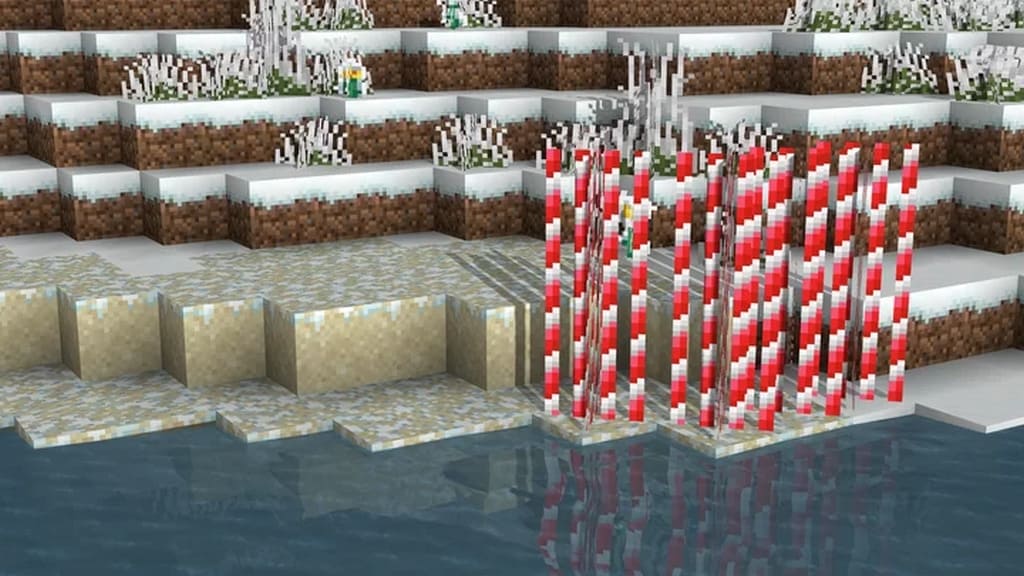
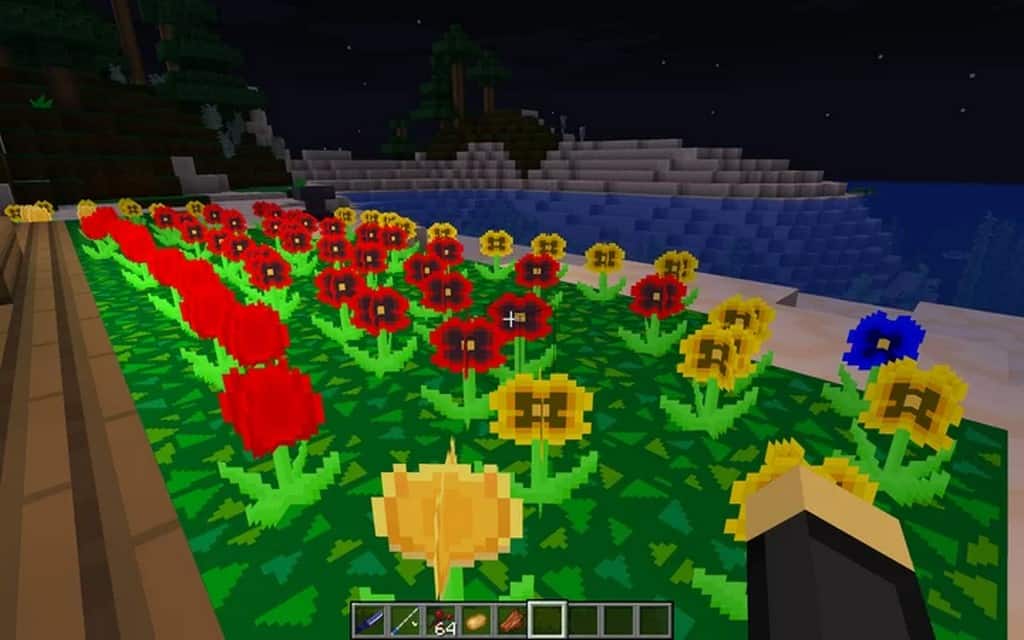
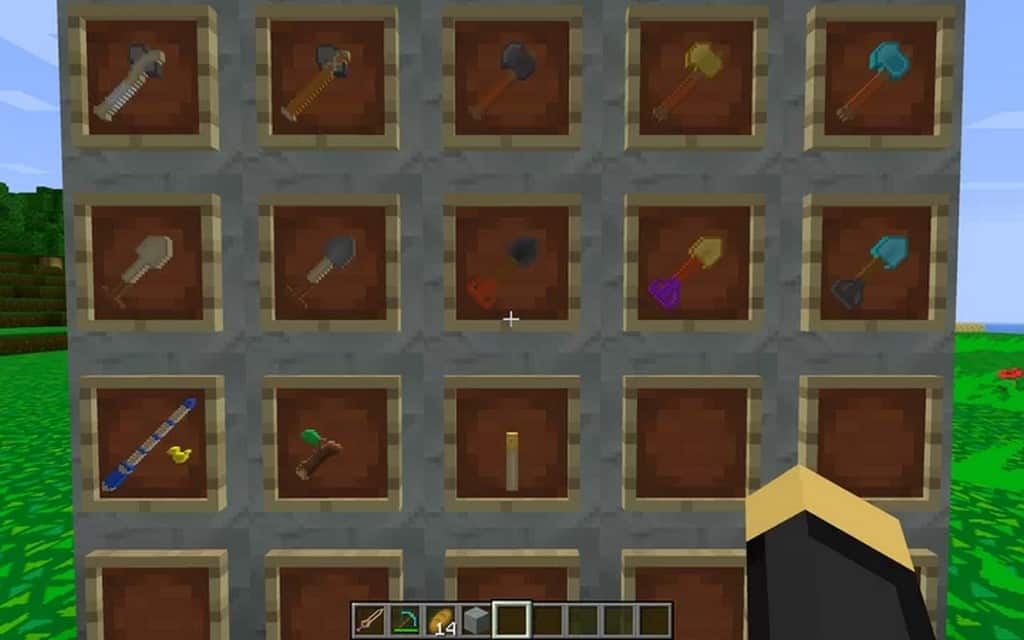
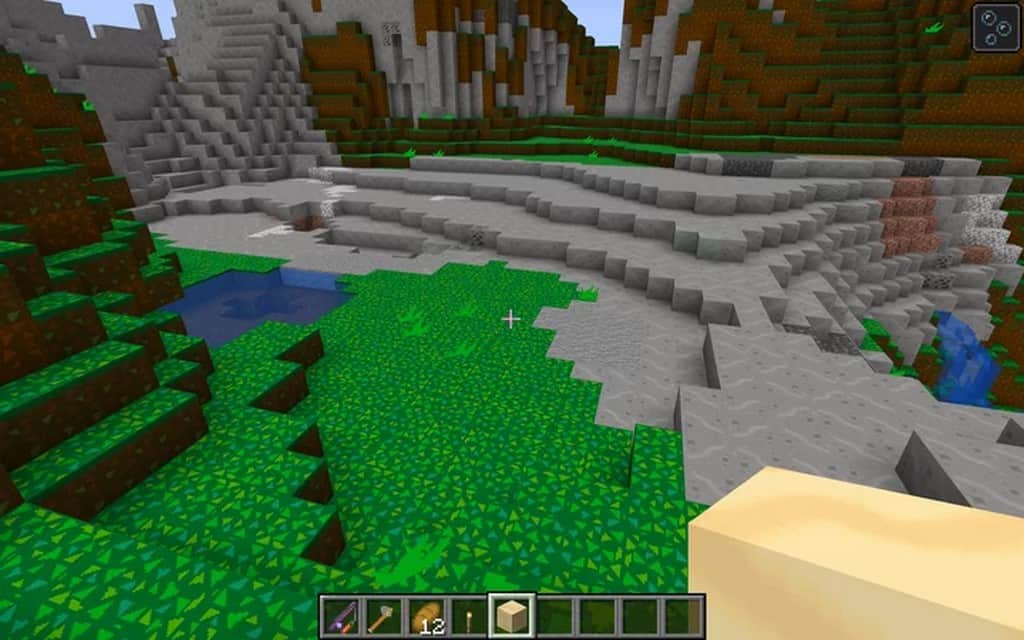
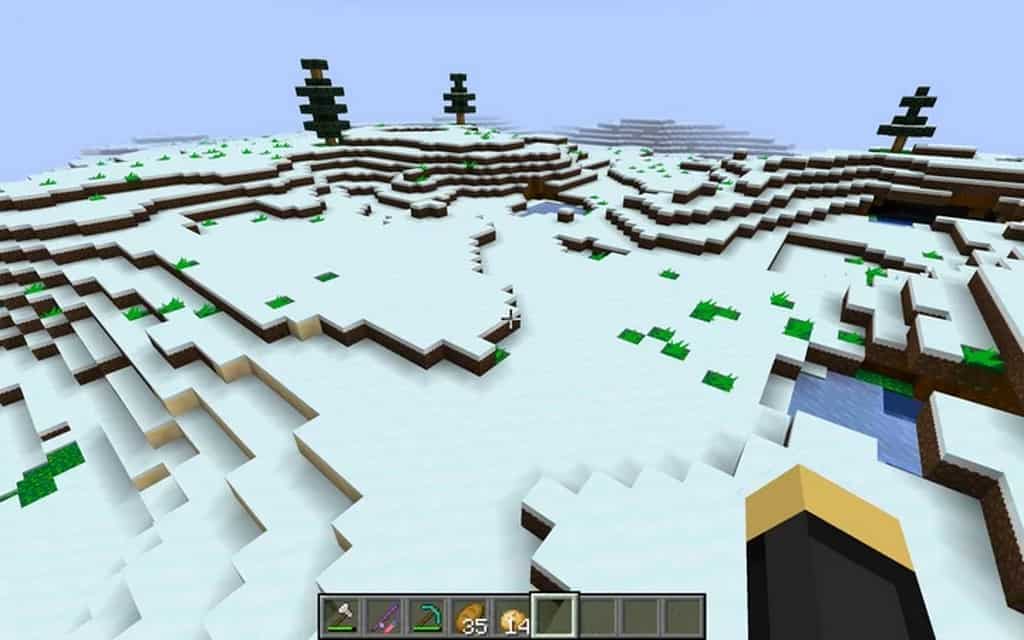
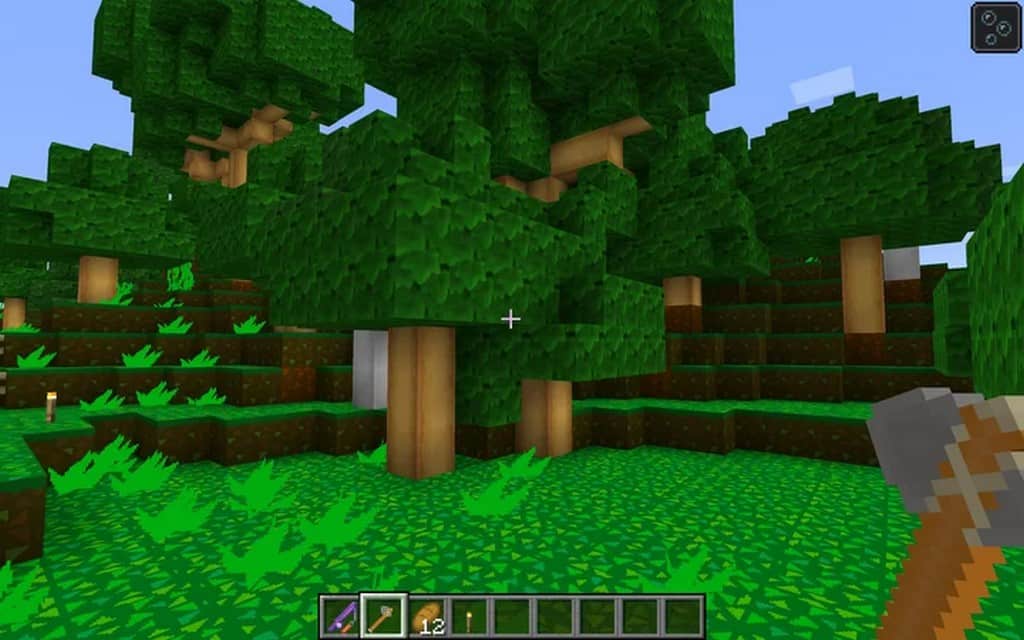
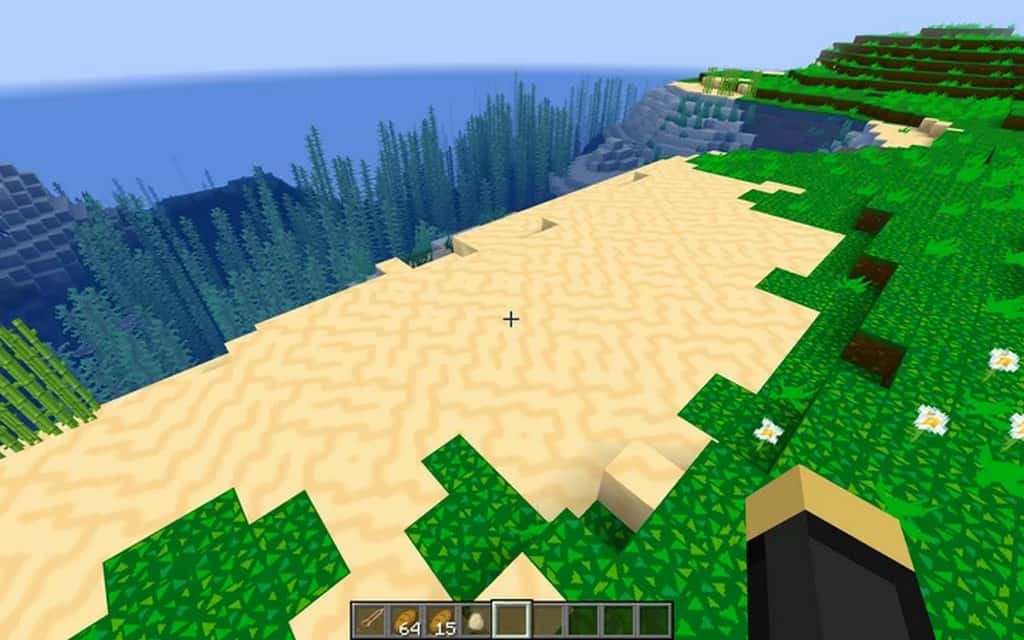
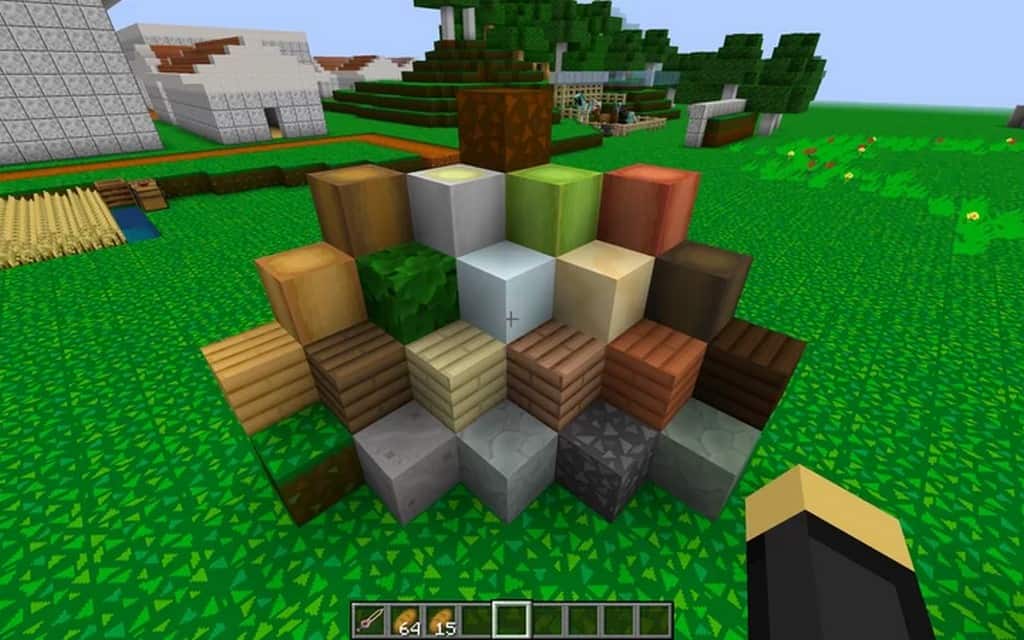
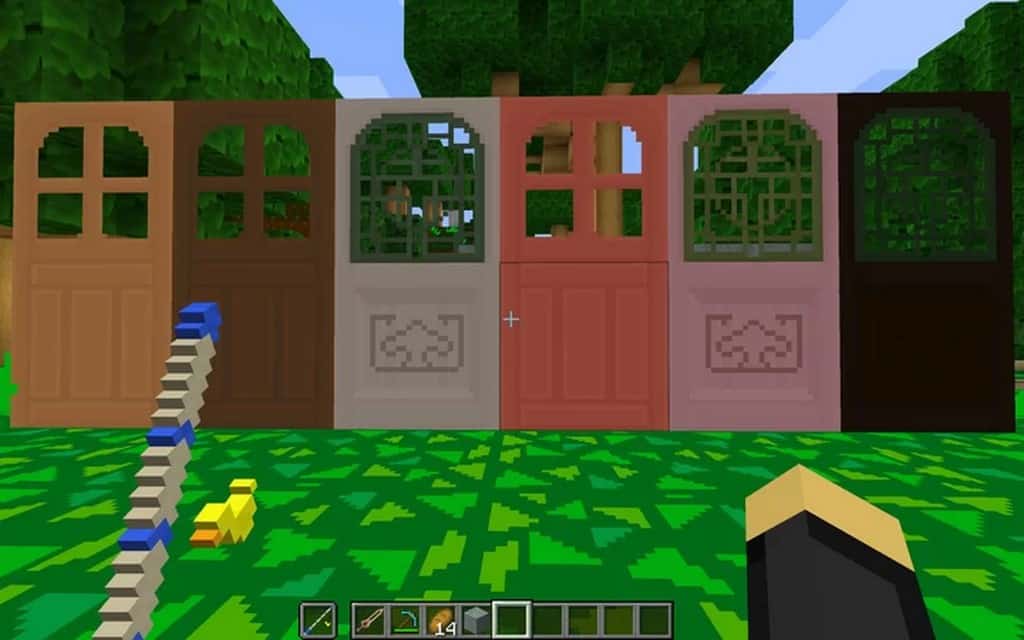
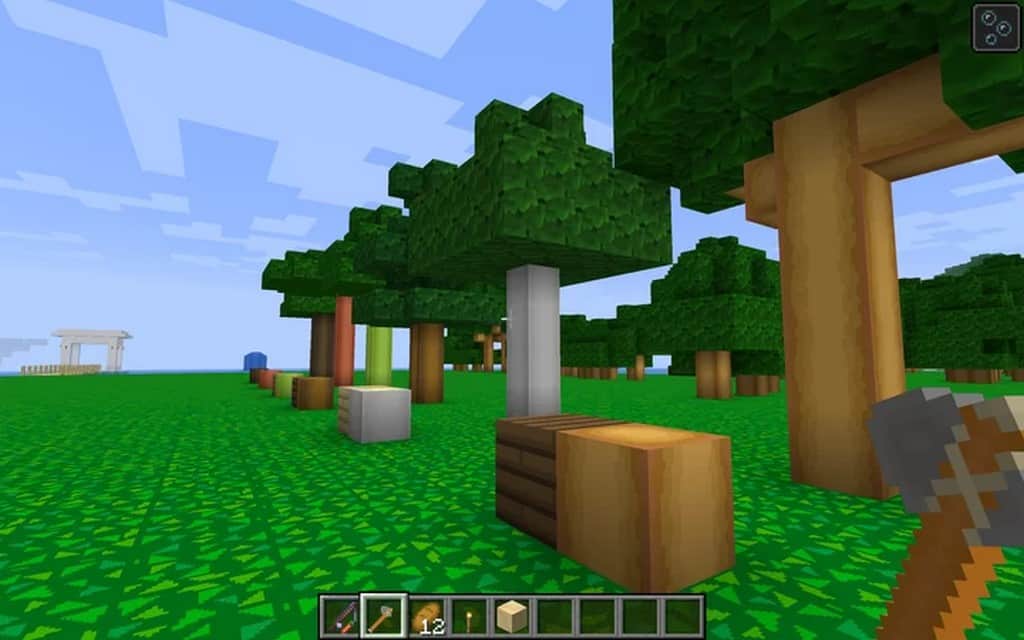
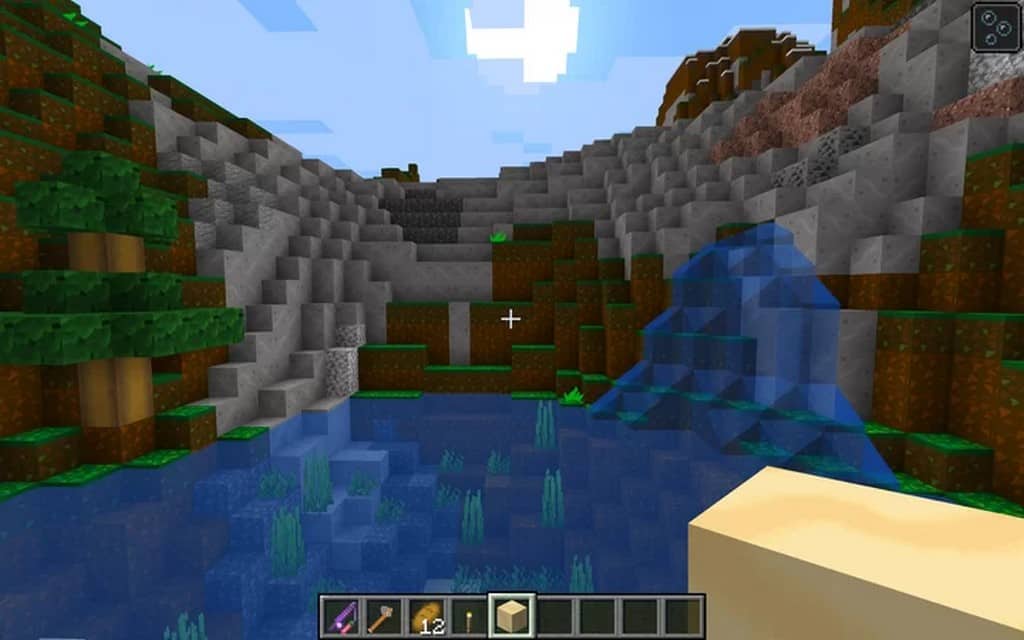
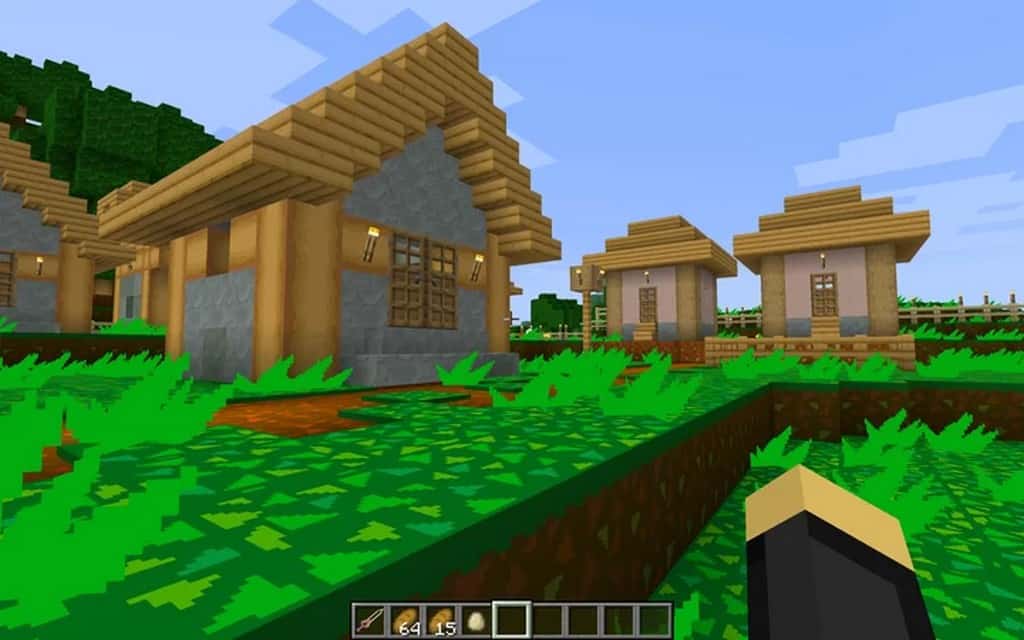
Minecraft on its own is truly a great game, and I love how the community has been given the freedom and necessary tools to make the experience even better. With so many creative minds dedicated to the game, we always get to see some amazing resource packs, and the Animal Crossing resource pack is one such fantastic example. Despite being inspired by the Animal Crossing New Horizons game for the Nintendo Switch, it still oozes incredible creativity. They say that imitation is the greatest compliment, and what the Animal Crossing resource pack manages to achieve is a true homage to the game. The texture pack changes several aspects of Minecraft, and textures are the first change that can be observed immediately upon loading in. Minecraft received a more charming, cartoonish look that is heavily inspired by the game, and the developers used a similar color palette, though that alone was not enough to replicate the full vibe of Animal Crossing. To truly replicate the visuals, more solid colors were used in the textures. Despite being a 32x resource pack, thus having double the resolution of vanilla Minecraft for textures, it brilliantly preserves the same blocky identity of the game. The solid and vibrant colors used on textures are the key elements that make the visuals so similar to the source game. Snow is much more fluid and uniform, the grass is noticeably greener, and the flowers have much more intense colors. I was especially thrilled to see that the resource pack introduces 7 new flower types, along with brand new textures for the crafting bench, new chests, clearer glass, and new textures for coconuts, oranges, peaches, and many more items. Being a resource pack that is inspired by Animal Crossing led the original developer to remove meats entirely from the game, which is a neat touch.
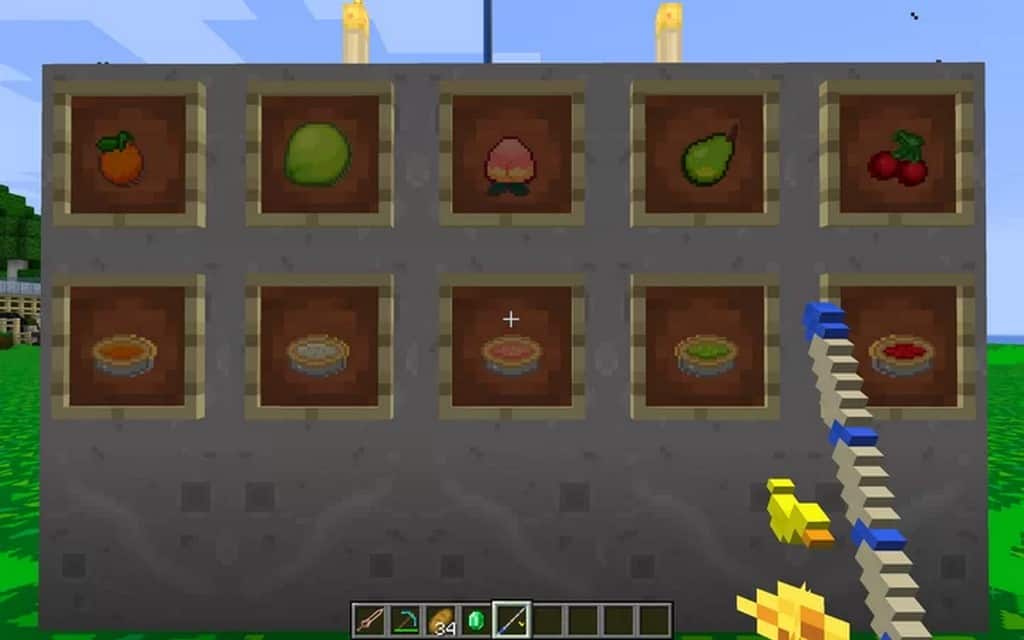
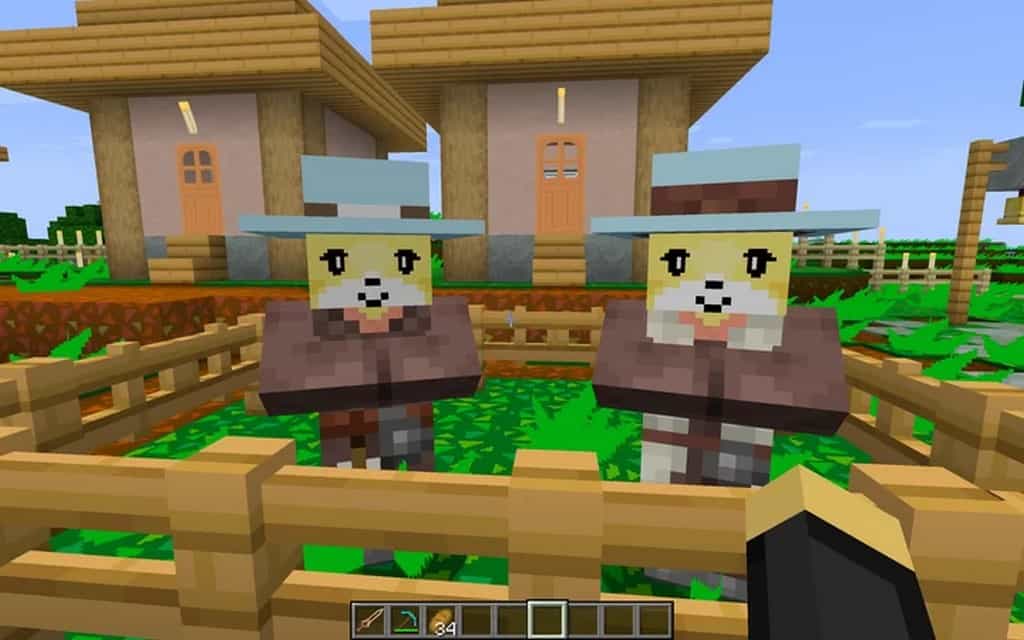
Instead, meats were replaced by various types of fruits that can be crafted into different types of pies, and another genuinely interesting change is how mobs work. Animals are now transformed into piñatas, so when you slay an animal, it will delightfully drop different types of fruits instead! The Animal Crossing resource pack also introduces some wonderful new decorative items, as the developer added custom paintings, and to perfectly match the atmosphere of the game, entirely new music and sounds were added. All these immersive changes are complemented by a gorgeously redesigned GUI where the inventory is easier to manage and all the icons simply look much better. Another major change introduced by the Animal Crossing texture pack is the villagers; they received adorable new textures and their dialog frequency has been reduced, which is a nice relief. Furthermore, the water textures have been improved, and with the right shader, bodies of water look much better and feature gorgeous reflections. Improving water is also complemented by new textures for the sky, where the clouds look much better, almost photorealistic, being much smoother with no more pixelation that would usually make them look blocky. Because some of the changes that the Animal Crossing resource pack brings look best with a shader pack installed, game performance may be affected since shaders can be quite demanding, especially for older computers. Since the resource pack changes sky textures, it specifically requires installation via Optifine, as the Optifine tool has special features that enable these changes in Minecraft. Best of all, the resource pack itself is still actively maintained as a work in progress, and the developer has already released several updates for it!
Animal Crossing! should be compatible with all of these Minecraft versions: 1.16.5 – 1.16.4 – 1.16.3 – 1.16.2 – 1.16.1 – 1.16 – 1.15.2 – 1.15.1 – 1.15
Screenshots
How to Install Texture Pack (Simple 10 Steps)
- Download OptiFine: Most of the texture packs and shaders need OptiFine. That’s why, first download and install OptiFine for the version of Minecraft you want to play.
- Download the Texture Pack: Get the texture pack you want from the download section. Choose the version that works with your Minecraft and your PC’s performance.
- Open Minecraft Launcher: Start Minecraft using the official game launcher — or even TLauncher, if you use that.
- Go to Options: From the main menu, click on the “Options” button.
- Open Resource Packs: Inside Options, click on “Resource Packs…”.
- Open the Resource Pack Folder: Click on “Open Resource Pack Folder” — this will open a folder named “resourcepacks”.
- Move the Pack File: Copy or move the .zip file you downloaded into that “resourcepacks” folder. (Don’t unzip the file — Minecraft uses it as-is!)
- Go Back and Refresh: Close the folder and click “Done”, then go back into “Resource Packs…” again.
- Activate the Pack: You’ll see the pack on the left side. Hover over it and click the arrow to move it to the right (active side).
Tip: If you get a message that the pack is for a different version, just click “Yes” — it usually works fine. - Click Done and Enjoy: Click “Done” again. Now your pack is ready to use in-game. It’s that easy!
Credits
This resource pack was originally created by NickRider. We do not claim ownership of this content, nor do we host or modify the original download files. We strongly encourage all users to support the original creator by visiting their official source links.
Download Instructions
Curseforge: download starts automatically after a few seconds;
Mediafire: click the big blue button with the text “DOWNLOAD”;
Google Drive: in the top right corner you will see a small download icon (down arrow), click it and the download should start;