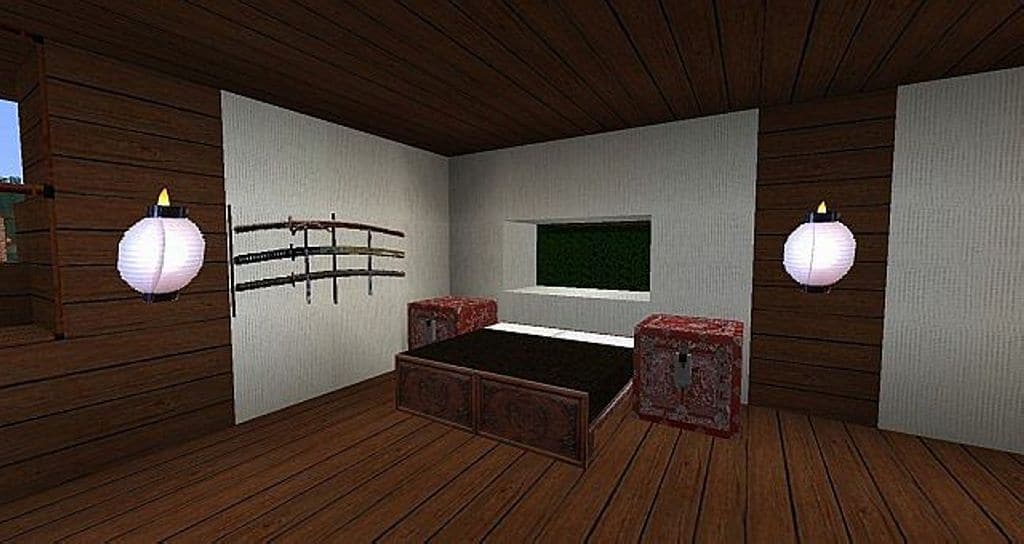
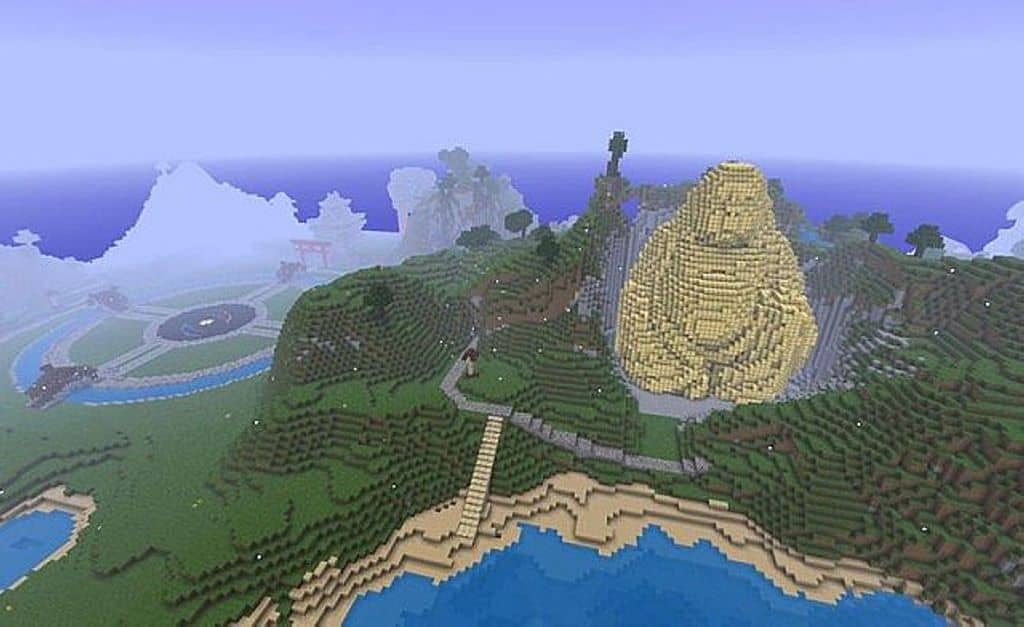
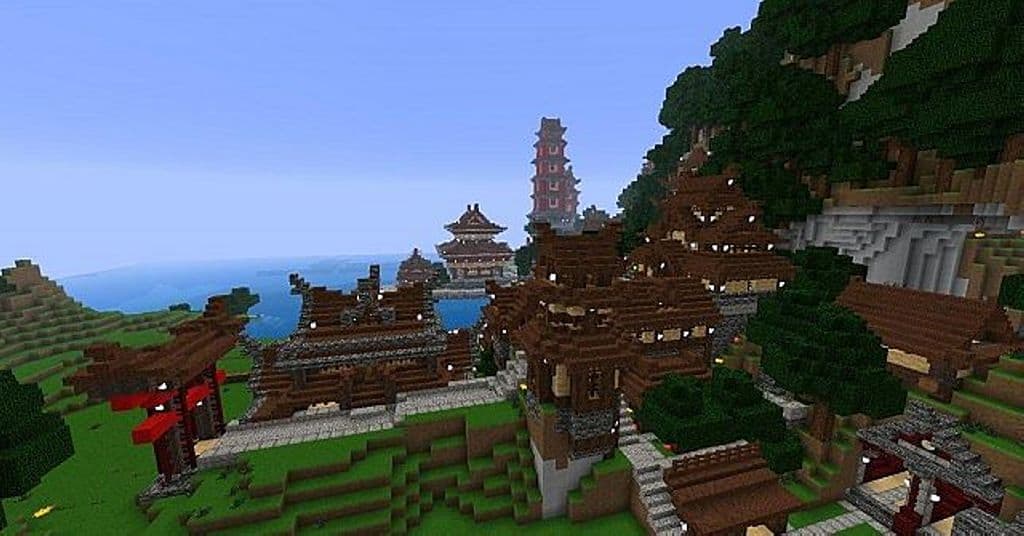
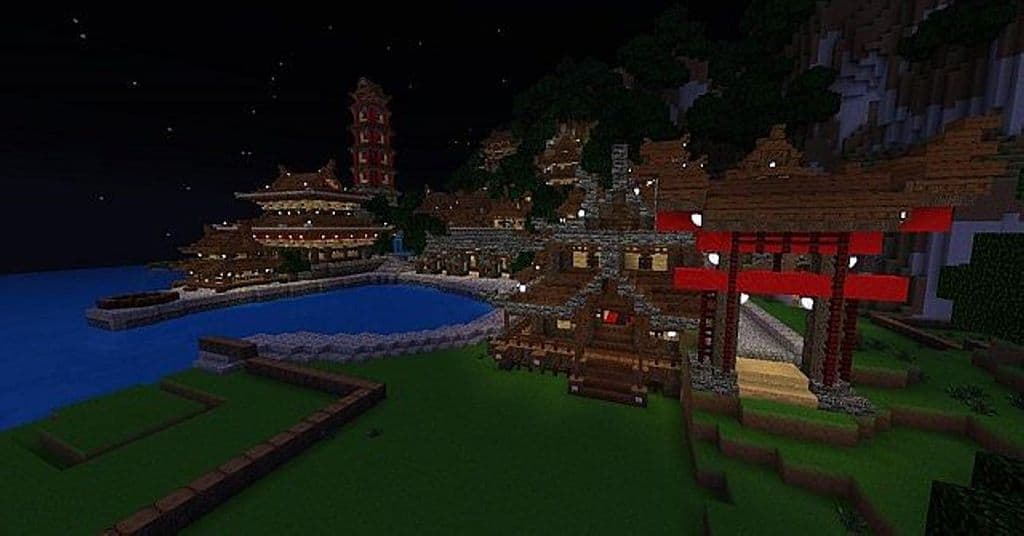
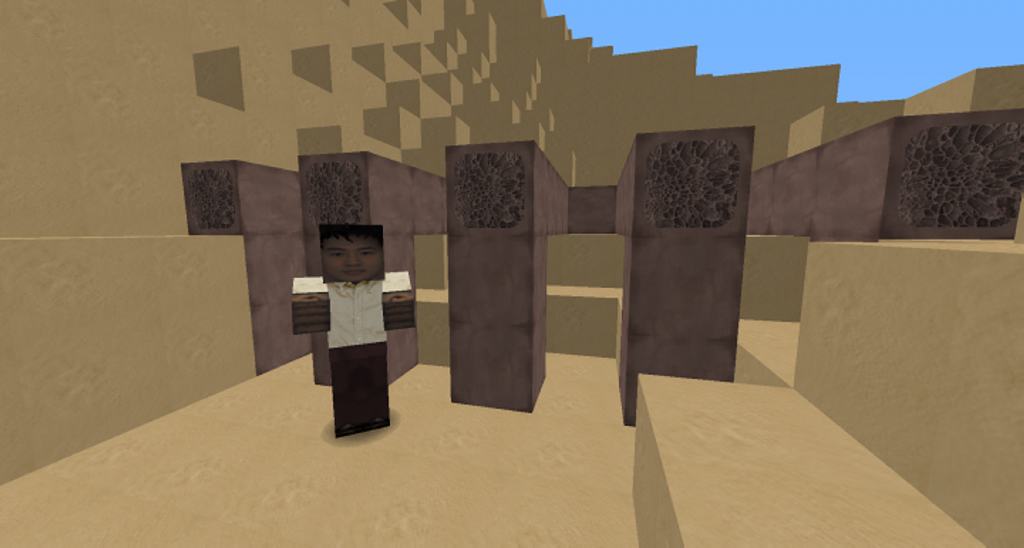
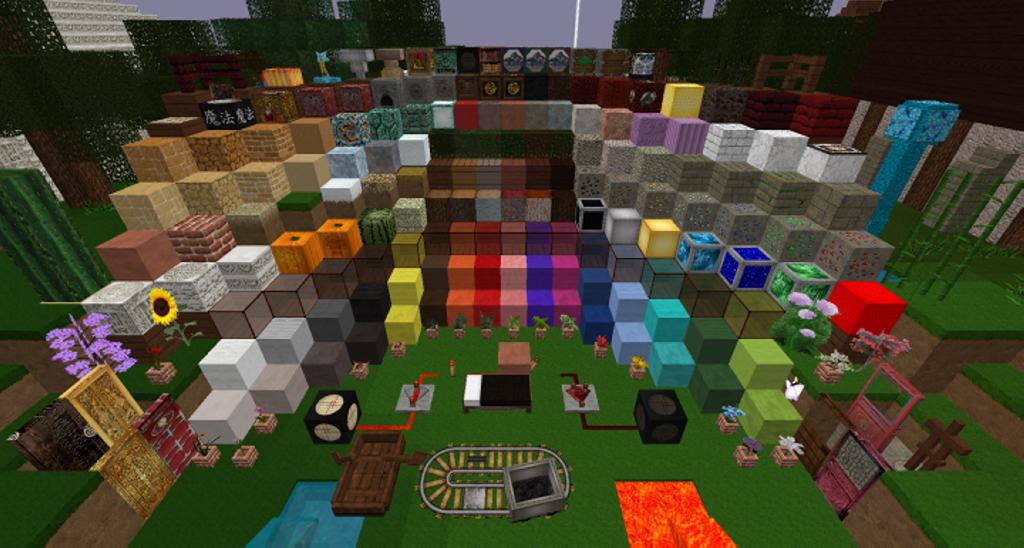
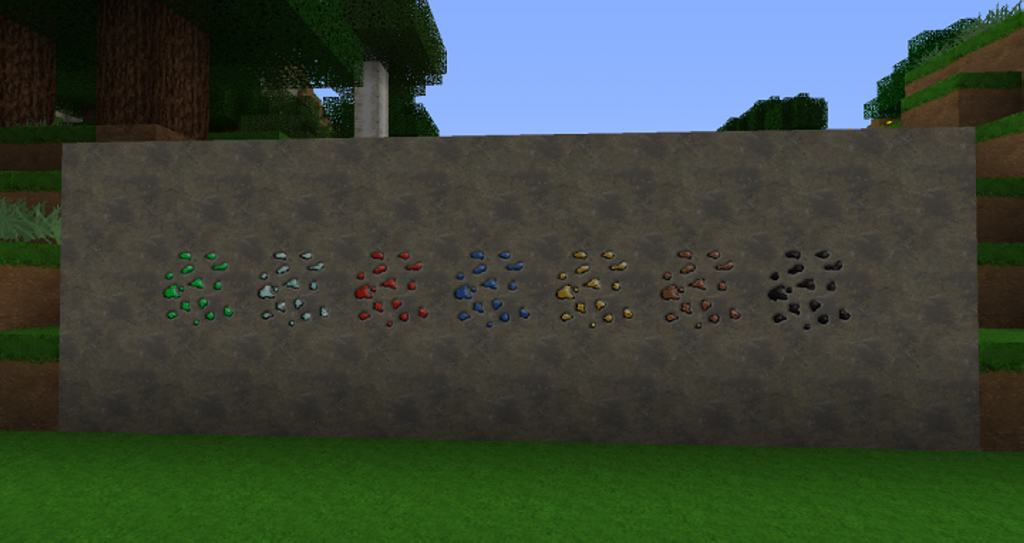
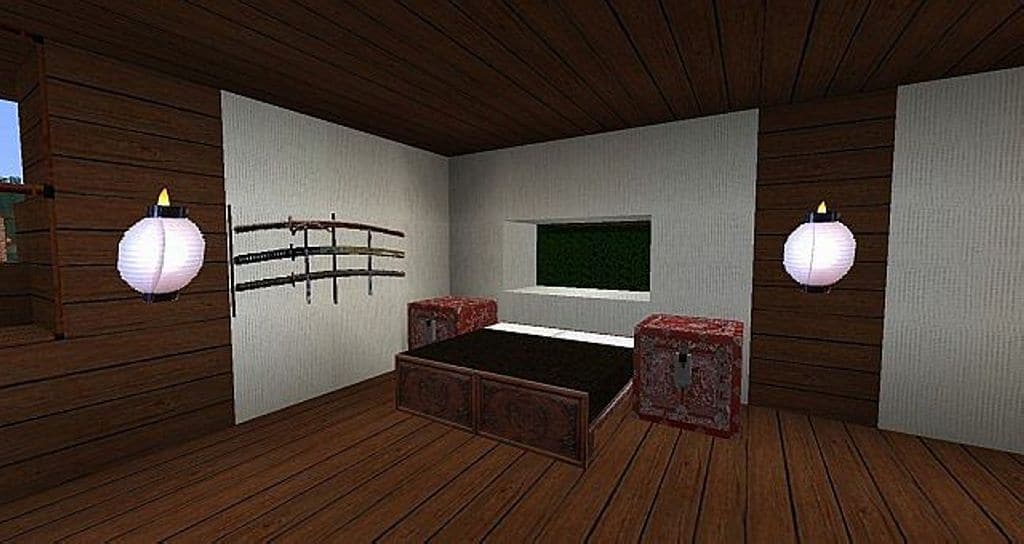
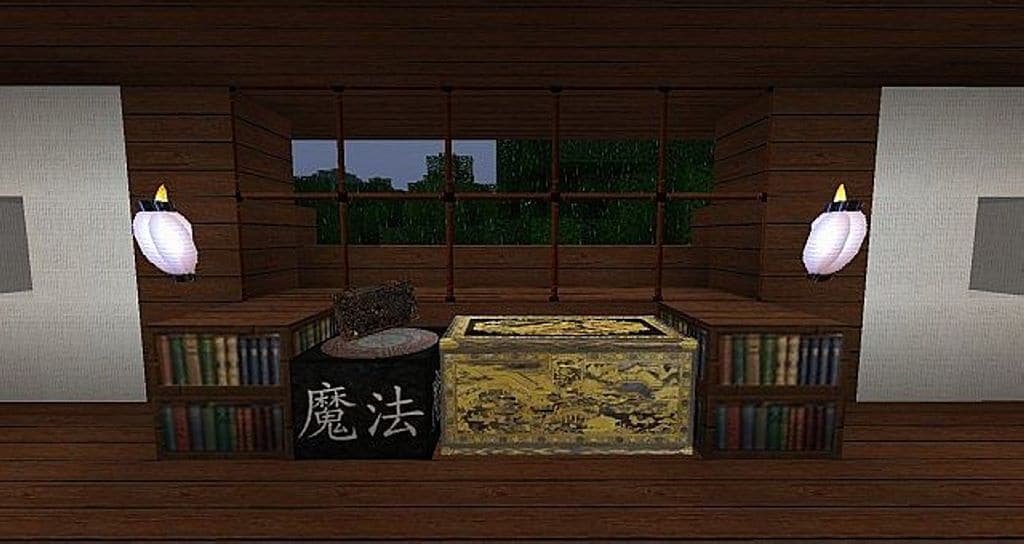
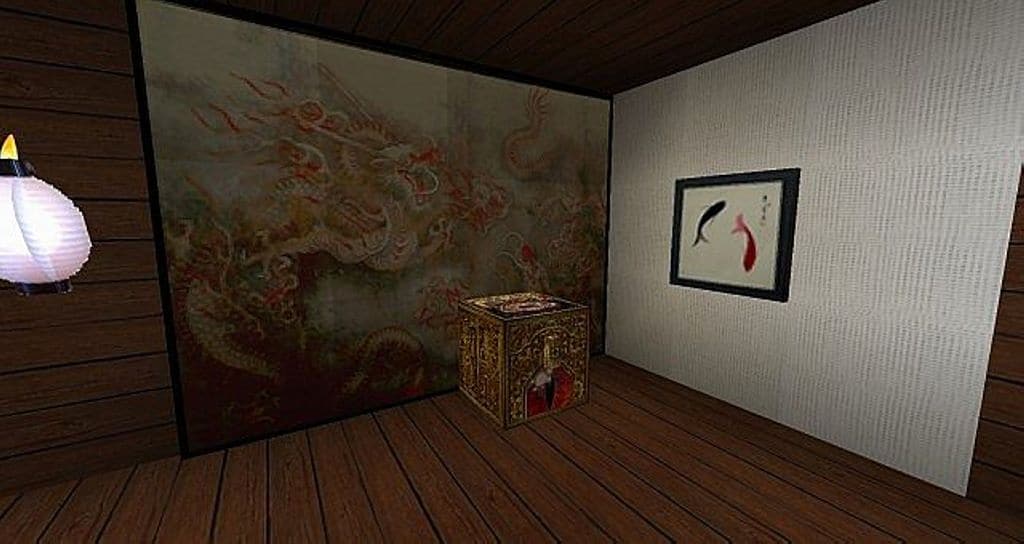
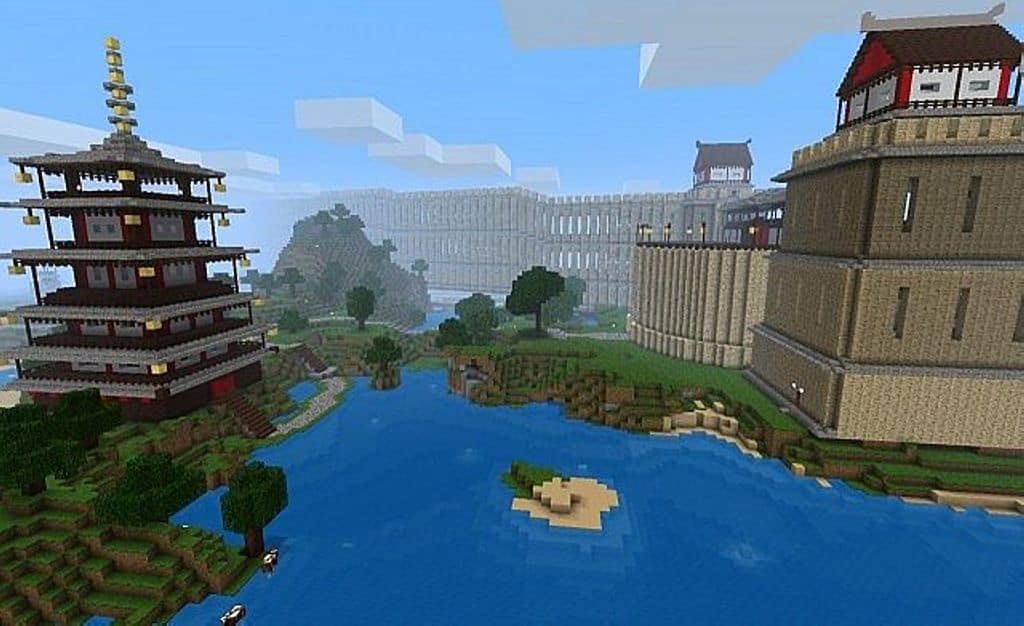
WooCraft resource pack is truly one of the most remarkable texture packs crafted by Kyctarniq, and I personally had an absolute blast testing it out! It completely stands out by differentiating itself from most generic resource packs available in the market today. It executes the Japanese theme brilliantly by making use of stellar textures based on an attractive eastern setting. I found this resource pack to be the absolute best alternative if you fancy the Japanese feudal style Samurais and Ninjas. The developer has slightly upgraded and redesigned the standard textures to recreate the ambiance relevant to that period, and trust me, it feels amazing. They changed the default game texture skin to come out with an altogether fresh experience for the players. The designer has remodeled this resource pack as per some of the most famous media in the ancient Japanese era, giving you an authentic feel of roaming around in the land of Ninjas and Samurais. Even though the WooCraft texture pack has been around for about five years, it remains firmly among the best quality resource packs out there. It enhances your experience by being highly artistic to take you to a whole new level. Once you apply it to Minecraft, it looks stunning because the author has manually finetuned every texture to absolute perfection. It features several gorgeous blocks of customized Asian art with extreme detailing, and the developer has thoughtfully redesigned some textures to enhance the appeal while many others retain their familiar original look.
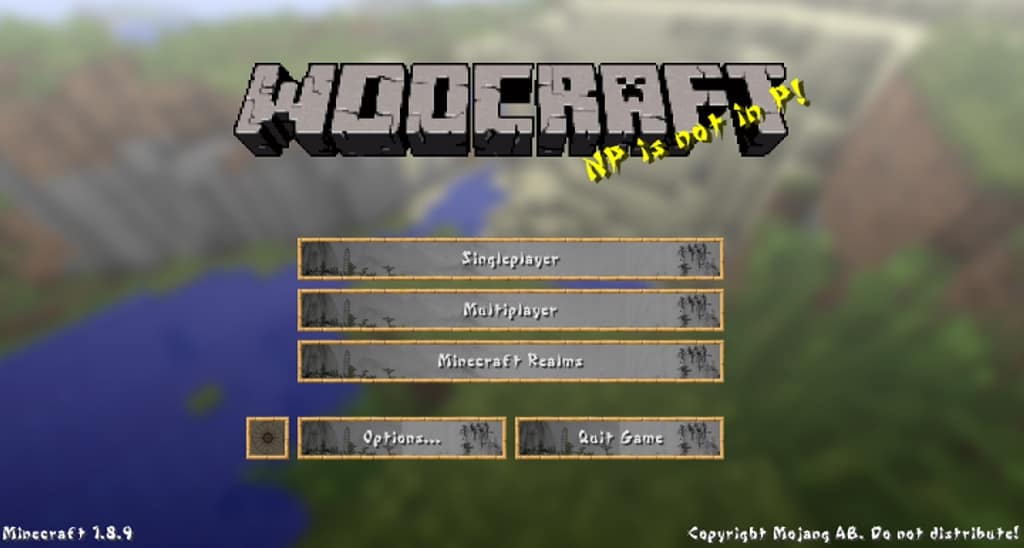
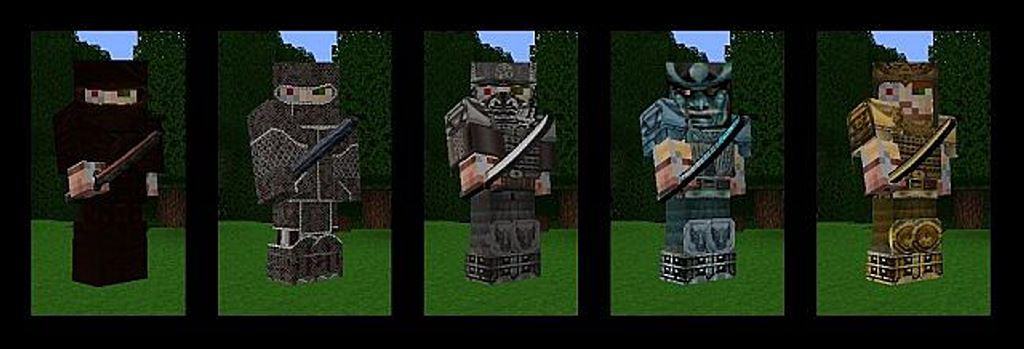
When you closely examine surfaces like wood and storage blocks, you will notice they appear genuinely authentic with more essential details and lifelike designs. The developer has upgraded several tools to greatly enhance your game experience, and you will definitely spot the most significant visual change in its fresh armor set. Every single piece has been redesigned to look like admired Samurai armor used in those times, which I think is super cool. Similarly, besides changing the texture of many blocks, the developer has successfully modified every animal, mob, and NPC to provide a brand new look to them. They have altered swords’ textures to ensure that they look Japanese in every way, and they even slightly upgraded the game’s graphical user interface (GUI) to provide a fresh feeling to every gamer as you roam the land in the game. WooCraft promises to bring a fresh perspective to ensure that you enjoy every bit of a wholly modified game experience, and it totally delivers on that promise. All in all, this resource pack offers a few top-of-the-line textures which carry a wonderfully consistent art style. These changes are an absolute delight to experience, and players will definitely feel special after using those items in new avatars. The WooCraft resource pack comes in a gorgeous 128x resolution. However, it is crucial to understand that such high-end resource packs need decent hardware to run smoothly. The creator has packed the maximum level of detailing into all the textures, which is why it comes in a considerably high resolution. Naturally, you will need a computer system with higher than usual capacity hardware so that you do not run into annoying frame rate issues.
Woocraft should be compatible with all of these Minecraft versions: 1.17.1 – 1.17 – 1.10.2 – 1.10 – 1.9.4 – 1.9 – 1.8.9 – 1.8.8 – 1.8.1 – 1.8.6 – 1.8 – 1.7.10 – 1.7.9 – 1.7.4 – 1.7 – 1.6.4 – 1.6.2
Screenshots
How to Install Texture Pack (Simple 10 Steps)
- Download OptiFine: Most of the texture packs and shaders need OptiFine. That’s why, first download and install OptiFine for the version of Minecraft you want to play.
- Download the Texture Pack: Get the texture pack you want from the download section. Choose the version that works with your Minecraft and your PC’s performance.
- Open Minecraft Launcher: Start Minecraft using the official game launcher — or even TLauncher, if you use that.
- Go to Options: From the main menu, click on the “Options” button.
- Open Resource Packs: Inside Options, click on “Resource Packs…”.
- Open the Resource Pack Folder: Click on “Open Resource Pack Folder” — this will open a folder named “resourcepacks”.
- Move the Pack File: Copy or move the .zip file you downloaded into that “resourcepacks” folder. (Don’t unzip the file — Minecraft uses it as-is!)
- Go Back and Refresh: Close the folder and click “Done”, then go back into “Resource Packs…” again.
- Activate the Pack: You’ll see the pack on the left side. Hover over it and click the arrow to move it to the right (active side).
Tip: If you get a message that the pack is for a different version, just click “Yes” — it usually works fine. - Click Done and Enjoy: Click “Done” again. Now your pack is ready to use in-game. It’s that easy!
Credits
This resource pack was created by kyctarniq. We do not own, host, or modify any files associated with this project. All rights and ownership belong entirely to the original creator. We highly encourage you to support kyctarniq by downloading the pack from the official sources.
Download Links
Java Edition
Download Instructions
Curseforge: download starts automatically after a few seconds;
Mediafire: click the big blue button with the text “DOWNLOAD”;
Google Drive: in the top right corner you will see a small download icon (down arrow), click it and the download should start;


