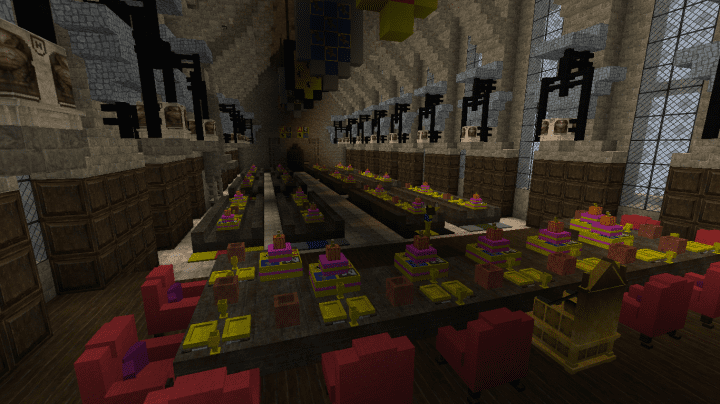
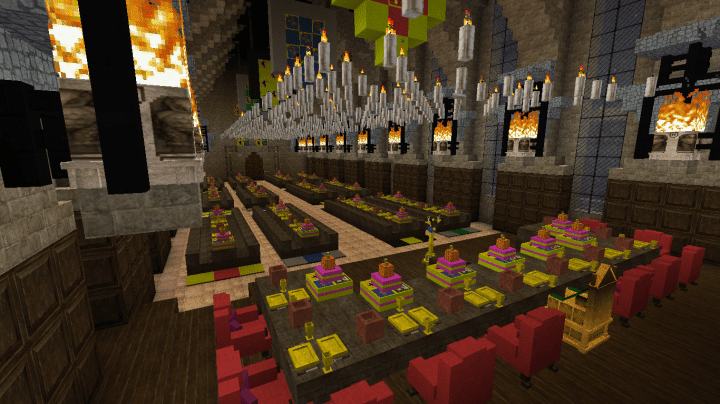
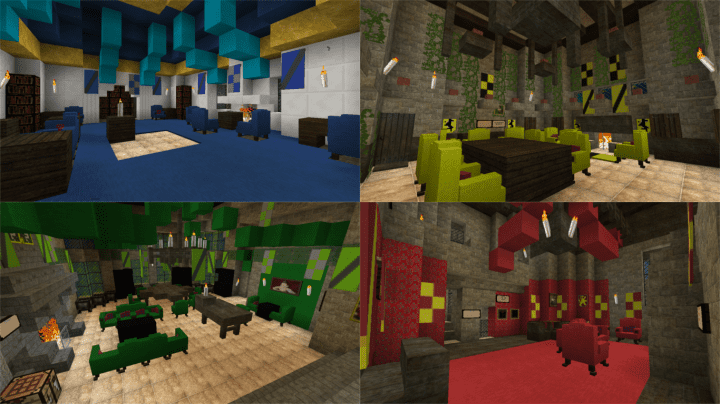
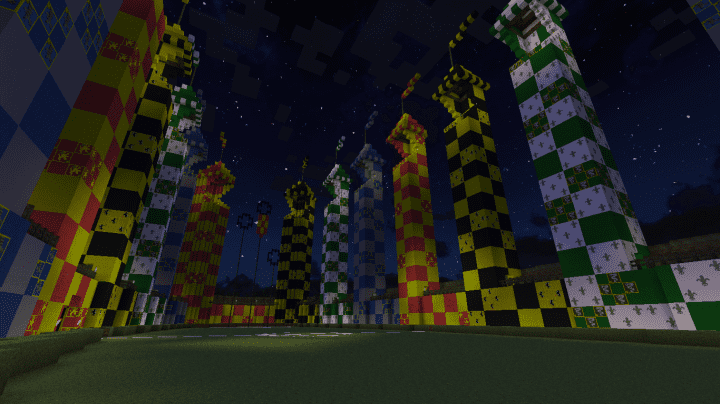
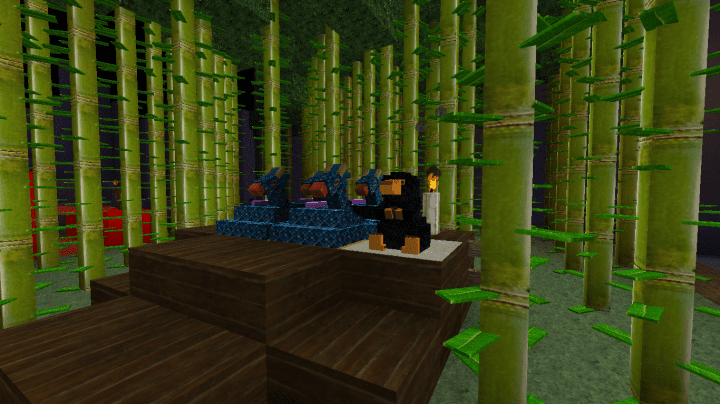
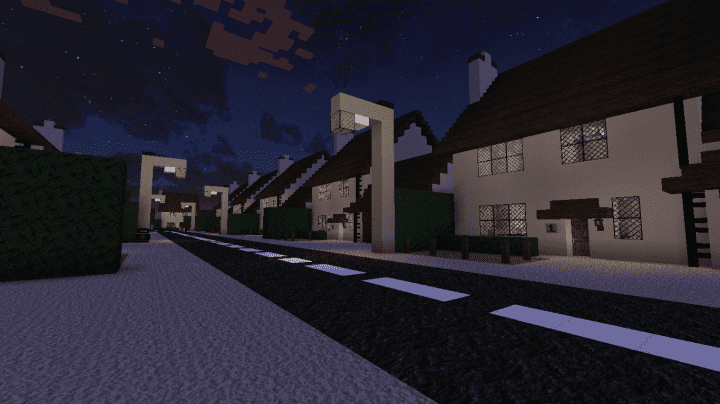
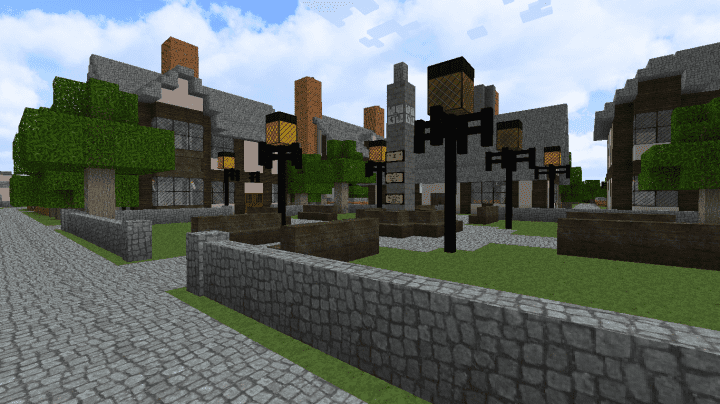
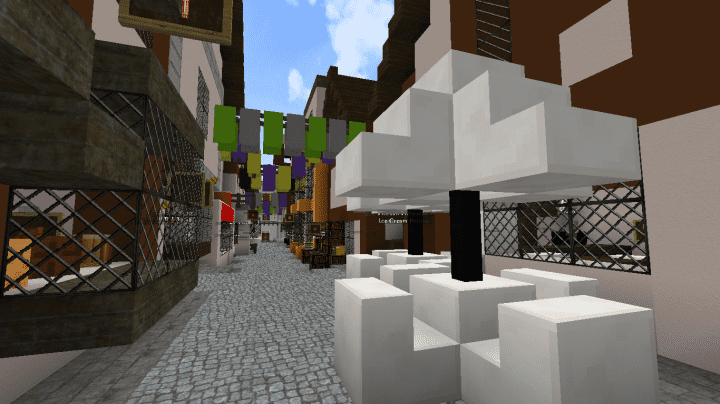
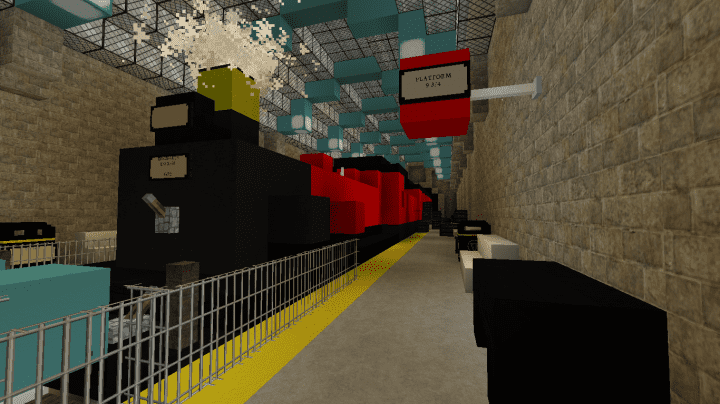
The Wizarding World resource pack is an absolute masterpiece of a texture set, expertly crafted around the legendary Harry Potter universe. I had so much fun testing it out, knowing it was brought to life by Zeon Blacktooth, a creator who has truly mastered the art of making Harry Potter-themed gaming assets. What makes this pack so wildly popular is its uncanny ability to faithfully recreate this beloved magical universe right inside Minecraft. Even though the unique graphic design style might not appeal to every single player, the Wizarding World textures are an undeniably impressive choice if you are a massive Harry Potter fan wanting to blend that enchanting magical lore with your everyday Minecraft adventures. While the developer has released plenty of similar packs over the years, I really feel this one stands out as a far superior option.
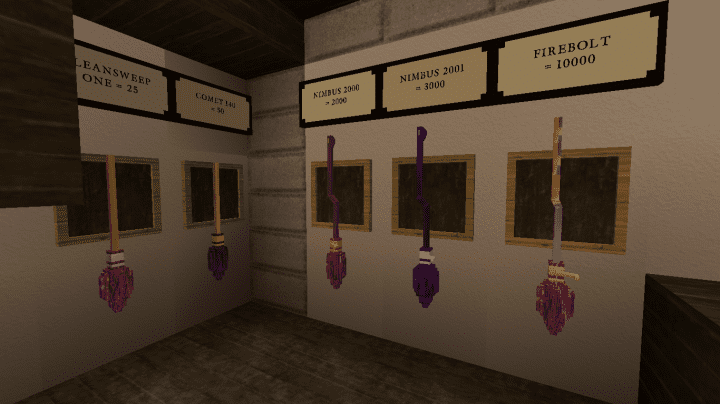
This is simply because it is the only version in Minecraft that offers breathtaking 3D textures for almost all of the iconic Harry Potter brooms. When I explored it, I was thrilled to see how vividly it depicts the various legendary brooms from the novels, including both the Nimbus and the Firebolt. On top of that, Wizardry World is packed with exceptional illustrations that feel genuinely delightful and magical to behold. The textures themselves run remarkably smooth, benefiting from an incredible balance of sharpness and vibrant colors. A massive part of this stunning detail and high-quality finish comes from the hefty x128 resolution. While this resolution is certainly on the higher side compared to your average resource pack, keep in mind that you might need a reasonably powerful PC to run it smoothly and avoid any frame rate drops while you play.
Wizardry World should be compatible with all of these Minecraft versions: 1.16.5 – 1.16.4 – 1.16.3 – 1.16.2 – 1.16.1 – 1.16 – 1.15.2 – 1.15.1 – 1.15 – 1.14.4 – 1.14.3 – 1.14.2 – 1.14 – 1.13.2 – 1.13.1 – 1.13 – 1.12.2 – 1.12 – 1.11.2 – 1.11
Screenshots

How to Install Texture Pack (Simple 10 Steps)
- Download OptiFine: Most of the texture packs and shaders need OptiFine. That’s why, first download and install OptiFine for the version of Minecraft you want to play.
- Download the Texture Pack: Get the texture pack you want from the download section. Choose the version that works with your Minecraft and your PC’s performance.
- Open Minecraft Launcher: Start Minecraft using the official game launcher — or even TLauncher, if you use that.
- Go to Options: From the main menu, click on the “Options” button.
- Open Resource Packs: Inside Options, click on “Resource Packs…”.
- Open the Resource Pack Folder: Click on “Open Resource Pack Folder” — this will open a folder named “resourcepacks”.
- Move the Pack File: Copy or move the .zip file you downloaded into that “resourcepacks” folder. (Don’t unzip the file — Minecraft uses it as-is!)
- Go Back and Refresh: Close the folder and click “Done”, then go back into “Resource Packs…” again.
- Activate the Pack: You’ll see the pack on the left side. Hover over it and click the arrow to move it to the right (active side).
Tip: If you get a message that the pack is for a different version, just click “Yes” — it usually works fine. - Click Done and Enjoy: Click “Done” again. Now your pack is ready to use in-game. It’s that easy!
Credits
This resource pack was created by Zeon_Blacktooth, who retains all original ownership rights. We do not claim ownership of this content, nor do we host modified versions of these files. We strongly encourage players to support the creator by visiting their official platforms and downloading from their authorized links.
Download Links
Java Edition
Download Instructions
Curseforge: download starts automatically after a few seconds;
Mediafire: click the big blue button with the text “DOWNLOAD”;
Google Drive: in the top right corner you will see a small download icon (down arrow), click it and the download should start;


