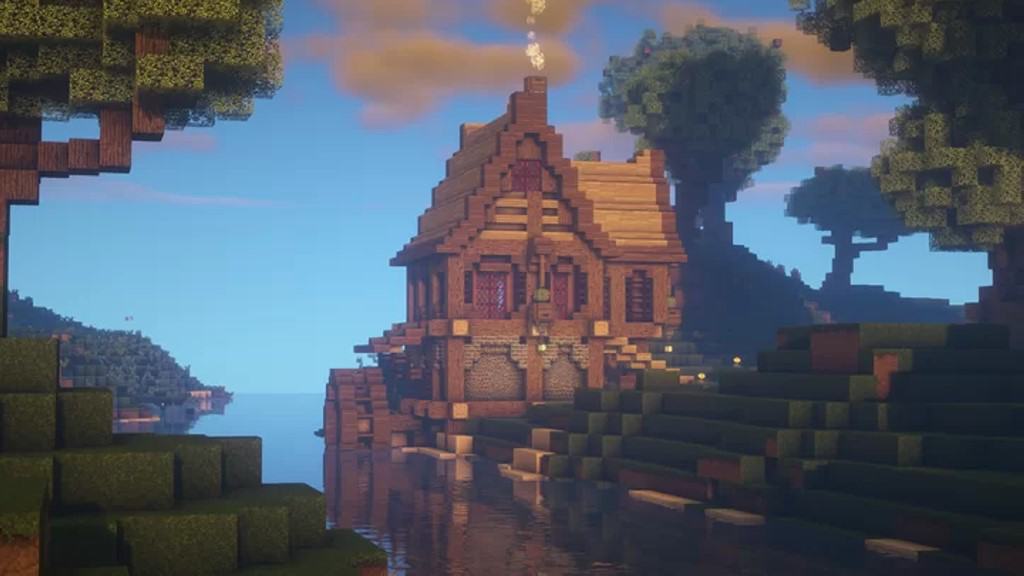
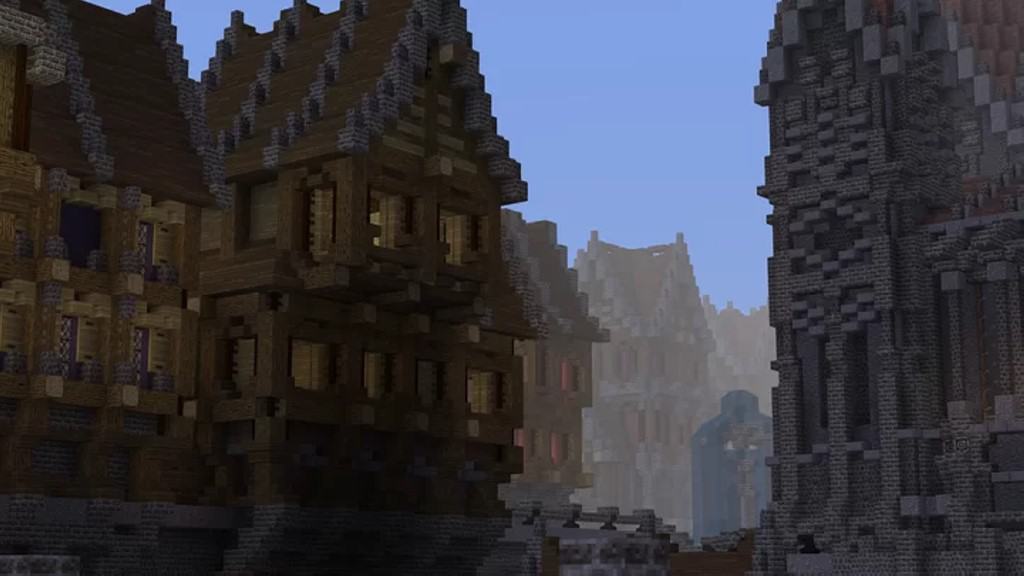
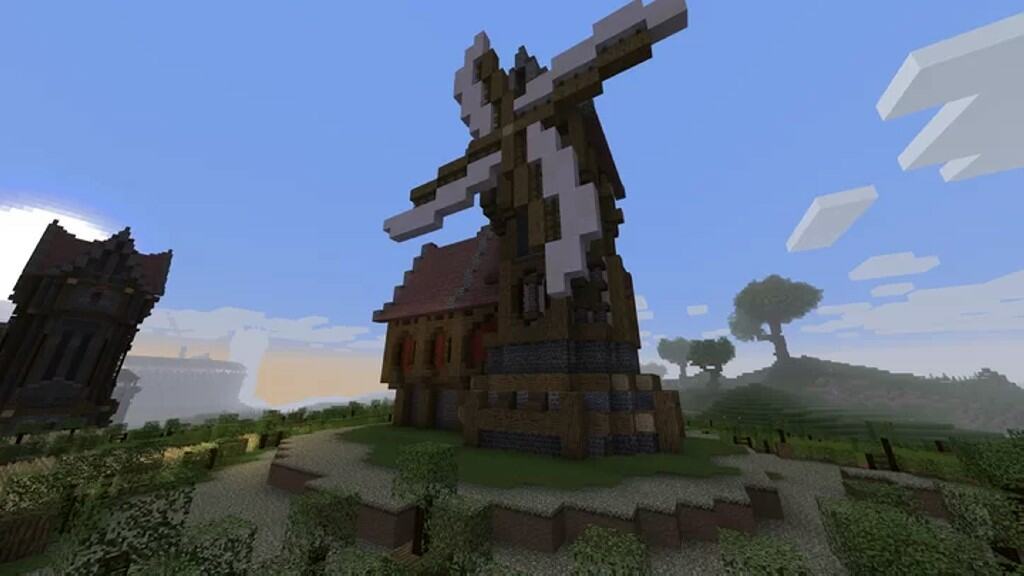
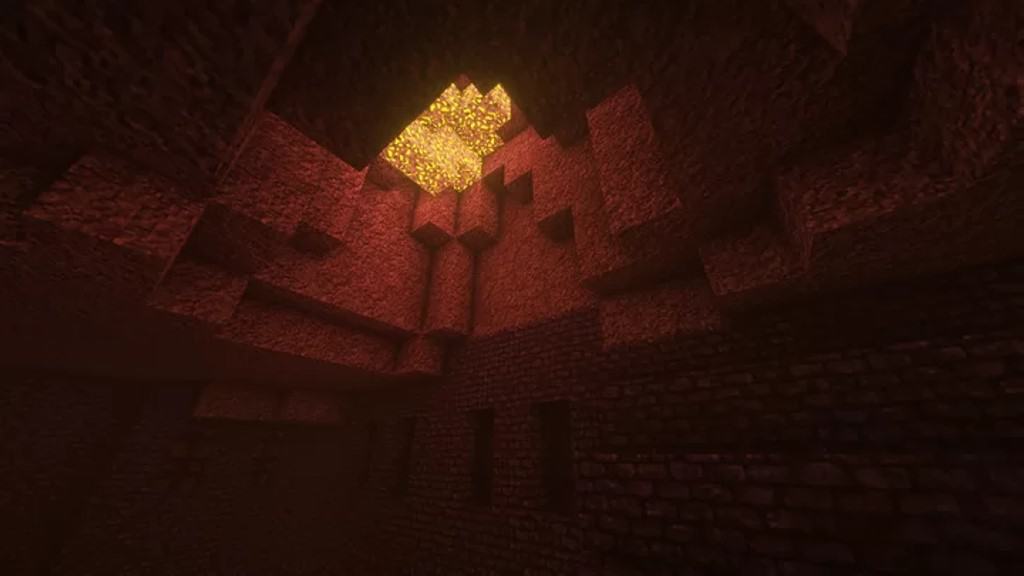
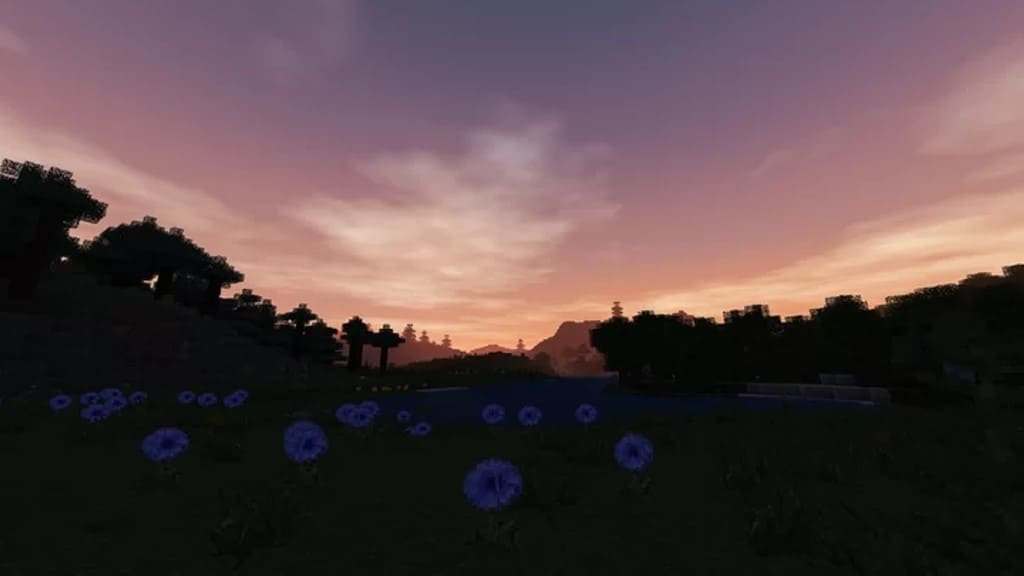
I recently tested out the Wanderlust resource pack, and I honestly think it tweaks Minecraft in so many fantastic ways for the better! It does not attempt to bring in photorealistic textures, but it genuinely improves visuals on many levels starting with texture resolution, details, lighting, colors, shadows, particle effects, and many more. Despite all these visual upgrades, it remains surprisingly faithful to the classic vanilla Minecraft look. It still feels like Minecraft, just significantly better. At the same time, it is one of the few Minecraft resource packs that can be considered complete as it replaces all the textures in the game, leaving nothing untouched. The Wanderlust texture pack was released back in 2020, and when it first came out, it covered only about 70% of all the textures in Minecraft. With constant updates and a dedicated developer, the resource pack managed to reach 100% completion in just a year. Since it was released, the resource pack has managed to attract a massive following and tens of thousands of downloads. To achieve these improved visuals, the texture resolution was upscaled from the default 16x to 32x. The textures themselves were edited and improved to contain more details and vastly improved color schemes. There are also brilliant new textures and designs for plants, leaves, grass, decorative tiles, paintings, stained glass, and different types of blocks such as brick walls, stone walls, wood blocks, and many more. Even the game UI and HUD were delightfully improved.
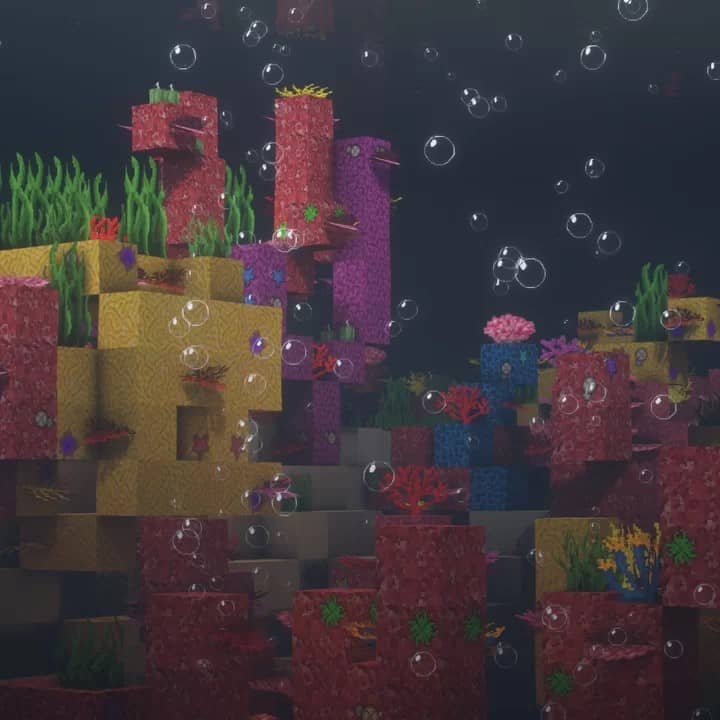
Alongside the texture changes, the colors for various textures were adjusted, making them more vibrant with noticeably less visual noise. The textures feel much crisper and are significantly easier to distinguish one block from another during gameplay. The resource pack introduces a few new animations and subtle particle effects that really enhance the atmosphere. While not all animations and particle effects in the game were overhauled, there is a notable, positive difference. Some moving textures were added, and there are a lot of fantastic new icons for items and weapons. The weapons themselves also received stunning new models and textures. Both the water and the sky were heavily improved in Wanderlust, and I love the new sky textures for both night and day. A simple example is the texture for the moon, which now appears bigger and with much more detail. Water is also vastly improved; not only is the surface texture better when looking at it, but when swimming, the blurry lighting effect makes the underwater experience feel much more realistic. Since the Wanderlust resource pack uses 32x textures, it thankfully does not require a monster computer to run smoothly. It certainly requires slightly more resources than vanilla Minecraft, but it should still run fine on modest modern computers. The biggest culprit for eventual framerate drops would be shaders, which are entirely optional, but in order to fully experience all of Wanderlust’s visual enhancements, I truly recommend using them. Additionally, the Wanderlust resource pack makes great use of special features, thus it needs to be installed alongside Optifine for the best possible experience.
Wanderlust should be compatible with all of these Minecraft versions: 1.18.2 – 1.18.1 – 1.18 – 1.17.1 – 1.17 – 1.16.5 – 1.16.4 – 1.16.3 – 1.16.2 – 1.16.1 – 1.16 – Bedrock Edition – PE
Screenshots



How to Install Texture Pack (Simple 10 Steps)
- Download OptiFine: Most of the texture packs and shaders need OptiFine. That’s why, first download and install OptiFine for the version of Minecraft you want to play.
- Download the Texture Pack: Get the texture pack you want from the download section. Choose the version that works with your Minecraft and your PC’s performance.
- Open Minecraft Launcher: Start Minecraft using the official game launcher — or even TLauncher, if you use that.
- Go to Options: From the main menu, click on the “Options” button.
- Open Resource Packs: Inside Options, click on “Resource Packs…”.
- Open the Resource Pack Folder: Click on “Open Resource Pack Folder” — this will open a folder named “resourcepacks”.
- Move the Pack File: Copy or move the .zip file you downloaded into that “resourcepacks” folder. (Don’t unzip the file — Minecraft uses it as-is!)
- Go Back and Refresh: Close the folder and click “Done”, then go back into “Resource Packs…” again.
- Activate the Pack: You’ll see the pack on the left side. Hover over it and click the arrow to move it to the right (active side).
Tip: If you get a message that the pack is for a different version, just click “Yes” — it usually works fine. - Click Done and Enjoy: Click “Done” again. Now your pack is ready to use in-game. It’s that easy!
Credits
Wanderlust is originally created and owned by SuperBusy. We do not claim ownership of this content, nor do we host or modify the original download files. All rights belong to the original author. We strongly encourage you to support the creator by checking out their official pages and download links.
Download Links
Java Edition
- [32x] Minecraft 1.18.x – 1.16.x
- Check out on the Official Source
- Official Patreon page
- Official Twitter page
Bedrock Edition
Download Instructions
Curseforge: download starts automatically after a few seconds;
Mediafire: click the big blue button with the text “DOWNLOAD”;
Google Drive: in the top right corner you will see a small download icon (down arrow), click it and the download should start;


