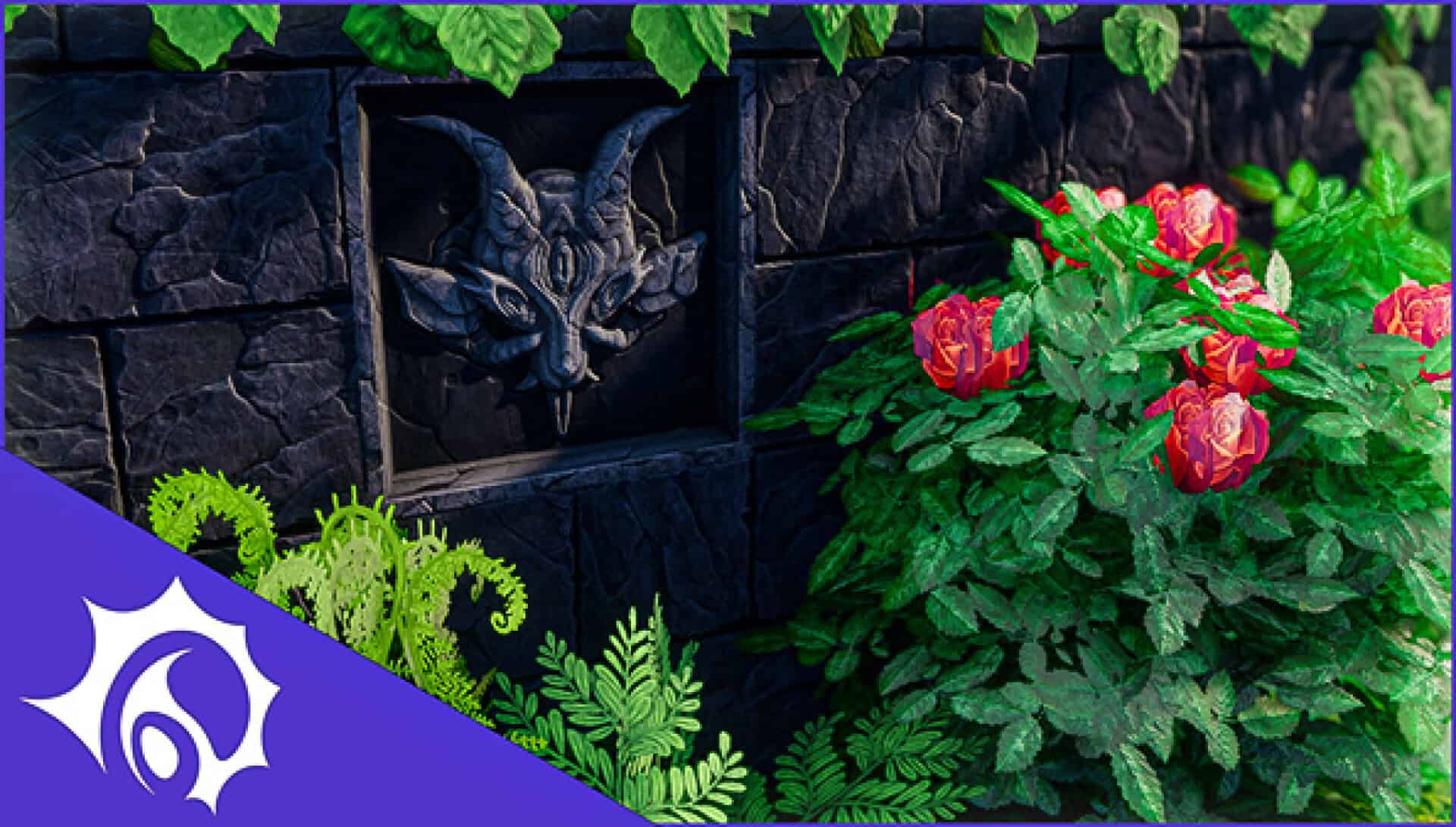
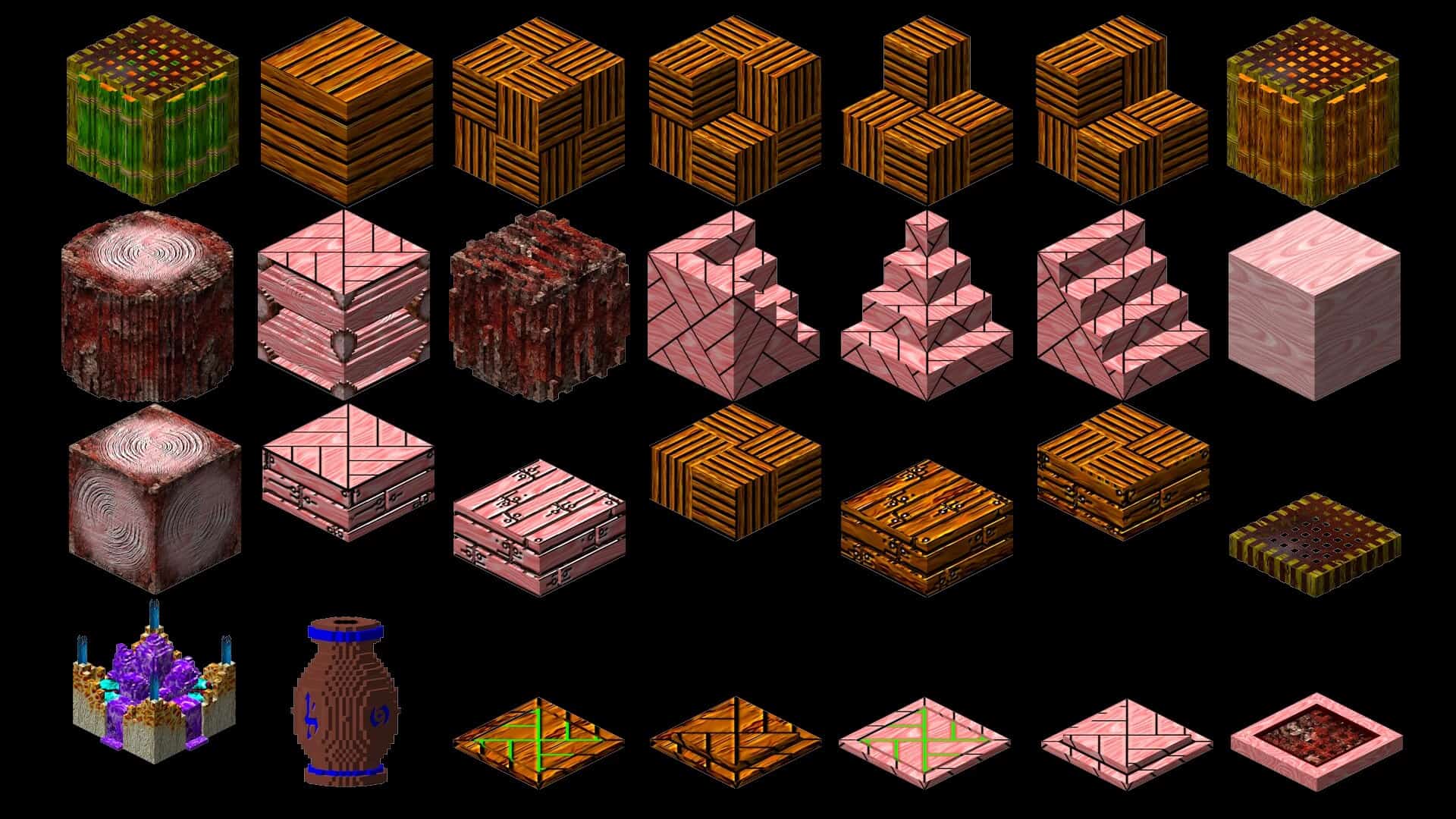
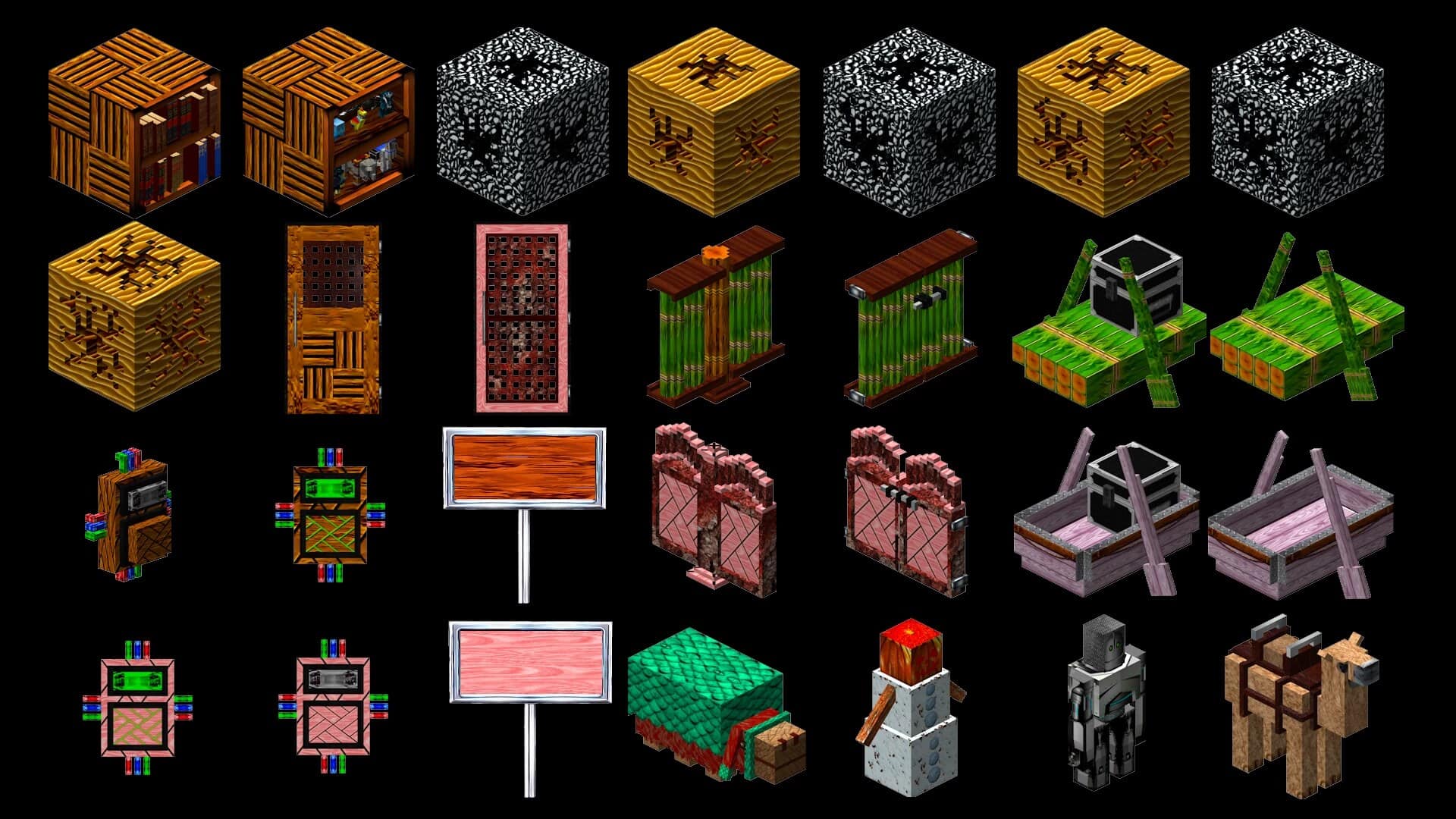
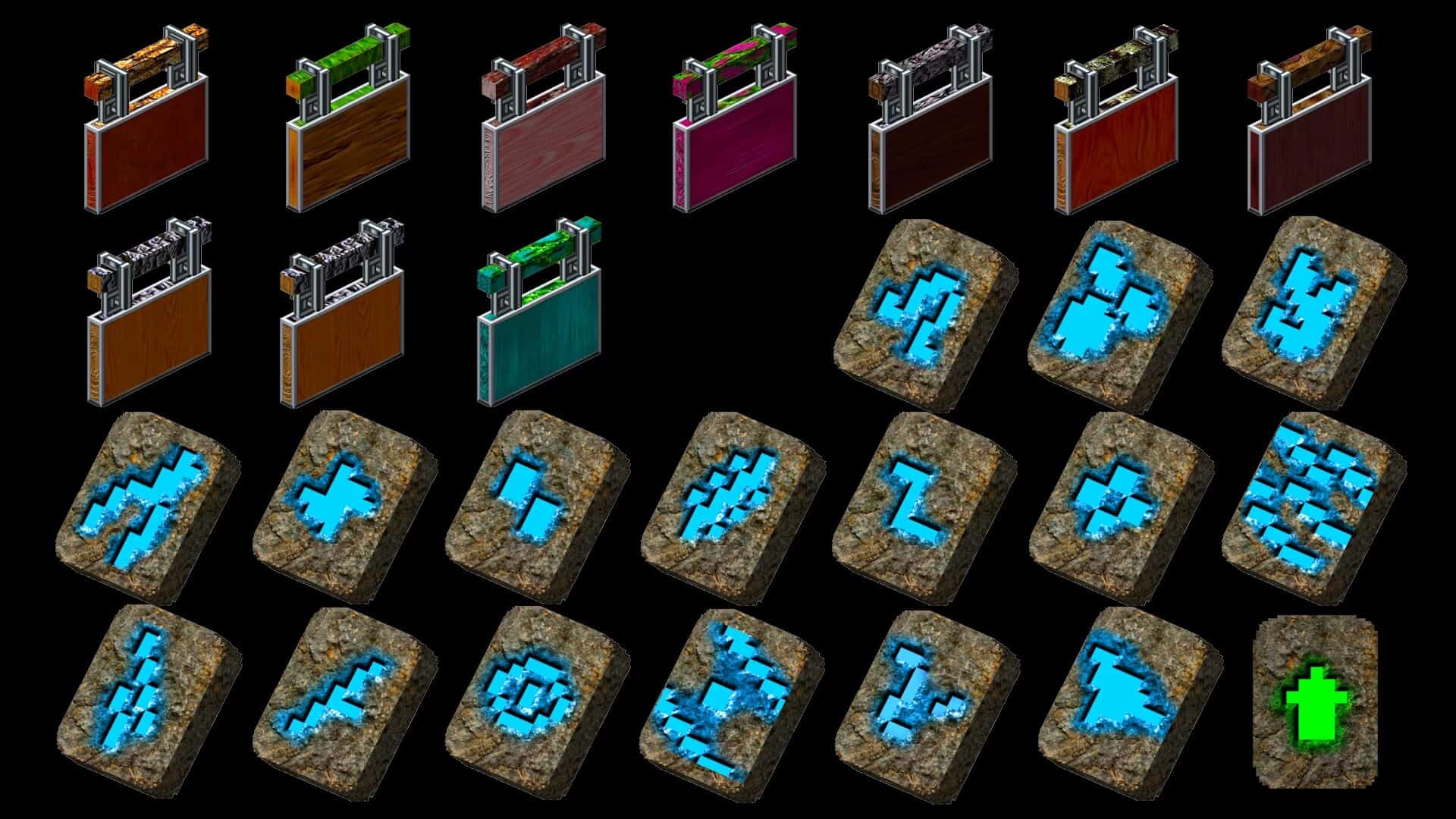
I truly believe the Intermacgod Realistic 3D resource pack is one of the most stunning and detailed packs you can download right now, and there are exceptionally clear reasons for that. It is a brilliant newer release from a dedicated author who has crafted many fantastic packs over the years under the Intermacgod name. For a while, those older projects unfortunately stopped getting updates, but recently, the creator returned triumphantly with a fresh pack focusing on one massive goal: making Minecraft’s flat blocks look wonderfully physical by adding striking 3D depth and small raised details so surfaces never feel simply painted on. Once you install it, your world genuinely feels like a whole new game while keeping all the classic mechanics intact. The pack changes the look of blocks in a way you will notice right away, as edges stand out more, gaps feel deeply immersive, and many blocks gain extra parts that appear to sit right on top of the base texture. In your builds, this makes simple shapes look remarkably real, especially when you utilize stairs, slabs, fences, and trims. Best of all, it uses a gorgeous high resolution of 256x, giving the artist plenty of space for fine details and cleaner patterns. The only minor tradeoff is performance, as high resolution textures naturally use more memory, and those 3D elements can add extra load while you explore. If you play on lower end hardware, you might experience slower loading times, stuttering, or a drop in frame rate, but on a stronger system, it runs wonderfully, though I always recommend testing it out in your most demanding areas like your main base. A lot of realistic Minecraft resource packs run into the frustrating problem of focusing on a tiny set of blocks while completely ignoring the rest of the game, giving you polished stone and wood only to leave items, tools, and other parts looking entirely vanilla, which unfortunately breaks the immersion. Thankfully, the author of this pack proudly claims a full set of textures for blocks, items, and tools, ensuring the world and your inventory match seamlessly.
If you want a pack to feel truly complete, I think that consistency matters much more than just having one perfect block. Some realistic packs rely heavily on real world photos pasted directly into the game, which can look sharp in isolated screenshots but often creates odd scaling, repetitive marks, and harsh seams. A truly skilled artist uses real world references as a guide to design textures that still respect Minecraft’s iconic shapes, and the Intermacgod Realistic 3D texture pack leans brilliantly toward that approach. These textures aim to look wonderfully believable while keeping the style consistent across the entire game, and the 3D details follow the exact same visual rules for many blocks, making the whole experience feel unified instead of random. Shaders pair exceptionally well with realistic packs, but they also naturally increase system load; the nice thing here is that this pack still looks incredibly strong without shaders because the depth comes from true 3D detail rather than just fancy lighting. If you do decide to use shaders, I suggest starting with a lighter preset and checking your performance in dense forests, dark caves, and bustling villages. Performance will ultimately depend on your personal hardware setup, and the author fair-mindedly suggests needing decent hardware, which makes complete sense for a 256x pack featuring complex 3D elements. Many players will want around 16 GB of RAM for a wonderfully smooth experience, and even more if they run heavy mods, high view distances, or intense shader configurations. Tests on a robust PC with 32 GB of RAM and an RTX 20 series graphics card ran remarkably smoothly during regular gameplay, though Mac results will vary based on model and graphics support, so you will just want to dive in and see how it performs for you. Because the pack is completely free, the safest plan is to install it, load up a backup copy of your world, and check your frame rate right where you spend most of your time. One final practical note is the file size, as the pack is well over 1 GB, meaning it might take a moment to download on slower internet connections, and if you hoard resource packs, it will consume storage space rather quickly. Still, that generous file size makes total sense given that the pack covers the entire game with gorgeous high resolution textures and extensive 3D modelling work, so if you are craving a truly realistic look that never leaves your tools and items behind, this pack is definitely worth a thorough test.
Intermacgod Realistic 3D should be compatible with all of these Minecraft versions: 26.2 – 26.1.2 – 26.1.1 – 26.1 – 1.21.11 – 1.21.10 – 1.21.9 – 1.21.8 – 1.21.7 – 1.21.6 – 1.21.5 – 1.21.4 – 1.21.3 – 1.21.2 – 1.21.1 – 1.21 – Bedrock Edition – PE
Screenshots
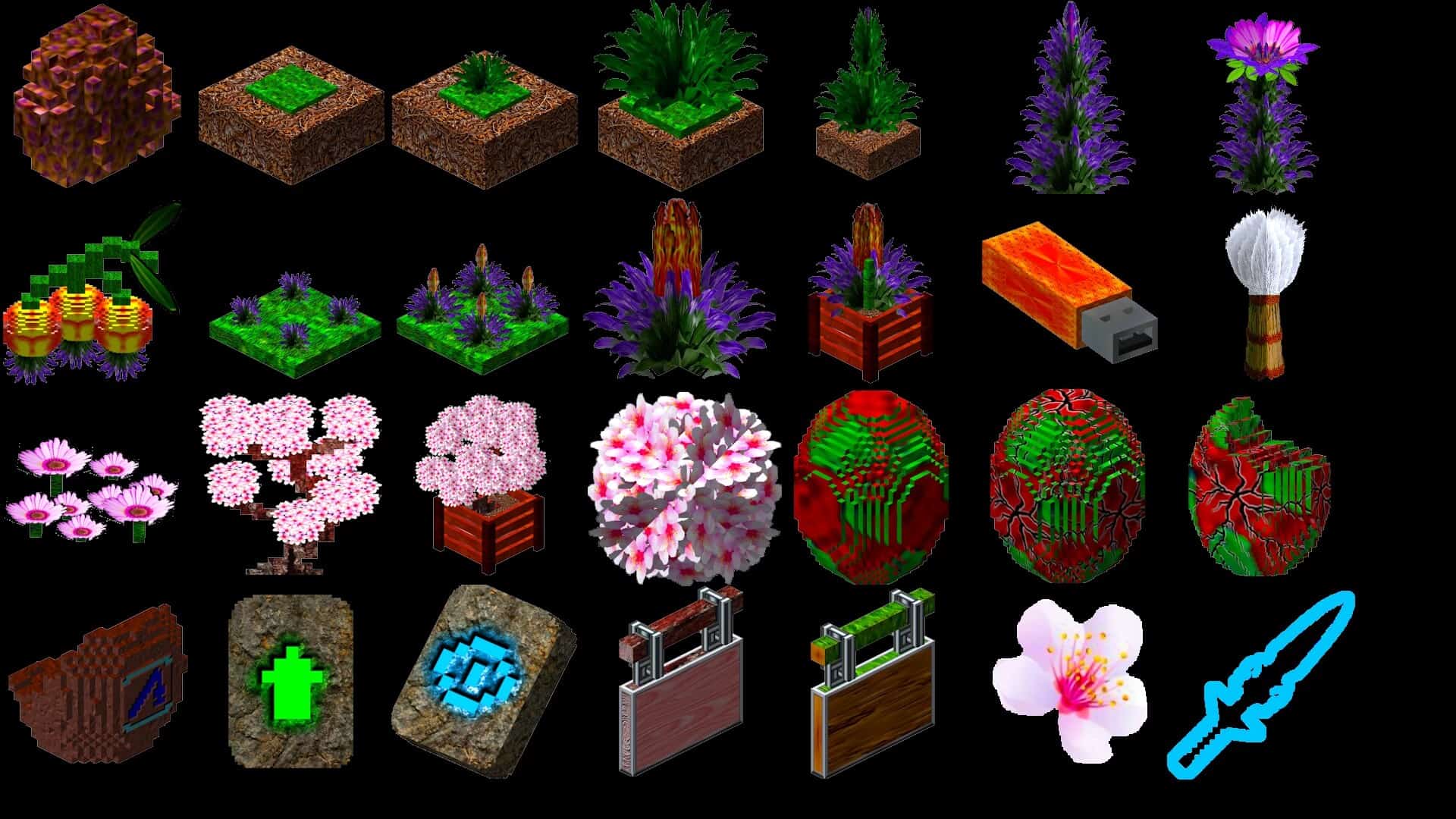
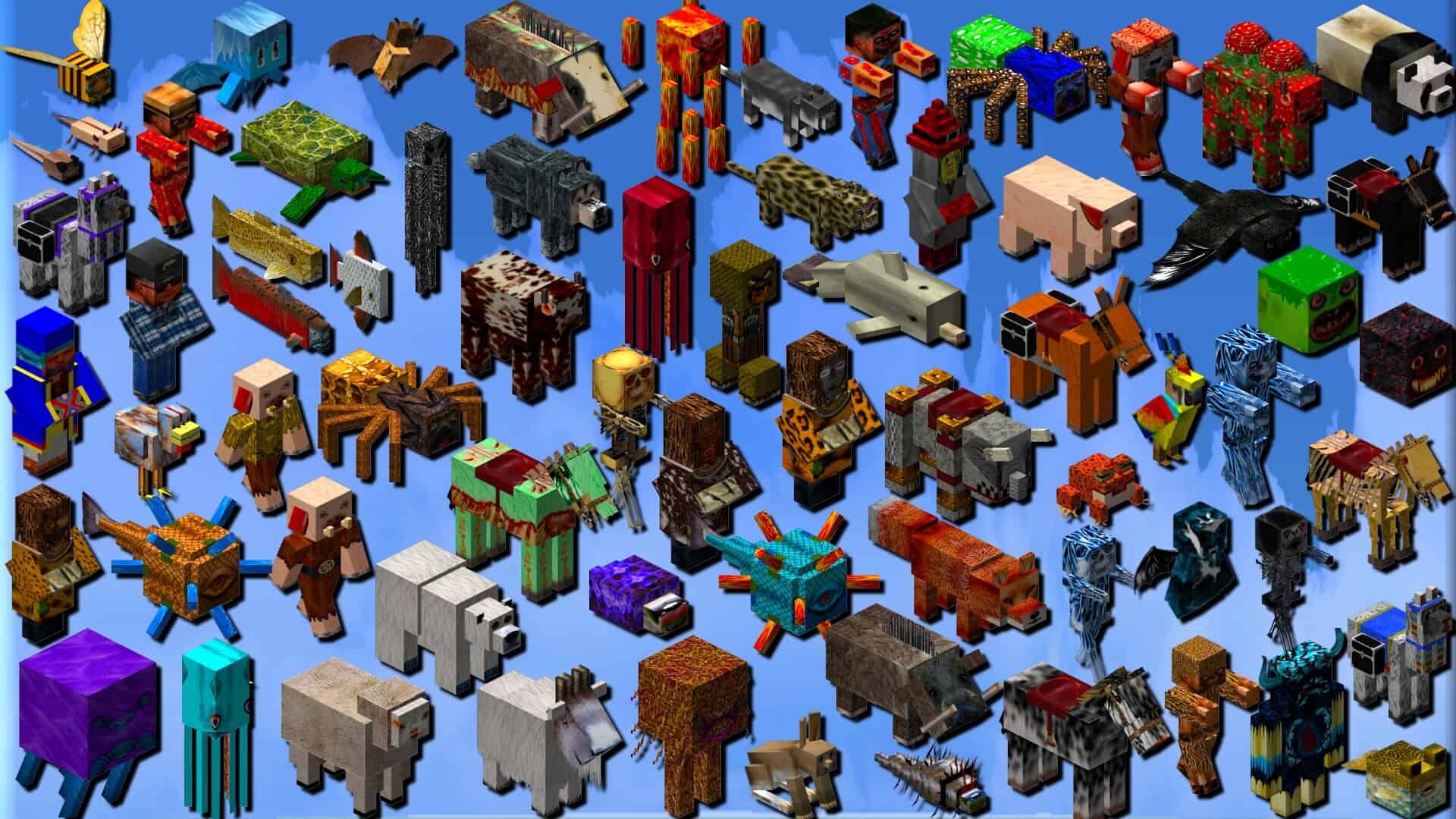
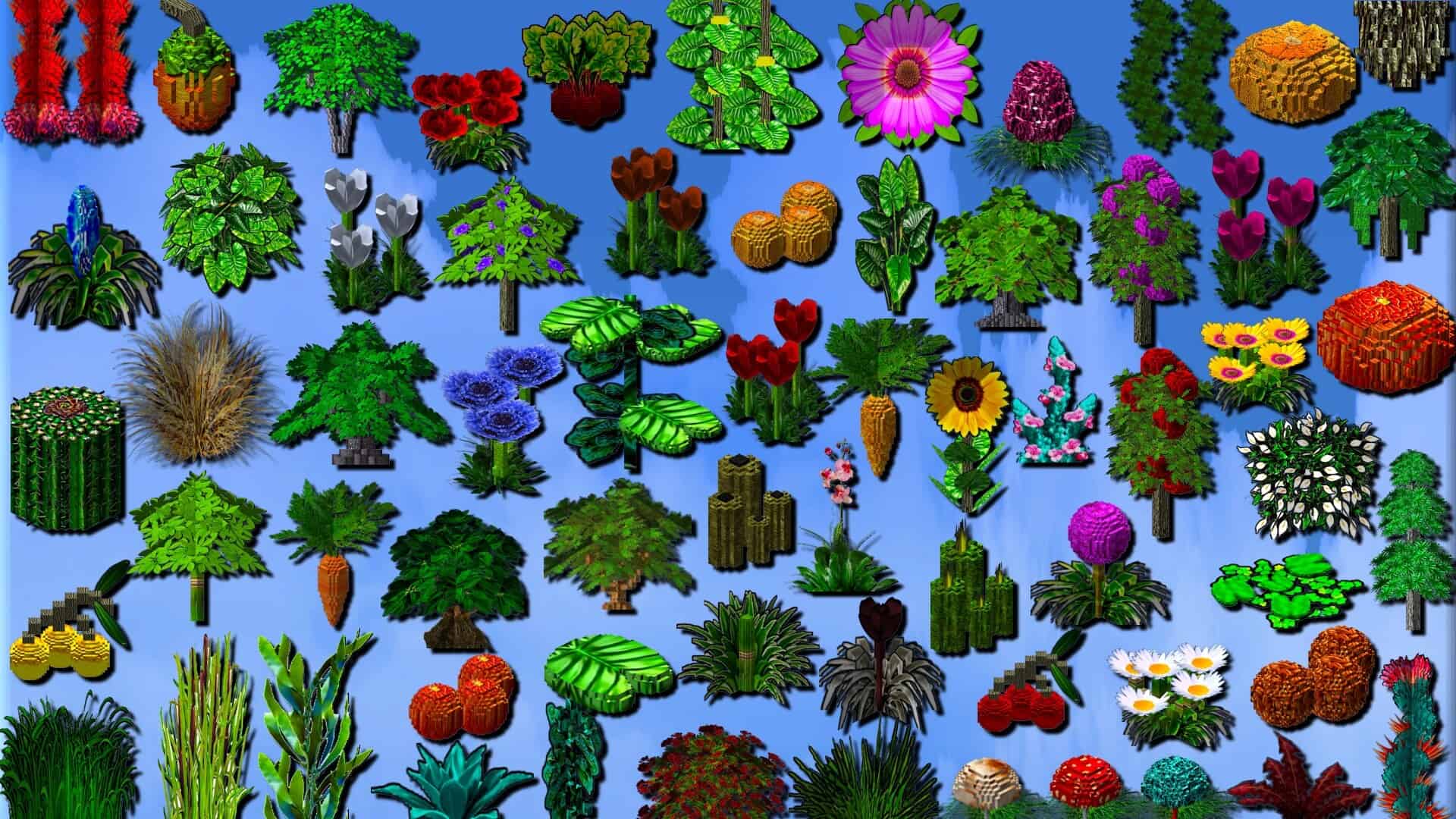
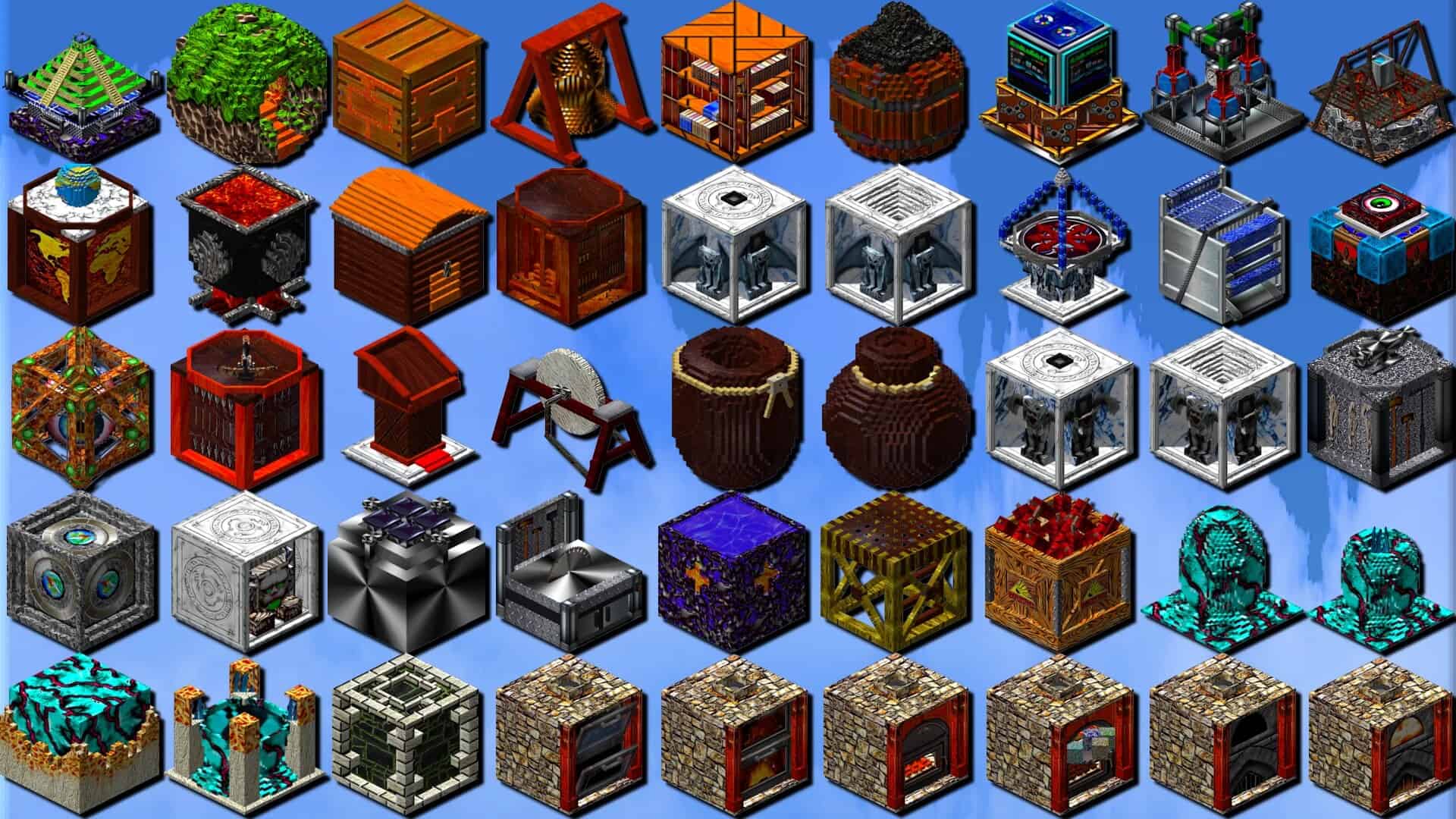
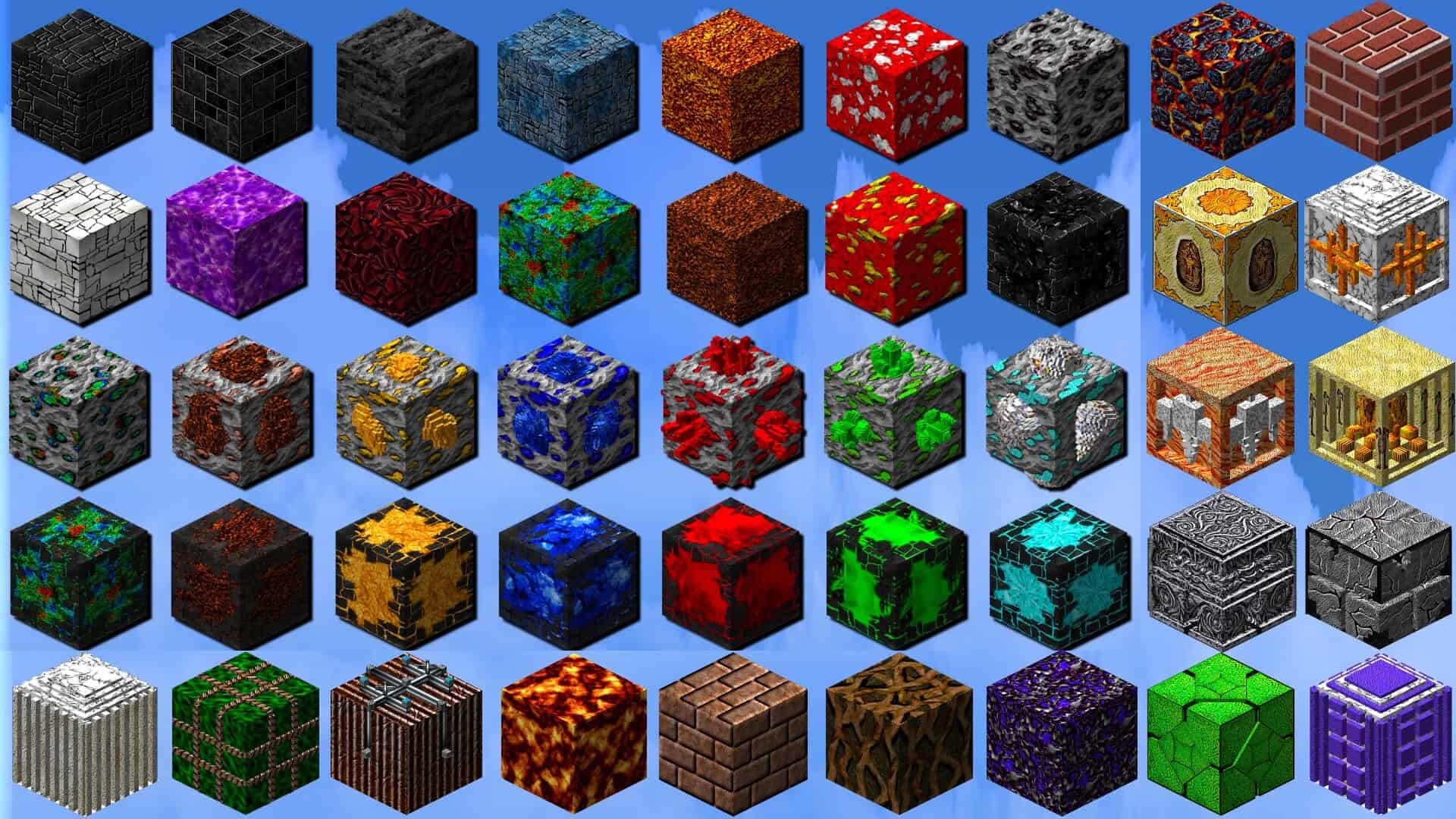
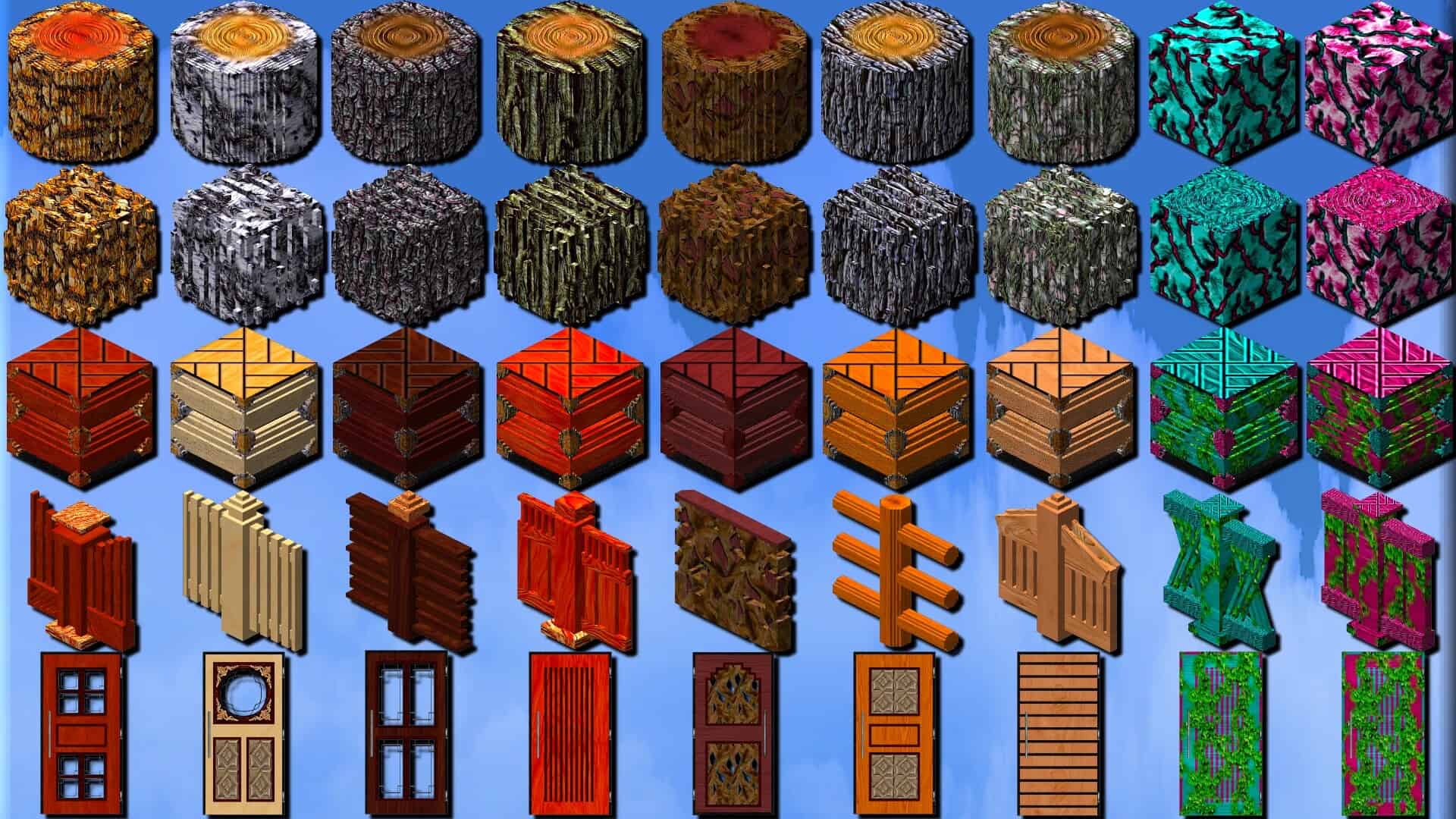
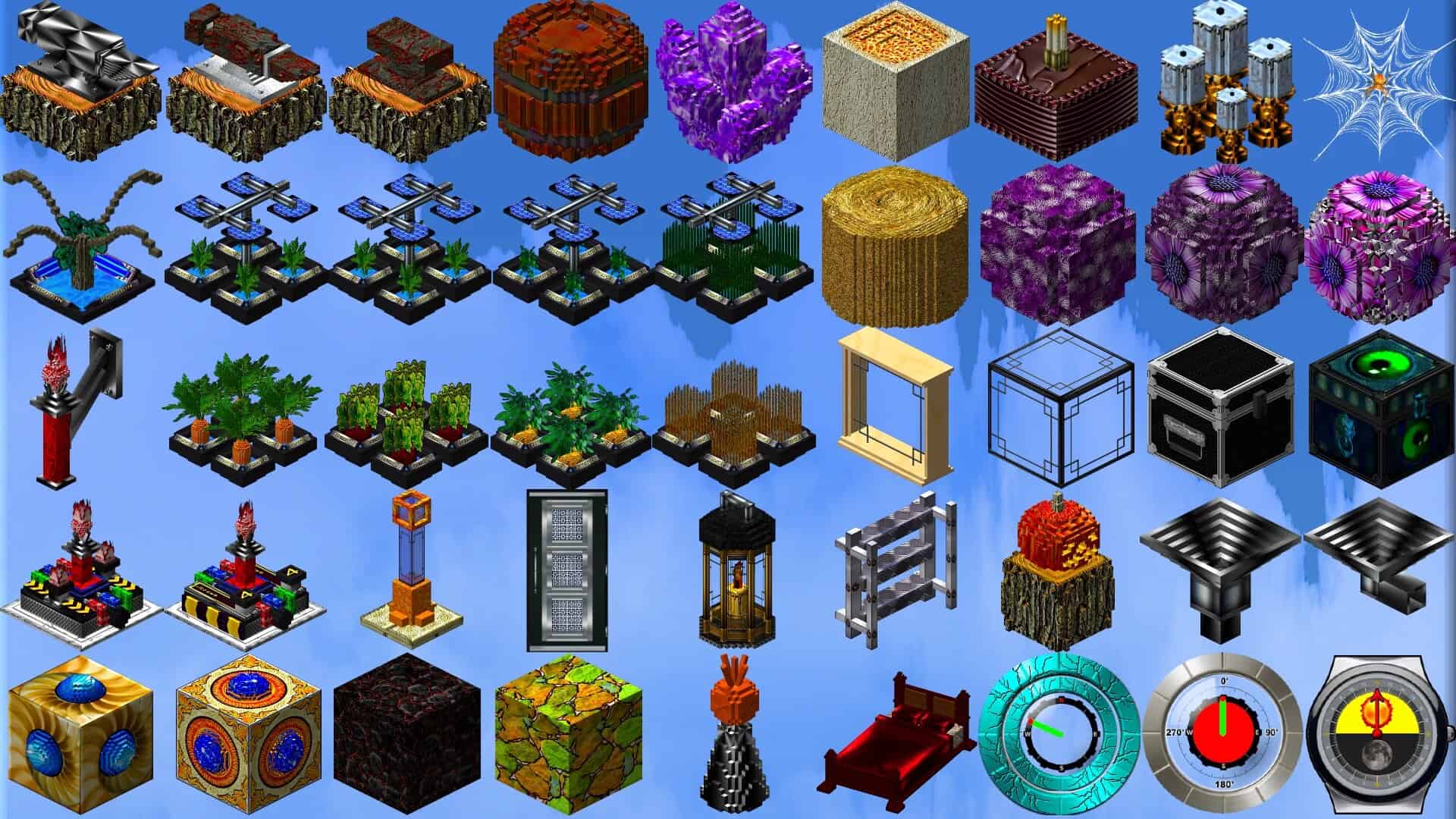
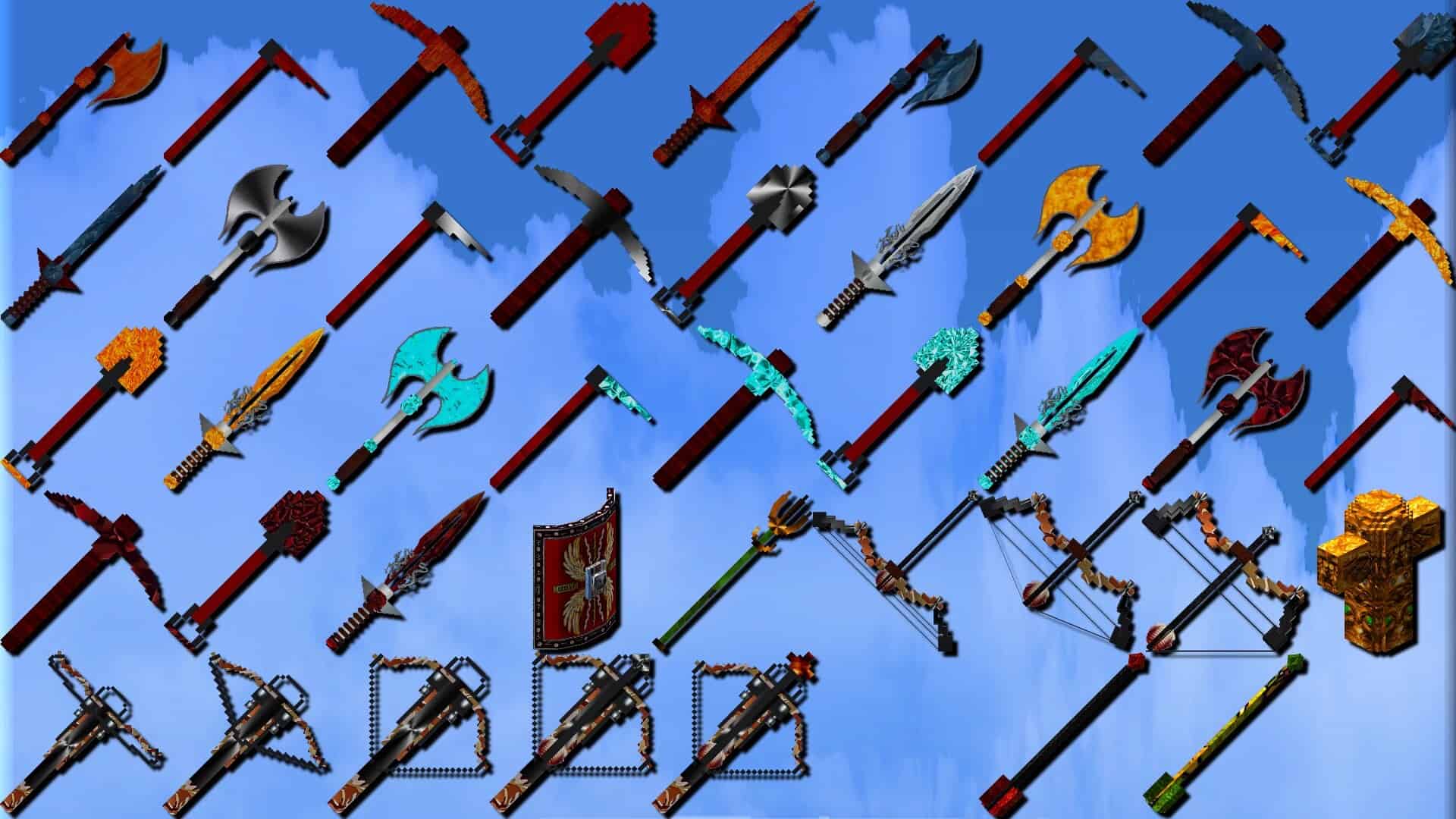
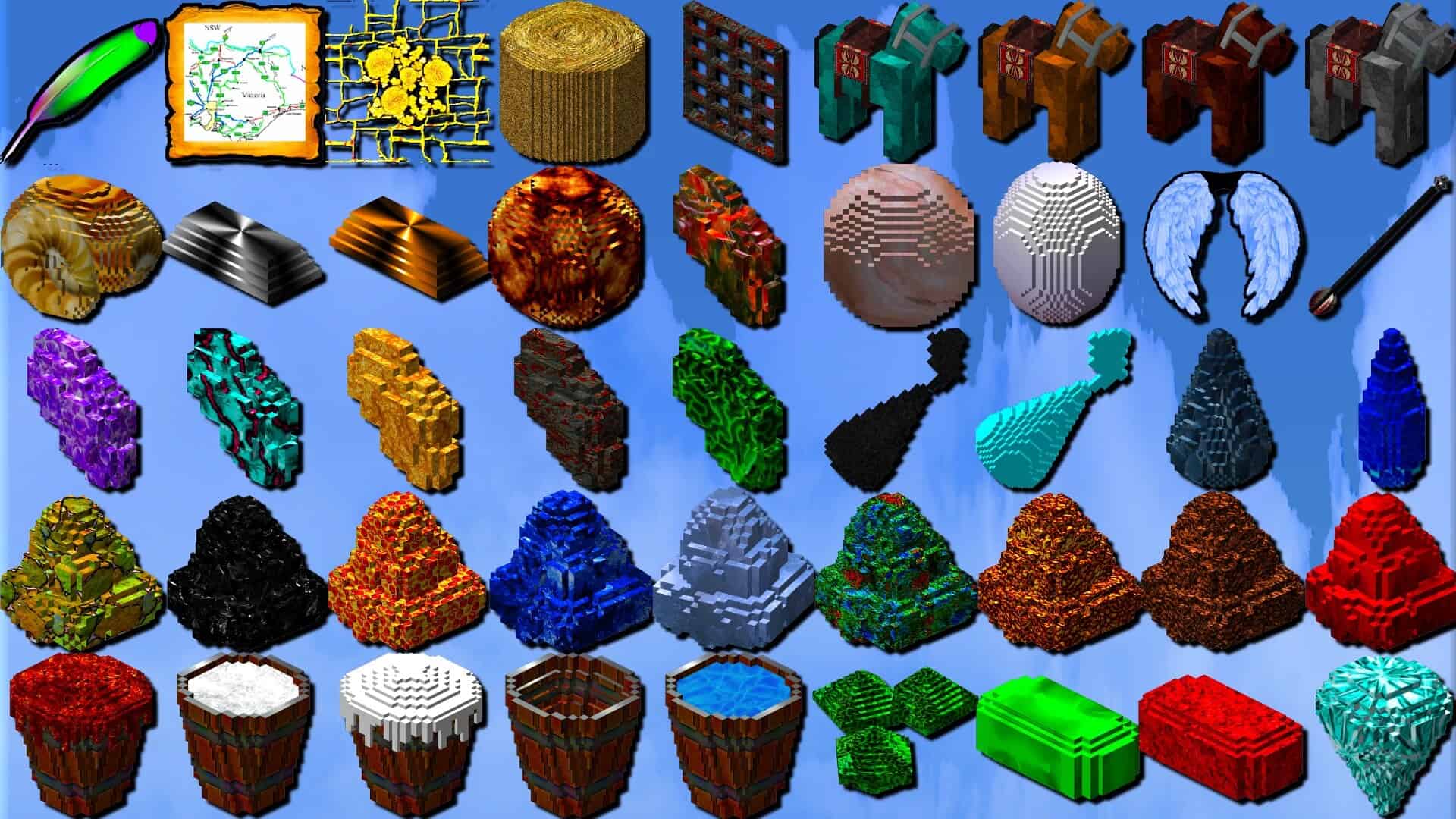
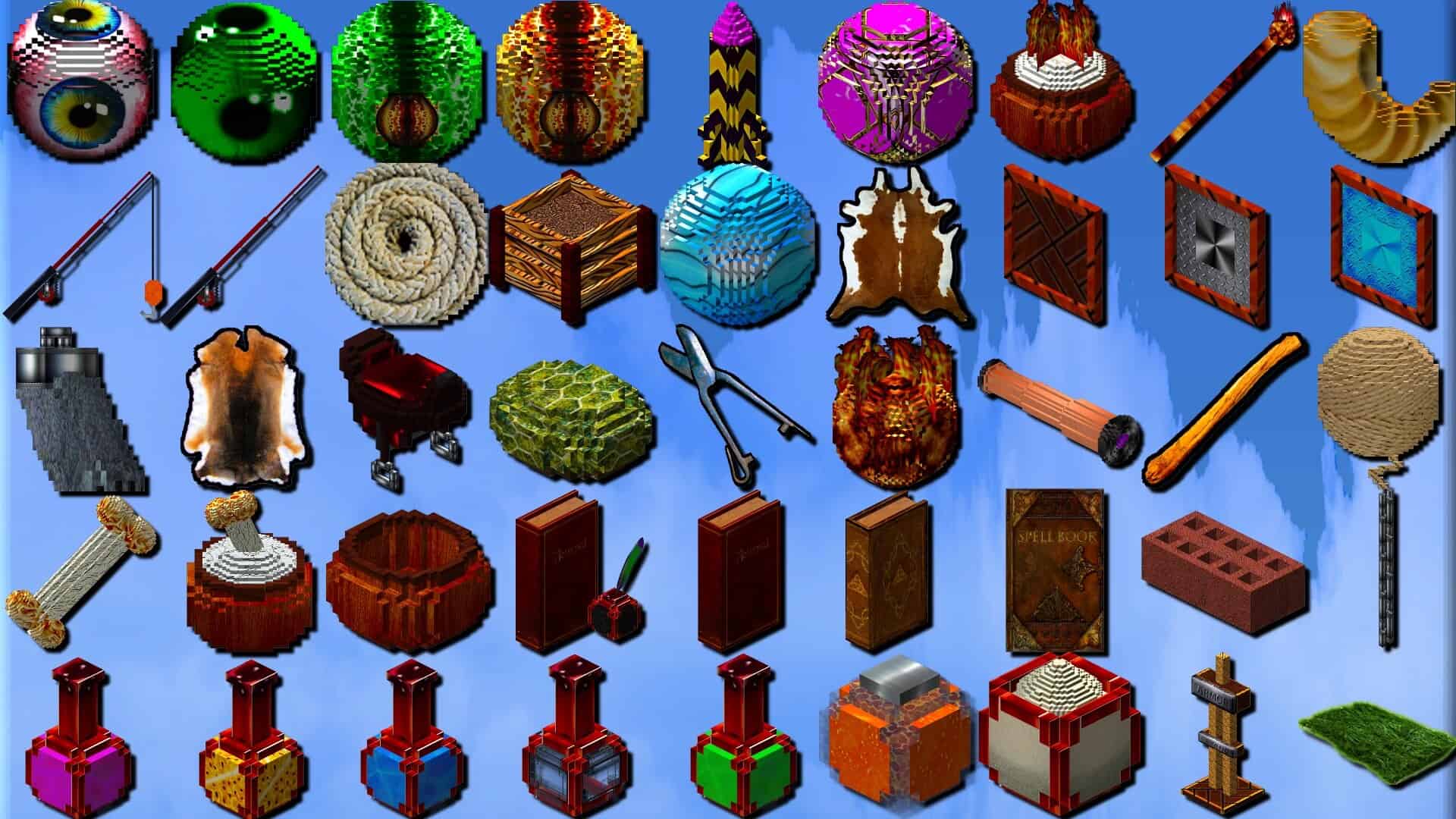
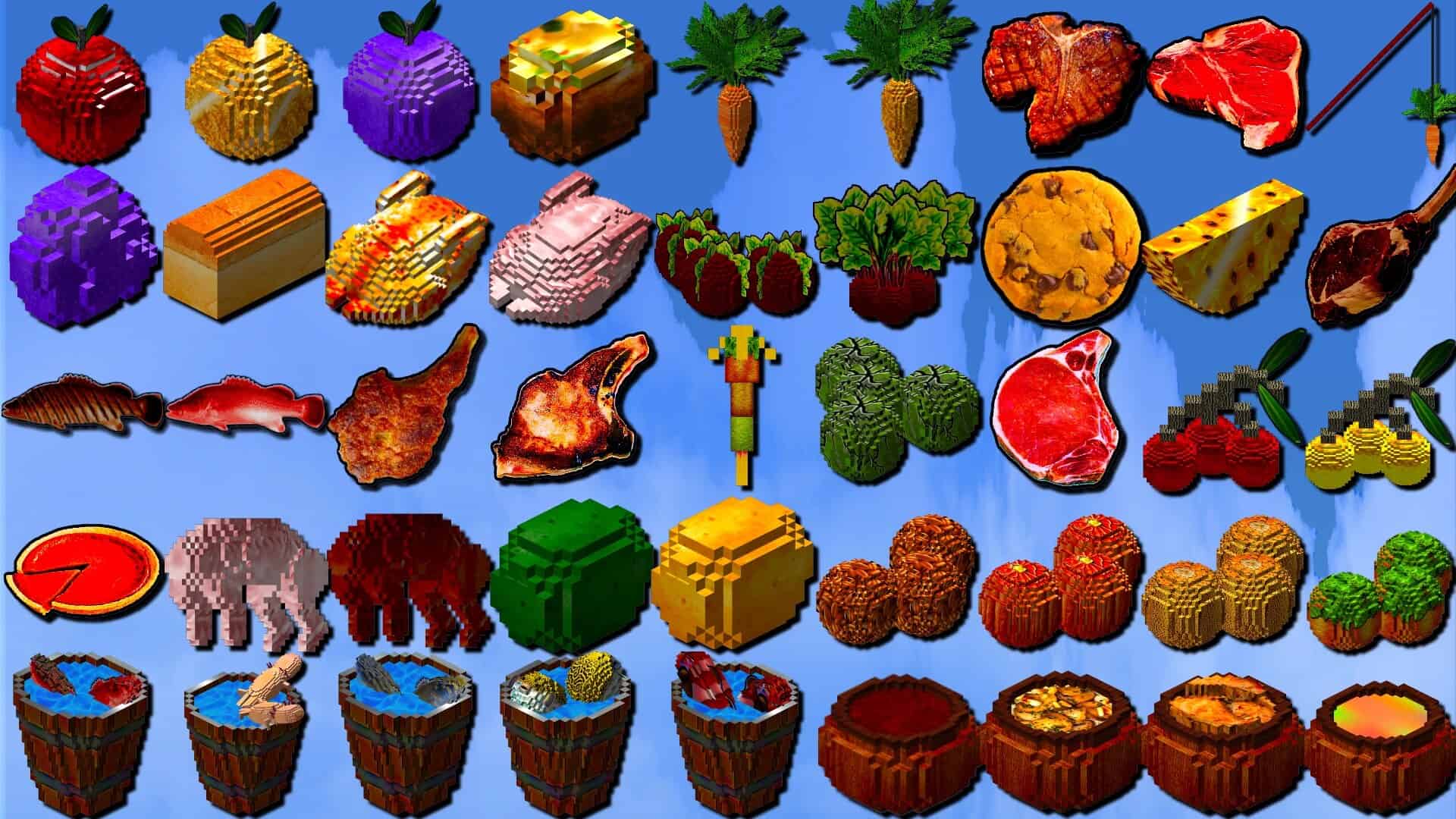
How to Install Texture Pack (Simple 10 Steps)
- Download OptiFine: Most of the texture packs and shaders need OptiFine. That’s why, first download and install OptiFine for the version of Minecraft you want to play.
- Download the Texture Pack: Get the texture pack you want from the download section. Choose the version that works with your Minecraft and your PC’s performance.
- Open Minecraft Launcher: Start Minecraft using the official game launcher — or even TLauncher, if you use that.
- Go to Options: From the main menu, click on the “Options” button.
- Open Resource Packs: Inside Options, click on “Resource Packs…”.
- Open the Resource Pack Folder: Click on “Open Resource Pack Folder” — this will open a folder named “resourcepacks”.
- Move the Pack File: Copy or move the .zip file you downloaded into that “resourcepacks” folder. (Don’t unzip the file — Minecraft uses it as-is!)
- Go Back and Refresh: Close the folder and click “Done”, then go back into “Resource Packs…” again.
- Activate the Pack: You’ll see the pack on the left side. Hover over it and click the arrow to move it to the right (active side).
Tip: If you get a message that the pack is for a different version, just click “Yes” — it usually works fine. - Click Done and Enjoy: Click “Done” again. Now your pack is ready to use in-game. It’s that easy!
Intermacgod Realistic 3D Texture Pack — Creator Credit
Original files: We feature community-made content without claiming ownership of other creators' work. Download the pack from its linked source rather than an independently re-uploaded copy on this website.
Download availability: The original publisher controls the availability of each file. Links and supported versions can change, so please report any broken download link in the comments to help us keep the page useful.
Independent fan website: Minecraft is a trademark of Mojang Studios and Microsoft. This website is independently operated and is not affiliated with or endorsed by either company.
Support the creator: Enjoying this pack? Consider visiting the creator's official page, leaving constructive feedback, or supporting their work through the options they provide.
Download Links
Java Edition
[256x] Download Intermacgod Realistic 3D Resource Pack [26.3.x – 1.21.x]
Bedrock Edition
Download Intermacgod Realistic 3D Resource Pack Bedrock Edition
Download Instructions
Choose the download source linked in this article and follow the steps below.
CurseForge
CFOpen the provided CurseForge page and select the download option if needed. The file may start downloading automatically after a short wait.
MediaFire
MFOn the MediaFire file page, locate the main Download button and click it. Avoid unrelated advertisements or pop-ups.
Google Drive
GDOpen the file preview and select the download icon near the upper-right corner. If preview is unavailable, follow the options shown by Google Drive.
Important Download Information
We provide links to original creator pages and third-party file-hosting services; downloads are not hosted on our own servers. We aim to use relevant source links and check them, but their availability and authenticity can change. A link is not a guarantee that a file has been independently security-tested. Please use trusted sources, review downloaded files carefully, and report broken links in the comments. Minecraft is a trademark of Mojang Studios and Microsoft; this website is independent and is not officially affiliated with either company.