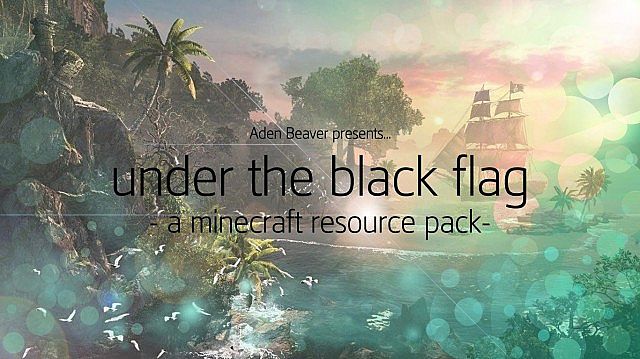
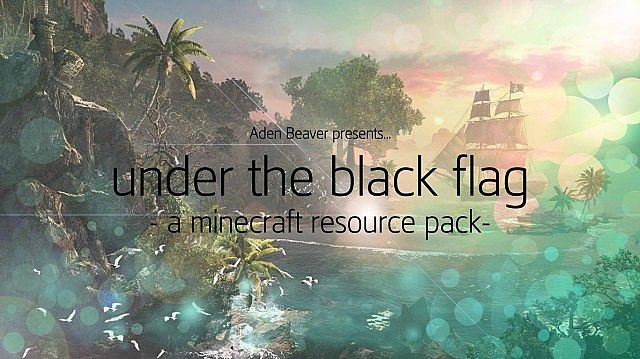
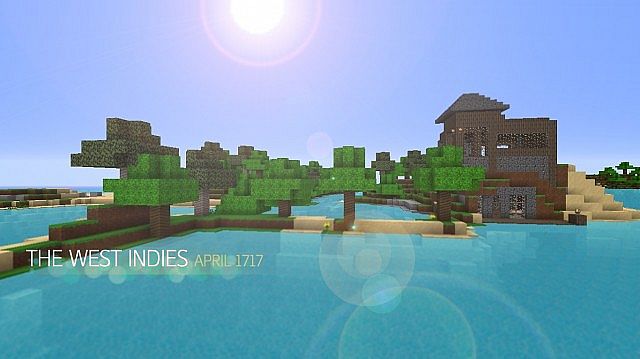
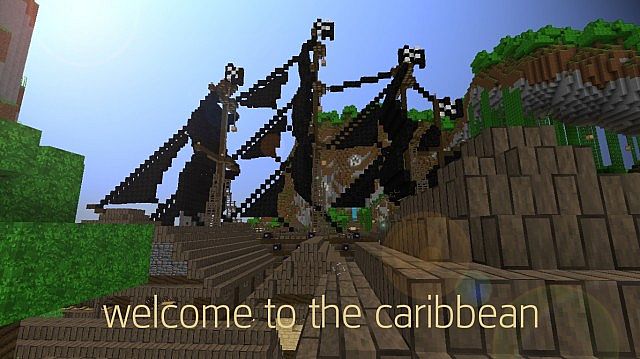
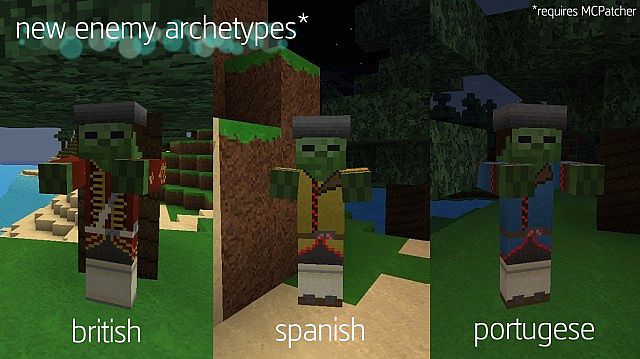
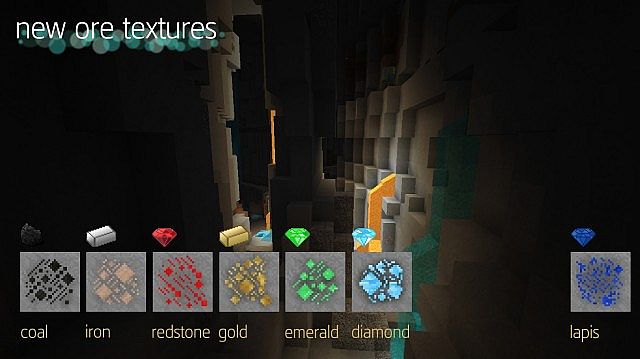
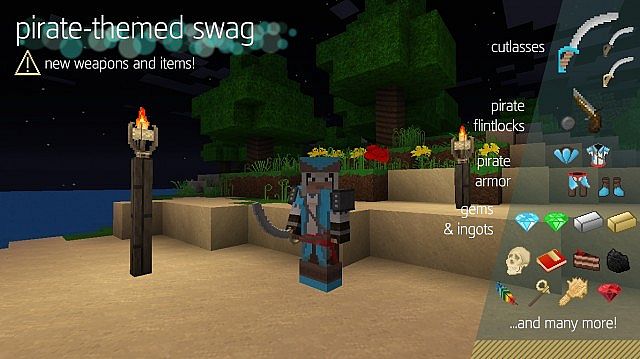
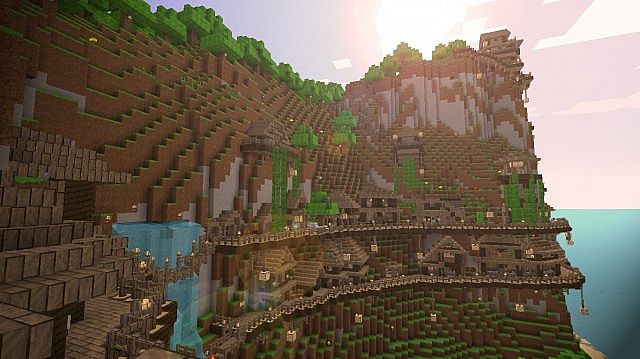
If you are like many players who are absolute fans of Ubisoft’s incredible Assassin’s Creed series while also being completely obsessed with Minecraft, then you are in for a massive treat! The Under The Black Flag resource pack is an utterly fantastic creation that lets you brilliantly combine both of your favorite games into one cohesive experience. What does that mean for your gameplay? Well, you will still dive into your standard Minecraft adventures where you can mine, craft, and build to your heart’s content, but your entire world—from your sprawling buildings down to your specific crafting items—will be completely transformed to look just like Assassin’s Creed IV: Black Flag. It is an immersive overhaul that genuinely makes you feel like a pirate sailing the digital high seas. So, what are you waiting for? Download it today and enjoy the adventure!
Under The Black Flag should be compatible with all of these Minecraft versions: 1.7.10 – 1.7.9 – 1.7.4 – 1.7 – 1.6.4 – 1.6.2
Screenshots

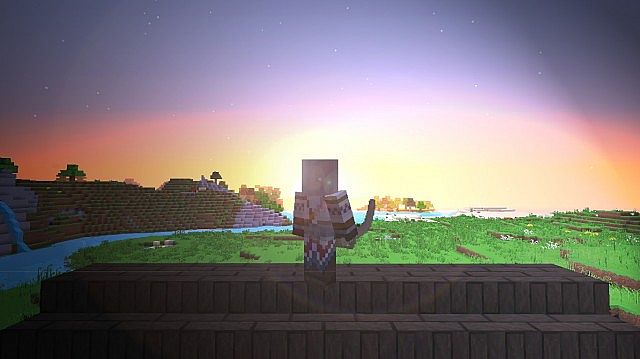
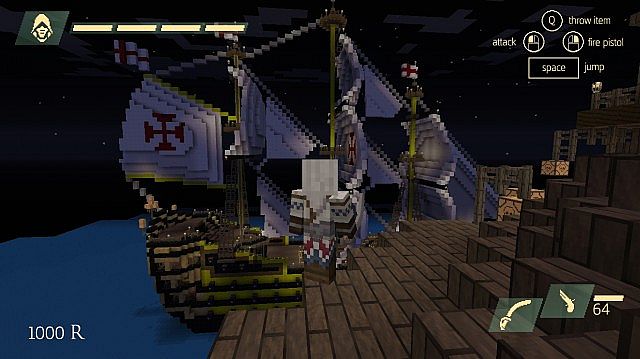


How to Install Texture Pack (Simple 10 Steps)
- Download OptiFine: Most of the texture packs and shaders need OptiFine. That’s why, first download and install OptiFine for the version of Minecraft you want to play.
- Download the Texture Pack: Get the texture pack you want from the download section. Choose the version that works with your Minecraft and your PC’s performance.
- Open Minecraft Launcher: Start Minecraft using the official game launcher — or even TLauncher, if you use that.
- Go to Options: From the main menu, click on the “Options” button.
- Open Resource Packs: Inside Options, click on “Resource Packs…”.
- Open the Resource Pack Folder: Click on “Open Resource Pack Folder” — this will open a folder named “resourcepacks”.
- Move the Pack File: Copy or move the .zip file you downloaded into that “resourcepacks” folder. (Don’t unzip the file — Minecraft uses it as-is!)
- Go Back and Refresh: Close the folder and click “Done”, then go back into “Resource Packs…” again.
- Activate the Pack: You’ll see the pack on the left side. Hover over it and click the arrow to move it to the right (active side).
Tip: If you get a message that the pack is for a different version, just click “Yes” — it usually works fine. - Click Done and Enjoy: Click “Done” again. Now your pack is ready to use in-game. It’s that easy!
Credits
This project was originally created by BeaversLikeWood. We do not claim ownership of this content, nor do we host modified versions of it. Please support the original creator by visiting their official download links.
Download Instructions
Curseforge: download starts automatically after a few seconds;
Mediafire: click the big blue button with the text “DOWNLOAD”;
Google Drive: in the top right corner you will see a small download icon (down arrow), click it and the download should start;


