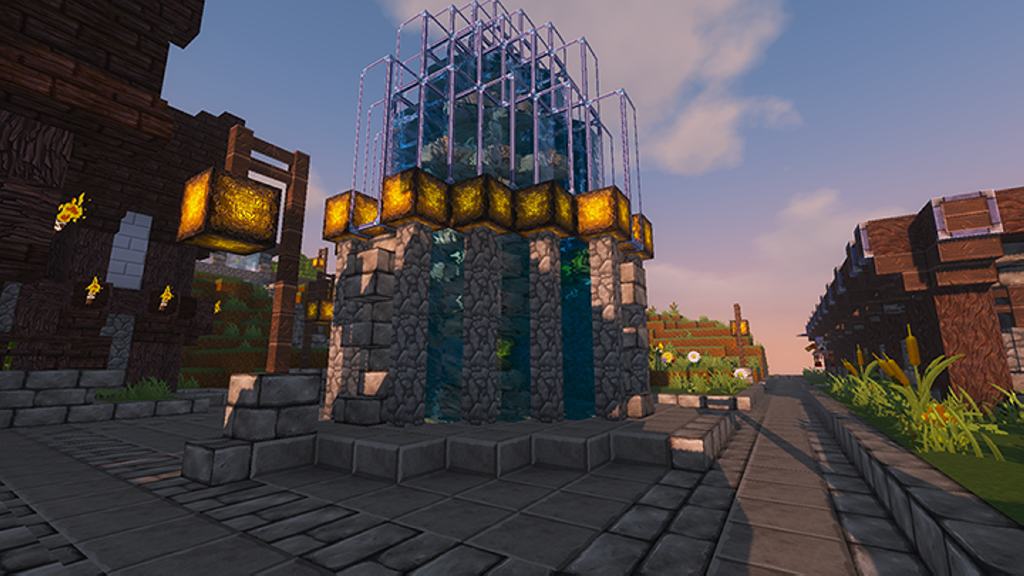
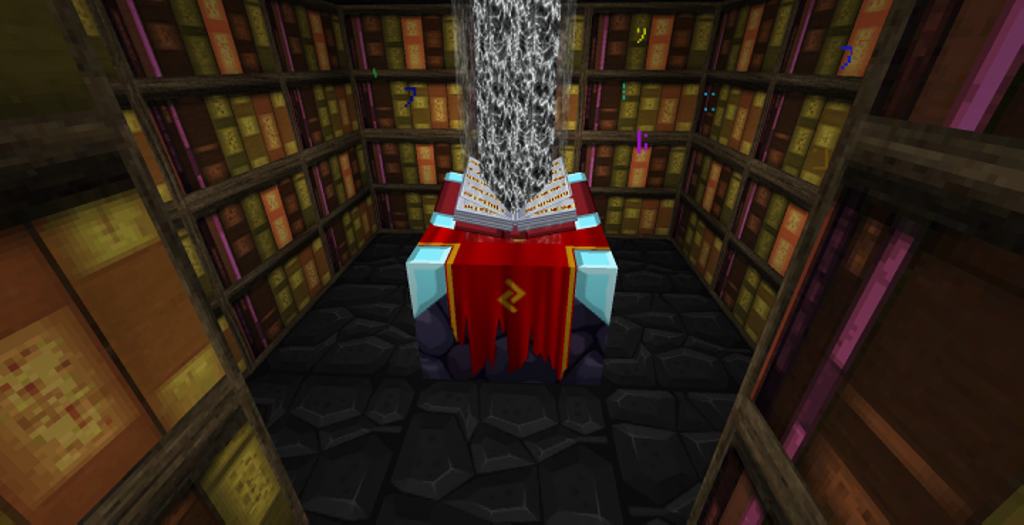
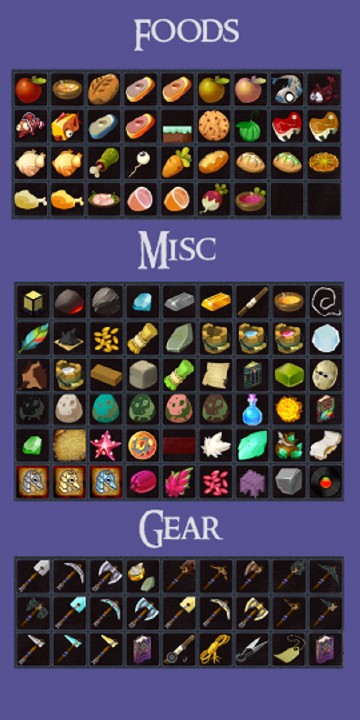
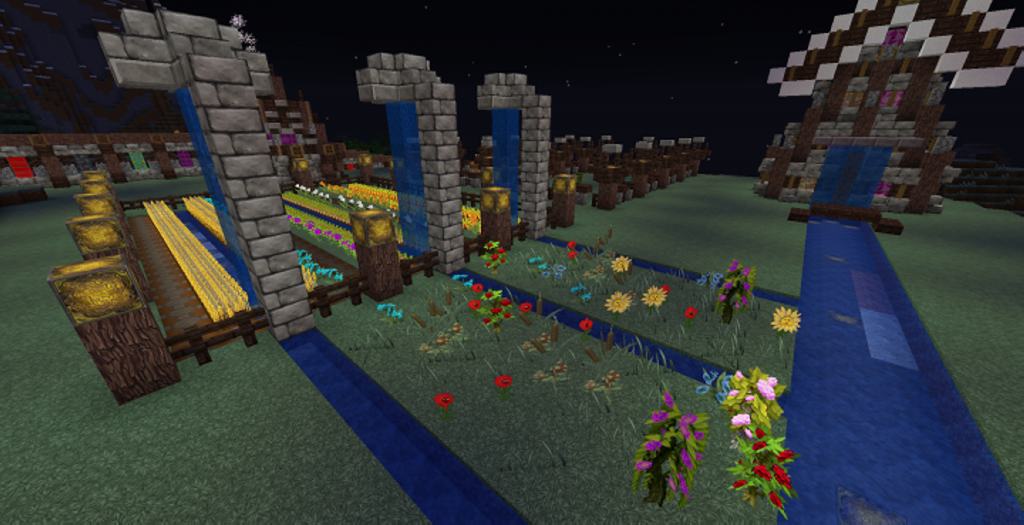
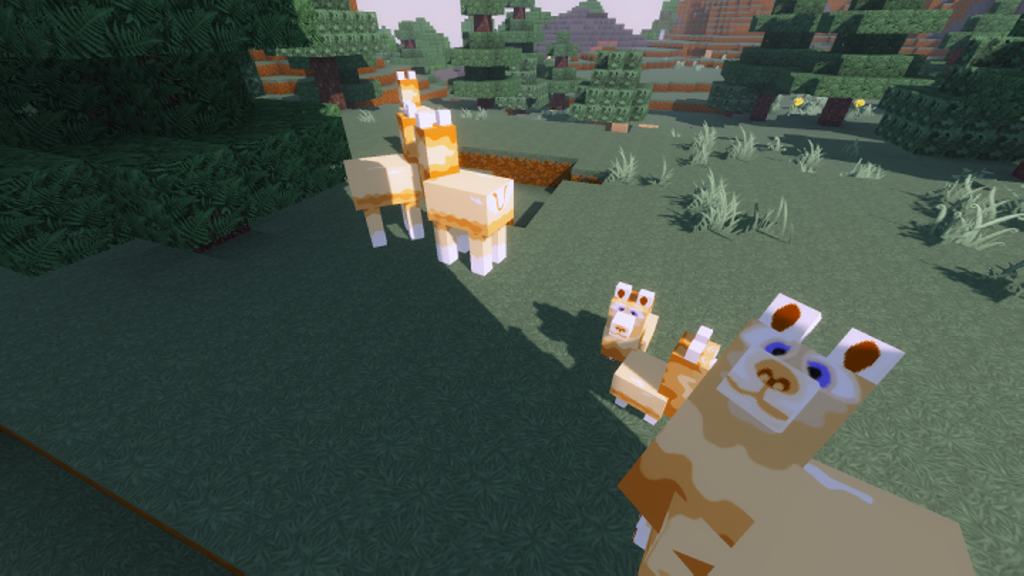
First established way back in 2013, TrappedChest stands out as a truly wonderful and elegant resource pack for Minecraft. Honestly, the pack was quite dormant for the past few years because keeping it updated proved difficult, but I am thrilled to see it has recently gone through a massive and impressive transformation with a brand new update! This gives us plenty of reasons to celebrate. To be completely realistic, the TrappedChest resource pack has certainly survived its fair share of challenges, but right now, it truly has everything it takes to elevate your Minecraft experience to unimaginable new heights. It accomplishes this by delivering a taste of magnificent visuals that simply cannot be compared to standard packs. What makes TrappedChest offer such spectacular and amazing visuals? The answer is straightforward: this unique pack is designed with a wide range of brilliantly crafted textures that make the overall aesthetic remarkably superior.
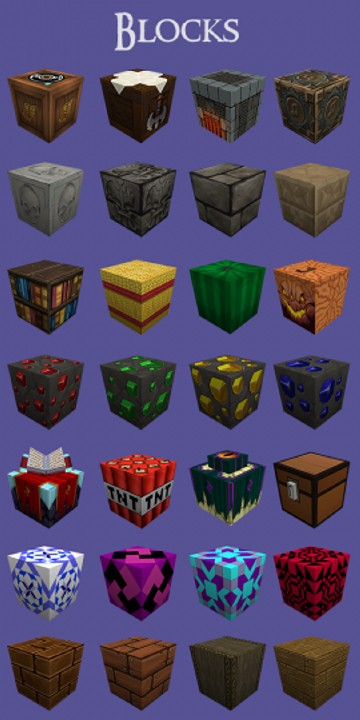
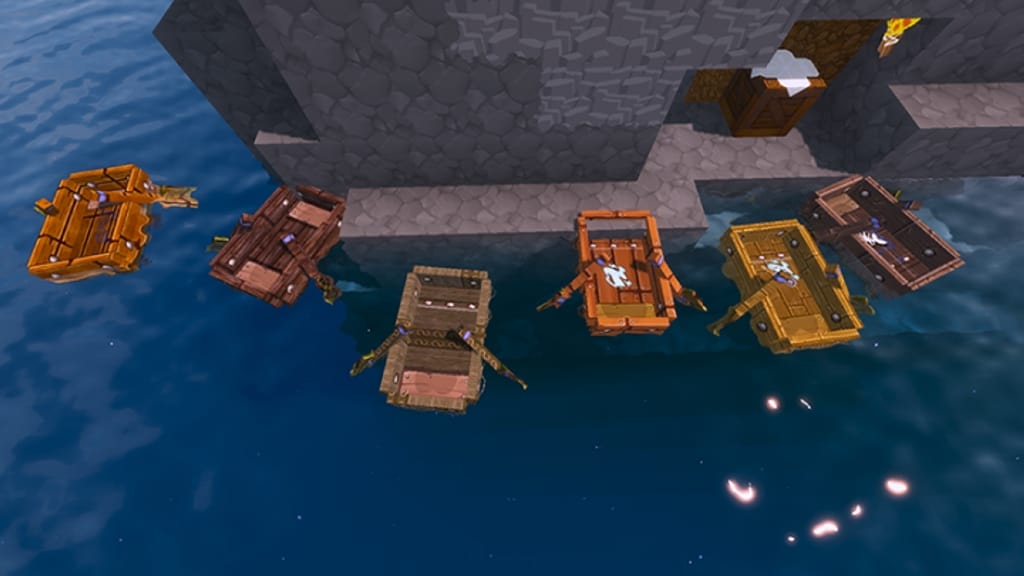
This outstanding pack also comes packed with connected textures, clever intersections, and wonderful randomizations that make exploring the world such a visual treat. Along with these fantastic features, the pack is designed with a sleek, shiny user-interface that looks amazing. When we look at the actual textures themselves, they are brimming with detail, bursting with brilliant colors, and feature significantly less visual noise than vanilla Minecraft. This alone will definitely make you fall in love with its gorgeous look! The TrappedChest textures contain an incredible amount of detail, which is thanks to a truly talented designer and a crisp 128×128 resolution. Without a doubt, you will need a powerful PC to run and manage this remarkable resource pack smoothly, as having a high-end setup will easily save you from any frustrating frame-rate drops. Plus, it is important to remember that for the pack to function at its absolute best, you will need to use MCPatcher or a reliable alternative like Optifine. Make sure you have one of these two essential tools installed before diving in to enjoy the full experience!
TrappedChest should be compatible with all of these Minecraft versions: 1.13.2 – 1.13.1 – 1.13 – 1.12.2 – 1.12 – 1.11.2 – 1.11
Screenshots

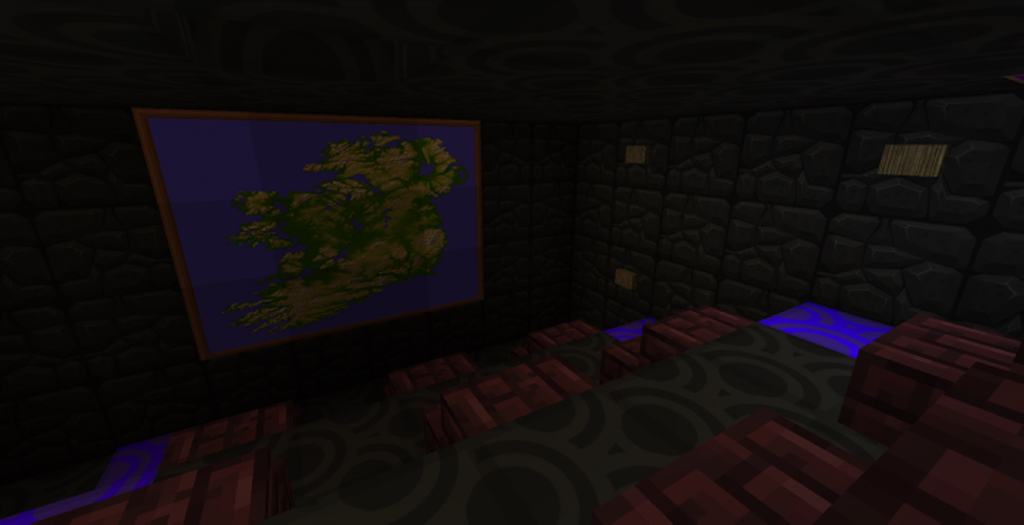

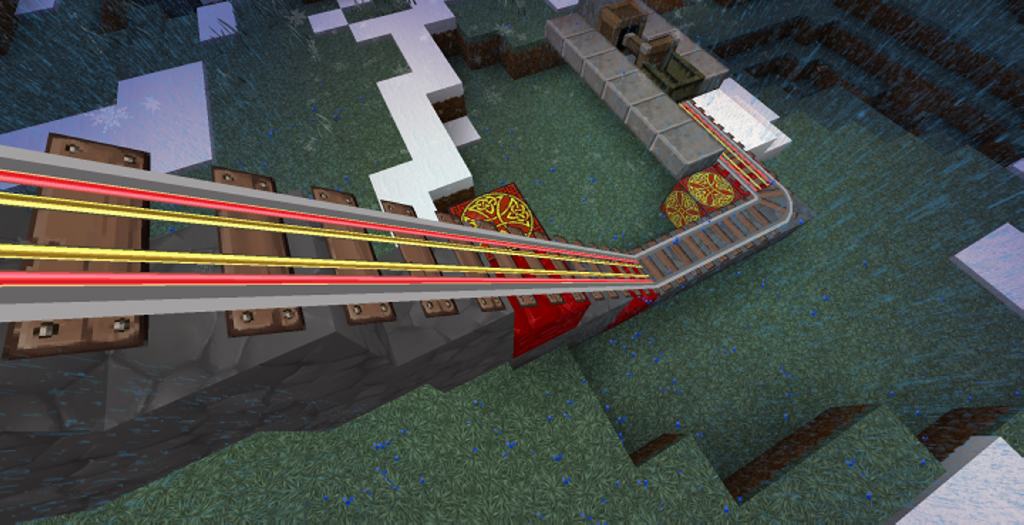
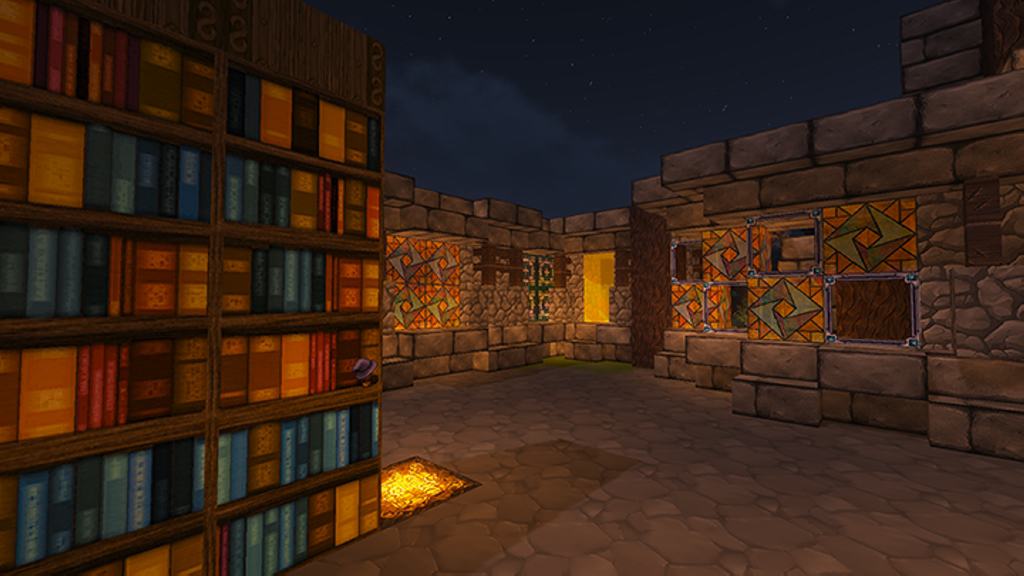
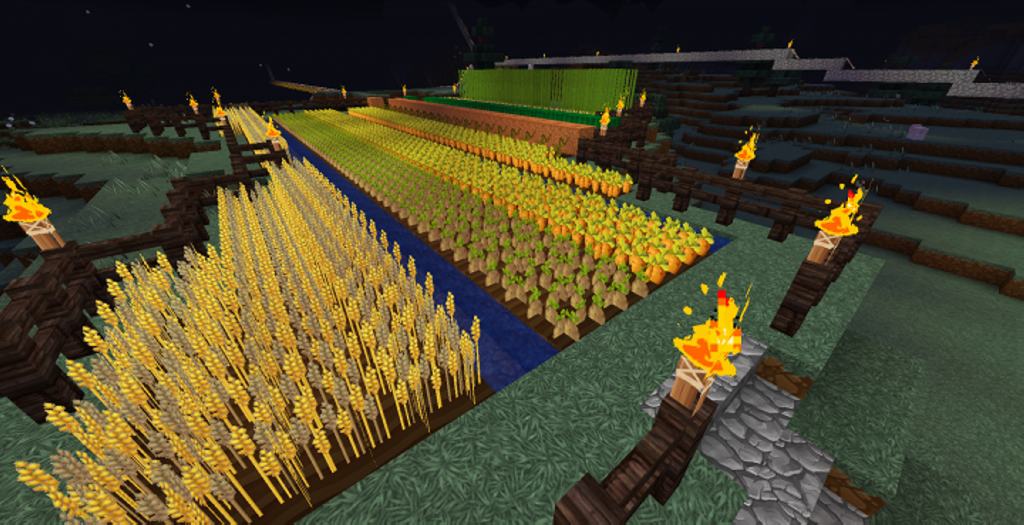
How to Install Texture Pack (Simple 10 Steps)
- Download OptiFine: Most of the texture packs and shaders need OptiFine. That’s why, first download and install OptiFine for the version of Minecraft you want to play.
- Download the Texture Pack: Get the texture pack you want from the download section. Choose the version that works with your Minecraft and your PC’s performance.
- Open Minecraft Launcher: Start Minecraft using the official game launcher — or even TLauncher, if you use that.
- Go to Options: From the main menu, click on the “Options” button.
- Open Resource Packs: Inside Options, click on “Resource Packs…”.
- Open the Resource Pack Folder: Click on “Open Resource Pack Folder” — this will open a folder named “resourcepacks”.
- Move the Pack File: Copy or move the .zip file you downloaded into that “resourcepacks” folder. (Don’t unzip the file — Minecraft uses it as-is!)
- Go Back and Refresh: Close the folder and click “Done”, then go back into “Resource Packs…” again.
- Activate the Pack: You’ll see the pack on the left side. Hover over it and click the arrow to move it to the right (active side).
Tip: If you get a message that the pack is for a different version, just click “Yes” — it usually works fine. - Click Done and Enjoy: Click “Done” again. Now your pack is ready to use in-game. It’s that easy!
Credits
Credits: The original content was created by DarthRiddle. We do not claim ownership of this content, nor do we host or modify the original files. All rights remain with the original creator. We strongly encourage visiting the official creator links to support their work.
Download Links
Java Edition
Download Instructions
Curseforge: download starts automatically after a few seconds;
Mediafire: click the big blue button with the text “DOWNLOAD”;
Google Drive: in the top right corner you will see a small download icon (down arrow), click it and the download should start;


