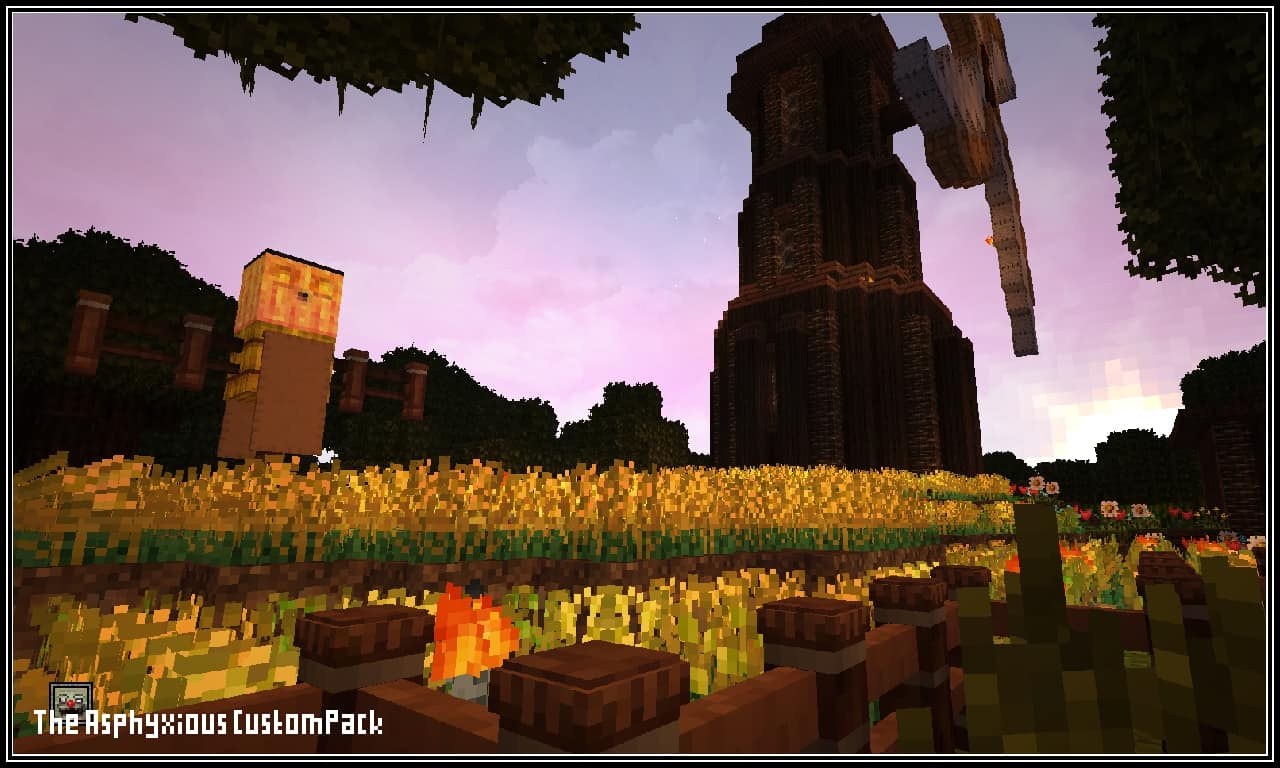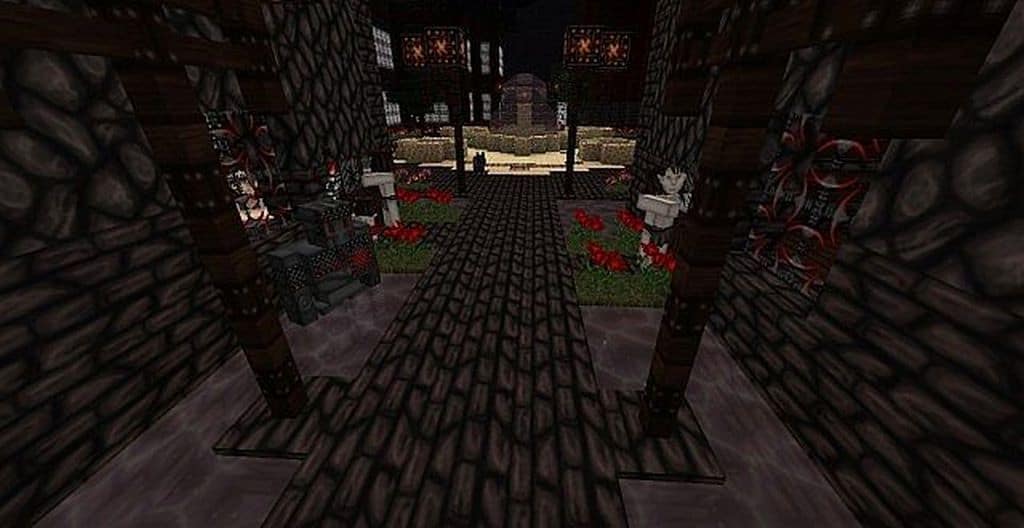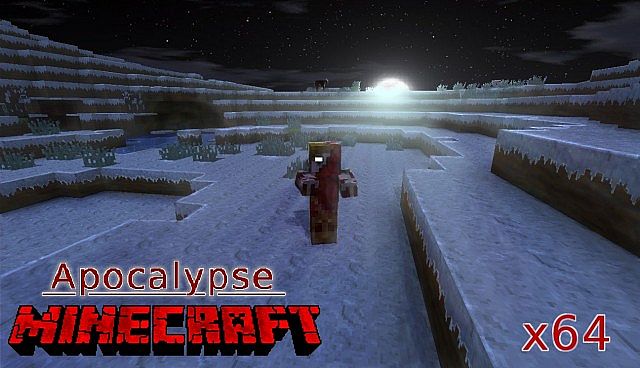
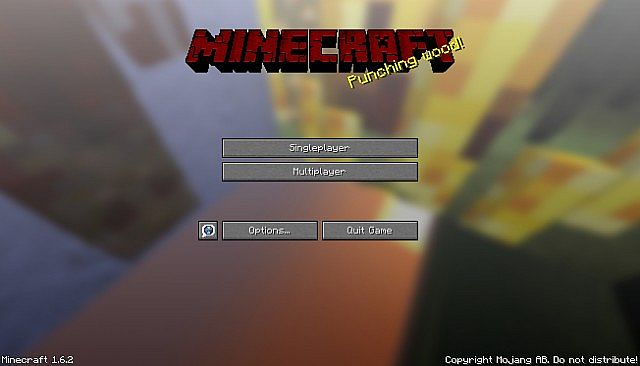
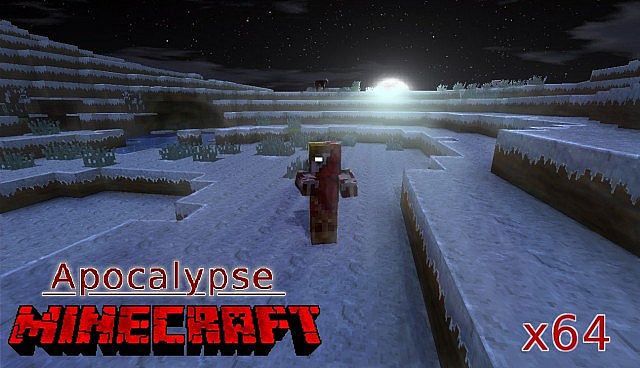
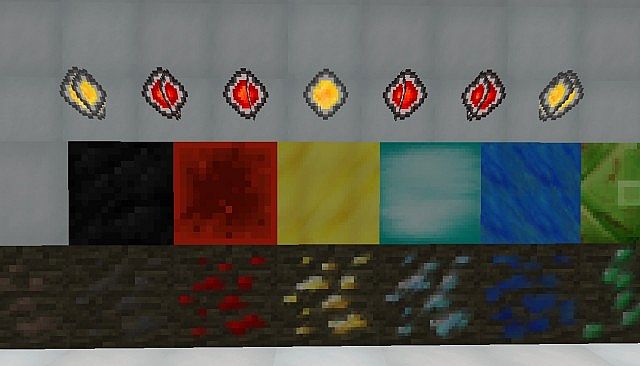
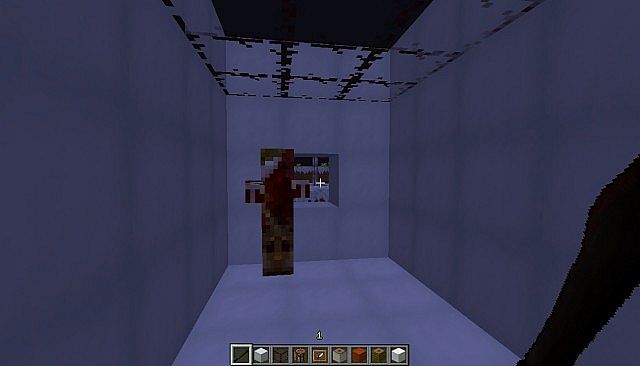
Oh man, you really have to check out The Modern Apocalypse Resource Pack! When I first fired it up, I was totally blown away because it comes in this completely mixed style that I honestly haven’t seen anywhere else. What does that actually mean for your gameplay? Well, it means you get a brilliant fusion of a terrifying horror theme, a gritty apocalypse vibe, and just a subtle hint of modern aesthetics blended together. I noticed right away that most of the blocks in this resource pack are fully animated and styled in a deep, dark gothic fashion, which honestly nails that spooky horror atmosphere when you are wandering around at night. To top it all off, it even features a bunch of items and blocks styled in that awesome comic-book Borderlands aesthetic, making every crafting session and inventory check an absolute treat.
Modern Apocalypse should be compatible with all of these Minecraft versions: 1.7.10 – 1.7.9 – 1.7.4 – 1.7 – 1.6.4 – 1.6.2
Screenshots
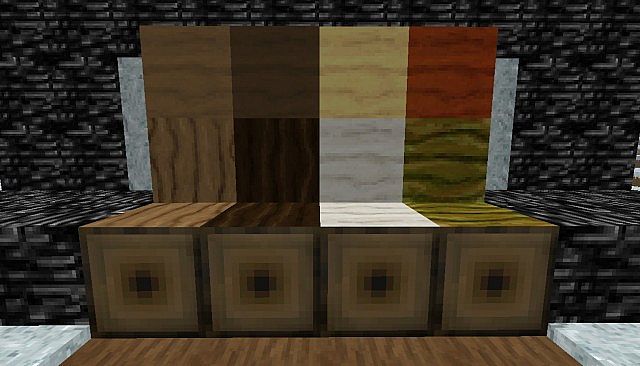
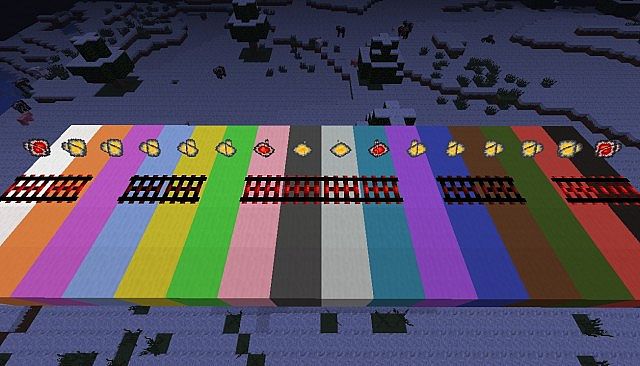
How to Install Texture Pack (Simple 10 Steps)
- Download OptiFine: Most of the texture packs and shaders need OptiFine. That’s why, first download and install OptiFine for the version of Minecraft you want to play.
- Download the Texture Pack: Get the texture pack you want from the download section. Choose the version that works with your Minecraft and your PC’s performance.
- Open Minecraft Launcher: Start Minecraft using the official game launcher — or even TLauncher, if you use that.
- Go to Options: From the main menu, click on the “Options” button.
- Open Resource Packs: Inside Options, click on “Resource Packs…”.
- Open the Resource Pack Folder: Click on “Open Resource Pack Folder” — this will open a folder named “resourcepacks”.
- Move the Pack File: Copy or move the .zip file you downloaded into that “resourcepacks” folder. (Don’t unzip the file — Minecraft uses it as-is!)
- Go Back and Refresh: Close the folder and click “Done”, then go back into “Resource Packs…” again.
- Activate the Pack: You’ll see the pack on the left side. Hover over it and click the arrow to move it to the right (active side).
Tip: If you get a message that the pack is for a different version, just click “Yes” — it usually works fine. - Click Done and Enjoy: Click “Done” again. Now your pack is ready to use in-game. It’s that easy!
Credits
This resource pack was created by TheNovicChannel. We do not claim ownership of this modification, nor have we altered the files in any way. All rights and original ownership remain fully with the original creator. We strongly encourage you to support the author by utilizing their official download links and following their community pages.
Download Instructions
Curseforge: download starts automatically after a few seconds;
Mediafire: click the big blue button with the text “DOWNLOAD”;
Google Drive: in the top right corner you will see a small download icon (down arrow), click it and the download should start;