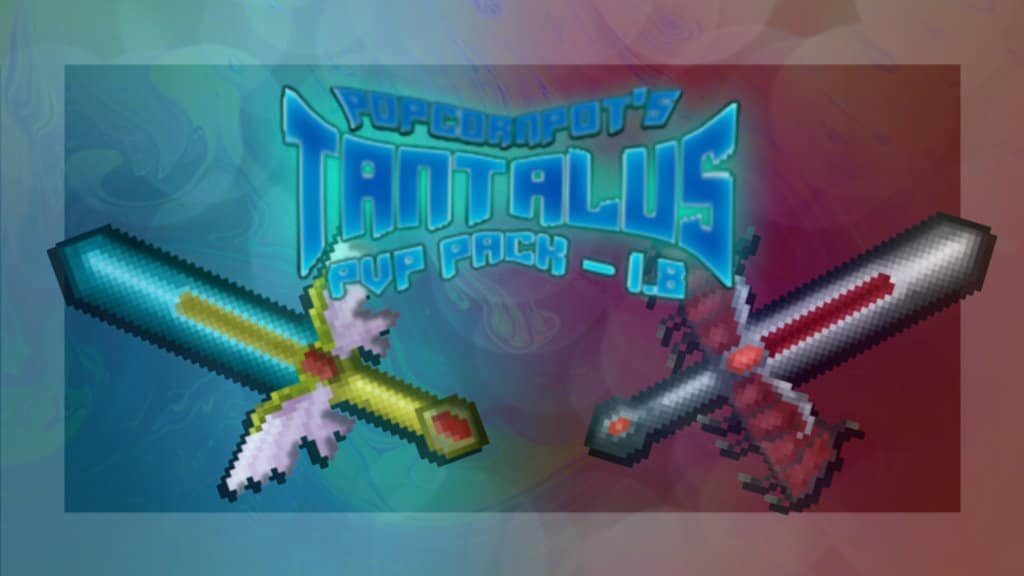
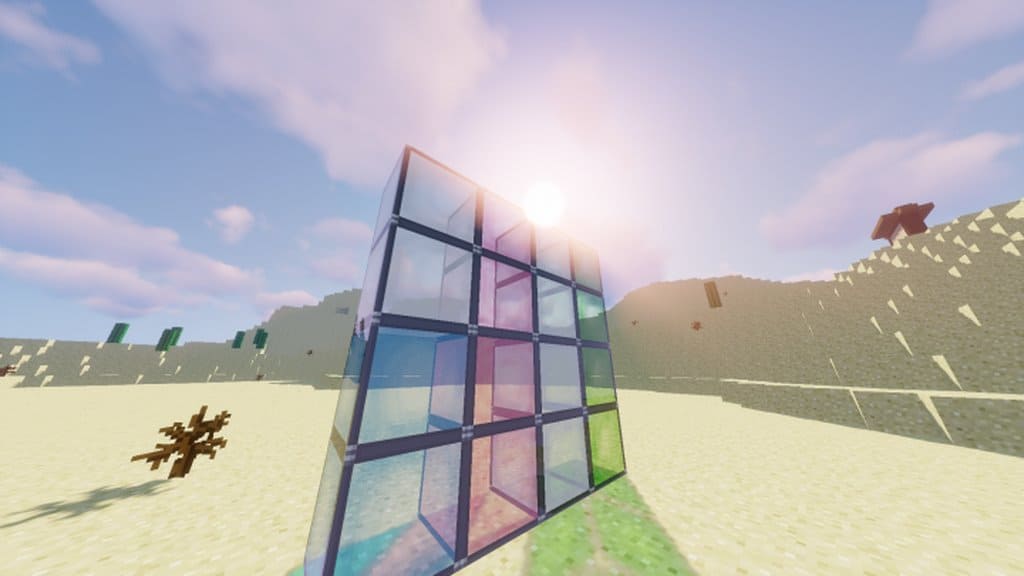
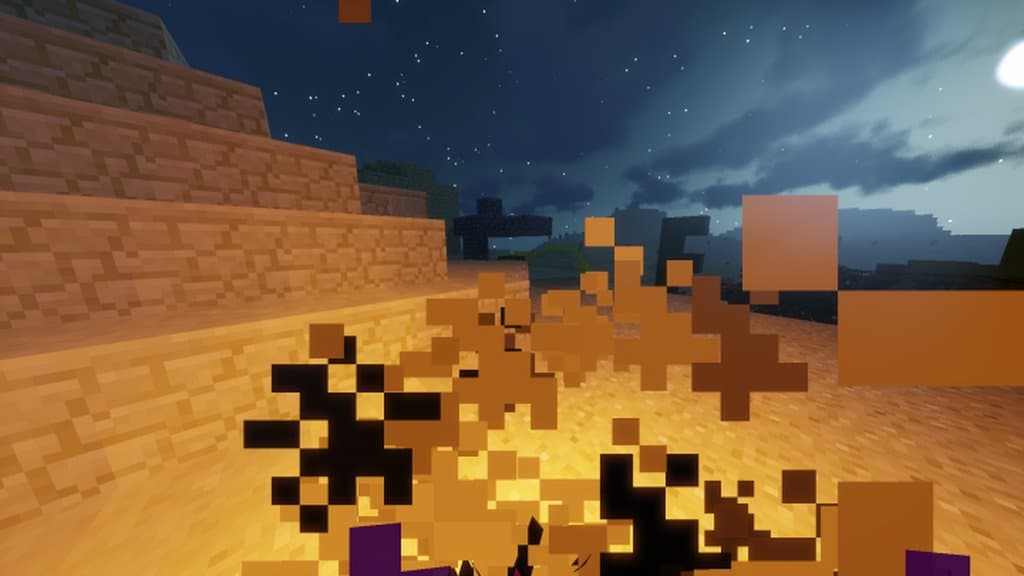
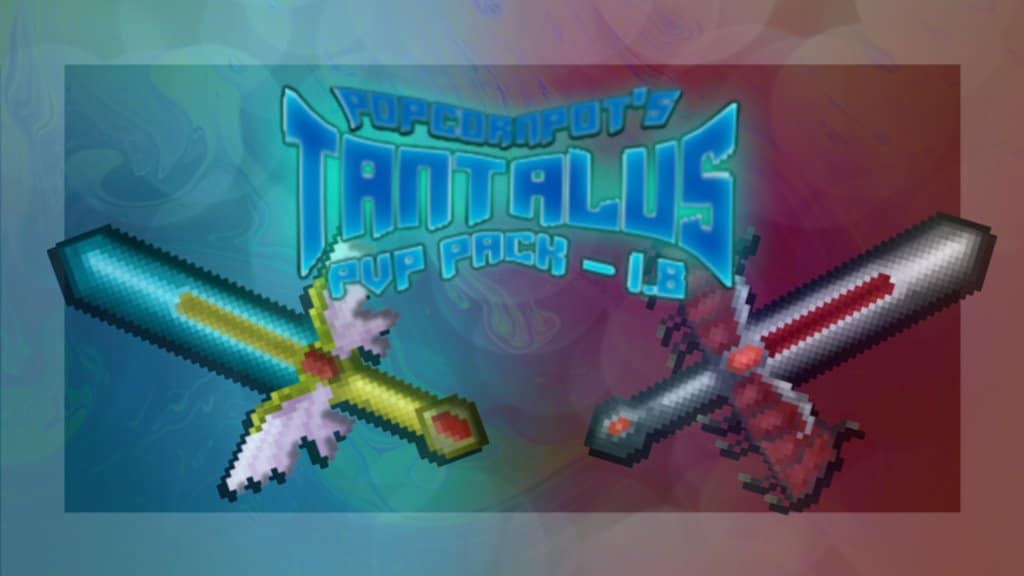
If you are heavily into competitive PvP, you are going to absolutely love the Tantalus PvP resource pack, which is specifically developed for players like us. Tantalus stands out completely from conventional packs by including multiple features tailored strictly for combat, making your time in Minecraft far more enjoyable and competitive. On top of that, the pack genuinely includes much better visuals with well-designed, highly attractive textures. Just like other top-tier PvP packs, the gameplay speed feels significantly better and smoother than standard vanilla textures. Any visual elements that could negatively affect your combat clarity, along with other unnecessary clutter, have been completely eliminated to keep your vision clear. Honestly, this texture pack is one of the most highly recommended PvP choices because it thoughtfully considers every single requirement a competitive player could possibly have.
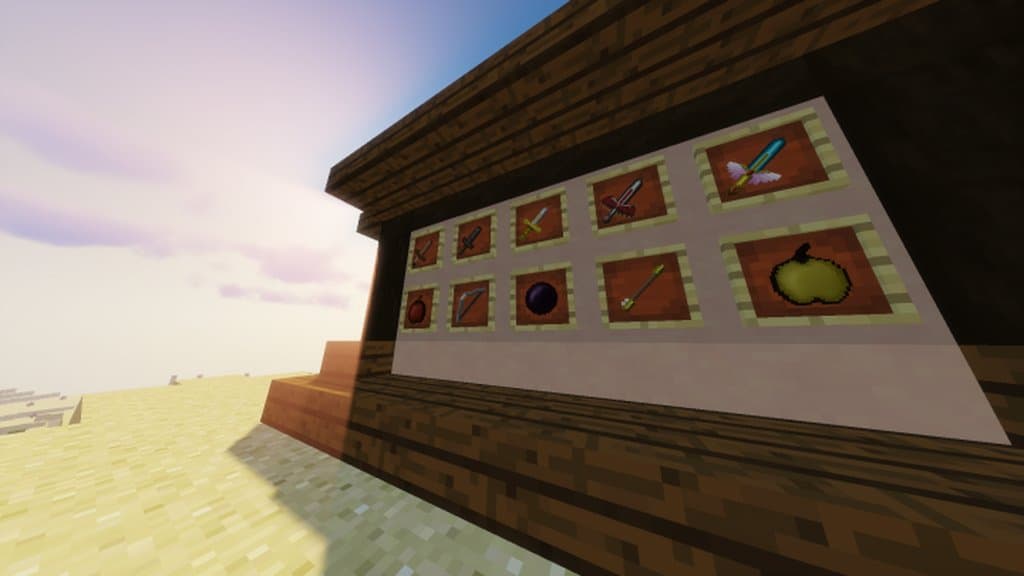
A vast majority of PvP packs available in Minecraft mainly focus purely on raw performance and clarity, but unfortunately, they often overlook the visual details of different items, leaving them looking quite dull and unappealing. Because of that, players rarely feel truly immersed in the world. In fantastic contrast, the textures for most of the items in Tantalus PvP are meticulously crafted by experts and turn out to be extremely detailed. So, alongside being visually striking and attractive, it still keeps all the essential features that characterize great PvP packs, such as vastly improved performance and greater screen clarity. To top it all off, Tantalus cleverly utilizes mixed resolutions for different items and blocks, ranging from a clean 16×16 up to a gorgeous 64×64 resolution for maximum visual flair.
Tantalus PvP should be compatible with all of these Minecraft versions: 1.8.9 – 1.8.1 – 1.8.6 – 1.8
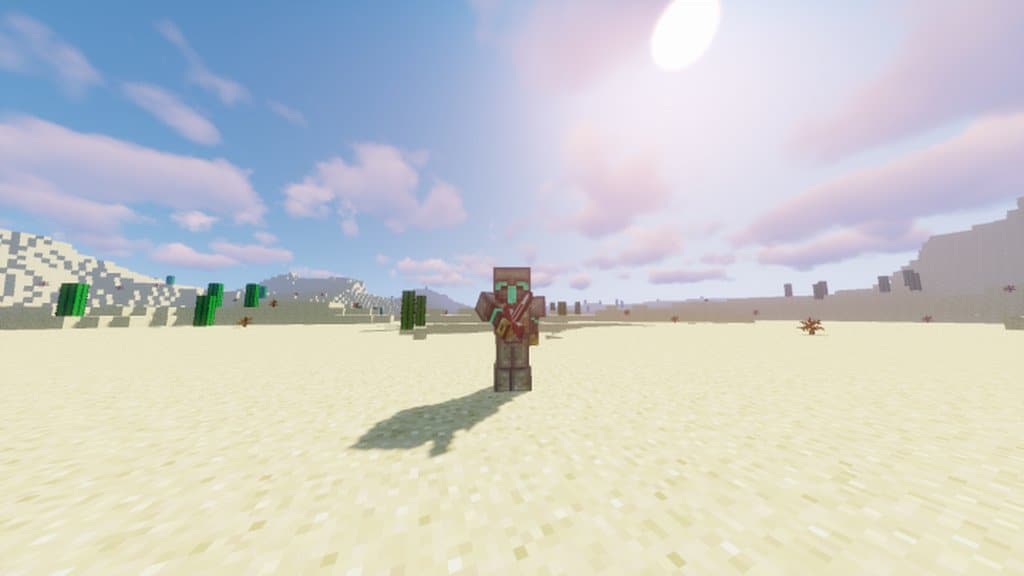
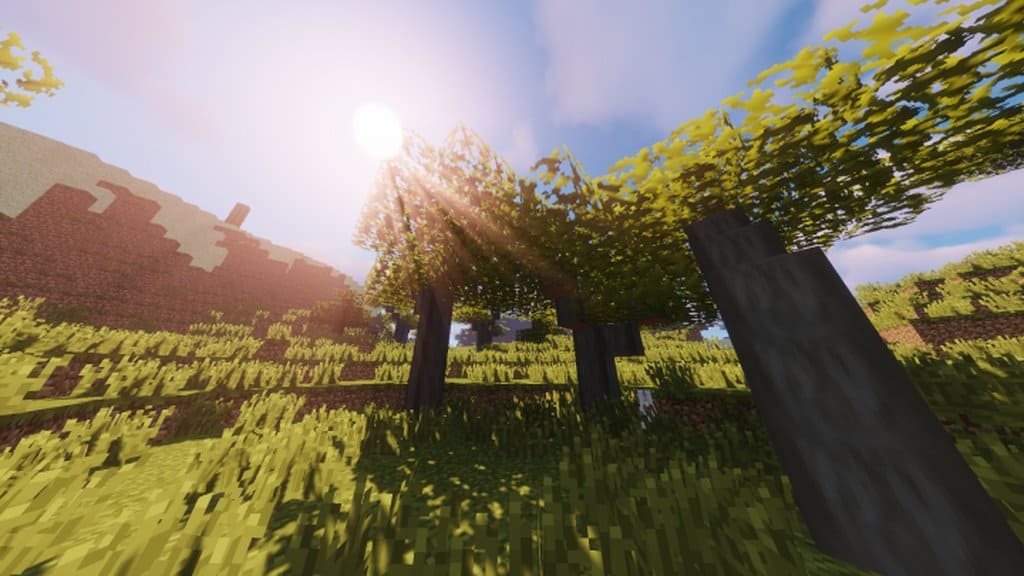
Screenshots

How to Install Texture Pack (Simple 10 Steps)
- Download OptiFine: Most of the texture packs and shaders need OptiFine. That’s why, first download and install OptiFine for the version of Minecraft you want to play.
- Download the Texture Pack: Get the texture pack you want from the download section. Choose the version that works with your Minecraft and your PC’s performance.
- Open Minecraft Launcher: Start Minecraft using the official game launcher — or even TLauncher, if you use that.
- Go to Options: From the main menu, click on the “Options” button.
- Open Resource Packs: Inside Options, click on “Resource Packs…”.
- Open the Resource Pack Folder: Click on “Open Resource Pack Folder” — this will open a folder named “resourcepacks”.
- Move the Pack File: Copy or move the .zip file you downloaded into that “resourcepacks” folder. (Don’t unzip the file — Minecraft uses it as-is!)
- Go Back and Refresh: Close the folder and click “Done”, then go back into “Resource Packs…” again.
- Activate the Pack: You’ll see the pack on the left side. Hover over it and click the arrow to move it to the right (active side).
Tip: If you get a message that the pack is for a different version, just click “Yes” — it usually works fine. - Click Done and Enjoy: Click “Done” again. Now your pack is ready to use in-game. It’s that easy!
Credits
This resource pack was originally created by Popcornpot. We do not own or modify this file, and we always encourage users to support the original creator through their official download channels.
Download Instructions
Curseforge: download starts automatically after a few seconds;
Mediafire: click the big blue button with the text “DOWNLOAD”;
Google Drive: in the top right corner you will see a small download icon (down arrow), click it and the download should start;


