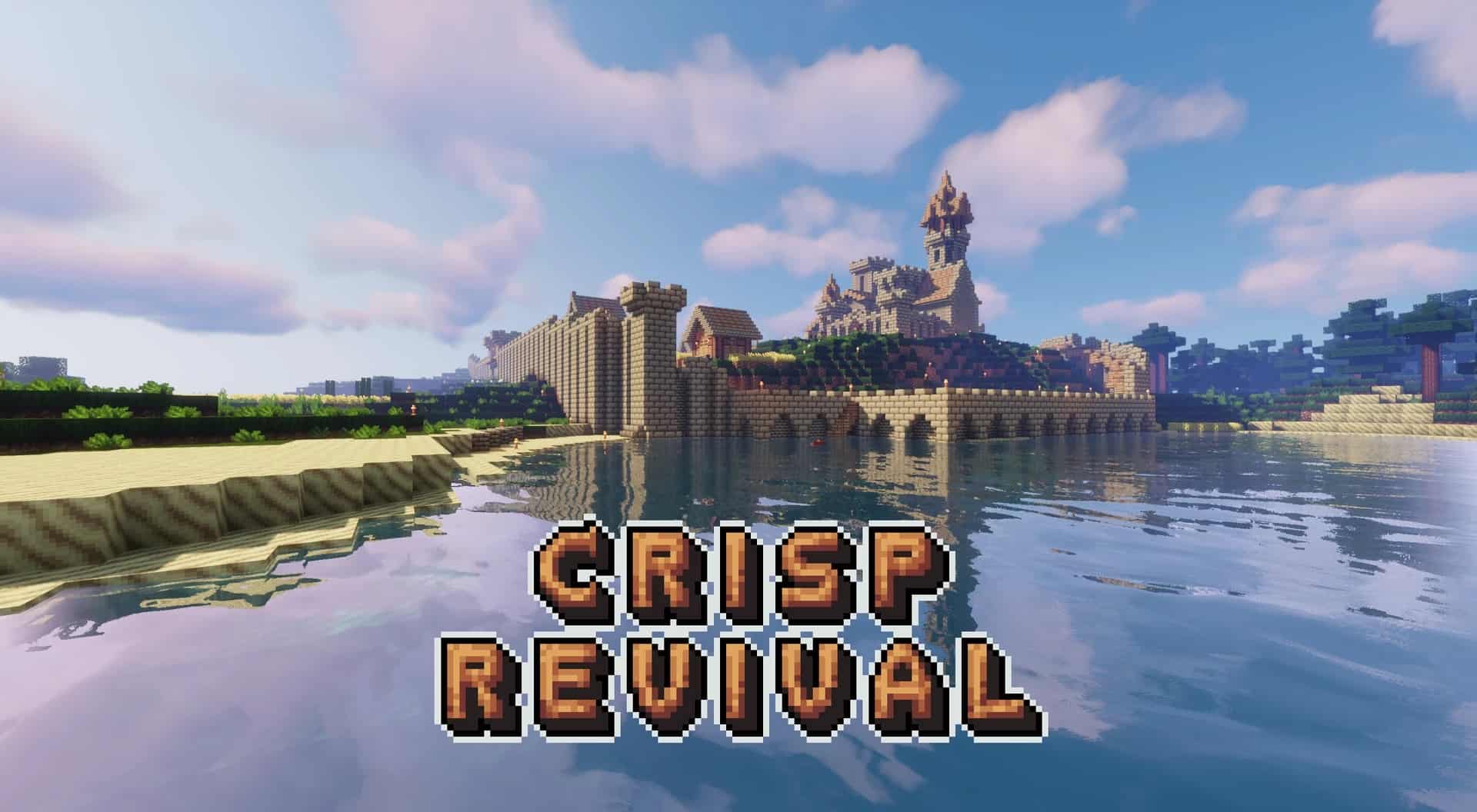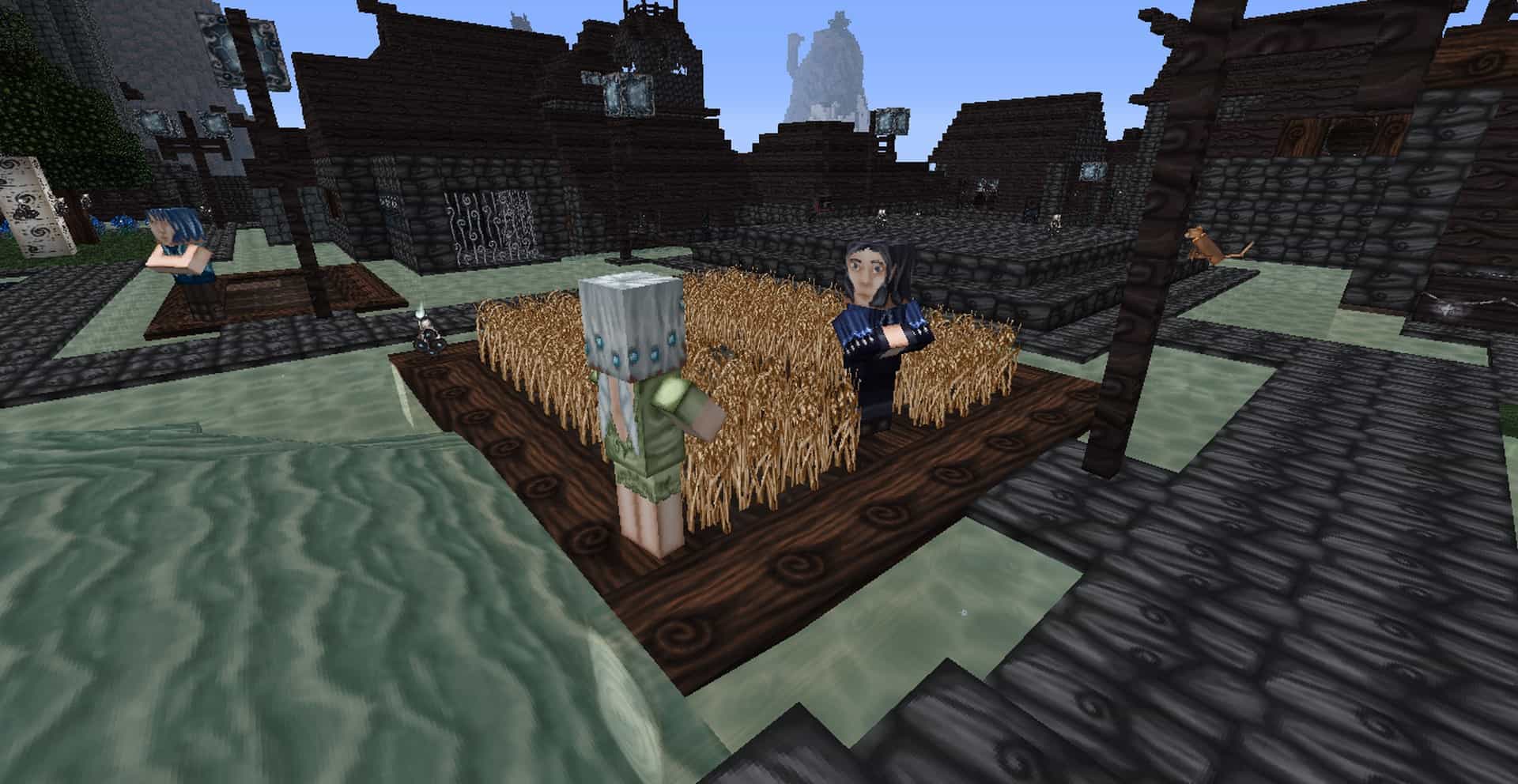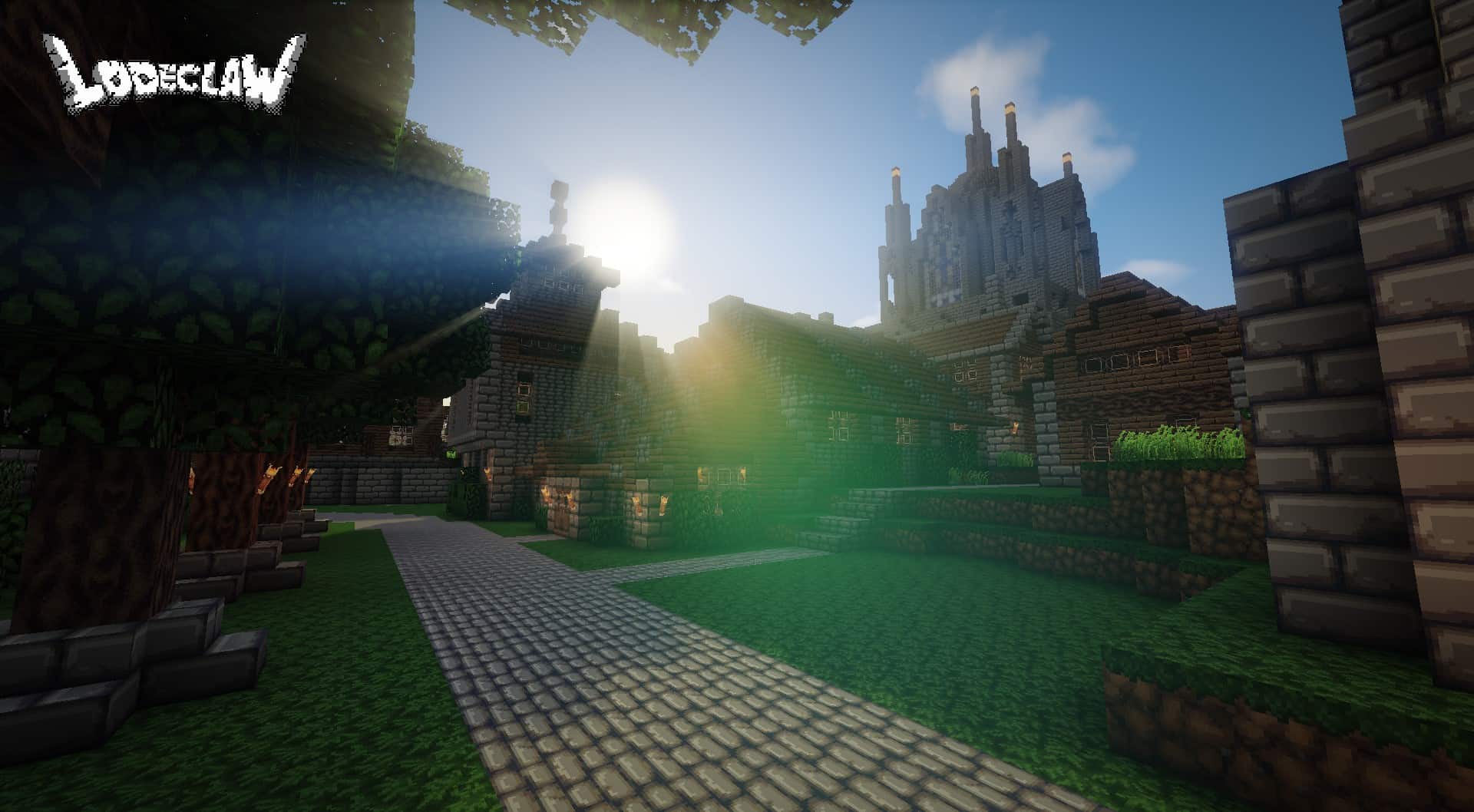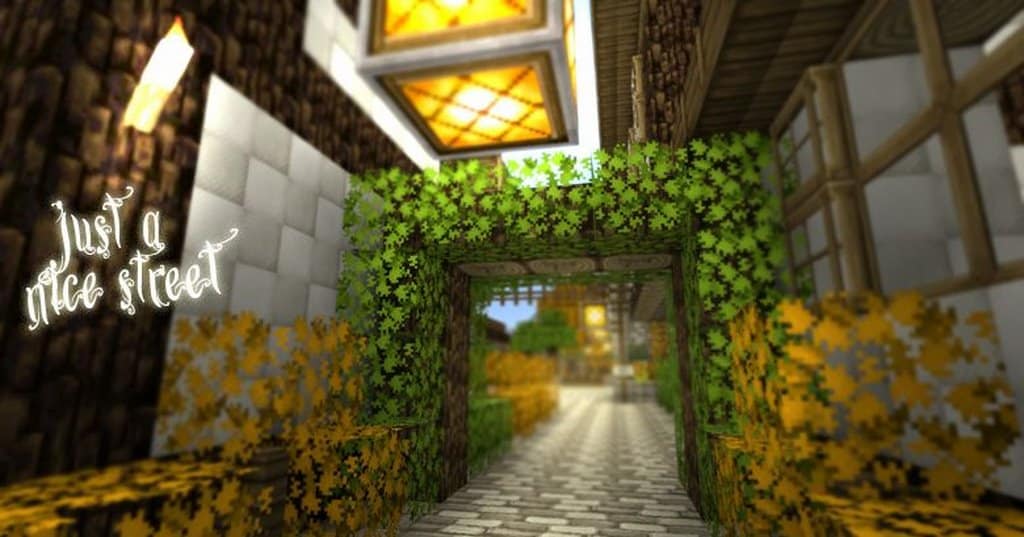
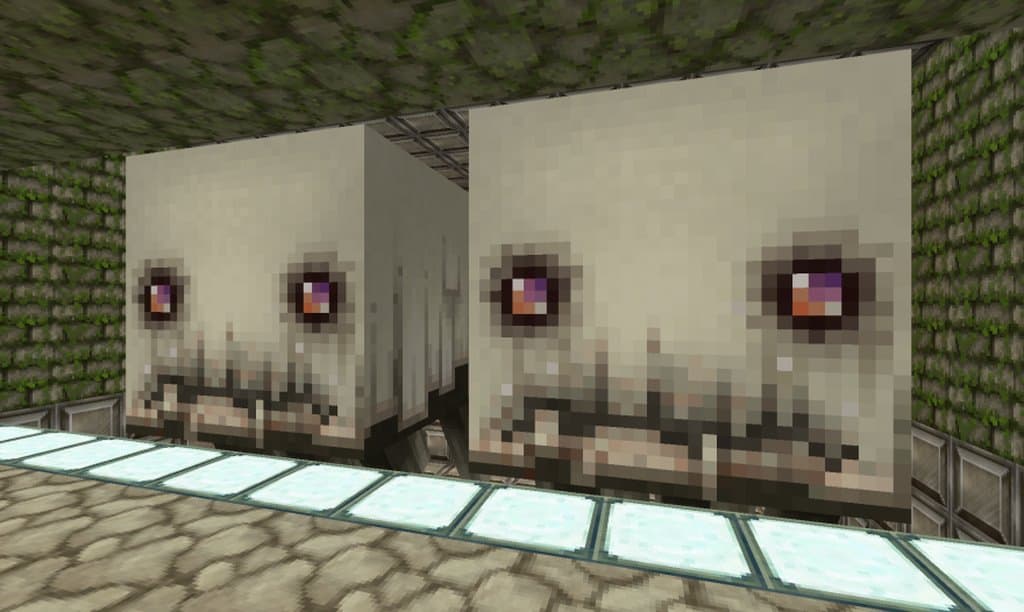
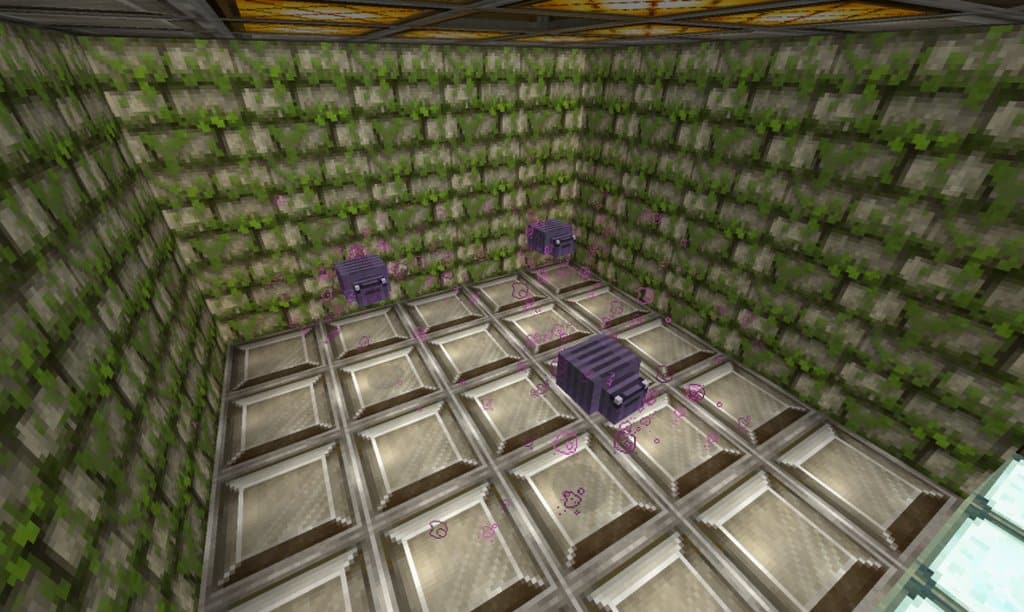
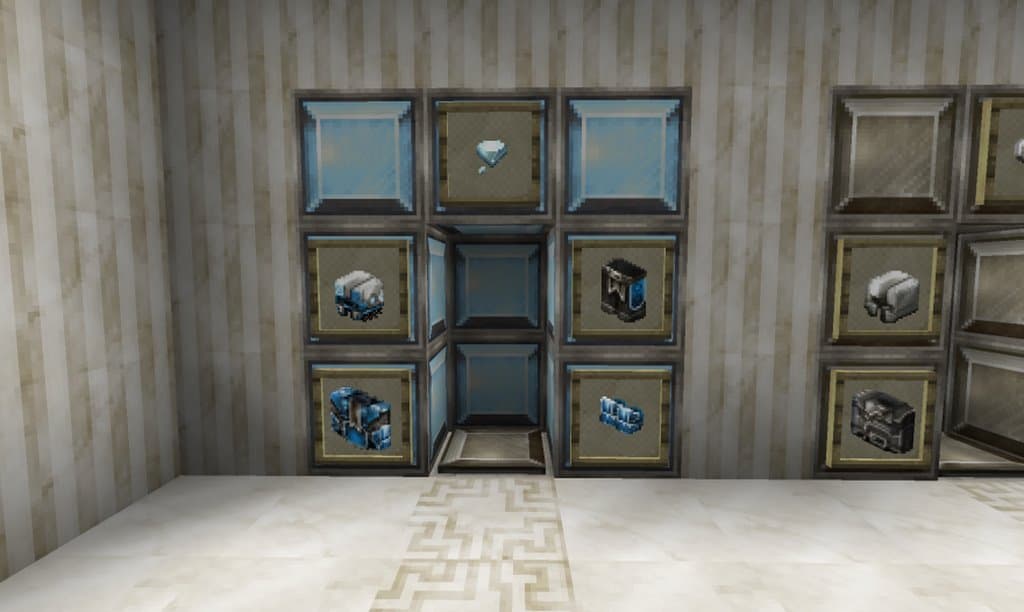
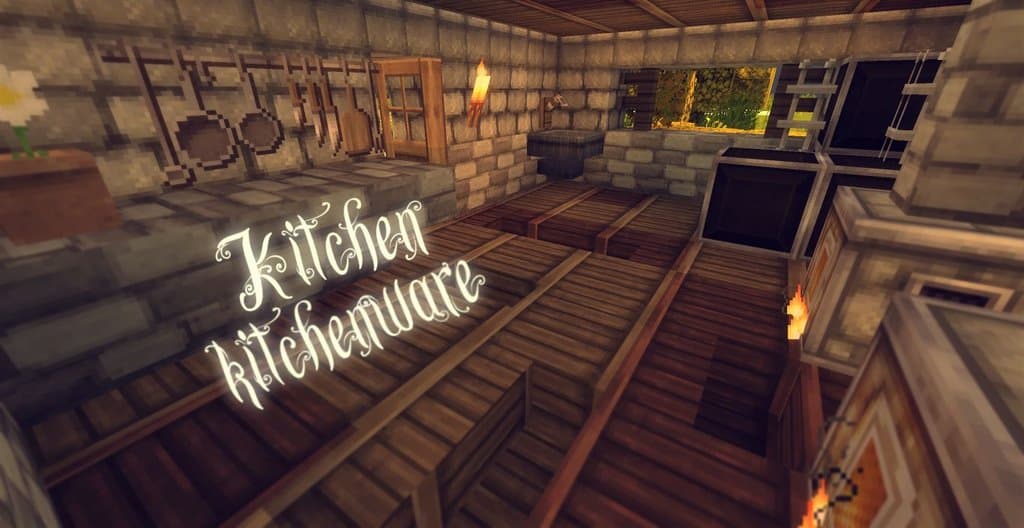
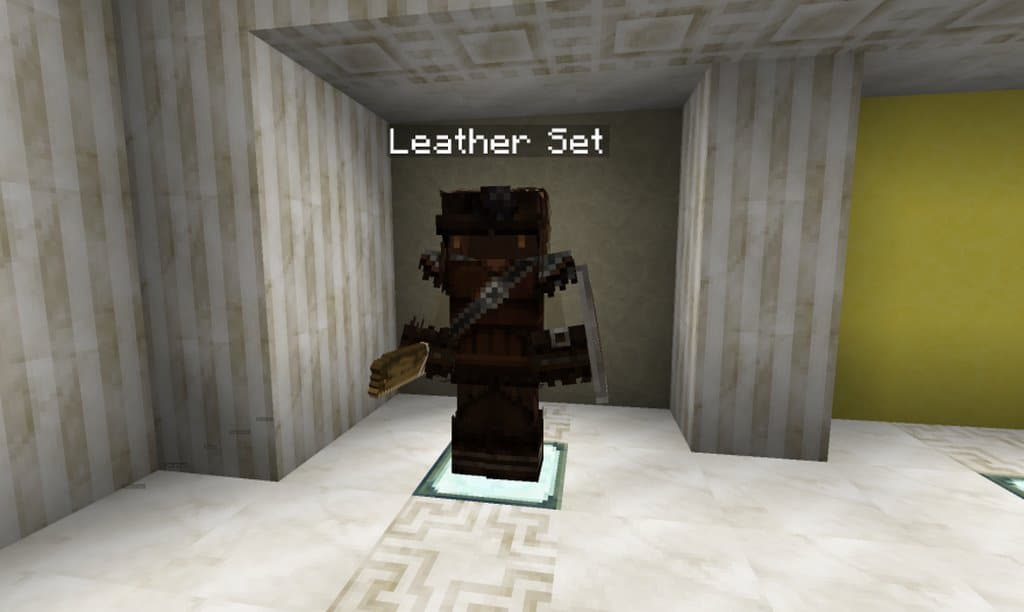
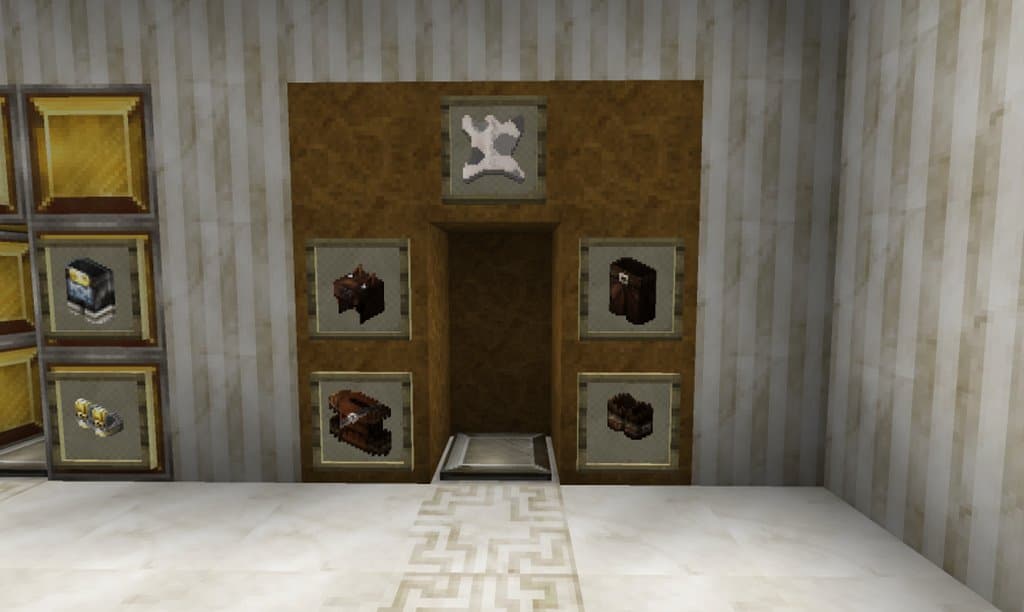
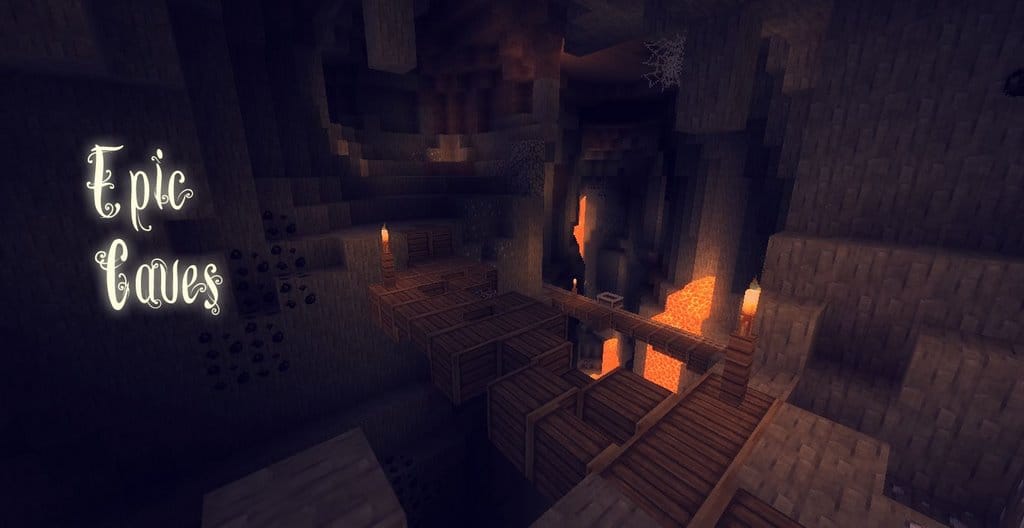
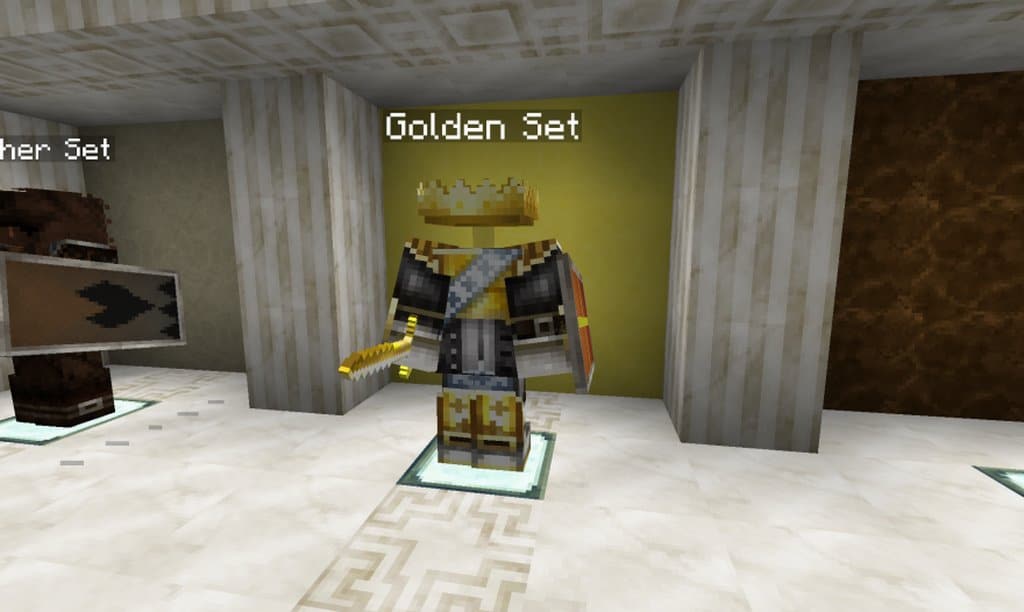
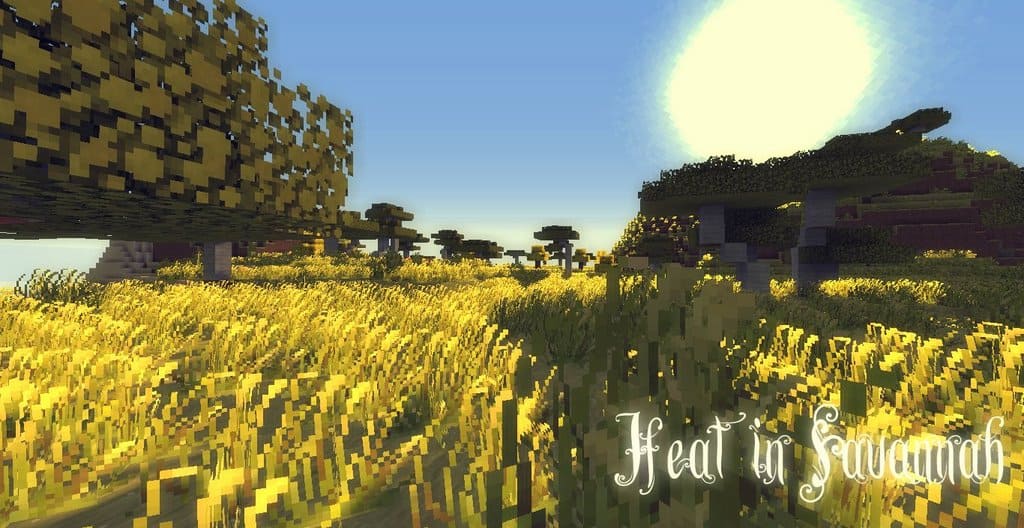
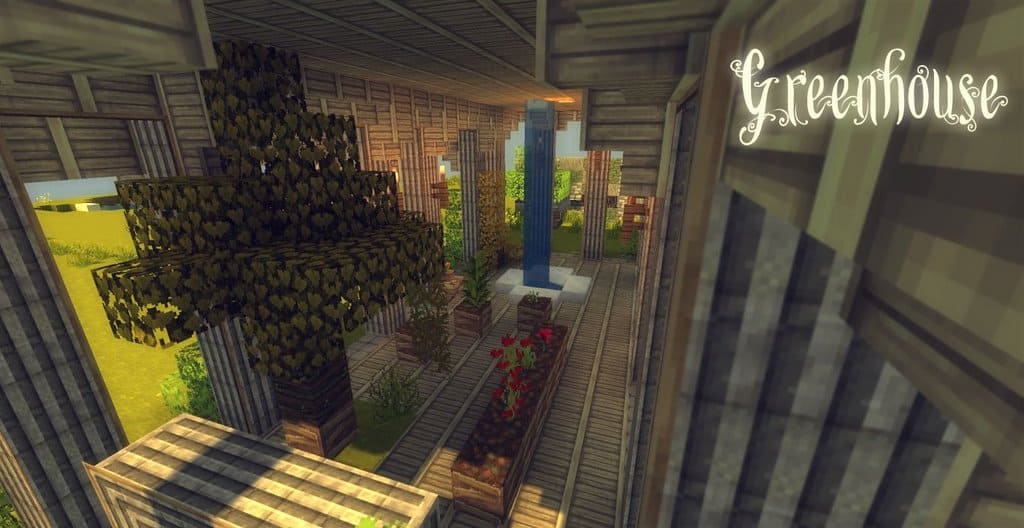
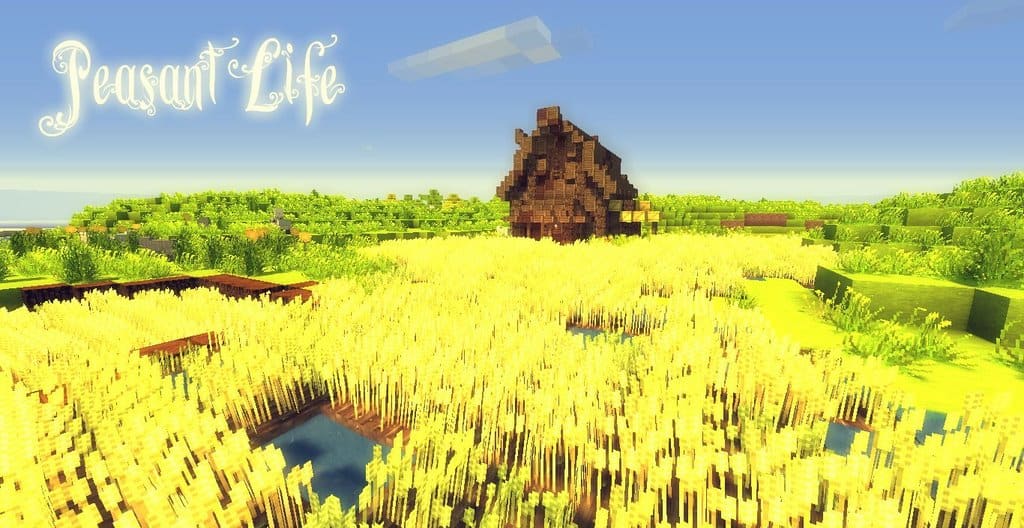
There are lots of successful resource packs out there for Minecraft, but one of the absolute classics is the Summerfields resource pack. This was originally formulated by lithiumsound, but since then, due to unforeseen developments, the original creator is no longer in control. Instead, control has been handed over to none other than CuddleWoozle, who has made certain that it fully conforms to the Minecraft standards of today. So long as this resource pack is used in line with Optifine or MCPatcher, I can guarantee it is bound to give you a truly memorable experience. Summerfields has one primary objective, which is to enliven and brighten the world of Minecraft. It is specifically designed to introduce more vibrancy into your worlds by subtly introducing brighter colors and hues. There are multiple sources of inspiration for this resource pack, but undoubtedly one of the largest is the well known game Fable: The Lost Chapters.
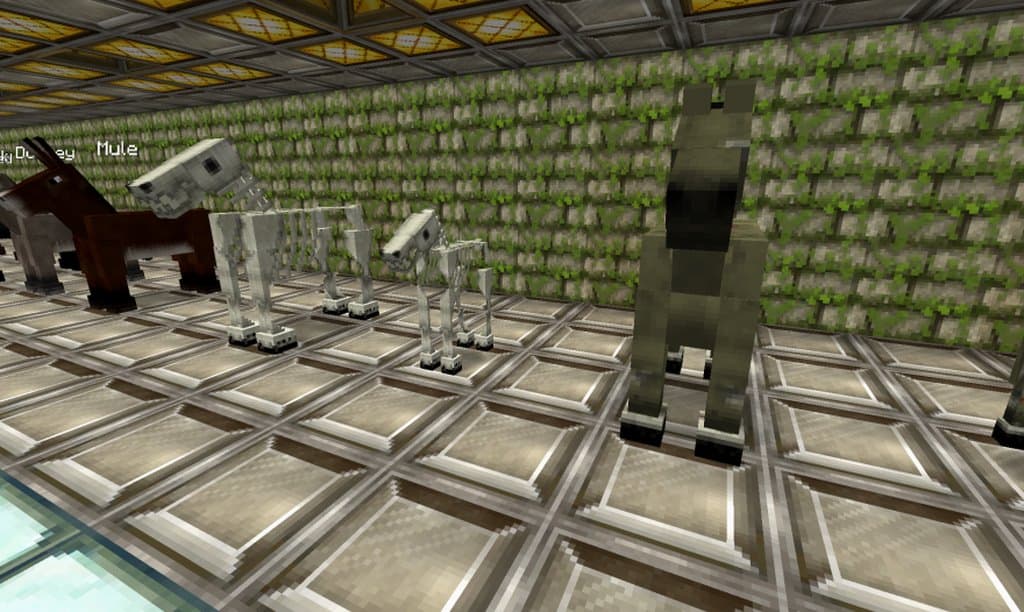
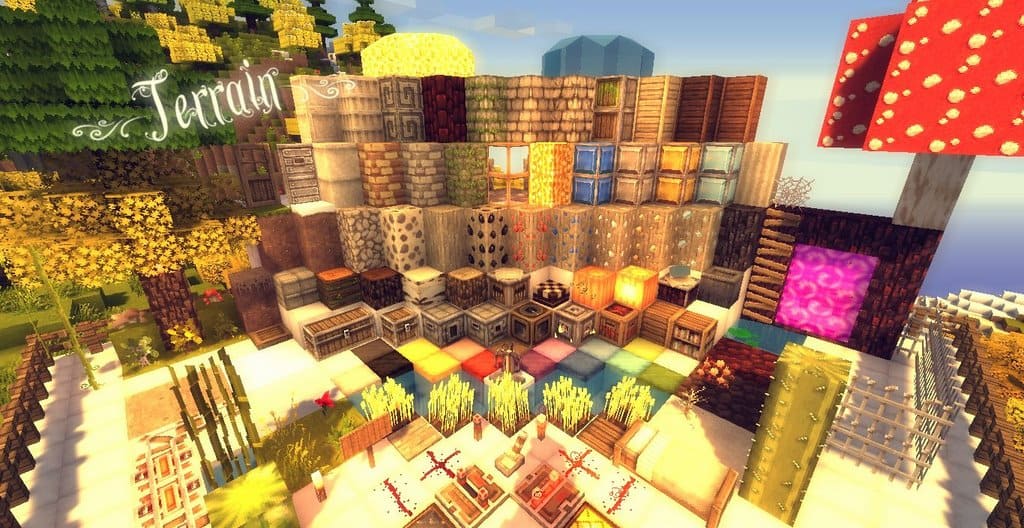
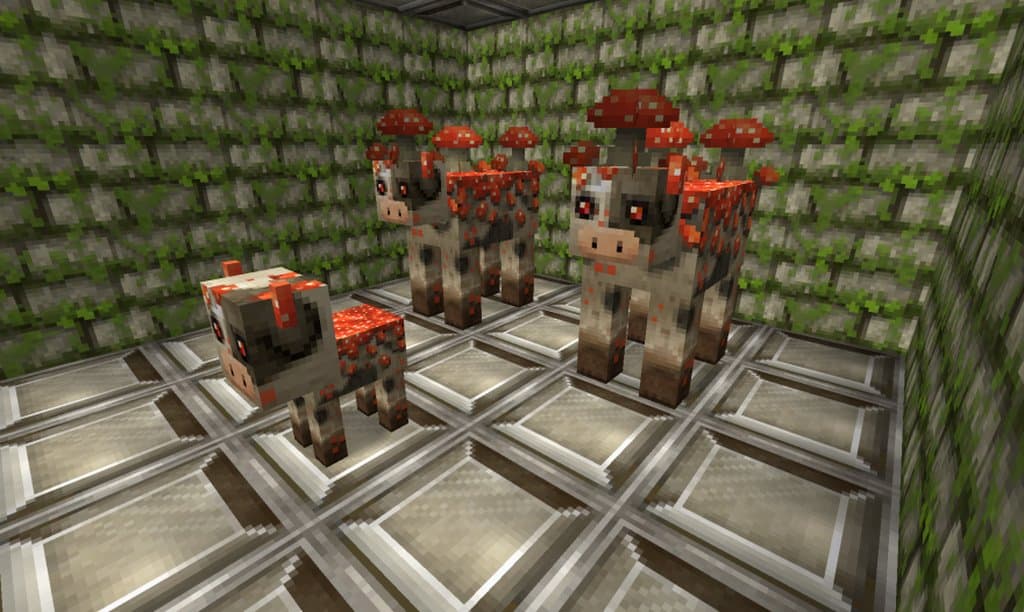
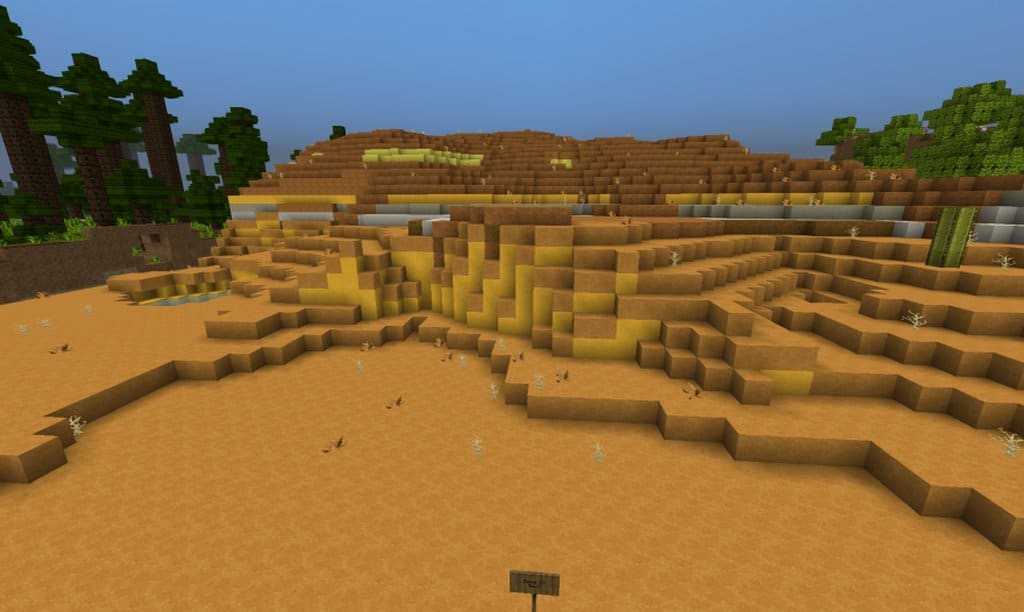
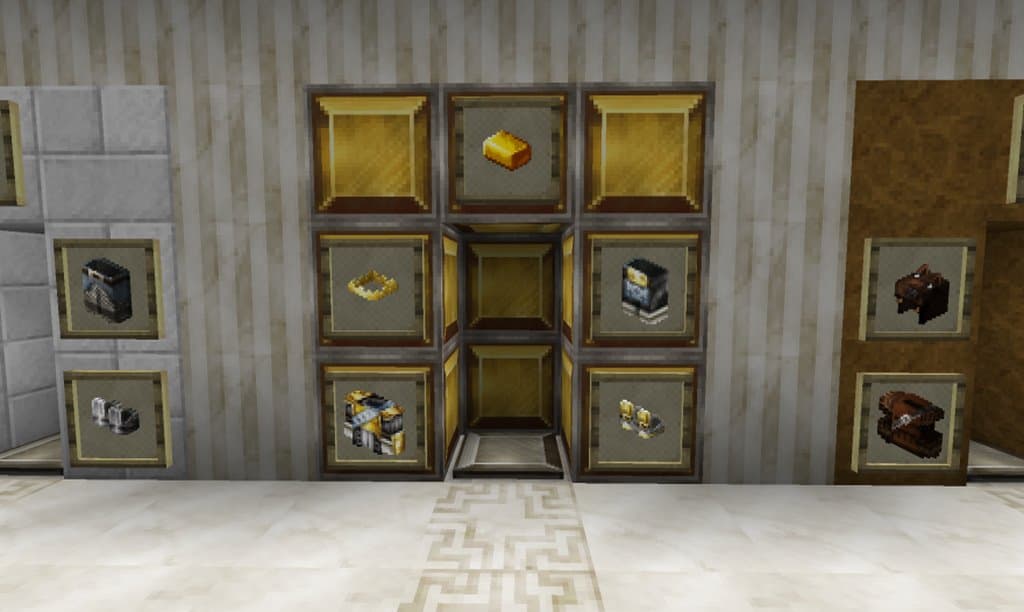
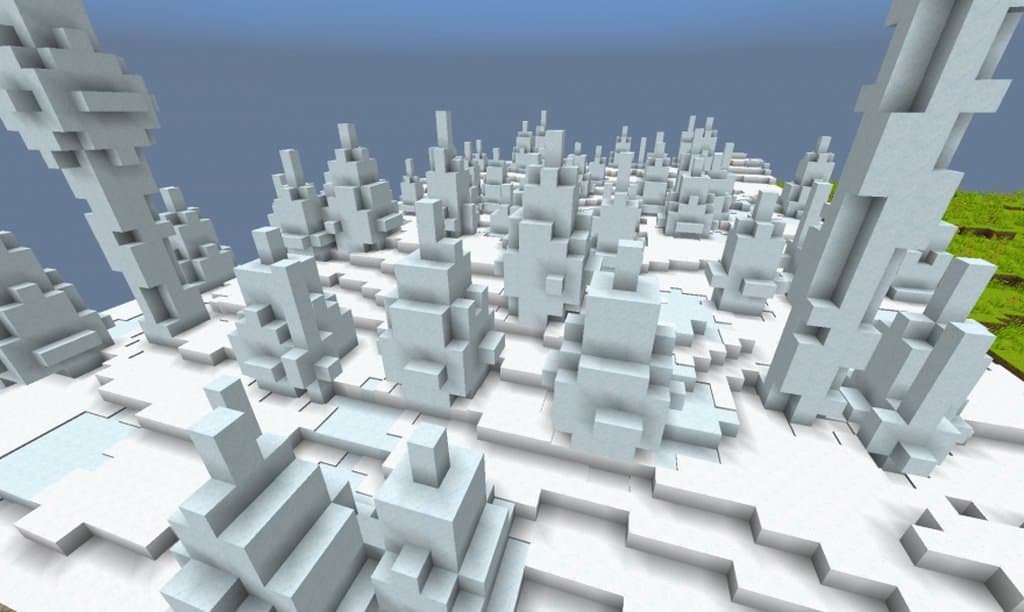
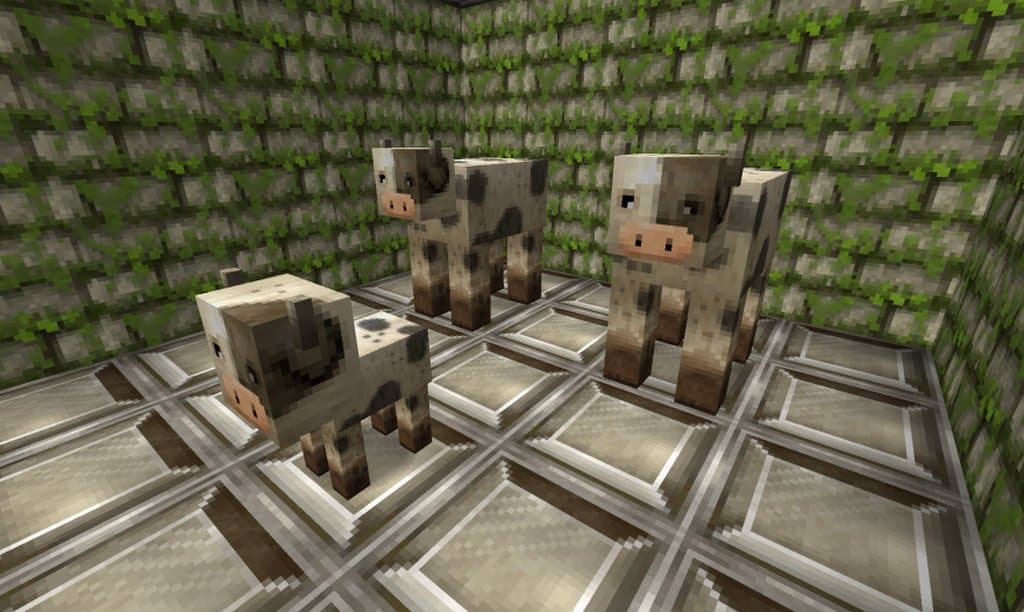
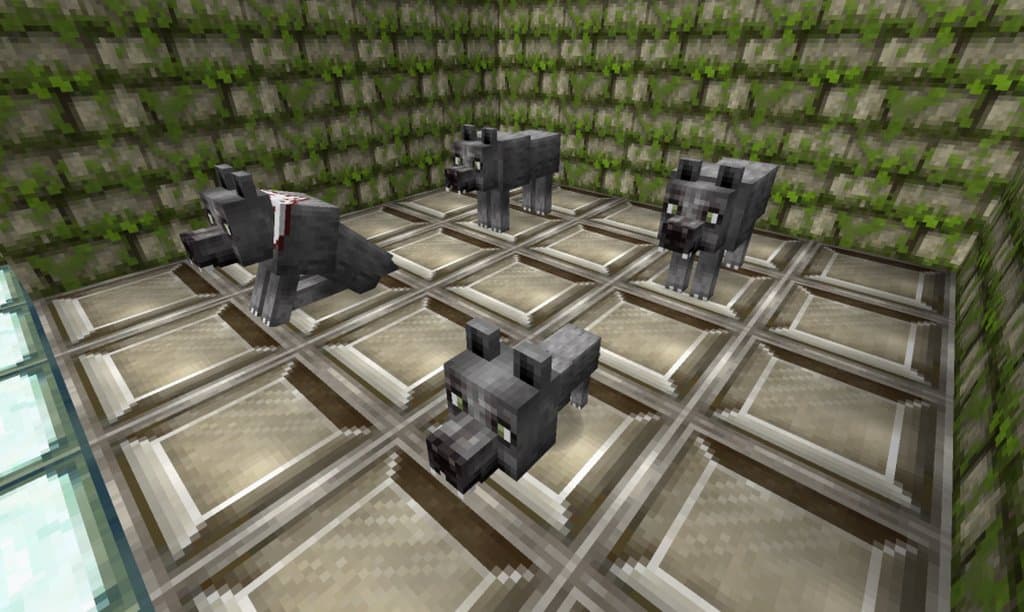
There are lots of other great nods of the hat to other famous resource packs such as Good Morning Craft and Jolicraft. This will become more and more apparent as you progress through the game. One of the best features of this resource pack is the texturing. Every surface looks wonderfully clean and sharp, and contains exactly the right level of detail, while not including any unnecessary, extraneous details that might clutter up the aesthetics of the landscape. Potentially the most important feature of any resource pack is the resolution, and luckily, Summerfields has you covered. The resolution of this is 32×32, and although this might not be as impressive as some modern versions, it more than does the job. The resolution might not blow you away, but it introduces crispy textures that will really enhance your gaming experience. This is an incredible resource pack that adds a lot to the base Minecraft game, and I really love using it. It will definitely improve your experience of the Minecraft globe, and no doubt it will be continuing to grow in popularity for years to come yet.
SummerFields should be compatible with all of these Minecraft versions: 26.2 – 26.1.2 – 26.1.1 – 26.1 – 1.21.11 – 1.21.10 – 1.21.9 – 1.21.8 – 1.21.7 – 1.21.6 – 1.21.5 – 1.21.4 – 1.21.3 – 1.21.2 – 1.21.1 – 1.21 – 1.20.6 – 1.20.5 – 1.20.4 – 1.20.3 – 1.20.2 – 1.20.1 – 1.20 – 1.19.4 – 1.19.3 – 1.19.2 – 1.19.1 – 1.19 – 1.18.2 – 1.18.1 – 1.18 – 1.17.1 – 1.17 – 1.16.5 – 1.16.4 – 1.16.3 – 1.16.2 – 1.16.1 – 1.16 – 1.12.2 – 1.12 – 1.11.2 – 1.11 – 1.7.10 – 1.7.9 – 1.7.4 – 1.7 – 1.6.4 – 1.6.2 – Bedrock Edition – PE
Screenshots




How to Install Texture Pack (Simple 10 Steps)
- Download OptiFine: Most of the texture packs and shaders need OptiFine. That’s why, first download and install OptiFine for the version of Minecraft you want to play.
- Download the Texture Pack: Get the texture pack you want from the download section. Choose the version that works with your Minecraft and your PC’s performance.
- Open Minecraft Launcher: Start Minecraft using the official game launcher — or even TLauncher, if you use that.
- Go to Options: From the main menu, click on the “Options” button.
- Open Resource Packs: Inside Options, click on “Resource Packs…”.
- Open the Resource Pack Folder: Click on “Open Resource Pack Folder” — this will open a folder named “resourcepacks”.
- Move the Pack File: Copy or move the .zip file you downloaded into that “resourcepacks” folder. (Don’t unzip the file — Minecraft uses it as-is!)
- Go Back and Refresh: Close the folder and click “Done”, then go back into “Resource Packs…” again.
- Activate the Pack: You’ll see the pack on the left side. Hover over it and click the arrow to move it to the right (active side).
Tip: If you get a message that the pack is for a different version, just click “Yes” — it usually works fine. - Click Done and Enjoy: Click “Done” again. Now your pack is ready to use in-game. It’s that easy!
Credits
Credits: This resource pack was originally created by lithiumsound and is currently maintained and updated by CuddleWoozle. We do not own or modify the files hosted here. All rights and ownership belong to the original creators. Please support the authors by downloading from their official channels.
Download Links
Java Edition
- [32x] Minecraft 26.2.x
- [32x] Minecraft 26.1.x
- [32x] Minecraft 1.21.x – 1.20.2
- [32x] Minecraft 1.20.1 – 1.20
- [32x] Minecraft 1.19.x – 1.18.x
- [32x] Minecraft 1.17.x – 1.16.x
- [32x] Minecraft 1.12.x – 1.11.x
- [32x] Minecraft 1.7.x
- [32x] Minecraft 1.6.x
Bedrock Edition
Download Instructions
Curseforge: download starts automatically after a few seconds;
Mediafire: click the big blue button with the text “DOWNLOAD”;
Google Drive: in the top right corner you will see a small download icon (down arrow), click it and the download should start;