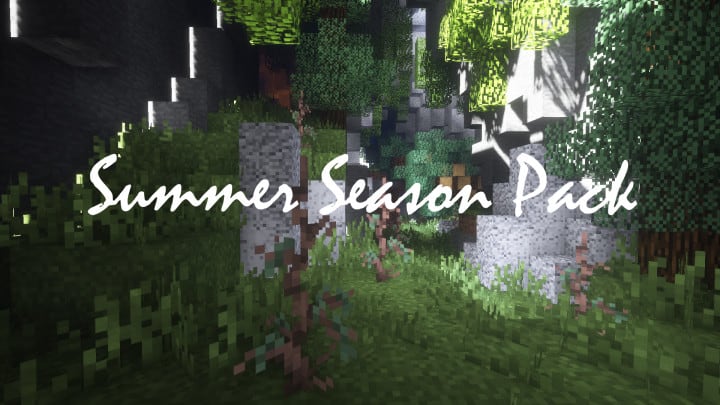
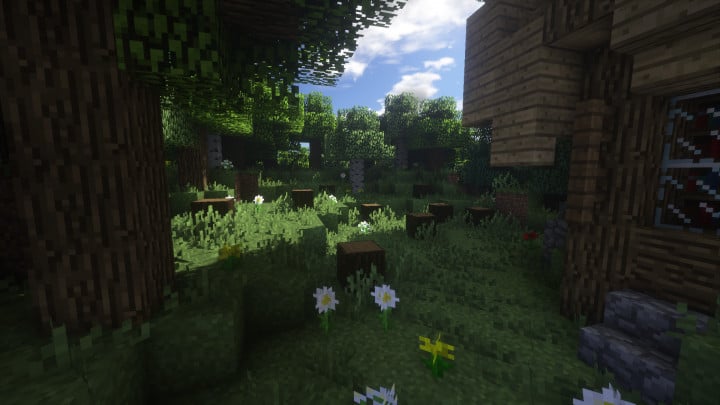
Light Drifter is known for crafting truly excellent resource pack series, and this time around, they have designed the Summer Season resource pack, which proudly stands as the third seasonal resource pack in the collection. This set of textures features outstanding characteristics that offer us minecrafters a fascinating experience to wander the whole world of Minecraft with absolute ease. This has been made possible by the exceptional classic design which completely outshines the previous two packs in this series. Everything starts to come alive when you first look at the name, as it readily depicts exactly what is inside. This pack gives a tremendous amount of focus on delivering magnificent visuals that make everything in Minecraft appear like a beautiful summer season. As you can see, it is an amazing pack receiving many positive reviews, and it is definitely something you should try out so that you don’t miss out on all of these outstanding pack features.
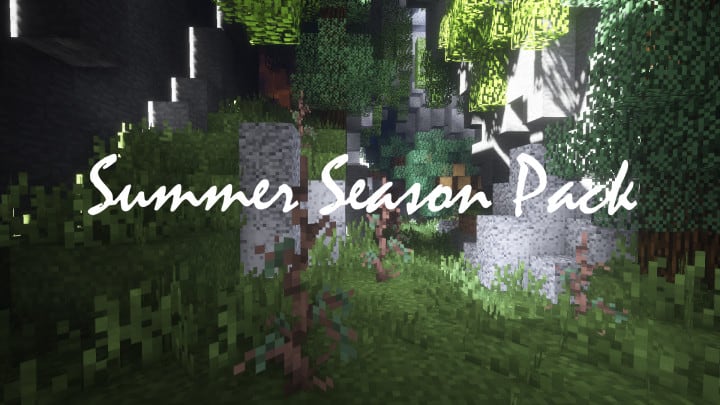
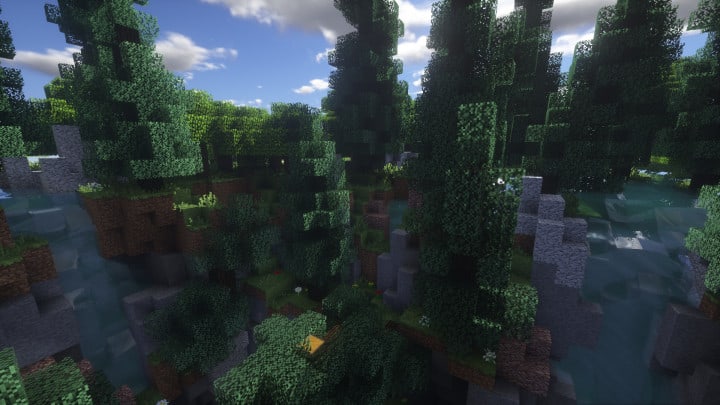
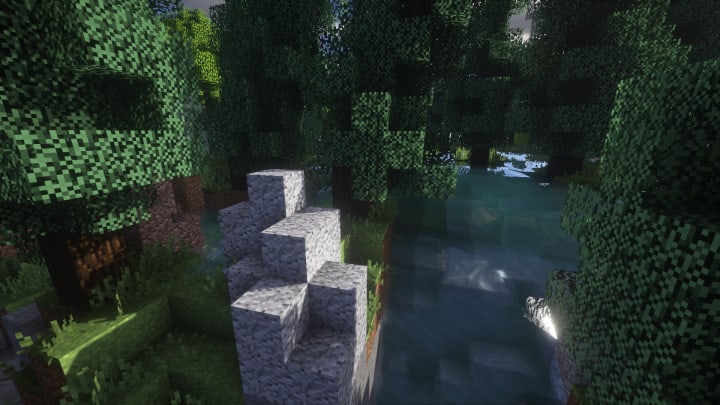
The Summer Season resource pack has made several wonderful changes within its environment, going all the way from the terrains to the vegetation to enable its visuals to correspond perfectly with the pack theme. One change that has brought a significant improvement is the replacement of the previous grass texture; it has now been replaced by a denser grass texture which is a major upgrade from the older version. Another fantastic improvement is the comprehensive mix of colors that have been applied to become much brighter, thus matching the theme in a brilliant way that really appeals to players. It does not end there, as the designers have promised to introduce season-specific plants which they will implement to make their packs even more attractive and impressive. These plants will be purely visual to improve the interface of the game, whereby players can feel absolute amazement when out in action. This wonderful summer season pack features the classic default Minecraft resolution of 16×16, meaning we minecrafters are able to play the game smoothly without any trouble using PCs and operating systems that can already run vanilla Minecraft.
Summer Season Pack should be compatible with all of these Minecraft versions: 1.12.2 – 1.12 – 1.11.2 – 1.11
Screenshots
How to Install Texture Pack (Simple 10 Steps)
- Download OptiFine: Most of the texture packs and shaders need OptiFine. That’s why, first download and install OptiFine for the version of Minecraft you want to play.
- Download the Texture Pack: Get the texture pack you want from the download section. Choose the version that works with your Minecraft and your PC’s performance.
- Open Minecraft Launcher: Start Minecraft using the official game launcher — or even TLauncher, if you use that.
- Go to Options: From the main menu, click on the “Options” button.
- Open Resource Packs: Inside Options, click on “Resource Packs…”.
- Open the Resource Pack Folder: Click on “Open Resource Pack Folder” — this will open a folder named “resourcepacks”.
- Move the Pack File: Copy or move the .zip file you downloaded into that “resourcepacks” folder. (Don’t unzip the file — Minecraft uses it as-is!)
- Go Back and Refresh: Close the folder and click “Done”, then go back into “Resource Packs…” again.
- Activate the Pack: You’ll see the pack on the left side. Hover over it and click the arrow to move it to the right (active side).
Tip: If you get a message that the pack is for a different version, just click “Yes” — it usually works fine. - Click Done and Enjoy: Click “Done” again. Now your pack is ready to use in-game. It’s that easy!
Credits
This resource pack was created by Light Drifter. We do not claim ownership of this content, nor have we modified the original files. All rights and intellectual property belong strictly to the original creator. We highly encourage you to support the author by downloading from their official links.
Download Instructions
Curseforge: download starts automatically after a few seconds;
Mediafire: click the big blue button with the text “DOWNLOAD”;
Google Drive: in the top right corner you will see a small download icon (down arrow), click it and the download should start;


