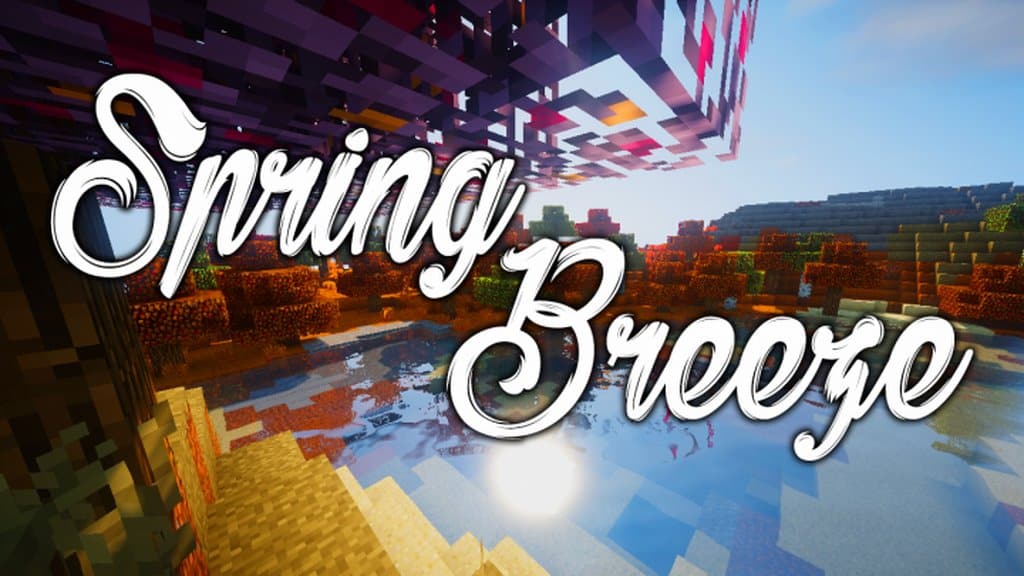
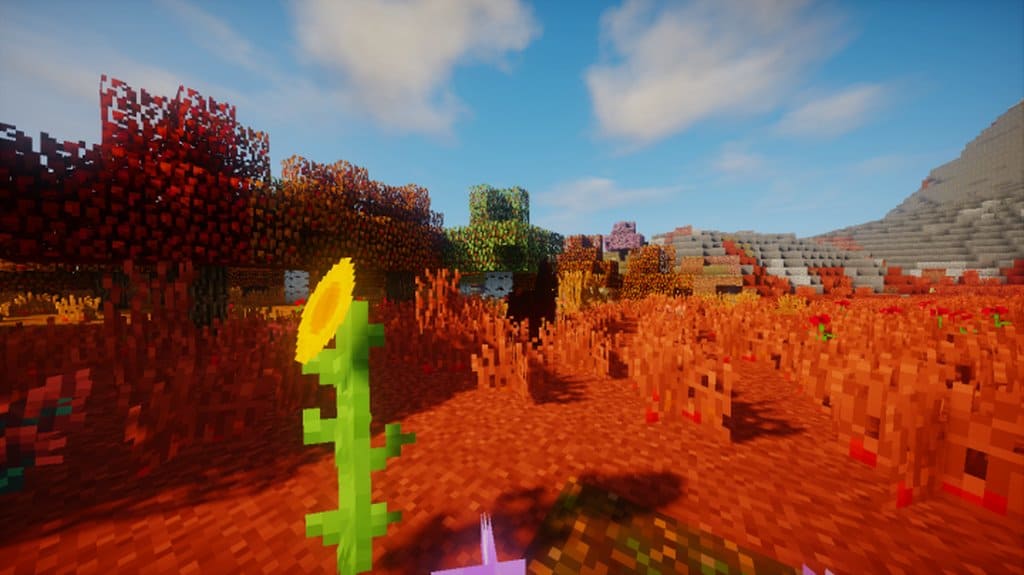
Resource packs play a great deal in enhancing your Minecraft experience, and honestly, after some time, the usual boring textures can definitely become a bit underwhelming. Thankfully, Spring Breeze is a fantastic seasonal resource pack that fixes that exact problem by refreshing the Minecraft world with new, modern textures while thankfully not being overwhelmingly flashy or bulky at all. Many of the seasonal resource packs out there usually have a problem with colors that are far too vibrant, making them really hard on the eyes while completely removing the lovely originality of the game. I found that Spring Breeze is truly one of a kind as it successfully aims to keep the classic look which makes Minecraft so specific while wonderfully improving the overall gameplay experience. Even though it is remarkably lightweight, I was amazed to see that it definitely does not lack in quality; a lot of attention was clearly put into detail, with every single texture having a vibrant life of its own and looking extremely unique.
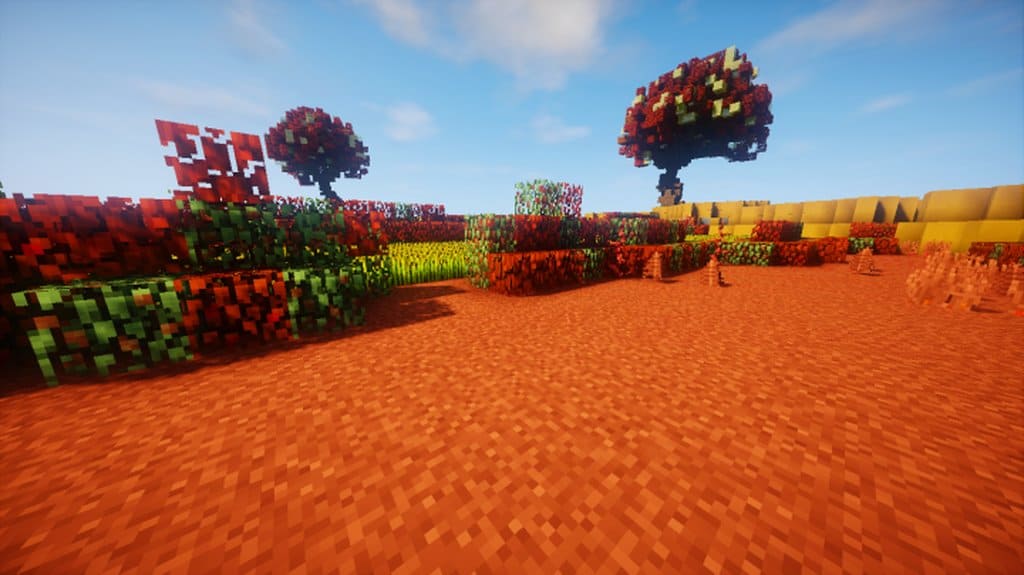
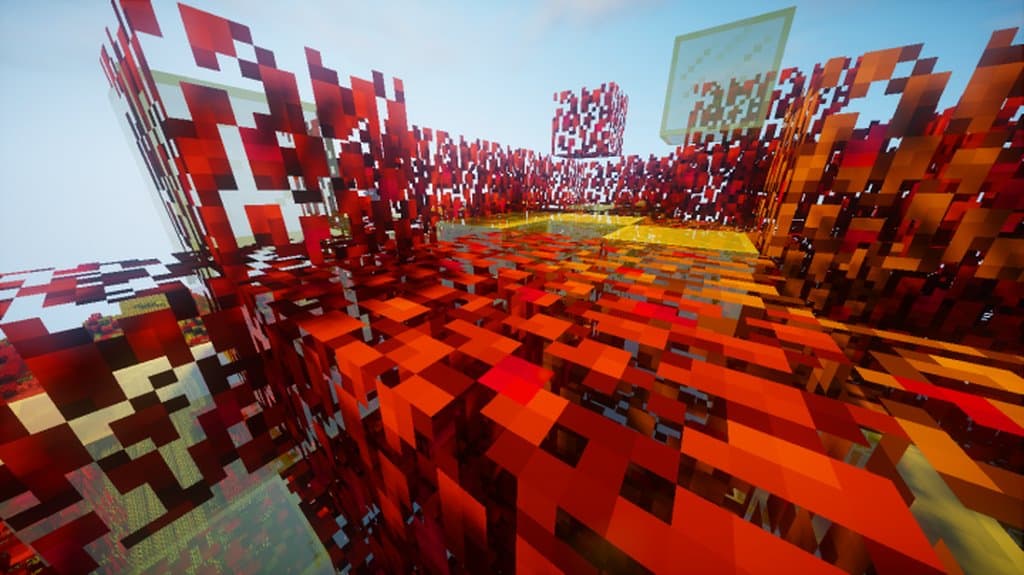
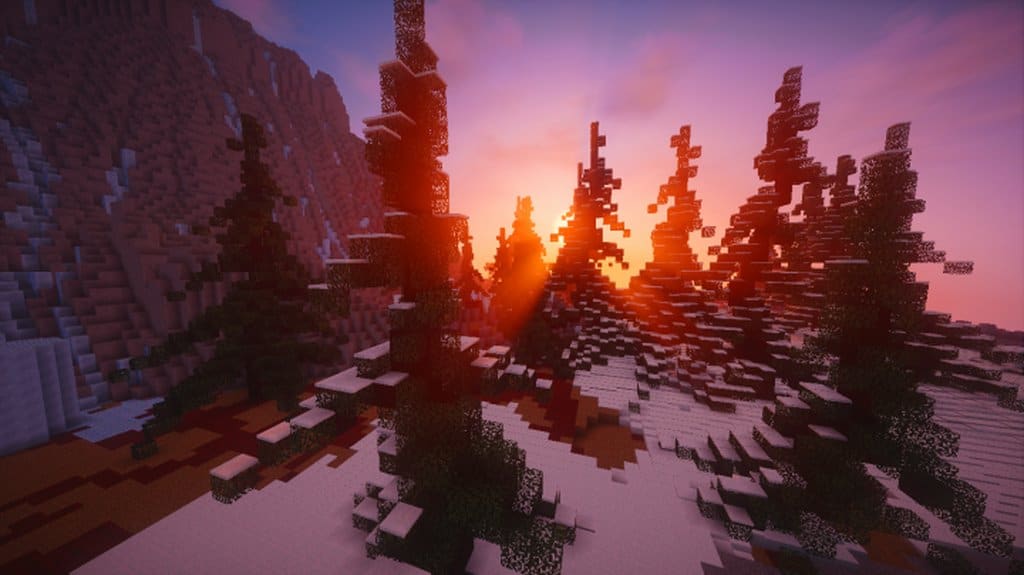
What really separates the Spring Breeze resource pack from the vast amount of other packs out there is the whole new scheme of colors that it brings directly into the game. The extensive color combination focuses mainly on bringing that well-known, cozy spring feel straight into your Minecraft world. The consistency of the textures in the pack is remarkably smooth, making them so pleasant to look at while fortunately not providing any additional strain on the eyes. The main Minecraft textures feature a standard 16×16 resolution, and Spring Breeze faithfully follows that exact tradition. When you are actually looking at the incredible quality of the textures that it brings to the table, it is honestly hard to believe. Compared to those higher-resolution packs which can easily increase your game loading times, reduce overall performance, and add unnecessary visual noise, Spring Breeze does not put any extra load on your computer. Sticking to this resolution ensures that absolutely anyone, even players who do not have high-end machines, can fully enjoy the game without dealing with those annoying frame drops that ruin the gaming experience, all while successfully adding a whole new visual look and refreshing energy to the game.
Spring Breeze should be compatible with all of these Minecraft versions: 1.16.5 – 1.16.4 – 1.16.3 – 1.16.2 – 1.16.1 – 1.16 – 1.15.2 – 1.15.1 – 1.15 – 1.14.4 – 1.14.3 – 1.14.2 – 1.14 – 1.13.2 – 1.13.1 – 1.13 – 1.12.2 – 1.12 – 1.11.2 – 1.11 – 1.8.9 – 1.8.8 – 1.8.1 – 1.8.6 – 1.8 – 1.7.10 – 1.7.9 – 1.7.4 – 1.7
Screenshots
How to Install Texture Pack (Simple 10 Steps)
- Download OptiFine: Most of the texture packs and shaders need OptiFine. That’s why, first download and install OptiFine for the version of Minecraft you want to play.
- Download the Texture Pack: Get the texture pack you want from the download section. Choose the version that works with your Minecraft and your PC’s performance.
- Open Minecraft Launcher: Start Minecraft using the official game launcher — or even TLauncher, if you use that.
- Go to Options: From the main menu, click on the “Options” button.
- Open Resource Packs: Inside Options, click on “Resource Packs…”.
- Open the Resource Pack Folder: Click on “Open Resource Pack Folder” — this will open a folder named “resourcepacks”.
- Move the Pack File: Copy or move the .zip file you downloaded into that “resourcepacks” folder. (Don’t unzip the file — Minecraft uses it as-is!)
- Go Back and Refresh: Close the folder and click “Done”, then go back into “Resource Packs…” again.
- Activate the Pack: You’ll see the pack on the left side. Hover over it and click the arrow to move it to the right (active side).
Tip: If you get a message that the pack is for a different version, just click “Yes” — it usually works fine. - Click Done and Enjoy: Click “Done” again. Now your pack is ready to use in-game. It’s that easy!
Credits
This Resource Pack was originally created by Siduction. We do not claim ownership of this content and do not modify the original files. All rights belong to the original creator. We strongly encourage you to support Siduction by downloading the pack from the official sources.
Download Instructions
Curseforge: download starts automatically after a few seconds;
Mediafire: click the big blue button with the text “DOWNLOAD”;
Google Drive: in the top right corner you will see a small download icon (down arrow), click it and the download should start;


