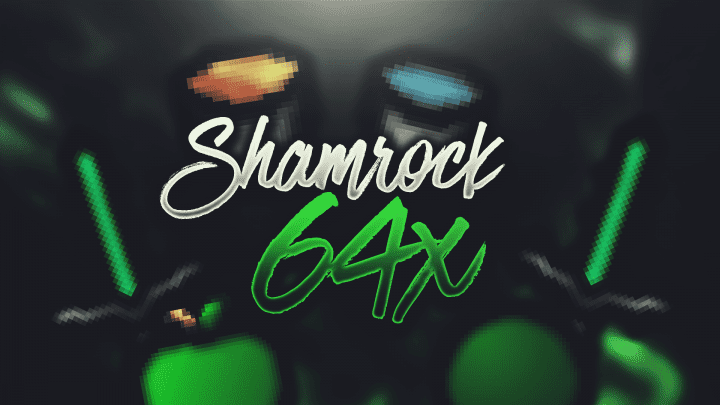
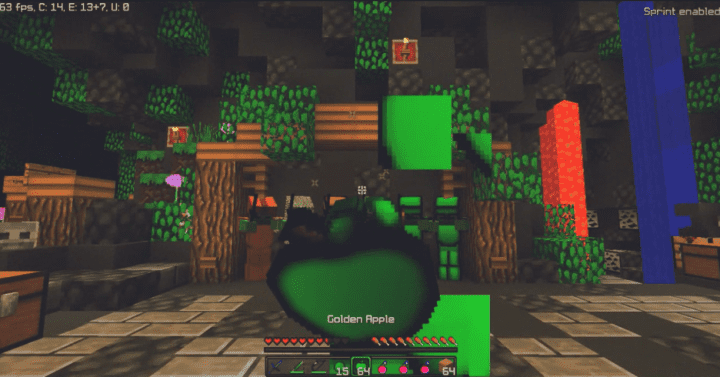
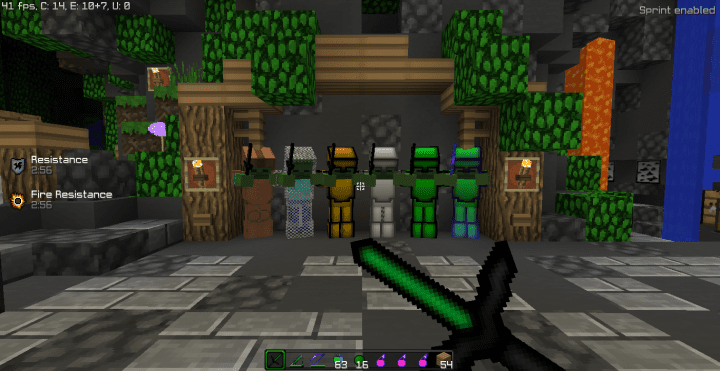
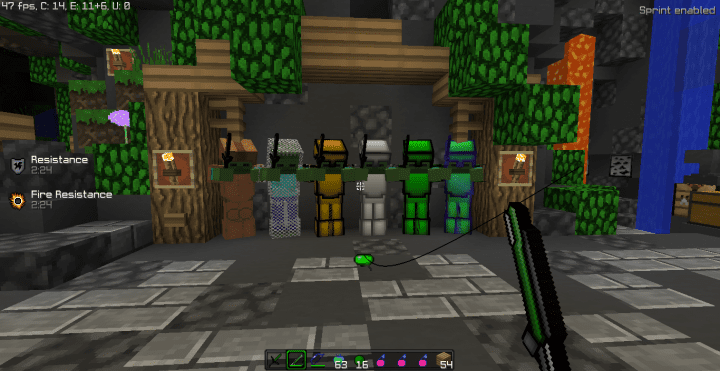
Shamrock PvP is an absolutely breathtaking resource pack that lives up to its name, specifically designed for the Minecraft audience who prioritizes competitive PvP above everything else. Unlike most conventional PvP packs, what this pack aims to do is not just give the game a basic reskin or merely increase its execution speed. Instead, it genuinely manages to enhance your visual experience by a massive margin while boosting your FPS at the very same time. This makes it an absolute dream for players who want a fantastic PvP experience without having to compromise on the overall visual quality of the game. The textures feature a uniquely charming art style that we honestly haven’t come across before in standard PvP-themed resource packs.
Most PvP resource packs are typically characterized by a very simple look because they strip away a lot of detail from the textures to make the game appear cleaner. The Shamrock PvP resource pack, however, takes a completely different approach. It actually contains a remarkable amount of detail in its textures; yet, despite having all that extra detail, everything still looks exceptionally smooth and clean because there is zero distracting visual noise. It comes in a 64x resolution, which honestly comes as a pleasant surprise since it is much higher than the common 16x resolution we are so used to seeing, which can normally cause annoying frame drops. Thankfully, thanks to the pack’s top-tier optimization, you can easily run it with a very solid frame rate, whether you are playing Minecraft on a brand-new rig or an older personal computer with outdated hardware.
Shamrock PvP should be compatible with all of these Minecraft versions: 1.8.9 – 1.8.8 – 1.8.1 – 1.8.6 – 1.8
Screenshots
How to Install Texture Pack (Simple 10 Steps)
- Download OptiFine: Most of the texture packs and shaders need OptiFine. That’s why, first download and install OptiFine for the version of Minecraft you want to play.
- Download the Texture Pack: Get the texture pack you want from the download section. Choose the version that works with your Minecraft and your PC’s performance.
- Open Minecraft Launcher: Start Minecraft using the official game launcher — or even TLauncher, if you use that.
- Go to Options: From the main menu, click on the “Options” button.
- Open Resource Packs: Inside Options, click on “Resource Packs…”.
- Open the Resource Pack Folder: Click on “Open Resource Pack Folder” — this will open a folder named “resourcepacks”.
- Move the Pack File: Copy or move the .zip file you downloaded into that “resourcepacks” folder. (Don’t unzip the file — Minecraft uses it as-is!)
- Go Back and Refresh: Close the folder and click “Done”, then go back into “Resource Packs…” again.
- Activate the Pack: You’ll see the pack on the left side. Hover over it and click the arrow to move it to the right (active side).
Tip: If you get a message that the pack is for a different version, just click “Yes” — it usually works fine. - Click Done and Enjoy: Click “Done” again. Now your pack is ready to use in-game. It’s that easy!
Credits
Created by Toofee. We do not claim ownership of this content, nor do we modify the original files. All rights and intellectual property remain with the original creator. We strongly encourage you to support Toofee by downloading from the official sources.
Download Instructions
Curseforge: download starts automatically after a few seconds;
Mediafire: click the big blue button with the text “DOWNLOAD”;
Google Drive: in the top right corner you will see a small download icon (down arrow), click it and the download should start;


