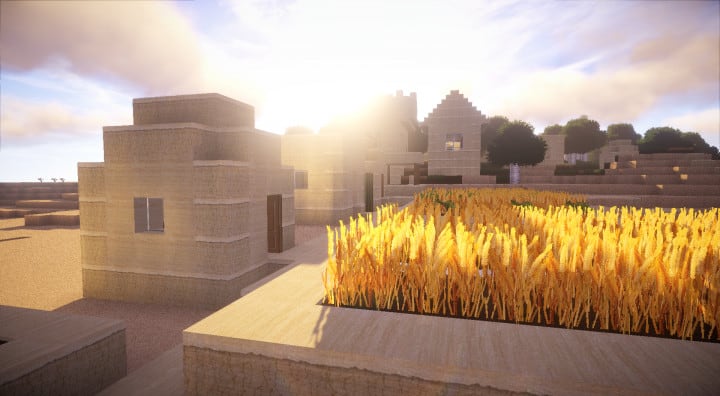
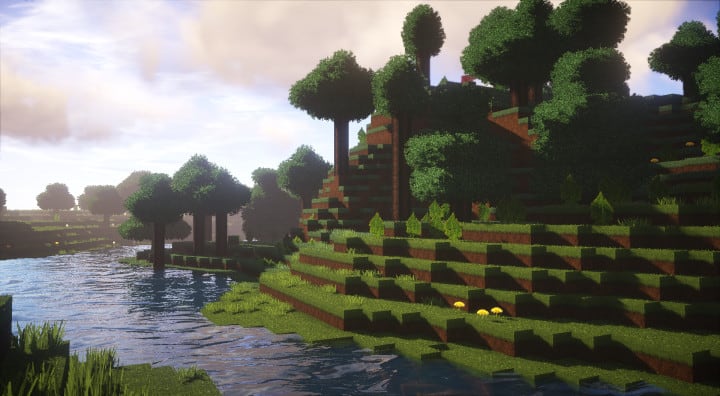
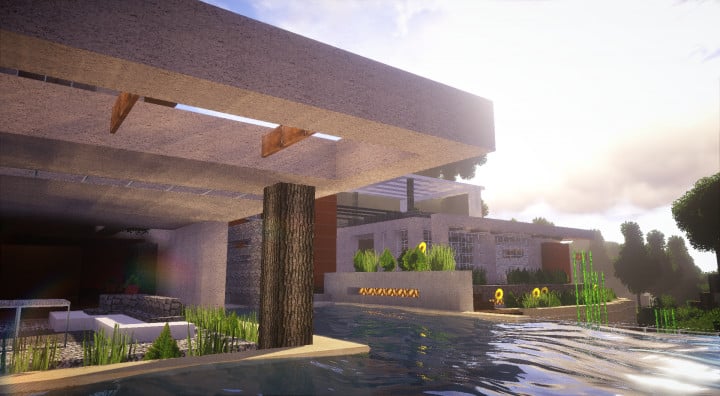
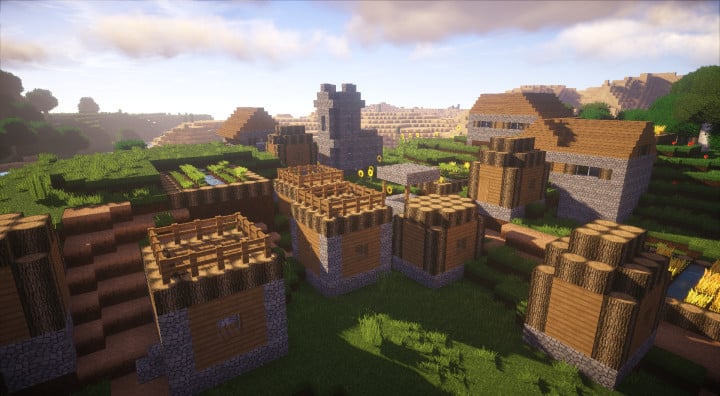
It has only been about a year since the SC Photorealism resource pack was first released, and it is already capturing an incredible amount of interest from players across the online Minecraft community. True to its name, this pack truly strives to give your entire Minecraft world a significantly more realistic appeal. It achieves this fantastic effect by stripping away any unnecessary visual clutter that tends to tangle up standard textures, while simultaneously packing an enormous amount of intricate detail into those exact same surfaces. With all of the numerous improvements bundled inside, you will definitely not go wrong by installing this pack. Compared to other similar packs within the exact same resolution and category, the SC Photorealism pack easily features some of the most distinct and deeply detailed textures available today. On top of these meticulously detailed textures, the pack wonderfully pairs a vibrant color reach with an authentic art style to successfully pull off an absolutely stunning visual experience in Minecraft.
Soon after applying this pack to your game, you will honestly find yourself repeatedly exploring your worlds over and over again just to enjoy the thrill of these gorgeous textures and the highly detailed contrast. The SC Photorealism pack genuinely stands out from most popular packs because it primarily focuses on delivering that modern-day art style experience while you play. Therefore, if you happen to be working on architectural projects themed around a modern setting, this pack will really come in handy and elevate your builds to a completely different level. Surprisingly, at first glance, you might mistakenly assume that this pack has an ultra-high resolution due to the remarkably fine and detailed work present everywhere. However, that is not actually the case, as the SC Photorealism pack is built at a clean 128x resolution. It is definitely worth keeping in mind, though, that some lower-end or below-average computers might struggle to run this pack smoothly. To truly get the best performance and visual payoff, you should ideally use a decent, average PC to completely avoid any technical glitches brought on by the higher-than-vanilla resolution.
SC Photorealism should be compatible with all of these Minecraft versions: 1.14.4 – 1.14.3 – 1.14.2 – 1.14 – 1.13.2 – 1.13.1 – 1.13 – 1.12.2 – 1.12 – 1.11.2 – 1.11
Screenshots
How to Install Texture Pack (Simple 10 Steps)
- Download OptiFine: Most of the texture packs and shaders need OptiFine. That’s why, first download and install OptiFine for the version of Minecraft you want to play.
- Download the Texture Pack: Get the texture pack you want from the download section. Choose the version that works with your Minecraft and your PC’s performance.
- Open Minecraft Launcher: Start Minecraft using the official game launcher — or even TLauncher, if you use that.
- Go to Options: From the main menu, click on the “Options” button.
- Open Resource Packs: Inside Options, click on “Resource Packs…”.
- Open the Resource Pack Folder: Click on “Open Resource Pack Folder” — this will open a folder named “resourcepacks”.
- Move the Pack File: Copy or move the .zip file you downloaded into that “resourcepacks” folder. (Don’t unzip the file — Minecraft uses it as-is!)
- Go Back and Refresh: Close the folder and click “Done”, then go back into “Resource Packs…” again.
- Activate the Pack: You’ll see the pack on the left side. Hover over it and click the arrow to move it to the right (active side).
Tip: If you get a message that the pack is for a different version, just click “Yes” — it usually works fine. - Click Done and Enjoy: Click “Done” again. Now your pack is ready to use in-game. It’s that easy!
Credits
This resource pack was created by SCtester. We do not own, host, or modify this resource pack, and all rights remain with the original creator. We highly recommend visiting the official sources to download the latest updates and support the author.
Download Links
Java Edition
Download Instructions
Curseforge: download starts automatically after a few seconds;
Mediafire: click the big blue button with the text “DOWNLOAD”;
Google Drive: in the top right corner you will see a small download icon (down arrow), click it and the download should start;


