
If you are looking to seriously step up your PvP game, I totally recommend giving the Rose Revamp 32x resource pack a try! This amazing texture pack has been crafted specifically to strengthen and streamline PvP play. I know firsthand that frame-rate drops can be a massive headache during intense PvP matches and mob hunting. While sometimes the lag is minor, it often turns into a critical problem where a single stutter means the difference between victory and defeat. If you are playing Minecraft on a PC with less than ideal hardware, you really should check out Rose Revamp 32x to give your game performance a noticeable boost. One of the best things about this pack is how it optimizes your PvP performance without dramatically altering the classic look of the game. If you want an option that improves your gameplay smoothness without completely changing the aesthetic you love, this pack is definitely worth trying. We have seen tons of PvP packs over the years featuring various color schemes, but bold red is surprisingly rare.
This is where the Rose Revamp 32x PvP resource pack truly stands out from the crowd. True to its name, it embraces a gorgeous theme of rich reds blended with subtle pinks, creating a genuinely lovely visual experience that keeps you engaged. It comes packed with all the essential features you would expect in a top-tier PvP pack, including lowered fire for better visibility, cleaner textures, and reduced animation noise so you can easily track your opponents’ movements. What really sets Rose Revamp apart for me is the completely revamped custom sky and the vibrant item designs. Plus, it features a sleek redesigned GUI that is a massive upgrade over vanilla Minecraft. Even though it doubles the standard resolution to 32×32 instead of 16×16, the textures are so well-optimized that you won’t notice any performance drops. It runs exceptionally smoothly on any system that can already handle vanilla Minecraft!
Rose Revamp 32x PvP should be compatible with all of these Minecraft versions: 1.16.5 – 1.16.4 – 1.16.3 – 1.16.2 – 1.16.1 – 1.16 – 1.15.2 – 1.15.1 – 1.15 – 1.8.9 – 1.8.8 – 1.8.1 – 1.8.6 – 1.8 – 1.7.10 – 1.7.9 – 1.7.4 – 1.7
Screenshots
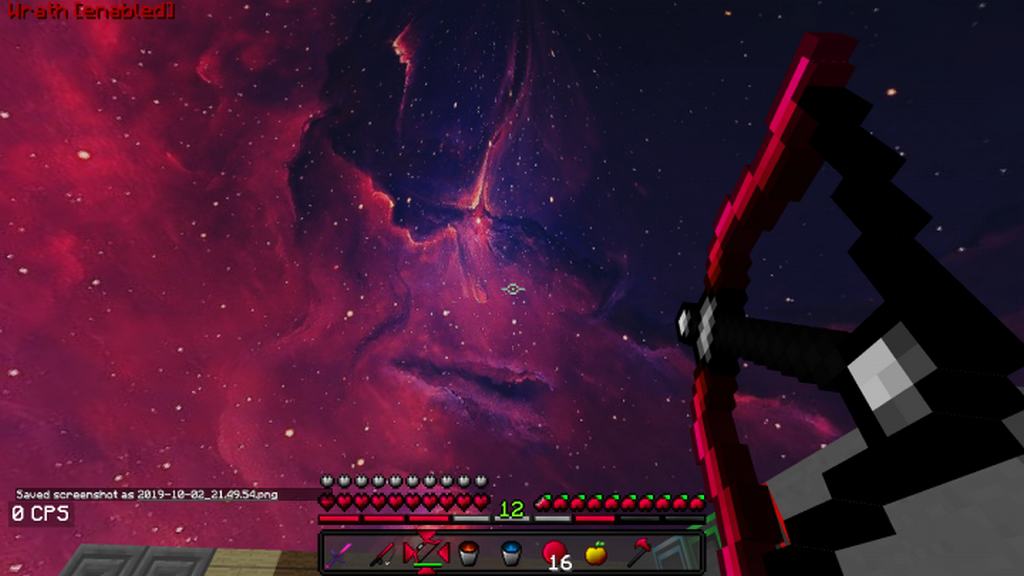
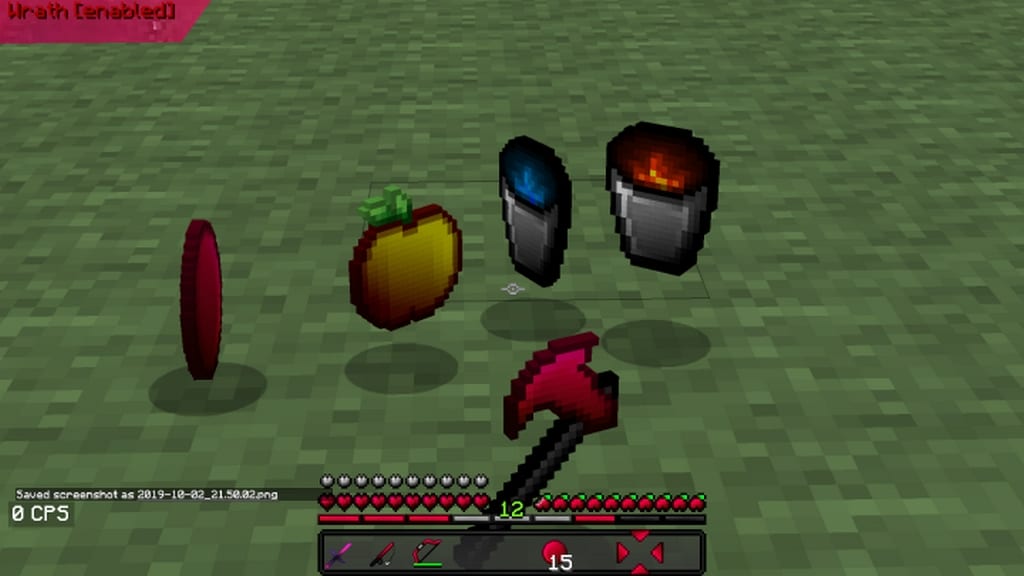
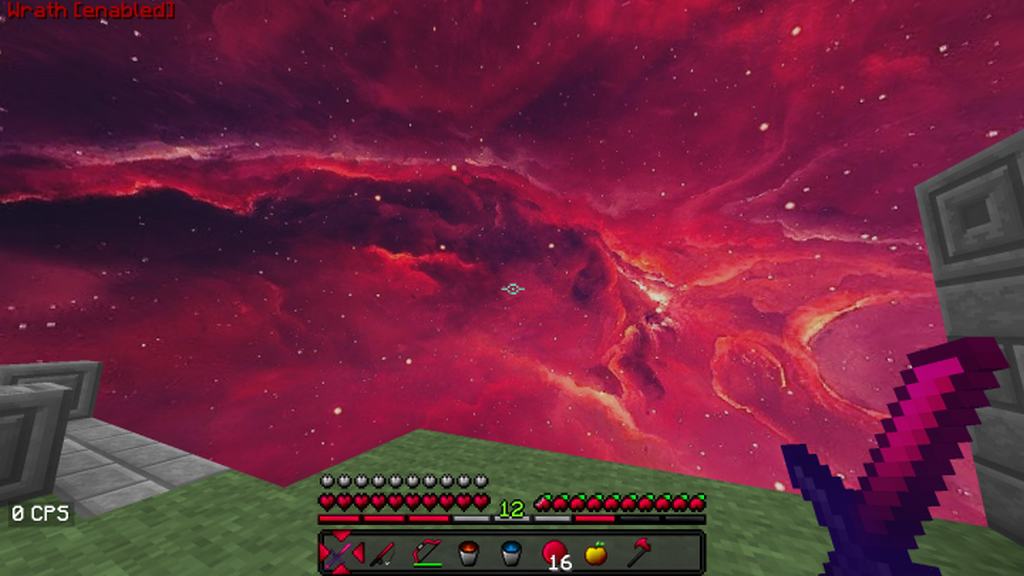
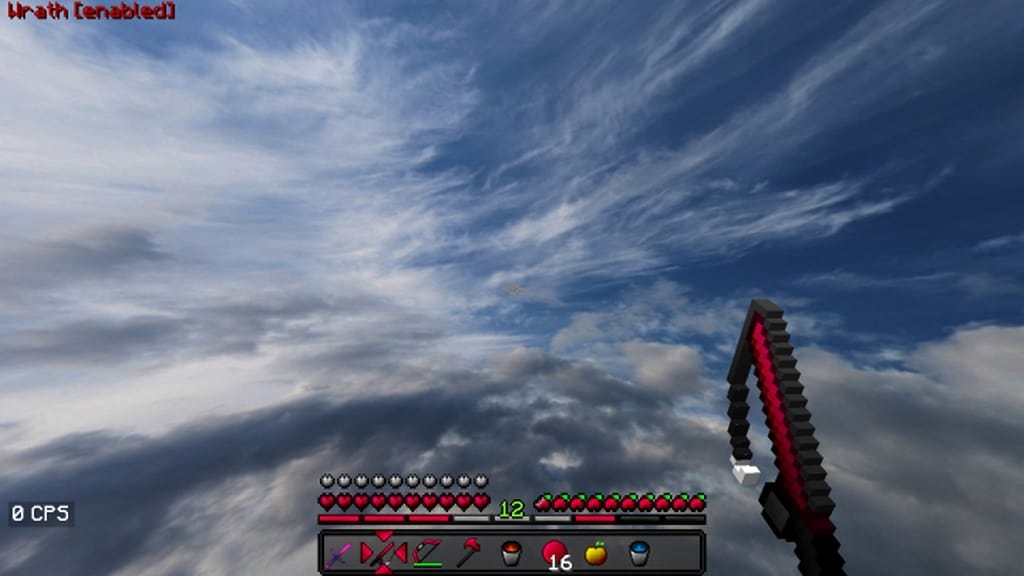
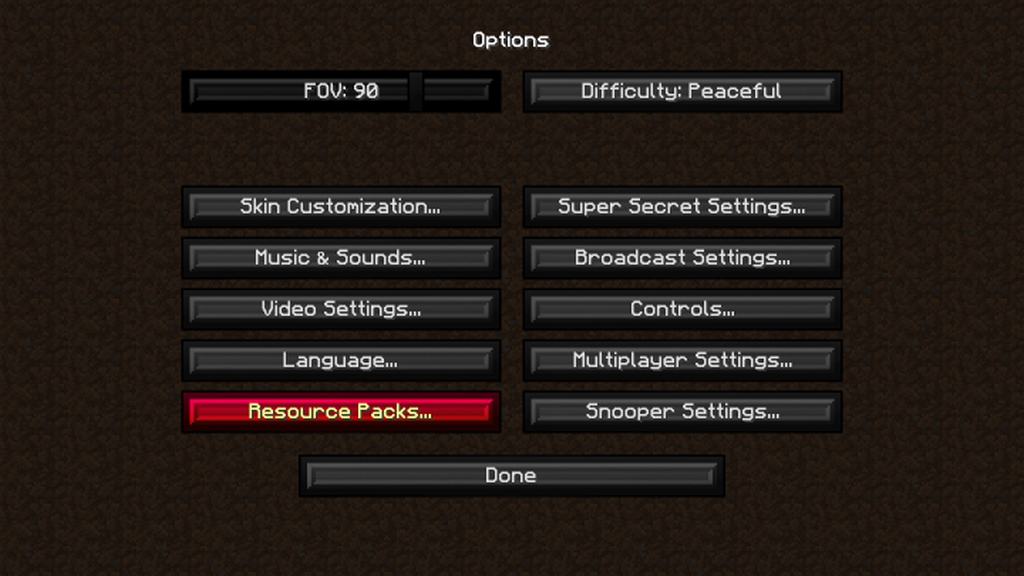
How to Install Texture Pack (Simple 10 Steps)
- Download OptiFine: Most of the texture packs and shaders need OptiFine. That’s why, first download and install OptiFine for the version of Minecraft you want to play.
- Download the Texture Pack: Get the texture pack you want from the download section. Choose the version that works with your Minecraft and your PC’s performance.
- Open Minecraft Launcher: Start Minecraft using the official game launcher — or even TLauncher, if you use that.
- Go to Options: From the main menu, click on the “Options” button.
- Open Resource Packs: Inside Options, click on “Resource Packs…”.
- Open the Resource Pack Folder: Click on “Open Resource Pack Folder” — this will open a folder named “resourcepacks”.
- Move the Pack File: Copy or move the .zip file you downloaded into that “resourcepacks” folder. (Don’t unzip the file — Minecraft uses it as-is!)
- Go Back and Refresh: Close the folder and click “Done”, then go back into “Resource Packs…” again.
- Activate the Pack: You’ll see the pack on the left side. Hover over it and click the arrow to move it to the right (active side).
Tip: If you get a message that the pack is for a different version, just click “Yes” — it usually works fine. - Click Done and Enjoy: Click “Done” again. Now your pack is ready to use in-game. It’s that easy!
Credits
This resource pack was originally created by Yuruze. We do not claim ownership of this modification, nor do we host modified files on our servers. All rights remain with the original creator. We strongly encourage you to visit the official creator links to download the pack and support their work.
Download Instructions
Curseforge: download starts automatically after a few seconds;
Mediafire: click the big blue button with the text “DOWNLOAD”;
Google Drive: in the top right corner you will see a small download icon (down arrow), click it and the download should start;


