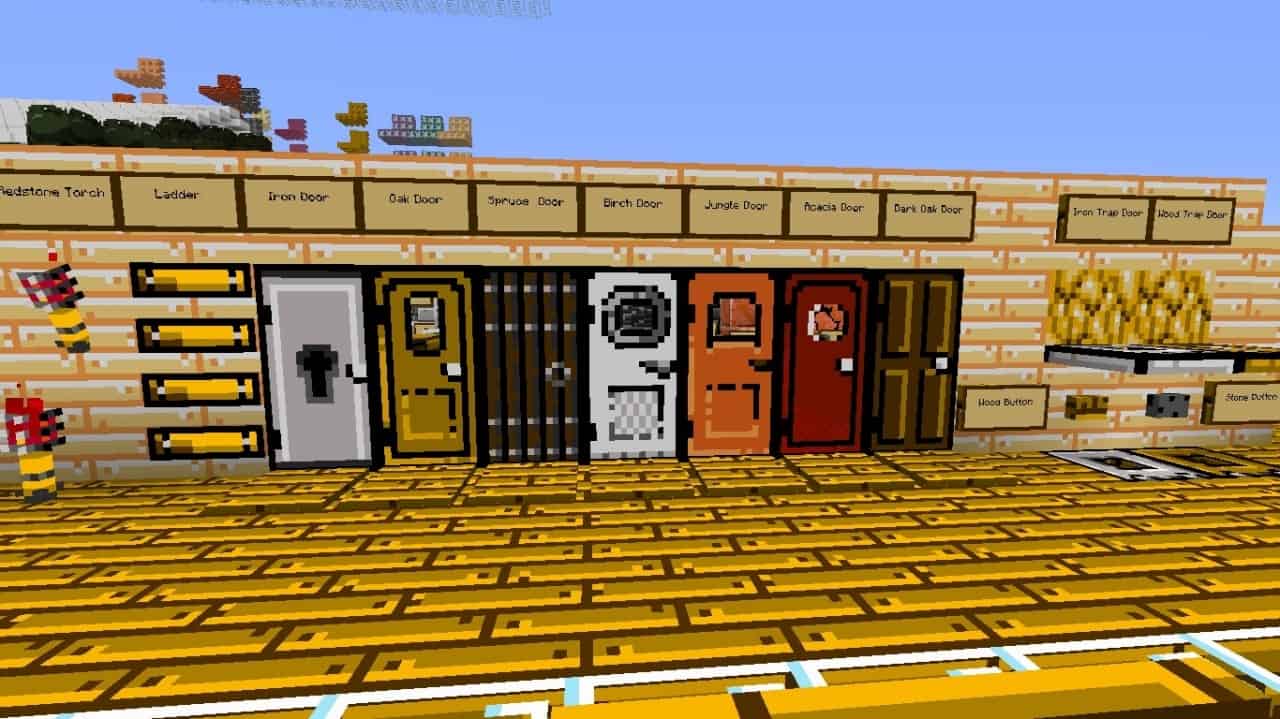
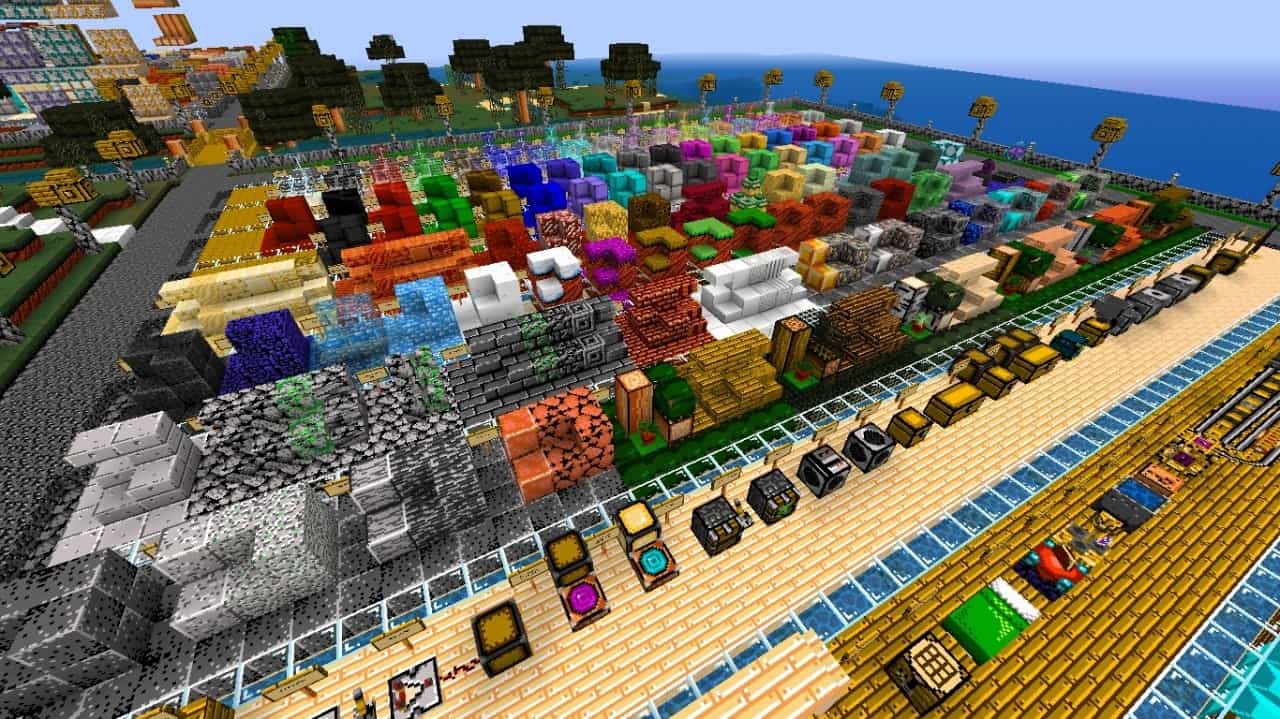
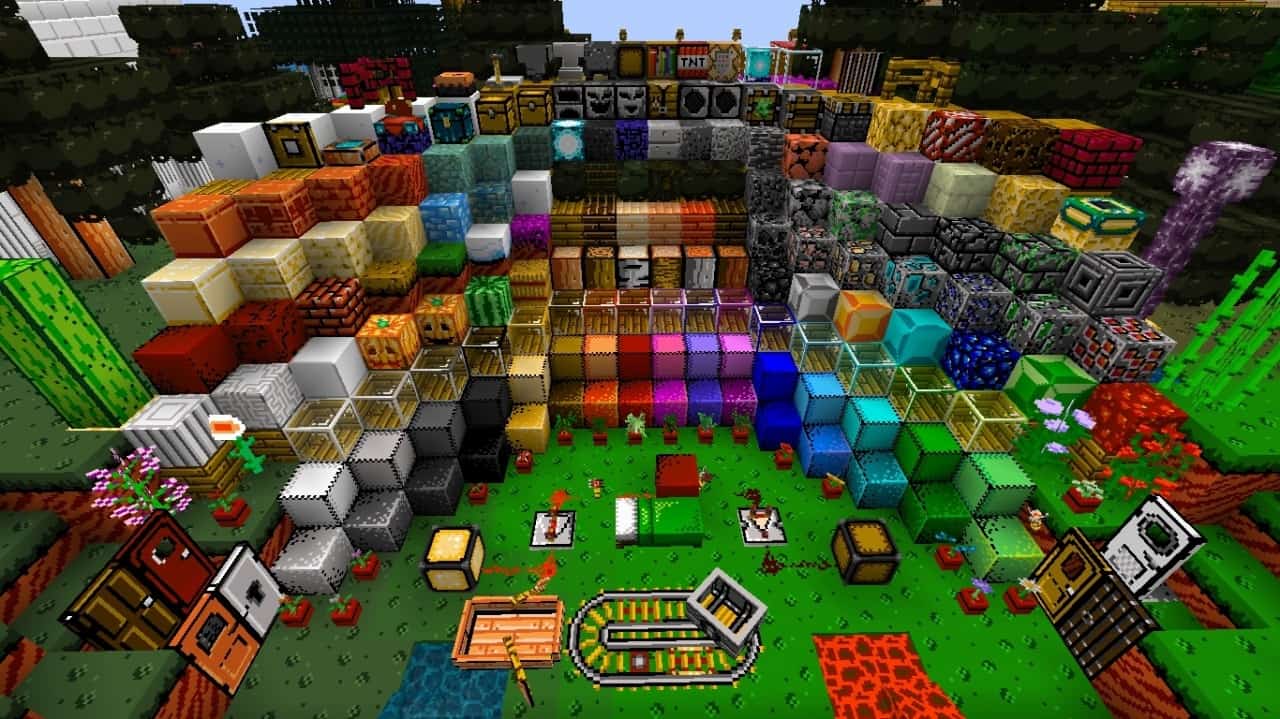
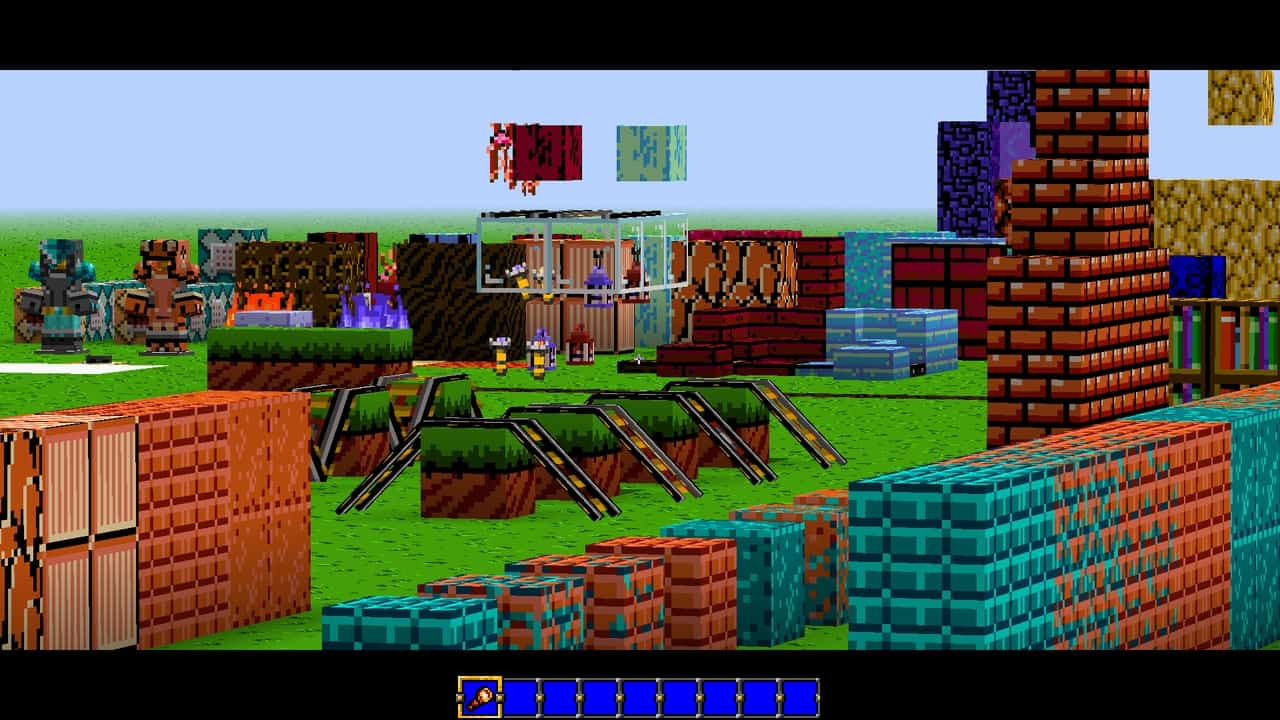
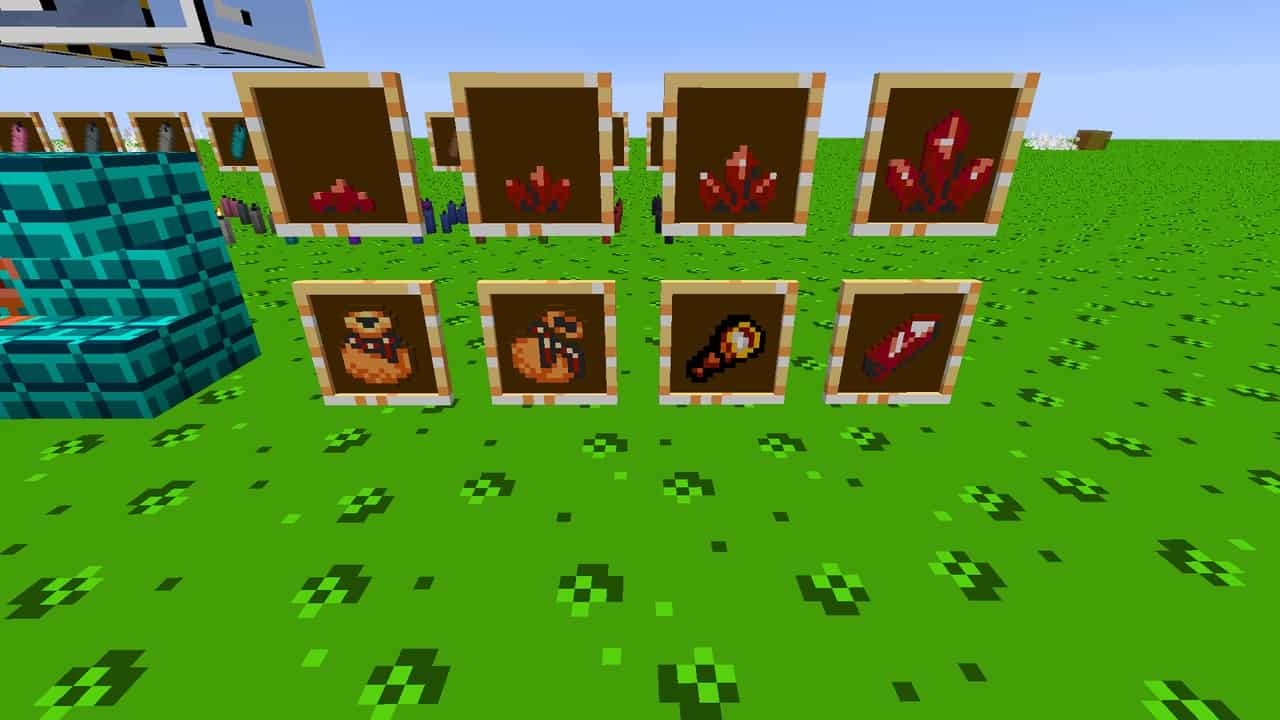
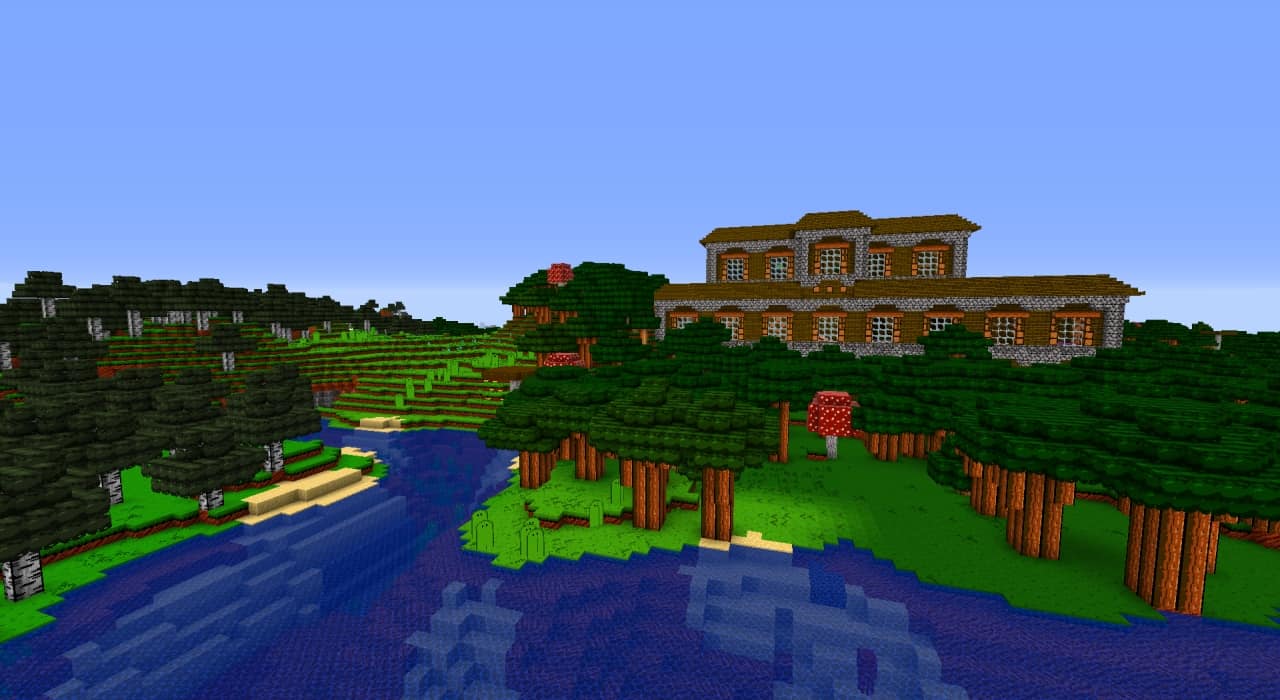
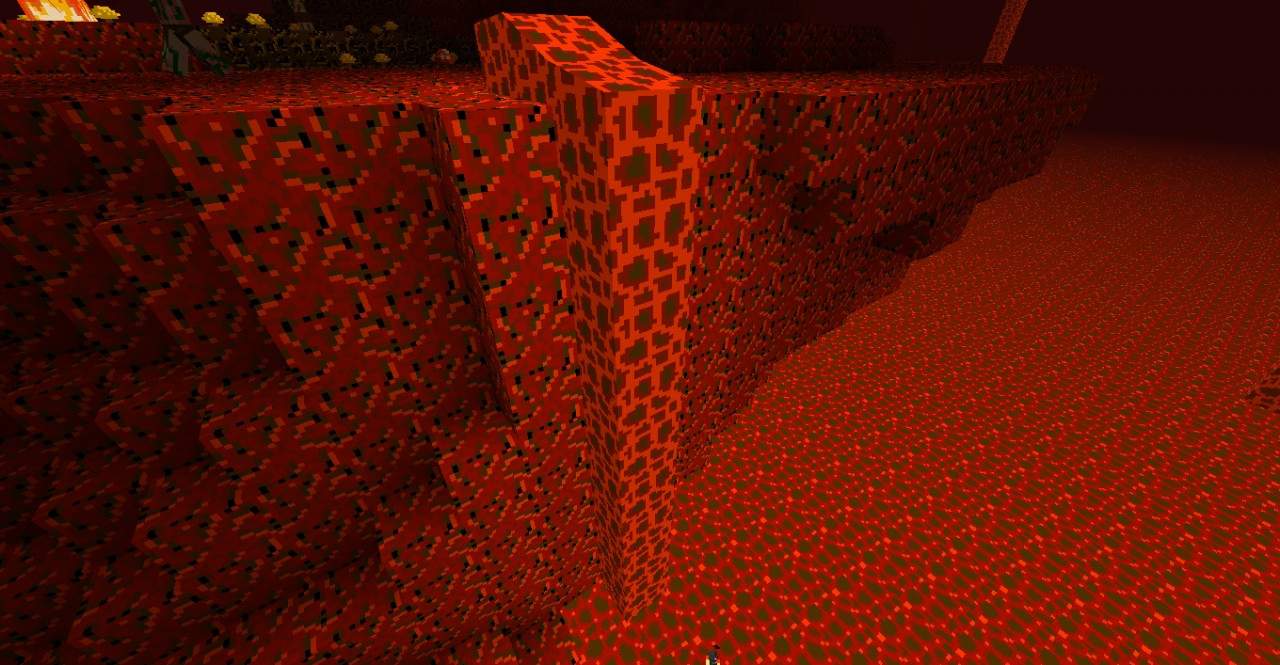
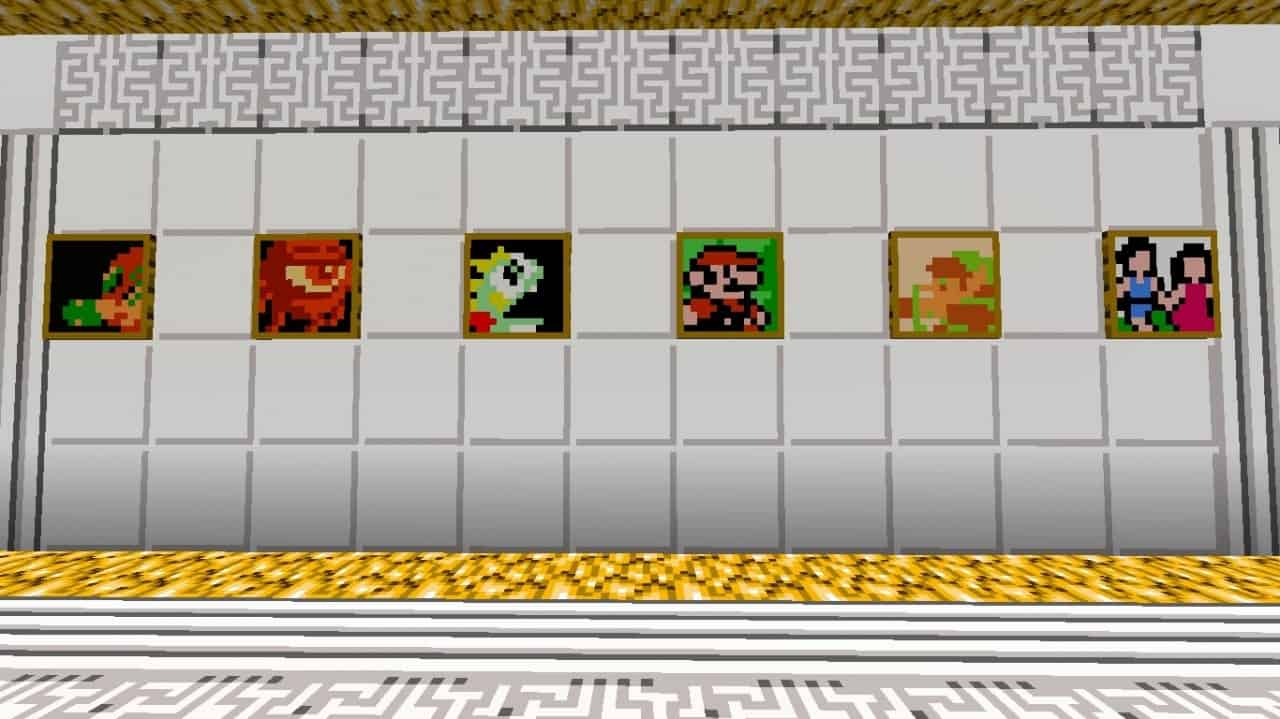
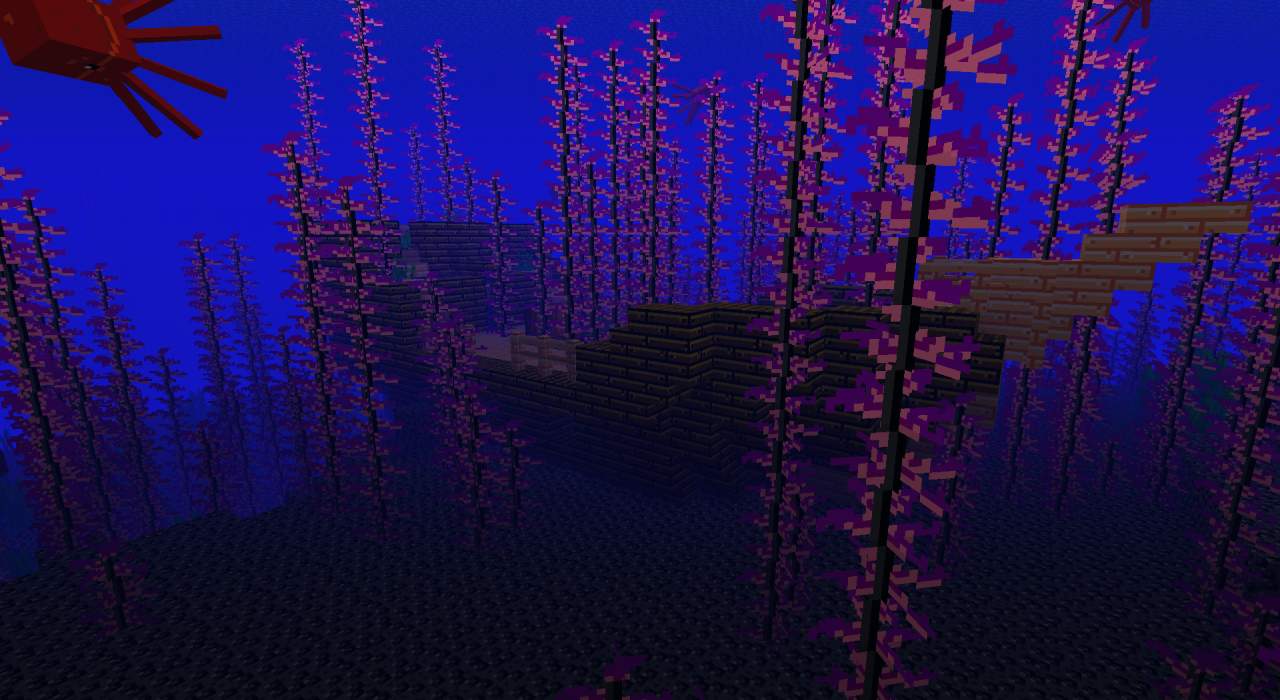
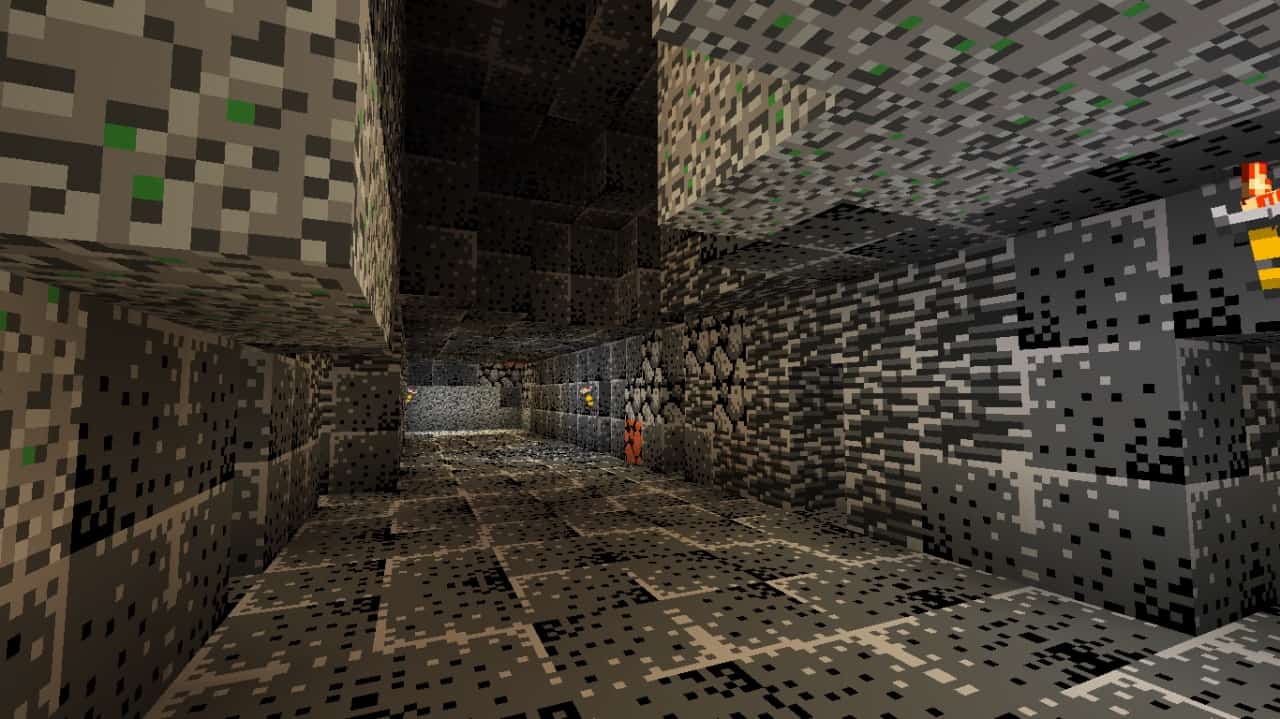
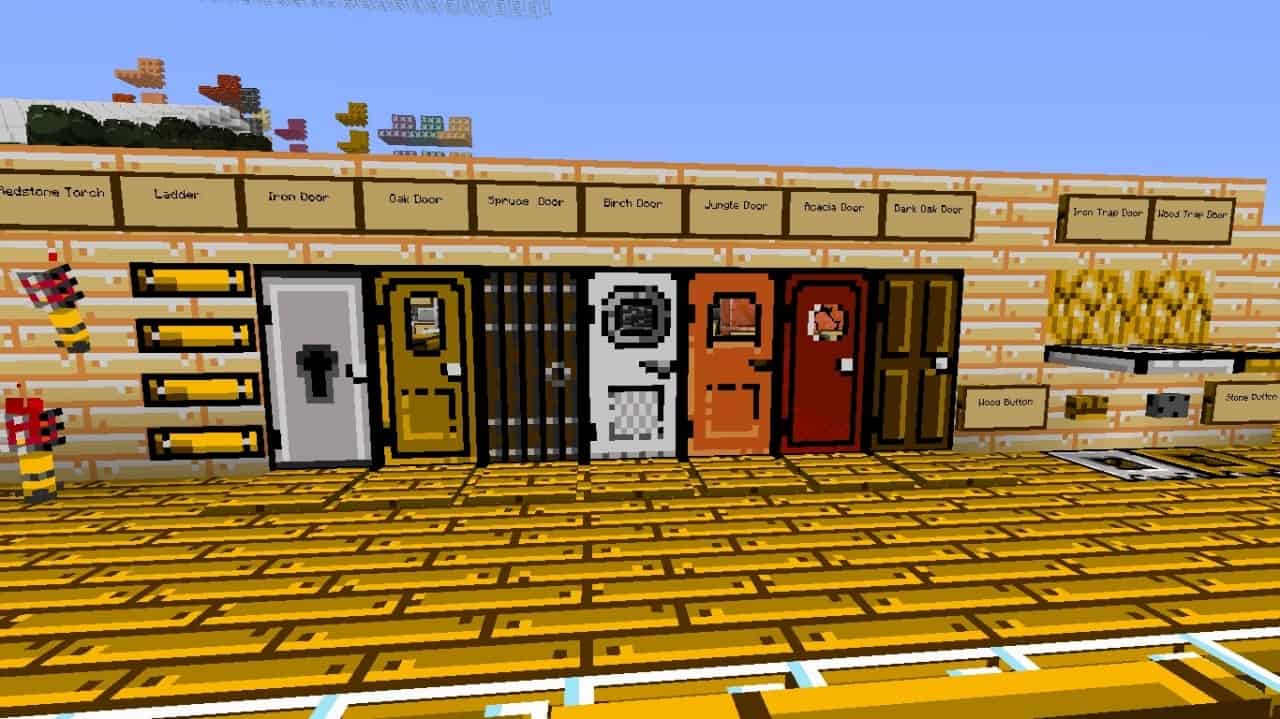
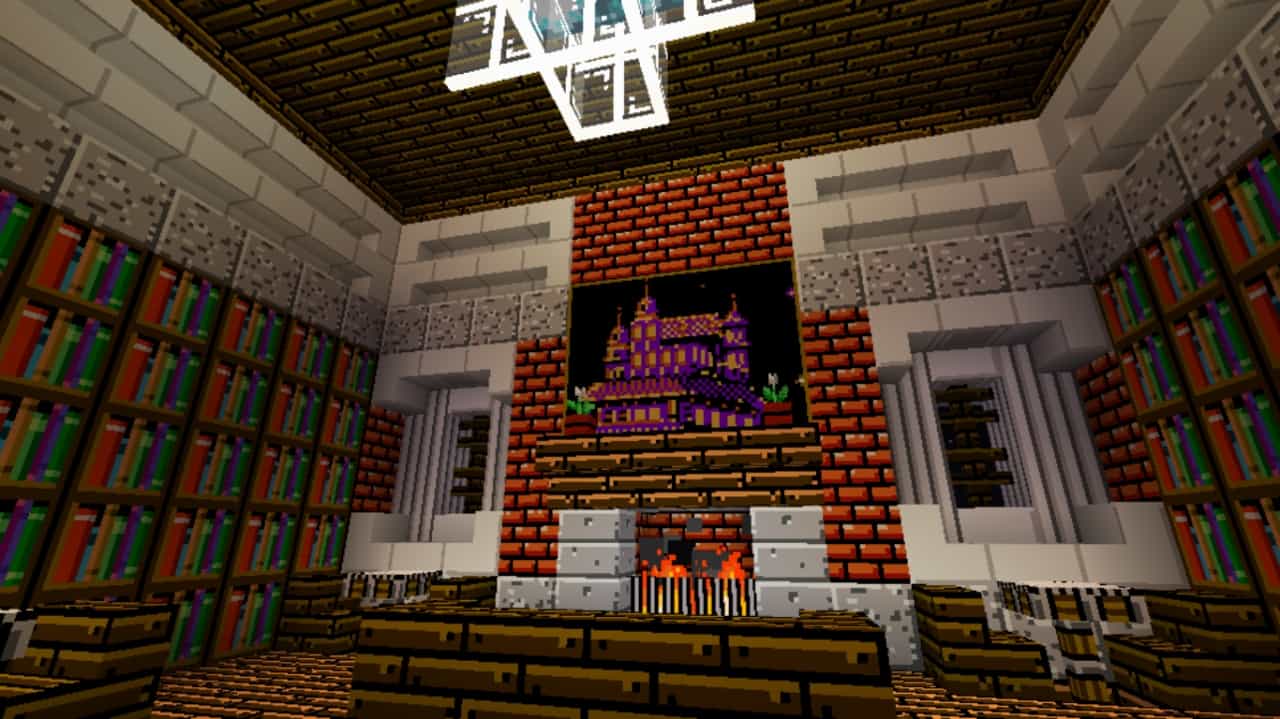
If you are looking for an engaging reminder of the good old times, the resource pack called Retro NES is definitely the thing you have been looking for. Retro NES is a resource pack which you should immediately download just because of one thing – it is a really impressive resource pack, and anyone who remembers the NES or has played games on it will surely be overwashed with nostalgia when they get their hands on this content. The Retro NES Resource Pack was developed by Knightworm, and the pack is pretty much complete. The textures come in a 16×16 resolution to make our old times much more enjoyable, and this low resolution will also allow many players to run the pack on sub-average PC configurations while remaining completely free of any type of frame-rate issue.
Also, to note, Knightworm is not the only one who initially conceptualized this pack. Because the true creator has become mostly inactive, Knightworm has been allowed to continue their work instead, and so far, he has been doing a very decent job. The main advantage of Retro NES is that it will completely transform the default look of the game. Additionally, it will provide the music and sound effects with a huge overhaul. After installing this set of textures, you will notice that every single default sound in the game has been changed to one that all NES players will easily recognize. The colors in Retro NES utilize a limited color palette, which should also invoke the true feeling of the original games that were played on the NES console.
Retro NES should be compatible with all of these Minecraft versions: 1.20.1 – 1.20 – 1.19.4 – 1.19.3 – 1.19.2 – 1.19.1 – 1.19 – 1.18.2 – 1.18.1 – 1.18 – 1.17.1 – 1.17 – 1.16.5 – 1.16.4 – 1.16.3 – 1.16.2 – 1.16.1 – 1.16 – 1.15.2 – 1.15.1 – 1.15 – 1.14.4 – 1.14.3 – 1.14.2 – 1.14 – 1.13.2 – 1.13.1 – 1.13 – 1.12.2 – 1.12 – 1.11.2 – 1.11 – 1.10.2 – 1.10 – 1.9.4 – 1.9 – 1.8.9 – 1.8.8 – 1.8.1 – 1.8.6 – 1.8 – Bedrock Edition – PE
Screenshots
How to Install Texture Pack (Simple 10 Steps)
- Download OptiFine: Most of the texture packs and shaders need OptiFine. That’s why, first download and install OptiFine for the version of Minecraft you want to play.
- Download the Texture Pack: Get the texture pack you want from the download section. Choose the version that works with your Minecraft and your PC’s performance.
- Open Minecraft Launcher: Start Minecraft using the official game launcher — or even TLauncher, if you use that.
- Go to Options: From the main menu, click on the “Options” button.
- Open Resource Packs: Inside Options, click on “Resource Packs…”.
- Open the Resource Pack Folder: Click on “Open Resource Pack Folder” — this will open a folder named “resourcepacks”.
- Move the Pack File: Copy or move the .zip file you downloaded into that “resourcepacks” folder. (Don’t unzip the file — Minecraft uses it as-is!)
- Go Back and Refresh: Close the folder and click “Done”, then go back into “Resource Packs…” again.
- Activate the Pack: You’ll see the pack on the left side. Hover over it and click the arrow to move it to the right (active side).
Tip: If you get a message that the pack is for a different version, just click “Yes” — it usually works fine. - Click Done and Enjoy: Click “Done” again. Now your pack is ready to use in-game. It’s that easy!
Credits
This resource pack was created by puffcap and befarrar, with continued development by Knightworm. We do not claim ownership of this content, nor do we host modified files on our servers. All credit belongs to the original creators, and we strongly encourage supporting them through their official download channels.
Download Links
Java Edition
- [16x] Minecraft 1.20.x – 1.18.x
- [16x] Minecraft 1.17.x
- [16x] Minecraft 1.16.x
- [16x] Minecraft 1.15.x
- [16x] Minecraft 1.14.x
- [16x] Minecraft 1.13.x
- [16x] Minecraft 1.12.x – 1.8.x
- Original Chests Add-on
- Noteblock Crate Add-on
- Cauldron Barrels Add-on
- PP Statuses Add-on
- Retro Sounds Add-on
Bedrock Edition
Download Instructions
Curseforge: download starts automatically after a few seconds;
Mediafire: click the big blue button with the text “DOWNLOAD”;
Google Drive: in the top right corner you will see a small download icon (down arrow), click it and the download should start;


