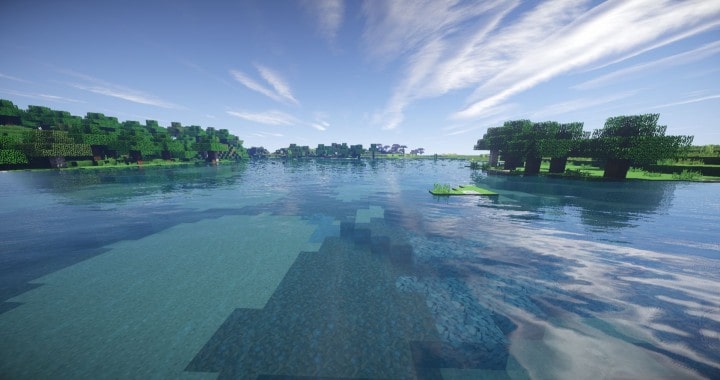
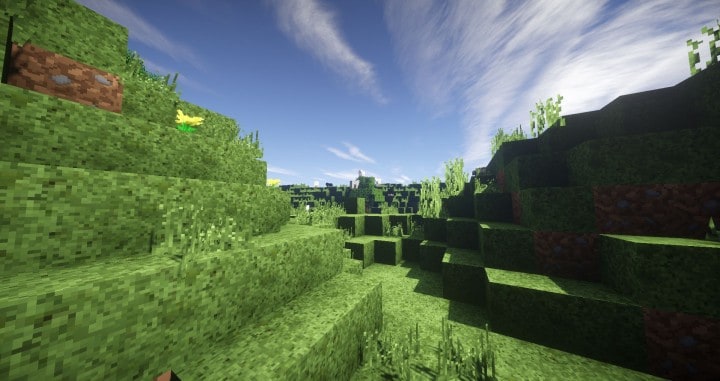
Most of the Minecraft resource packs can be divided into two categories – realistic and cartoonish – and the Realistic Swag resource pack proudly belongs to the former group. Many of those are crafted by using real-life photographs, which are then cleverly converted into lower resolution in order to be able to be displayed inside of the game. The Realistic Swag Pack certainly takes a somewhat similar approach, and I found that the gorgeous grass and water will leave you feeling like you are actually inside of a real photograph instead of standard Minecraft! One massive advantage I noticed is that the Realistic Swag Pack doesn’t even have to be used alongside OptiFine, which is usually a strict requirement with these types of demanding retextures. An important thing to note is that even though this resource pack attempts to significantly amplify your overall gameplay experience, it still tries hard to maintain the original feel of the game for those old-school Minecraft enthusiasts who simply cannot do without the classic blocky nature of it.
Arguably the largest change that you as a player will see are the breathtaking water surfaces. The Realistic Swag texture pack completely eliminates the murky texture of the original bodies of water and instead makes them wonderfully clear, which means that you can easily see right down to what is at the bottom of them. Now, this change would go along pretty awesome with Minecraft’s recent Aquatic update. Unfortunately, the pack was originally made with Minecraft 1.8 in mind, so you probably won’t get an optimal experience with later versions of the game. However, the resolution of the textures is a whopping 128x, making it totally worth reverting your game to the older version just to try it out. But if you happen to have a lower-end PC, chances are that you’ll struggle with some performance drops due to the eight times higher level of detail. Also, just keep in mind that the pack is still an active work in progress, as the developer seems to be taking their time crafting it to perfection.
Realistic Swag should be compatible with all of these Minecraft versions: 1.8.9 – 1.8.8 – 1.8.1 – 1.8.6 – 1.8 – 1.7.10 – 1.7.9 – 1.7.4 – 1.7 – 1.6.4 – 1.6.2
Screenshots
How to Install Texture Pack (Simple 10 Steps)
- Download OptiFine: Most of the texture packs and shaders need OptiFine. That’s why, first download and install OptiFine for the version of Minecraft you want to play.
- Download the Texture Pack: Get the texture pack you want from the download section. Choose the version that works with your Minecraft and your PC’s performance.
- Open Minecraft Launcher: Start Minecraft using the official game launcher — or even TLauncher, if you use that.
- Go to Options: From the main menu, click on the “Options” button.
- Open Resource Packs: Inside Options, click on “Resource Packs…”.
- Open the Resource Pack Folder: Click on “Open Resource Pack Folder” — this will open a folder named “resourcepacks”.
- Move the Pack File: Copy or move the .zip file you downloaded into that “resourcepacks” folder. (Don’t unzip the file — Minecraft uses it as-is!)
- Go Back and Refresh: Close the folder and click “Done”, then go back into “Resource Packs…” again.
- Activate the Pack: You’ll see the pack on the left side. Hover over it and click the arrow to move it to the right (active side).
Tip: If you get a message that the pack is for a different version, just click “Yes” — it usually works fine. - Click Done and Enjoy: Click “Done” again. Now your pack is ready to use in-game. It’s that easy!
Credits
This resource pack was created by Noxie. We do not claim ownership of this modification, nor do we host modified files on our servers. All rights remain with the original creator. We highly recommend supporting Noxie by downloading the pack through their official links.
Download Instructions
Curseforge: download starts automatically after a few seconds;
Mediafire: click the big blue button with the text “DOWNLOAD”;
Google Drive: in the top right corner you will see a small download icon (down arrow), click it and the download should start;


