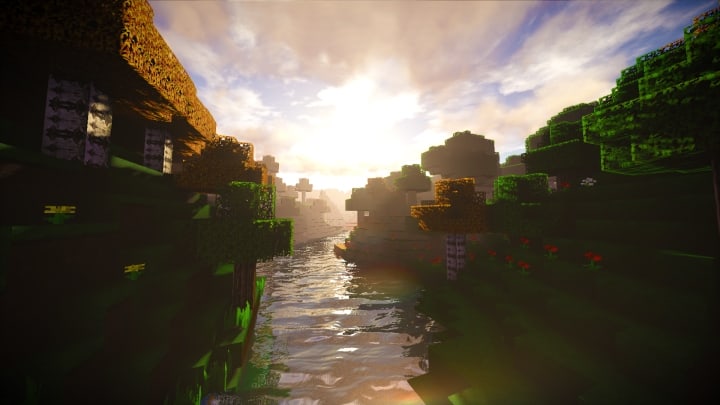
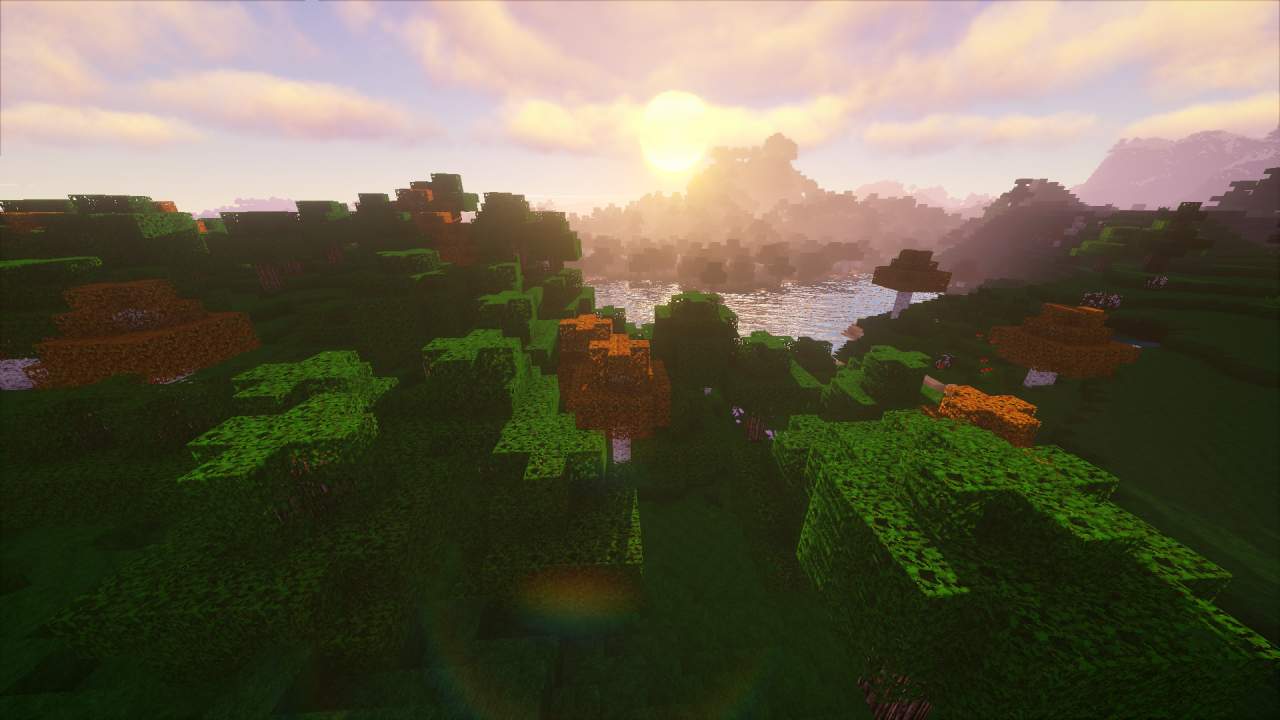
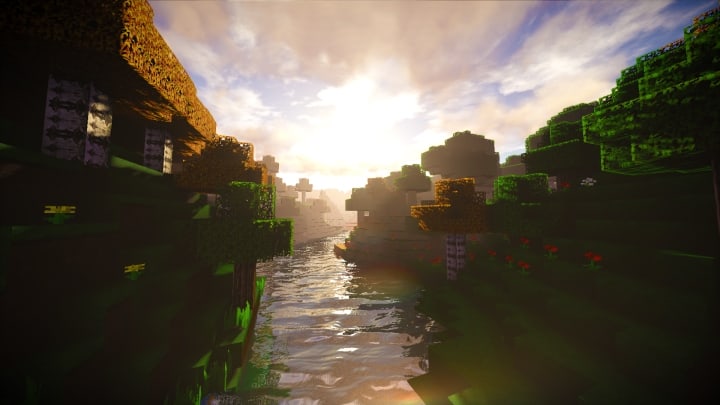
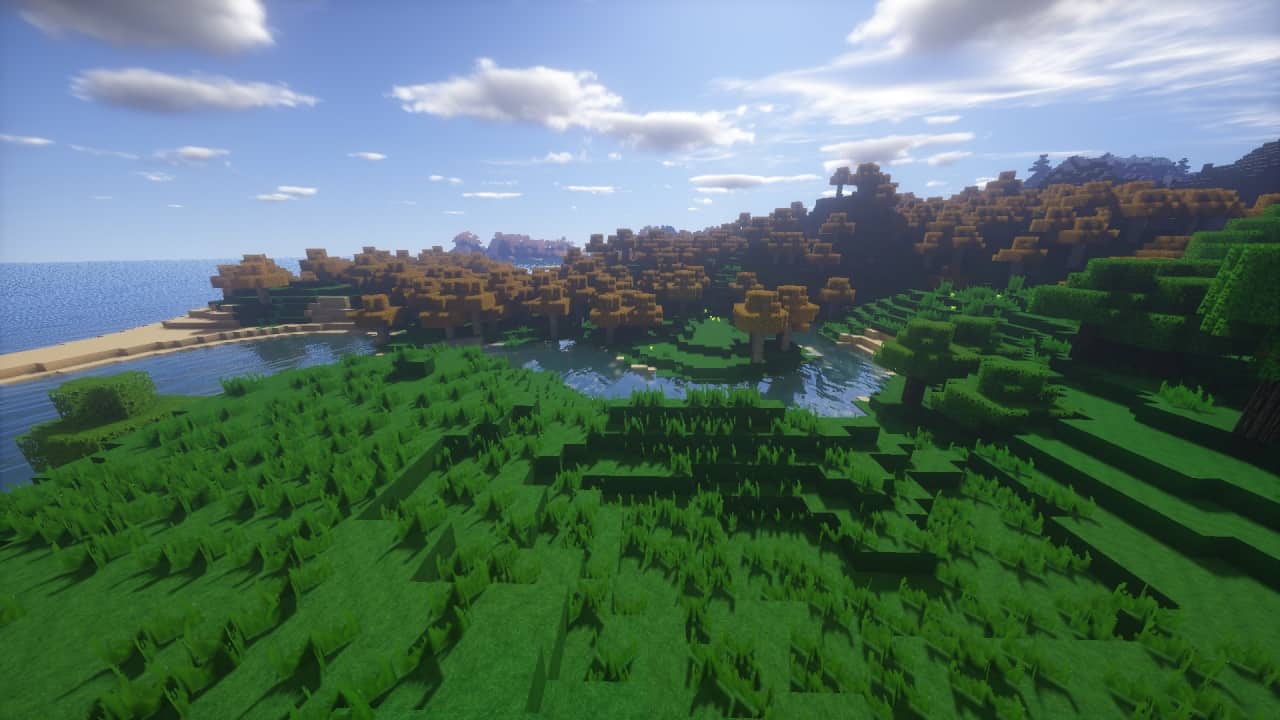
Anyone truly interested in enhancing their Minecraft textures really needs to take a look at the incredible Realistic Adventure pack. As soon as you step into the world, you will immediately notice the uniquely high quality of the water and clouds that this resource pack offers. Honestly, almost no other pack offers better looking, both stylish and realistic water than Realistic Adventure. The clouds are also breathtakingly beautiful; instead of resembling simple blocks, the clouds look like real, wispy clouds in a way that seamlessly fits in with the rest of the new graphics. The Realistic Adventure resource pack brilliantly manages to make the world of Minecraft look much more realistic without ever interfering with the game’s core style. As well as making Minecraft look much more like a real outdoor environment, it also brilliantly improves upon the classic medieval style of the original graphics. Some resource packs out there make the world look far too modern and unfortunately ruin its charming medieval feel.
The Realistic Adventure pack, on the other hand, preserves that authentic medieval feel while introducing stunningly realistic graphics. Alongside the gorgeous outdoor environments, you are likely to be thoroughly impressed by the look of the castles, forts, and underground hideouts that you can build using this resource pack. Both your most significant buildings and your most straightforward structures will end up looking so much better than they ever do in vanilla Minecraft. Many of the new graphics are also smoothly animated, and the overall quality of those animations is far superior to the default graphics. Interestingly, when it comes to the appearance of monsters and items, there are few or no changes made, but trust me, this is not a bad thing at all. The more detailed buildings fit in wonderfully with the slightly simpler monsters and items to create a truly elegant overall appearance that you will love exploring.
Realistic Adventure should be compatible with all of these Minecraft versions: 1.19.4 – 1.19.3 – 1.19.2 – 1.19.1 – 1.19 – 1.18.2 – 1.18.1 – 1.18 – 1.17.1 – 1.17 – 1.16.5 – 1.16.4 – 1.16.3 – 1.16.2 – 1.16.1 – 1.16 – 1.15.2 – 1.15.1 – 1.15 – 1.14.4 – 1.14.3 – 1.14.2 – 1.14 – 1.13.2 – 1.13.1 – 1.13 – 1.9.4 – 1.9 – 1.8.9 – 1.8.8 – 1.8.1 – 1.8.6 – 1.8 – 1.7.10 – 1.7.9 – 1.7.4 – 1.7
Screenshots

How to Install Texture Pack (Simple 10 Steps)
- Download OptiFine: Most of the texture packs and shaders need OptiFine. That’s why, first download and install OptiFine for the version of Minecraft you want to play.
- Download the Texture Pack: Get the texture pack you want from the download section. Choose the version that works with your Minecraft and your PC’s performance.
- Open Minecraft Launcher: Start Minecraft using the official game launcher — or even TLauncher, if you use that.
- Go to Options: From the main menu, click on the “Options” button.
- Open Resource Packs: Inside Options, click on “Resource Packs…”.
- Open the Resource Pack Folder: Click on “Open Resource Pack Folder” — this will open a folder named “resourcepacks”.
- Move the Pack File: Copy or move the .zip file you downloaded into that “resourcepacks” folder. (Don’t unzip the file — Minecraft uses it as-is!)
- Go Back and Refresh: Close the folder and click “Done”, then go back into “Resource Packs…” again.
- Activate the Pack: You’ll see the pack on the left side. Hover over it and click the arrow to move it to the right (active side).
Tip: If you get a message that the pack is for a different version, just click “Yes” — it usually works fine. - Click Done and Enjoy: Click “Done” again. Now your pack is ready to use in-game. It’s that easy!
Credits
This project was created by composer. We do not claim ownership of this content, nor do we modify or host these files on our servers. All rights remain with the original author. We strongly encourage you to support the creator by using their official download links and following their community channels.
Download Instructions
Curseforge: download starts automatically after a few seconds;
Mediafire: click the big blue button with the text “DOWNLOAD”;
Google Drive: in the top right corner you will see a small download icon (down arrow), click it and the download should start;


