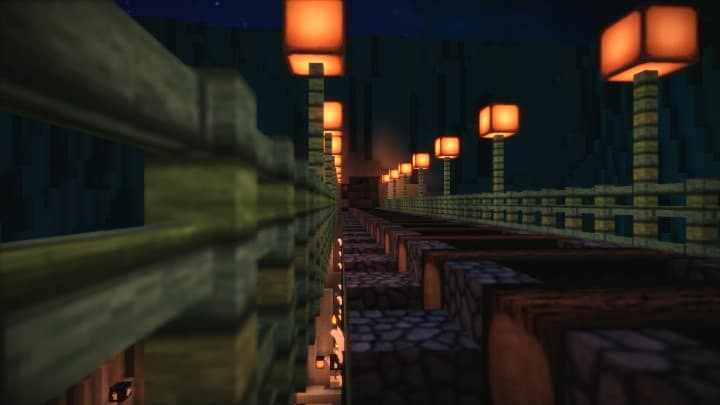
Any player with the intention of transforming their world of Minecraft into a genuinely fascinating as well as authentic place will find the ReaLife resource pack to be extremely beneficial. It is a fact that resource packs that are realism based appear to emerge every alternate day, and this makes this pack unique when it comes to its concept. Nevertheless, when we take into consideration the actual design, it might be worthwhile to take a look at ReaLife given that it is a pack which does not come at a high resolution as compared to the majority of the other realistic packs out there. It is a fact that packs which are realistic typically feature high resolutions thanks to their outrageous texture details; however, this ReaLife pack is able to offer an impressive experience while giving a fairly low resolution at the same time.
Therefore, considering everything, it is a pack you ought to check out in case you’d like to have a natural experience without necessarily having the hardware for running the top high-resolution packs out there. Realife offers every single defining element which is responsible for creating a premium quality realistic resource pack, for example, vibrant shades, a high level of texture details, as well as a sleek appearance in general. One notable feature of this pack is that the textures do not appear to be noisy at all despite the fact that noise happens to be a very common problem which might happen on most occasions after loading such detailed textures. The textures of Realife come with a 64×64 resolution which is somewhat more than the normal x16; however, you can manage it much better as compared to the alarmingly high 1024×1024 or 512×512 resolutions which are featured by most of the realistic packs at present. This implies that you will be able to get the best of Realife so long as you do have a system featuring above average and top-quality hardware.
ReaLife should be compatible with all of these Minecraft versions: 1.14 – 1.13.2 – 1.13.1 – 1.13
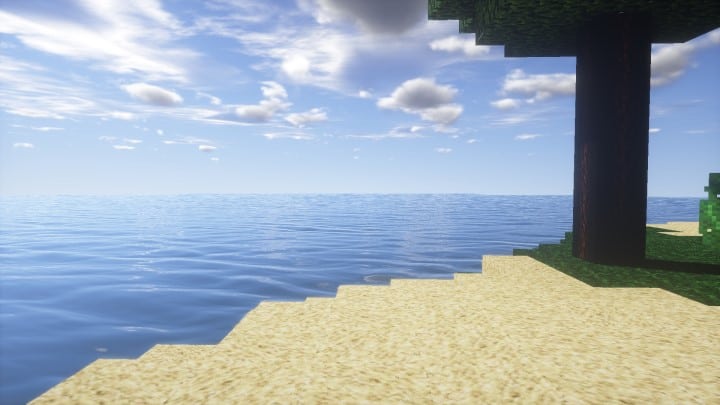
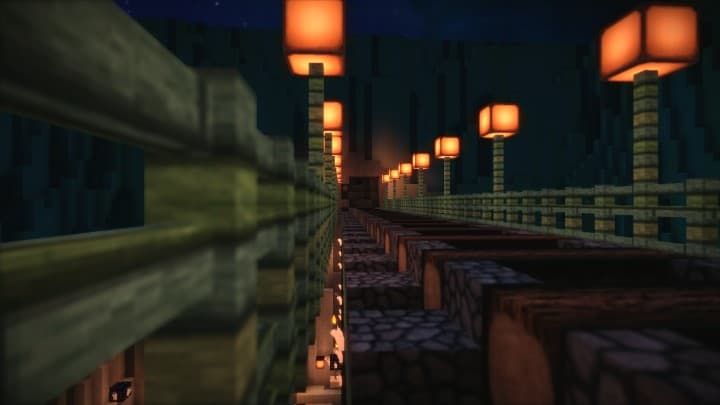
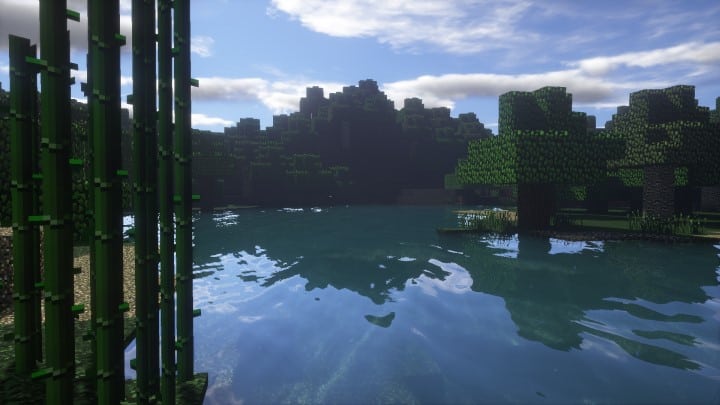
Screenshots
How to Install Texture Pack (Simple 10 Steps)
- Download OptiFine: Most of the texture packs and shaders need OptiFine. That’s why, first download and install OptiFine for the version of Minecraft you want to play.
- Download the Texture Pack: Get the texture pack you want from the download section. Choose the version that works with your Minecraft and your PC’s performance.
- Open Minecraft Launcher: Start Minecraft using the official game launcher — or even TLauncher, if you use that.
- Go to Options: From the main menu, click on the “Options” button.
- Open Resource Packs: Inside Options, click on “Resource Packs…”.
- Open the Resource Pack Folder: Click on “Open Resource Pack Folder” — this will open a folder named “resourcepacks”.
- Move the Pack File: Copy or move the .zip file you downloaded into that “resourcepacks” folder. (Don’t unzip the file — Minecraft uses it as-is!)
- Go Back and Refresh: Close the folder and click “Done”, then go back into “Resource Packs…” again.
- Activate the Pack: You’ll see the pack on the left side. Hover over it and click the arrow to move it to the right (active side).
Tip: If you get a message that the pack is for a different version, just click “Yes” — it usually works fine. - Click Done and Enjoy: Click “Done” again. Now your pack is ready to use in-game. It’s that easy!
Credits
This resource pack was created by Tanoss. We do not claim ownership of this content, and we provide these download links as originally sourced. We strongly encourage all users to support the creator and their official releases.
Download Instructions
Curseforge: download starts automatically after a few seconds;
Mediafire: click the big blue button with the text “DOWNLOAD”;
Google Drive: in the top right corner you will see a small download icon (down arrow), click it and the download should start;


