The Real Nature Resource Pack is an absolutely fantastic and brand new set of textures for Minecraft that I really think you should check out! As you likely know, most Minecraft resource packs try to make the game look incredible by completely redesigning every single texture in all sorts of different ways. While those creations often look awesome, there are plenty of players out there who prefer to keep as many default features as possible while still wanting something that brings a noticeable touch of reality to the game world.
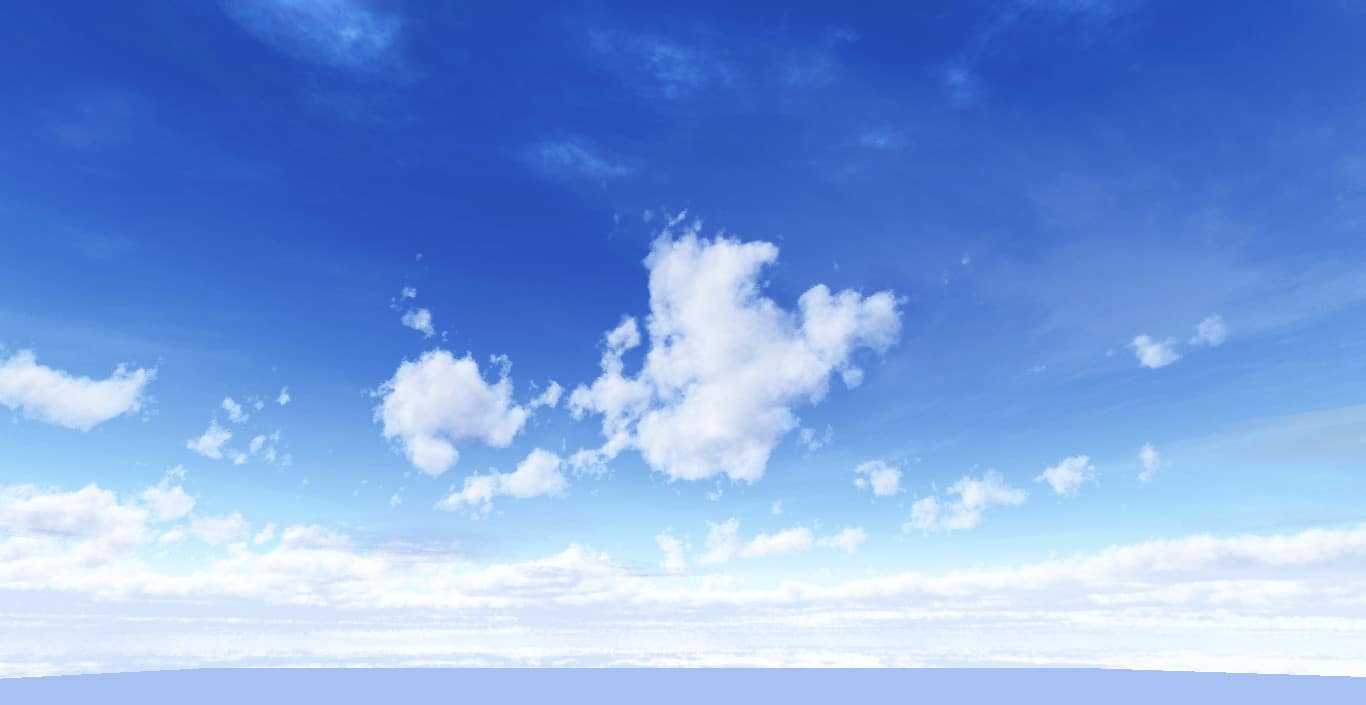
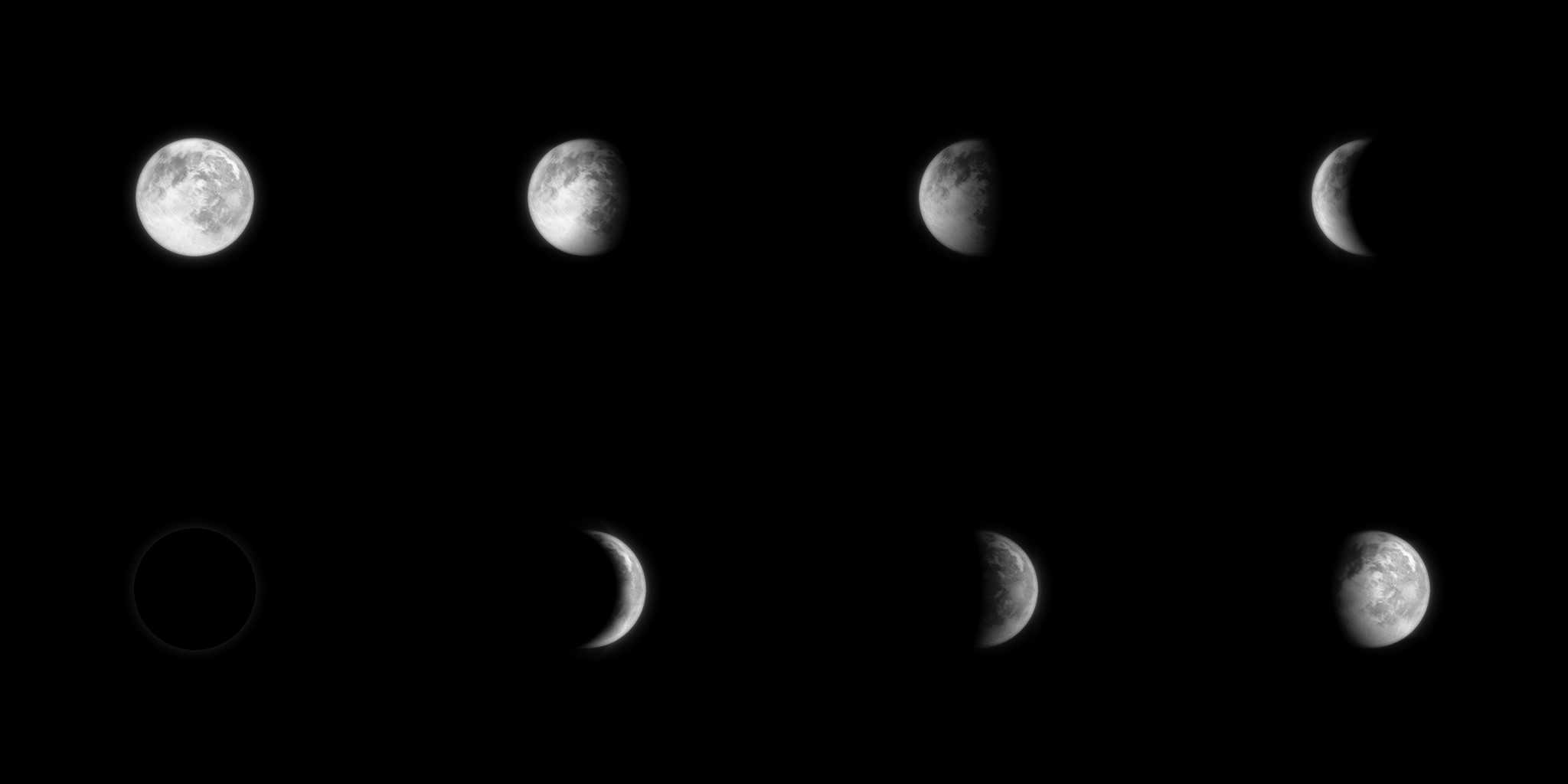
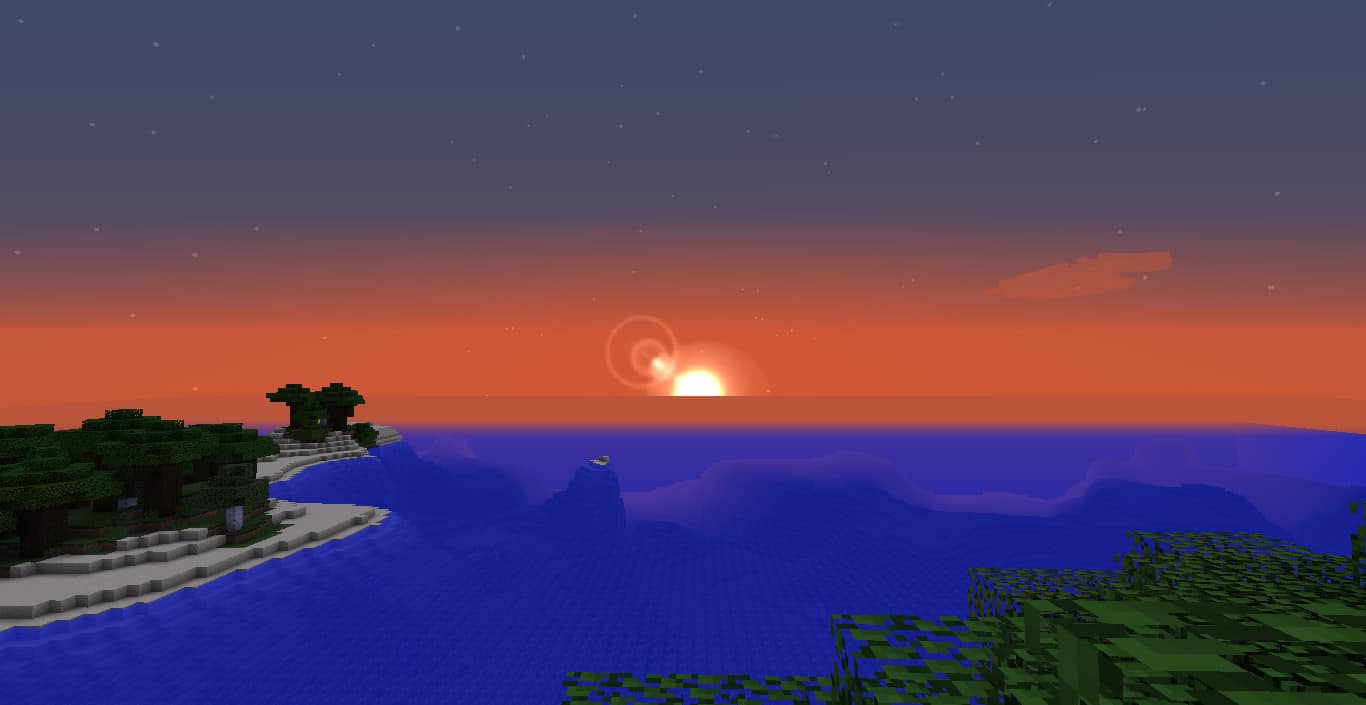
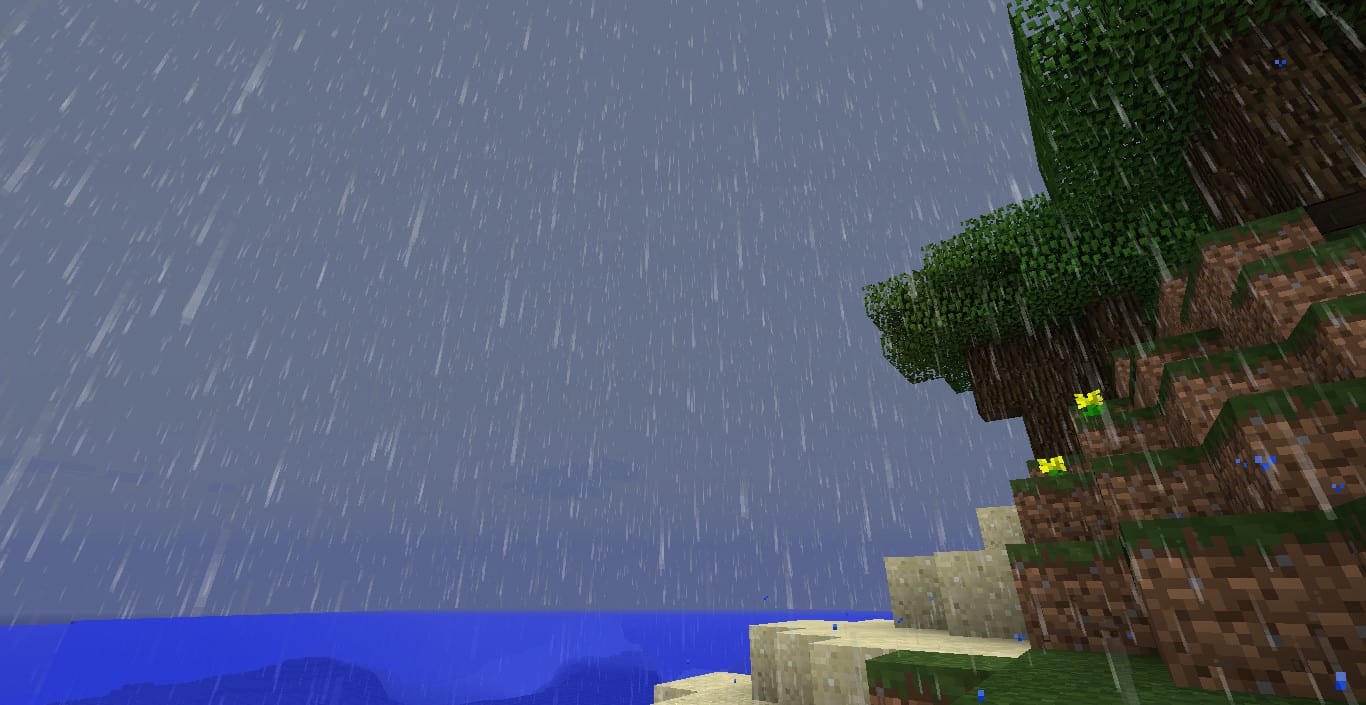
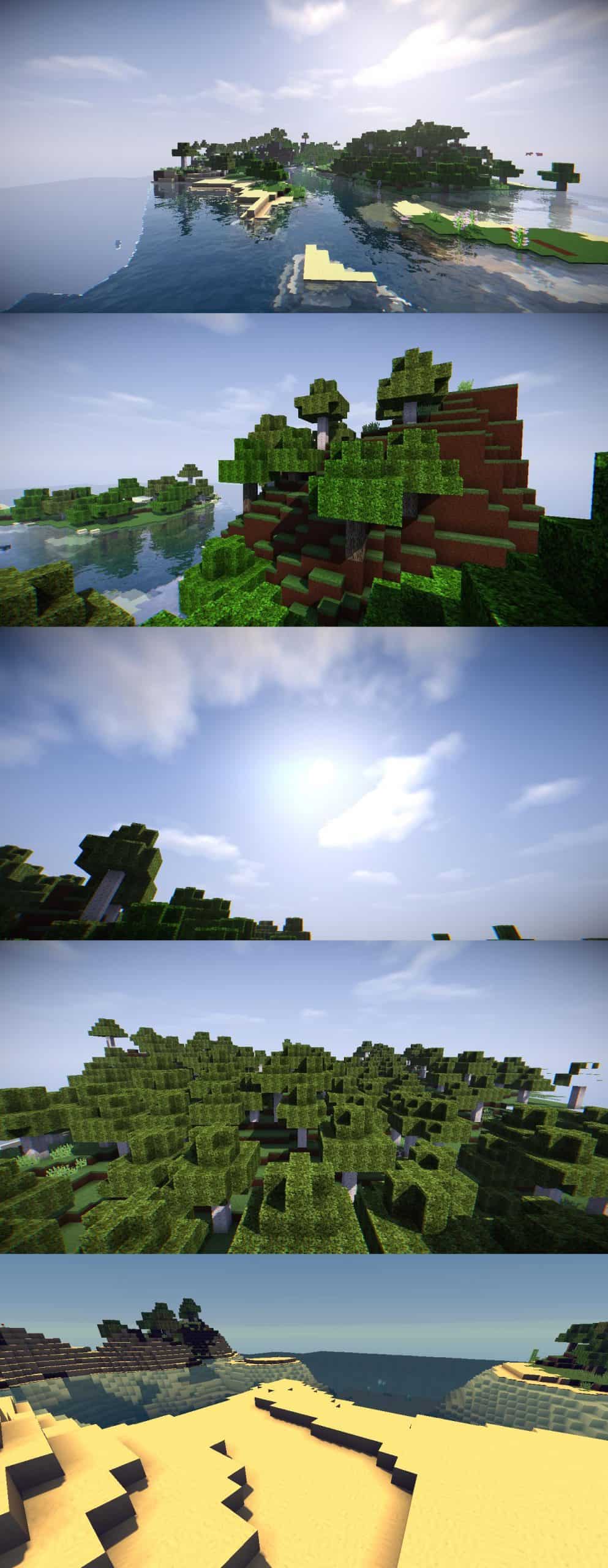
Even though Real Nature is not a massive resource pack, I found that it adds many genuinely useful things which will easily make your Minecraft world look much more realistic. You should definitely consider trying out this pack if you want to experience a truly beautiful sky, a breathtaking sun, a detailed moon, and amazing weather textures. Just make sure to use Optifine for the cloud textures, as it is strictly required to get them working properly. I am also happy to report that the designers of the Real Nature Resource Pack have recently started adding custom block textures as well, and since the pack is currently a work in progress (W.I.P.), it receives regular updates to keep things fresh!
Real Nature Resource Pack should be compatible with all of these Minecraft versions: 1.12.2 – 1.12 – 1.11.2 – 1.11 – 1.10.2 – 1.10 – 1.9.4 – 1.9 – 1.8.1 – 1.8.6 – 1.8 – 1.7.10 – 1.7.9 – 1.7.4 – 1.7
Screenshots
How to Install Texture Pack (Simple 10 Steps)
- Download OptiFine: Most of the texture packs and shaders need OptiFine. That’s why, first download and install OptiFine for the version of Minecraft you want to play.
- Download the Texture Pack: Get the texture pack you want from the download section. Choose the version that works with your Minecraft and your PC’s performance.
- Open Minecraft Launcher: Start Minecraft using the official game launcher — or even TLauncher, if you use that.
- Go to Options: From the main menu, click on the “Options” button.
- Open Resource Packs: Inside Options, click on “Resource Packs…”.
- Open the Resource Pack Folder: Click on “Open Resource Pack Folder” — this will open a folder named “resourcepacks”.
- Move the Pack File: Copy or move the .zip file you downloaded into that “resourcepacks” folder. (Don’t unzip the file — Minecraft uses it as-is!)
- Go Back and Refresh: Close the folder and click “Done”, then go back into “Resource Packs…” again.
- Activate the Pack: You’ll see the pack on the left side. Hover over it and click the arrow to move it to the right (active side).
Tip: If you get a message that the pack is for a different version, just click “Yes” — it usually works fine. - Click Done and Enjoy: Click “Done” again. Now your pack is ready to use in-game. It’s that easy!
Credits
The Real Nature Resource Pack was created by Tirenay. We do not claim ownership of this modification, nor do we host or distribute altered files. All rights, intellectual property, and original assets belong entirely to the original author. We strongly encourage you to support Tirenay by downloading the files exclusively through the official links provided below.
Download Links
Java Edition
Download Instructions
Curseforge: download starts automatically after a few seconds;
Mediafire: click the big blue button with the text “DOWNLOAD”;
Google Drive: in the top right corner you will see a small download icon (down arrow), click it and the download should start;


