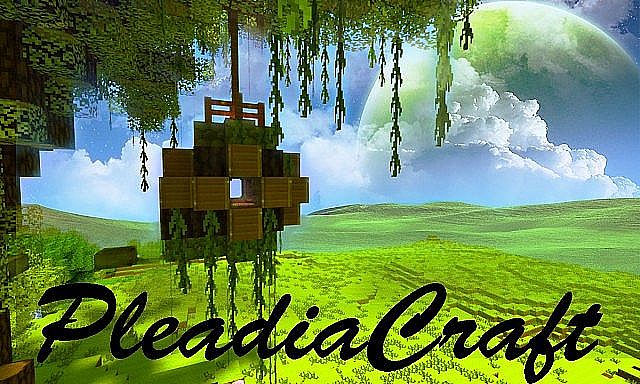
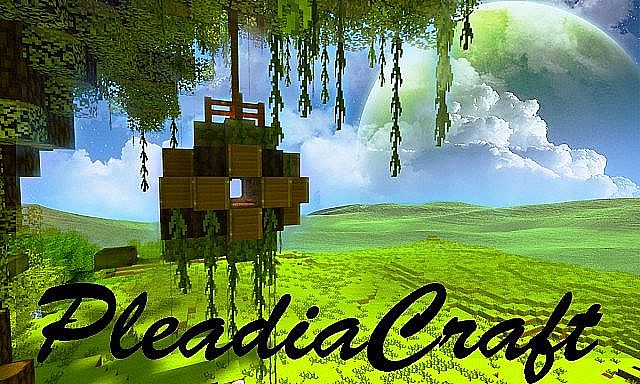
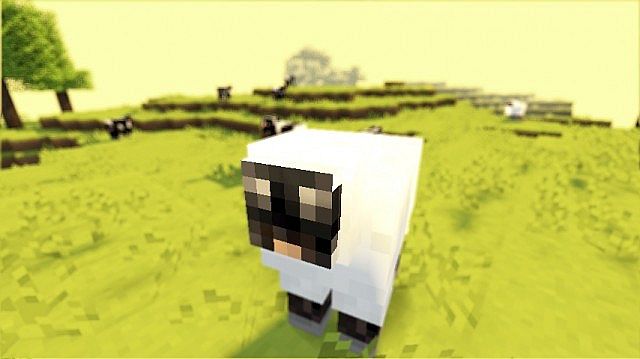
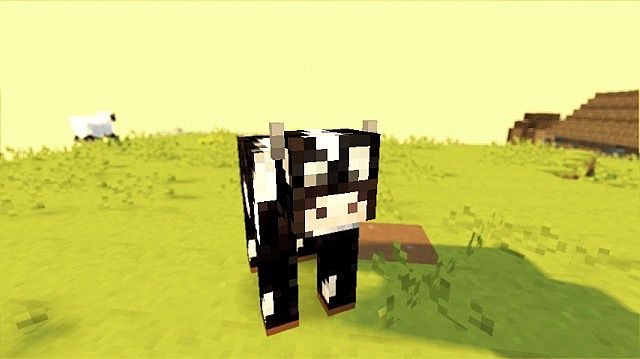
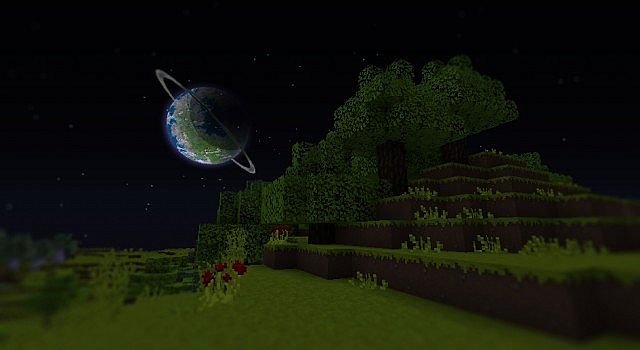
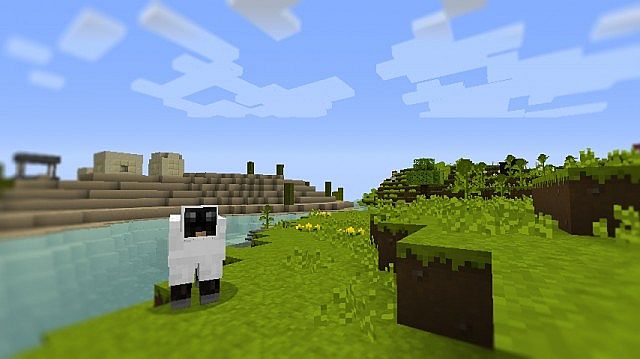
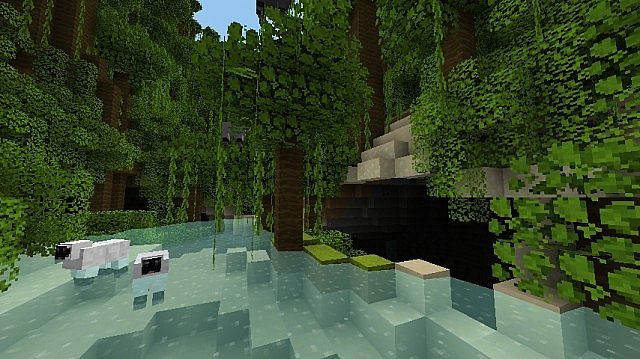
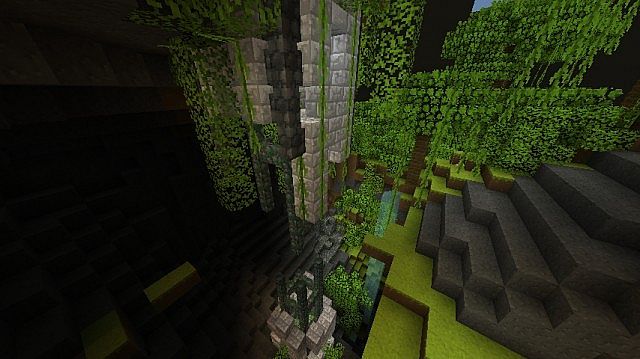
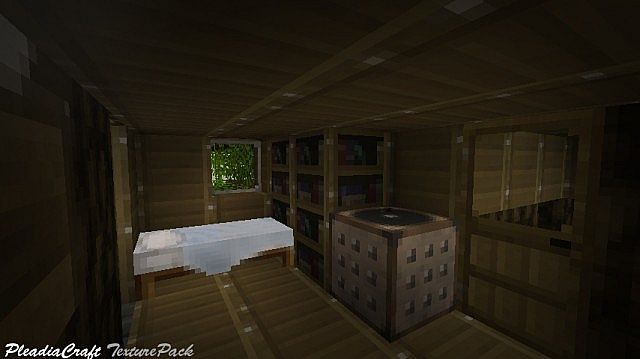
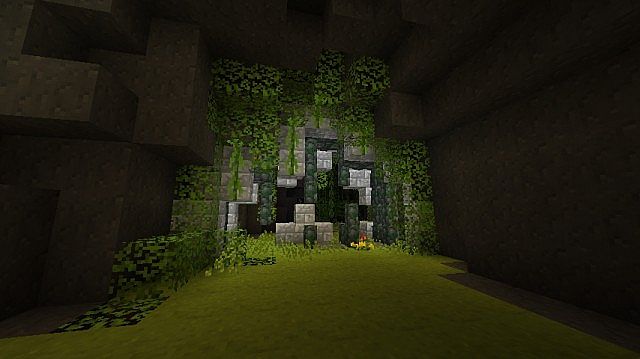
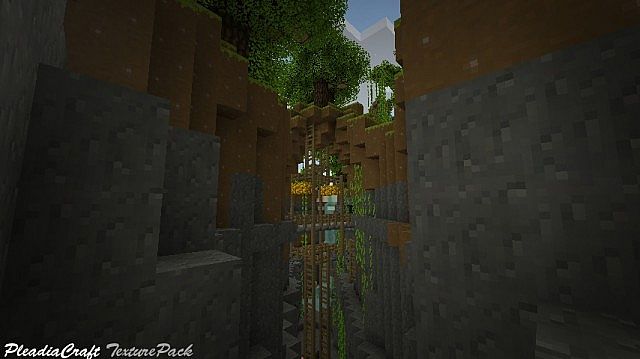
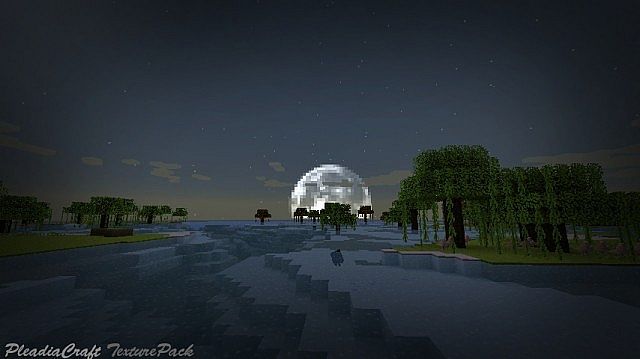
Have you ever thought about making your Minecraft world significantly more joyful, bright, and sunny? If so, you definitely need to download this resource pack right away. The PleadiaCraft Resource Pack brilliantly transforms the standard game into a dreamlike world where the sun is always shining, the grass remains wonderfully green, and even the hostile mobs look surprisingly pretty and cute. Overall, PleadiaCraft genuinely provides nothing but purely positive emotions from the moment you log in. As the original author proudly states, they completely went through and re-textured pretty much everything included in this pack. Honestly, they definitely succeeded; if any tiny trace of default textures managed to stay behind, tracking it down will prove to be an extremely difficult task. But why waste time searching for vanilla leftovers when you can just sit back and enjoy this incredible pack instead? Easily the most stunning feature of this release is the vibrant nature itself. Every single block and element feels exceptionally soft, bright, and light. Trust me, once you experience a gorgeous sunny day in-game, you honestly won’t even want to head underground to mine for ores or diamonds, because exploring the bright surface of Minecraft is just that much more enjoyable!
PleadiaCraft should be compatible with all of these Minecraft versions: 1.7.10 – 1.7.9 – 1.7.4 – 1.7 – 1.6.4 – 1.6.2
Screenshots
How to Install Texture Pack (Simple 10 Steps)
- Download OptiFine: Most of the texture packs and shaders need OptiFine. That’s why, first download and install OptiFine for the version of Minecraft you want to play.
- Download the Texture Pack: Get the texture pack you want from the download section. Choose the version that works with your Minecraft and your PC’s performance.
- Open Minecraft Launcher: Start Minecraft using the official game launcher — or even TLauncher, if you use that.
- Go to Options: From the main menu, click on the “Options” button.
- Open Resource Packs: Inside Options, click on “Resource Packs…”.
- Open the Resource Pack Folder: Click on “Open Resource Pack Folder” — this will open a folder named “resourcepacks”.
- Move the Pack File: Copy or move the .zip file you downloaded into that “resourcepacks” folder. (Don’t unzip the file — Minecraft uses it as-is!)
- Go Back and Refresh: Close the folder and click “Done”, then go back into “Resource Packs…” again.
- Activate the Pack: You’ll see the pack on the left side. Hover over it and click the arrow to move it to the right (active side).
Tip: If you get a message that the pack is for a different version, just click “Yes” — it usually works fine. - Click Done and Enjoy: Click “Done” again. Now your pack is ready to use in-game. It’s that easy!
Credits
This resource pack was created by the3rdnumber. We do not own or modify the files provided here; all rights belong entirely to the original author. We highly recommend supporting the creator by visiting their official download pages and following their work.
Download Instructions
Curseforge: download starts automatically after a few seconds;
Mediafire: click the big blue button with the text “DOWNLOAD”;
Google Drive: in the top right corner you will see a small download icon (down arrow), click it and the download should start;


