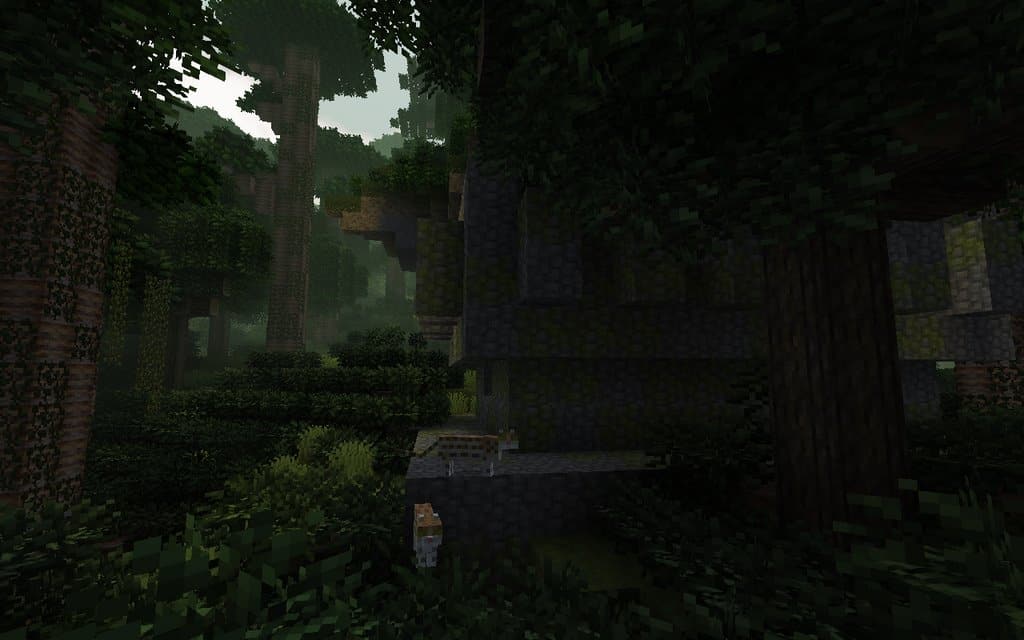
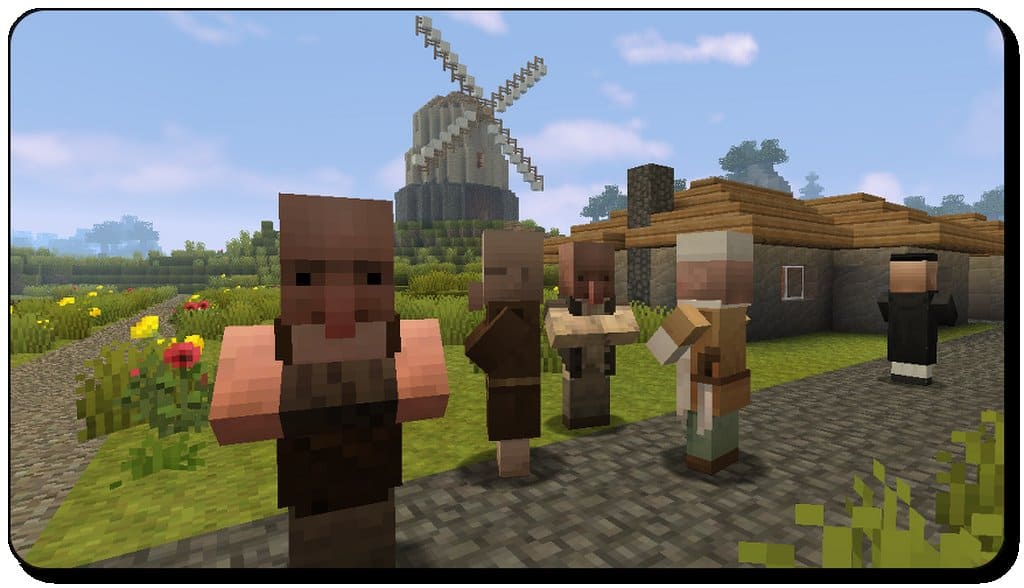
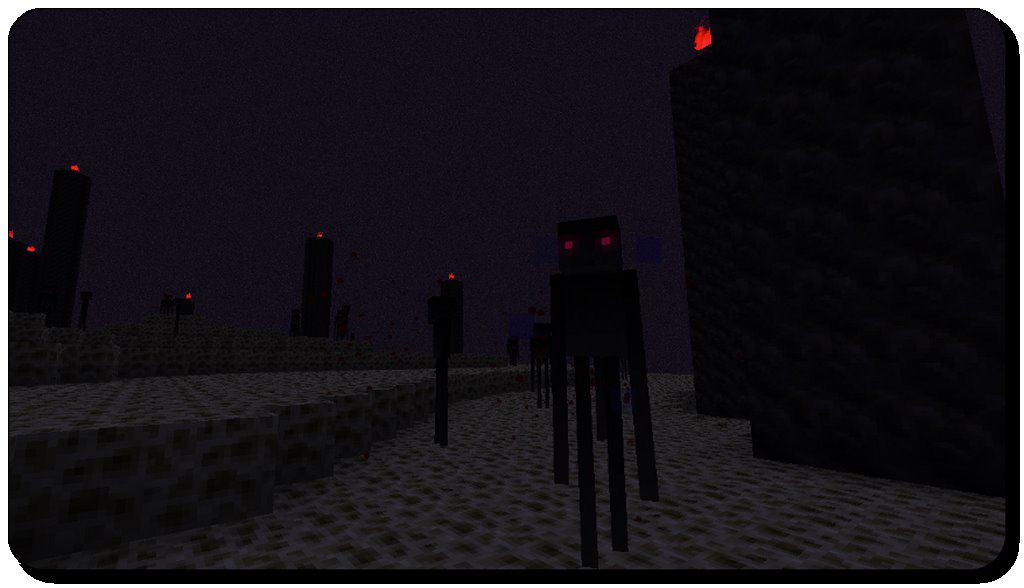
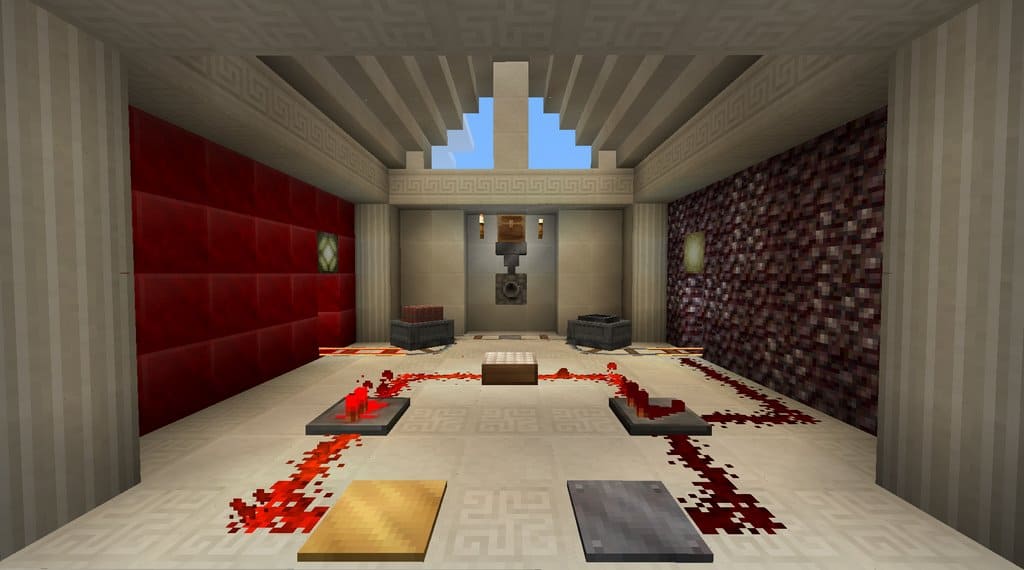
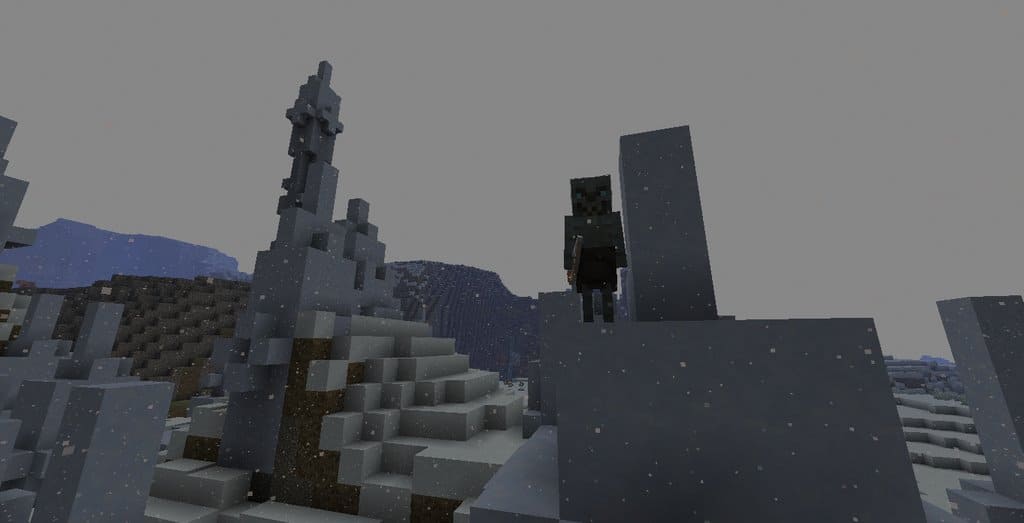
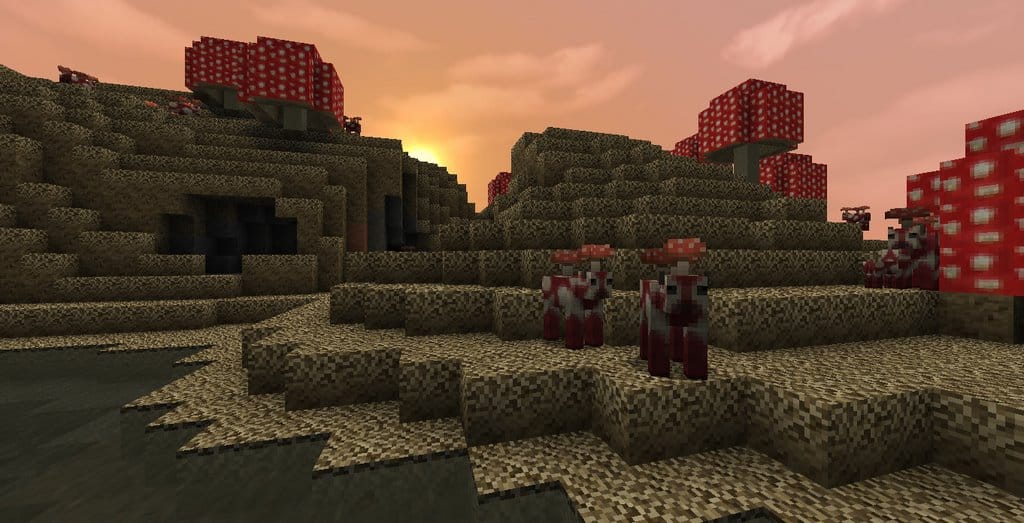
You can truly never blame yourself if you are hunting around for a resource pack that will completely guide your way through Minecraft. However, most resource packs nowadays seem to require your computer to be fully updated with the latest heavy-duty features. If that happens to be your situation, you are bound to feel a bit sad if you are running an outdated PC and do not plan on upgrading anytime soon. Thankfully, that is not the case at all with the Pixel Reality resource pack, as it is a genuinely useful set of textures that fully lives up to its high expectations. Without a doubt, you will be able to use it to your absolute advantage due to everything it brings to the table. It is honestly unfair to compare Pixel Reality to most other resource packs on the market since they offer completely different things. The absolute best part about this texture pack is that it is wonderfully quiet, meaning visual noise will be the absolute last thing on your mind while you are playing.
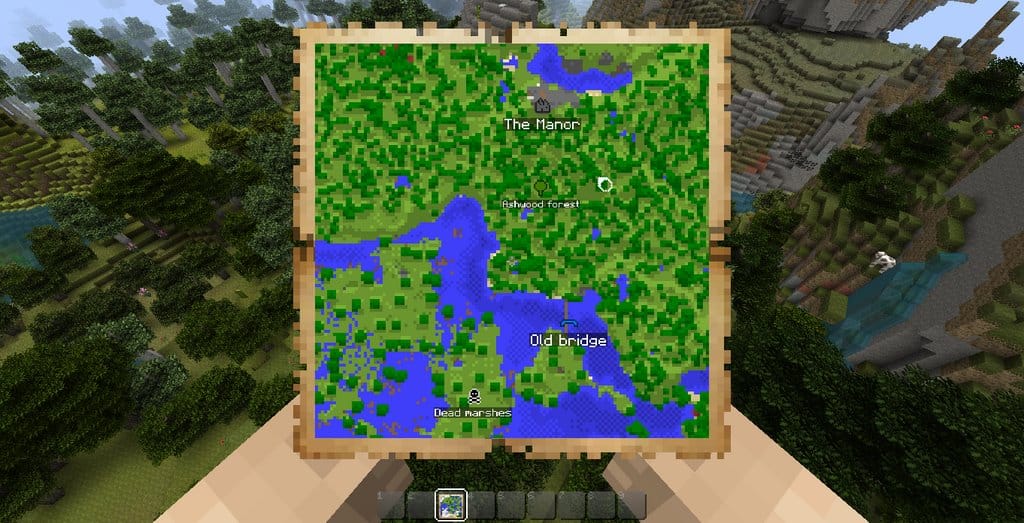
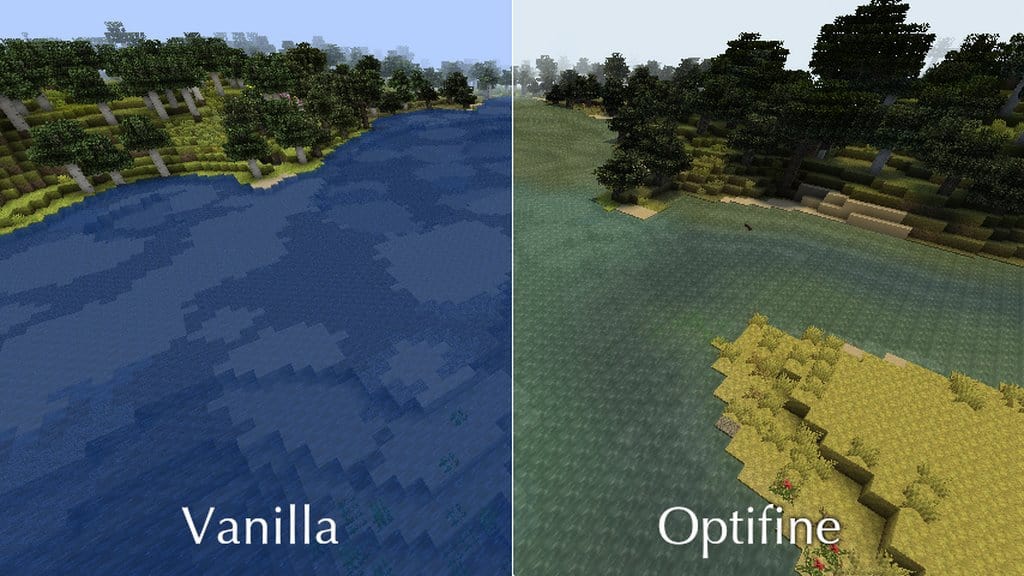
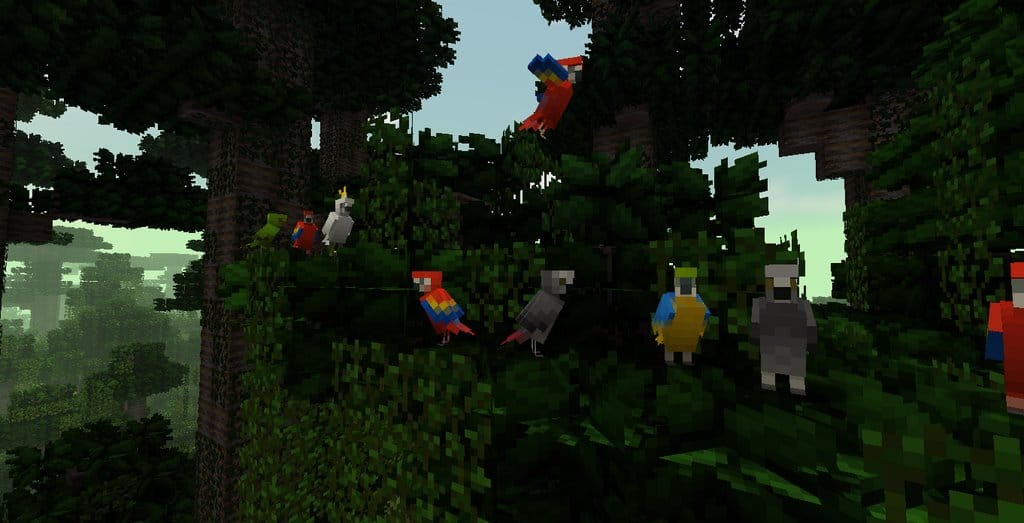
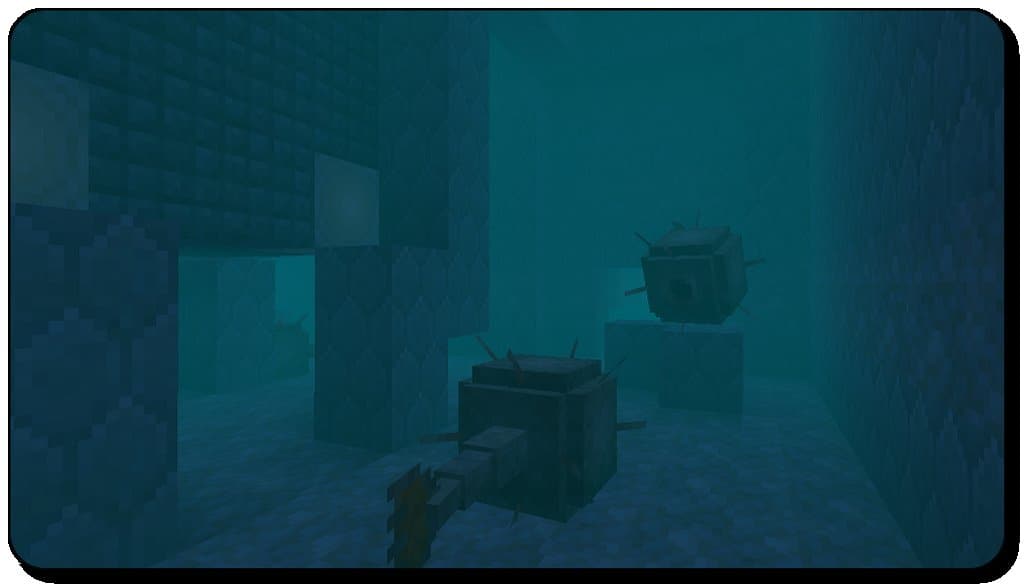
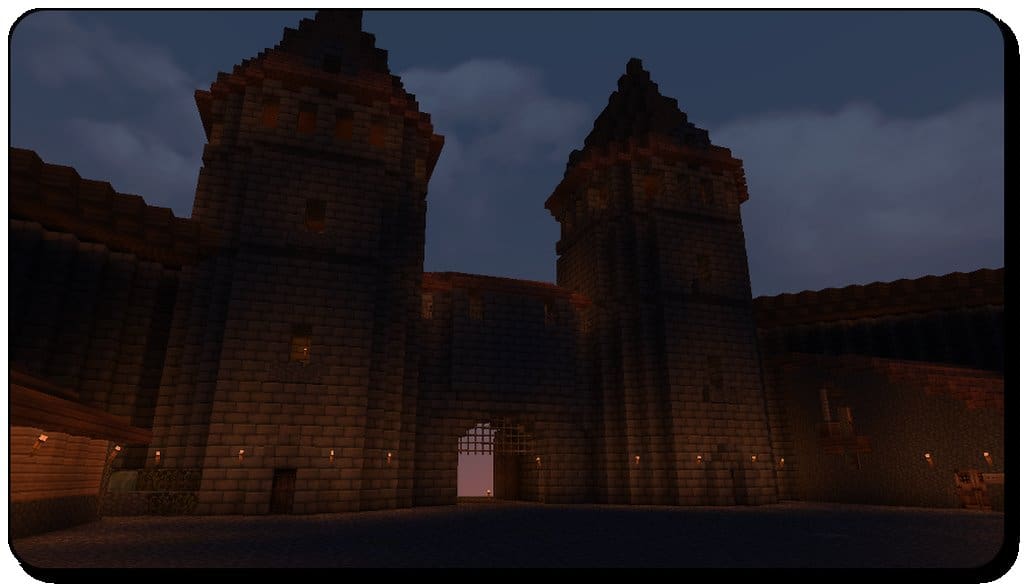
The colors are expertly balanced so you will truly have nothing to complain about in that department. If there is just one thing you will always remember about the textures of this pack, it is their incredible, subtle appeal. When it comes to the lighting effects, you are going to feel like you stepped right into a completely different dimension once you get a good look at what the pack has to offer. There are so many parts of the Minecraft world that become infinitely better thanks in large part to this pack’s stunning lighting overhaul. Not only will you be able to see everything much better, but you will appreciate the game in a wonderfully different way. Best of all, its resolution is not demanding at all, so you won’t have to worry about a single thing if you are rocking an older, outdated PC. You definitely won’t need to buy a brand new machine just for resource packs since Pixel Reality will run smoothly and just fine on your current computer. It will only be a matter of time before you log in and enjoy exploring Minecraft even more than before.
Pixel Reality should be compatible with all of these Minecraft versions: 1.17.1 – 1.17 – 1.13.2 – 1.13.1 – 1.13 – 1.12.2 – 1.12 – 1.11.2 – 1.11 – 1.10.2 – 1.10 – 1.9.4 – 1.9 – 1.8.9 – 1.8.8 – 1.8.1 – 1.8.6 – 1.8 – 1.7.10 – 1.7.9 – 1.7.4 – 1.7
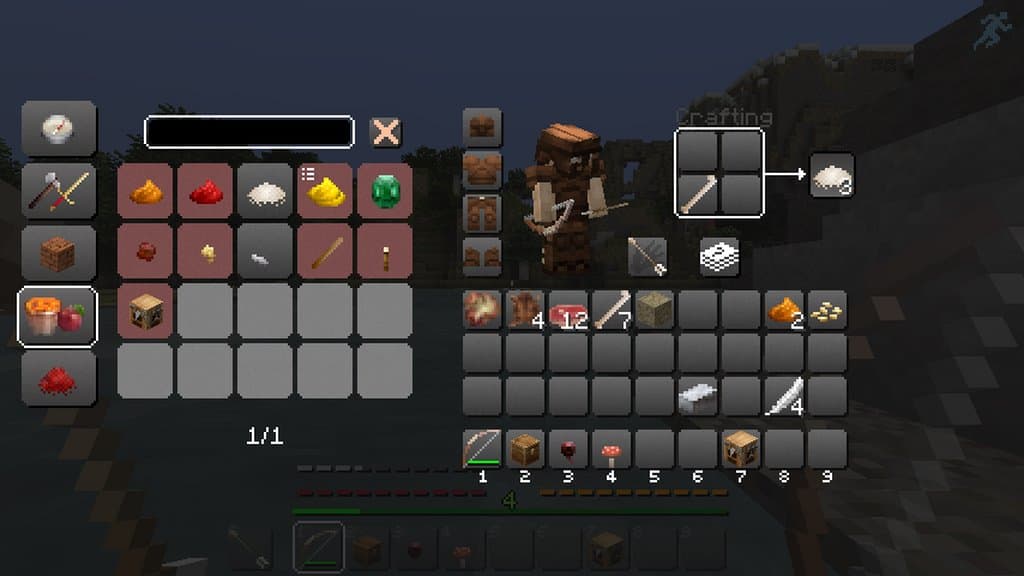
Screenshots



How to Install Texture Pack (Simple 10 Steps)
- Download OptiFine: Most of the texture packs and shaders need OptiFine. That’s why, first download and install OptiFine for the version of Minecraft you want to play.
- Download the Texture Pack: Get the texture pack you want from the download section. Choose the version that works with your Minecraft and your PC’s performance.
- Open Minecraft Launcher: Start Minecraft using the official game launcher — or even TLauncher, if you use that.
- Go to Options: From the main menu, click on the “Options” button.
- Open Resource Packs: Inside Options, click on “Resource Packs…”.
- Open the Resource Pack Folder: Click on “Open Resource Pack Folder” — this will open a folder named “resourcepacks”.
- Move the Pack File: Copy or move the .zip file you downloaded into that “resourcepacks” folder. (Don’t unzip the file — Minecraft uses it as-is!)
- Go Back and Refresh: Close the folder and click “Done”, then go back into “Resource Packs…” again.
- Activate the Pack: You’ll see the pack on the left side. Hover over it and click the arrow to move it to the right (active side).
Tip: If you get a message that the pack is for a different version, just click “Yes” — it usually works fine. - Click Done and Enjoy: Click “Done” again. Now your pack is ready to use in-game. It’s that easy!
Credits
This resource pack was created by Wedhro. We do not claim ownership of this content, nor do we host modified files on our platform. All rights remain with the original author. We strongly encourage you to support Wedhro by downloading the pack from the official links provided.
Download Links
Java Edition
Download Instructions
Curseforge: download starts automatically after a few seconds;
Mediafire: click the big blue button with the text “DOWNLOAD”;
Google Drive: in the top right corner you will see a small download icon (down arrow), click it and the download should start;


