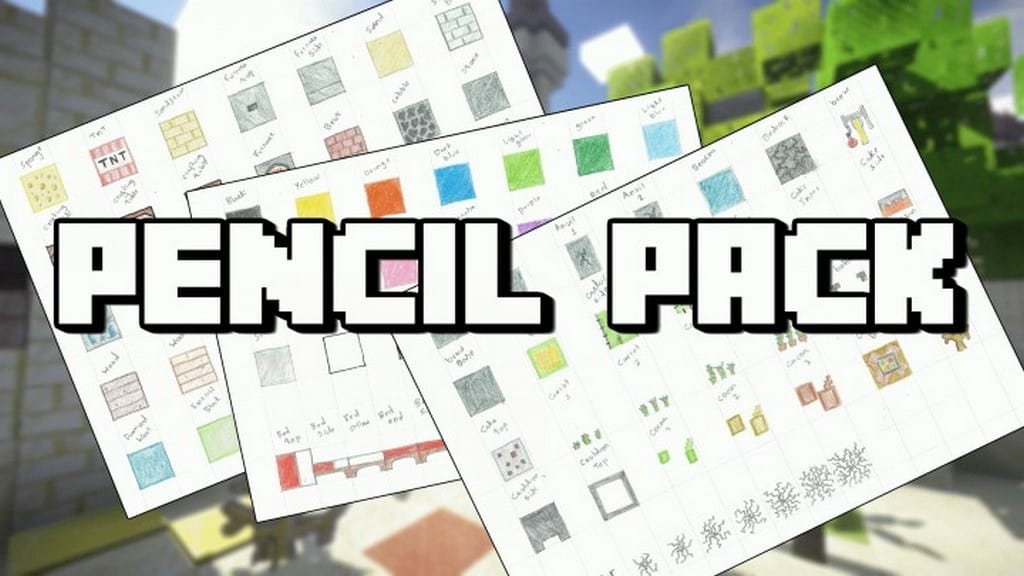
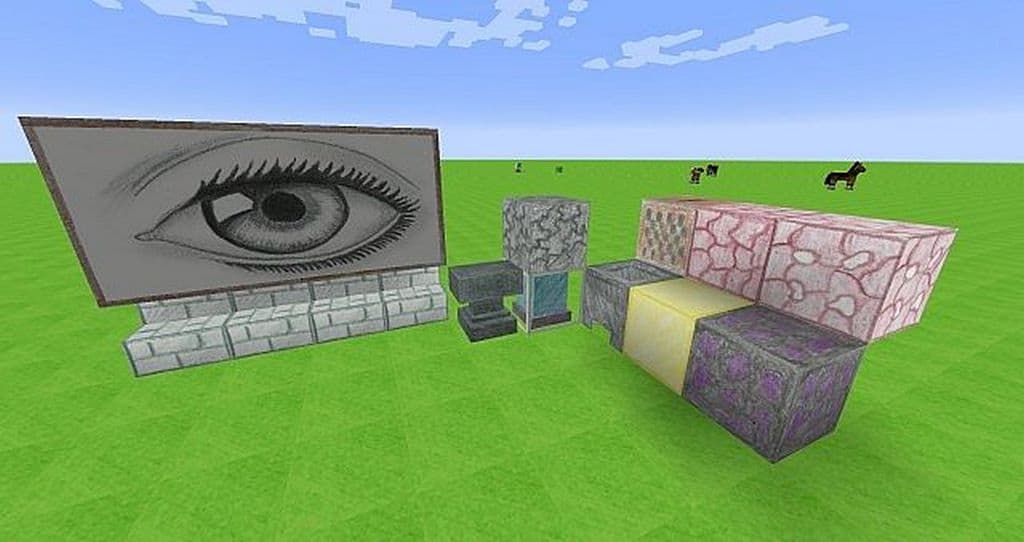
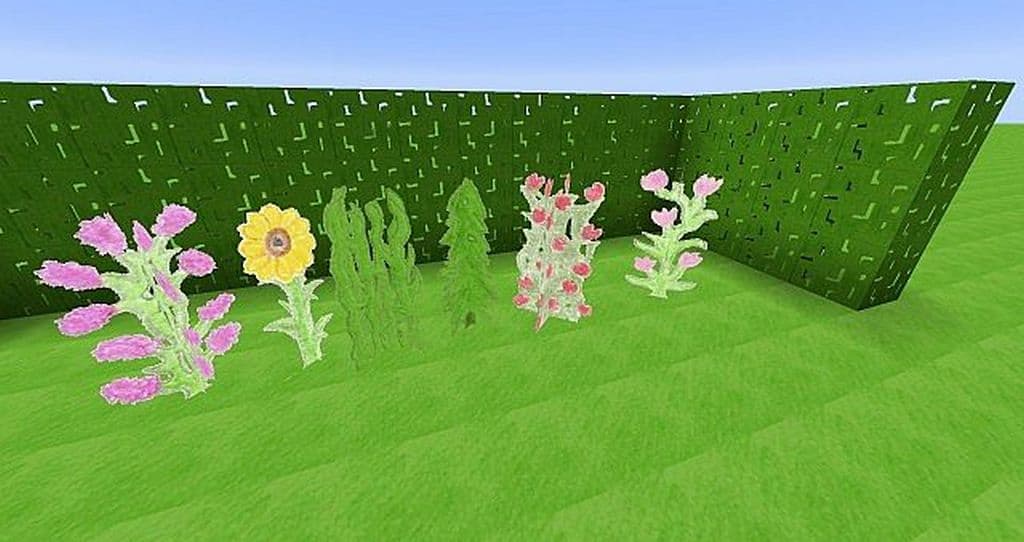
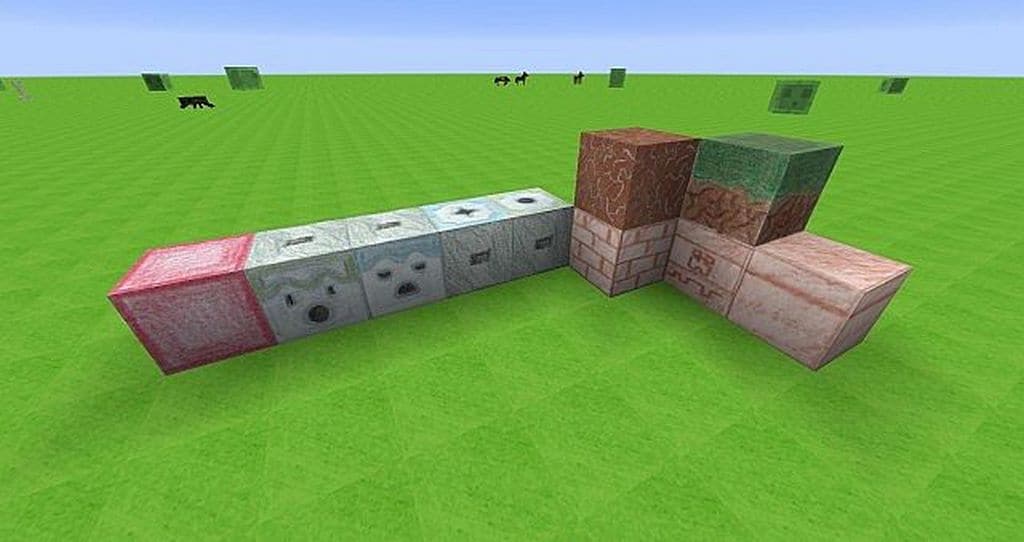
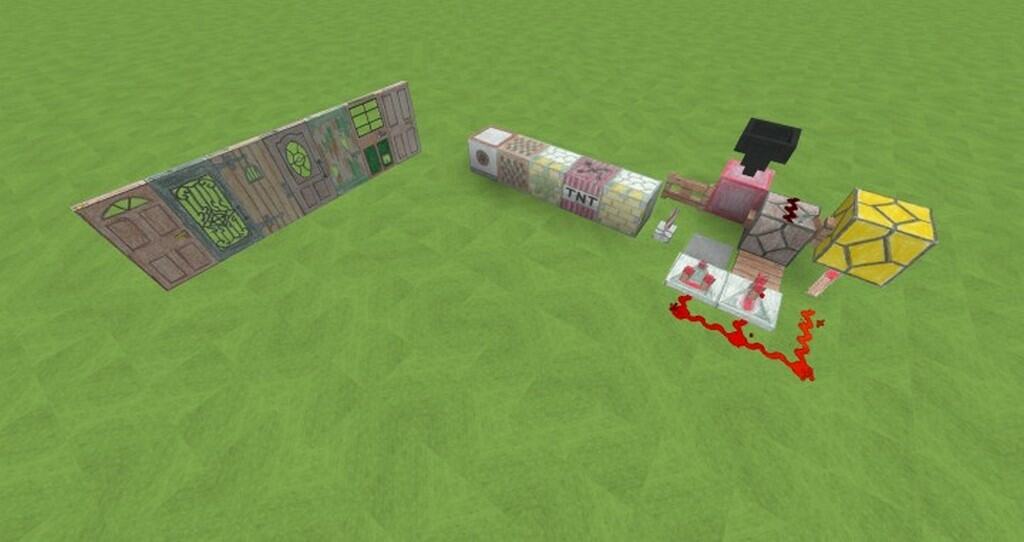
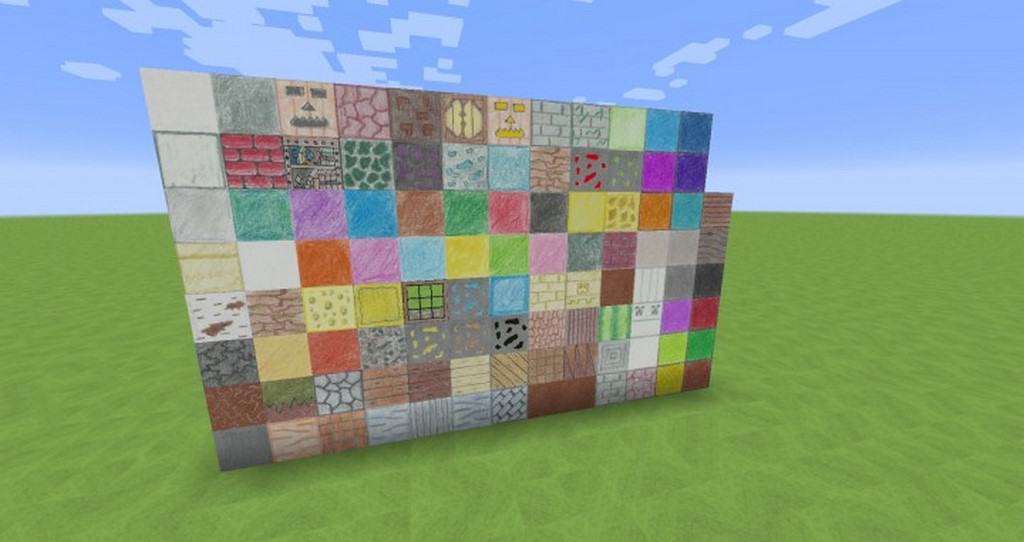
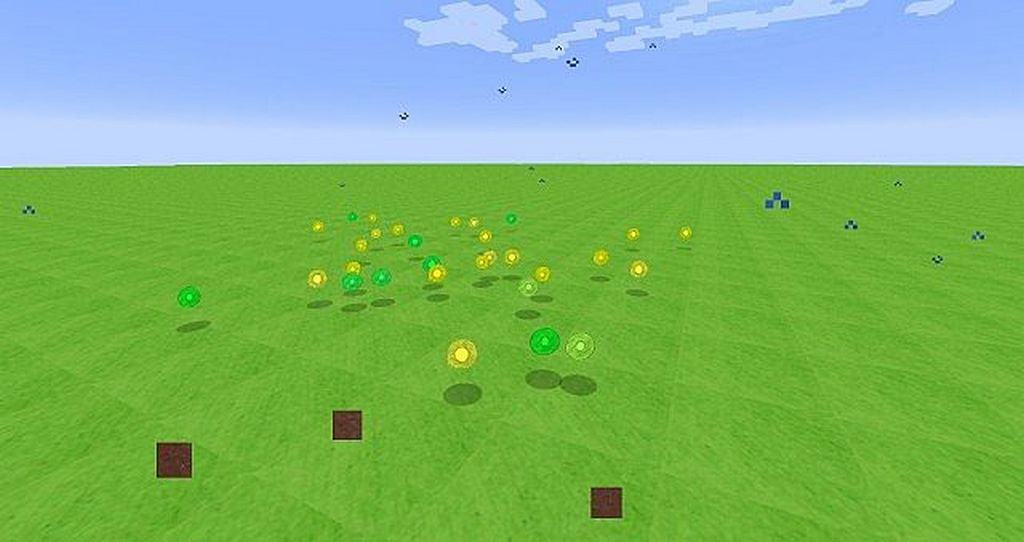
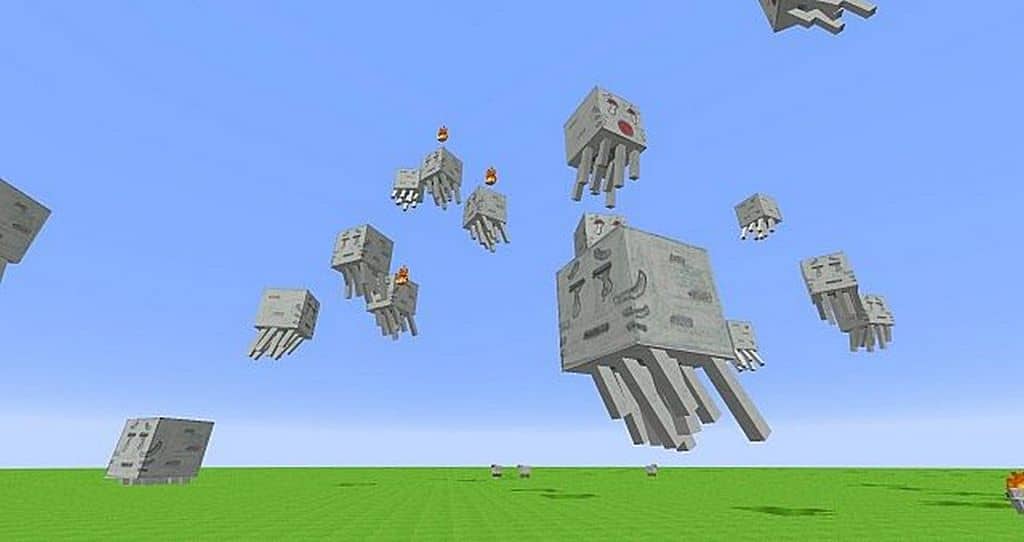
The Pencil Pack resource pack is honestly one of the most unique and innovative Minecraft texture packs you can possibly try out today! I was genuinely blown away by how exceptional it is with its incredibly detailed hand drawings. Most resource packs simply do not feature hand-drawn textures like this. Sometimes you will see resource packs that provide limited quantities of hand-drawn textures, but avid Minecraft gamers will know how truly rare it is to come across a resource pack that has its own creative genesis. The developer of the Pencil Pack has been diligently updating this resource pack for years. This is remarkable considering how long this product has been out: six years! This truly shows the developer’s continued affection for this resource pack. As an experienced Minecraft player, I completely fell in love with all the hand-drawn elements included here. The Minecraft world feels totally transformed as it has been infiltrated with hand-drawn elements in pencil, pen, and watercolor. These wonderful hand-drawn attributes give the Minecraft world a comic book feel that takes it far from its computer graphic roots. The concept behind this resource pack may not be revolutionary, but I found its execution to be completely sublime. The textures in this pack expertly intertwine with the game’s original visual style. Many of the textures in the resource pack stand out beautifully against the basic textures of the original. Of course, this pack is not without some minute detractions.
Occasionally you will see some slight roughness in a few of the textures, but I found that these disturbances are minimal and will not negatively impact your overall gameplay experience at all. When compared to other resource packs with similar styles, the Pencil Pack is definitely on another level. This pack is definitely not a regurgitation of existing material. When you enable the Pencil Pack Hand-Drawn, many of the included textures in the Minecraft universe will look blurry and speckled, which could simply be the result of the artist’s unique perspective or a minor technical glitch. Despite this, I think the Pencil Pack’s absolute triumph is the artist’s depiction of the villagers! Each one stands apart from the rest as each villager has been granted a completely unique look. You will never have to struggle to tell a farmer from a butcher again with the aid of this resource pack. A crucial point to observe is that this resource pack is yet to be completed. As of now, the Pencil Pack remains in development, meaning new textures could still be added while other textures could be replaced. Perhaps some flaws noted here will no longer be valid when the pack has been fully finished. Overall, the Pencil Pack looks amazingly fun and distinctive, and I fully expect this resource pack to get even better with time and the developer’s hard work. Running at a gorgeous 128x resolution, this resource pack is exceptionally detailed, meaning the Pencil Pack will require a bit more attention from your CPU to properly display all those fine graphics. If you are playing on an older computer, you might want to keep performance in mind.
Pencil Pack should be compatible with all of these Minecraft versions: 1.16.5 – 1.16.4 – 1.16.3 – 1.16.2 – 1.16.1 – 1.16 – 1.15.2 – 1.15.1 – 1.15 – 1.14.4 – 1.14.3 – 1.14.2 – 1.14 – 1.13.2 – 1.13.1 – 1.13 – 1.12.2 – 1.12 – 1.11.2 – 1.11 – 1.10.2 – 1.10 – 1.9.4 – 1.9 – 1.8.9 – 1.8.8 – 1.8.1 – 1.8.6 – 1.8 – 1.7.10 – 1.7.9 – 1.7.4 – 1.7
Screenshots


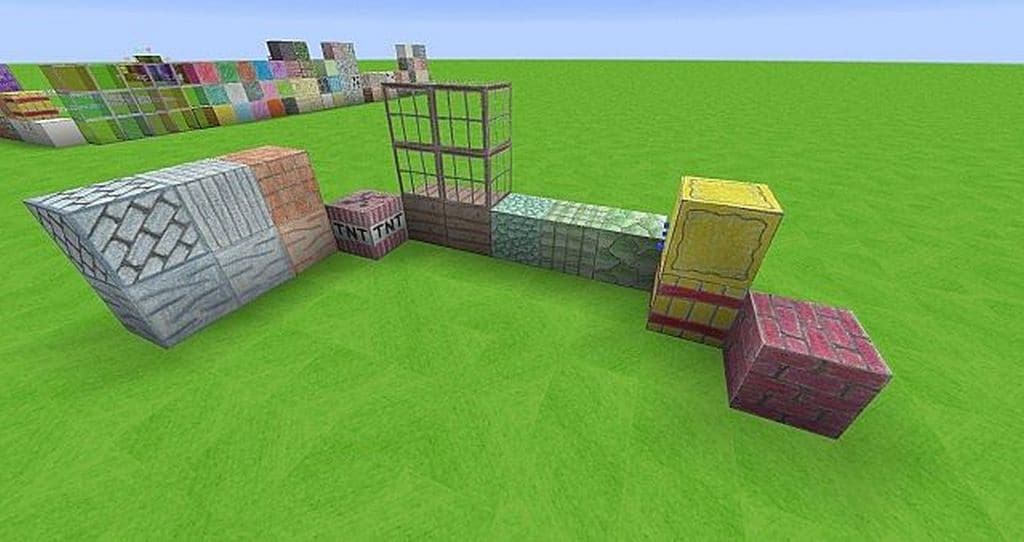
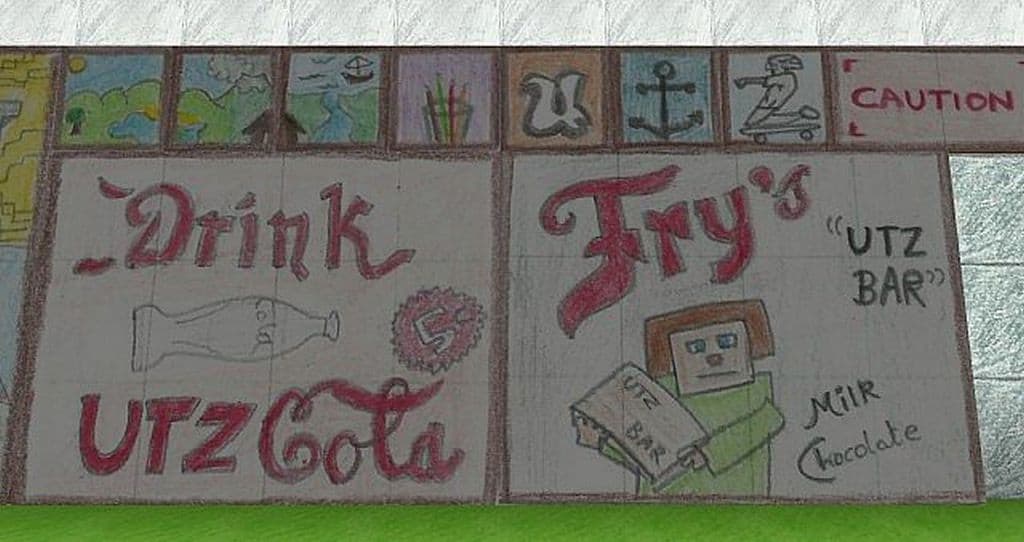
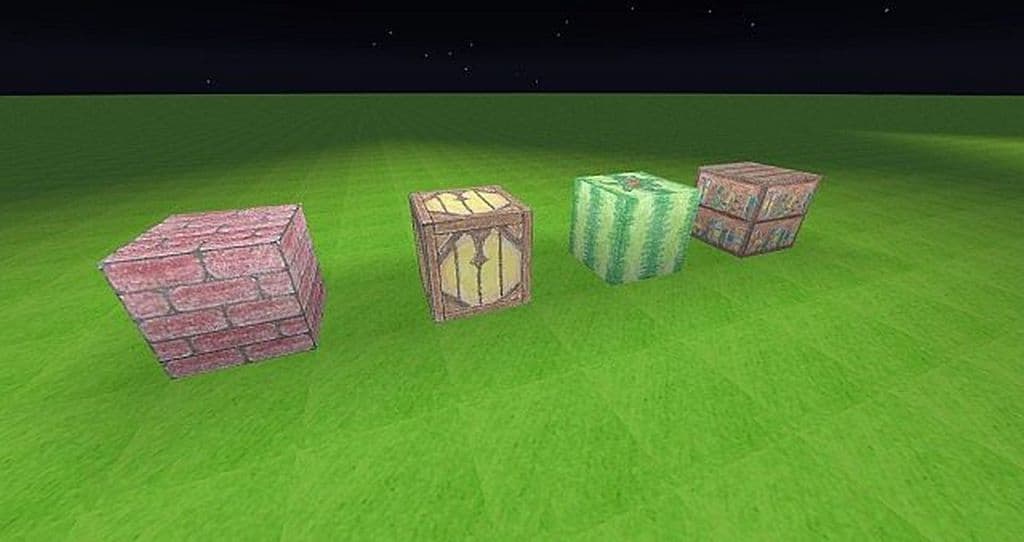
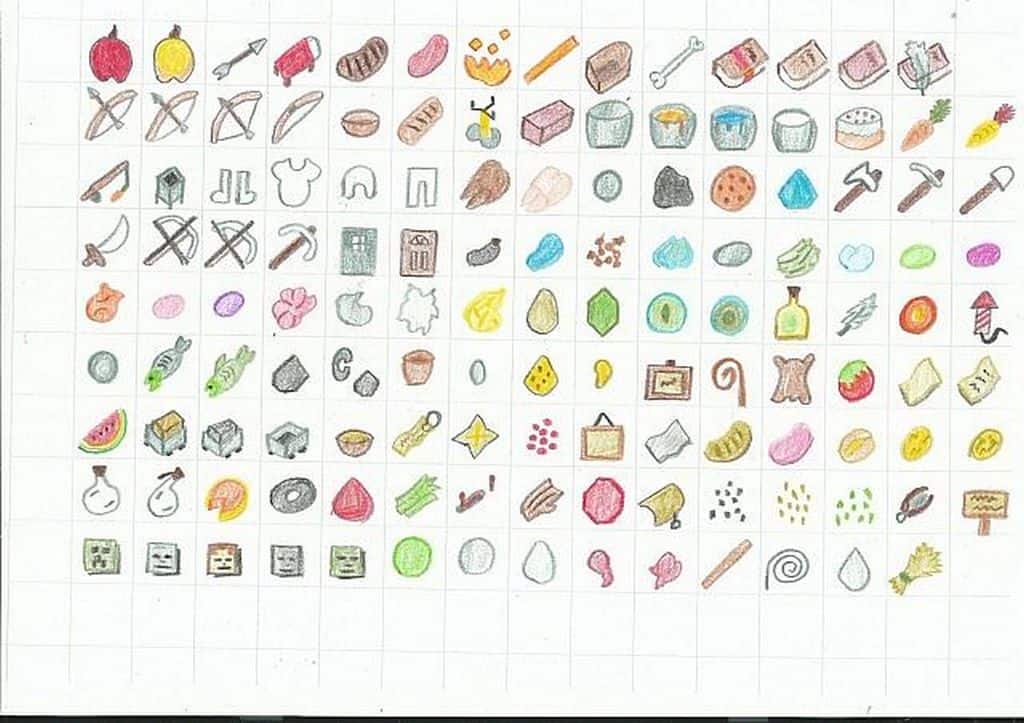
How to Install Texture Pack (Simple 10 Steps)
- Download OptiFine: Most of the texture packs and shaders need OptiFine. That’s why, first download and install OptiFine for the version of Minecraft you want to play.
- Download the Texture Pack: Get the texture pack you want from the download section. Choose the version that works with your Minecraft and your PC’s performance.
- Open Minecraft Launcher: Start Minecraft using the official game launcher — or even TLauncher, if you use that.
- Go to Options: From the main menu, click on the “Options” button.
- Open Resource Packs: Inside Options, click on “Resource Packs…”.
- Open the Resource Pack Folder: Click on “Open Resource Pack Folder” — this will open a folder named “resourcepacks”.
- Move the Pack File: Copy or move the .zip file you downloaded into that “resourcepacks” folder. (Don’t unzip the file — Minecraft uses it as-is!)
- Go Back and Refresh: Close the folder and click “Done”, then go back into “Resource Packs…” again.
- Activate the Pack: You’ll see the pack on the left side. Hover over it and click the arrow to move it to the right (active side).
Tip: If you get a message that the pack is for a different version, just click “Yes” — it usually works fine. - Click Done and Enjoy: Click “Done” again. Now your pack is ready to use in-game. It’s that easy!
Credits
This resource pack was created by jonoww. We do not claim ownership of this content, nor do we host or modify any files on our servers. All rights and intellectual property belong strictly to the original creator. We highly encourage you to support jonoww by visiting their official download links and channels.
Download Instructions
Curseforge: download starts automatically after a few seconds;
Mediafire: click the big blue button with the text “DOWNLOAD”;
Google Drive: in the top right corner you will see a small download icon (down arrow), click it and the download should start;


