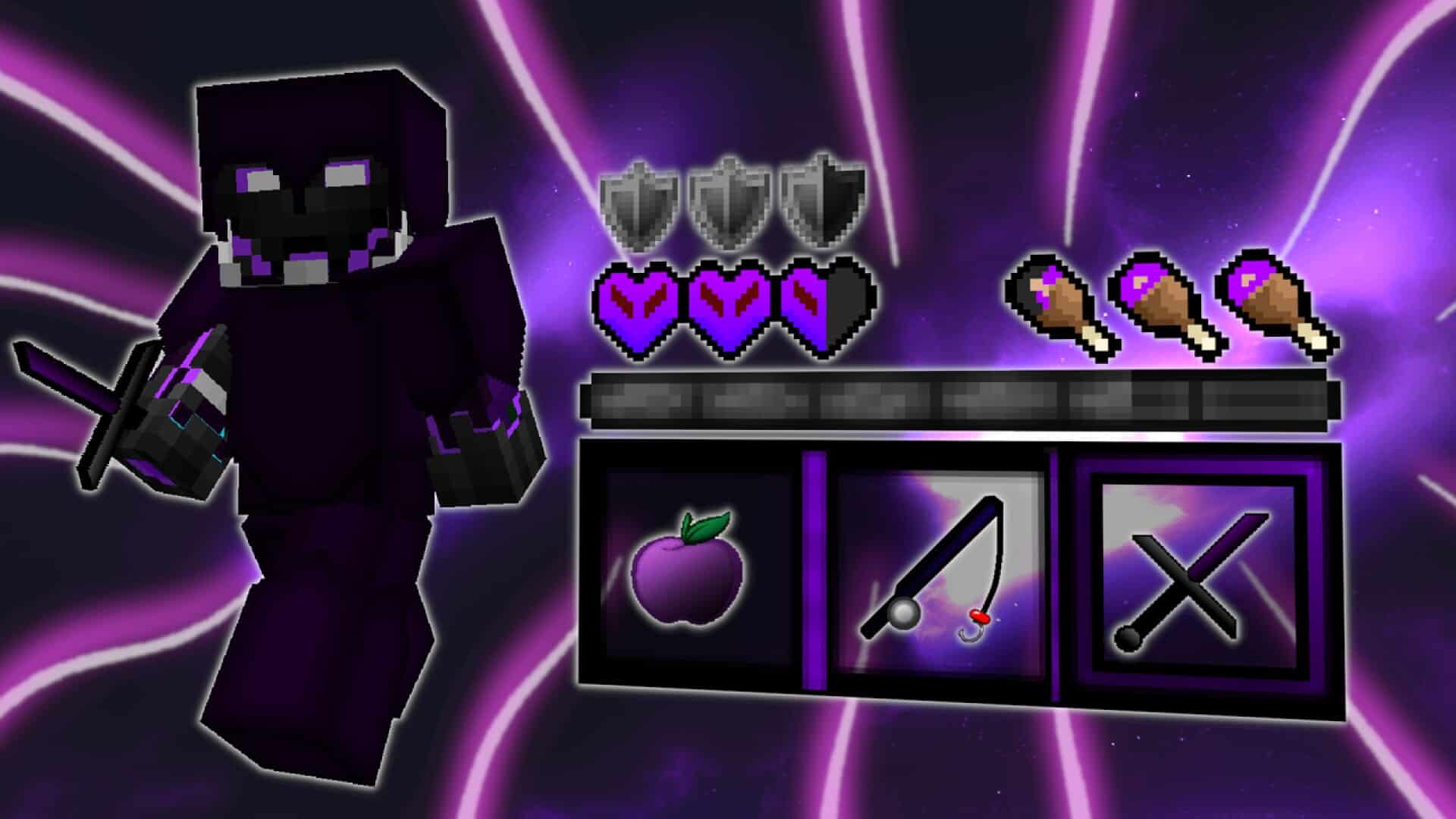
The Pain PvP resource pack truly stands out from the rest of the PvP focused packs to have come up in recent times. This is because the creator who designed the Pain PvP pack genuinely understood what it means to engage in intense PvP combat in Minecraft and was fully aware of the common visual clutter issues that usually pop up during matches. The majority of PvP based resource packs make an impressive effort to take the combat experience to a whole new level for gamers, but they often fall short on critical gameplay clarity aspects. Fortunately, this is definitely not the case for Pain PvP, as it does everything possible to make sure you have all the visual advantages you need to easily spot and battle rival players. The textures on the Pain PvP pack are unbelievably clean and smooth, ensuring you experience zero trouble noticing your opponents during fast-paced fighting sessions.
The level of detail in the textures for this pack is quite focused, perfectly tailoring the visual elements to improve your competitive performance without being distracting. One of the best things to take note of about this pack is the clever, subtle alterations it makes to the color palettes, which specifically serve to enhance visibility while playing PvP. You might require a little while to fully get acquainted with the distinct color scheme, but if you play competitive Minecraft often, you will quickly see its importance and genuinely appreciate how much it helps. Pain PvP features a classic 16x resolution which comes alongside a number of smart optimizations for the player’s comfort and performance. All of this means you are in a fantastic position to enjoy exceptionally high frame-rates compared to what is usually the case with vanilla Minecraft. I definitely recommend trying out this pack to see exactly what I mean for yourself!
Pain PvP should be compatible with all of these Minecraft versions: 1.8.9 – 1.8.8 – 1.8.1 – 1.8.6 – 1.8
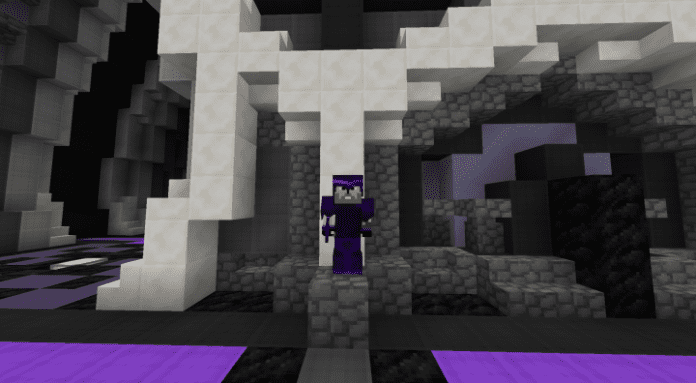
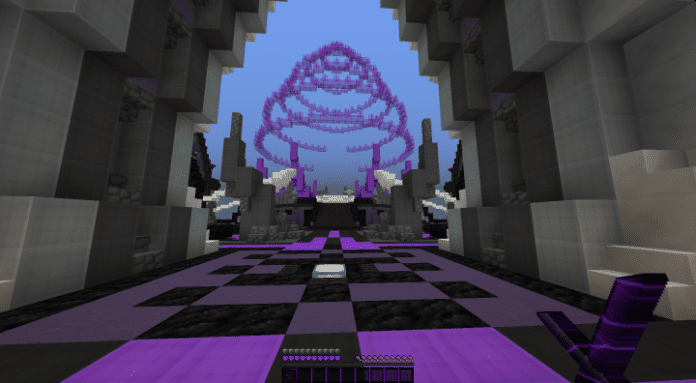
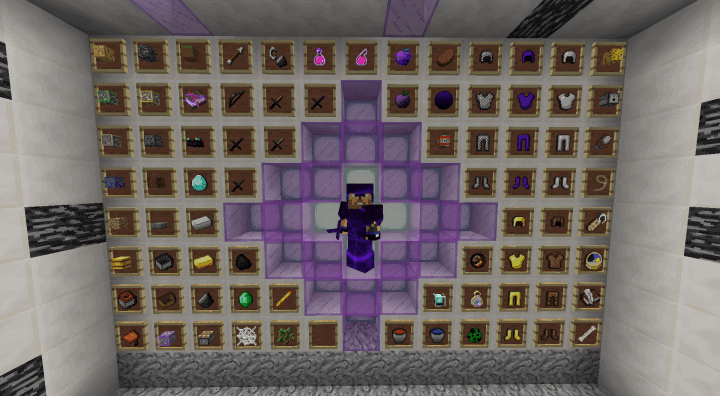
Screenshots
How to Install Texture Pack (Simple 10 Steps)
- Download OptiFine: Most of the texture packs and shaders need OptiFine. That’s why, first download and install OptiFine for the version of Minecraft you want to play.
- Download the Texture Pack: Get the texture pack you want from the download section. Choose the version that works with your Minecraft and your PC’s performance.
- Open Minecraft Launcher: Start Minecraft using the official game launcher — or even TLauncher, if you use that.
- Go to Options: From the main menu, click on the “Options” button.
- Open Resource Packs: Inside Options, click on “Resource Packs…”.
- Open the Resource Pack Folder: Click on “Open Resource Pack Folder” — this will open a folder named “resourcepacks”.
- Move the Pack File: Copy or move the .zip file you downloaded into that “resourcepacks” folder. (Don’t unzip the file — Minecraft uses it as-is!)
- Go Back and Refresh: Close the folder and click “Done”, then go back into “Resource Packs…” again.
- Activate the Pack: You’ll see the pack on the left side. Hover over it and click the arrow to move it to the right (active side).
Tip: If you get a message that the pack is for a different version, just click “Yes” — it usually works fine. - Click Done and Enjoy: Click “Done” again. Now your pack is ready to use in-game. It’s that easy!
Credits
This resource pack was originally created by GeneralSmogyYT. We do not claim ownership of this modification, nor have we altered the download files in any way. All rights, credits, and appreciation belong entirely to the original creator. We strongly encourage you to support GeneralSmogyYT by downloading the pack directly from their official sources.
Download Instructions
Curseforge: download starts automatically after a few seconds;
Mediafire: click the big blue button with the text “DOWNLOAD”;
Google Drive: in the top right corner you will see a small download icon (down arrow), click it and the download should start;


