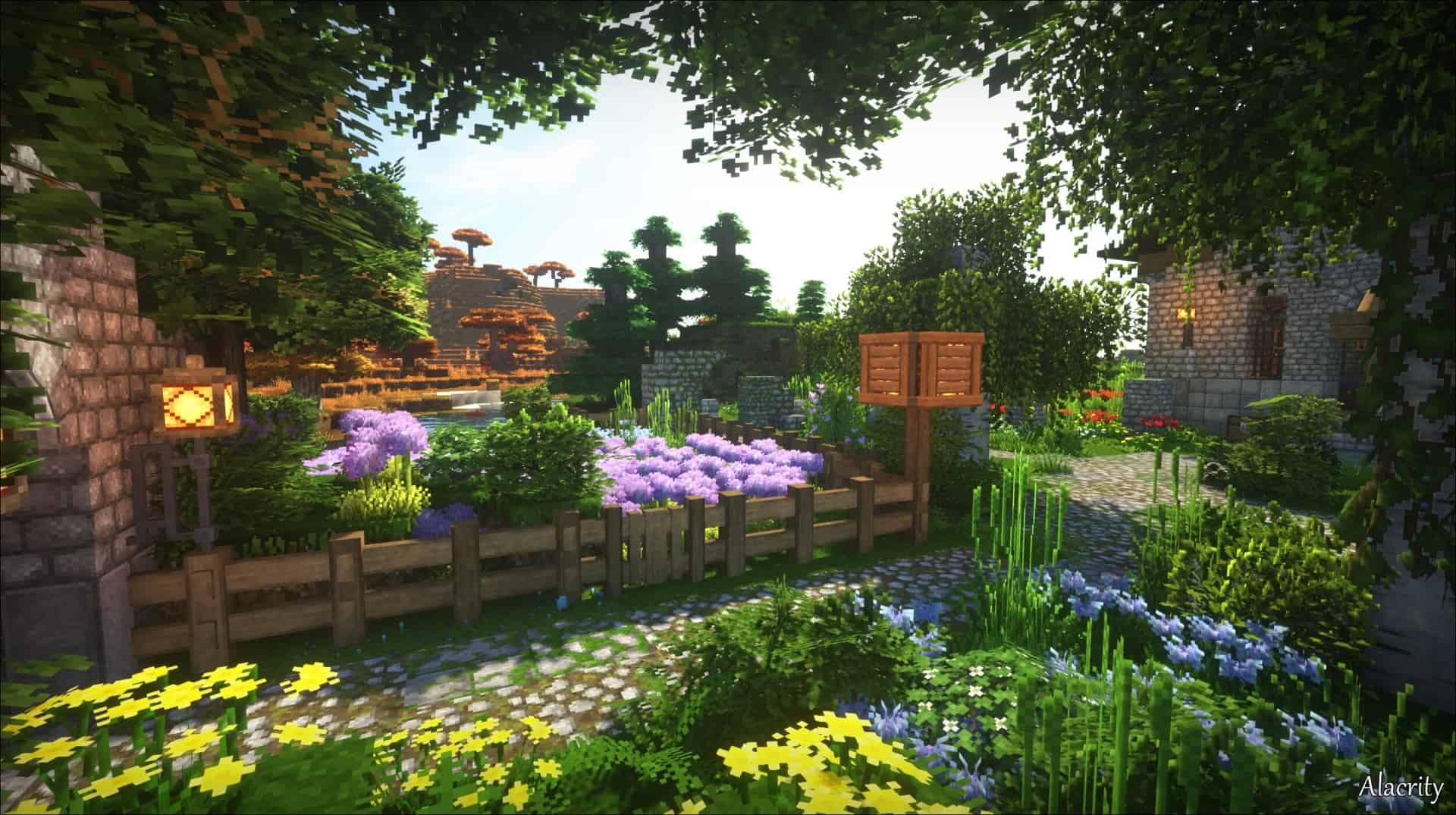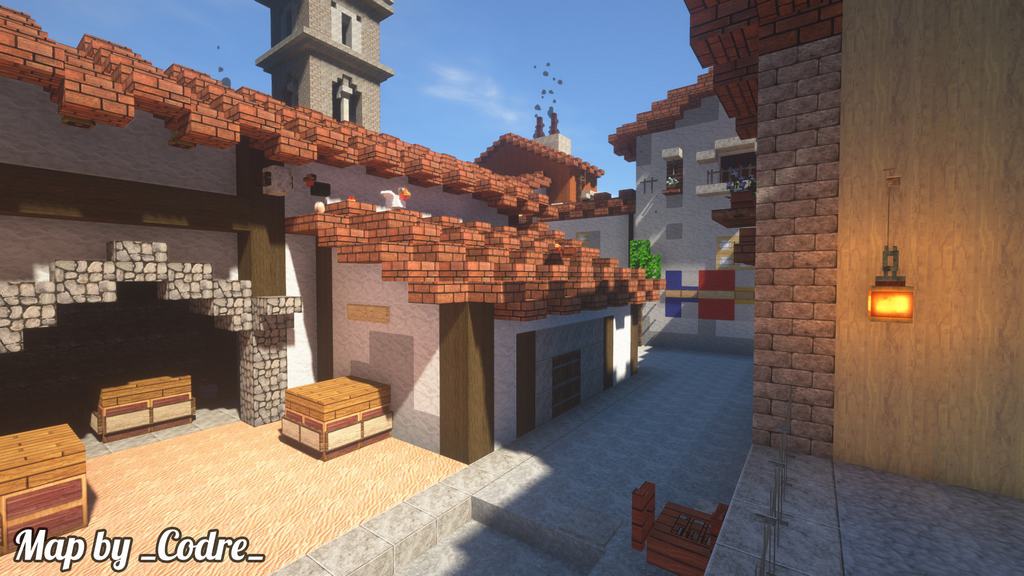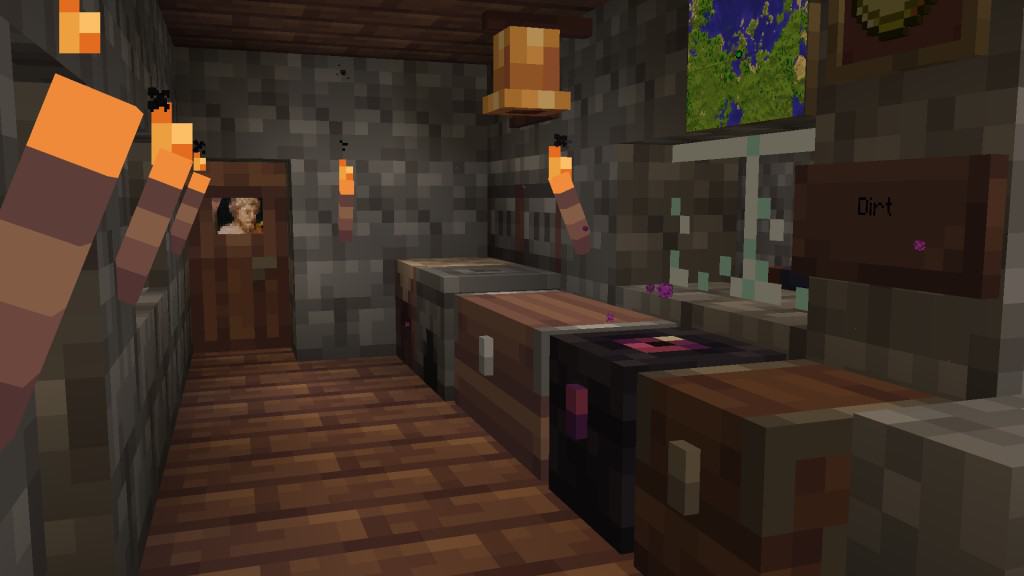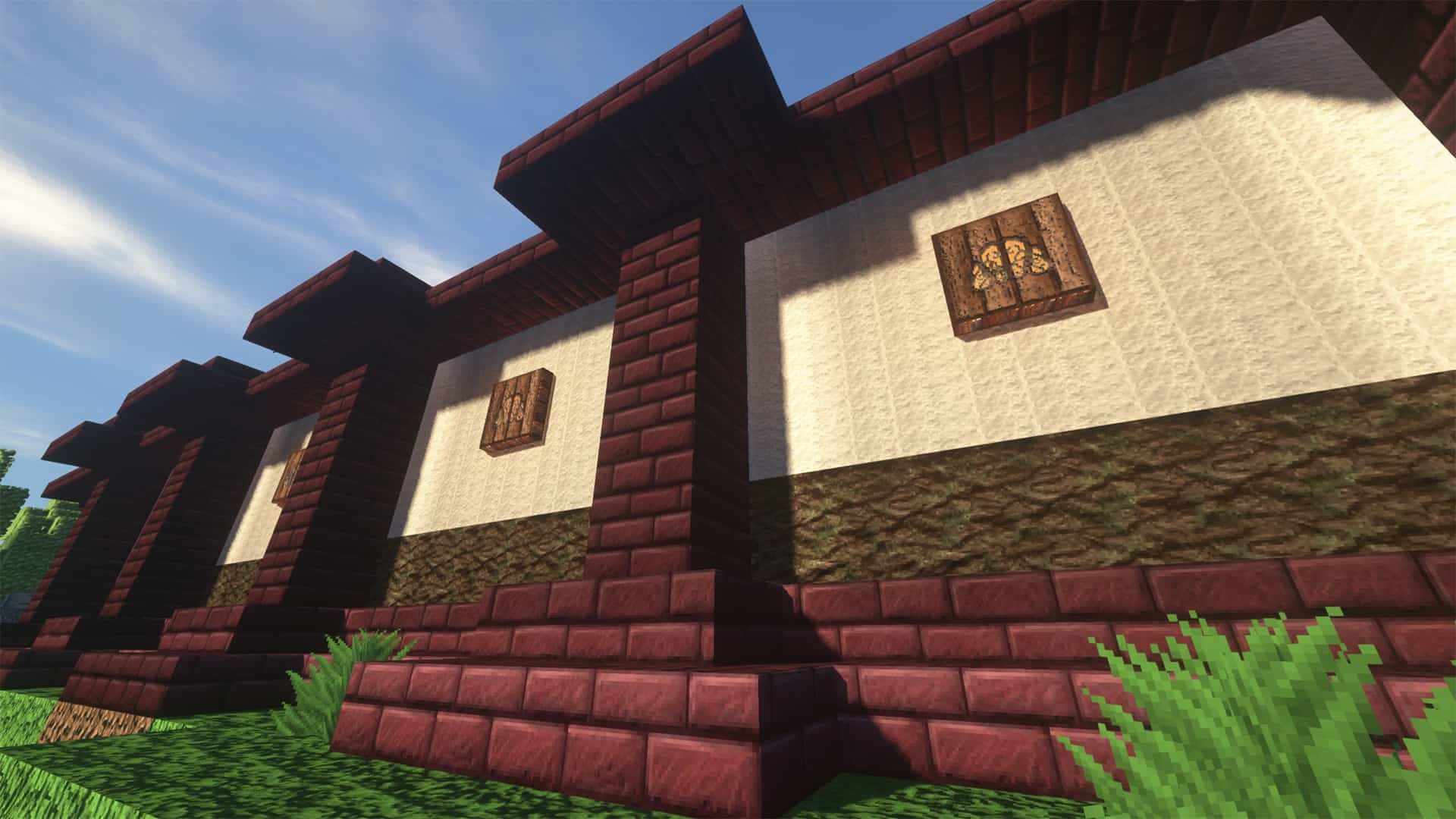
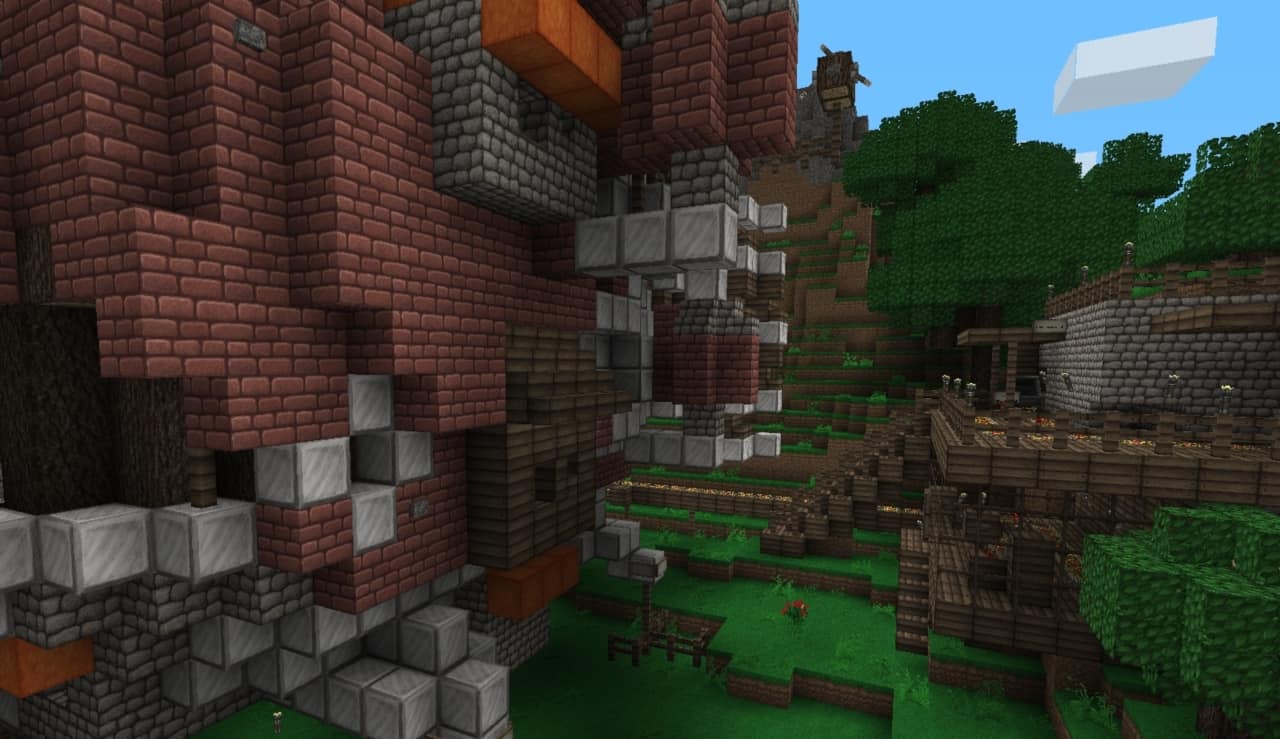
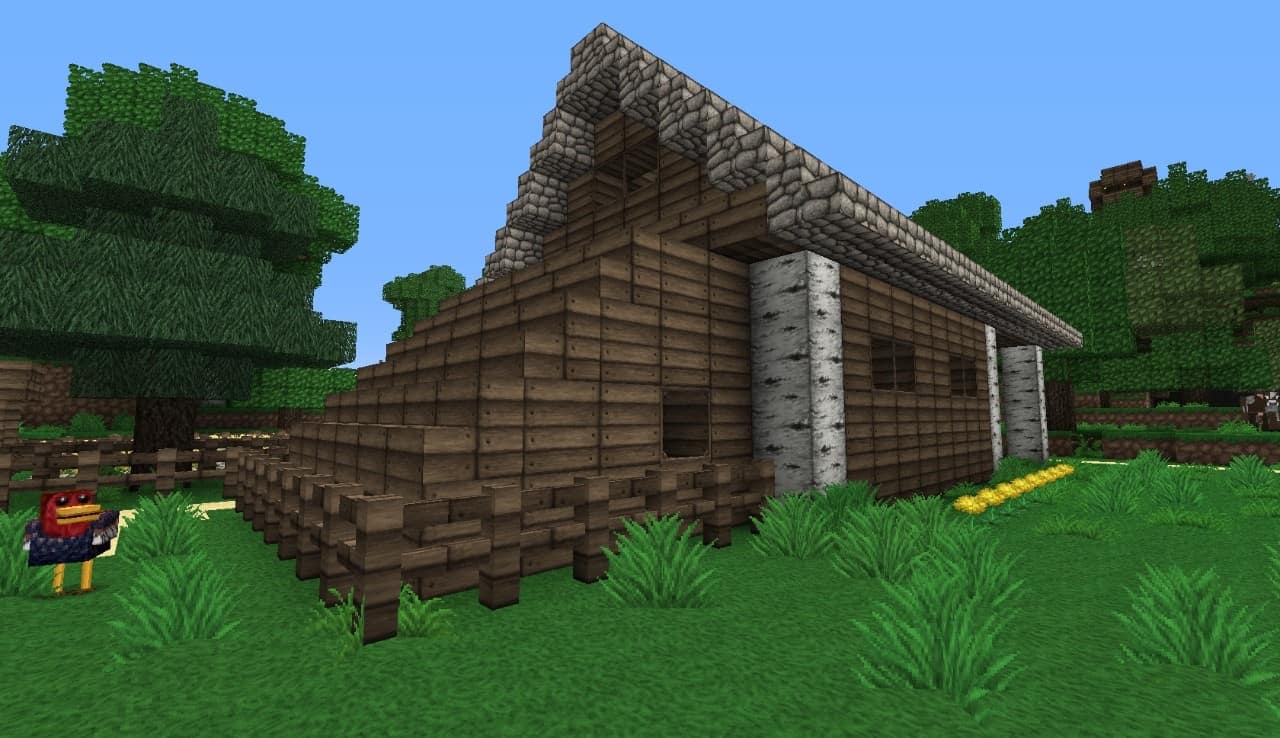
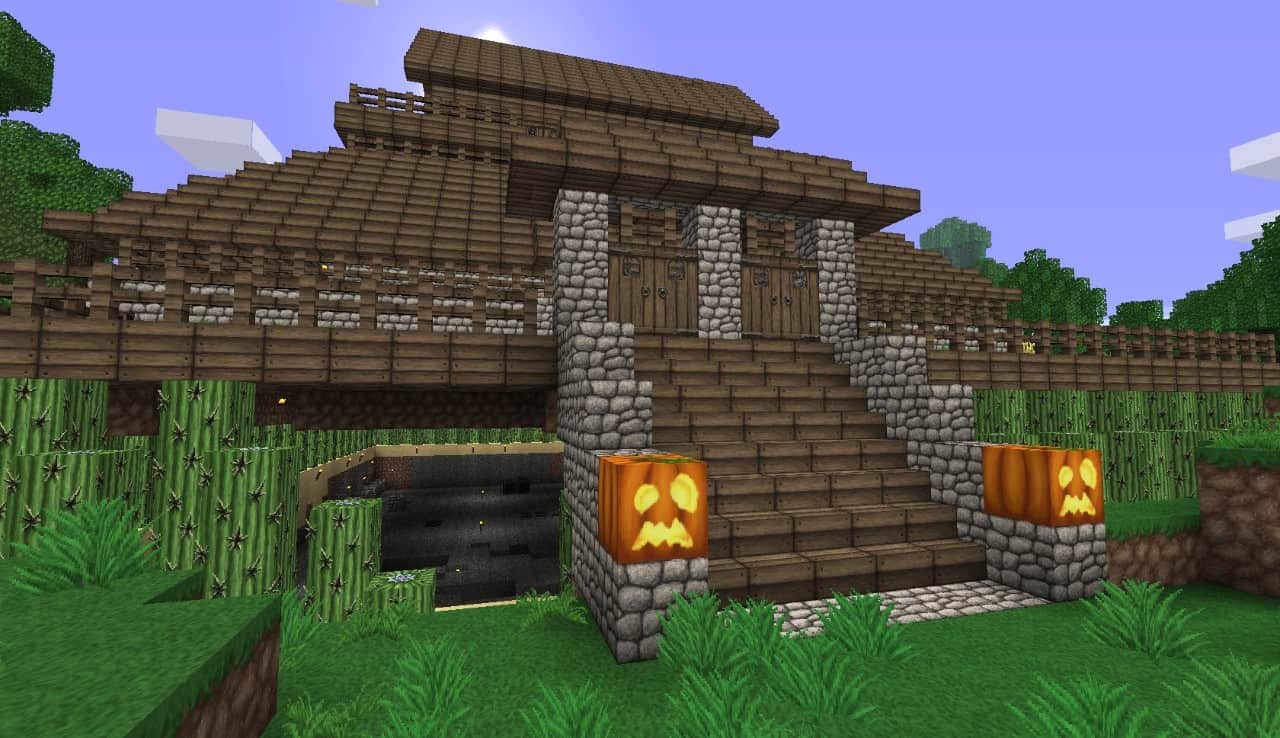
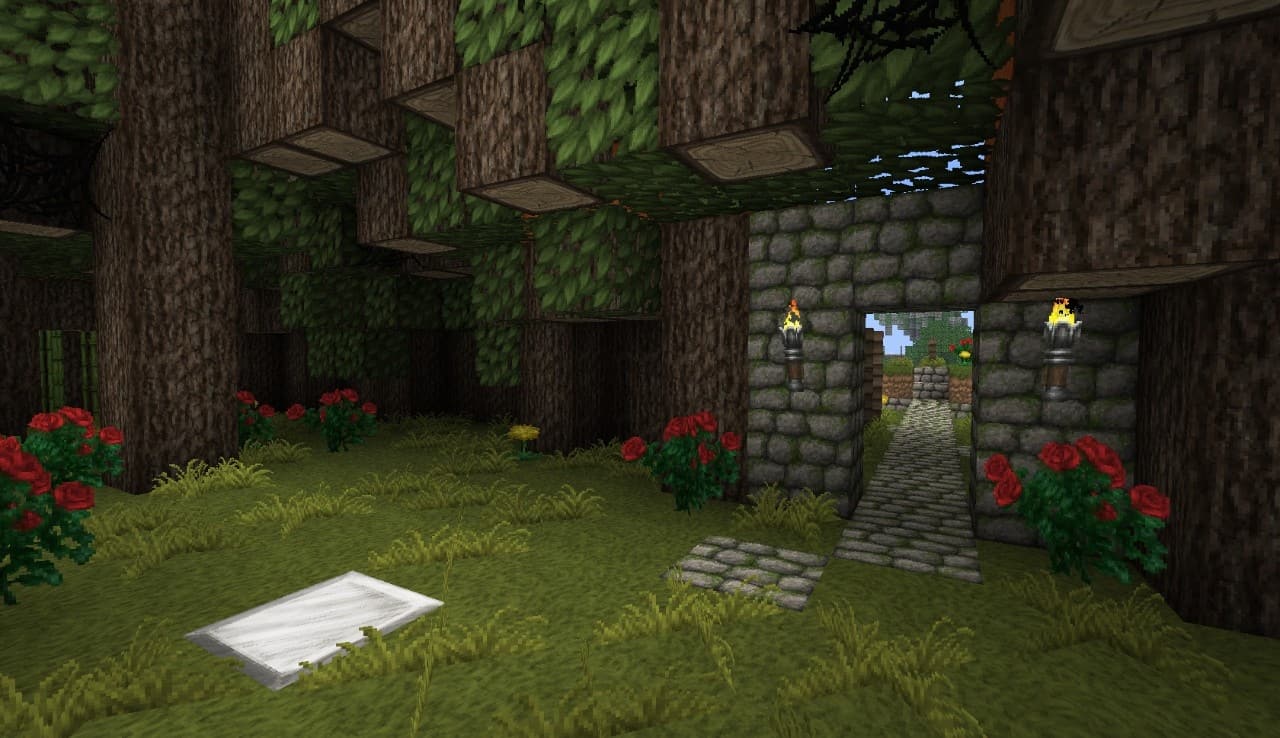
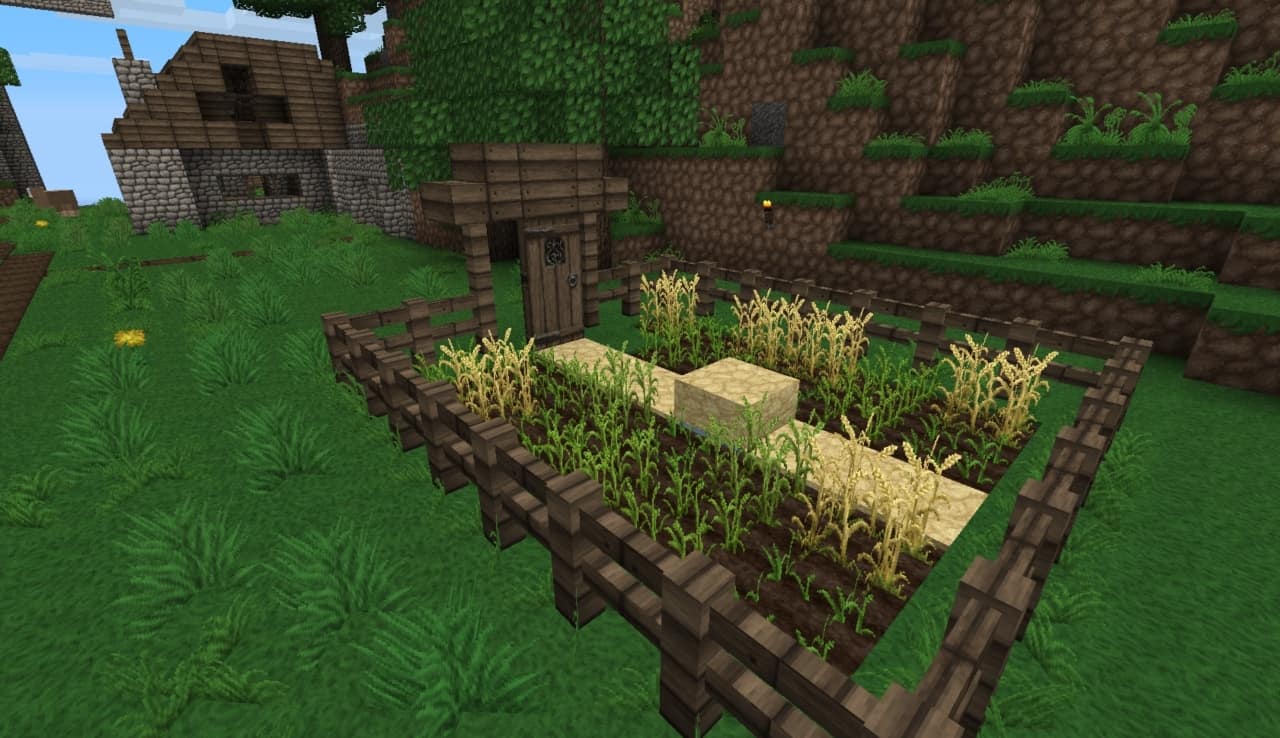
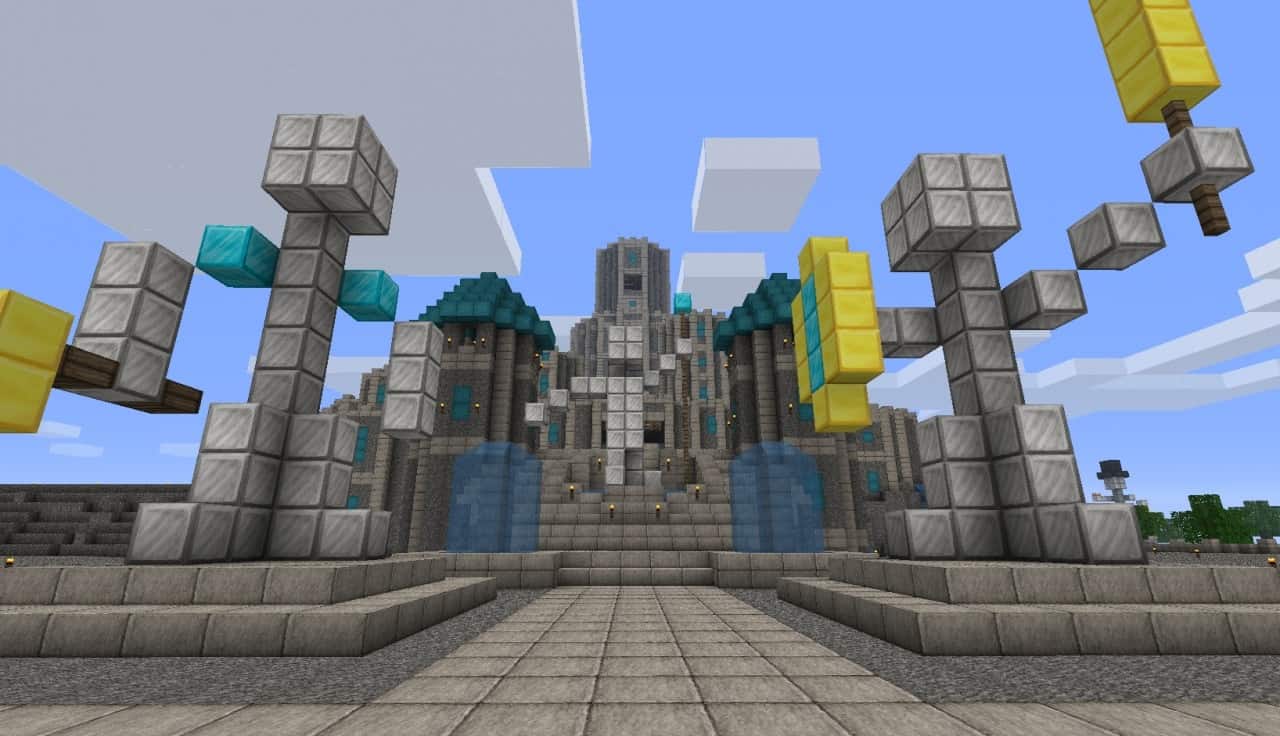
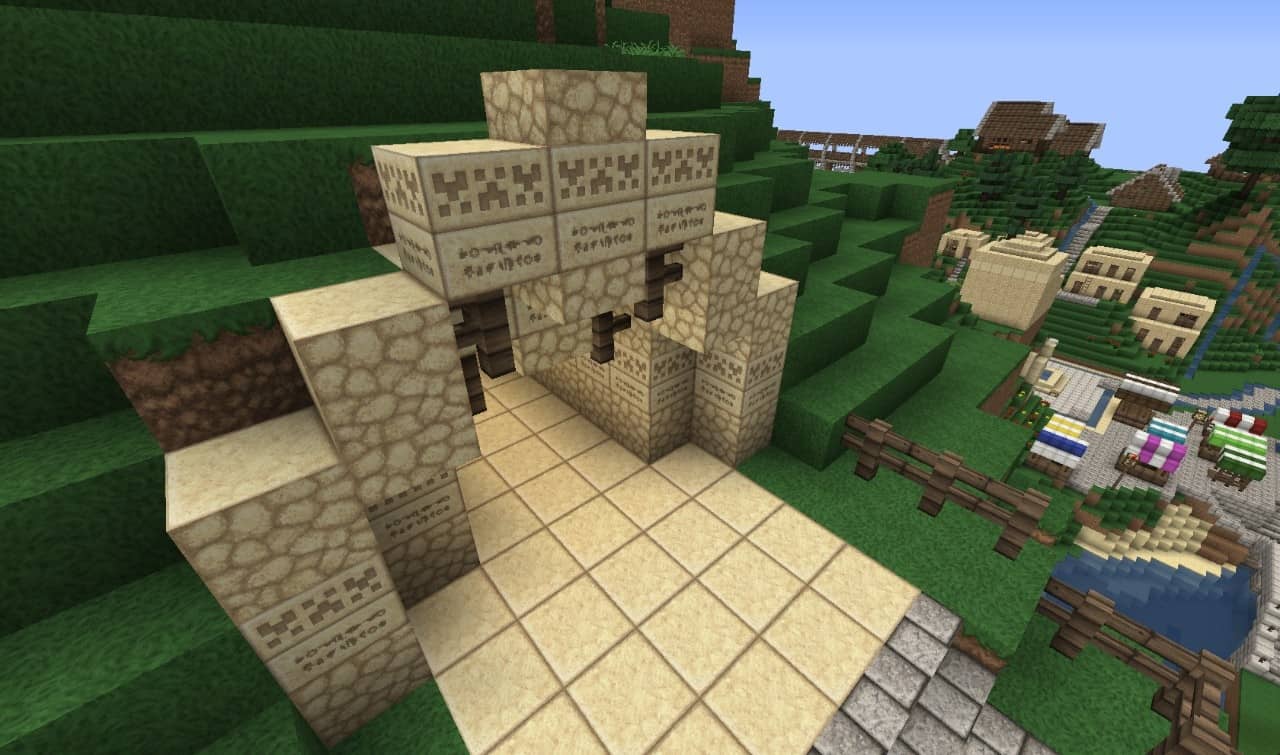
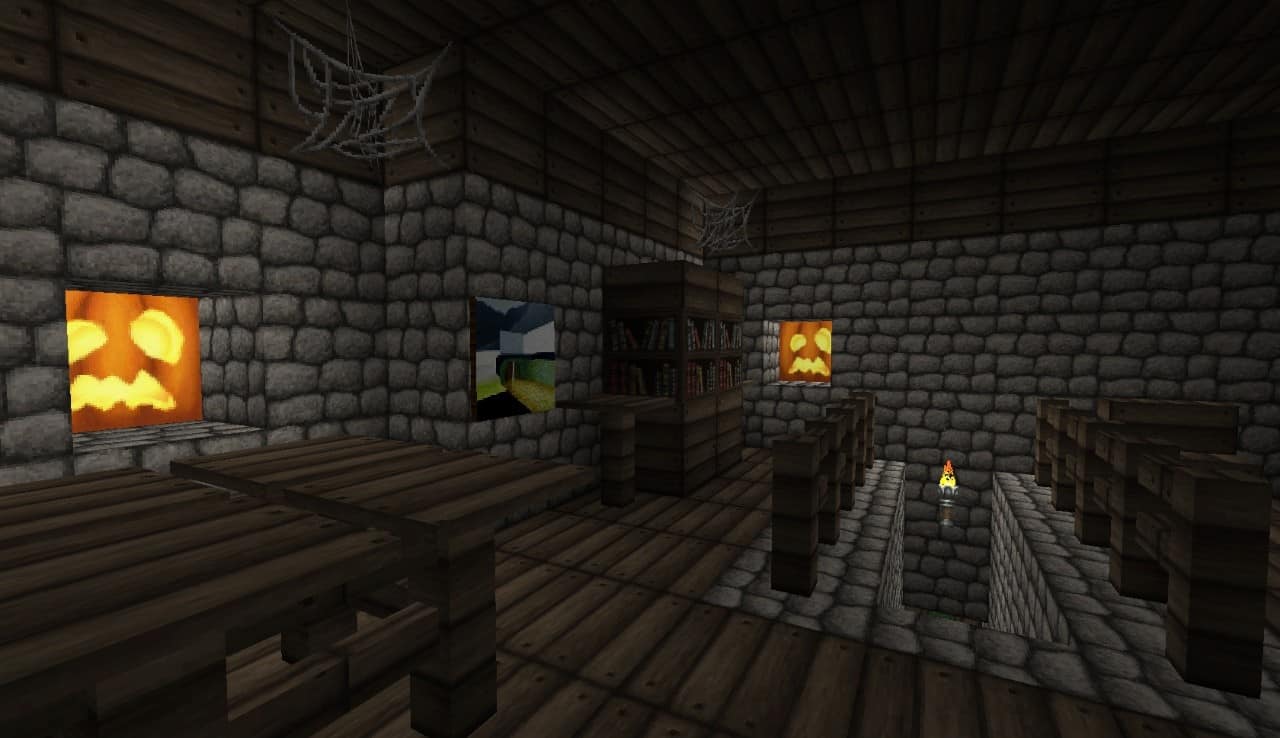
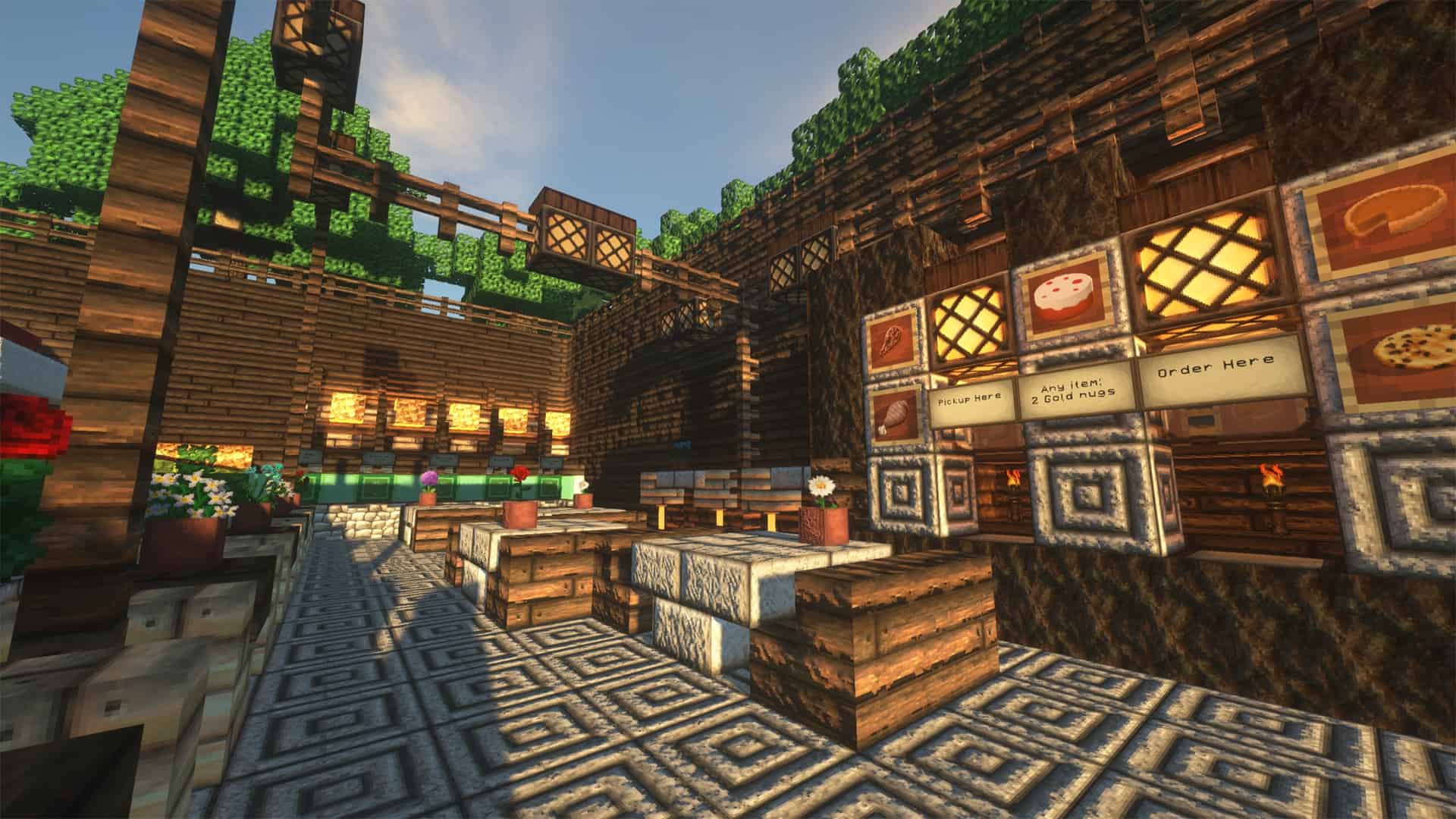
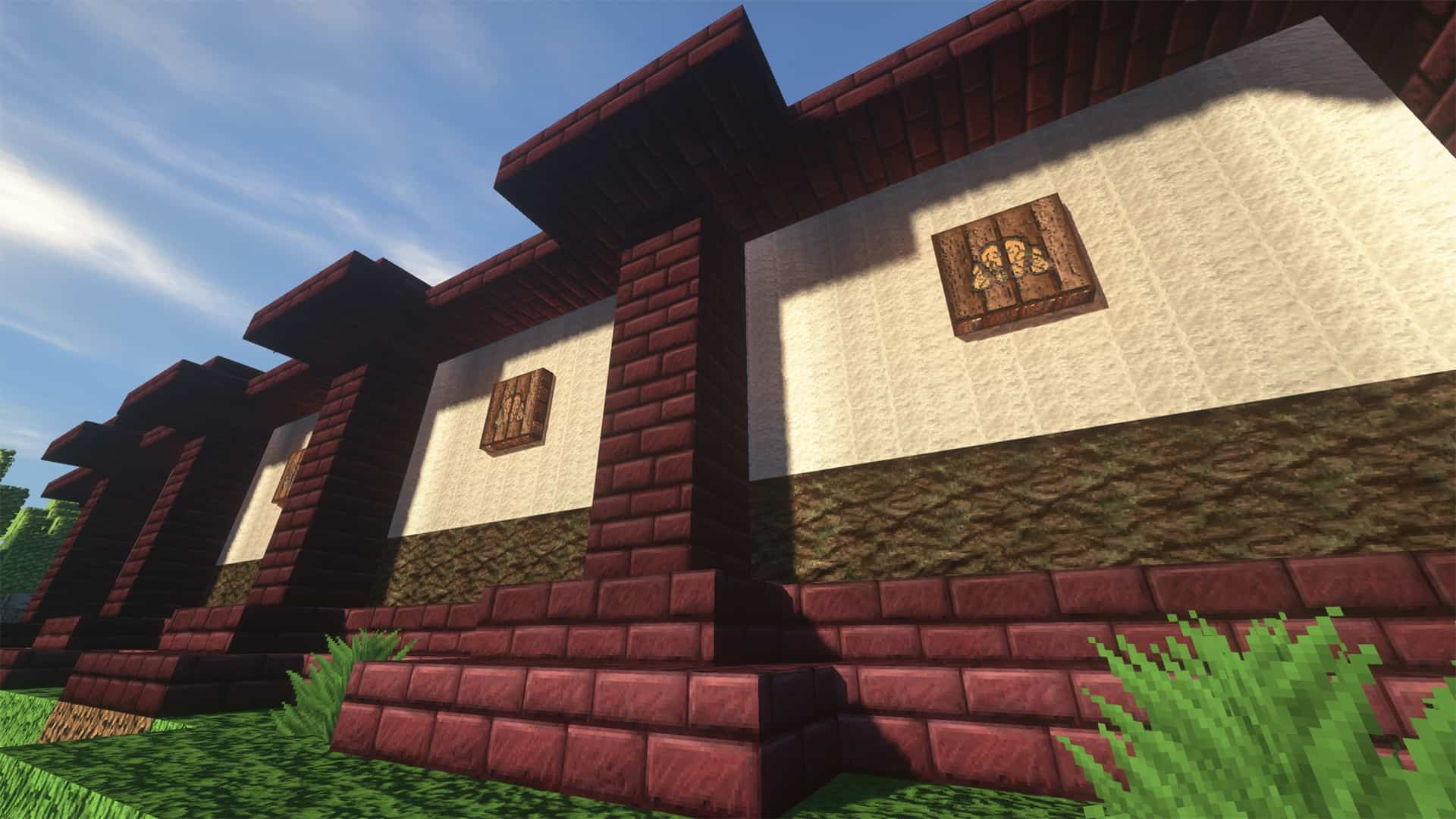
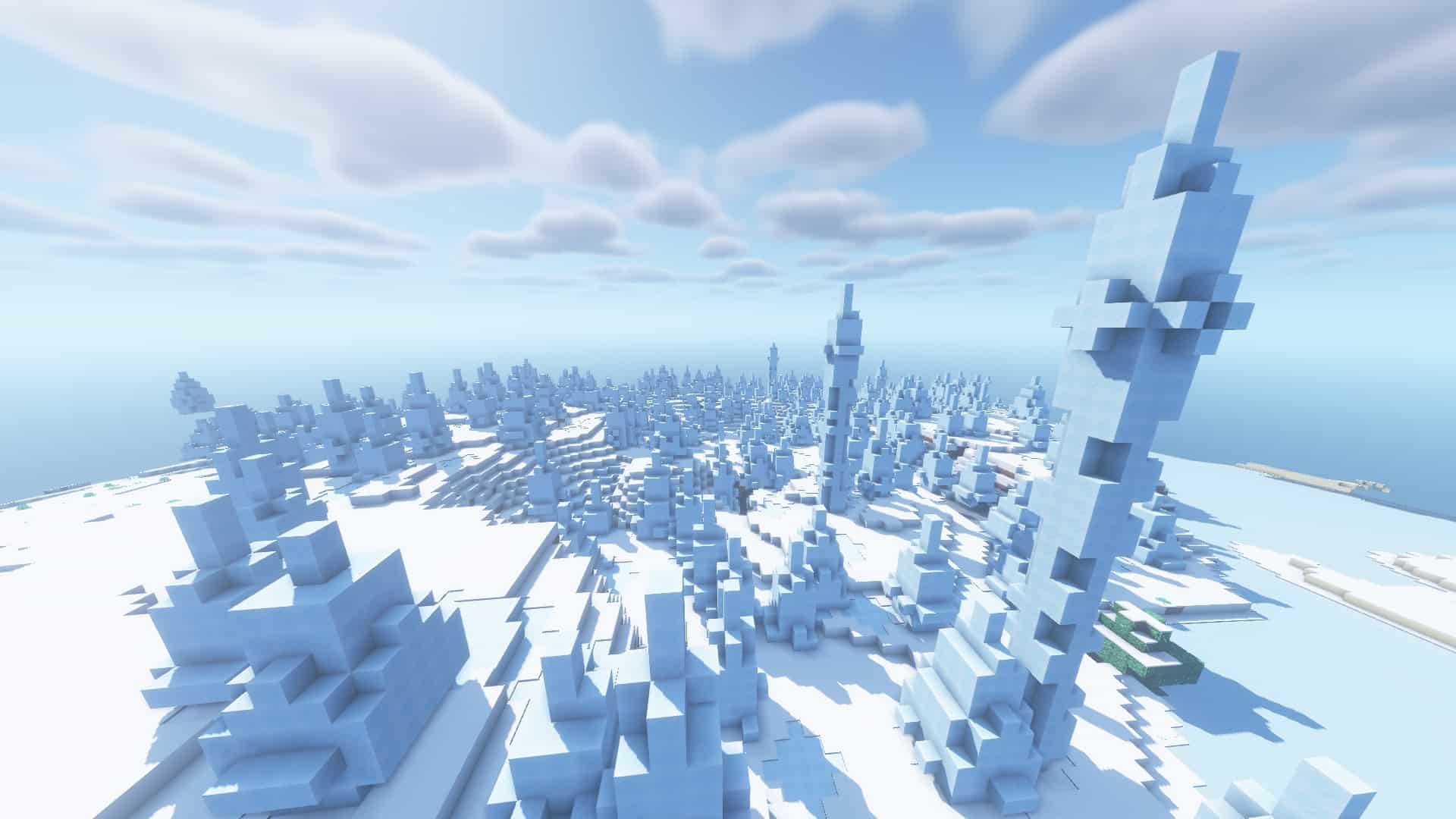
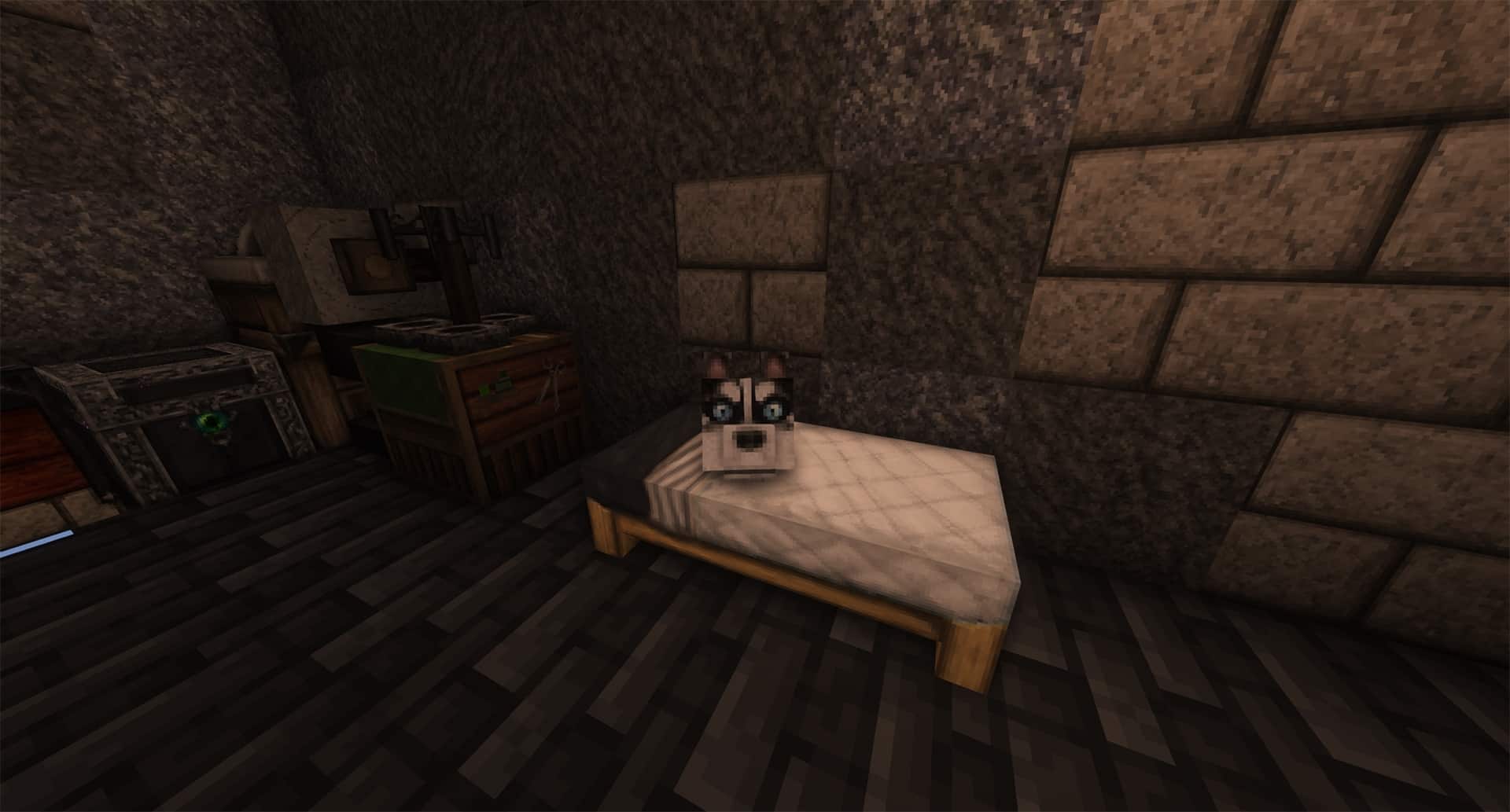
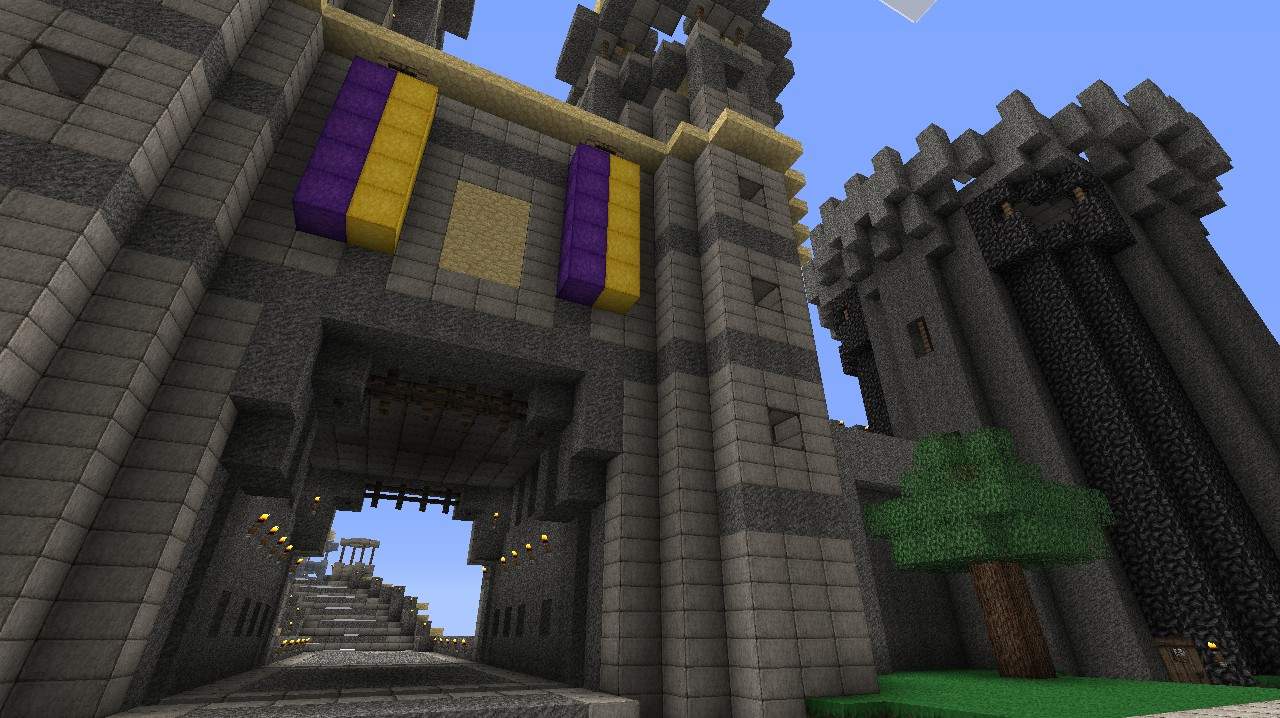
Ovo’s Rustic resource pack is a lovely and amazingly detailed 64×64 texture pack that brings a wonderful primitive feel to your game. It was among the most downloaded and famous resource packs at its release and throughout its regular updates, though unfortunately, Ovo’s Rustic texture pack is no longer receiving regular updates. It is highly probable that it will not get texture updates for new items that Minecraft adds in its most up-to-date versions. Ovo initially developed this resource pack and abandoned it later, after which RusticRedemption frequently updated the pack. Lately, Rustic Redemption has also stopped giving updates, so let us hope that someone picks it up and starts providing updates to this splendid resource pack. Diving into the resource pack and its salient features, if you hear about it for the first time, you may imagine that it might have dull or discolored textures making the game appear somewhat gloomier and less colorful. That usually happens with some packs, but not with this one, which is so uniquely different as Ovo’s Rustic resource pack meticulously updates the full texture experience in Minecraft.
It creates incredible detail almost everywhere, offering touches that are not present even in Minecraft’s basic appearance. They squeezed so many brilliant details into this 64x resolution pack, allowing us to find lovely carvings on the trees with a wonderfully real look, cobblestones arranged neatly like bricks, distinct chest corners, and many more stunning details. The resource pack is ready for installation whenever we want, not demanding any complex tweaks or modifications to function correctly. Just put it in the folder named resource packs and start it right from the game menu to alter your world’s appearance. The recent updates of our resource pack work wonderfully with newer versions of Minecraft. What is truly remarkable about this resource pack is that its installation process is exceptionally easy, allowing you to start enjoying it at any time by downloading and running it without much difficulty. Many players feel that Ovo’s Rustic resource pack has been a straightforward, high-quality upgrade from Minecraft’s general look, making almost all the bricks, blocks, and baddies appear much better than they used to look. That is precisely why players have downloaded this resource pack at least one million times. While many similar resource packs are available, they often come with serious issues like needing excessive graphics power or being difficult to install.
Ovo’s Rustic should be compatible with all of these Minecraft versions: 1.21.10 – 1.21.9 – 1.21.8 – 1.21.7 – 1.21.6 – 1.21.5 – 1.21.4 – 1.21.3 – 1.21.2 – 1.21.1 – 1.21 – 1.20.6 – 1.20.5 – 1.20.4 – 1.20.3 – 1.20.2 – 1.20.1 – 1.20 – 1.19.4 – 1.19.3 – 1.19.2 – 1.19.1 – 1.19 – 1.18.2 – 1.18.1 – 1.18 – 1.17.1 – 1.17 – 1.16.5 – 1.16.4 – 1.16.3 – 1.16.2 – 1.16.1 – 1.16 – 1.15.2 – 1.15.1 – 1.15 – 1.14.4 – 1.14.3 – 1.14.2 – 1.14 – 1.13.2 – 1.13.1 – 1.13 – 1.12.2 – 1.12 – 1.11.2 – 1.11 – 1.10.2 – 1.10 – 1.9.4 – 1.9 – 1.8.9 – 1.8.8 – 1.8.1 – 1.8.6 – 1.8 – 1.7.10 – 1.7.9 – 1.7.4 – 1.7 – 1.6.4 – 1.6.2
Screenshots


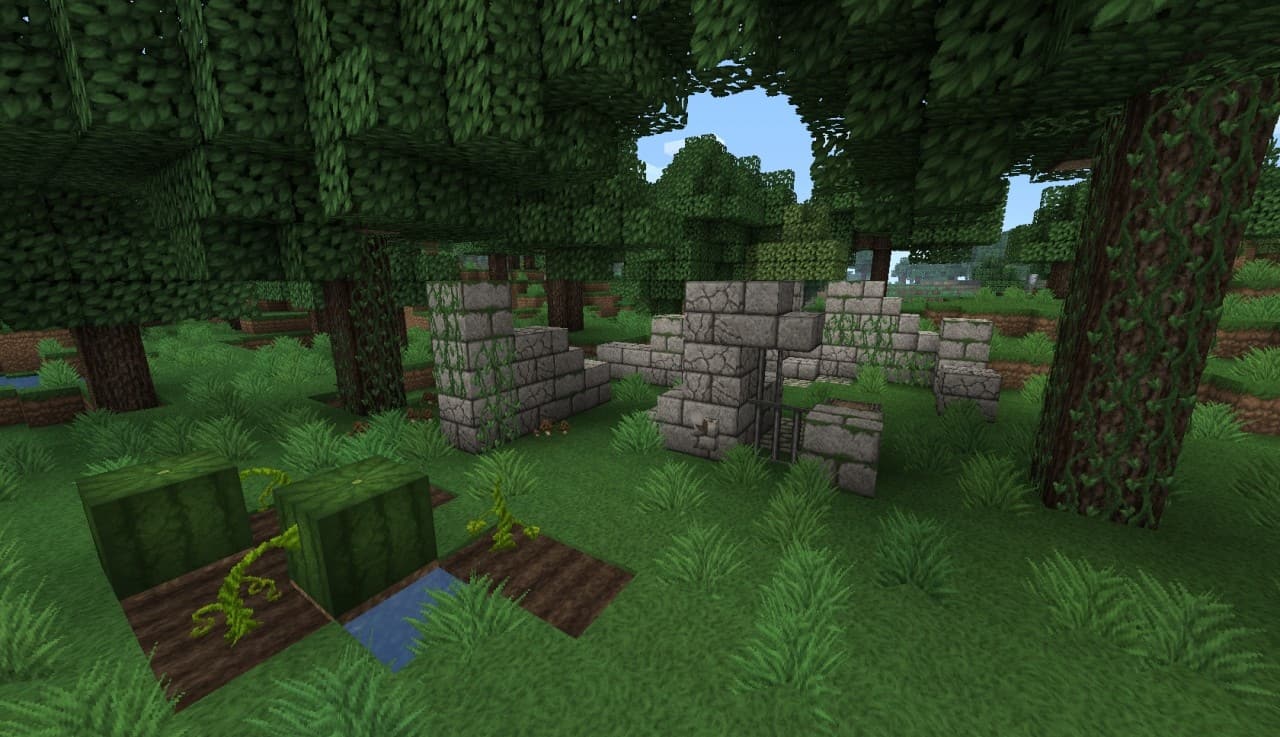
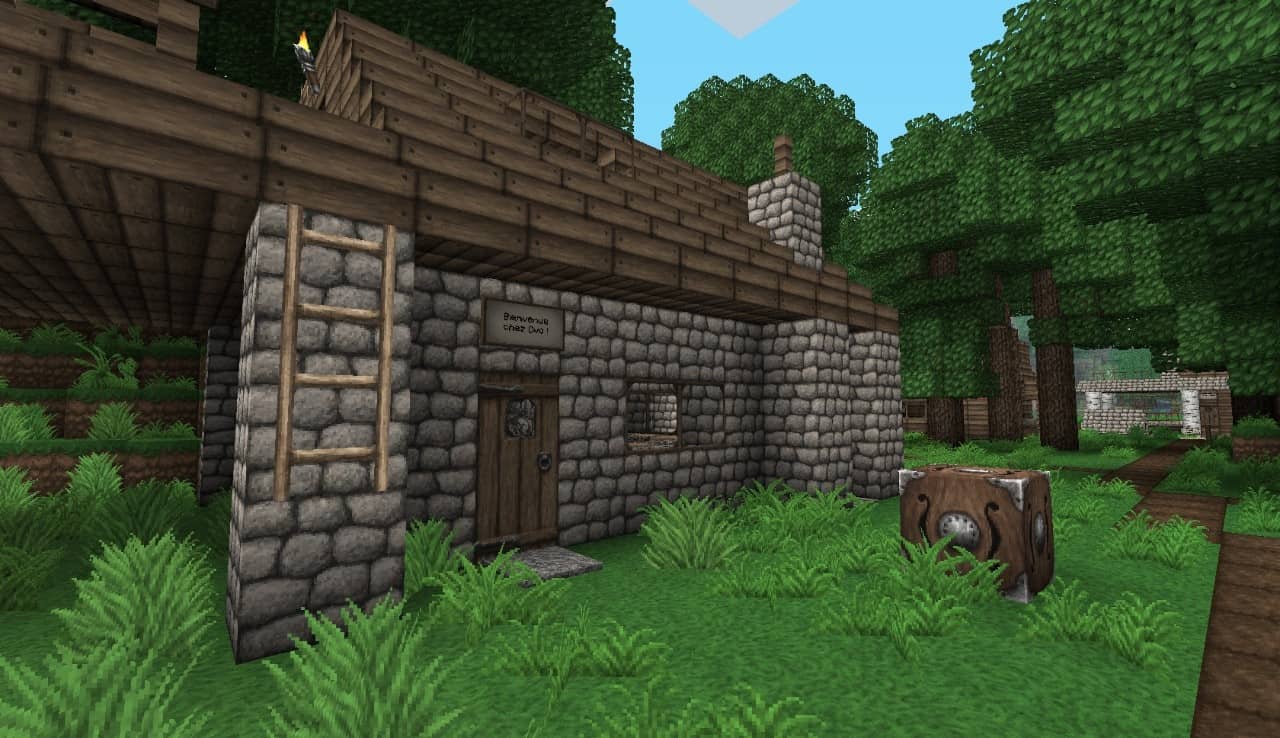
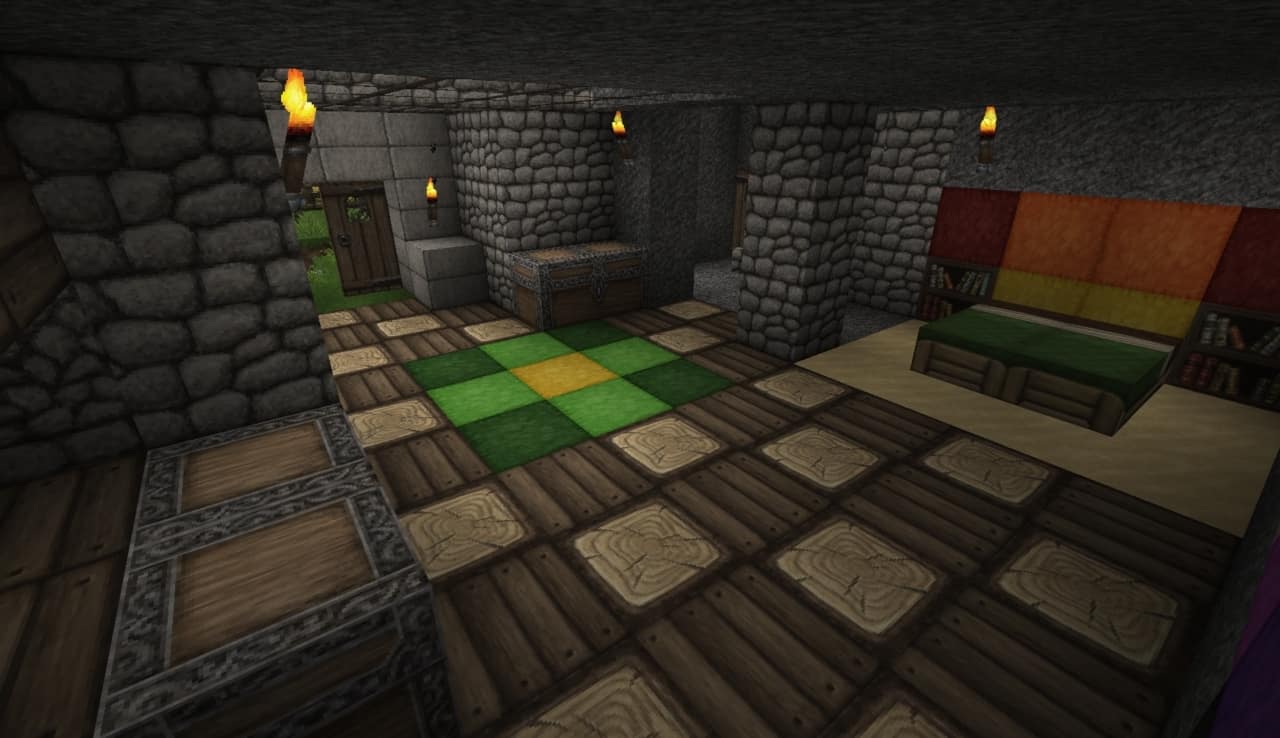
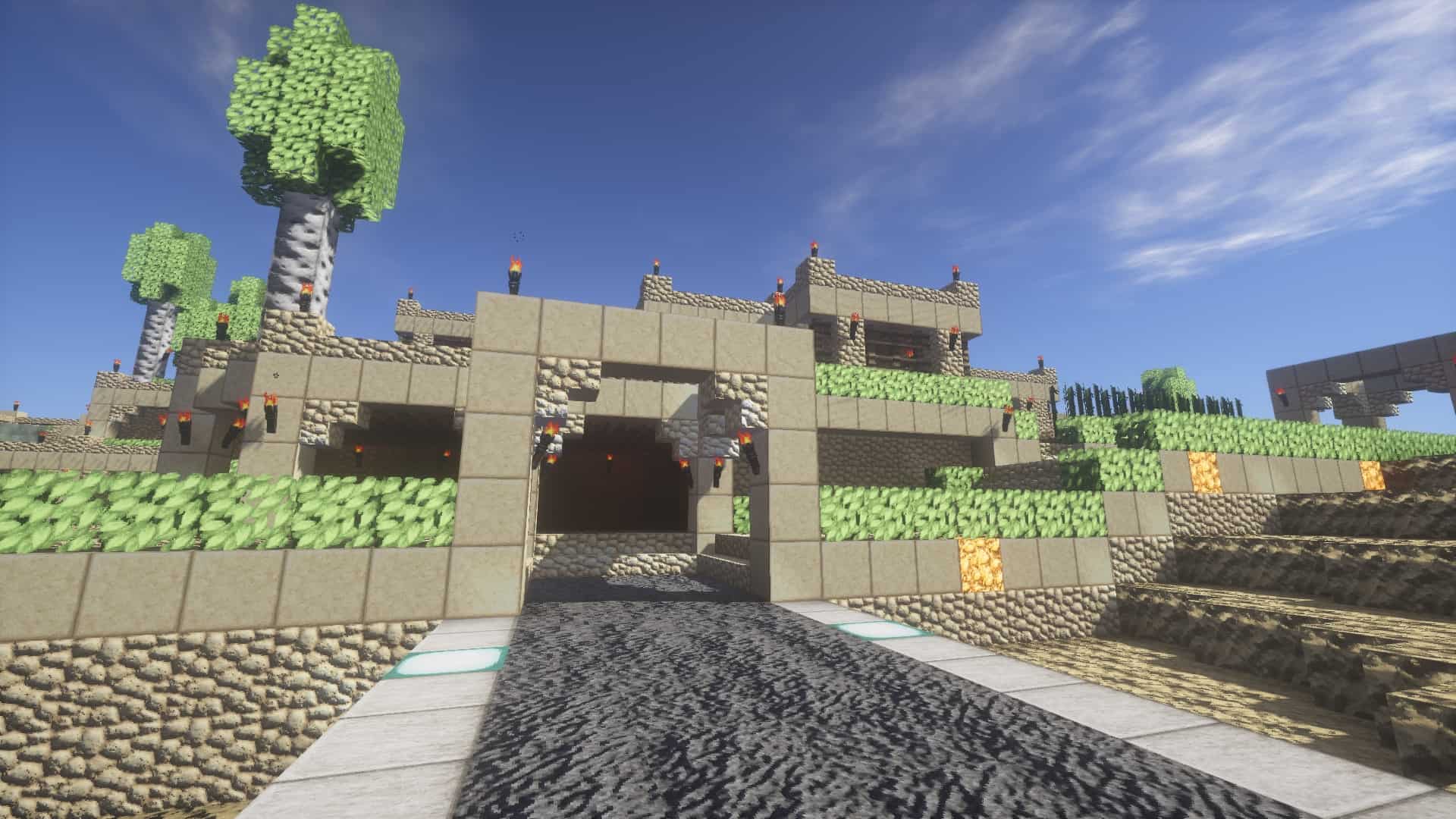

How to Install Texture Pack (Simple 10 Steps)
- Download OptiFine: Most of the texture packs and shaders need OptiFine. That’s why, first download and install OptiFine for the version of Minecraft you want to play.
- Download the Texture Pack: Get the texture pack you want from the download section. Choose the version that works with your Minecraft and your PC’s performance.
- Open Minecraft Launcher: Start Minecraft using the official game launcher — or even TLauncher, if you use that.
- Go to Options: From the main menu, click on the “Options” button.
- Open Resource Packs: Inside Options, click on “Resource Packs…”.
- Open the Resource Pack Folder: Click on “Open Resource Pack Folder” — this will open a folder named “resourcepacks”.
- Move the Pack File: Copy or move the .zip file you downloaded into that “resourcepacks” folder. (Don’t unzip the file — Minecraft uses it as-is!)
- Go Back and Refresh: Close the folder and click “Done”, then go back into “Resource Packs…” again.
- Activate the Pack: You’ll see the pack on the left side. Hover over it and click the arrow to move it to the right (active side).
Tip: If you get a message that the pack is for a different version, just click “Yes” — it usually works fine. - Click Done and Enjoy: Click “Done” again. Now your pack is ready to use in-game. It’s that easy!
Credits
This resource pack was originally created by Ovocean and later updated by RusticRedemption. We do not claim ownership of this content, do not host modified files, and encourage users to support the original creators.
Download Links
Java Edition
- [64x] Minecraft 1.21.x
- [64x] Minecraft 1.20.6 – 1.20.2
- [64x] Minecraft 1.20 – 1.20.1
- [64x] Minecraft 1.19.x
- [64x] Minecraft 1.18.x – 1.16.x
- [64x] Minecraft 1.15.x
- [64x] Minecraft 1.14.x – 1.13.x
- [64x] Minecraft 1.11.x – 1.10.x
- [64x] Minecraft 1.9.x
- [64x] Minecraft 1.8.x
- [64x] Minecraft 1.7.x
- [64x] Minecraft 1.6.x
Download Instructions
Curseforge: download starts automatically after a few seconds;
Mediafire: click the big blue button with the text “DOWNLOAD”;
Google Drive: in the top right corner you will see a small download icon (down arrow), click it and the download should start;