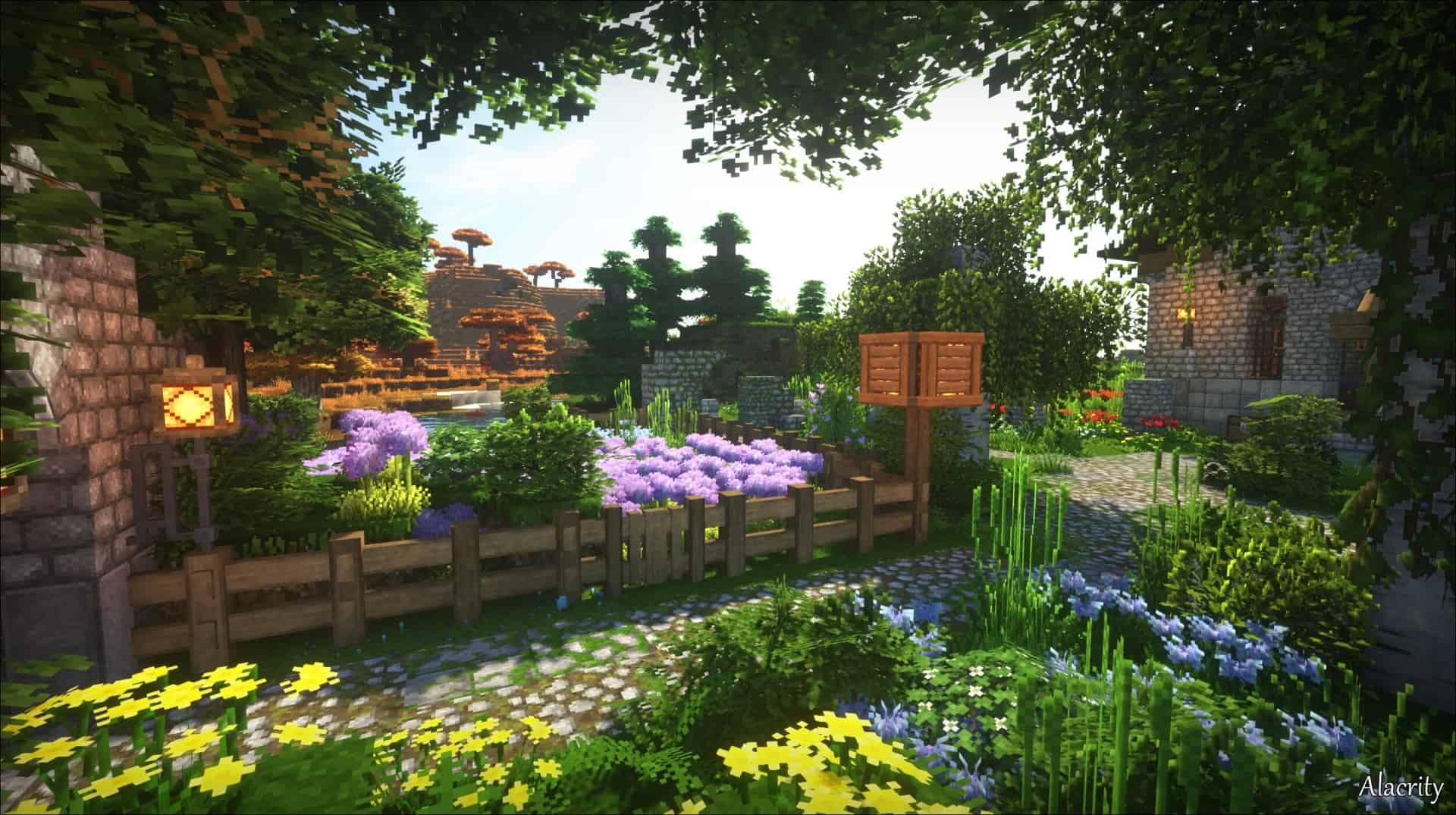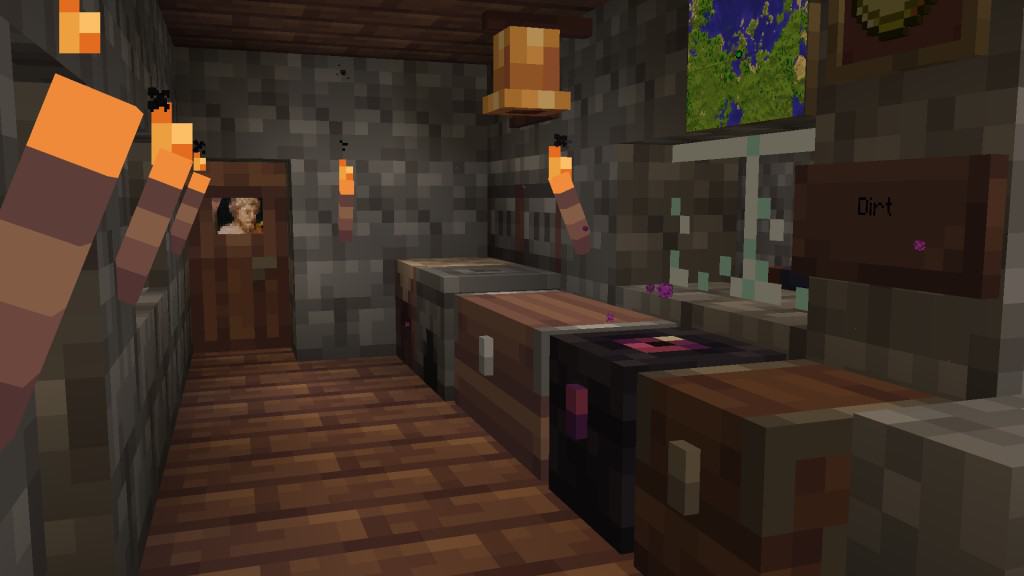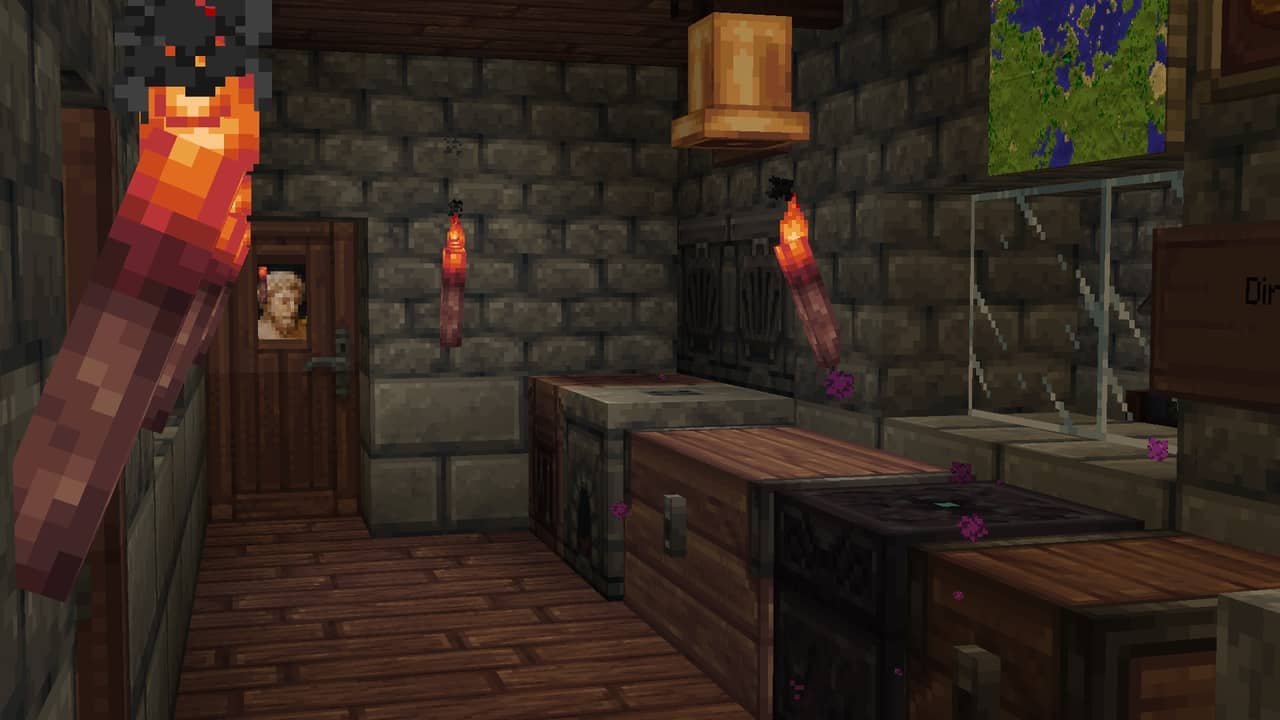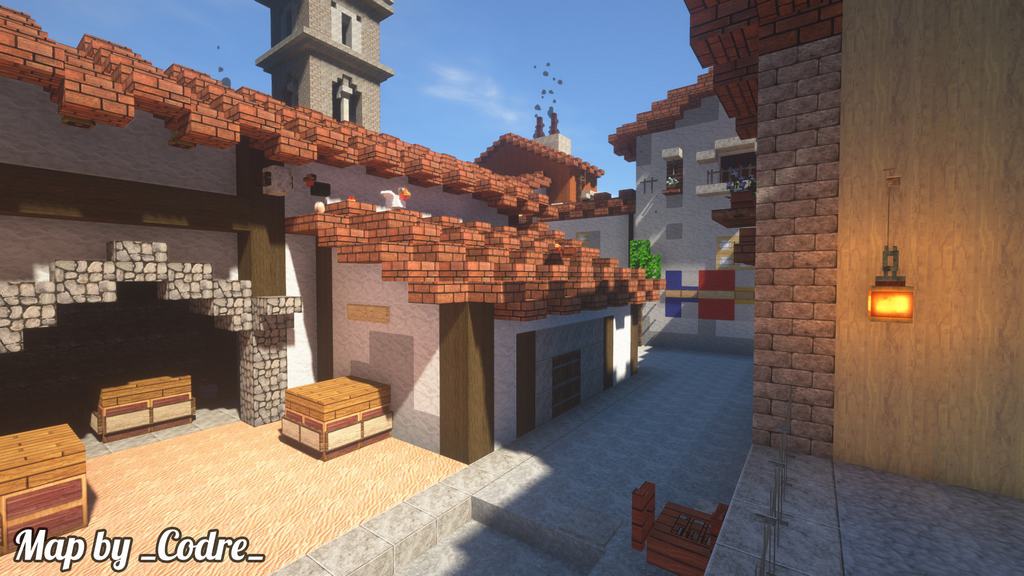
Every once in a while we get to experience resource packs so good that the community refuses to let them die. The problem is that many Minecraft resource packs end up being abandoned by their original creators. Such is the story of the MeineKraft resource pack. Originally developed by user Moneyball, MeineKraft was abandoned several years after release. It received a lot of praise for its medieval visual style and many improvements brought to vanilla Minecraft. Some loved it so much that they used it to create a name for themselves. YouTuber Gronkh shared his love for the resource pack and to date, he has over 500 episodes for his Let’s Play Minecraft series in which he showcased the MeineKraft resource pack in many different episodes. His 4.9 million subscriber YouTube channel kept the resource pack alive. It was picked up by the community, continuing the development and releasing new updates to work with more recent versions of Minecraft. Due to the popularity of the resource pack and the free promotion received from Gronkh, MeineKraft can also be found under the name Gronkh Resource Pack. Right off the bat, it is important to get out the way the things that the MeineKraft resource pack does not do. It does not attempt to remove pixelation. You can still distinguish individual pixels on textures. Photo-realism has not been a goal of the original developer or the ones that picked up the work on MeineKraft.
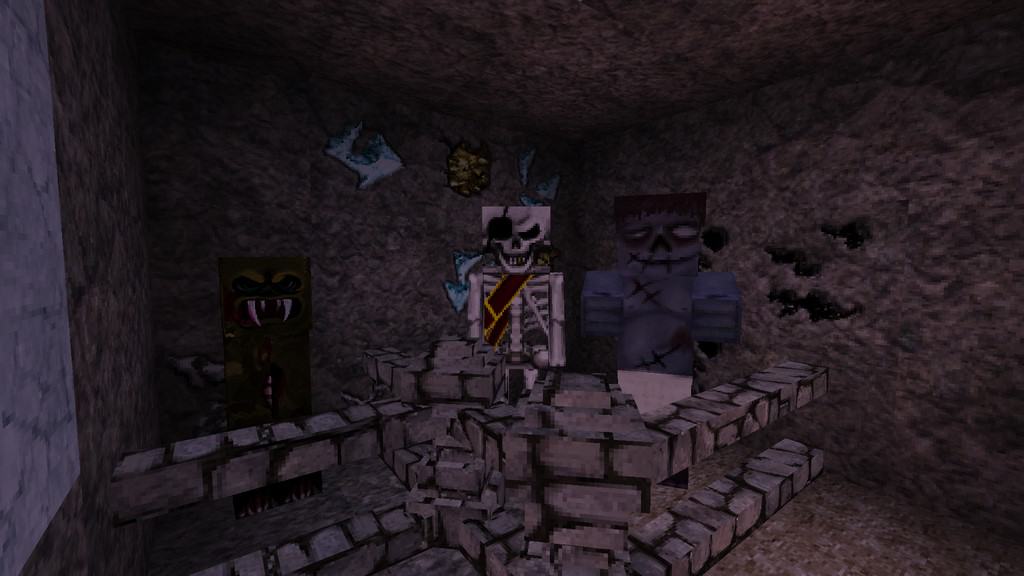
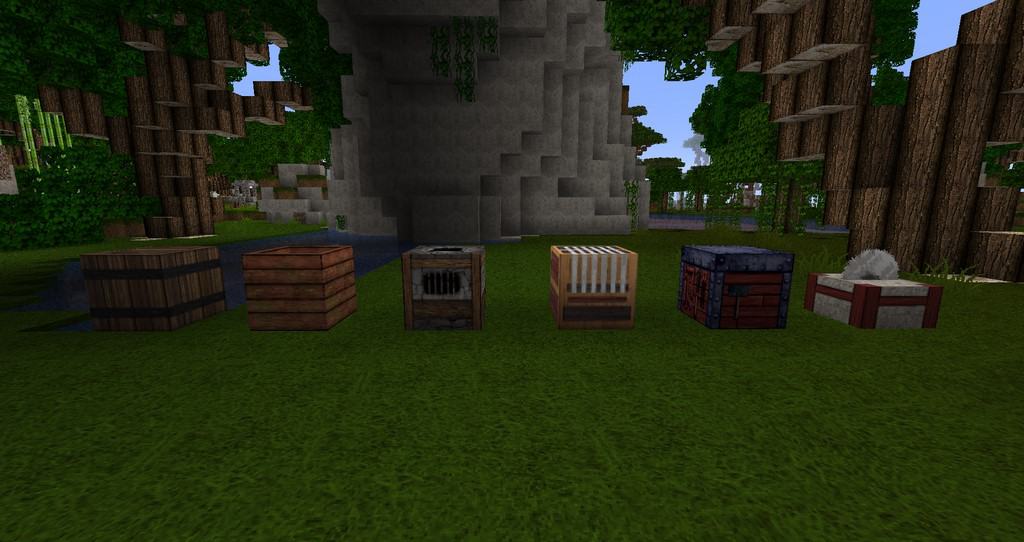
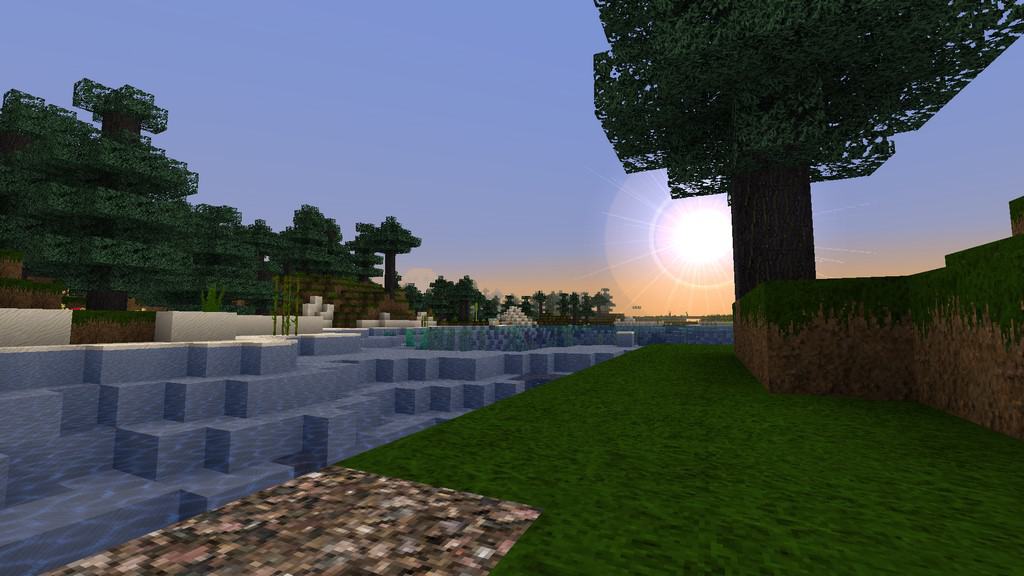
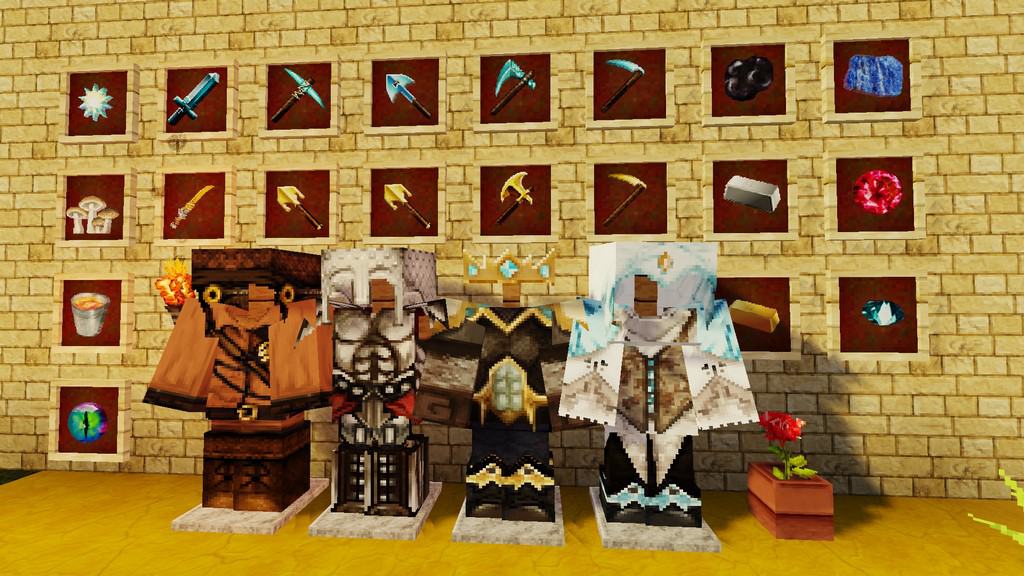
What the resource pack does is add more details on the same block size. To do this, texture resolution has been increased. The resource pack is available in 64x texture resolution. Most of the blocks, mobs, and items in the game have been updated with more detailed textures. As for the medieval aspect of the resource pack, MeineKraft, there are a few items in the game that will allow players to build amazing castles, dungeons, and medieval-themed worlds. There are new brick blocks, stone, limestone, rock, wooden chests, boxes and crates, and many more. The resource pack also adds new textures for torches, fire, lava, and more. Having a higher resolution also improves the visuals of small objects. Grass and flowers have more details and look less blocky. Crops also look significantly better. To satisfy both PvP and PvE players, MeineKraft also adds a few RPG elements. The crafting interface looks considerably better with an improved inventory and character preview window. Stacking items are fixed in the latest version and all the new food types work properly. There is also a new player HUD and a new main screen. The developers also added new icons for items. With the increased resolution, icons for weapons, armor, and crafting materials look considerably better. The new icons also correspond to new weapons and armor that can be used in PvP. Player textures were updated to reflect the new armor sets. Installation of MeineKraft cannot be done manually as it requires access to special features such as the ones enabled in Optifine.
MeineKraft should be compatible with all of these Minecraft versions: 1.21.10 – 1.21.9 – 1.21.8 – 1.21.7 – 1.21.6 – 1.21.5 – 1.21.4 – 1.21.3 – 1.21.2 – 1.21.1 – 1.21 – 1.20.6 – 1.20.5 – 1.20.4 – 1.20.3 – 1.20.2 – 1.20.1 – 1.20 – 1.19.4 – 1.19.3 – 1.19.2 – 1.19.1 – 1.19 – 1.18.2 – 1.18.1 – 1.18 – 1.17.1 – 1.17 – 1.16.5 – 1.16.4 – 1.16.3 – 1.16.2 – 1.16.1 – 1.16 – 1.15.2 – 1.15.1 – 1.15 – 1.14.4 – 1.14.3 – 1.14.2 – 1.14 – 1.13.2 – 1.13.1 – 1.13 – 1.12.2 – 1.12 – 1.11.2 – 1.11 – 1.10.2 – 1.10 – 1.9.4 – 1.9 – 1.8.9 – 1.8.8 – 1.8.1 – 1.8.6 – 1.8
Screenshots
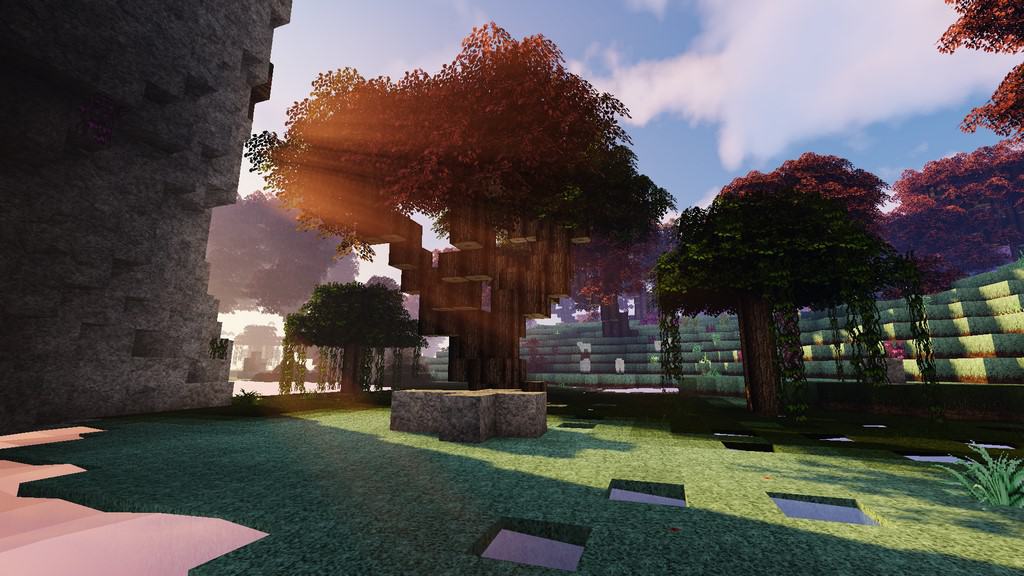
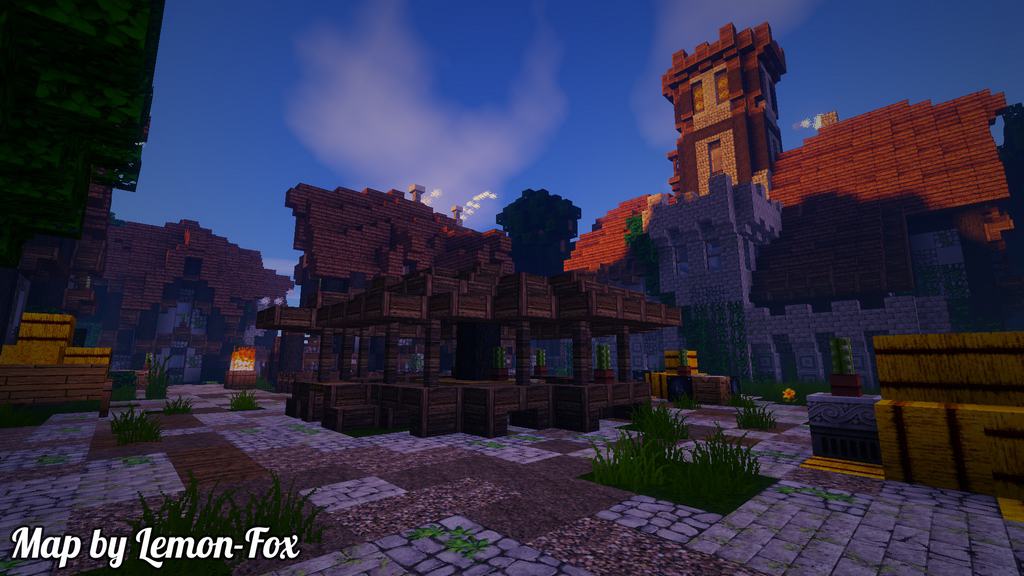

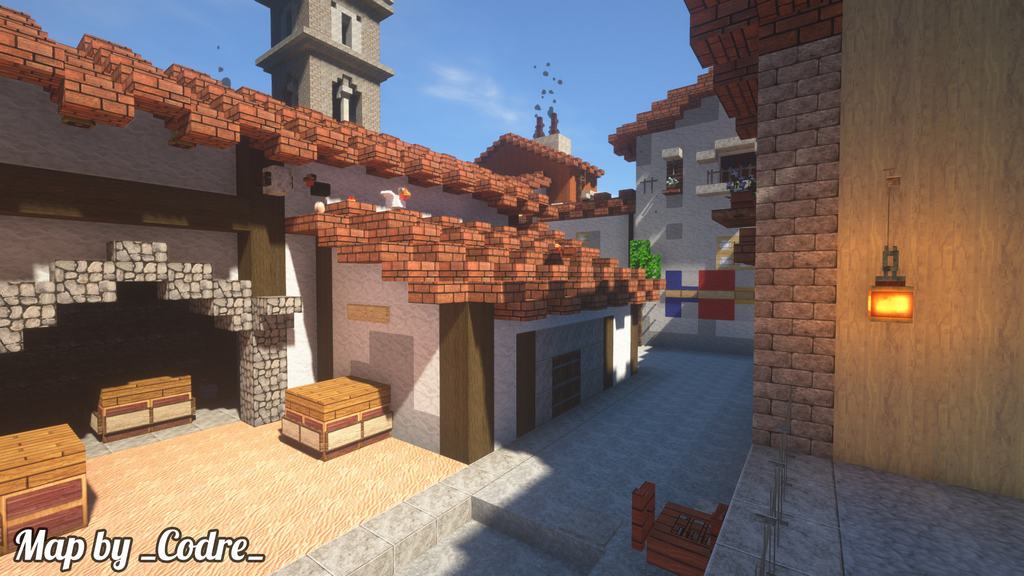
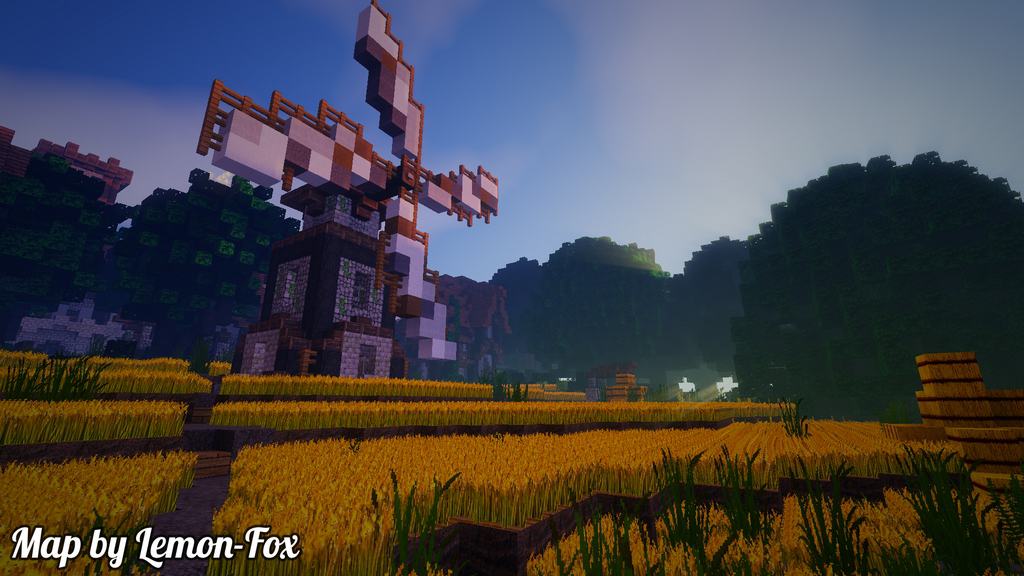
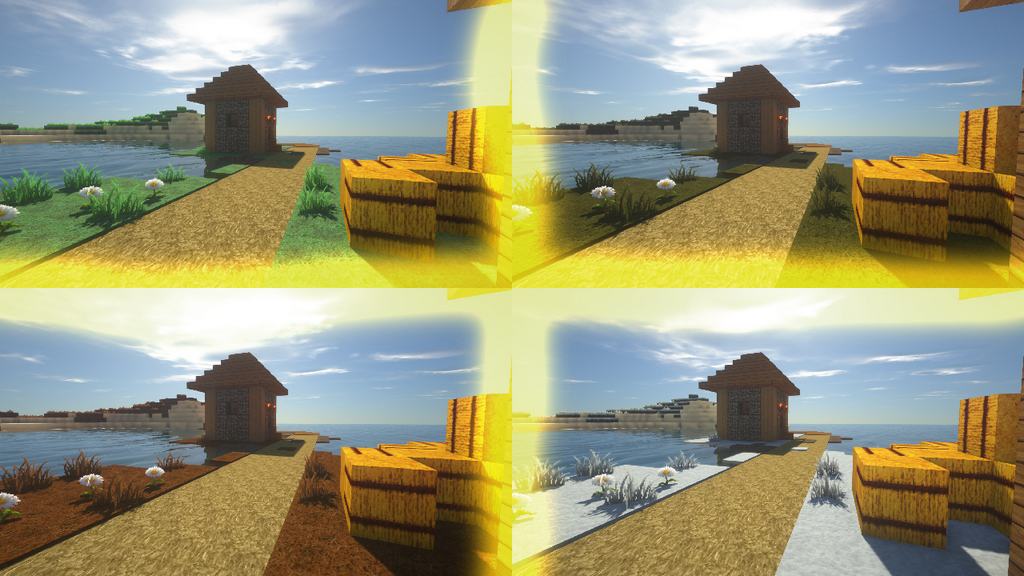
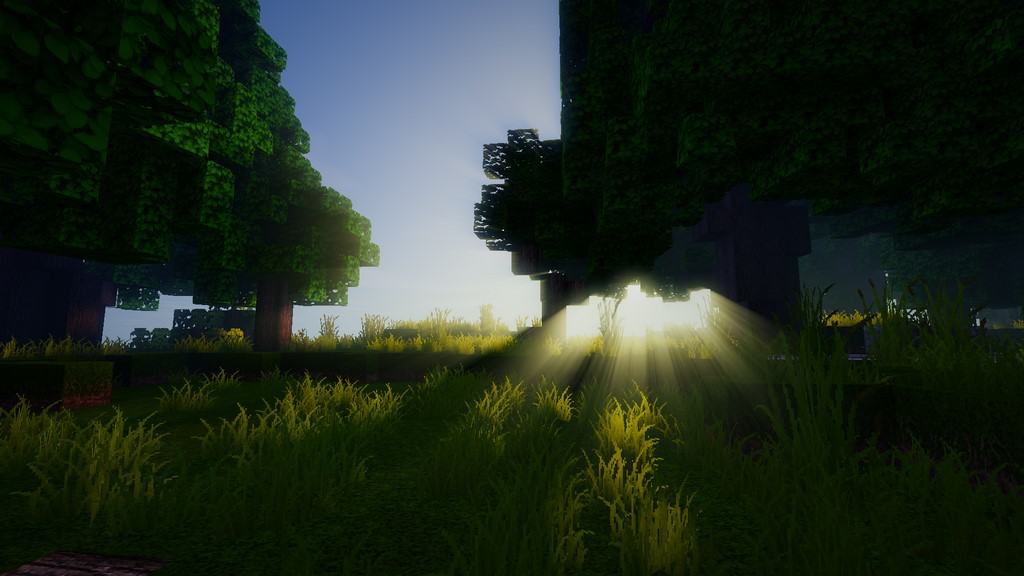

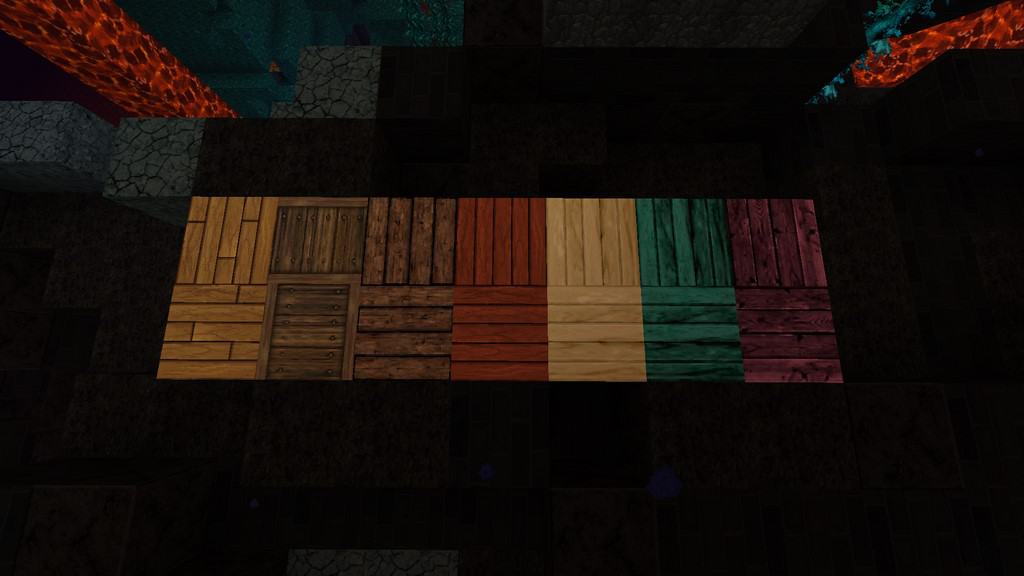
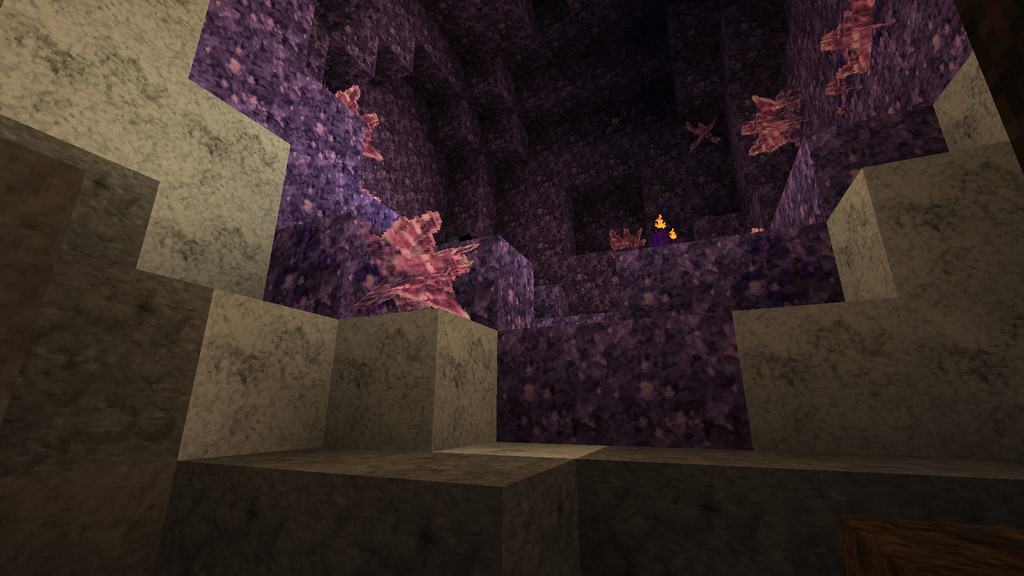


How to Install Texture Pack (Simple 10 Steps)
- Download OptiFine: Most of the texture packs and shaders need OptiFine. That’s why, first download and install OptiFine for the version of Minecraft you want to play.
- Download the Texture Pack: Get the texture pack you want from the download section. Choose the version that works with your Minecraft and your PC’s performance.
- Open Minecraft Launcher: Start Minecraft using the official game launcher — or even TLauncher, if you use that.
- Go to Options: From the main menu, click on the “Options” button.
- Open Resource Packs: Inside Options, click on “Resource Packs…”.
- Open the Resource Pack Folder: Click on “Open Resource Pack Folder” — this will open a folder named “resourcepacks”.
- Move the Pack File: Copy or move the .zip file you downloaded into that “resourcepacks” folder. (Don’t unzip the file — Minecraft uses it as-is!)
- Go Back and Refresh: Close the folder and click “Done”, then go back into “Resource Packs…” again.
- Activate the Pack: You’ll see the pack on the left side. Hover over it and click the arrow to move it to the right (active side).
Tip: If you get a message that the pack is for a different version, just click “Yes” — it usually works fine. - Click Done and Enjoy: Click “Done” again. Now your pack is ready to use in-game. It’s that easy!
Credits
This project was originally created by Honeyball, Merlinmo, ACGaming, and Loreon. We do not claim ownership of this content and do not modify the original files. Please visit the official creator pages to support their work.
Download Links
Java Edition
- [64x] Minecraft 1.21.x
- [64x] Minecraft 1.20.x
- [64x] Minecraft 1.19.x
- [64x] Minecraft 1.18.x
- [64x] Minecraft 1.17.x
- [64x] Minecraft 1.16.x
- [64x] Minecraft 1.15.x
- [64x] Minecraft 1.14.x
- [64x] Minecraft 1.13.x
- [64x] Minecraft 1.12.x
- [64x] Minecraft 1.11.x
- [64x] Minecraft 1.10.x
- [64x] Minecraft 1.9.x
- [64x] Minecraft 1.8.x
- OptiFine Addon
- Traditional Addon
- Seasons Addon
- Xmas Addon
- Basic Addon
Download Instructions
Curseforge: download starts automatically after a few seconds;
Mediafire: click the big blue button with the text “DOWNLOAD”;
Google Drive: in the top right corner you will see a small download icon (down arrow), click it and the download should start;