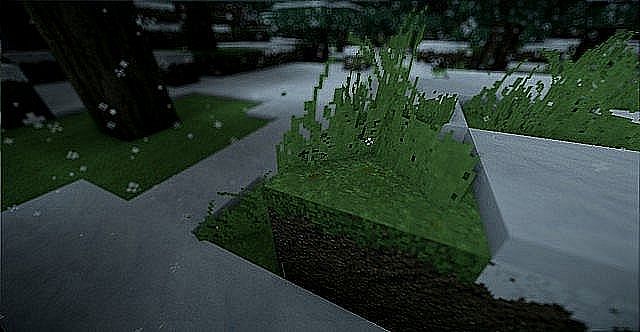
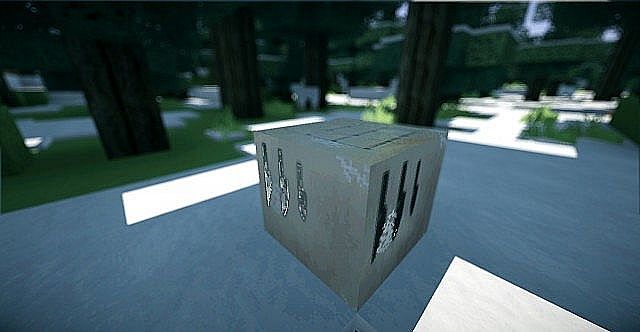
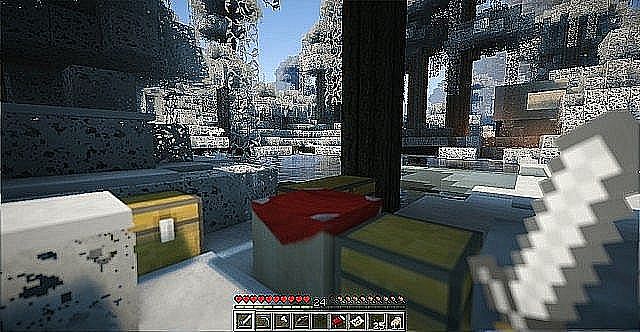
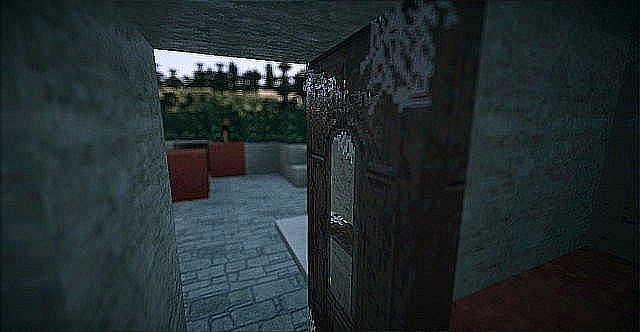
If we look back a decade ago, I remember that there simply were not a lot of resource packs that attempted to bring more realism to Minecraft. I was thrilled to discover that the Outdoorsy Realism resource pack is one of the absolute first ones to attempt to improve the textures in the game and upscale the resolution. It is now close to a decade old and I am amazed that it still remains a popular resource pack despite not being updated for several years. Because it has not been updated in a while, I found that the resource pack can be played on Minecraft versions 1.6.X and 1.7.X. Players like us who are running different versions will definitely need to switch to either of the two. I love how the resource pack moves away from the default 16x resolution of textures in Minecraft and gracefully steps up to 64x. By upscaling the resolution, I noticed there are now so many more delightful details on every single block or object in the game.
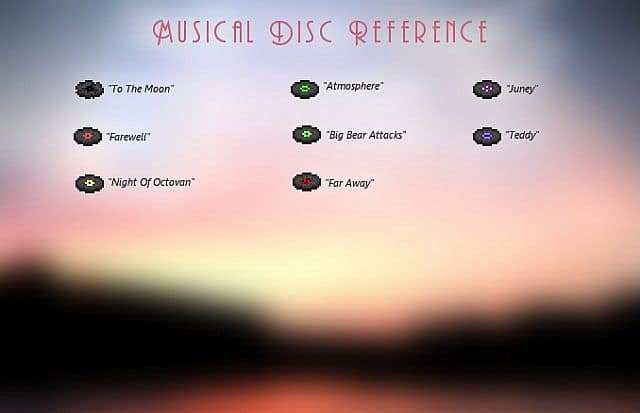
While not everything was changed, I noticed most of the textures in the game look remarkably more realistic. I really enjoy that the resource pack introduces new weapons, armors, new particle effects for water and water splash, atmospheric biomes, new rain, and thunder effects, along with many new textures for blocks and items. Some of the most interesting features of the resource pack that I found include improved villager textures that are now much more realistic. The original developer also worked on mobs and added a new slenderman skin that I think is both cool and terrifying. These visuals are just one part of the wonderful improvements that the Outdoorsy Realism resource pack brings to Minecraft. It also adds new music and new sound effects which totally set the mood. I also appreciate how it fiddles with the GUI and player HUD, making the inventory system much easier to manage. Best of all, the resource pack adds a refreshing new main menu screen and new icon textures to complete the whole experience.
Outdoorsy Realism should be compatible with all of these Minecraft versions: 1.7.10 – 1.7.9 – 1.7.4 – 1.7 – 1.6.4 – 1.6.2
Screenshots



How to Install Texture Pack (Simple 10 Steps)
- Download OptiFine: Most of the texture packs and shaders need OptiFine. That’s why, first download and install OptiFine for the version of Minecraft you want to play.
- Download the Texture Pack: Get the texture pack you want from the download section. Choose the version that works with your Minecraft and your PC’s performance.
- Open Minecraft Launcher: Start Minecraft using the official game launcher — or even TLauncher, if you use that.
- Go to Options: From the main menu, click on the “Options” button.
- Open Resource Packs: Inside Options, click on “Resource Packs…”.
- Open the Resource Pack Folder: Click on “Open Resource Pack Folder” — this will open a folder named “resourcepacks”.
- Move the Pack File: Copy or move the .zip file you downloaded into that “resourcepacks” folder. (Don’t unzip the file — Minecraft uses it as-is!)
- Go Back and Refresh: Close the folder and click “Done”, then go back into “Resource Packs…” again.
- Activate the Pack: You’ll see the pack on the left side. Hover over it and click the arrow to move it to the right (active side).
Tip: If you get a message that the pack is for a different version, just click “Yes” — it usually works fine. - Click Done and Enjoy: Click “Done” again. Now your pack is ready to use in-game. It’s that easy!
Credits
The Outdoorsy Realism Resource Pack was originally created and developed by Pauls777. We do not claim ownership of this content, nor do we host or modify the original files. All rights remain with the original creator, and we strongly encourage players to support Pauls777 by visiting their official platforms.
Download Instructions
Curseforge: download starts automatically after a few seconds;
Mediafire: click the big blue button with the text “DOWNLOAD”;
Google Drive: in the top right corner you will see a small download icon (down arrow), click it and the download should start;


