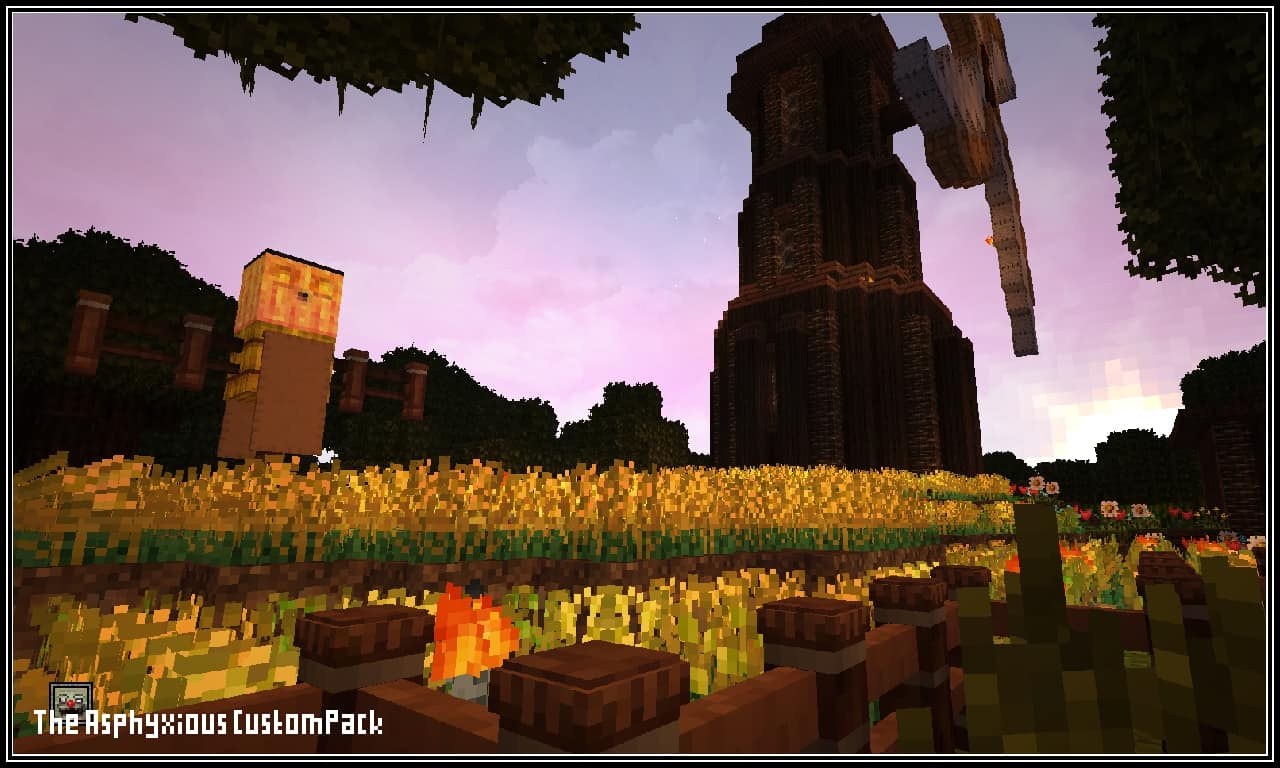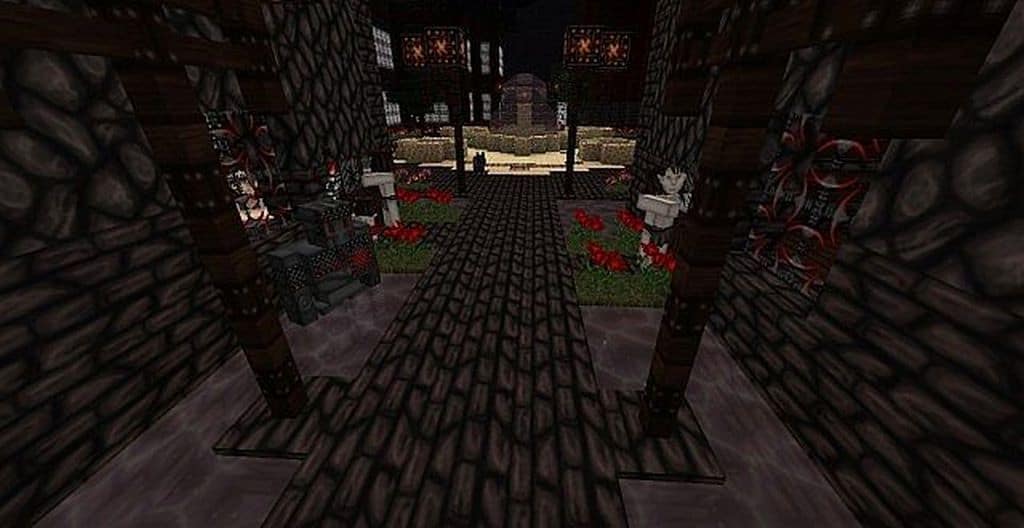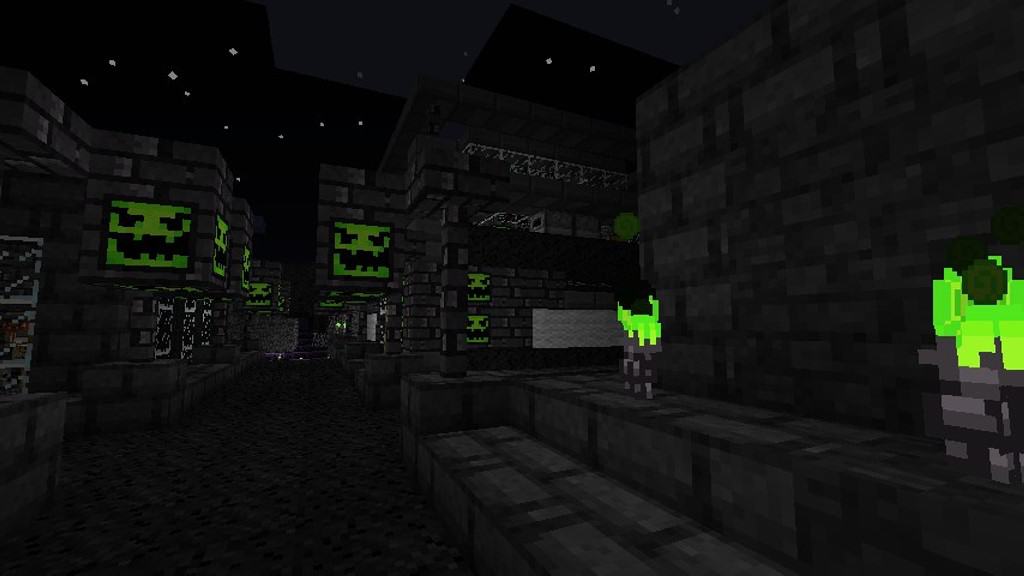
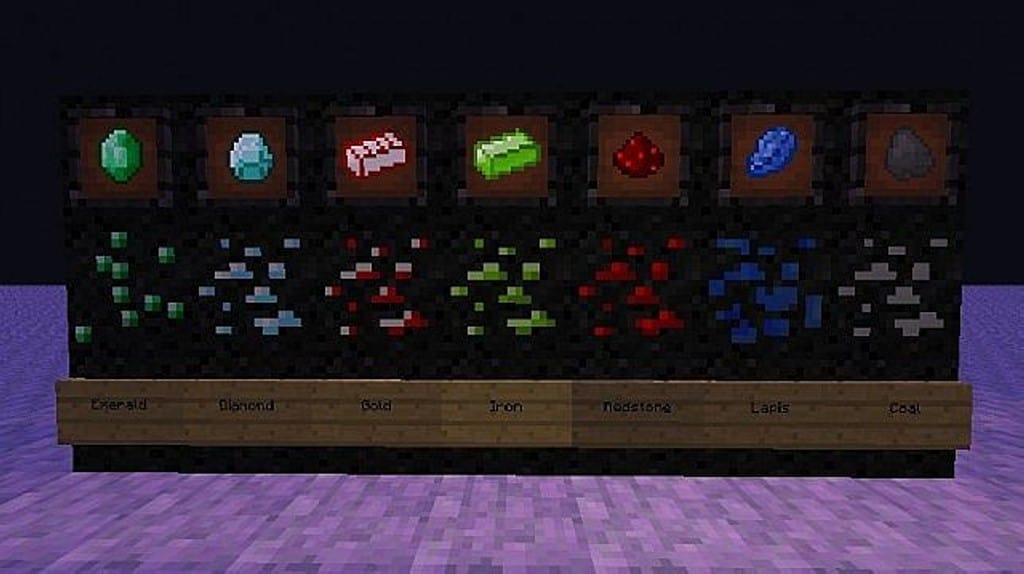
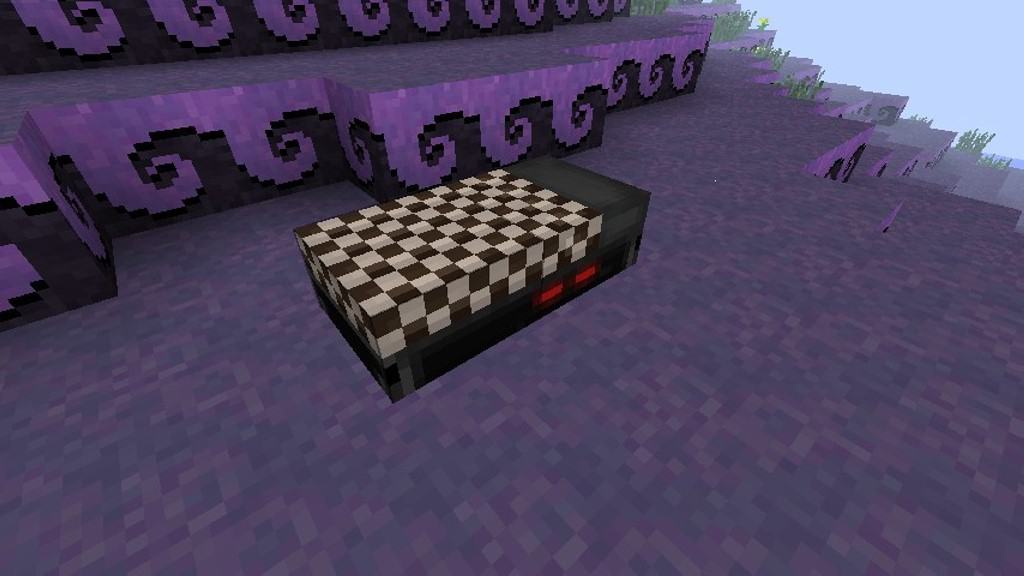
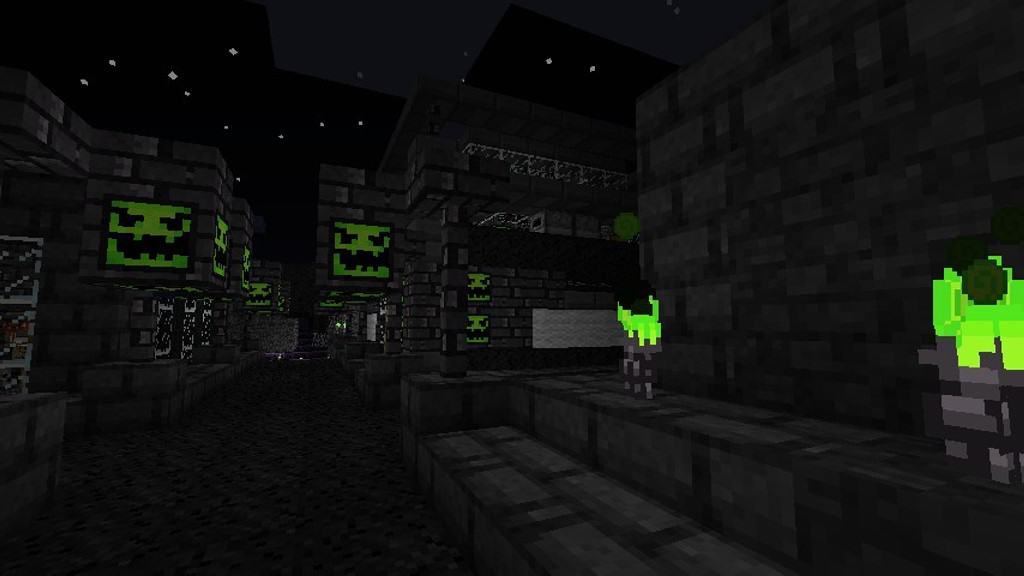
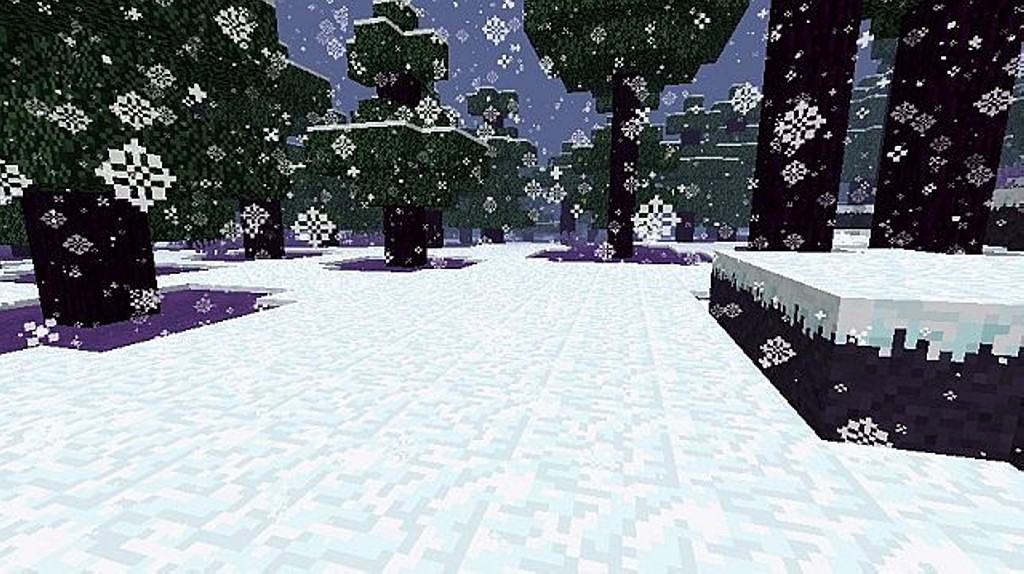
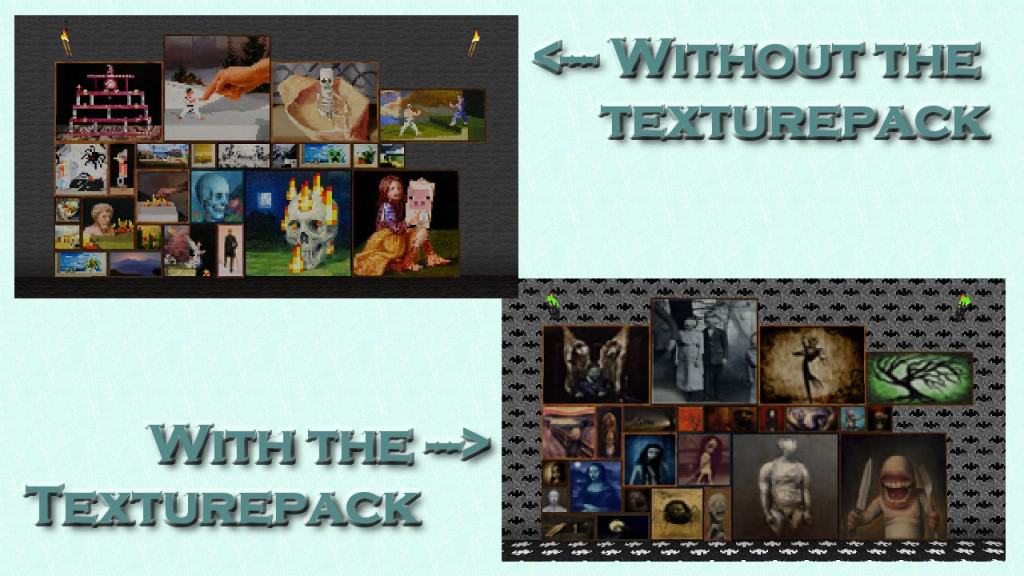
We have seen plenty of resource packs designed around the Christmas holiday, but while most of them lean heavily into a joyful and colorful aesthetic tailored for younger players, the Nightmare Before Christmas resource pack introduces a fascinating and completely new twist. It brilliantly combines elements you would normally expect to find in a Halloween-themed pack with a distinctly festive Christmas backdrop. The end result is a wonderfully dark holiday theme heavily inspired by the iconic film by Tim Burton that shares the exact same name. The developer, Jsoft, truly pushed their creative boundaries to build this unique Minecraft resource pack that thoroughly changes the traditional look of vanilla Minecraft. Best of all, this resource pack utilizes the exact same resolution as default vanilla Minecraft, meaning that by sticking to 16x textures, it has zero negative impact on your game performance. Players running older systems will be thrilled to know they can easily enjoy this pack without experiencing any technical issues at all. That being said, the pack looks even more incredible when paired with shaders that introduce a bit of motion blur, making your surrounding game world feel that much creepier and immersive. When you examine the visual overhauls closely, the texture pack introduces brand new textures for a wide variety of blocks, alongside entirely new items like spooky paintings, custom windows, eerie green flames and fire, Halloween pumpkins, darker-colored plants and flowers that look almost dead, and a massive assortment of other items to discover.
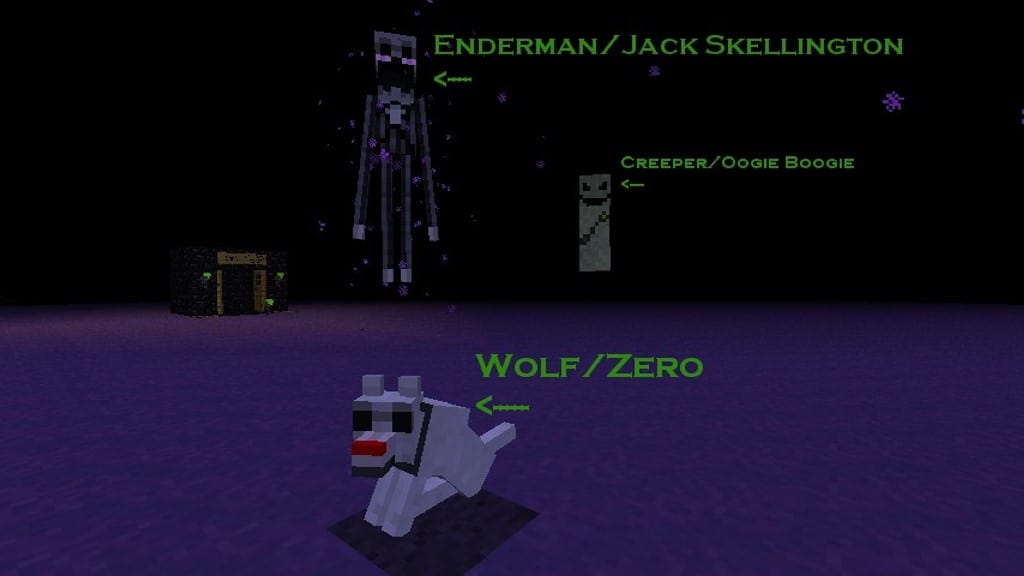
Beyond just the blocks and items, this wonderful resource pack also overhauls the mobs, introducing terrifying additions like a tall stick figure that heavily resembles Slenderman. On top of that, you get access to over 40 distinct player skins ranging from a skeleton Santa Claus to undead zombies, creepy scarecrows, and many other fantastic options. Despite receiving all of these incredible visual upgrades, this resource pack has only managed to gather a few tens of thousands of downloads since its initial release nearly a decade ago, and it certainly deserves a much wider audience. The Nightmare Before Christmas texture pack also thoughtfully touches upon gear like armor, weapons, and even customized particle effects. To properly accommodate these new weapons and armor pieces, the player HUD has been carefully tweaked to feature a darker, moodier color palette. Even the main menu has been entirely reworked to display much darker tones and an undeniably creepy vibe. All of these thoughtful changes, combined with the lightweight 16x resolution, make this pack exceptionally PvP friendly since it completely avoids requiring a heavy system to run smoothly at high and stable frame rates. Installing this pack alongside Optifine HD unlocks its full potential because it takes full advantage of Optifine’s special features, including custom sky textures, unique cloud designs, and a dramatically larger moon that fits the overarching theme seamlessly. While the pack runs wonderfully on its own without any additional modifications, we definitely recommend tossing in a good shader if you want to achieve that ultimate eerie, blurry aesthetic.
Nightmare Before Christmas should be compatible with all of these Minecraft versions: 1.10.2 – 1.10 – 1.9.4 – 1.9 – 1.8.9 – 1.8.8 – 1.8.1 – 1.8.6 – 1.8 – 1.7.10 – 1.7.9 – 1.7.4 – 1.7
Screenshots

How to Install Texture Pack (Simple 10 Steps)
- Download OptiFine: Most of the texture packs and shaders need OptiFine. That’s why, first download and install OptiFine for the version of Minecraft you want to play.
- Download the Texture Pack: Get the texture pack you want from the download section. Choose the version that works with your Minecraft and your PC’s performance.
- Open Minecraft Launcher: Start Minecraft using the official game launcher — or even TLauncher, if you use that.
- Go to Options: From the main menu, click on the “Options” button.
- Open Resource Packs: Inside Options, click on “Resource Packs…”.
- Open the Resource Pack Folder: Click on “Open Resource Pack Folder” — this will open a folder named “resourcepacks”.
- Move the Pack File: Copy or move the .zip file you downloaded into that “resourcepacks” folder. (Don’t unzip the file — Minecraft uses it as-is!)
- Go Back and Refresh: Close the folder and click “Done”, then go back into “Resource Packs…” again.
- Activate the Pack: You’ll see the pack on the left side. Hover over it and click the arrow to move it to the right (active side).
Tip: If you get a message that the pack is for a different version, just click “Yes” — it usually works fine. - Click Done and Enjoy: Click “Done” again. Now your pack is ready to use in-game. It’s that easy!
Credits
This resource pack was originally created and developed by jsoft. We do not claim ownership of this content, nor have we modified the original files. All rights remain with the original creator. We strongly encourage you to support jsoft and their work.
Download Instructions
Curseforge: download starts automatically after a few seconds;
Mediafire: click the big blue button with the text “DOWNLOAD”;
Google Drive: in the top right corner you will see a small download icon (down arrow), click it and the download should start;