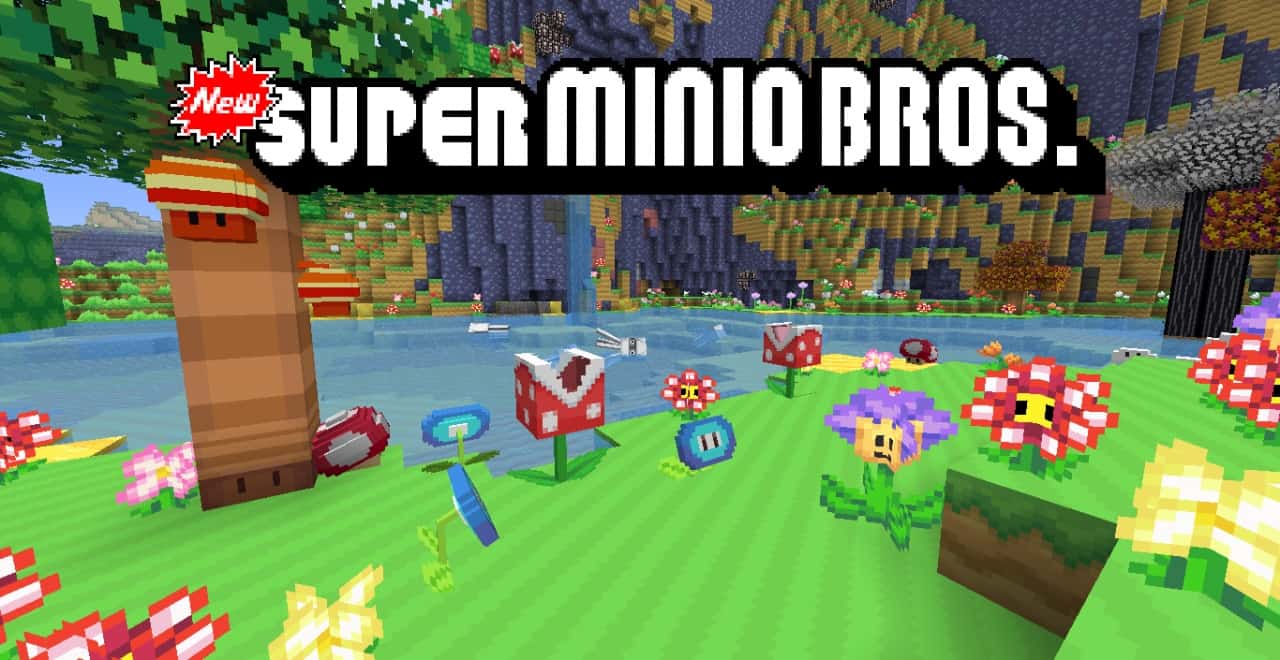
When you put it side-by-side with all those other Mario-themed packs that have gained massive popularity worldwide over the years, I really feel that the Super Minio Bros created by Drazile completely blows them out of the water in almost every single way. A major issue I usually find with traditional Minecraft packs is that they just aren’t as visually striking as you would hope, mostly because they try to mimic the somewhat dated look of old-school NES games. Thankfully, that is simply not the case with the New Super Minio Bros resource pack, which I found to be so much more charming and visually appealing than other options because its texture patterns take direct inspiration from modern Mario video games. As it turns out, the classic Minio Bros actually came before the Super Minio Bros. While both packs draw heavy inspiration from the legendary Mario series, there is a clear difference between them; the Super Minio Bros pack focuses heavily on contemporary Mario titles, whereas the original version was entirely based on vintage NES Mario games.
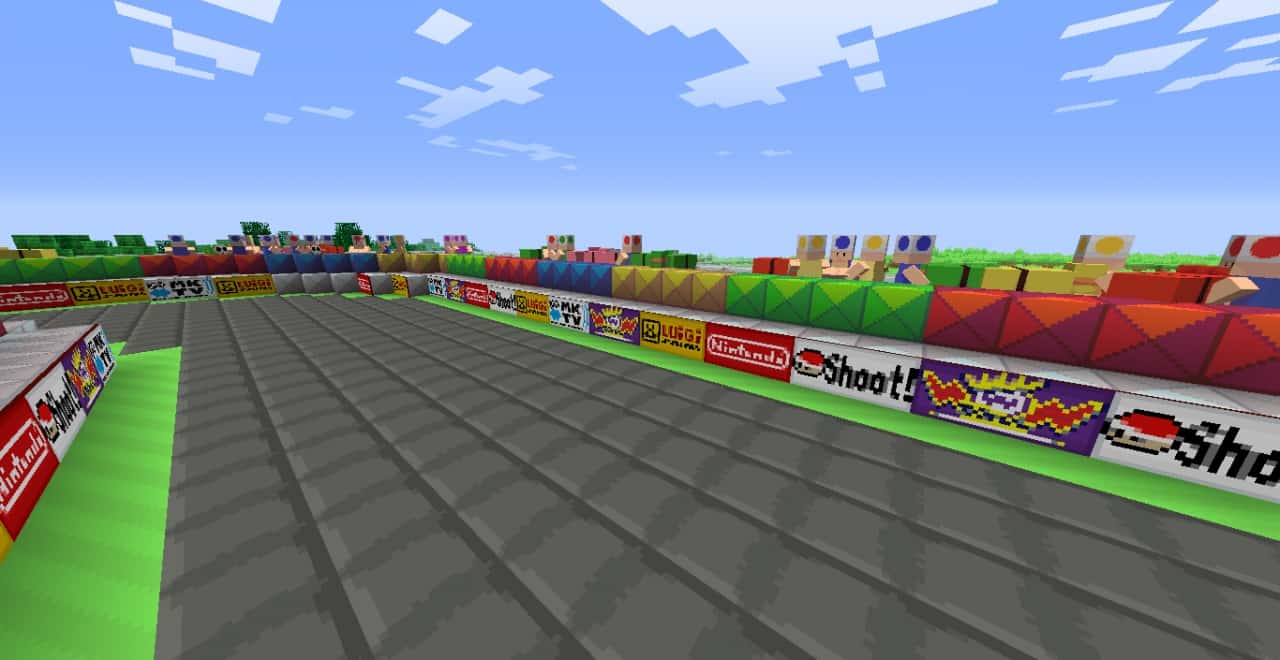
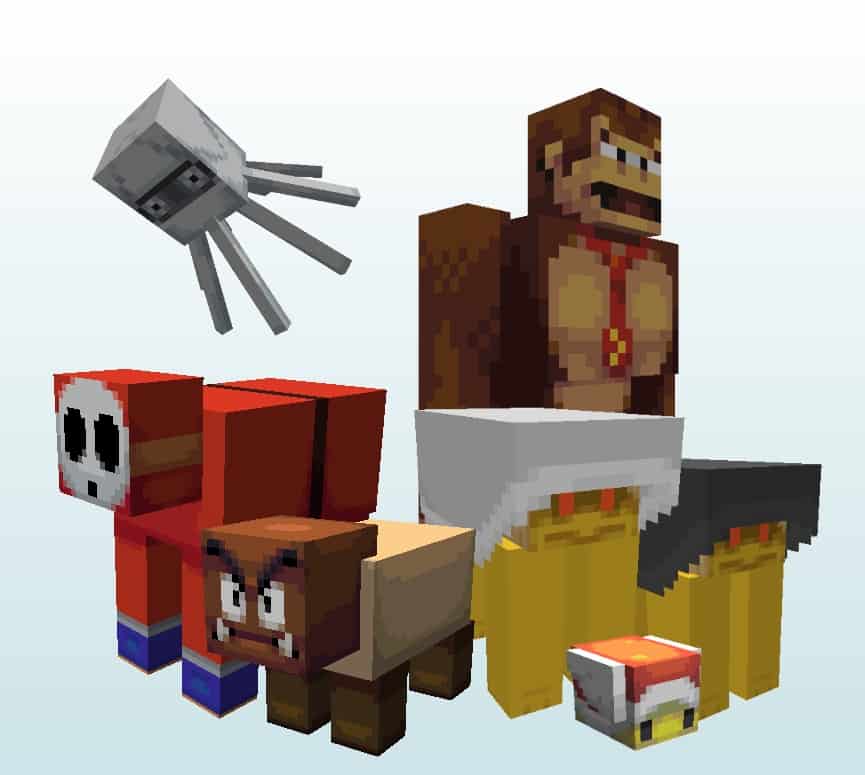
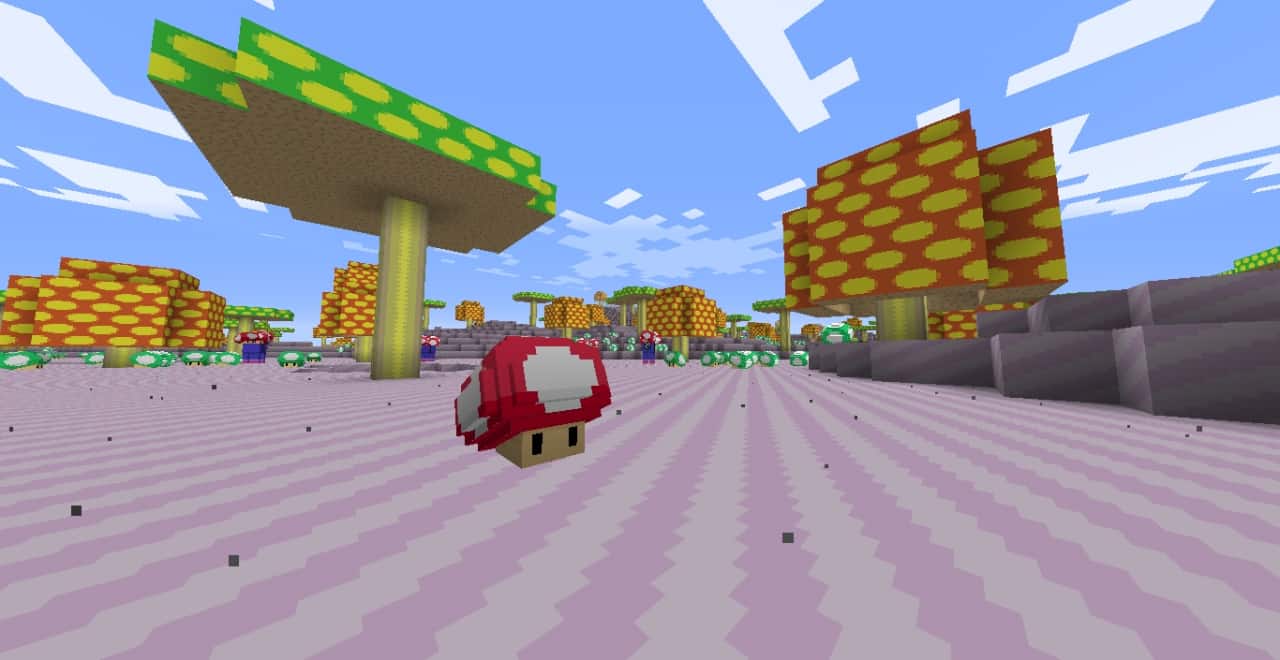
Personally, I was thrilled to discover that Super Minio Bros comes packed with an abundance of fabulous block designs, vibrant colors, iconic colorful mushrooms, and a ton of fun enemies to encounter. On top of all these amazing features, the pack also includes a wide variety of remarkable sound effects that feel completely authentic, sounding like they were ripped straight out of the phenomenal Mario games we all know and love. Of course, there is one minor trade-off with this Minio Bros pack that you should keep in mind—the textures aren’t overly intricate since the pack utilizes a standard 16×16 resolution rather than higher-end resolutions. However, I think a huge perk worth shouting out is that this low resolution allows players to dive right in and have a blast without experiencing any annoying frame-rate drops, making it run smoothly whether you are playing on a powerhouse gaming rig or a modest, low-end computer.
New Super Minio Bros. should be compatible with all of these Minecraft versions: 1.12.2 – 1.12 – 1.11.2 – 1.11 – 1.10.2 – 1.10
Screenshots
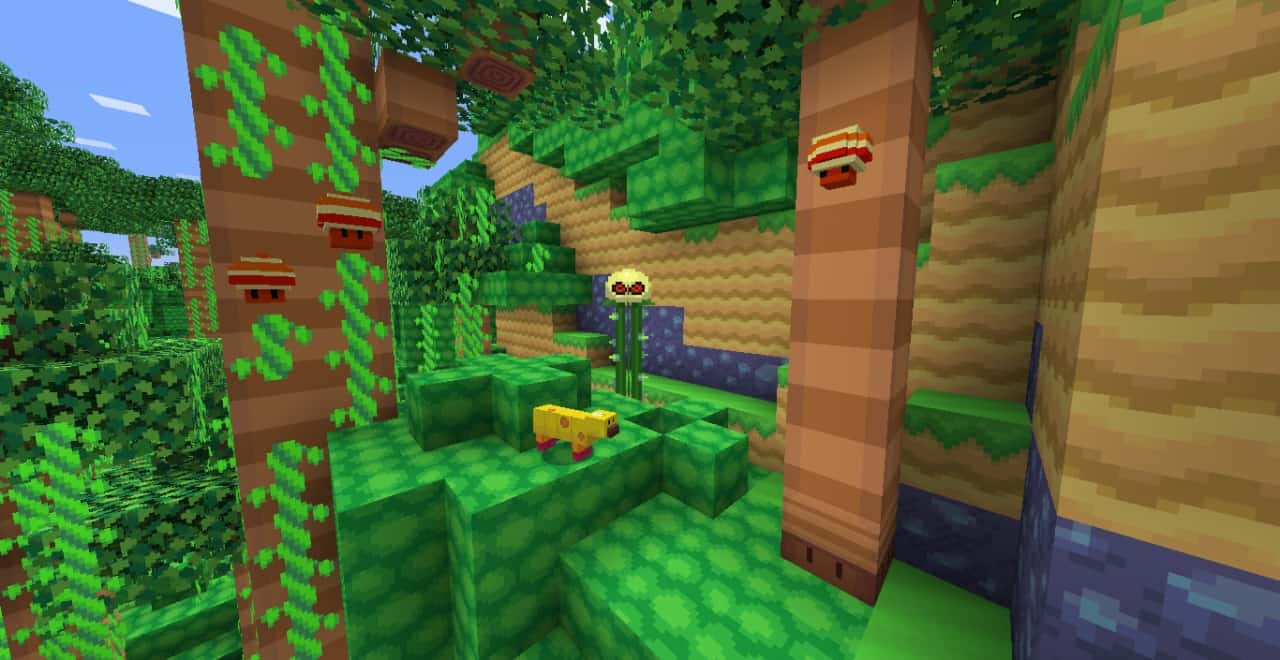
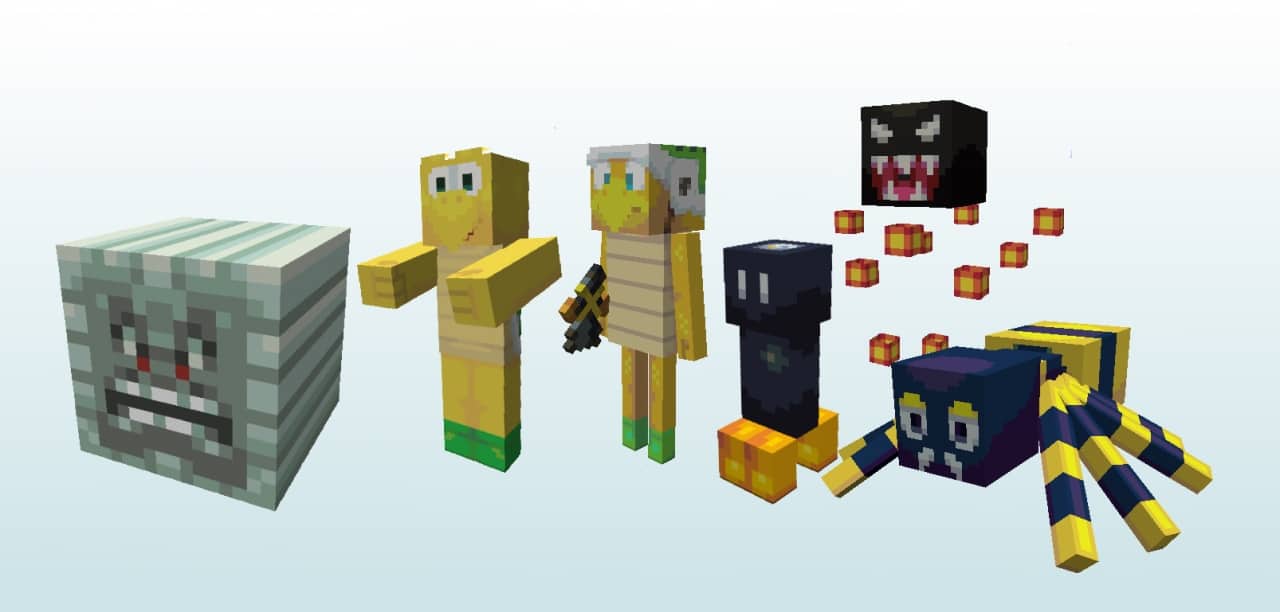
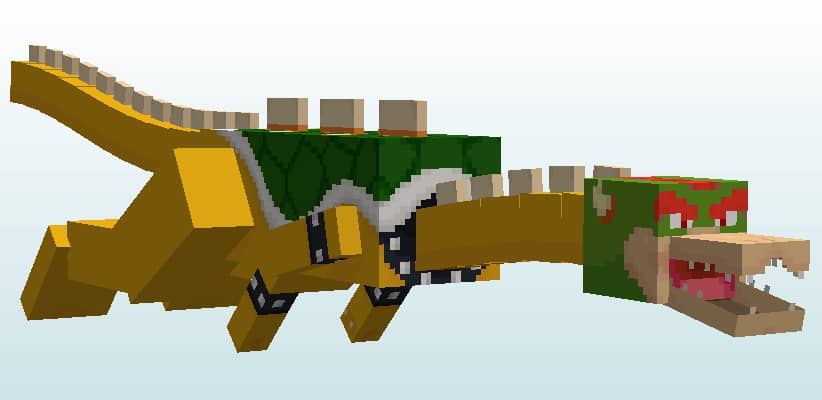

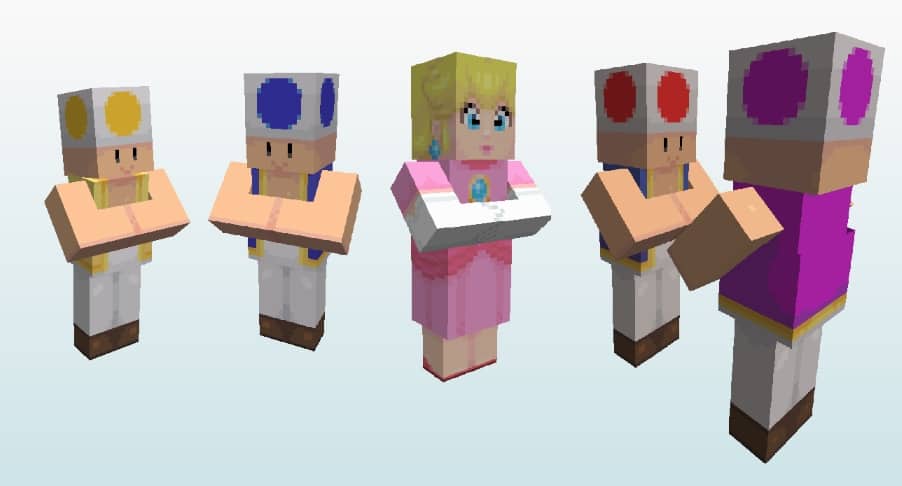
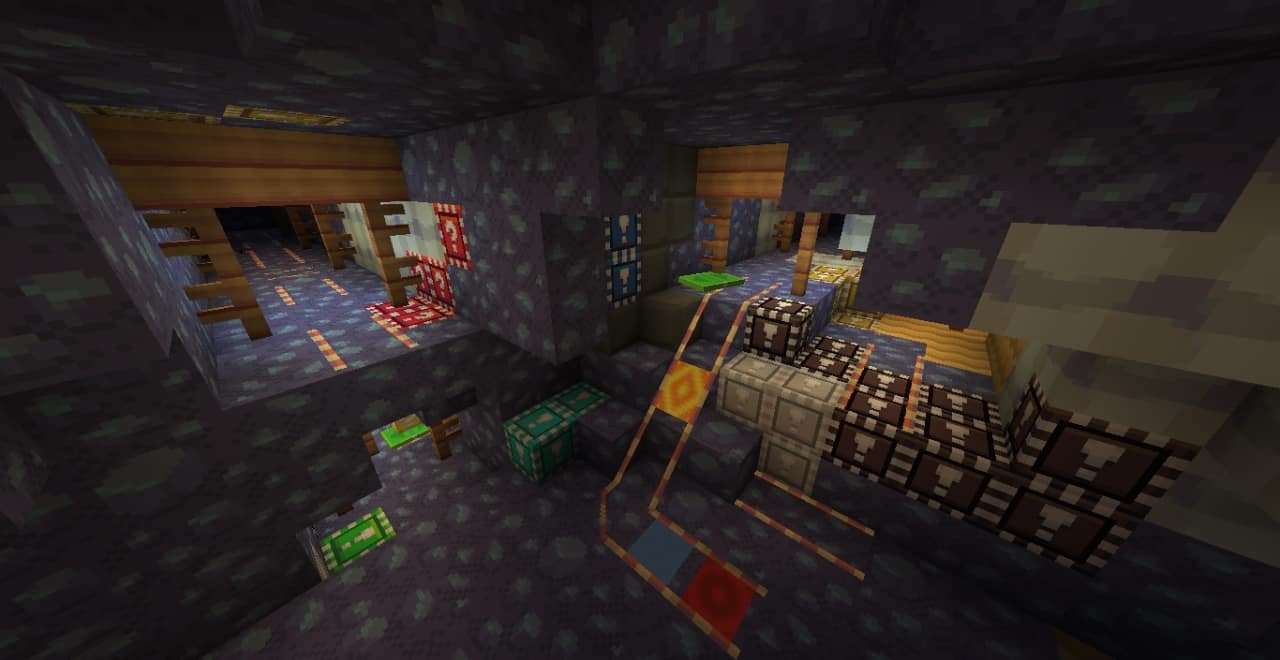
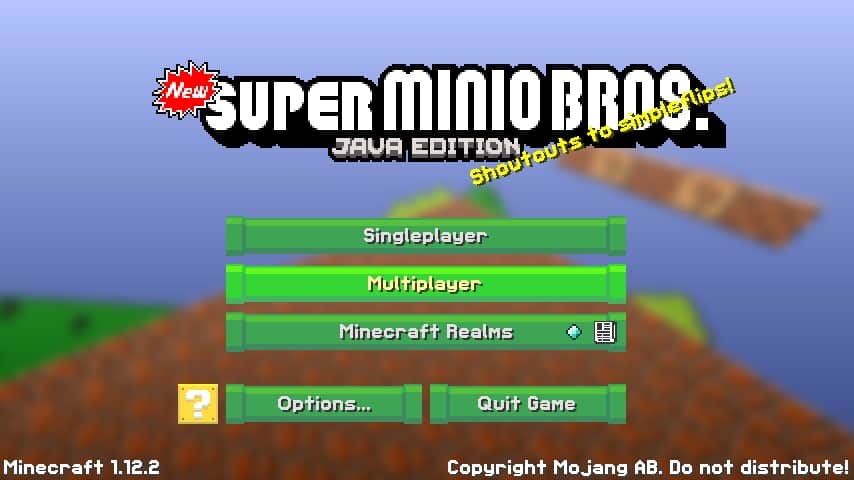
How to Install Texture Pack (Simple 10 Steps)
- Download OptiFine: Most of the texture packs and shaders need OptiFine. That’s why, first download and install OptiFine for the version of Minecraft you want to play.
- Download the Texture Pack: Get the texture pack you want from the download section. Choose the version that works with your Minecraft and your PC’s performance.
- Open Minecraft Launcher: Start Minecraft using the official game launcher — or even TLauncher, if you use that.
- Go to Options: From the main menu, click on the “Options” button.
- Open Resource Packs: Inside Options, click on “Resource Packs…”.
- Open the Resource Pack Folder: Click on “Open Resource Pack Folder” — this will open a folder named “resourcepacks”.
- Move the Pack File: Copy or move the .zip file you downloaded into that “resourcepacks” folder. (Don’t unzip the file — Minecraft uses it as-is!)
- Go Back and Refresh: Close the folder and click “Done”, then go back into “Resource Packs…” again.
- Activate the Pack: You’ll see the pack on the left side. Hover over it and click the arrow to move it to the right (active side).
Tip: If you get a message that the pack is for a different version, just click “Yes” — it usually works fine. - Click Done and Enjoy: Click “Done” again. Now your pack is ready to use in-game. It’s that easy!
Credits
This resource pack was created by Drazile. We do not claim ownership of this content, nor have we modified the original files. All rights remain with the original author, and we strongly encourage supporting the creator by downloading from their official links.
Download Instructions
Curseforge: download starts automatically after a few seconds;
Mediafire: click the big blue button with the text “DOWNLOAD”;
Google Drive: in the top right corner you will see a small download icon (down arrow), click it and the download should start;


