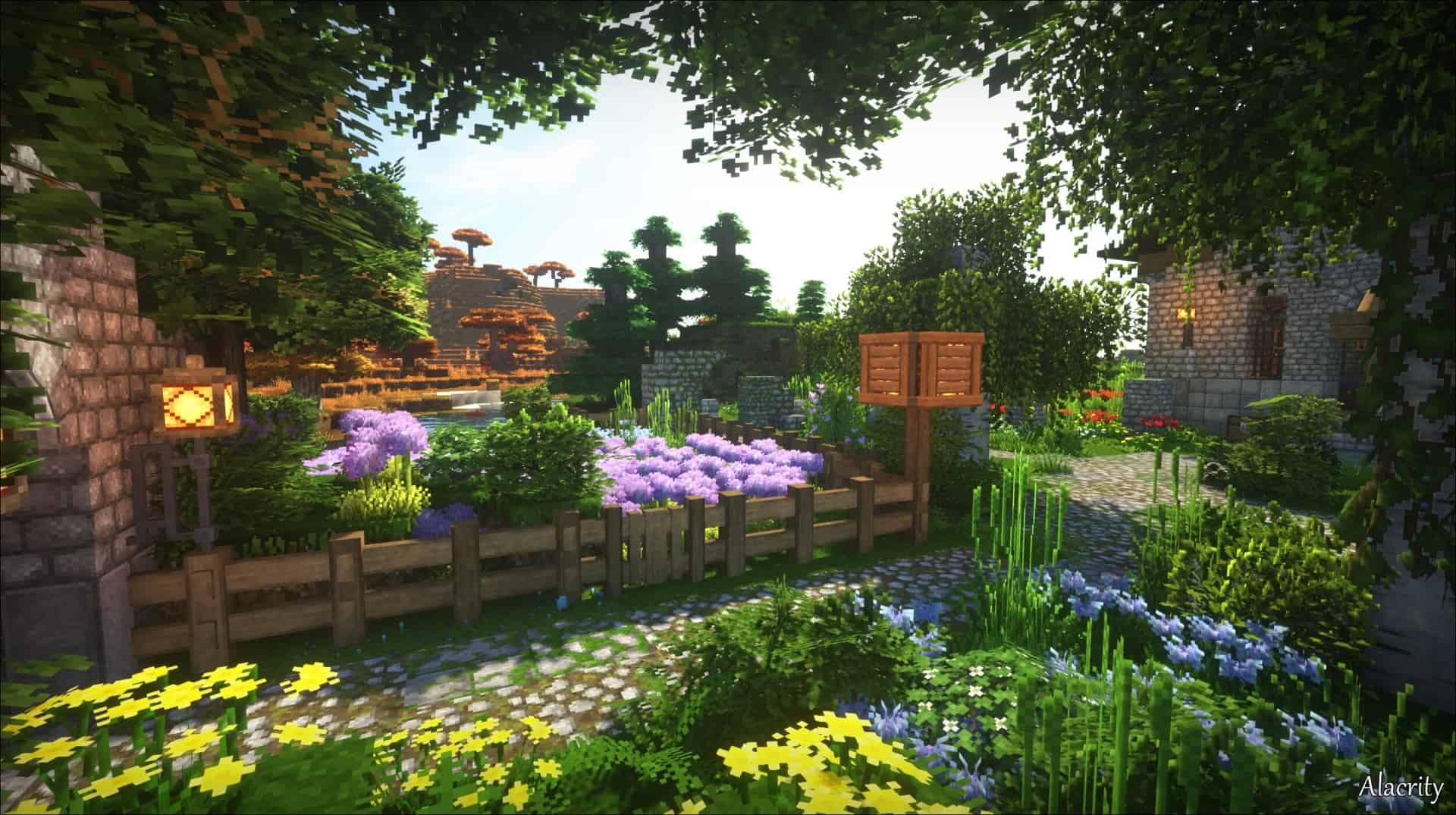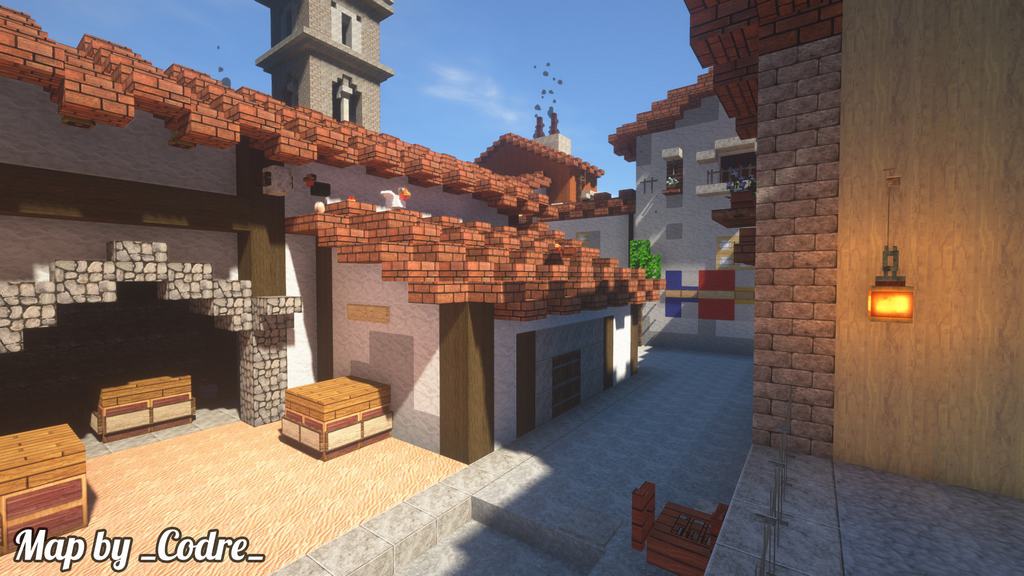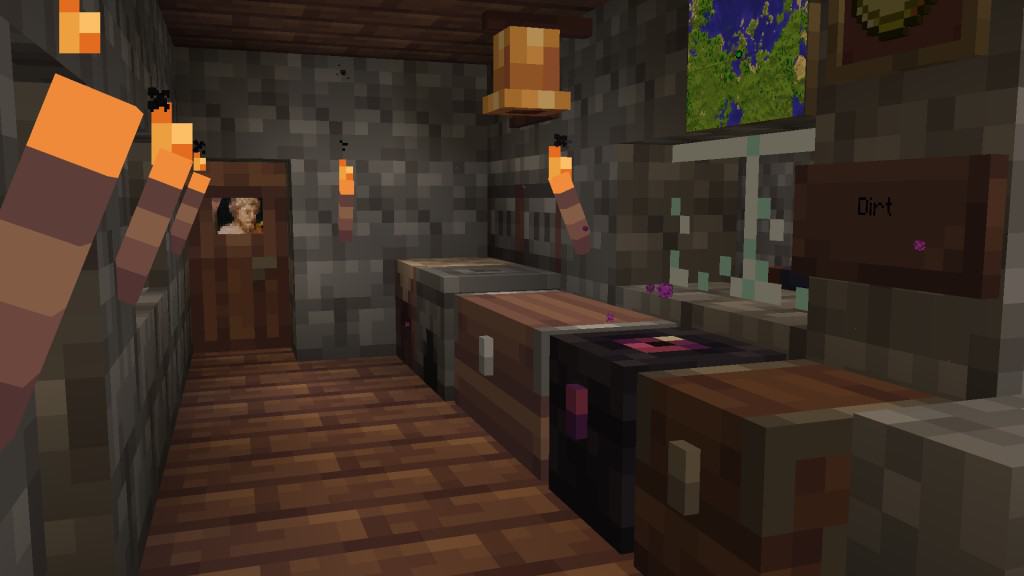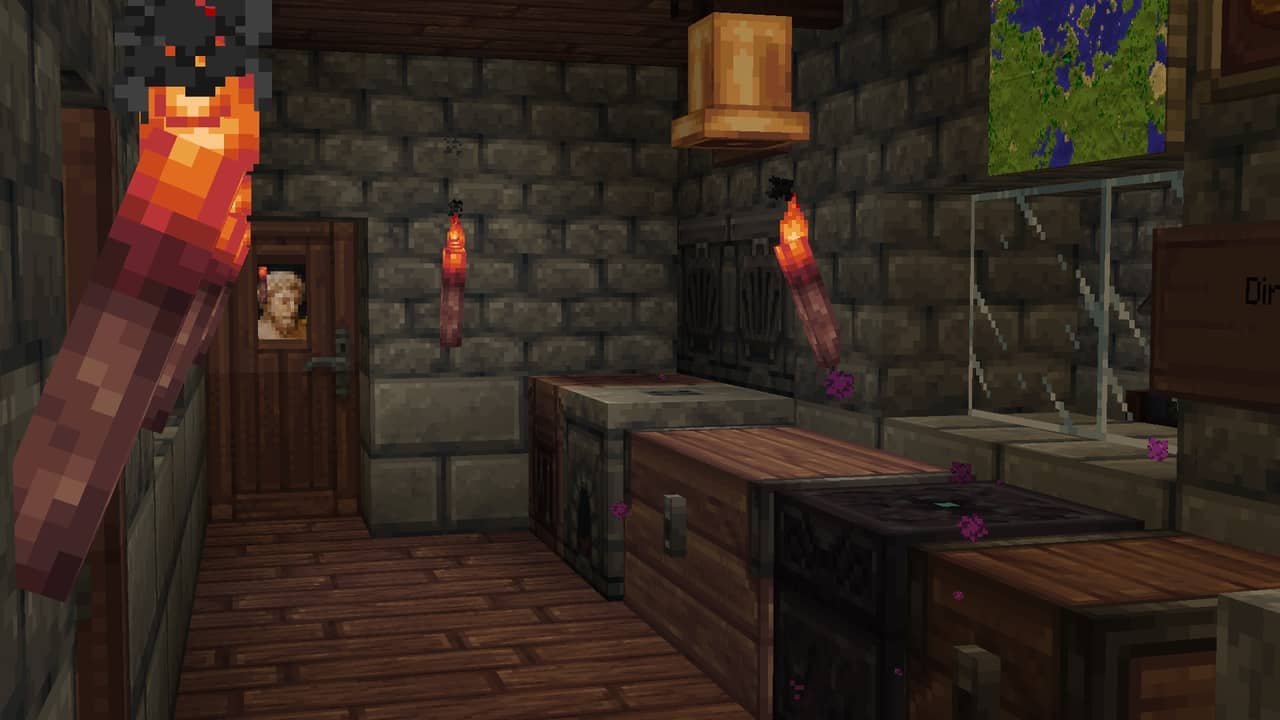
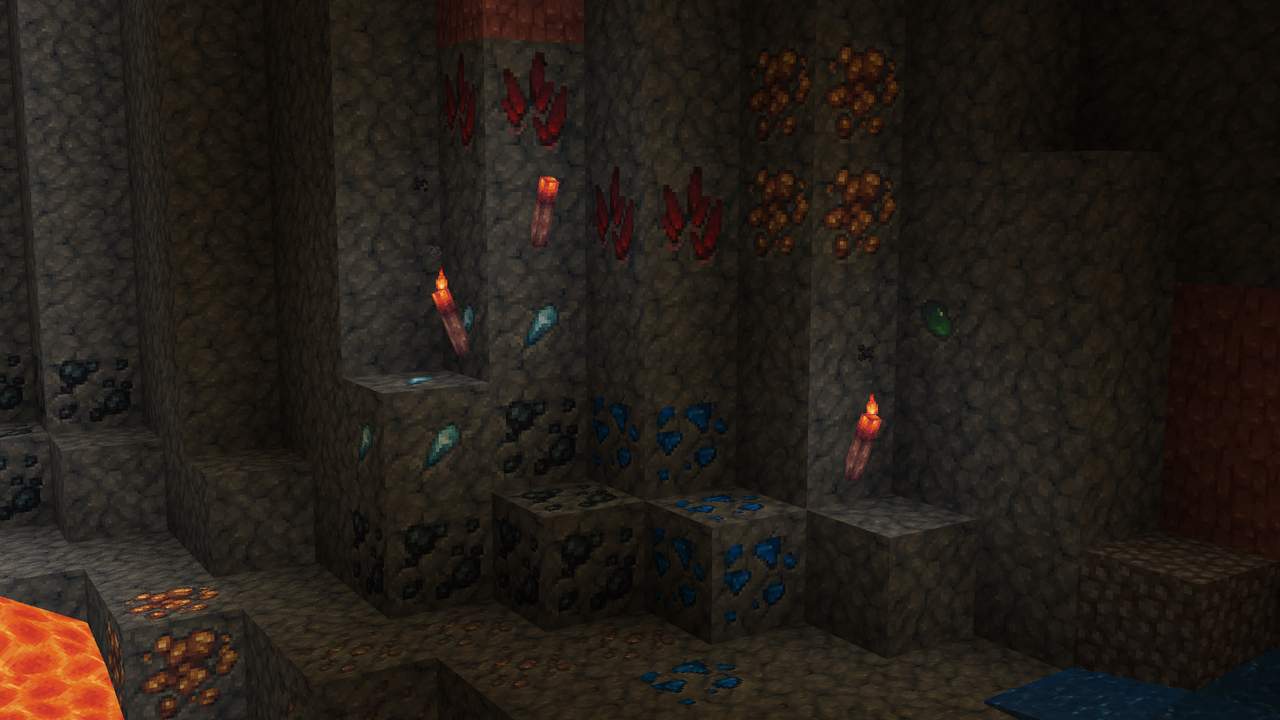
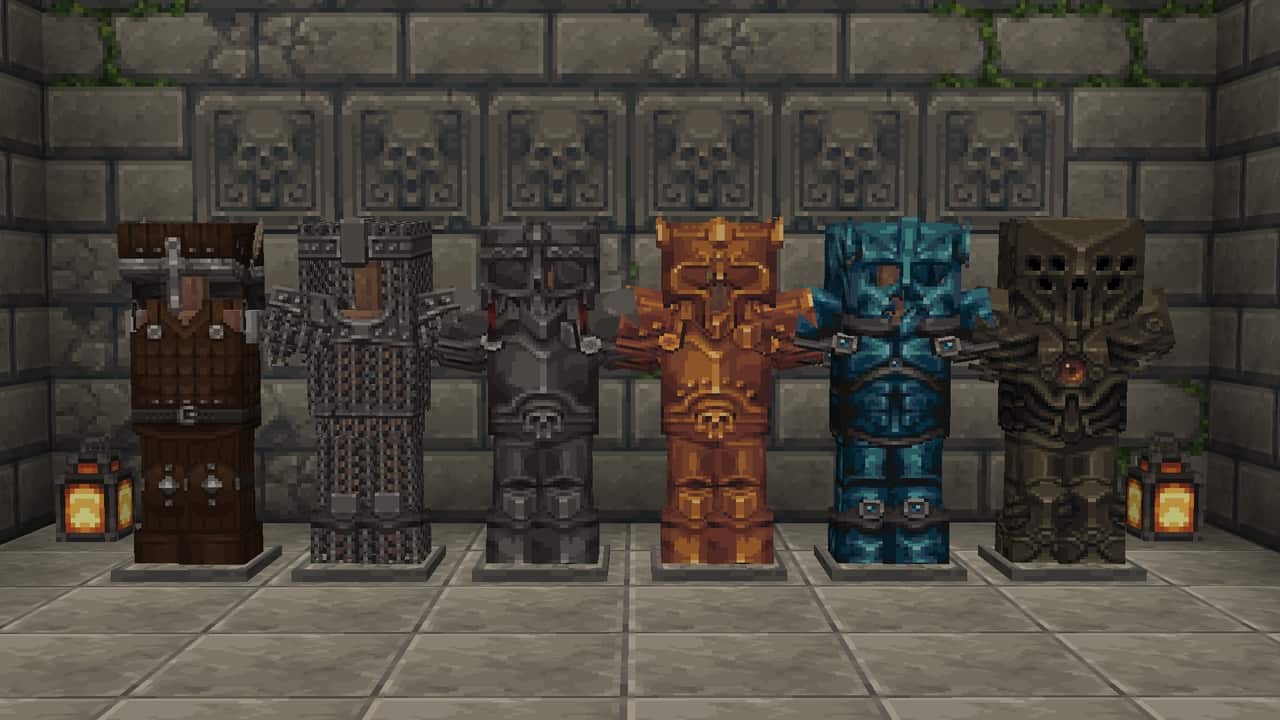
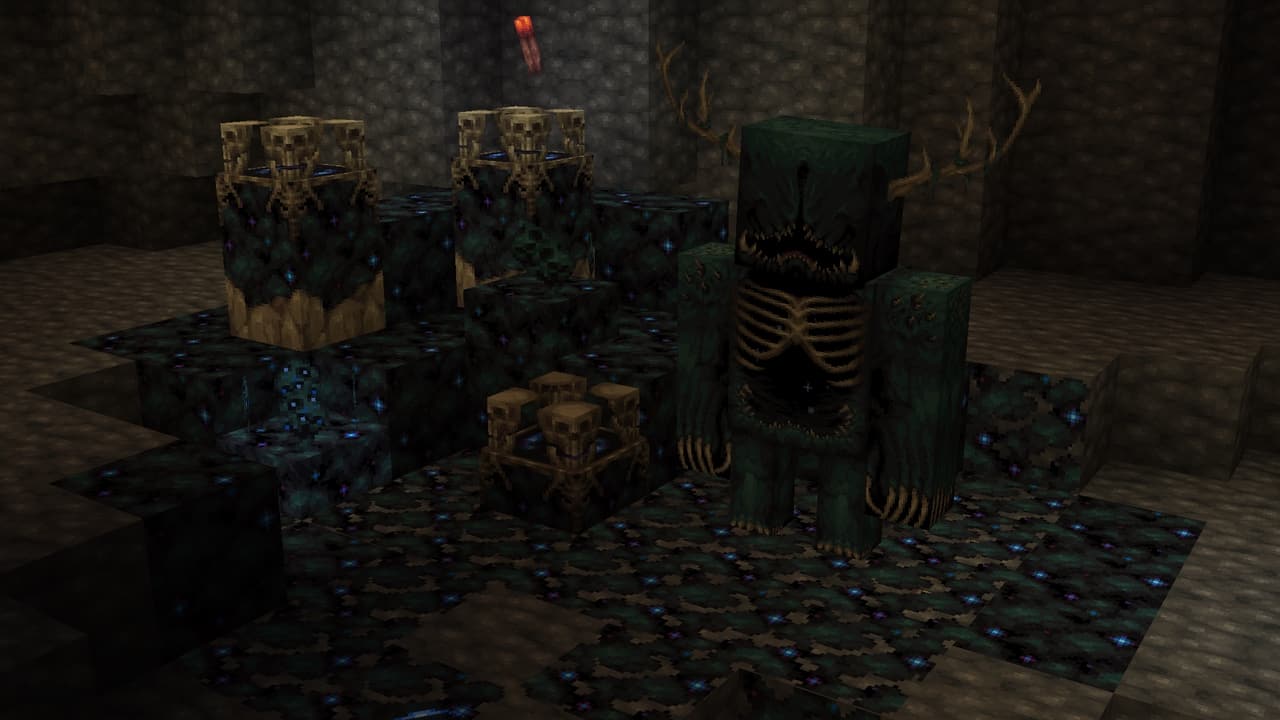
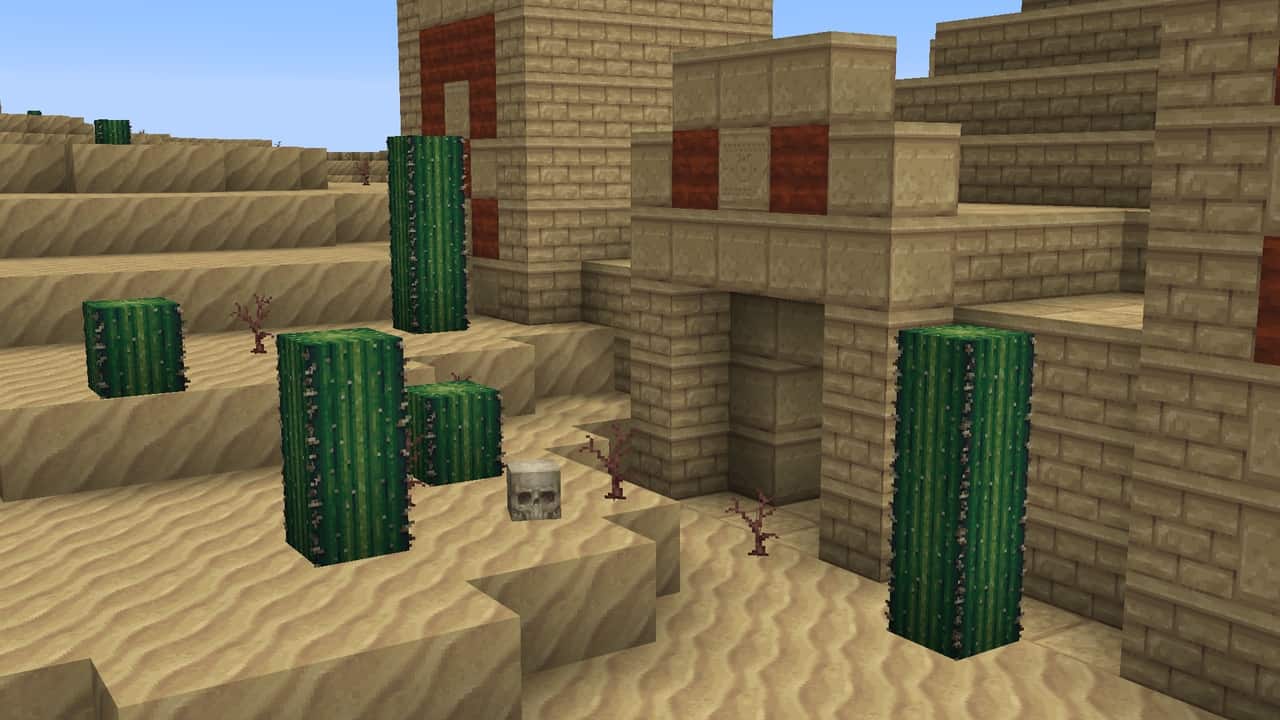
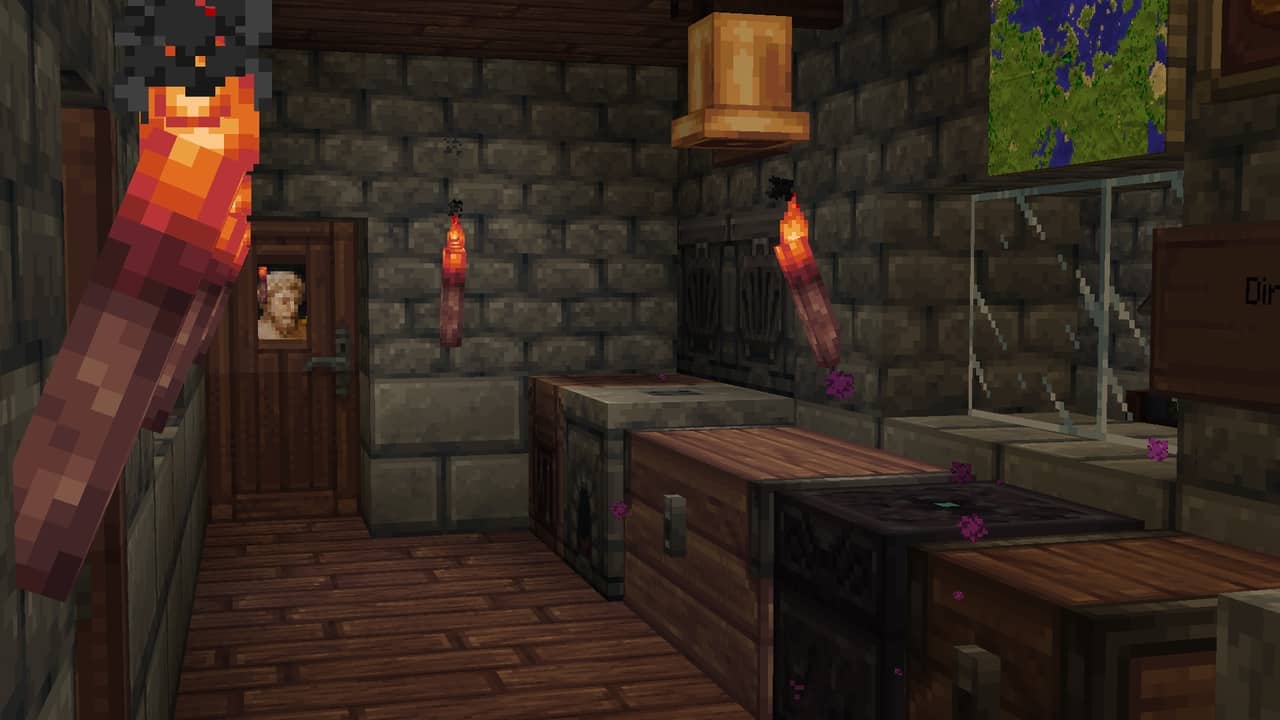
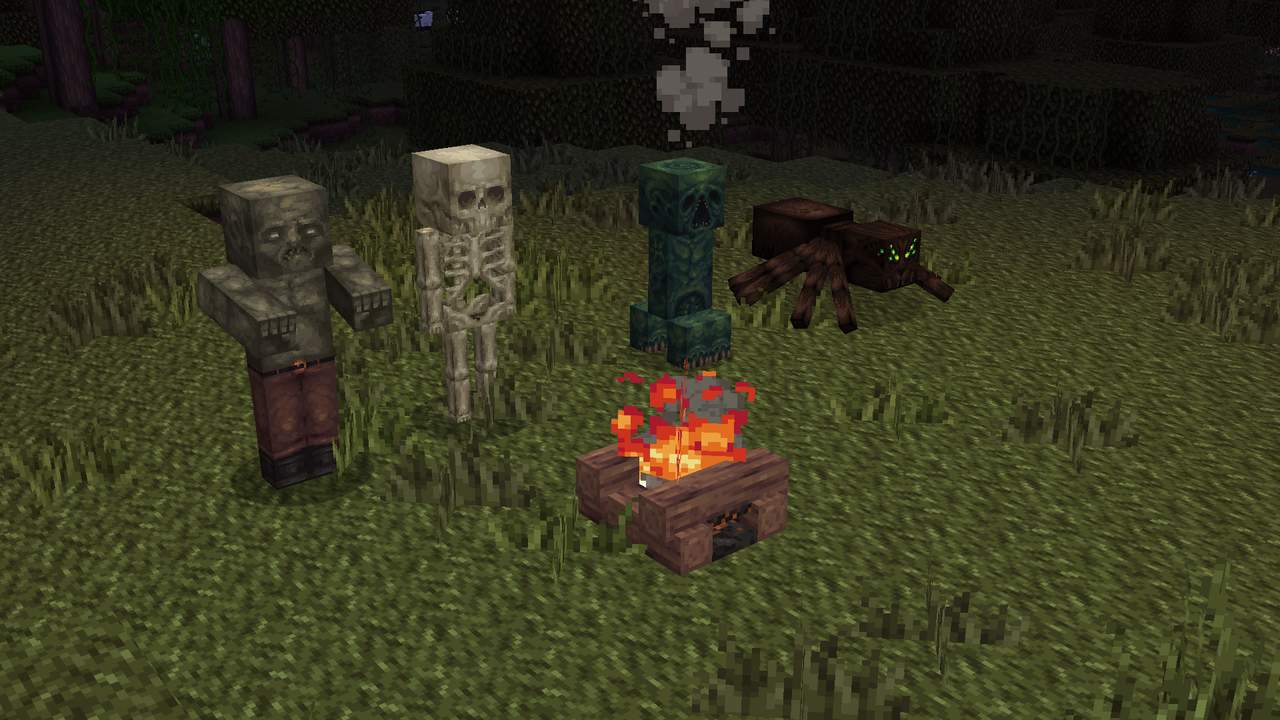
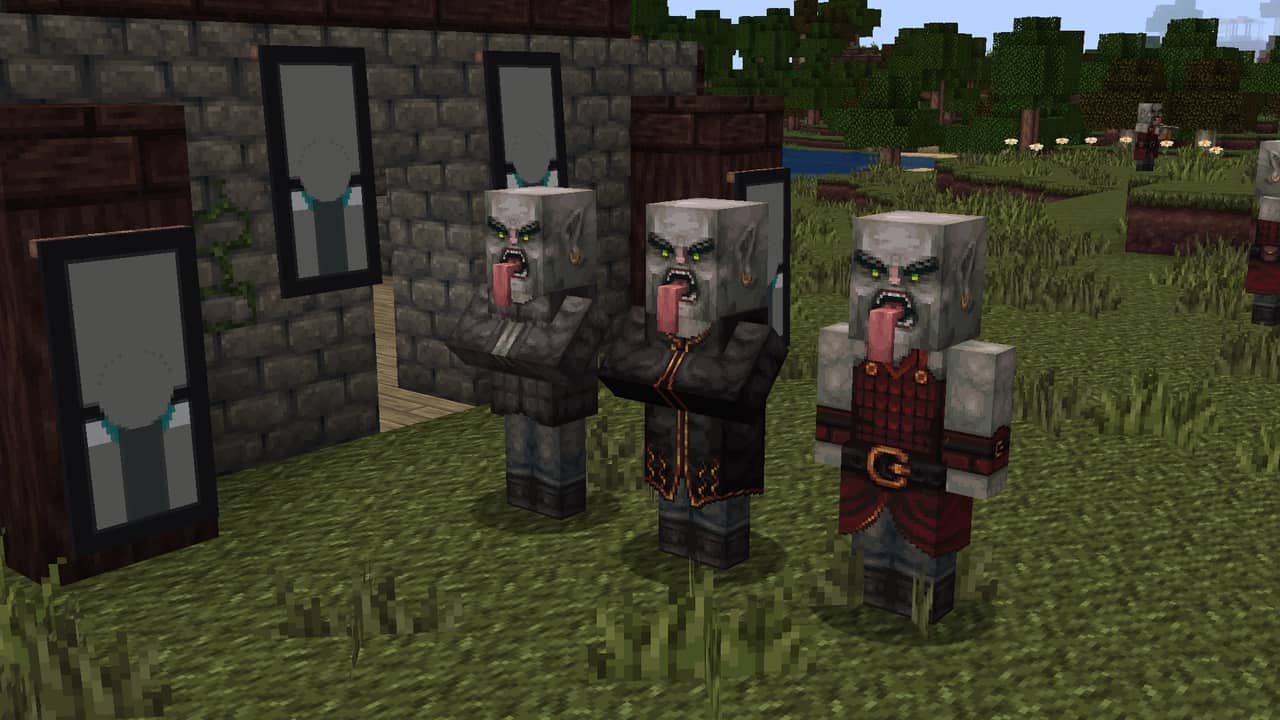
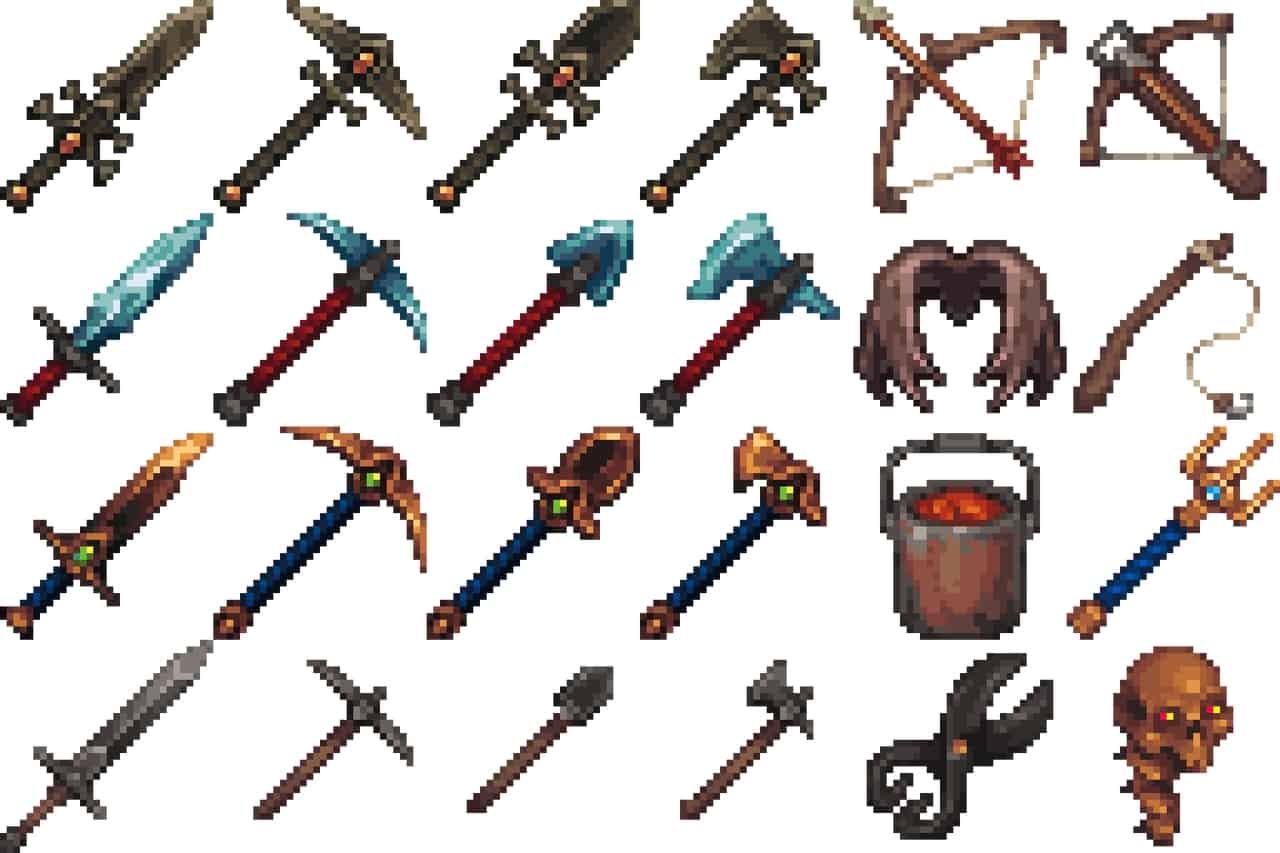
Mythic is a fantastic, high-quality resource pack focused mainly on pixel themed art, and I found it offers an impeccable visual experience that can truly turn your Minecraft into a fun and nostalgic style of games. Nowadays, most of the Minecraft resource packs are either based on extreme reality or built to provide gamers with a simple and seamless visual experience, but playing with this was an absolute treat to my eyes and this is the sole reason a resource pack such as Mythic is undoubtedly a great addition to Minecraft’s collection of resource packs. In case you are looking for something out of the box, then I highly recommend and suggest giving the Mythic texture pack a try; the Mythic resource pack is entirely based on a pixel themed artistic experience which is an absolute delight to your eyes.
By cleverly combining pixel styles with an extraordinary style of RPG, Mythic provides gamers with an immersion that will leave them spellbound. The visuals of this texture pack do not include overly complex information, however, I found that this is never a problem when you look at the wonderful overall package the pack provides. I have to give a huge shout out to the pack since the noise in its texture appears to be incredibly clean, which gives it a stylish and breathtaking look. Once we focus on the color patterns provided by the Mythic resource pack, we are quite impressed as the dark color palette makes the texture beautiful and gives a genuinely adventurous feel. The textures of this resource pack provide a friendly resolution of 32×32, meaning the pack will not require intense system requirements. If you own a system that is capable of handling vanilla Minecraft without running into issues, using this resource pack at stable frame rates will be much easier for you.
Mythic should be compatible with all of these Minecraft versions: 1.21.3 – 1.21.2 – 1.21.1 – 1.21 – 1.20.6 – 1.20.5 – 1.20.4 – 1.20.3 – 1.20.2 – 1.20.1 – 1.20 – 1.19.4 – 1.19.3 – 1.19.2 – 1.19.1 – 1.19 – 1.18.2 – 1.18.1 – 1.18 – 1.17.1 – 1.17 – 1.16.5 – 1.16.4 – 1.16.3 – 1.16.2 – 1.16.1 – 1.16 – 1.15.2 – 1.15.1 – 1.15 – 1.14.4 – 1.14.3 – 1.14.2 – 1.14 – Bedrock Edition – PE
Screenshots
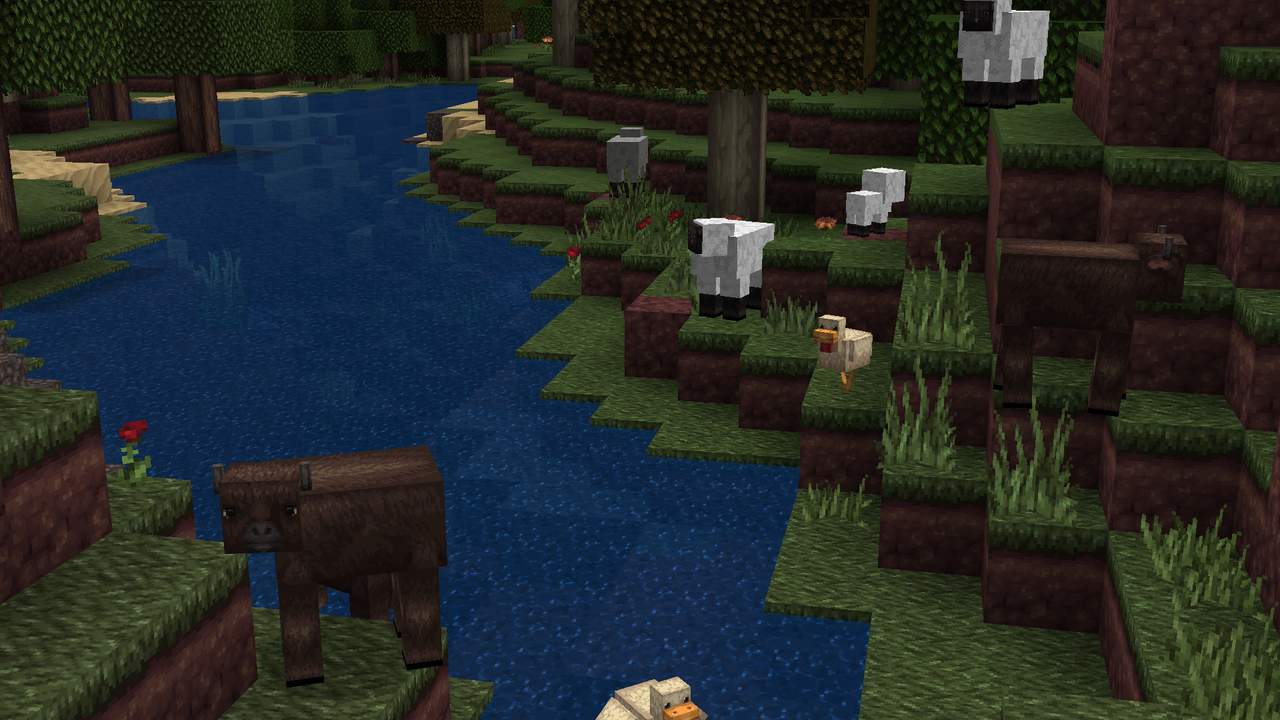
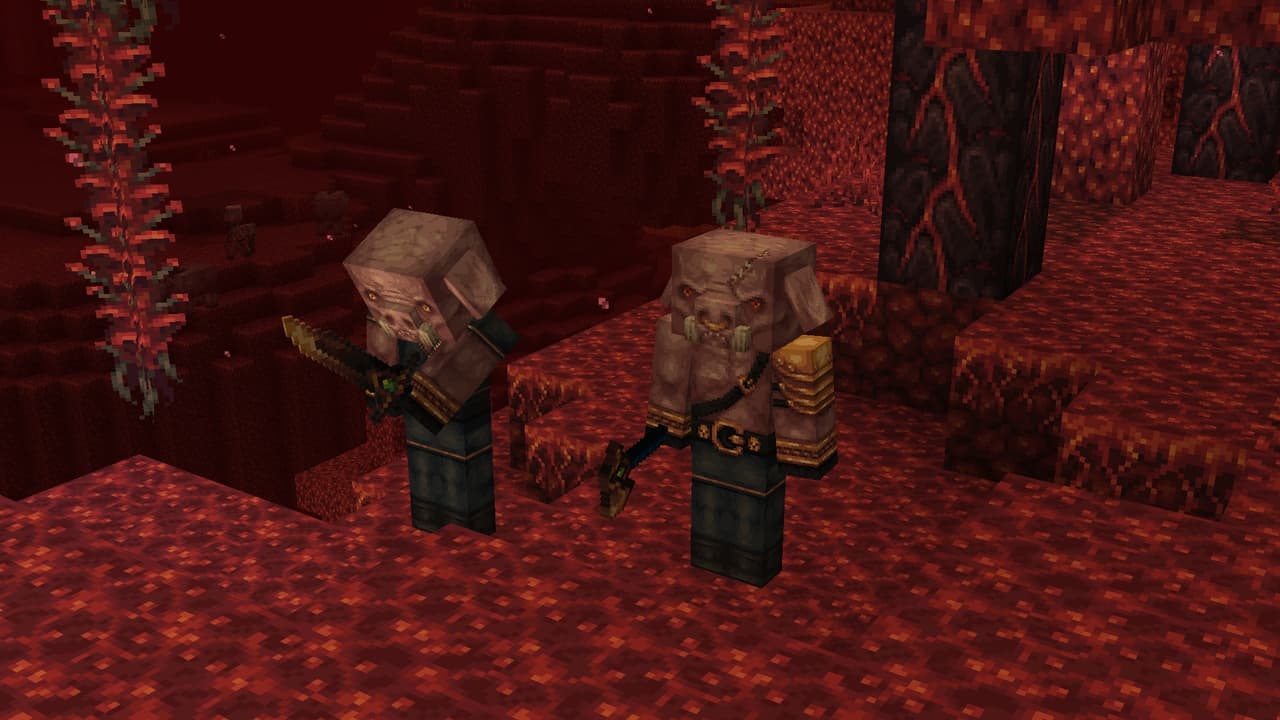
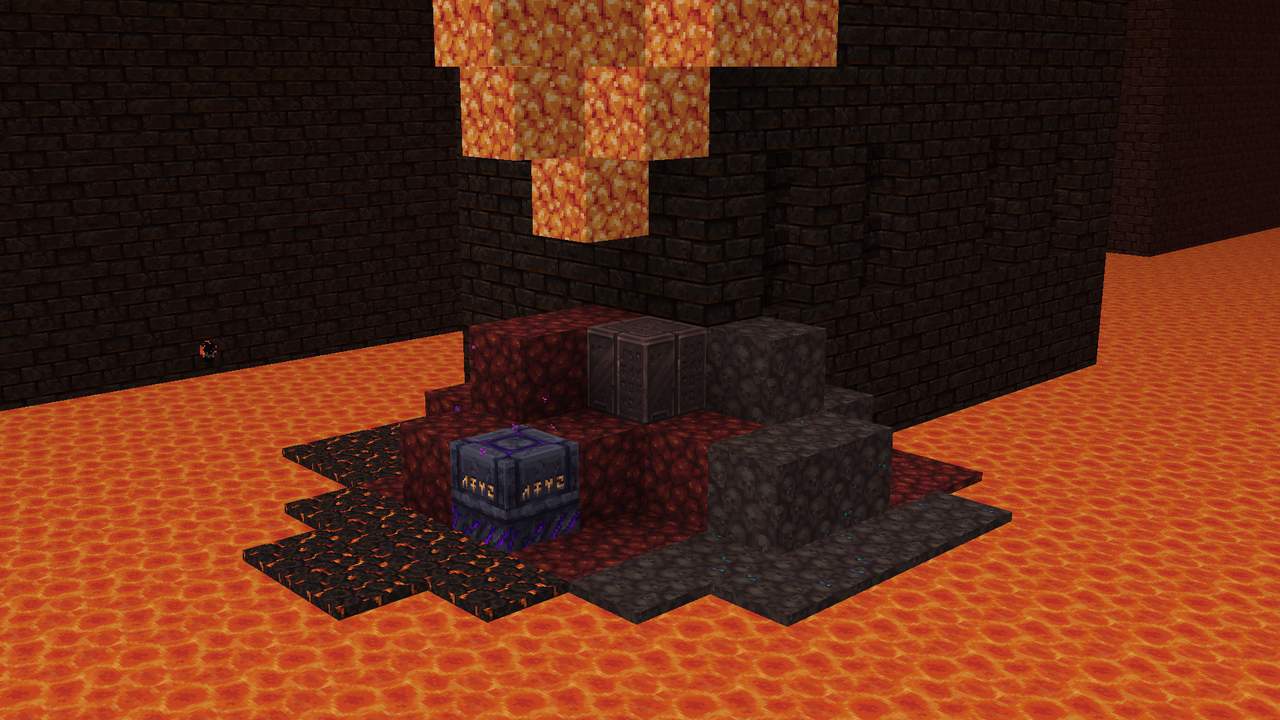

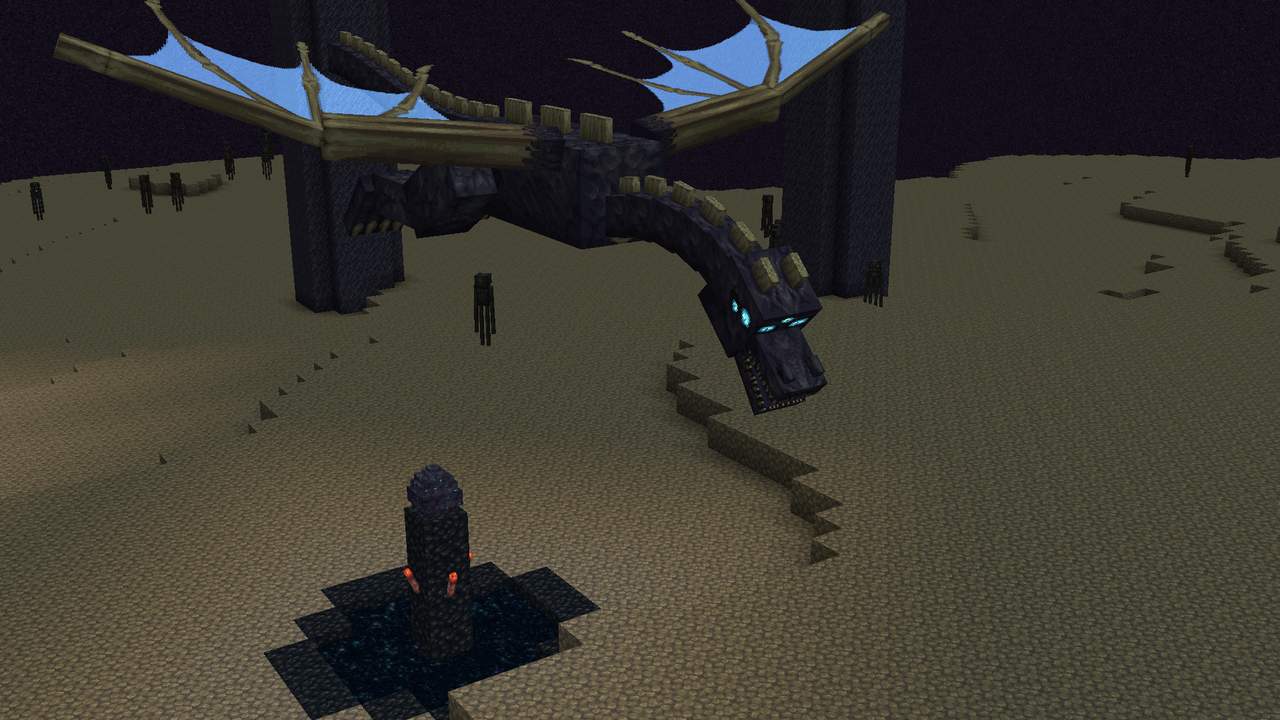

How to Install Texture Pack (Simple 10 Steps)
- Download OptiFine: Most of the texture packs and shaders need OptiFine. That’s why, first download and install OptiFine for the version of Minecraft you want to play.
- Download the Texture Pack: Get the texture pack you want from the download section. Choose the version that works with your Minecraft and your PC’s performance.
- Open Minecraft Launcher: Start Minecraft using the official game launcher — or even TLauncher, if you use that.
- Go to Options: From the main menu, click on the “Options” button.
- Open Resource Packs: Inside Options, click on “Resource Packs…”.
- Open the Resource Pack Folder: Click on “Open Resource Pack Folder” — this will open a folder named “resourcepacks”.
- Move the Pack File: Copy or move the .zip file you downloaded into that “resourcepacks” folder. (Don’t unzip the file — Minecraft uses it as-is!)
- Go Back and Refresh: Close the folder and click “Done”, then go back into “Resource Packs…” again.
- Activate the Pack: You’ll see the pack on the left side. Hover over it and click the arrow to move it to the right (active side).
Tip: If you get a message that the pack is for a different version, just click “Yes” — it usually works fine. - Click Done and Enjoy: Click “Done” again. Now your pack is ready to use in-game. It’s that easy!
Credits
This resource pack was originally created by FishyMint. We do not claim ownership of this content, nor do we host modified versions of the original files. All rights and credits belong entirely to the original author. We strongly encourage you to support FishyMint by downloading the pack from their official channels.
Download Links
Java Edition
- [32x] Minecraft 1.21.x
- [32x] Minecraft 1.20.6 – 1.20.5
- [32x] Minecraft 1.20.4 – 1.20.3
- [32x] Minecraft 1.20.1 – 1.20
- [32x] Minecraft 1.19.x
- [32x] Minecraft 1.18.x
- [32x] Minecraft 1.17.x
- [32x] Minecraft 1.16.x
- [32x] Minecraft 1.15.x
- [32x] Minecraft 1.14.x
Bedrock Edition
Download Instructions
Curseforge: download starts automatically after a few seconds;
Mediafire: click the big blue button with the text “DOWNLOAD”;
Google Drive: in the top right corner you will see a small download icon (down arrow), click it and the download should start;